While iOS and iPadOS share a common foundation, the iPad boasts unique features that set it apart from the iPhone.
In this article, we’ll explore 25 standout iPad features that you won’t find on the non-foldable iPhone.

Note that several differences mentioned here come from the variations in the screen sizes of these devices. But we have mentioned them so you can make an informed decision. Also, not all iPads have every listed feature.
That said, here is a list of 25 big and small things an iPad can do that a bar/non-foldable iPhone cannot.
1. Split Screen

Unless you have the new foldable iPhone Duo, you can put two apps or two windows of an app side by side and use them simultaneously on iPad, but not on iPhone.
2. Stage Manager
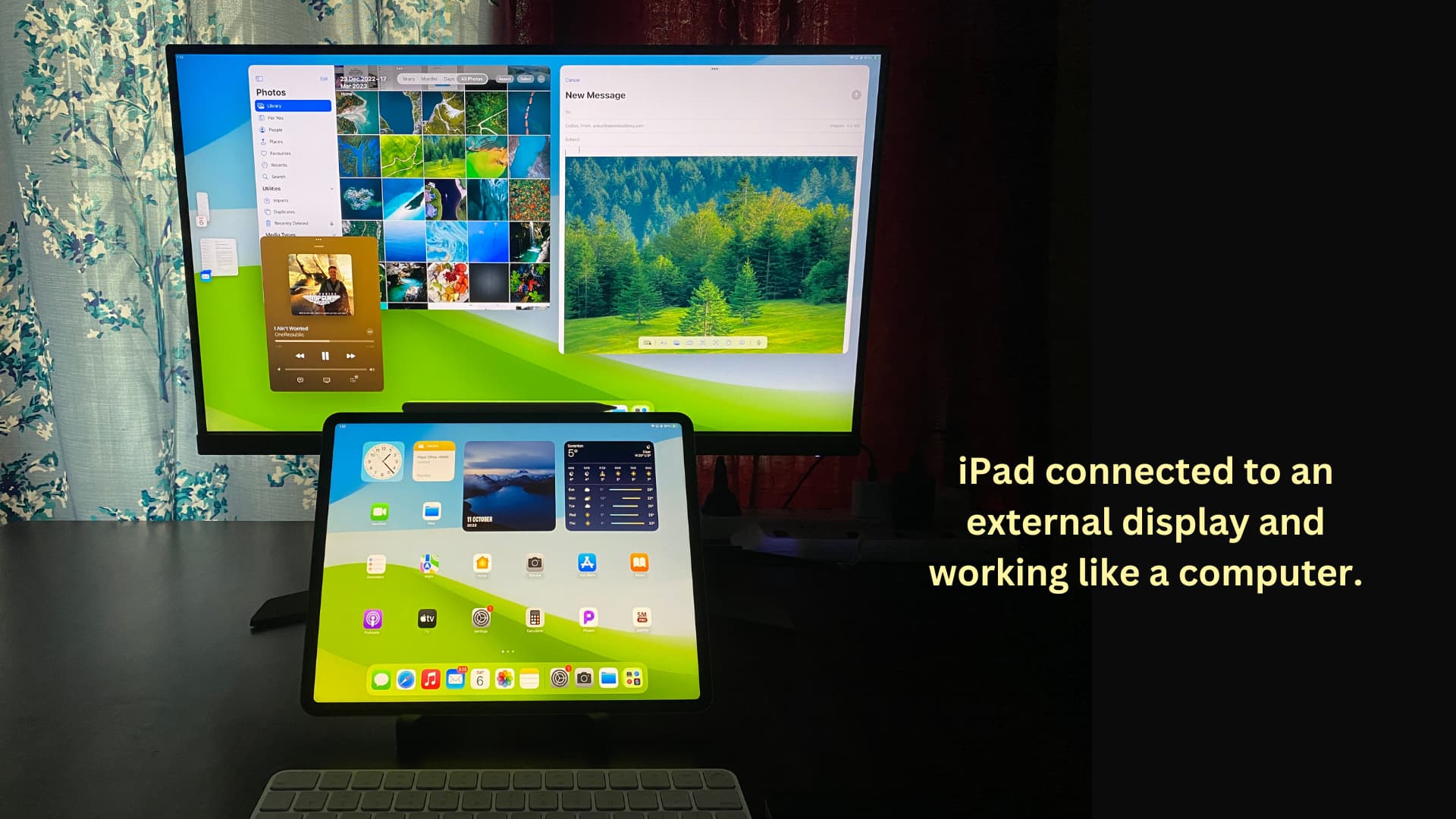
This important multitasking feature gives your iPad powers close to that of a desktop. Stage Manager truly shines when you connect your iPad to an external monitor, keyboard, and trackpad.
3. Open multiple windows of an app
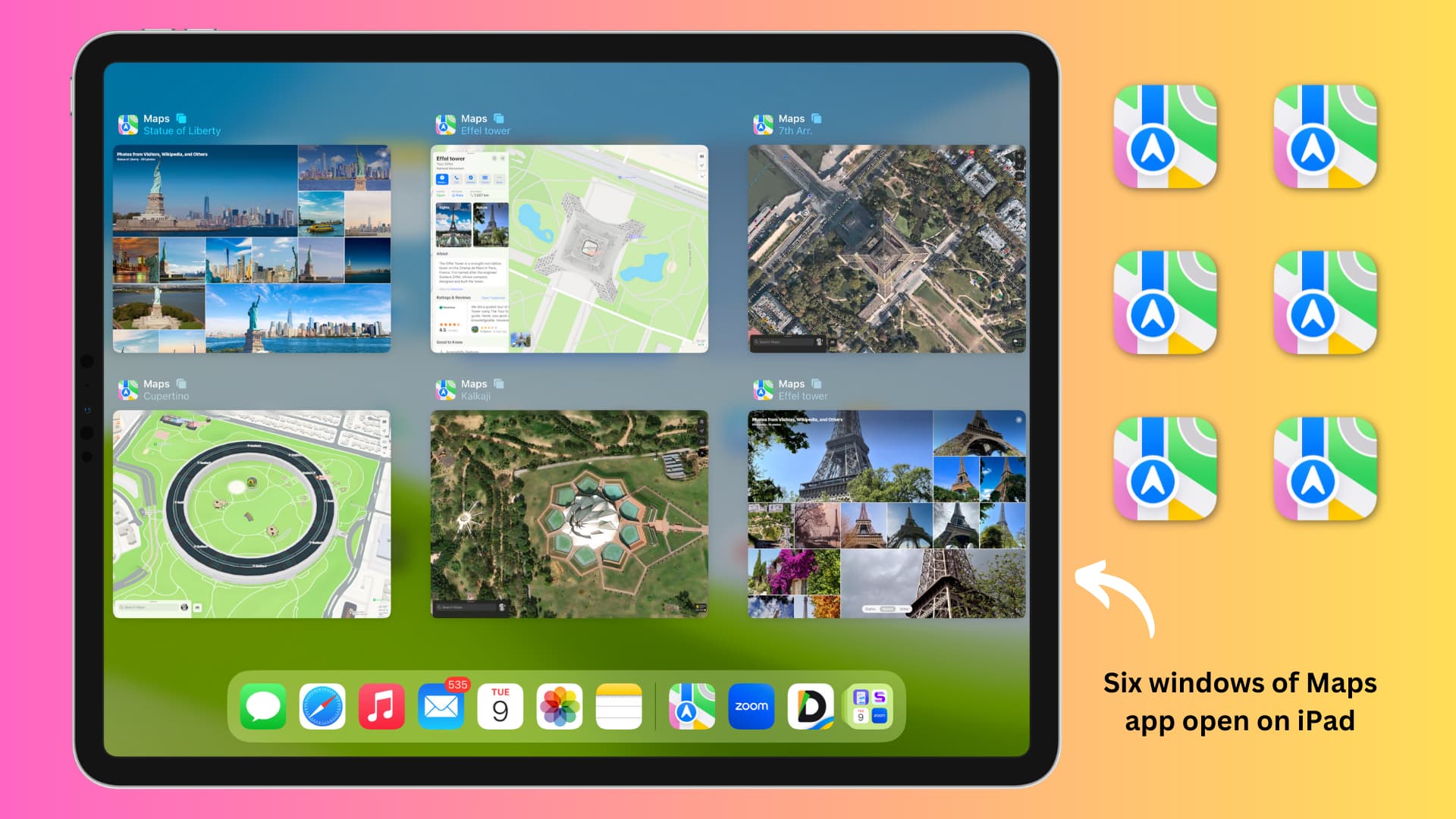
You can open multiple windows in iPad apps like Safari, Notes, Mail, Maps, Messages, and more. However, this feature is out of the question on an iPhone.
4. Slide Over
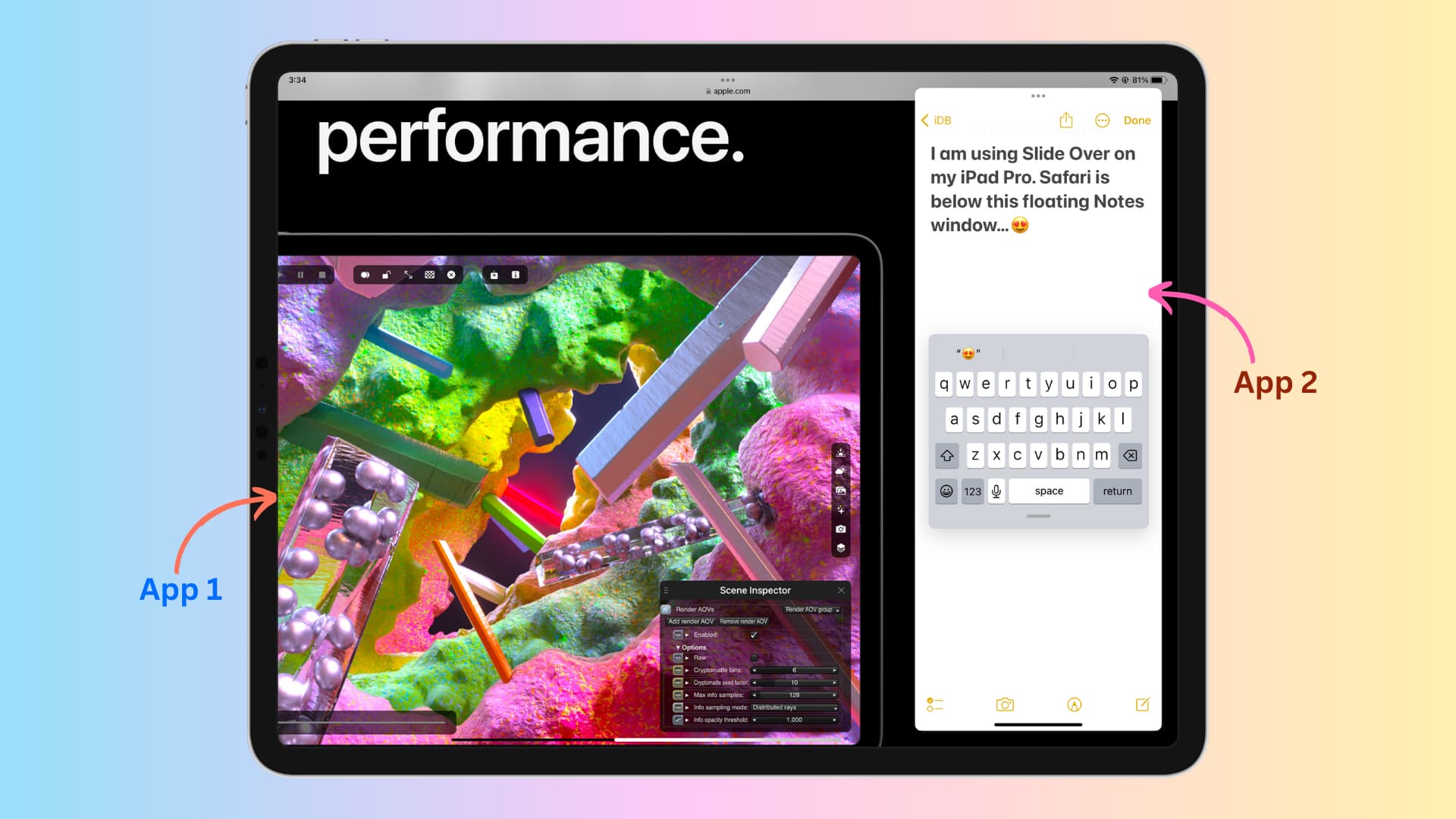
This feature (available on older versions of iPadOS) lets you place an iPad app over another in a thin floating window.
5. Four- and five-finger gestures

iPadOS lets you switch to other apps, go to the Home Screen, and enter App Switcher using four- and five-finger gestures. This action is missing on iOS, but we can agree that it’s because of the small screen size. I find it hard to use the three-finger copy-and-paste gesture on my mammoth Pro Max iPhone, so using four- and five-finger gestures is going to complicate things further.
6. Corner swipe actions

You can swipe diagonally from the bottom left and right corners of your iPad screen to take a screenshot or create a Quick Note. iPhones don’t have corner swipes, but you can use the Hot Corners when using the Dwell Control accessibility feature.
7. Work as a display for your Mac
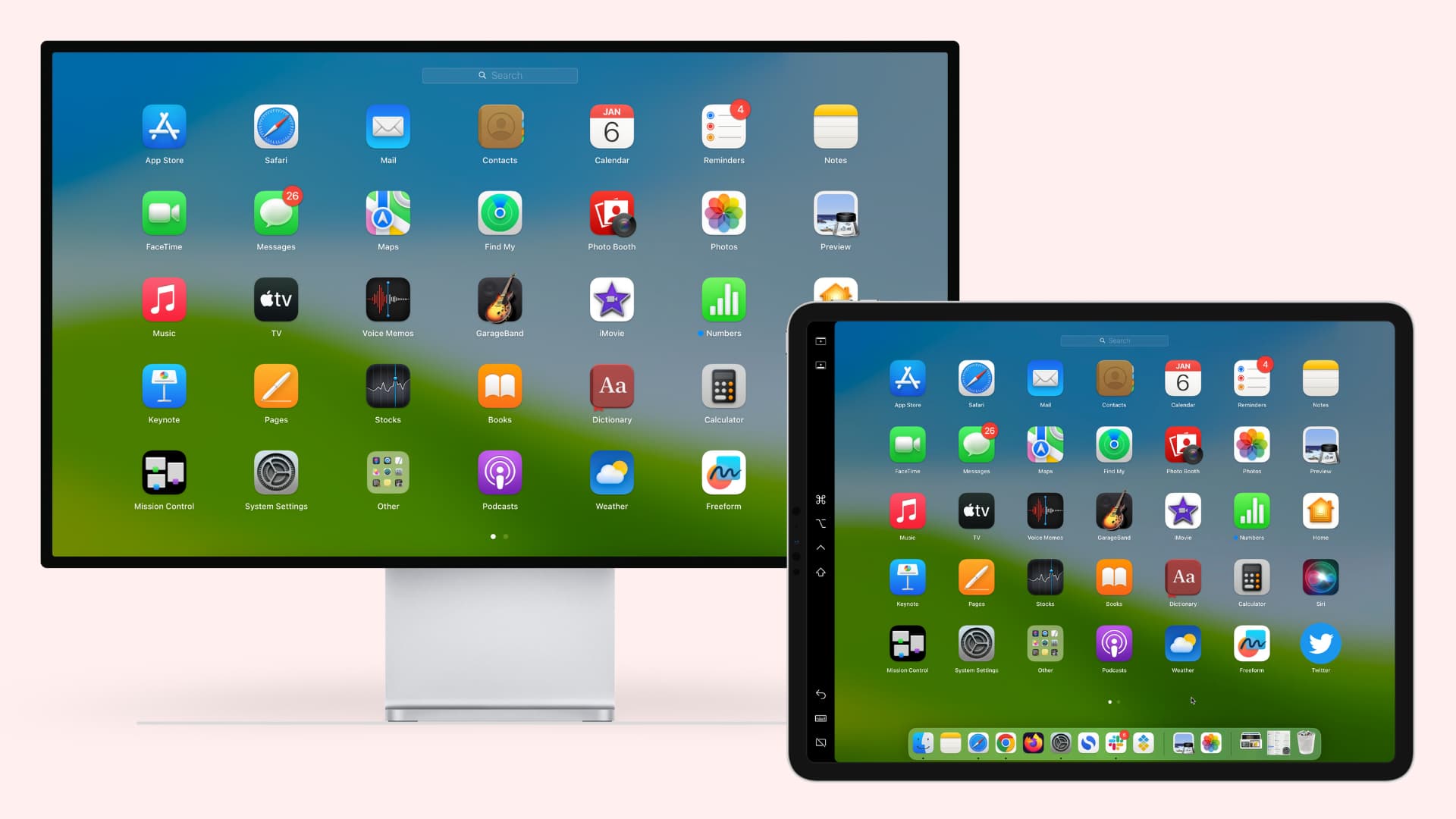
Your iPad can work as an excellent secondary screen for your Mac in both wireless and wired modes to enhance your productivity. iPhones, on the other hand, don’t have such a feature.
8. Floating and split keyboards
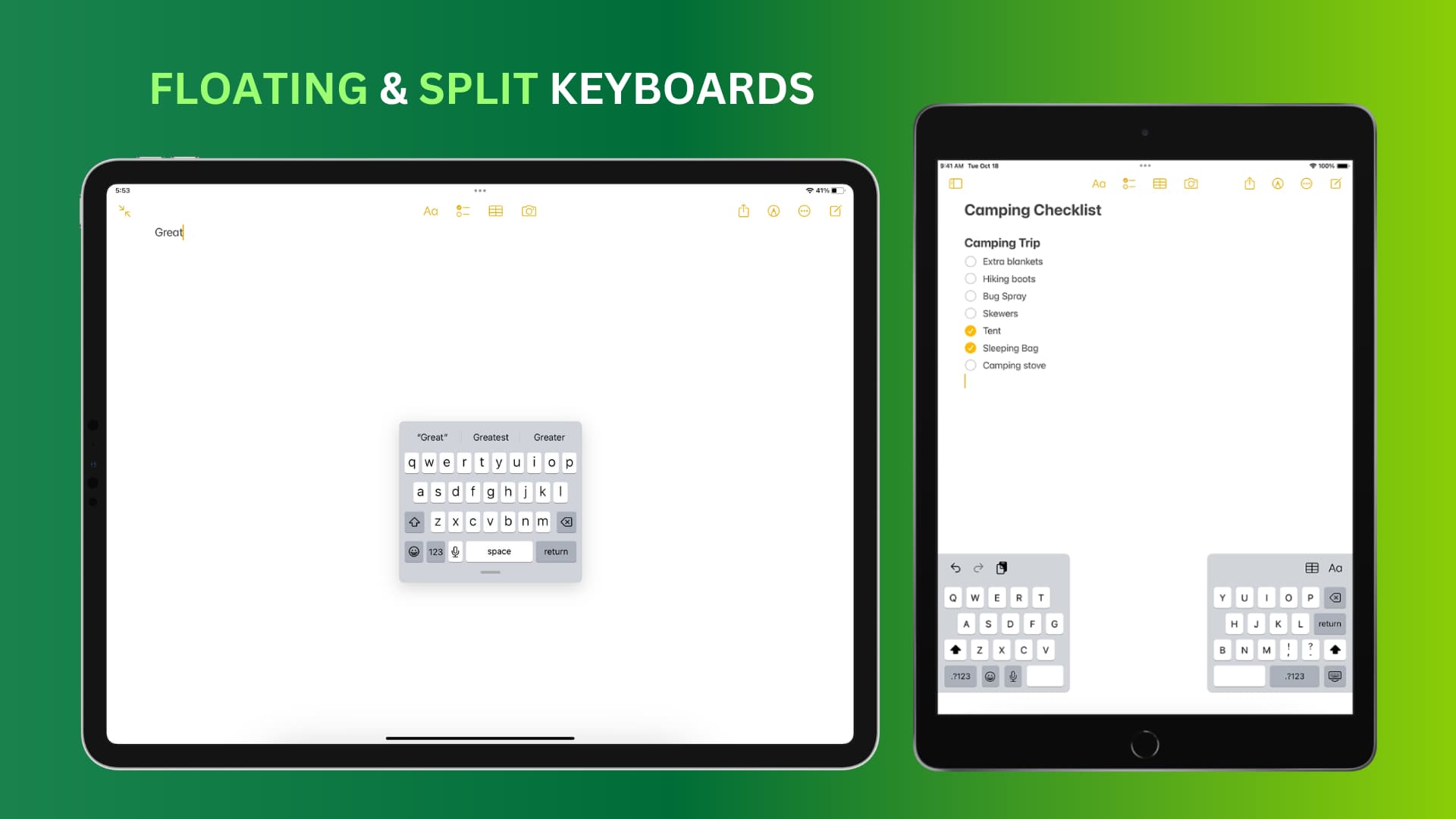
You can place the iPad keyboard anywhere on the screen or even break it into two halves. The closest you can get to something like this on an iPhone is to move the keyboard slightly to the left or right side for one-handed use.
9. Two sets of Lock Screen widgets

Unlike iPhone, iPad lets you add two sets of Lock Screen widgets – one for landscape orientation and the other for portrait.
10. Reference Mode

Reference Mode on iPad allows professionals to work better on color-critical workflows like color grading and editing. You can enable it in iPad Settings > Display & Brightness > Advanced.
11. Access desktop version of a website

When you visit a website in Safari on your iPhone, it defaults to mobile view, although you can request desktop view (which doesn’t work with most sites). However, iPads no longer do that and load the desktop version of the sites you visit by default. This also means you can use things like iCloud Web and Apple Maps on the web in full glory on the iPad, compared to the iPhone.
12. Apple Pencil support
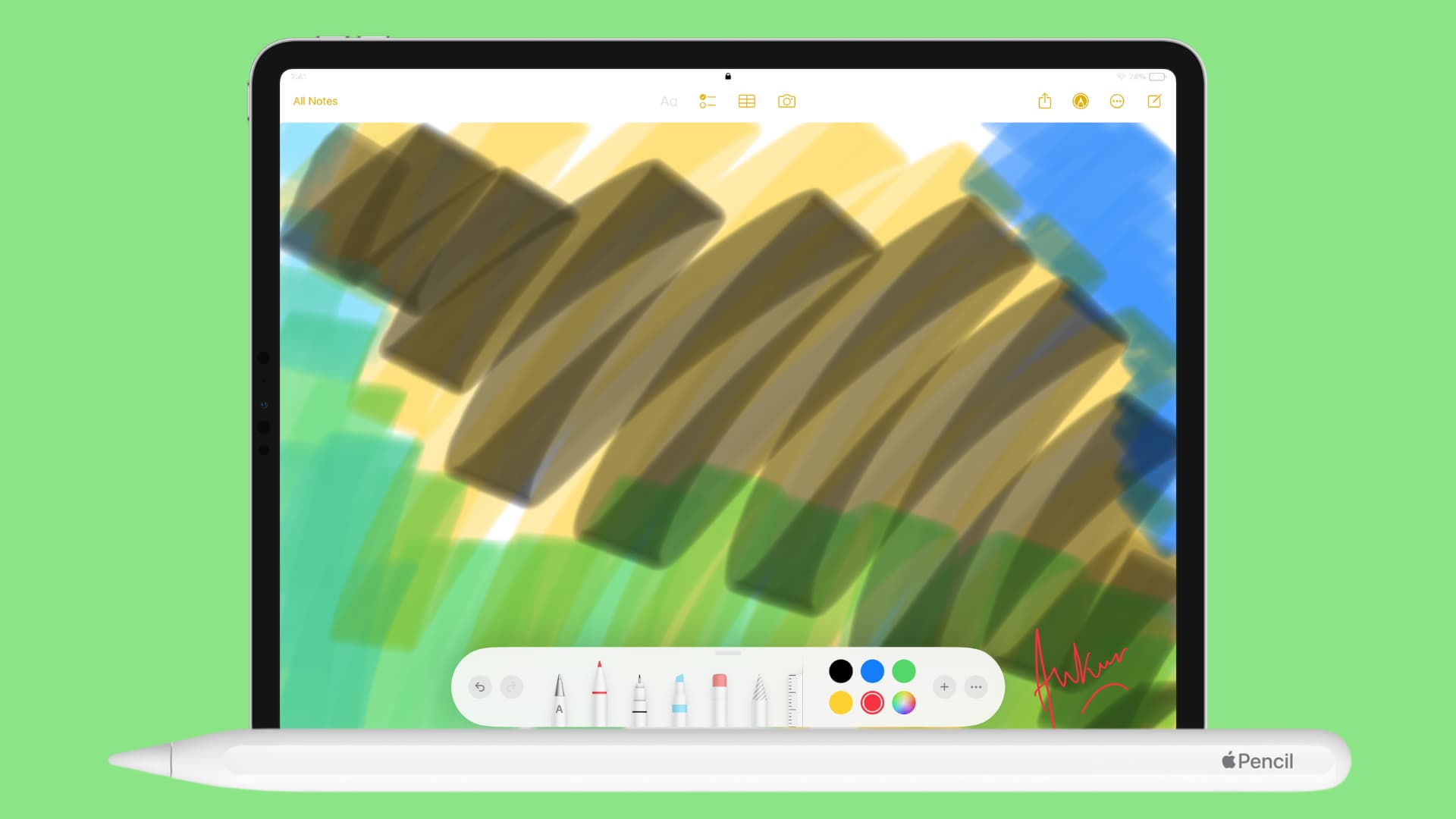
Apple Pencil is an accessory made just for iPads, so it’s known that it doesn’t work with non-foldable iPhone and other devices. However, if you’re new to the world of Apple, we thought we should make it clear that phones like the Samsung Galaxy Ultra series have smart stylus support.
13. Use Home Screen and Lock Screen in landscape mode

Bar iPhones no longer let you rotate the Home Screen or Lock Screen in landscape orientation, but iPads have no such restriction.
14. Rotate the device screen 180 degrees

You can rotate your iPad screen on all sides, including upside down in portrait orientation. However, the bar iPhone screen can only rotate on its two bigger sides.
15. Proper mouse support
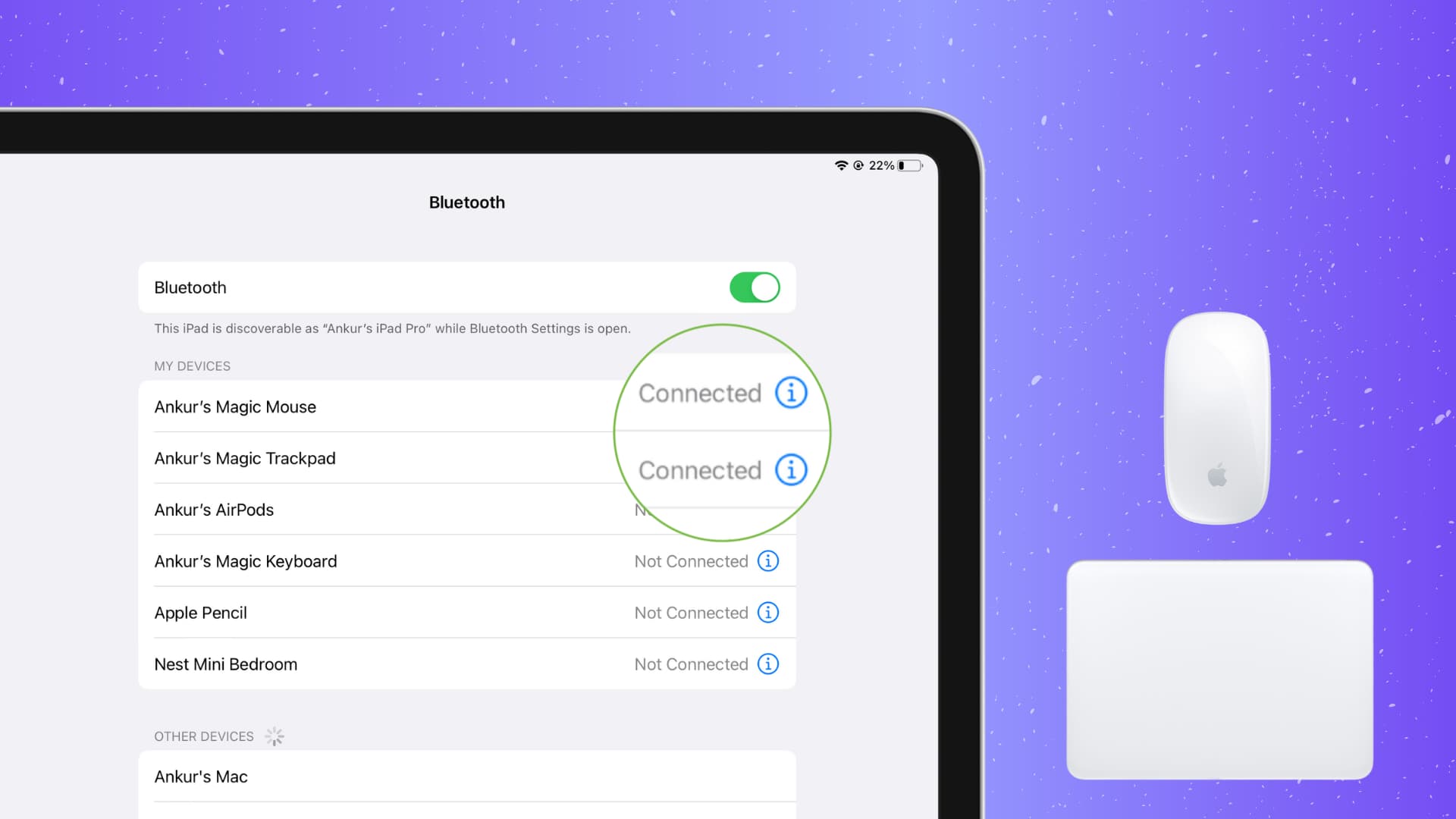
You can connect and use a mouse with your iPhone using some accessibility trickery, but the process is far smoother on iPad, as iPadOS has proper mouse and trackpad support.
16. Use your Mac’s keyboard, trackpad, or mouse on iPad
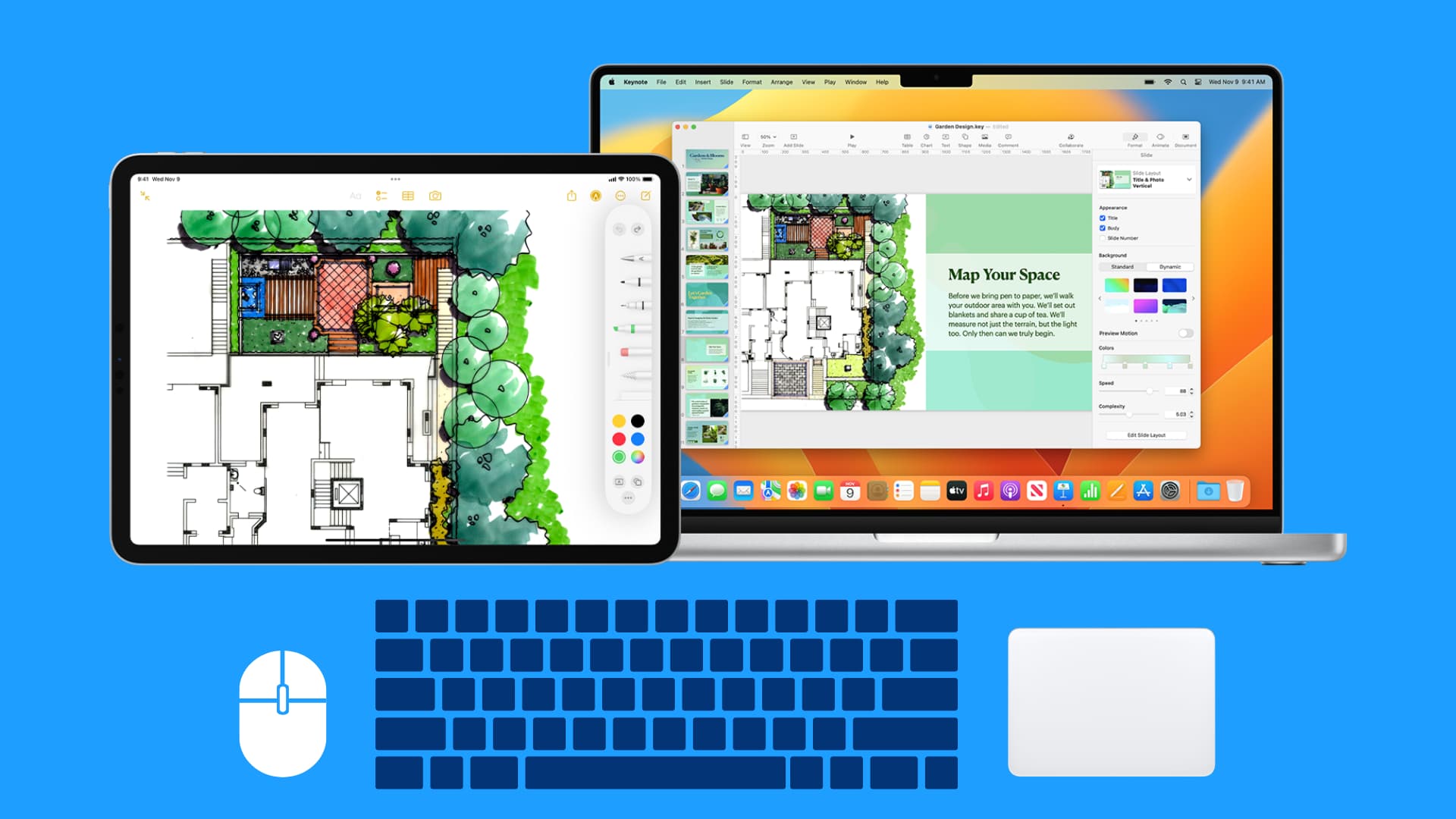
Thanks to Universal Control, you can use your Mac’s keyboard, mouse, and trackpad wirelessly on your iPad just by taking the pointer to the edge of the computer and pushing it to your iPad.
17. Show AM/PM and date in the status bar

Given the larger, notch-less iPad status bar, you can show the AM/PM indicator next to the current time, plus the date at the top of the screen.
18. Device lock when you close the folio cover

One search on Amazon and you can find several flip covers for your iPhone. However, unlike the iPad, which locks itself when you close the Smart Folio or similar third-party cover, the iPhone is not locked when you close its flip cover.
19. Use large Home Screen app icons without hiding the app label

iOS lets you make the app icons bigger on the iPhone Home Screen, but it comes at the cost of hiding the app names. However, the Use Large App Icons feature in iPad Settings > Home Screen & App Library allows you to have bigger app icons without hiding the app names.
20. An additional Display Zoom setting

When you go to iPhone Settings > Appearance (or Display & Brightness in older versions) > Display Zoom, you have two options to choose from: Larger Text and Default. However, the same feature on iPad has an additional More Space option.
21. Mac’s Hello wallpaper

iPads have the animated “Hello” wallpaper found on Macs, which I love. iPhones don’t yet have this.
22. Access App Library from the Dock

There is an App Library button in the iPad Dock for quick multitasking. The only way to access App Library on iPhone is to swipe left on the last Home Screen page. In addition to this, you can also add several apps to the iPad Dock, but the one on iPhone is limited to just four apps.
23. Beautiful map in World Clock

The World Clock on iPad shows a beautiful world map along with the various city times.
24. Photo Booth app

Macs and iPads have a built-in Photo Booth app that lets you take pictures with goofy effects. To get the same effect on an iPhone, you will have to download a third-party camera or photo-editing app.
25. Limited 5G support

This one is primarily because of cellular carriers and not Apple, but it’s worth mentioning. Even though newer iPads support 5G, some carriers don’t let you use 5G on iPad, even though that same carrier offers 5G support on iPhone and Android phones!
On a related note: 17 ways to use your iPhone and iPad together with your Mac