Learn how to hide all text labels from under the app icons and widgets on your iPhone or iPad Home Screen for a clean, minimalistic look.

Jailbreak tweaks like nolabel and cleanlibrary have existed for a long time to remove app names on the Home Screen and App Library. However, starting with iOS 18, Apple now offers a native way to remove apps, widgets, and folder names.
On a related note: How to create blank iPhone Home Screen with no apps
Hide app and widget names from your iOS Home Screen
- Touch and hold an empty spot on your iPhone or iPad Home Screen until all apps start wiggling. Or touch and hold an app icon, then choose Edit Home Screen.
- Tap the Edit button in the top left corner and select Customize.
- Tap the large app icon, as shown in the screenshot, to make the icons larger and hide their labels.

If your iPhone is running iOS 18, you’ll see two tabs instead: Small and Large. Tap Large, and all app icons will inflate in size, and their labels will hide. Tap outside the bottom dock-like area to return to your Home Screen with no app, widget, or folder names.

Now, you’ll notice no app labels even if you go inside an app folder on your Home Screen or the App Library. However, if you swipe down on the App Library screen to see all apps in alphabetical order, the names will appear there.
Progressive web apps or website shortcuts you add to your iPhone Home Screen from Safari will also have their names hidden.
Note that while the above-mentioned Jailbreak tweaks remove the app labels without changing the icon size (screenshot below), the built-in iOS method does so only after enlarging them.
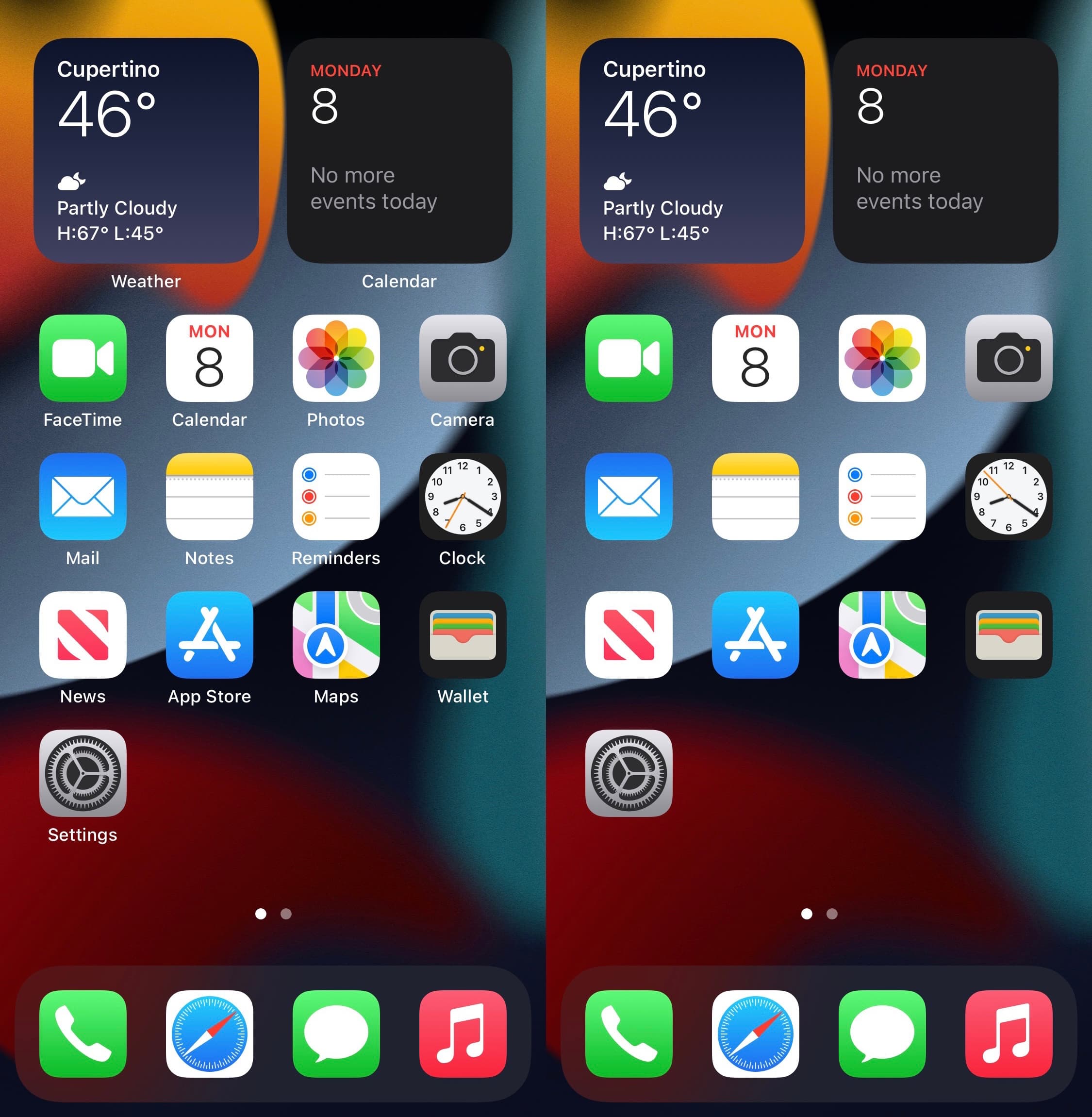
If you are on iOS 17 and earlier
You can hide app icon names even on older iOS versions with some workarounds and lots of free time.

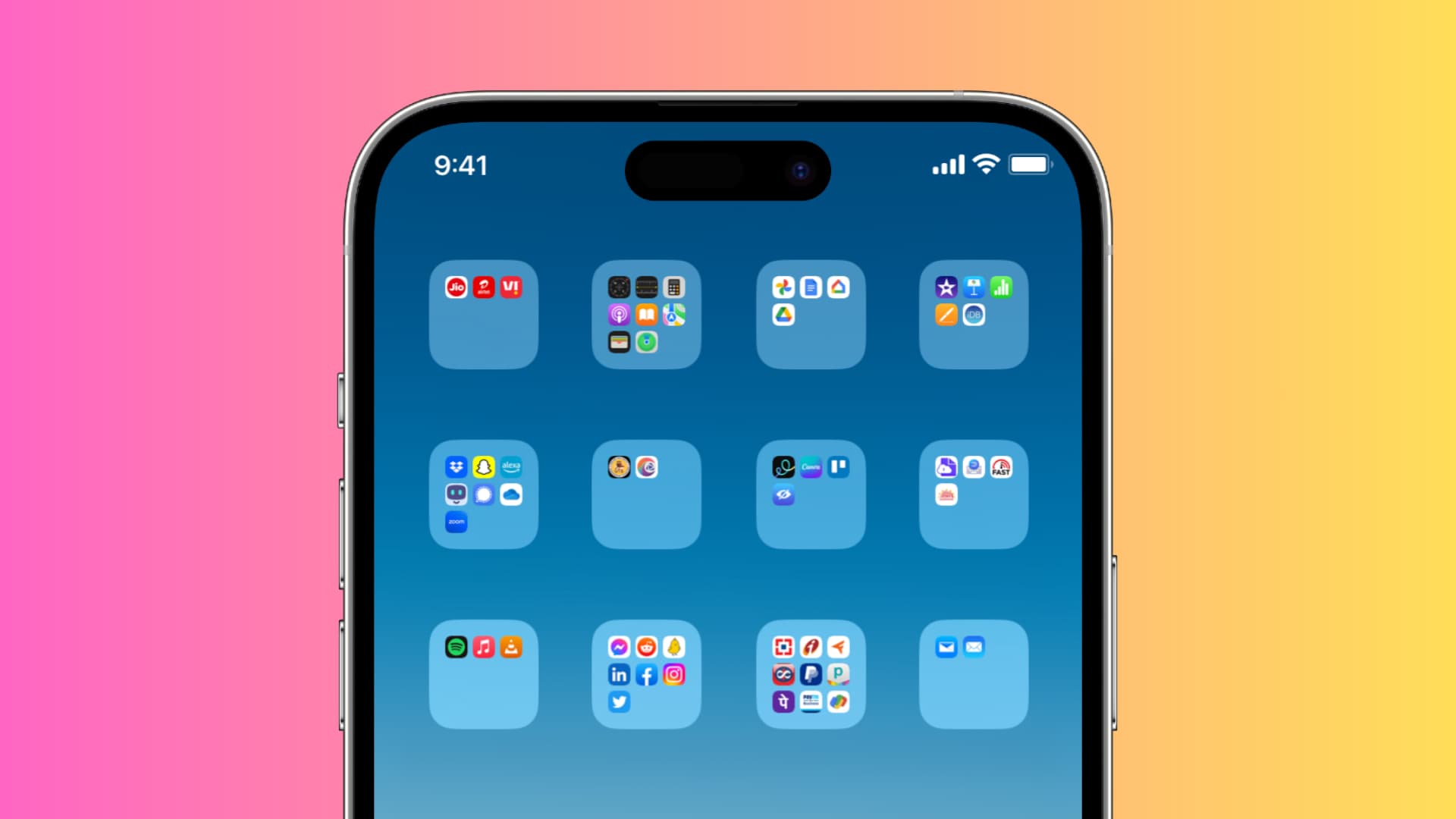
The trick is to create a simple Open App shortcut — the one we use to change app icons. When you’re adding that shortcut to your iPhone Home Screen, remove the current shortcut name and replace it with what you see or don’t see inside this bracket [⠀⠀⠀⠀⠀⠀]. We used this trick to hide folder names even in older versions of iOS, as shown in the image below.
On a related note: How to use solid black, white, or single color wallpaper on iPhone