In this step-by-step tutorial, we show you how to use the built-in Apple Shortcuts app to personalize your iPhone or iPad Home Screen with custom app icons and add some pop to your digital space.
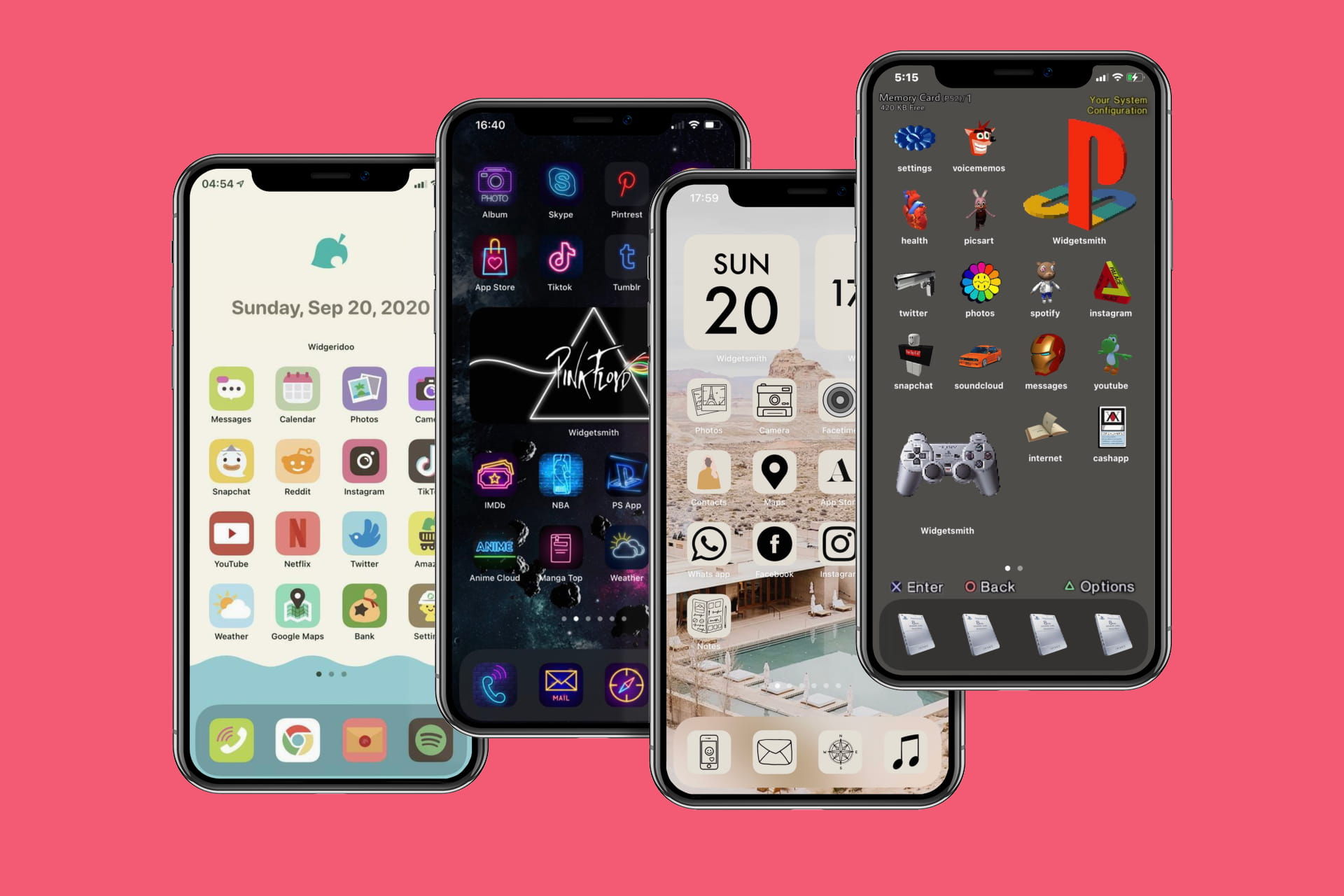
Using the Shortcuts app, you can personalize your iPhone or iPad Home Screen with custom app icons.
Step 1: Get icon packs and custom widgets
If you want to replicate something like the image above, you’ll probably want to download a nice icon pack. Search for iOS icon packs on your favorite search engine or on X (Twitter), and chances are you’ll find something. To get you started, here are a few places where you can find icon packs for your Home Screen.
If you don’t have the app icons, you can use normal pictures instead.
Note that in addition to app icons, you’ll also have to use custom widgets to achieve the look you see in the above images.
Step 2: Create custom app icons for iOS Home Screen
1) Open Apple’s Shortcuts app on your iPhone or iPad and tap the plus sign (+) at the top of the Shortcuts tab.
2) Tap Open App under the suggestions heading or search for it if you don’t see it there.

3) Tap the light blue App placeholder text and then select the application you want to assign a custom icon to.

4) Tap the current shortcut name from the top and choose Add to Home Screen.

5) Give your shortcut a name. You can assign it the same name as the app or call it something else. Remember that this is the name that will appear on the Home Screen. So, if you want to hide an app, you can call it something entirely different.

6) Now, you can choose an icon/glyph and color as your app icon. To make things spicy, go to the Image tab or tap the picture icon and select the photo you want to use as the app icon from your photo library or the Files app. You can also take a picture on the spot to use it as the app icon.

7) Finally, tap Add from the upper right corner.
You’ll now be taken automatically to the Home Screen, where you’ll see this app shortcut with its custom icon. Tap it to open the app.

You can repeat the above steps to create more app icons. You can also duplicate a shortcut and edit it to save yourself from following a few initial steps.
Overall, while creating custom app icons might initially seem like a lot of work, once you get the hang of it, the process becomes straightforward and may inspire you to design multiple custom icons for your Home Screen.
You can also choose to customize the icons of just your first Home Screen and hide the remaining screens, or leave them with their default icons.
Step 3: Remove the actual app icons
After you have created custom shortcuts (i.e., app icons) for some of your apps, you should remove the actual app icon from the Home Screen.
Simply touch and hold the app icons and choose Remove App > Remove from Home Screen. This will hide the actual app icon from plain view on the Home Screen. Rest assured that the app is still on your iPhone with all its data, and you can continue to find it with its original icon in App Library.

No badges!
Standard app icons on the Home Screen show the red number badge, signifying the number of unattended notifications for this app. However, these red badges don’t appear on the shortcut app icon you create using the above steps.
Also, check out: