Check out over 40 tips to increase the battery life of your MacBook Neo, MacBook Air, or MacBook Pro and get more use time on a single charge.
With the help of these battery tips, you should be able to use your MacBook for a longer time than you normally do.
But before you get to them, you should know that while these suggestions are helpful for all, you should only follow those tips you are comfortable with. If a battery-saving recommendation is sure to get in the way of your productivity or hinder your workflow, skip it.
1. Lower the screen brightness
Your MacBook’s screen uses a lot of battery power when it’s at full brightness. To ensure you can use your MacBook for longer per charge, make sure to reduce the screen brightness by pressing the brightness keys on the top row of your keyboard or by opening Control Center. Remember that you can also hold the shift + option keys to adjust your Mac’s brightness or volume in smaller increments.
2. Use auto-brightness
Auto-brightness adjusts your MacBook’s screen brightness based on the light around you. It’s an indispensable setting that automatically lowers the screen brightness when required, thus extending the battery life. Auto-brightness is enabled by default. Still, go to System Settings > Display to ensure you haven’t turned it off.

3. Slightly dim the display when on battery
Your MacBook can automatically tone down the display brightness when it’s unplugged from its charger. Head to System Settings > Battery > Options and make sure the switch for ‘Slightly dim the display on battery’ is turned on.

4. Use Hot Corners to turn off the MacBook screen
I have set the bottom right Hot Corner to put the display to sleep. And whenever I’m about to move away from my desk to drink water, go to the washroom, or just straighten my body for a couple of minutes, I drag the mouse pointer to this corner of the screen, and it turns off the display instantly. To set up Hot Corners:
- On macOS Ventura or later: Go to System Settings > Desktop & Dock > Hot Corners.
- On macOS Monterey and earlier: Head to System Preferences > Mission Control > Hot Corners.
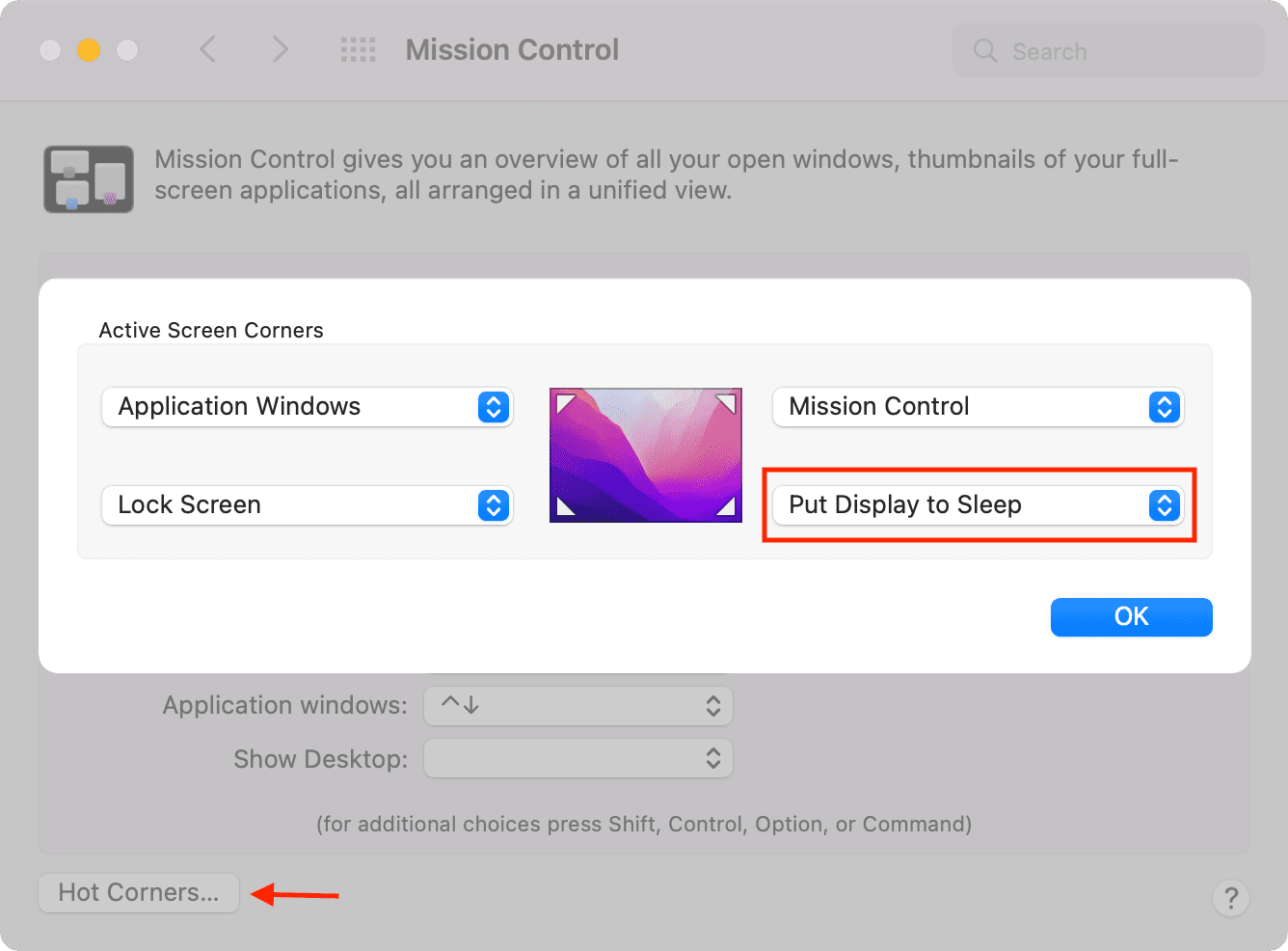
If you don’t want to use Hot Corner, use this keyboard trick to put Mac’s screen to sleep.
5. Disable the keyboard backlight
Turn off the keyboard light or set it to the minimum level by going to macOS Control Center.

Next, go to System Settings or System Preferences > Keyboard and set “Turn keyboard backlight off after inactivity” to a lower number.

6. Quit apps you aren’t using
Imagine you open a Mac app, use it for a minute, and then won’t need it for several hours. To extend your battery life, you should close such apps.
7. Limit the number of browser tabs
To increase MacBook’s battery life, close the browser tabs you no longer need. Plus, instead of opening several tabs with the prospect of seeing them in the next few hours, open just a few, use them, and close them before opening new tabs.
8. Enable Low Power Mode
Low Power Mode lets you increase the MacBook’s battery life and helps operate it more quietly. Go to System Settings > Battery to enable Low Power Mode on MacBook.
Note: If you enable High Power Mode on MacBook Pro, remember to turn it off after you have finished the demanding task, like video exporting or 3D modeling.
9. Use the right battery settings
Your MacBook has a few handy battery tricks to help you get more hours on a single charge. Go to System Settings or System Preferences > Battery > Options and enable Optimize video streaming while on battery. On macOS Monterey and earlier:
- Set Turn display off after a brief period of inactivity. I keep it at 2 minutes.
- Slightly dim the display while on battery power
- Optimize video streaming while on battery
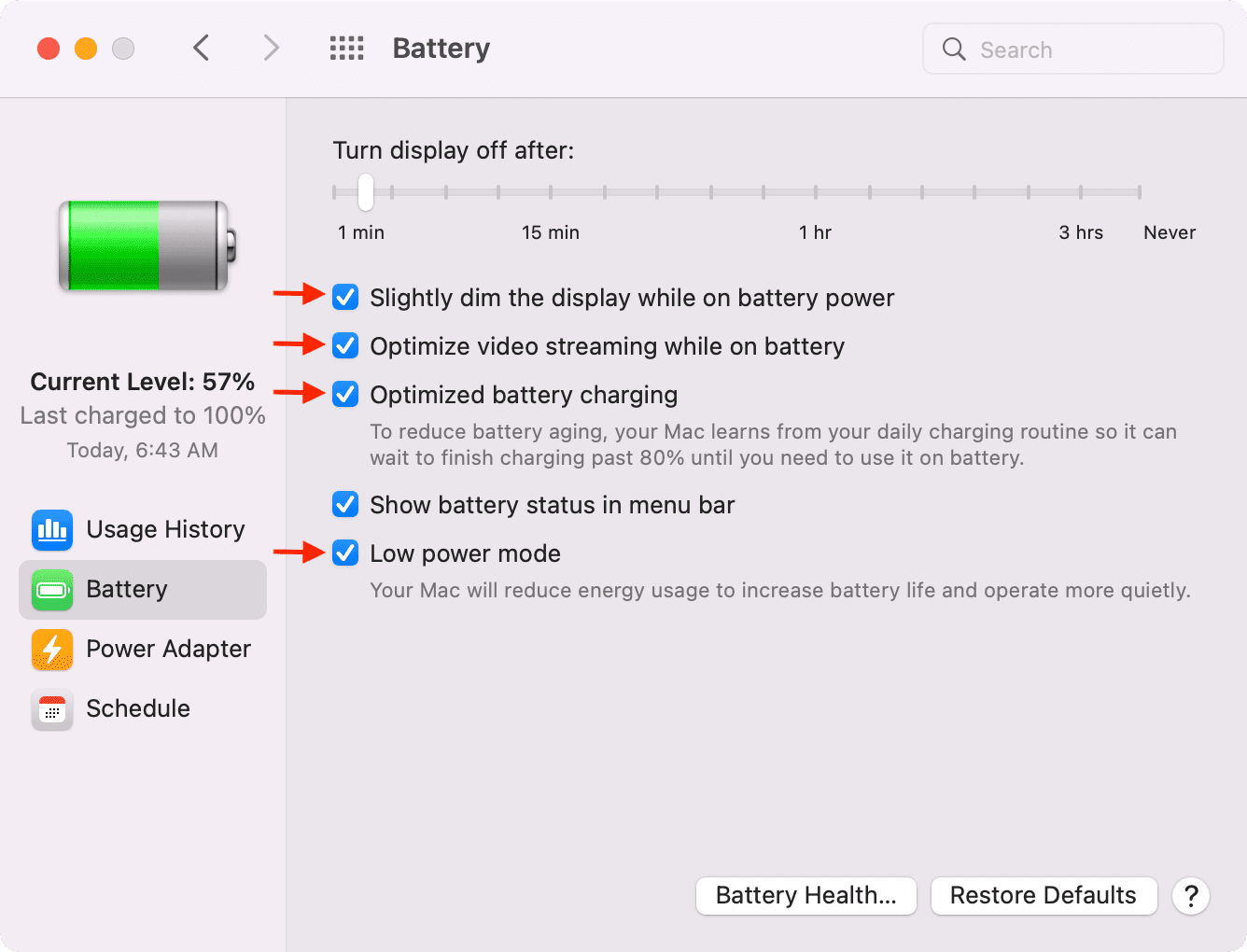
On even older versions of macOS, go to System Preferences > Energy Saver > Battery.
10. Keep Optimized Battery Charging turned on
Regularly going to extreme ends (0% charge or 100% charge) puts significant stress on the lithium battery of a device. So, to ensure your device’s battery has a longer lifespan, avoid fully discharging and fully charging it with every use.
Just like iPhone, Apple Watch, and even AirPods, Apple offers Optimized Battery Charging on MacBook that reduces battery aging by learning your daily charging habits and waiting to finish charging past 80%. It’s enabled by default, and you shouldn’t turn it off (System Settings > Battery > ⓘ next to Charging or Battery Health > Optimized Battery Charging).

11. Plug your MacBook during intensive tasks to reduce the load on the battery
When you’re working on battery-hogging tasks like video exporting, 3D modeling, video compression, etc., make sure your MacBook is connected to power. This will reduce the strain on the battery during that time.
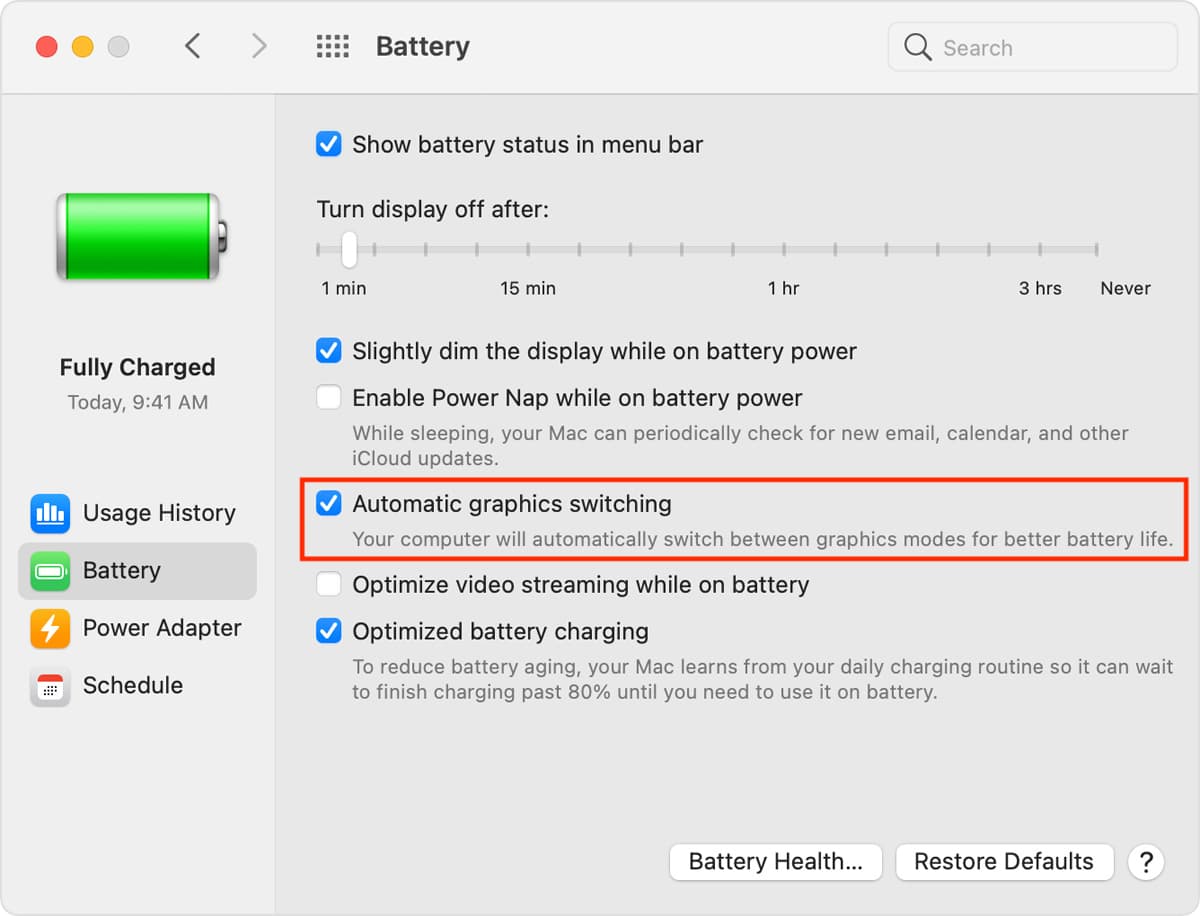
12. Enable automatic graphics switching on MacBook Pro
Some models of MacBook Pro have two graphics systems – an integrated graphics processor, which saves battery, and a discrete graphics processor, which offers high performance by consuming more power.
macOS is smart enough to switch between the two as per the task thrown at it. So, for best battery results, make sure to enable Automatic graphics switching from System Settings > Battery or System Preferences > Energy Saver. If it’s turned off, your MacBook Pro will always use the high-performance discrete graphics processor.
13. Use apps optimized for Apple silicon
Thanks to Rosetta 2, applications developed for Intel Macs run smoothly on Macs with Apple silicon (M1, M2, M3, M4, M5).
As per Apple, “In most cases, you won’t notice any difference in the performance of an app that needs Rosetta.”
But to get the best battery life and an optimal experience on your MacBook, try to use the Apple silicon version of apps when available. For instance, when downloading Edge and other apps, you might see two versions – one optimized for Apple chip and the other for Intel Macs. Make sure you choose the right one.
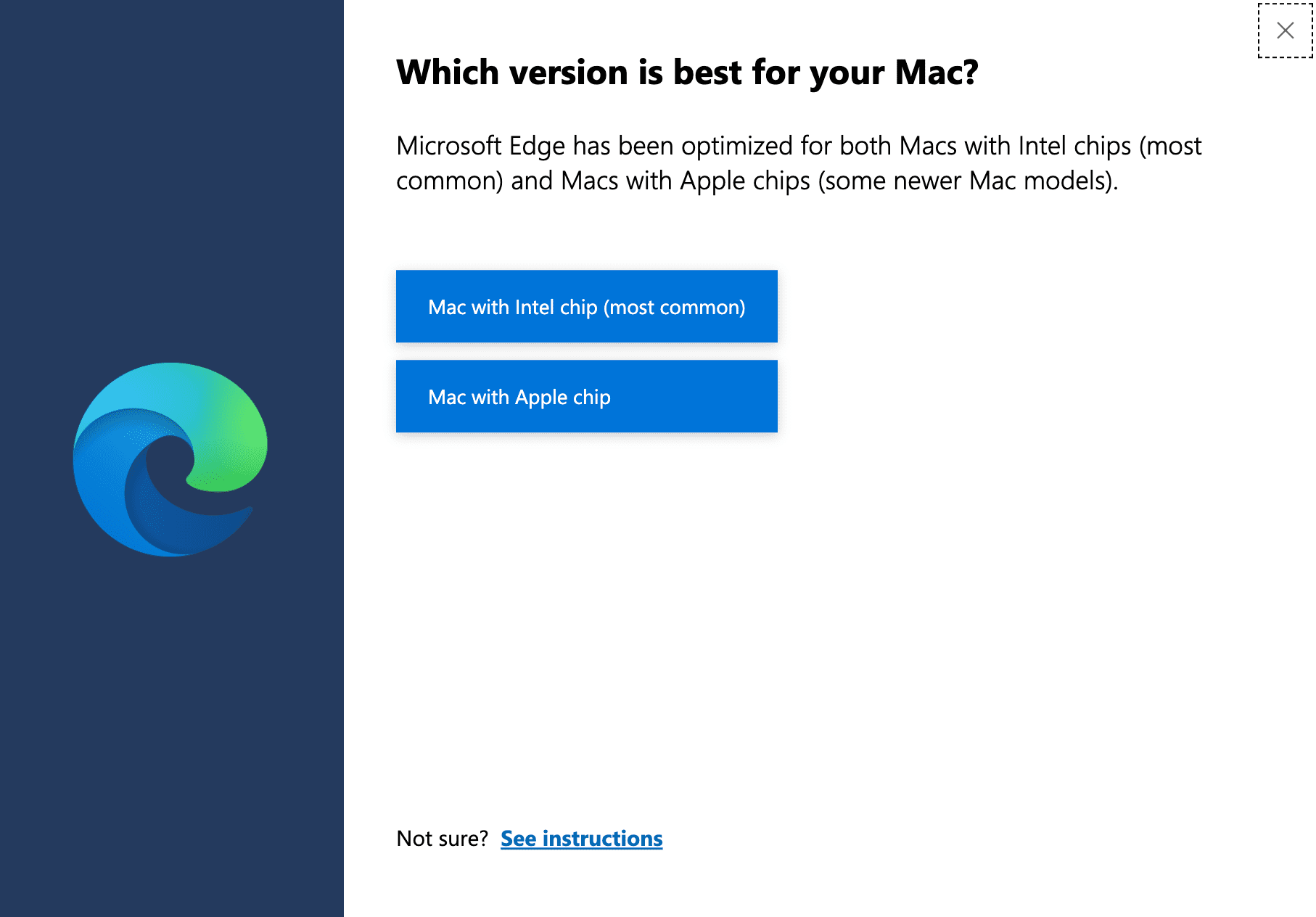
For apps you have been using for a long time, go to their website and see if an Apple silicon version is available. You can also contact the app developer to enquire about Apple silicon support.
In case you find that an app isn’t optimized for Apple silicon and uses more battery (or causes other trouble), try to look for an alternative.
14. Regularly restart your MacBook
Make it a habit to turn your MacBook off and back on every few days.
15. Shut it down at night
Even with the lid closed, if the MacBook is powered on, it will use some battery. If your workflow permits, try to power off your MacBook every night.
16. Download videos instead of streaming
Streaming videos takes a toll on your battery. When you’re going out or traveling, instead of using the airport or railway station Wi-Fi to stream videos, make sure you download them beforehand onto your MacBook.
17. Limit the number of connected accessories
Are you using several accessories with your Mac, like pen drives, external SSDs, portable hotspots, heavy speakers, USB-C hubs, and such? If yes, disconnect them to increase the battery life.
18. Eject CD and DVD on old MacBooks
If your old MacBook has a disk drive, make sure you haven’t left a CD/DVD in it.
19. Plug in to power when you connect an external display
When you use an external monitor with your MacBook, make sure your notebook is plugged into a charger. For future purchases, try to buy a monitor that can charge your MacBook with the same display cable.
20. Plug your MacBook when charging connected devices
If you charge your iPhone, iPad, or iPod via your MacBook, make sure the MacBook itself is plugged into a charger when these mobile devices are connected to it.
21. Take note of your MacBook’s temperature
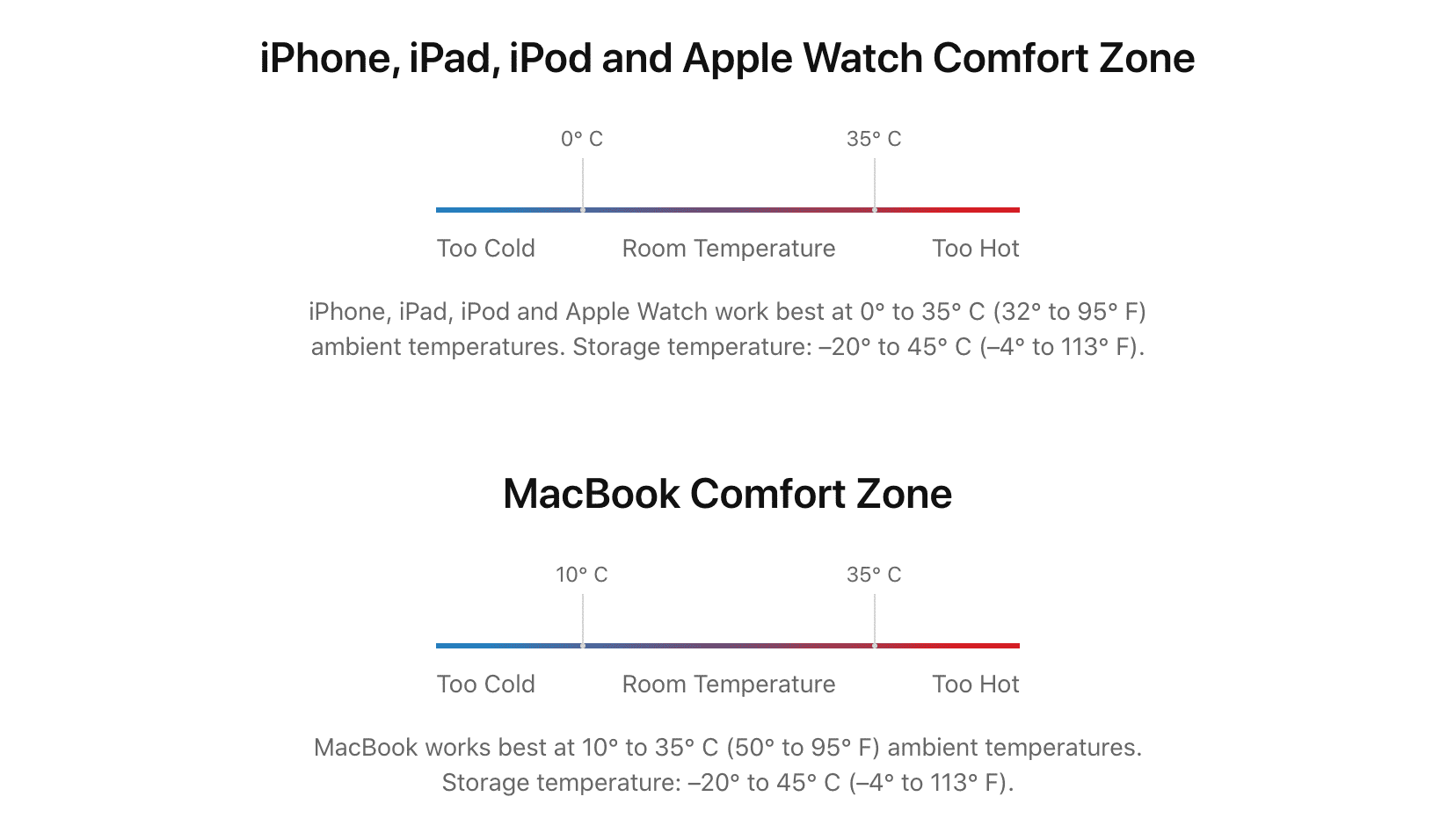
Is your MacBook’s fan spinning loudly, and the base of your machine is super hot? This can frequently happen during heavy tasks like video editing. In this situation, quit unnecessary apps, limit multitasking, and once your work is done, give your MacBook a break and let it cool down.
Be mindful of the fact that extreme temperatures (too hot or too cold) aren’t suitable for electronics, and harm the internal components like the motherboard or battery.
22. Update your Mac to the latest macOS version
If you’re on an older version of macOS, go to System Settings > General > Software Update and install the latest version of macOS.
23. Update third-party apps
An app that isn’t updated may not be optimized for the latest macOS version. It may crash, consume more battery, and offer a poor experience with fewer features. To fix these, update the app from the Mac App Store or look for a “Check for updates” button in its settings.
24. Prefer earphones over MacBook’s speakers
I love my MacBook Pro’s incredible built-in speakers. But it utilizes a significant amount of battery. So, when low on power and away from a power outlet, I use my AirPods or wired earphones with my MacBook.
25. Remove unnecessary apps
Is your Mac full of apps you don’t need, use, or have forgotten about? Head over to this post and use one of the three ways to delete such apps.
Note: I have a MacBook with Apple silicon. I have noticed that iPhone and iPad apps installed on my Mac run even when the app isn’t open. For example, the Alarmy app (to set alarms on Mac) will trigger the alarm even when the app is closed. So, if you have several similar apps on your Mac that you don’t need, make sure to uninstall them.
26. Stop using a screen saver
The screen saver looks nice on a Mac desktop, which is connected to power. But on a MacBook, it’s unnecessary for the most part, as keeping the display active uses battery. Therefore, turn it off by going to System Settings > Wallpaper > Lock Screen and setting Start Screen Saver to Never.
27. Use a still wallpaper instead of one that cycles through
Dynamic wallpapers change automatically based on the time of day or your location. While the feature is nice, turn it off if you want to be stringent on battery life. Secondly, make sure you don’t put extra stress on your computer by asking it to change the picture every few minutes.
28. Disable Wi-Fi, Bluetooth, and AirDrop when not in use
Let’s imagine you’re watching a downloaded movie on your Mac or listening to some local tunes. In these cases, if you don’t need Wi-Fi, turn it off. Similarly, turn off other wireless features like Bluetooth and AirDrop from System Settings or Control Center.
29. Prevent apps from launching automatically on startup
Do several apps start jumping in the Dock and open automatically when you switch on your MacBook? If yes, these app launches may consume a tiny bit of battery. So, make sure you have no more than one or two apps to launch automatically at login. For the remaining apps, stop their auto-launch privilege.
30. Turn off notifications for unnecessary apps
Notifications can wake up your locked Mac screen and cause battery drain. Go to System Settings > Notifications and turn off the switch for “Show Notifications when display is sleeping or locked” or “Allow notifications when the display is sleeping” and “Allow notifications when the screen is locked.”

31. Change the Mail app’s fetch settings
The Mail app can constantly refresh in the background to check for new emails. If the email accounts you have added to the Mail app are not important, you can set it to check for new emails only when you do it manually.
- Open Mail and click Mail > Settings or Preferences from the top menu bar.
- Make sure you’re in the General tab and set Check for new messages to fetch manually instead of automatically.
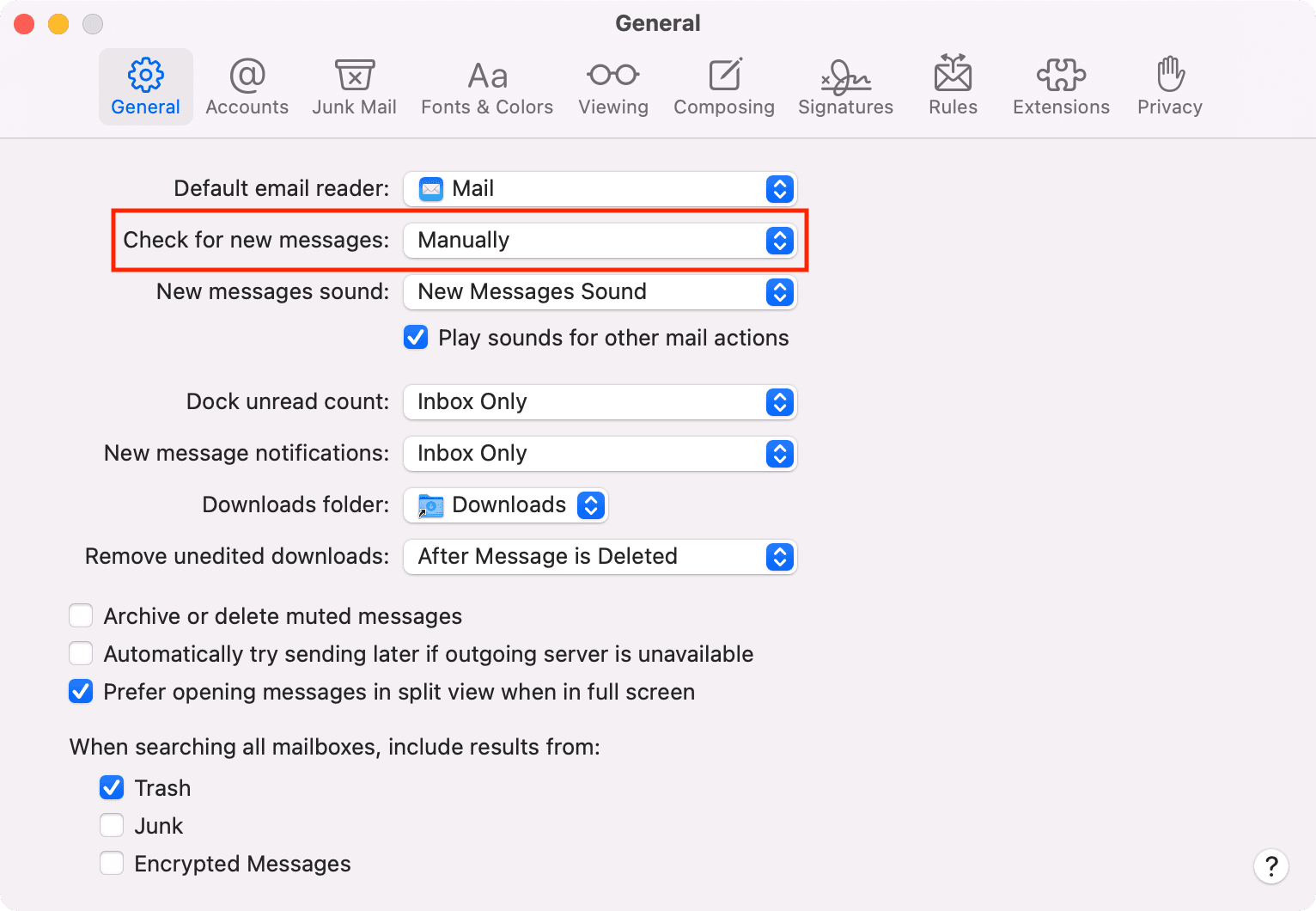
After this, you can manually check for new emails by clicking Mailbox > Get New Mail or by pressing Shift + Command + N keys.
32. Use Safari instead of Chrome
Despite Chrome having some battery-friendly settings, using the built-in Safari can positively affect your MacBook’s battery.
33. Disable location for unnecessary apps and websites
Go to System Settings > Privacy & Security > Location Services and turn off location access for apps and websites that don’t require location information to work. This is good for both your privacy and battery life.
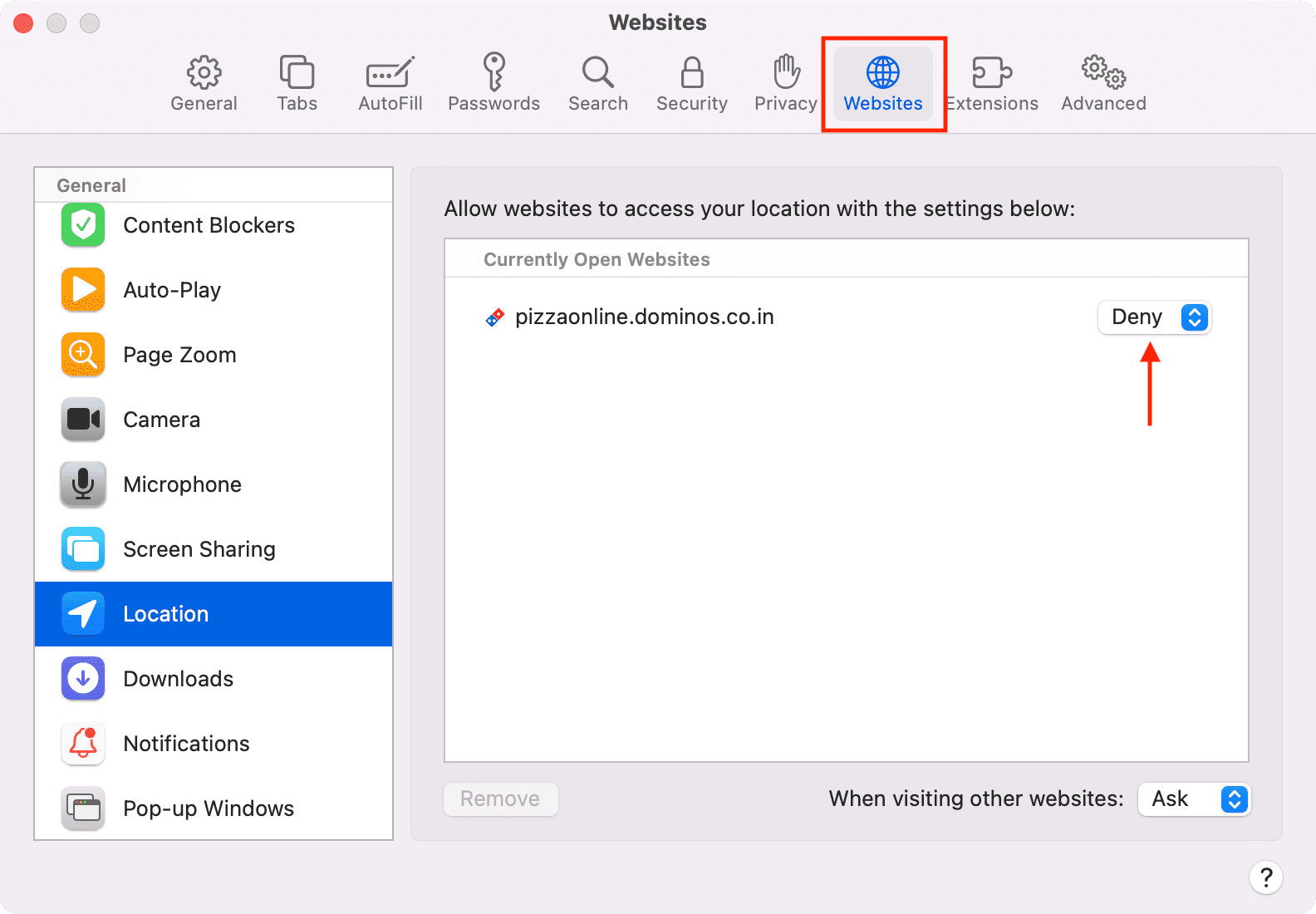
Some websites (like weather, bank, and food delivery) require your location. So, either you can type your location manually. Or permit only the necessary websites to use your location. While doing that, check the handy “Remember my decision for one day” box.
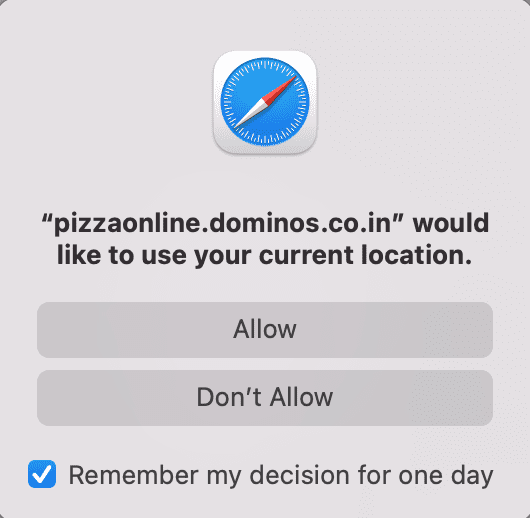
After your work is done, go to browser preferences and deny the location access from there.
34. Free up space on your MacBook
To keep your MacBook in perfect condition, make sure you delete unnecessary files from it. After cleaning the unwanted files, don’t forget to empty the trash.
35. Prevent Spotlight from indexing certain folders
If you have a folder where you create and delete files on a daily basis, you can ask Spotlight not to index files in this location. This reduces the indexing work of Spotlight, thus consuming less battery.
36. Disable Turbo Boost
On supported Intel Macs, your computer can use Turbo Boost when the CPU requires extra power. Some apps like Photoshop may force your Mac to Turbo Boost using more battery. Head over to our handy post to learn more about this feature and how to disable it.
37. Reset SMC on Intel MacBook
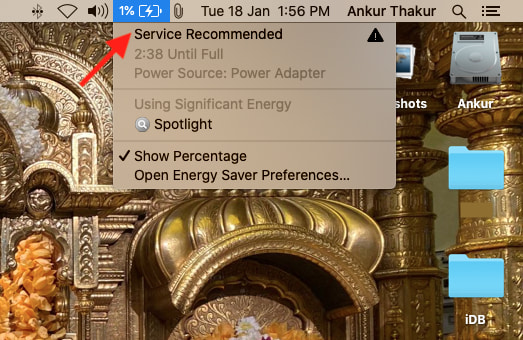
If energy problems like incorrect battery percentage continue on your MacBook, reset the System Management Controller (SMC) to fix it.
38. Check your MacBook’s battery cycle count and battery condition
No matter how many precautions and battery-saving tips you follow, if your MacBook is old and its battery has degraded, it won’t offer a long use time. One such factor that helps you know your MacBook’s battery status is cycle count, and you can learn all about it here.
39. Replace your battery
If your MacBook’s battery requires service, take it to an Apple Store or an Apple-authorized service center and get the battery replaced. A new battery will allow you to use it for more hours per charge.
40. Invest in additional companion devices
When I was in college, I would go home by train, which took about 20 hours. No matter what battery-saving techniques I followed, my MacBook and my iPhone wouldn’t last for the entire journey. Therefore, I listened to songs on my iPod shuffle and watched movies and offline YouTube videos on my iPad during my travels. These extra devices would significantly reduce the burden on my aging MacBook Pro and iPhone 6S+. This habit of keeping additional devices has continued ever since.
If you travel often, consider investing in an affordable iPad. It will let you enjoy movies, read books, check the news, open PDFs, listen to music, and browse the web for multiple hours, thus easing the load on your MacBook and smartphone.
41. Get a powerful power bank for your MacBook
Yes. Power banks for MacBooks exist. If you like, check out some of them on Amazon.
Power banks for MacBook on Amazon
Battery life is related to how you use your MacBook
These were almost all the battery-saving tips you can follow on your MacBook. As mentioned, I don’t recommend you implement them all at the same time. But it’s nice to know these and use them when required.
That being said, how much time you get on each charge depends on what you’re doing. So, when you know that you will not get the opportunity to charge your MacBook for a while, try to cut down on unnecessary and unproductive tasks.
Sister guides: