In this tutorial, we show you how to find the battery cycle count of your MacBook Pro, MacBook Air, or MacBook Neo to get a clearer picture of its overall health.
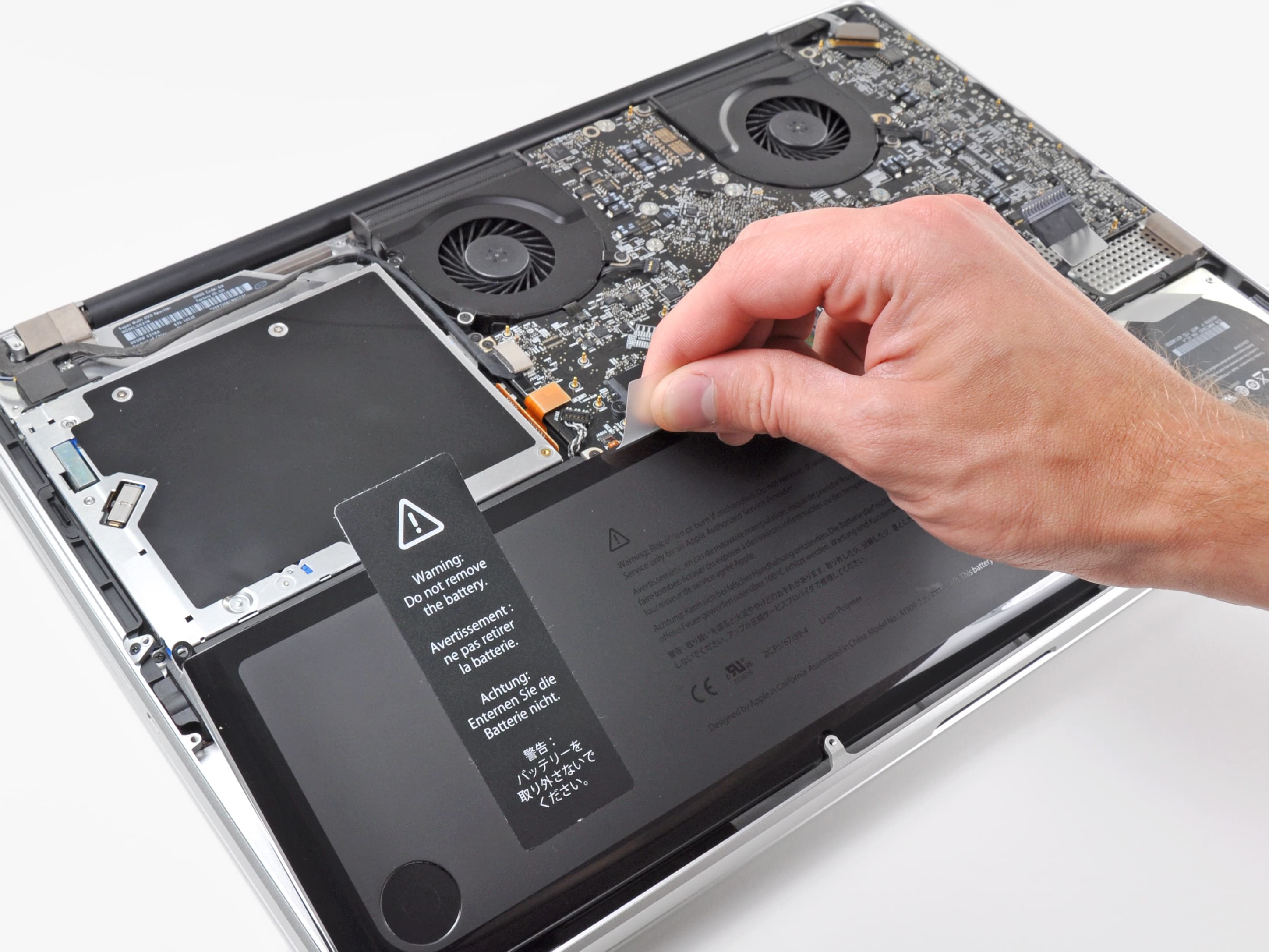
The life expectancy of a notebook battery primarily depends on its cycle count. Once this number reaches the manufacturer’s limit, the battery is considered depleted. Your laptop will still work, but the battery will lose its ability to hold charge. And when it starts to deplete rapidly, that’s your clear sign it’s time for a battery replacement.
How is a battery charge cycle calculated?
Battery cycle count is calculated based on the use of total battery power, but not necessarily on a single charge. For instance, if your MacBook is fully charged and you use half its battery (50%), charge it back to 100%, and then use another 50%, this will equal one battery cycle (50+50=100).
Likewise, using 20% of the battery, then charging it back to 100% five times yields one battery cycle (20+20+20+20+20=100).
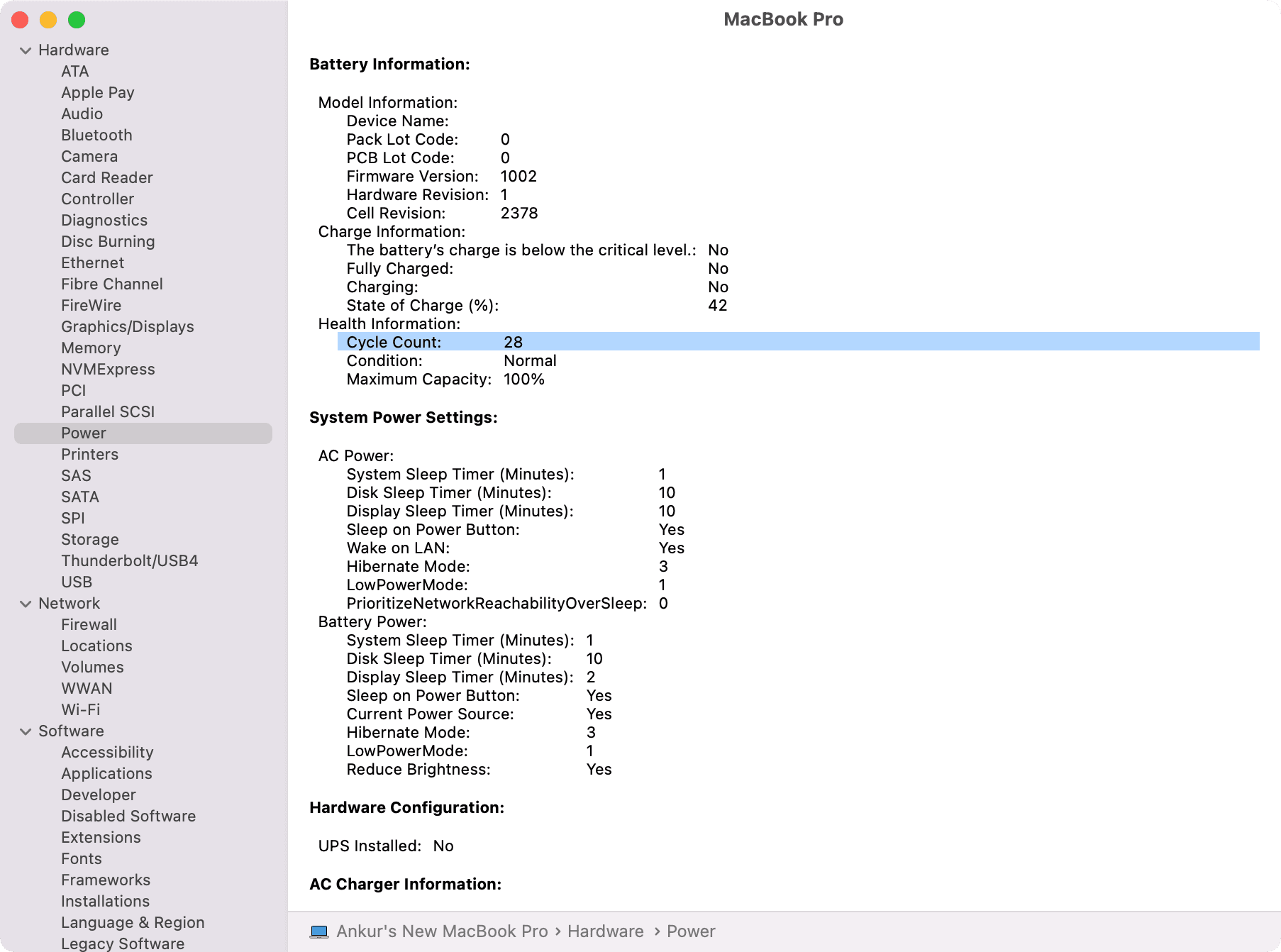
See battery cycle in System Information
You can view a bunch of battery stats in your Mac’s system report.
- Click the Apple menu in the top-left corner while holding the Option key, then select System Information.
- Expand the Hardware section in the sidebar and select Power.
- You’ll see the Cycle Count for your MacBook’s battery under the Health Information section on the right.
Use a third-party app to see MacBook battery cycle
You can use one of several free battery apps to view the cycle count and other battery-related information about your MacBook.
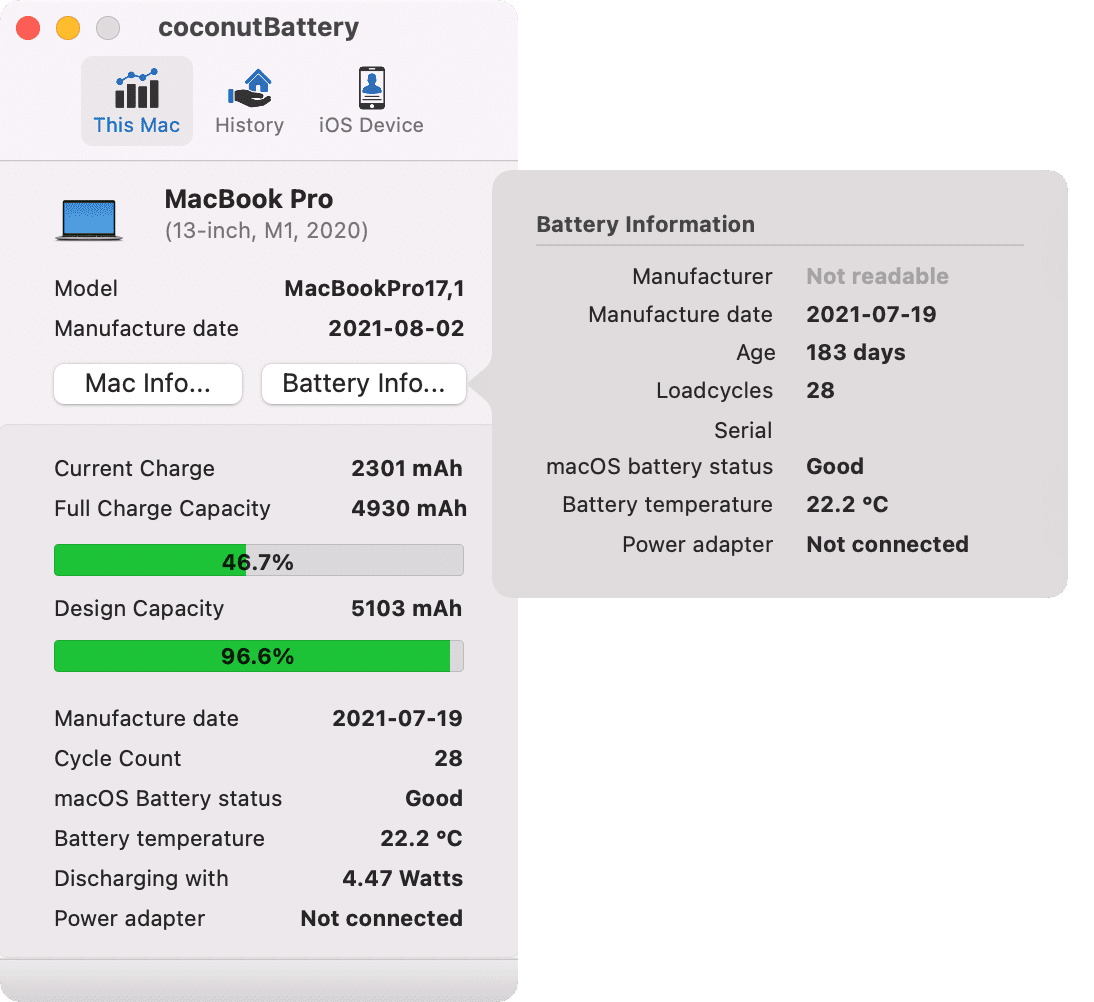
coconutBattery
This app has been around for a long time. With coconutBattery, you can find out your MacBook’s cycle count, battery status, battery temperature, battery age, the day the battery was manufactured, the day your Mac was manufactured, and more! It even shows you the battery cycle count of your iPhone and iPad when connected to your Mac.
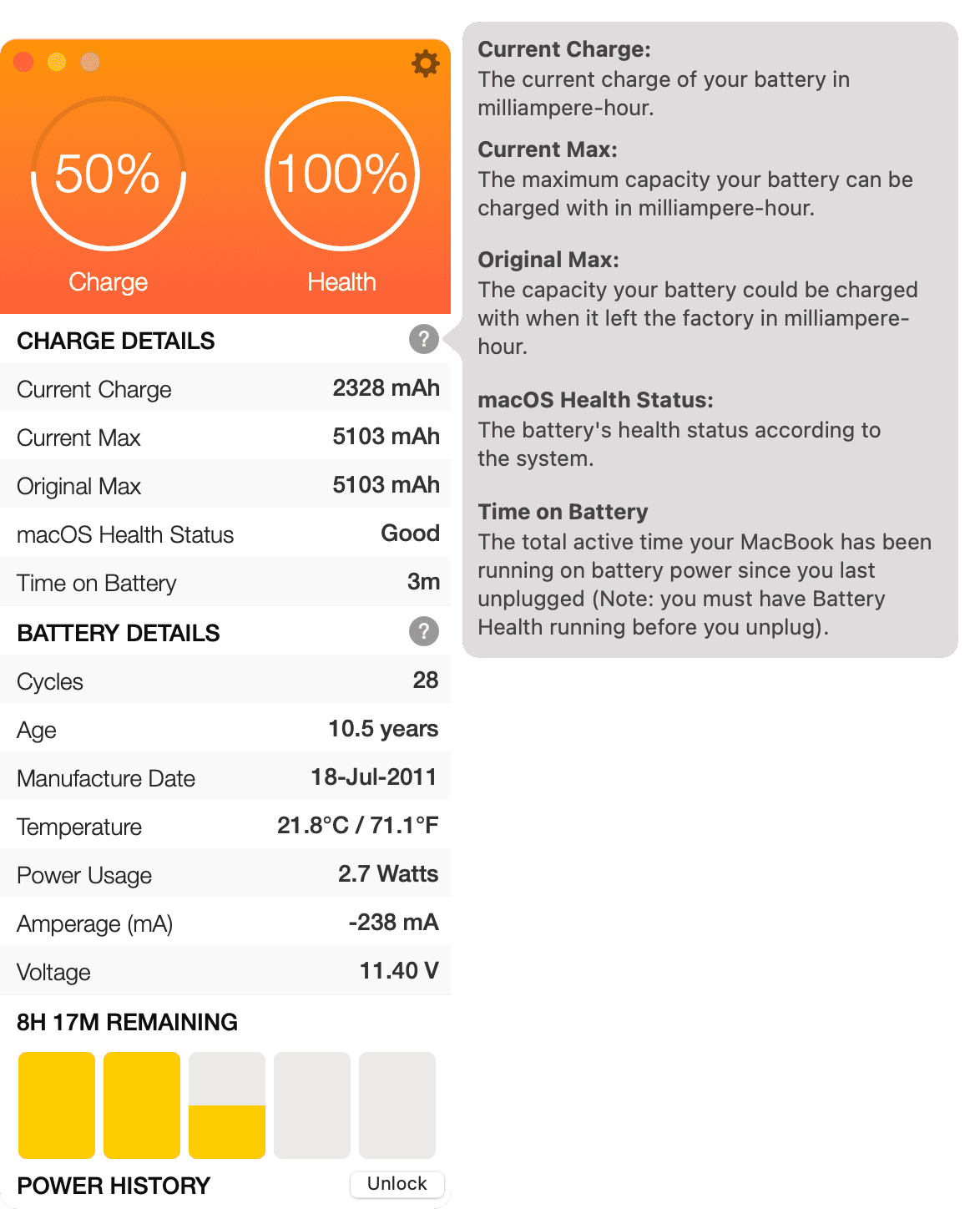
Battery Health 2
This app displays the current battery health, cycle count, the original and current capacity, and other useful stats. Various apps may inconsistently show the date the battery was manufactured. Don’t stress much over it; double-check using both apps if required.
See battery health in Mac settings
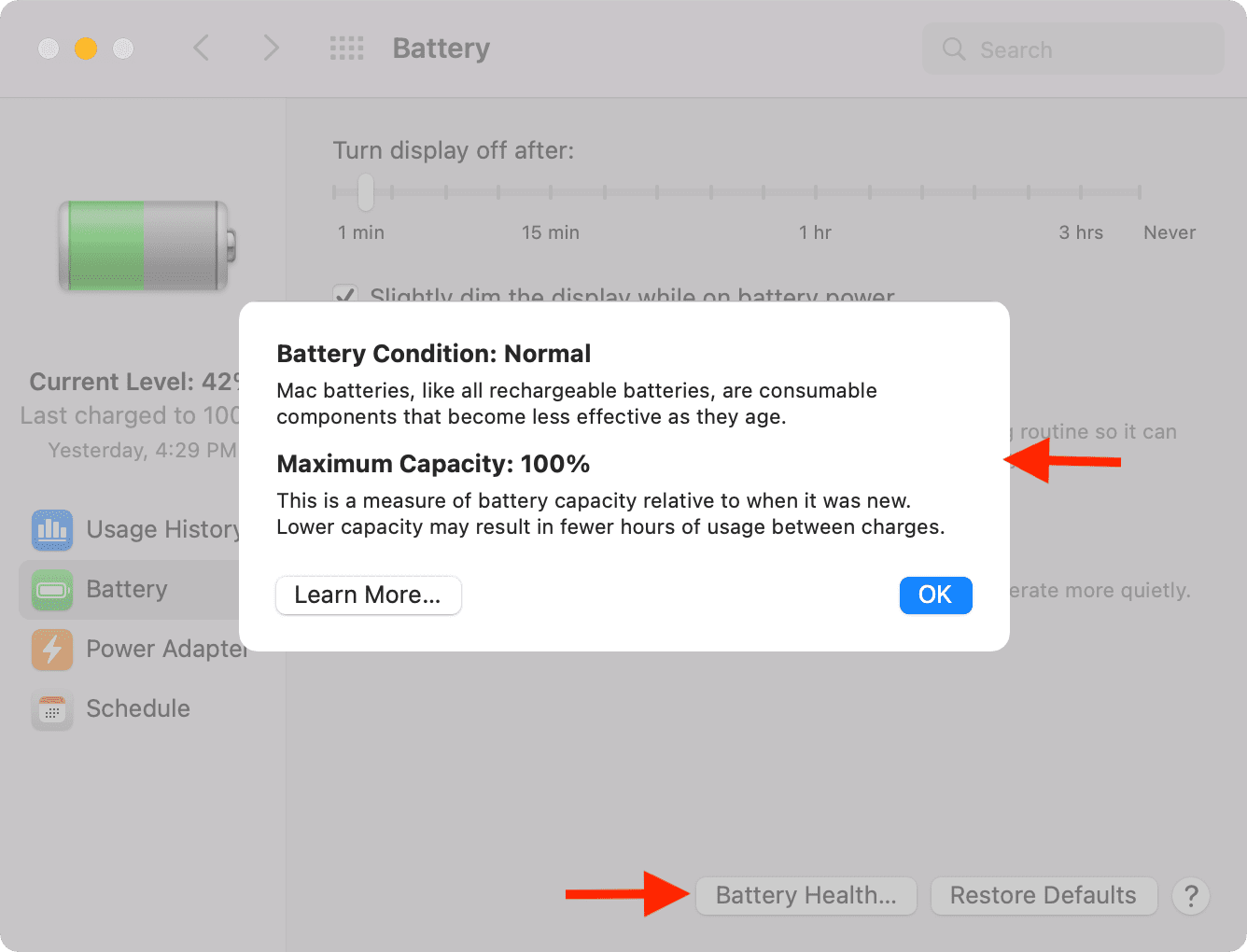
You won’t see the battery cycle count in System Settings, but it shows stats like battery condition and maximum capacity, which can help assess your Mac’s overall battery health.
If battery condition is “Normal,” it hasn’t aged significantly yet. Once it’s a few years old, however, you’ll see the status change to “Service recommended.”
A brand-new MacBook should have a maximum battery capacity. As you use your Mac, its maximum capacity will start to drop over time.
- Open System Settings and select Battery.
- Click the info icon ⓘ next to Battery Health.
- You’ll see the Battery Condition and Maximum Capacity for your machine. My MacBook is over 3 years old, and its battery has degraded a bit and can now hold up to 88% of its original capacity.

For older macOS versions, go to System Preferences > Battery > Battery and click Battery Health to view the battery condition. If it says Normal, you’re good to go. You’ll also see the battery’s current maximum capacity here.
Know your battery condition in the menu bar
If your MacBook uses macOS Catalina or earlier, click the battery icon in the menu bar while holding the Option key. The menu will display battery status. If all is well, it should read Normal. Otherwise, you’ll see Service Recommended.
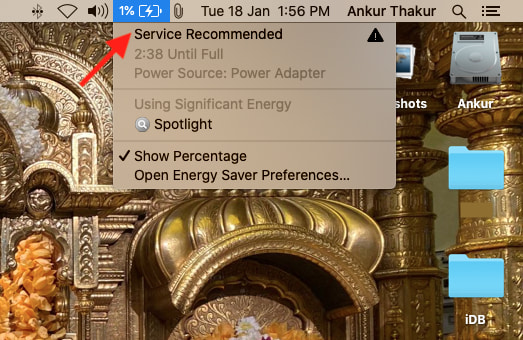
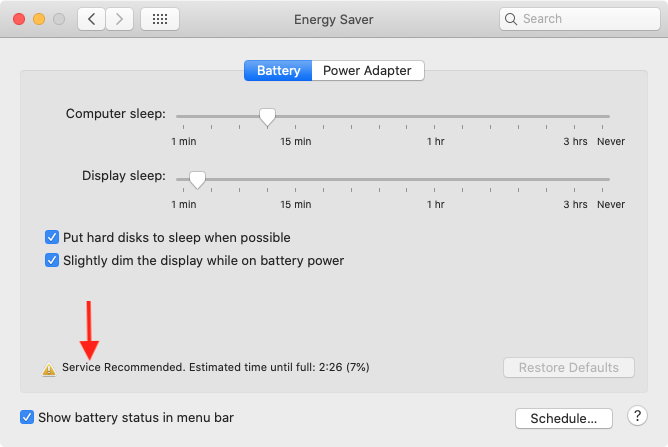
Once the battery has degraded to the point of needing a replacement, the battery menu will always show a service message; no need to press the Option key. The same message will appear in System Preferences on older Macs.
Battery cycle count limit of all MacBook models
Knowing battery cycle count is great, but it doesn’t help much unless you put it in perspective.
Apple says that the limit is 1,000 full-battery charge cycles on all recent MacBooks, including the cheapest MacBook Neo.
As evidenced in the screenshot below, my MacBook Pro has consumed 414 battery cycles so far. So, about half the battery cycle count. Theoretically, my battery should last a few more years.

I also have an old MacBook Pro from 2012, which also has the maximum battery cycle count set to 1000. However, its battery cycle count is currently 1,138, so I’m not surprised I’m seeing a battery service message. You can also see that the battery’s charge capacity is currently 1,840 mAh, a far cry from its original capacity of over 5000 mAh.
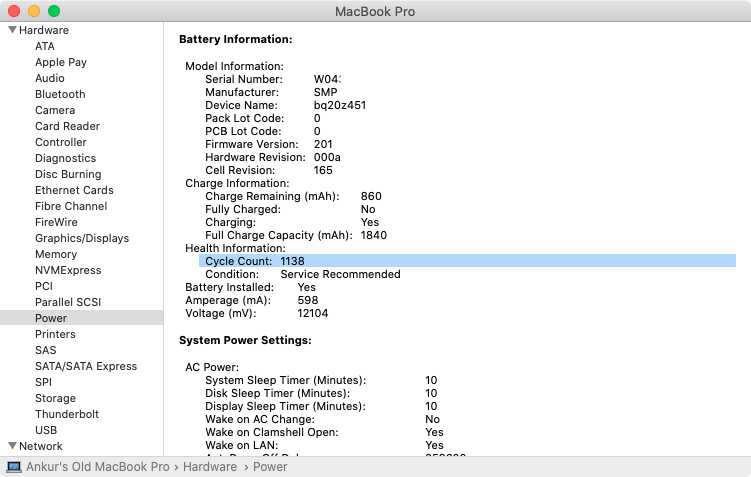
Battery cycle count is meant to give you an approximate idea of your battery life expectancy. Obviously, if your battery starts performing poorly, you can always have it replaced even if you haven’t yet hit the limit set by Apple.
Also, check out: How to check the battery health of your iPhone or iPad