Go through these troubleshooting tips if your iPhone isn’t receiving push notifications for incoming calls, new text messages, and app updates.
1. Turn off Focus modes like Do Not Disturb
Specialized Focus modes like Do Not Disturb block incoming notifications to cut down on distractions. To fix this, open Control Center and tap the Focus icon to turn off the current focus. Or, touch the name of the current focus mode and then touch its tile on the next screen to turn it off.

2. Turn off scheduled summaries
The Scheduled Summary feature delivers a notification bundle at the time of your choosing instead of being bombarded with a barrage of notifications. Scheduled Summary is disabled by default. If you experimented with this feature before but forgot to turn it off, you could miss some notifications. To turn it off, go to Settings > Notifications > Scheduled Summary.
3. Turn off iOS notifications in iPhone Mirroring
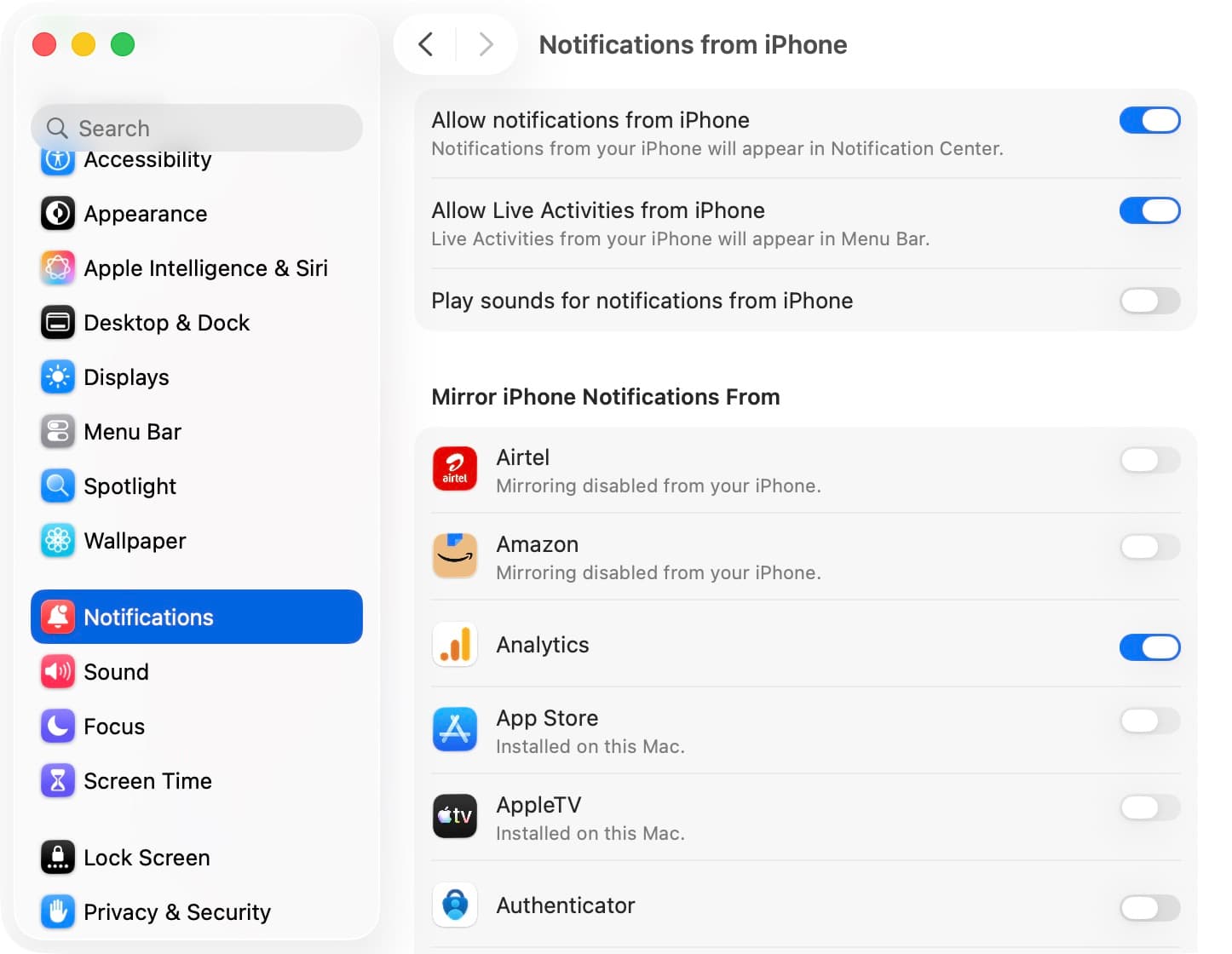
iPhone Mirroring lets you use a nearby iPhone on your Mac, including seeing iOS notifications. iPhone Mirroring may sometimes show iOS notifications on your Mac but not your iPhone. To stop iOS notifications on your Mac without turning off iPhone Mirroring, go to System Settings > Notifications and turn off Allow notifications from iPhone. You can also turn off iOS notifications for specific apps in the ‘Mirror iPhone Notifications From’ section.
4. Restart your iPhone
Temporary software glitches during regular use may cause your iPhone to stop receiving push notifications. To fix this, turn off your iPhone and then turn it back on after a minute. Doing so will reinitialize the operating system and clear the memory, thus fixing the problem.
5. Check iOS notification settings
You may have blocked some apps from inundating you with notifications. Follow these steps to allow notifications for any such apps.
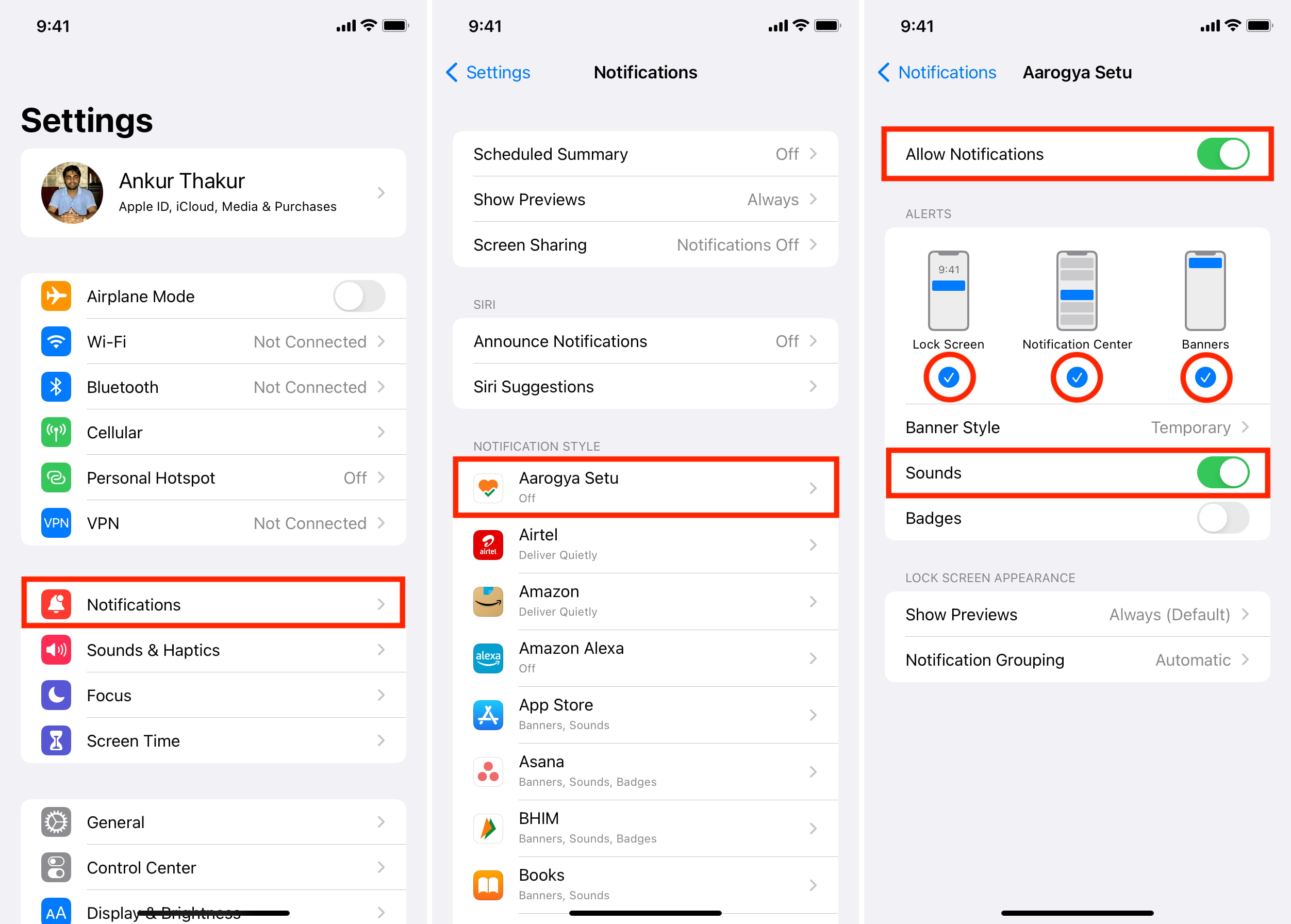
- Open the Settings app and tap Notifications.
- Pick an app that doesn’t receive notifications from under the Notification Style section.
- Turn on the Allow Notifications switch, then turn on the Lock Screen, Notification Center, Banners, and Sounds switches as well.
6. Unmute muted app notifications
You can temporarily mute alerts for an app by swiping left on a notification in the Notification Center, choosing Options, and selecting Mute for 1 Hour or Mute for Today. To revert this, swipe left on that app’s notification and choose Options > Unmute. Keep in mind that if you mute an app’s notifications and then clear its notifications in the Notification Center, you’ll not be able to unmute them until you receive a new notification from this app.

7. Check in-app settings
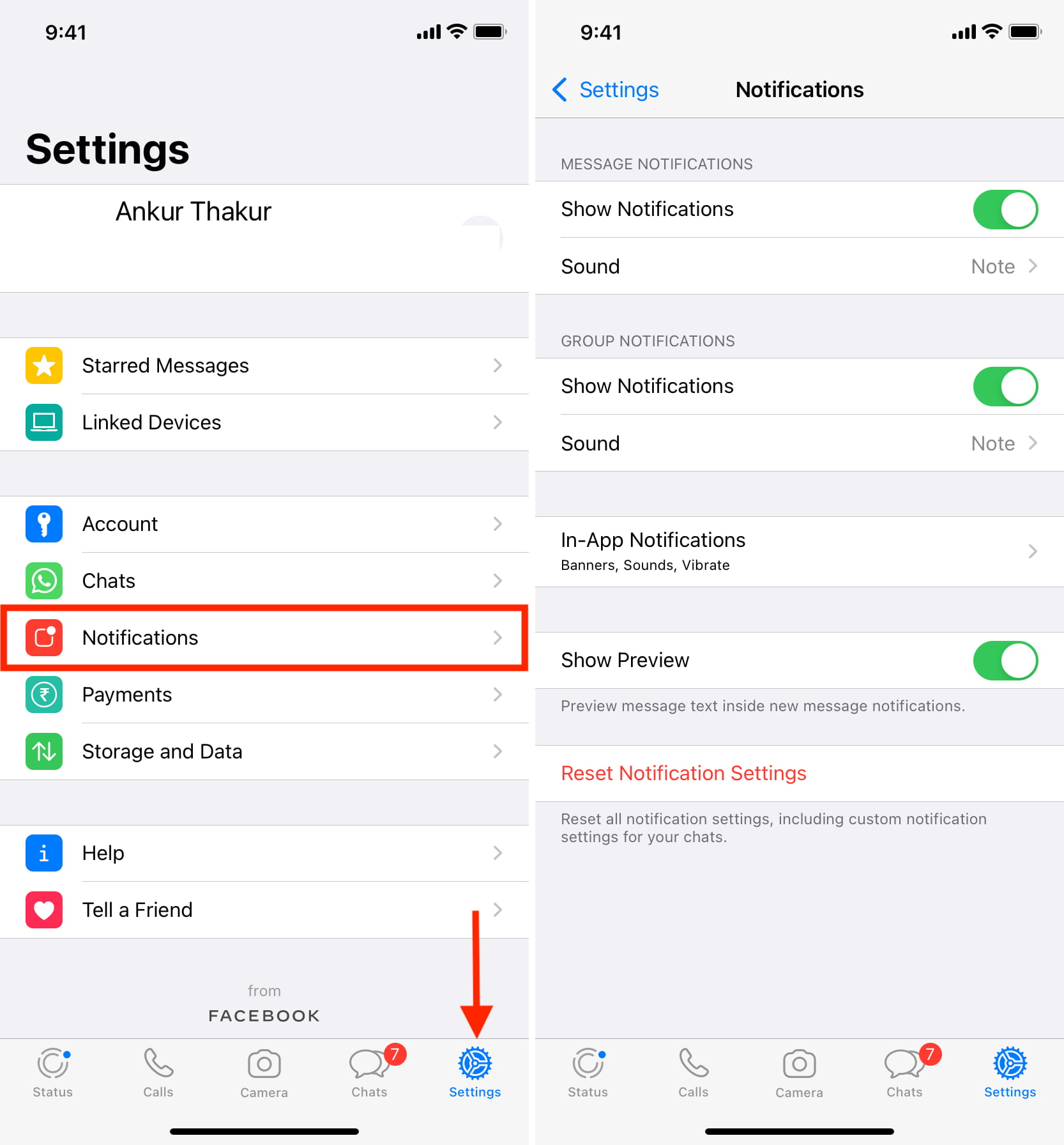
Many apps provide built-in notification settings. If you’re not receiving notifications from a specific app, explore its internal settings interface and look for an option for Notifications, Sounds, Alerts, or similar, and make sure everything is correct.
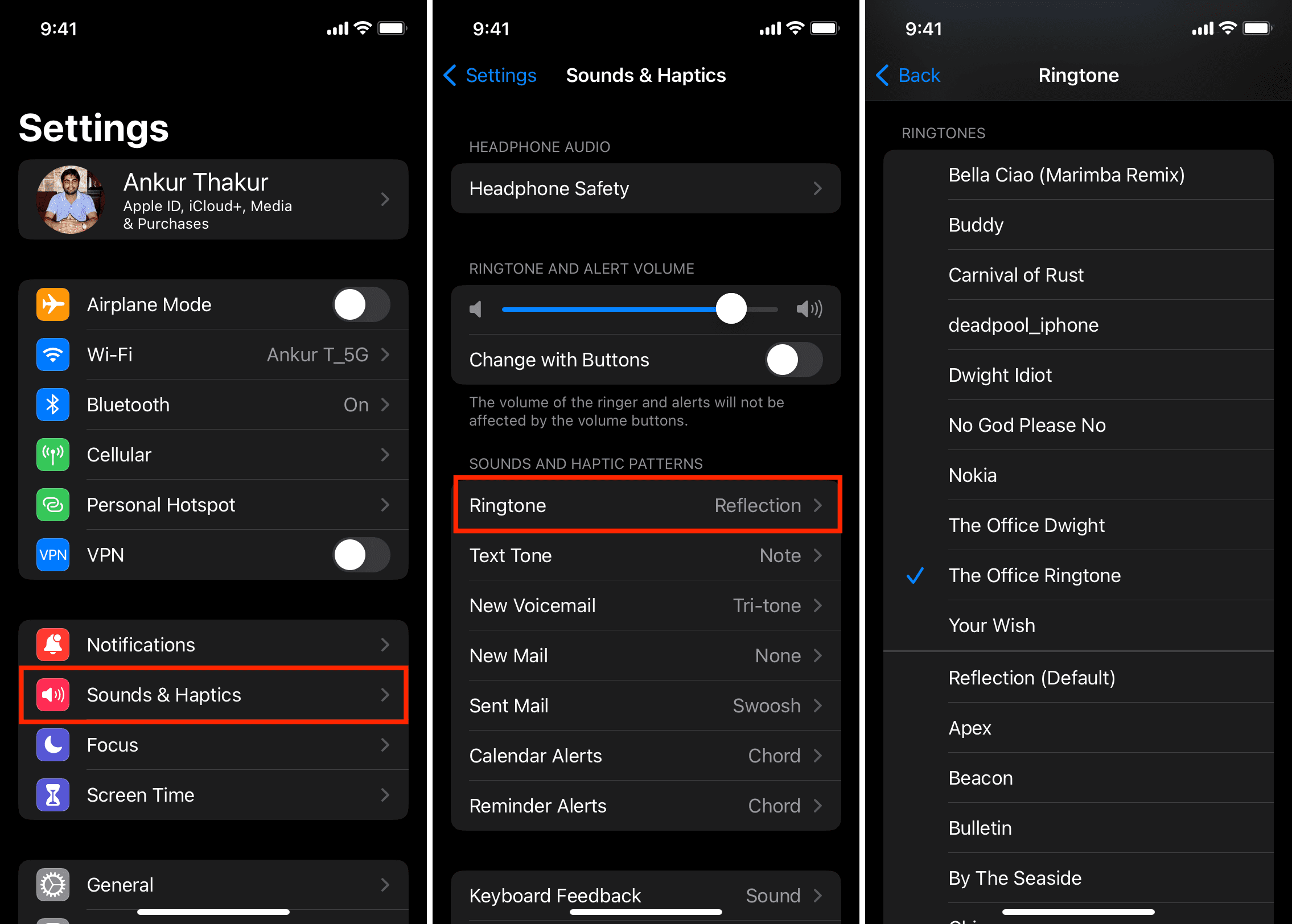
8. Revisit your sounds and haptics settings
You can change the notification sound for system events like new messages, emails, voicemails, calendars, and reminders, so verify that everything looks correct in the Sounds & Haptics settings.
- Open the Settings app and tap Sounds & Haptics.
- Choose an option and select a louder tone from the list. Be sure that the “None” setting, which turns off all notification sounds, is unticked.
9. Unblock or unmute people
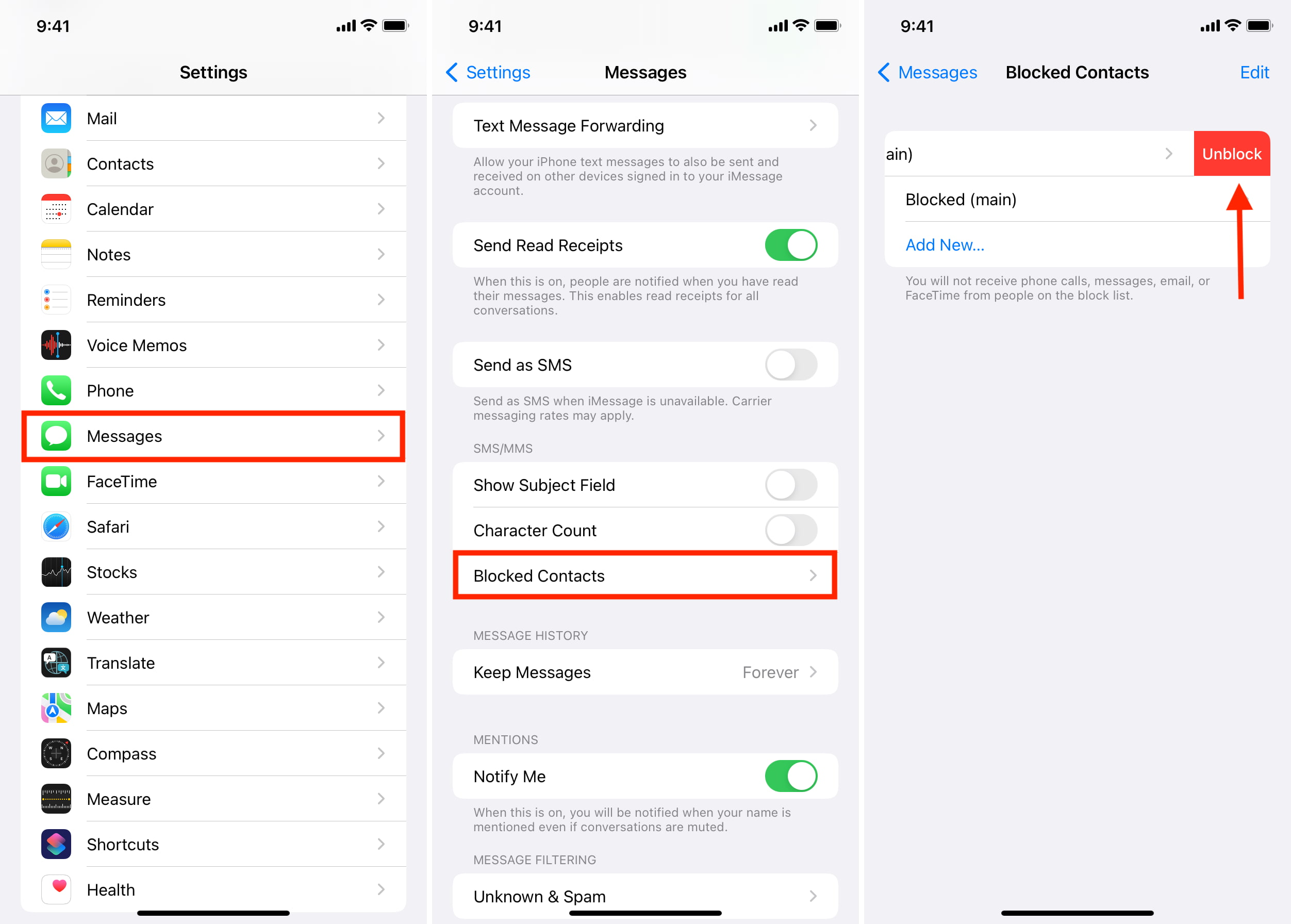
If you’ve blocked a person, you’ll stop receiving notifications for their incoming calls and texts. To fix this, follow the steps below.
- Open the Settings app and tap Apps from the bottom.
- Select Phone, Messages, or FaceTime from the list of apps.
- Tap Blocked Contacts.
- Swipe left on a blocked number and tap Unblock.
Messaging apps like WhatsApp and Telegram may provide in-app blocking functions. Try accessing a person’s profile in that app and look for an unmute option. Also, be sure to review block lists in your favorite apps.
10. Turn off Apple Watch notifications
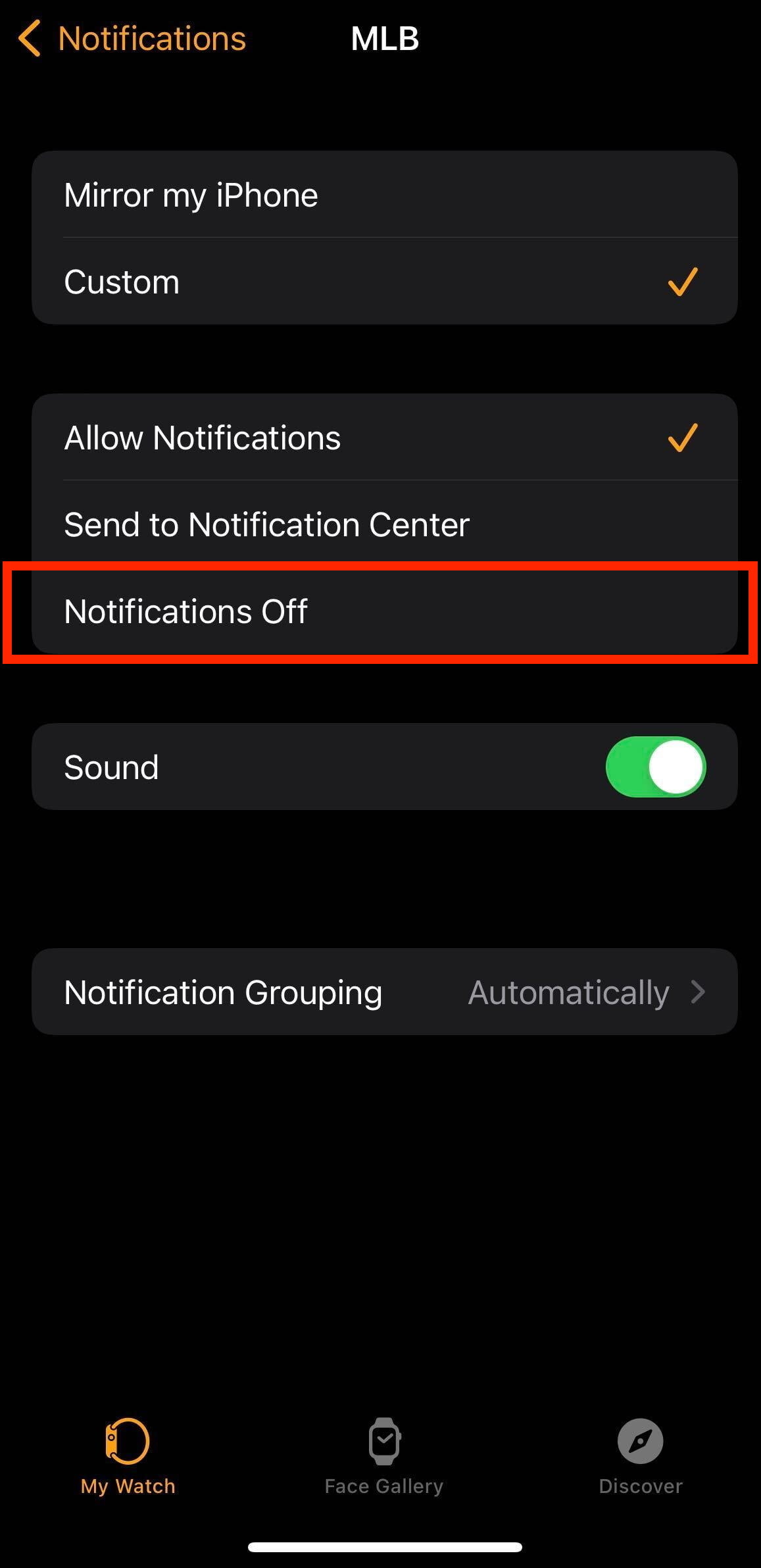
Notification alerts are pushed to either your iPhone or your Apple Watch, but not both. They always appear on an unlocked iPhone instead of your wrist. But if you wear an unlocked watch while your iPhone is locked or sleeping, notifications will hit the watch instead of the phone. To address this, turn off notification mirroring for apps to only receive them on your iPhone.
- Open the Watch app on your iPhone.
- Tap Notifications.
- Choose an app from the list.
- Untick the Mirror my iPhone option. If the Custom setting is turned on, select the Notifications Off option. Some apps may display a direct Notifications Off option here; use that instead.
- In the ‘Mirror iPhone Alerts From’ section, turn off the switch for any apps whose notifications you don’t want to receive on your Apple Watch.
11. Are Messages alerts hitting your Mac instead?
When using the Messages app on your Mac, notifications for new iMessages appear on your computer instead of on your phone. Quit Messages on your Mac and your iPhone will start receiving Messages notifications again.
12. Turn off Low Power Mode
Mail fetch and other background features are temporarily suspended in Low Power Mode to extend battery life. Therefore, if you’ve turned on Low Power Mode, you won’t get notifications for new emails. To fix this, disable Low Power Mode manually in Settings > Battery, or charge your iPhone to 80 percent, which will automatically turn it off. To.
13. Turn off unknown caller silencing
If you’re not getting notifications for calls from people not in your contacts, such as customer support, delivery agents, distant relatives, or friends calling from a new number, you may have turned on unknown caller silencing. When this is on, you won’t get notifications for calls from numbers not saved in the Contacts app or listed in your recent calls. This also applies to people you haven’t texted or emailed recently.
Calls from unknown numbers are sent to your voicemail and show up in the Recents tab of the built-in Phone app. To start receiving call notifications again, turn off unknown caller silencing in Settings > Apps > Phone and select Never under the Screen Unknown Callers section.
14. Disable the filtering of unknown senders
The Messages app can filter unknown senders to save you from spam, but this can also result in missed notifications for important messages like SMS verification codes. To turn off the filtering of unknown senders, go to Settings > Apps > Messages and disable Screen Unknown Senders.
15. Turn off call-filtering apps
Truecaller and similar caller ID apps will mute calls from unknown numbers deemed spam. Go to Settings > Apps > Phone > Call Blocking & Identification and turn off all the switches for any call-filtering apps listed there, and see if that fixes the issue.

16. Update your iPhone and apps
iPhones running an older iOS version with unpatched bugs may exhibit notification delivery problems. To fix this, install the latest iOS update available for your device in Settings > General > Software Update. Also, update any installed apps in the App Store to squish any notification bugs.
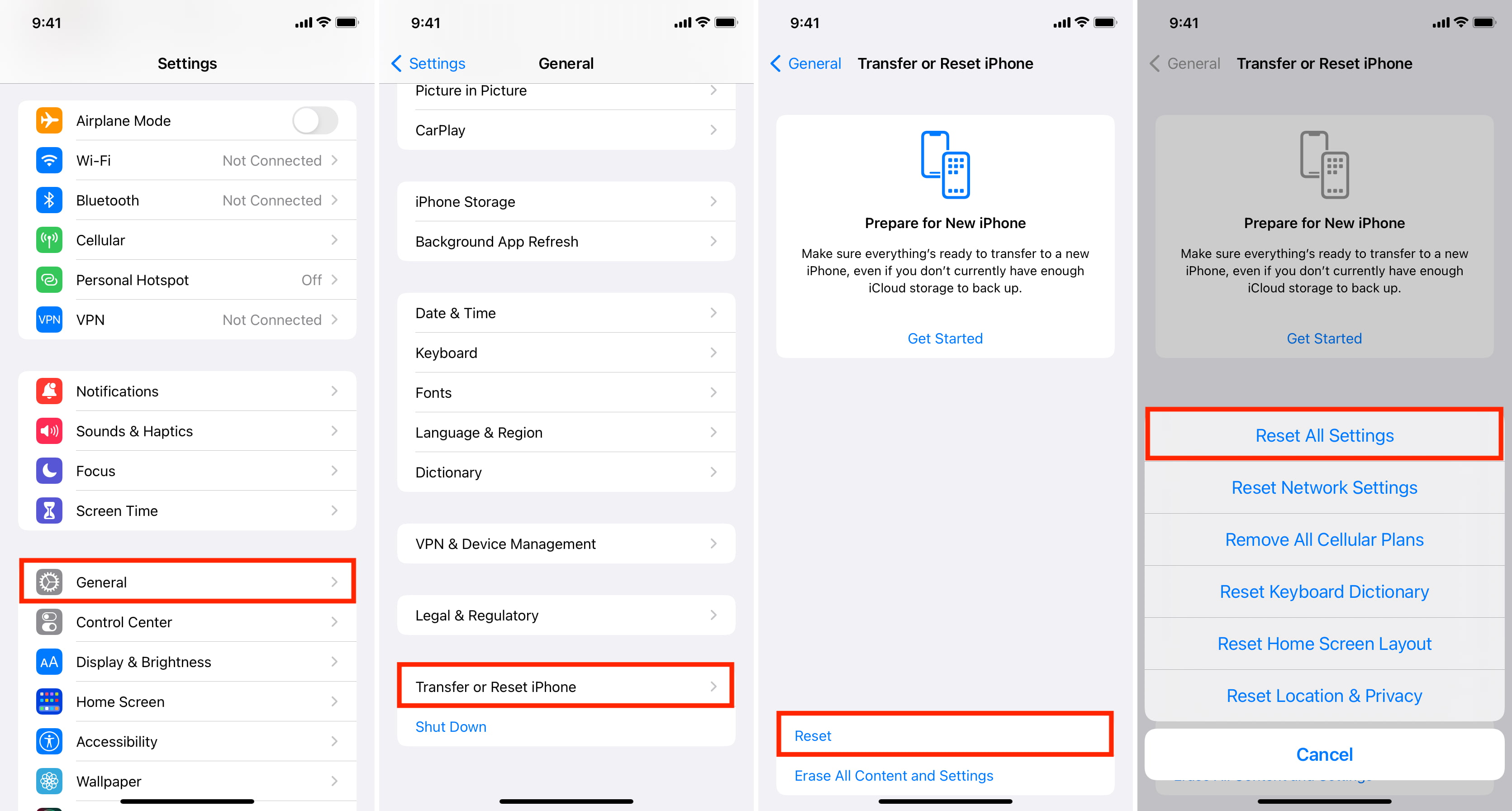
17. Reset all settings
Resetting all settings is your last resort. This will erase only the settings, like your joined Wi-Fi networks and Home Screen customization, without deleting your media or data in apps. Your notification settings will also reset to factory defaults. As a result, apps will display a notification permission prompt again when launched; simply tap Allow, and you should start receiving notifications from that app again.
Still not receiving notifications on your iPhone?
If an app won’t display a notification permission even after you’ve reset all settings, try these fixes:
- Restart your iPhone.
- Install pending app updates in the App Store.
- Resetting network settings can force apps to reinitialize the notification permission prompt. Go to Settings > General > Transfer or Reset iPhone > Reset > Reset Network Settings.
- Offload an app and re-download it to ensure it can still save data.
- If nothing works, uninstall the app and then reinstall it; you should see a notification permission prompt when you launch the reinstalled version.
Also, check out: Fix iPhone not receiving calls or texts from a particular number