Learn how to use the new Call Context feature on iPhone in iOS 27 that reminds you of the birthday or anniversary of the person you are talking to.
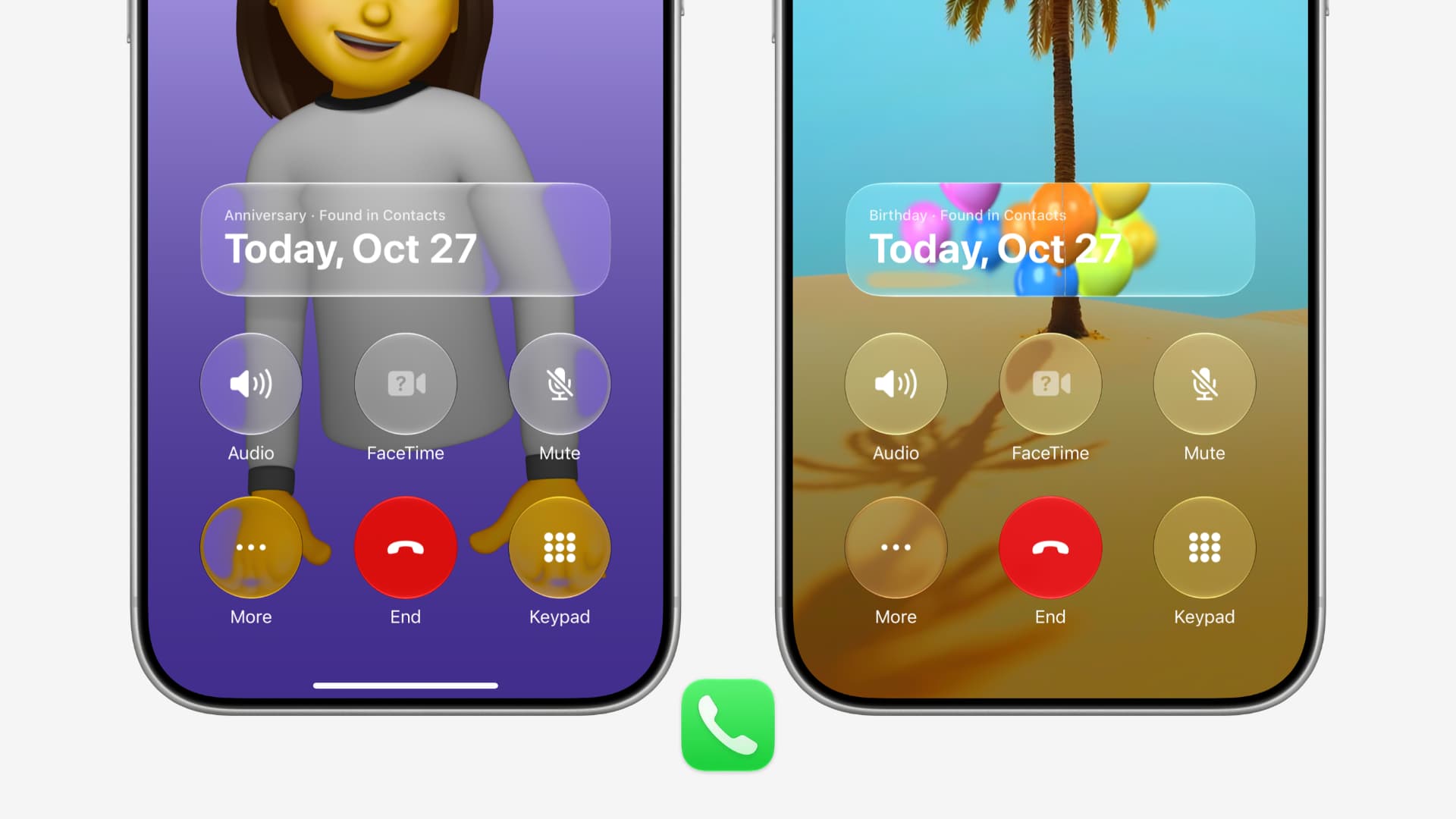
Call Context in iOS 27 learns from apps like Contacts, Messages, Mail, and other sources, and can surface relevant information during a call. For example, if you have a flight-booking email in your Mail app, Call Context can automatically show your PNR or confirmation number on the screen when you call the airline’s customer support. This way, you don’t have to leave the Phone app and dig for the confirmation number.
Similarly, Call Context can read your Contacts app and show a birthday or anniversary card on the call screen when you call someone on their birthday or anniversary. This is great because it helps you remember to wish your other half or close friends a happy birthday or anniversary, as long as you take a few minutes to set up their special dates in their contact card.
Get birthday and anniversary cards when calling a person
1) Update your iPhone to iOS 27.2 or later.
2) Go to the Phone or Contacts app and tap the contact card for your spouse, siblings, or other close people.
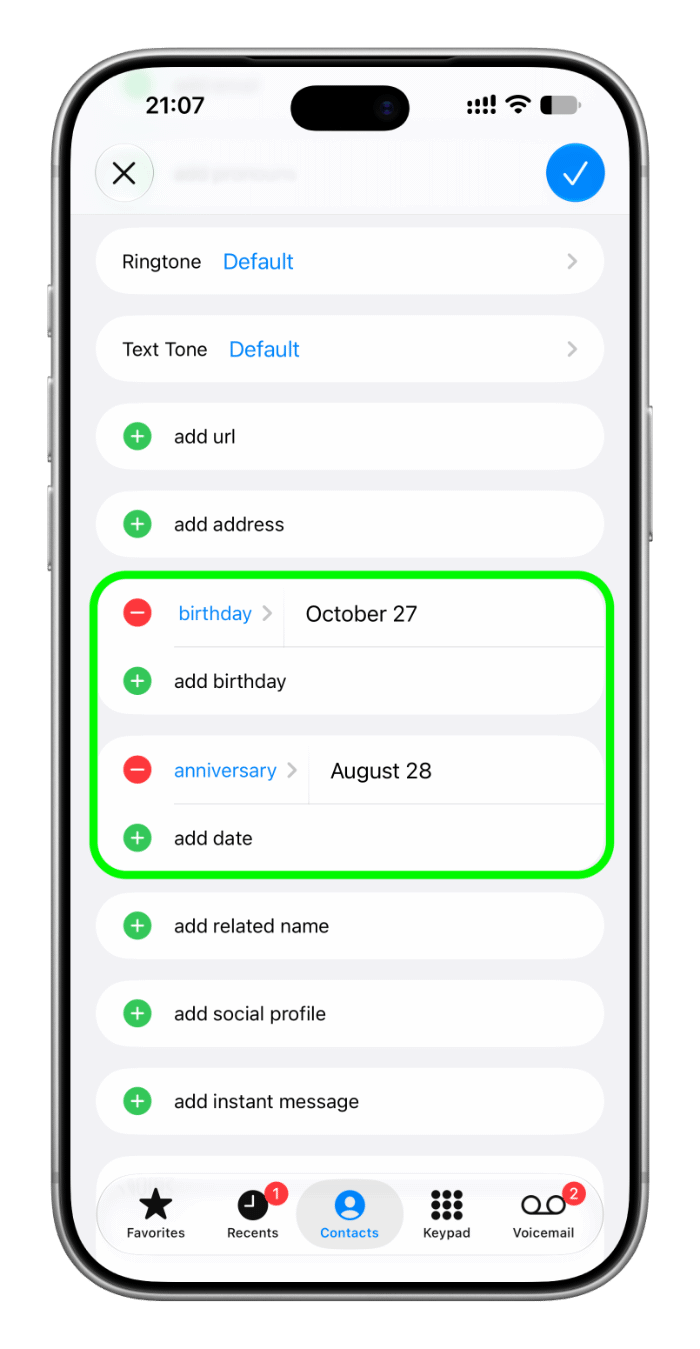
3) Tap Edit, followed by add birthday or add date (for anniversary), and set it. You don’t necessarily have to select a year. Then, tap the checkmark icon to save the new details.
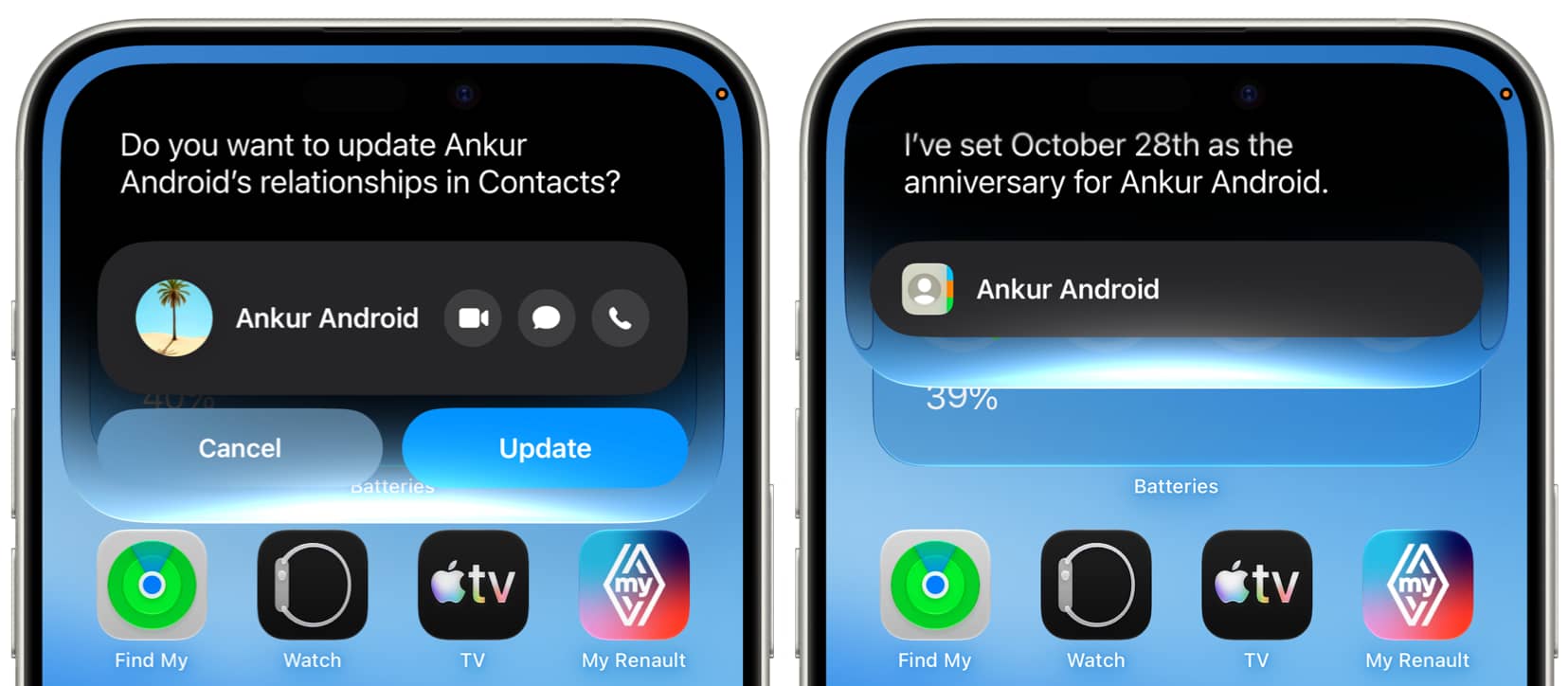
If you use Apple Intelligence and the new Siri, you can also ask it to add a birthday or anniversary for a contact by saying something like “Add 28th October as the anniversary for Ankur’s contact card.”
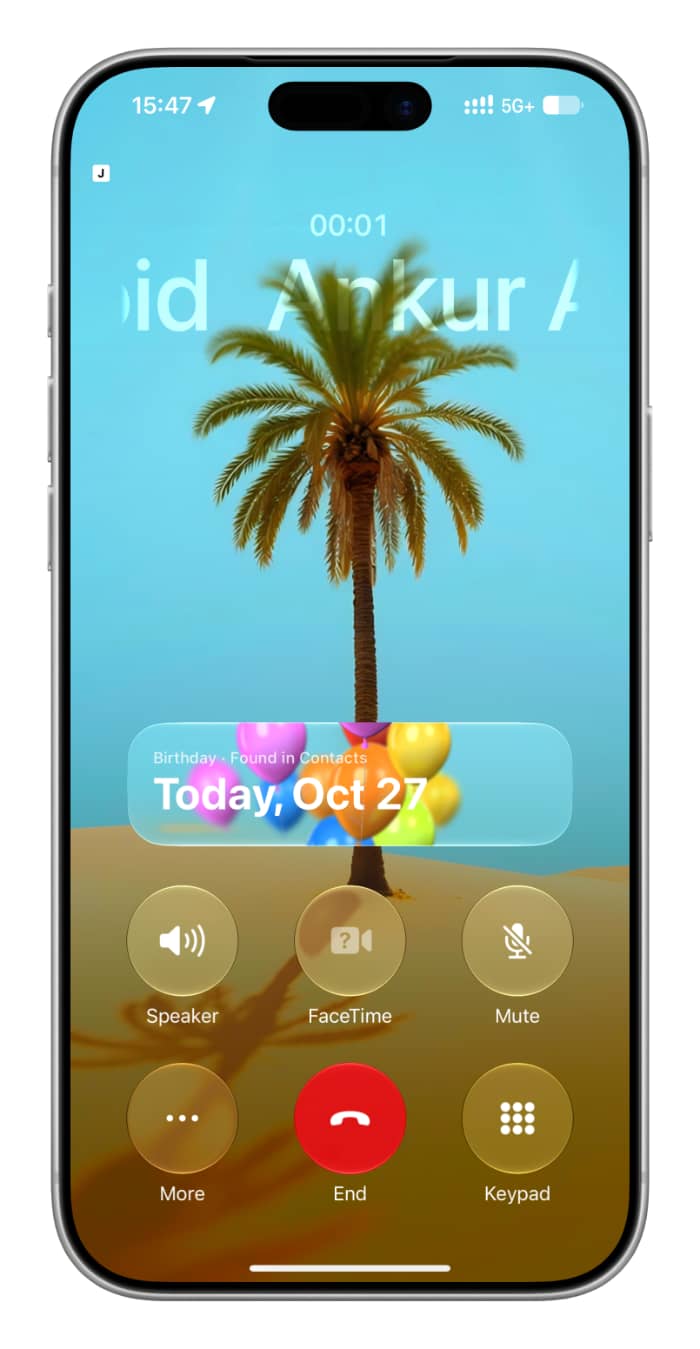
4) Moving forward, if you call this person or they call you on this special day, a card will appear on the full call interface informing you of their birthday or anniversary. The birthday card even shows a cute flying-balloons animation.
The anniversary card lacks this; a cake or roses animation would be nice.
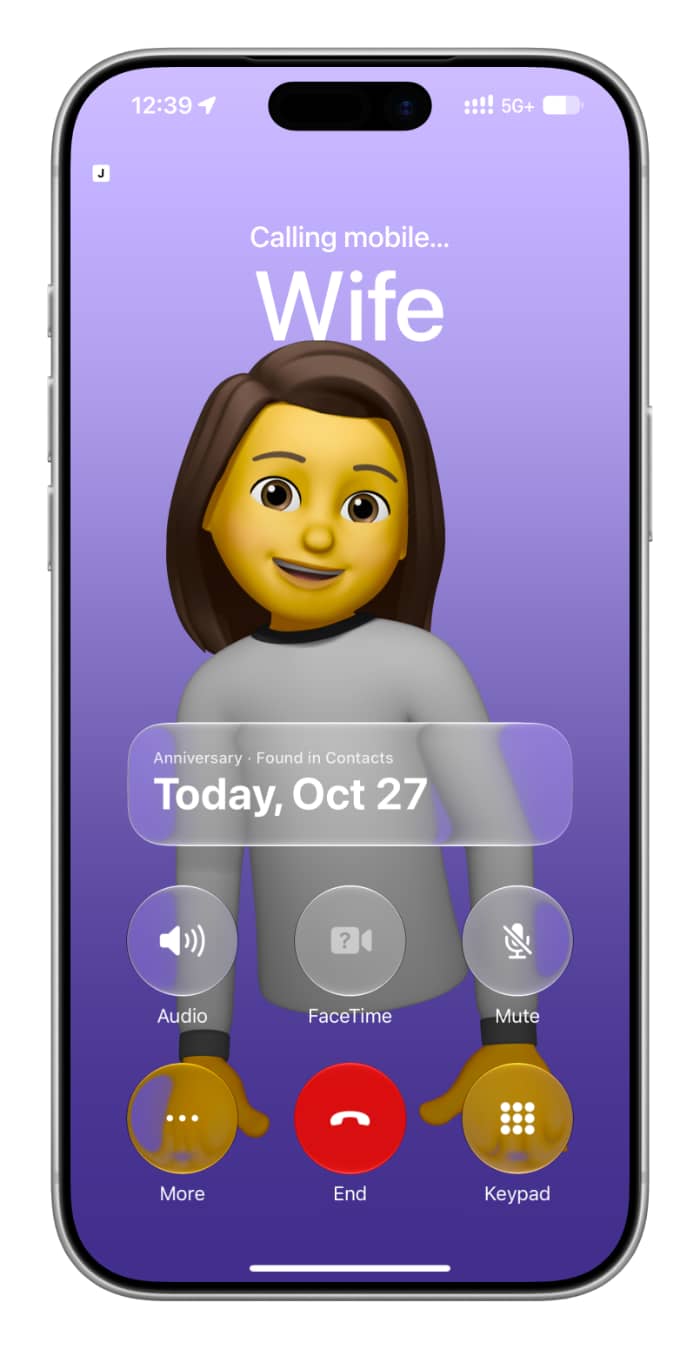
This card is only visible to you, and right now you can’t swipe it away. However, you can tap it to open their contact card, in case you need to update the special date or other details.
Plus, in my testing, I found that Call Context isn’t a one-time thing; it appears each time you call that person on their special day.
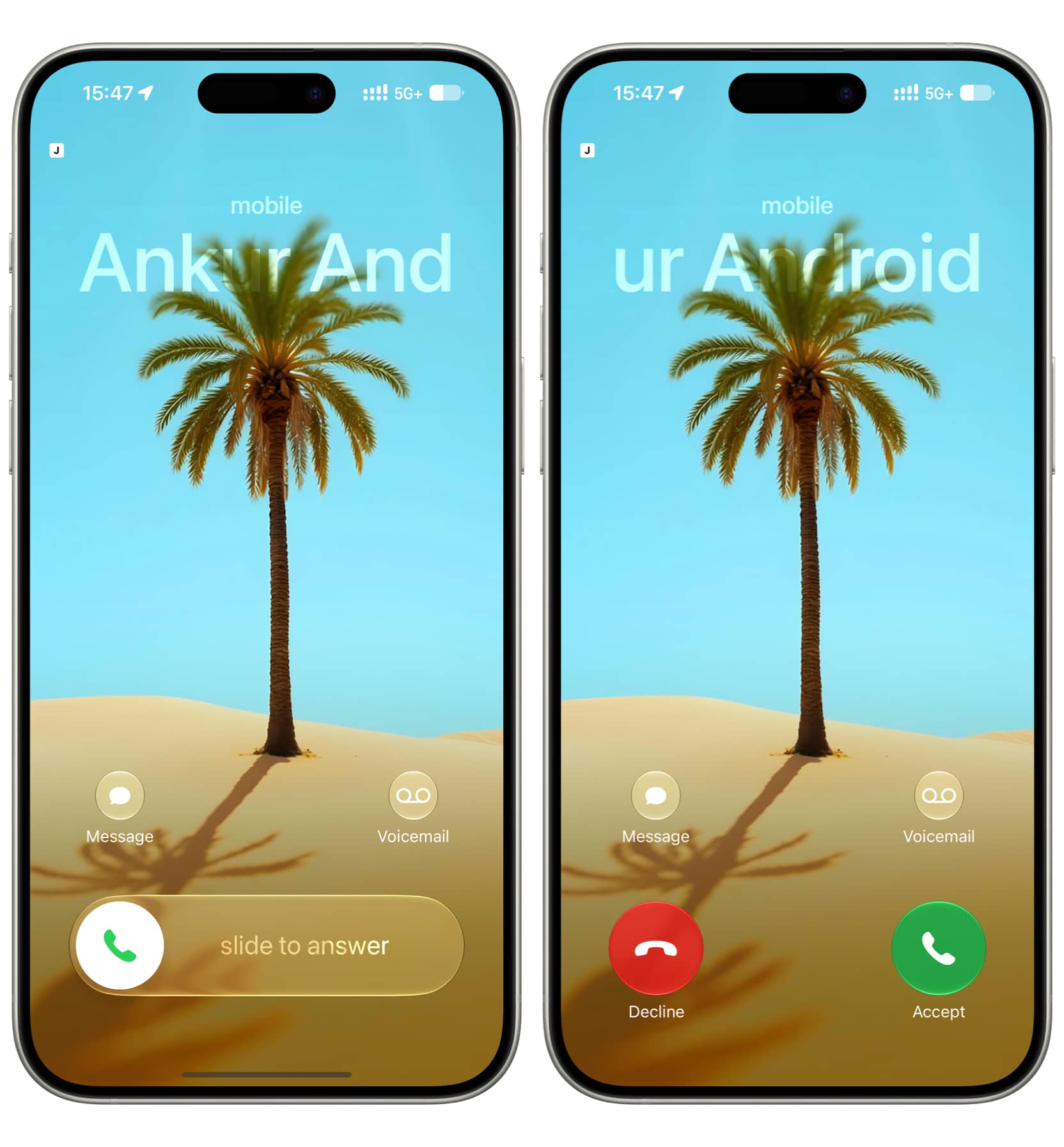
In case your iPhone was already unlocked and you picked up the call from the Dynamic Island, be sure to tap it to go to the full call screen. You can also switch from compact to full-screen interface for all calls.

One more thing to note is that the Call Context card is only shown when you pick up the call. Apple should give us an option to change this behavior, which could help us decide whether to answer or hang up based on the Call Context.
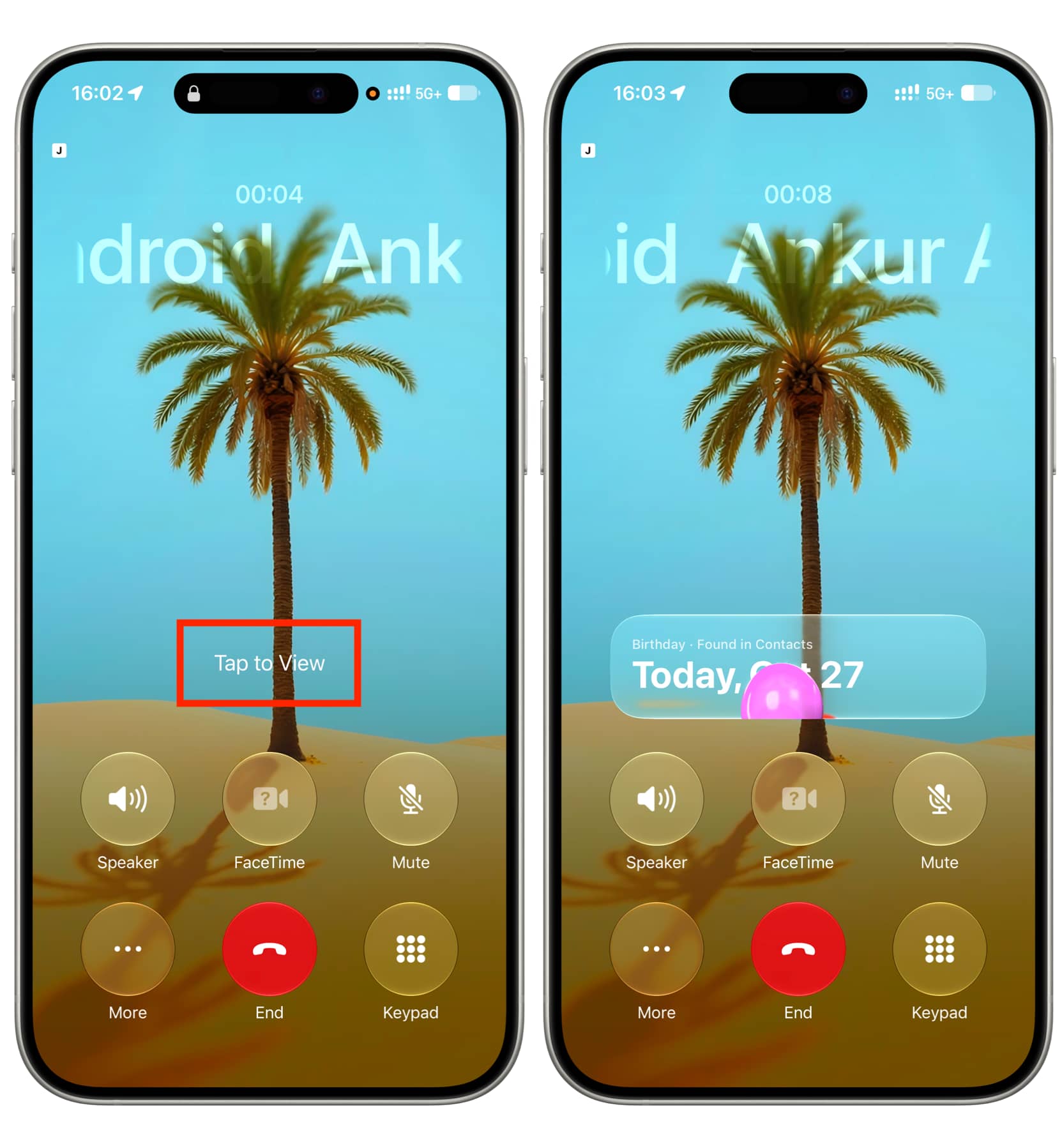
Secondly, your iPhone must be unlocked for the birthday or anniversary card to show on the screen. If it’s locked, you’ll see a ‘Tap to View’ message on the full call screen. Tap it, then authenticate with Face ID or Touch ID to view the birthday or anniversary card.
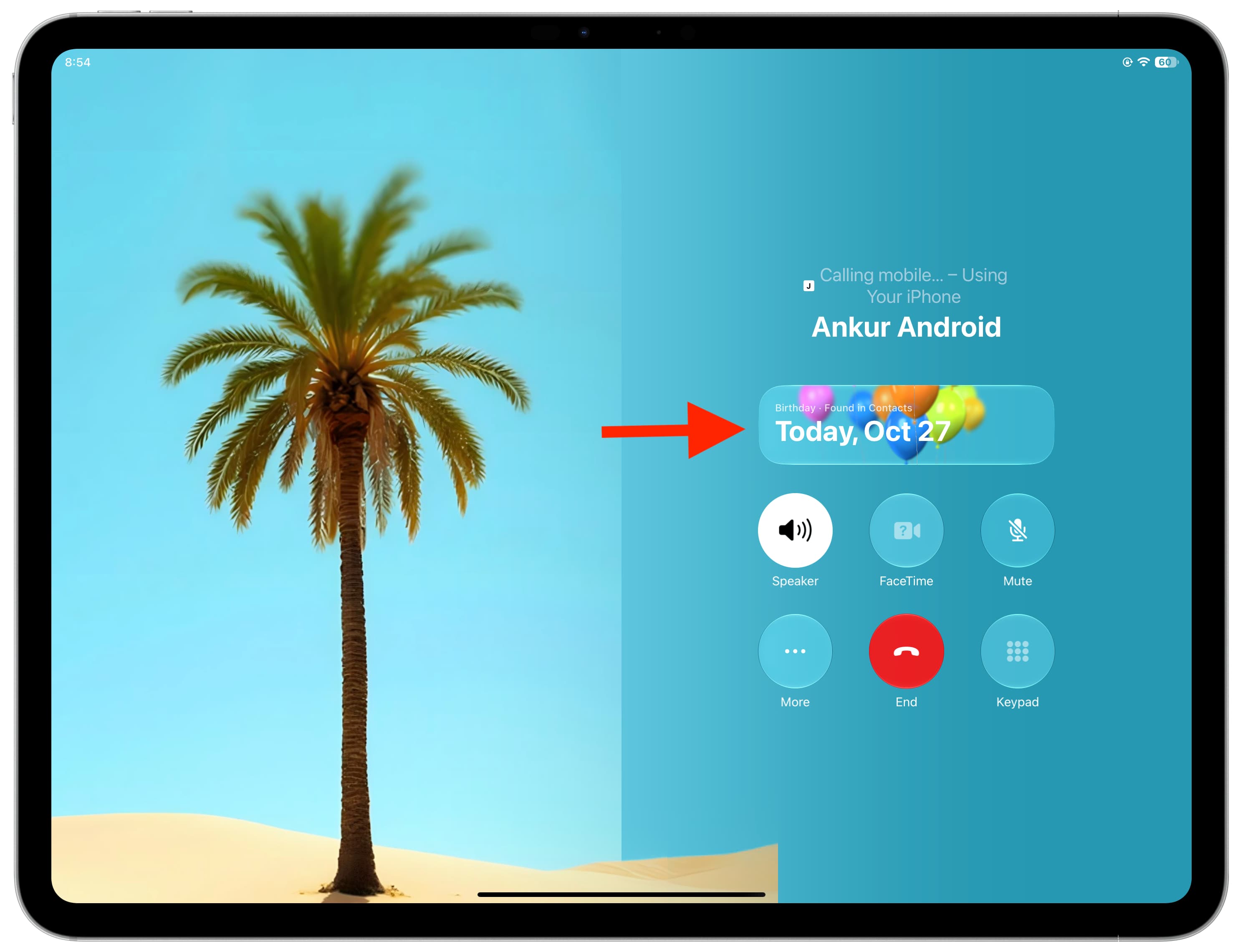
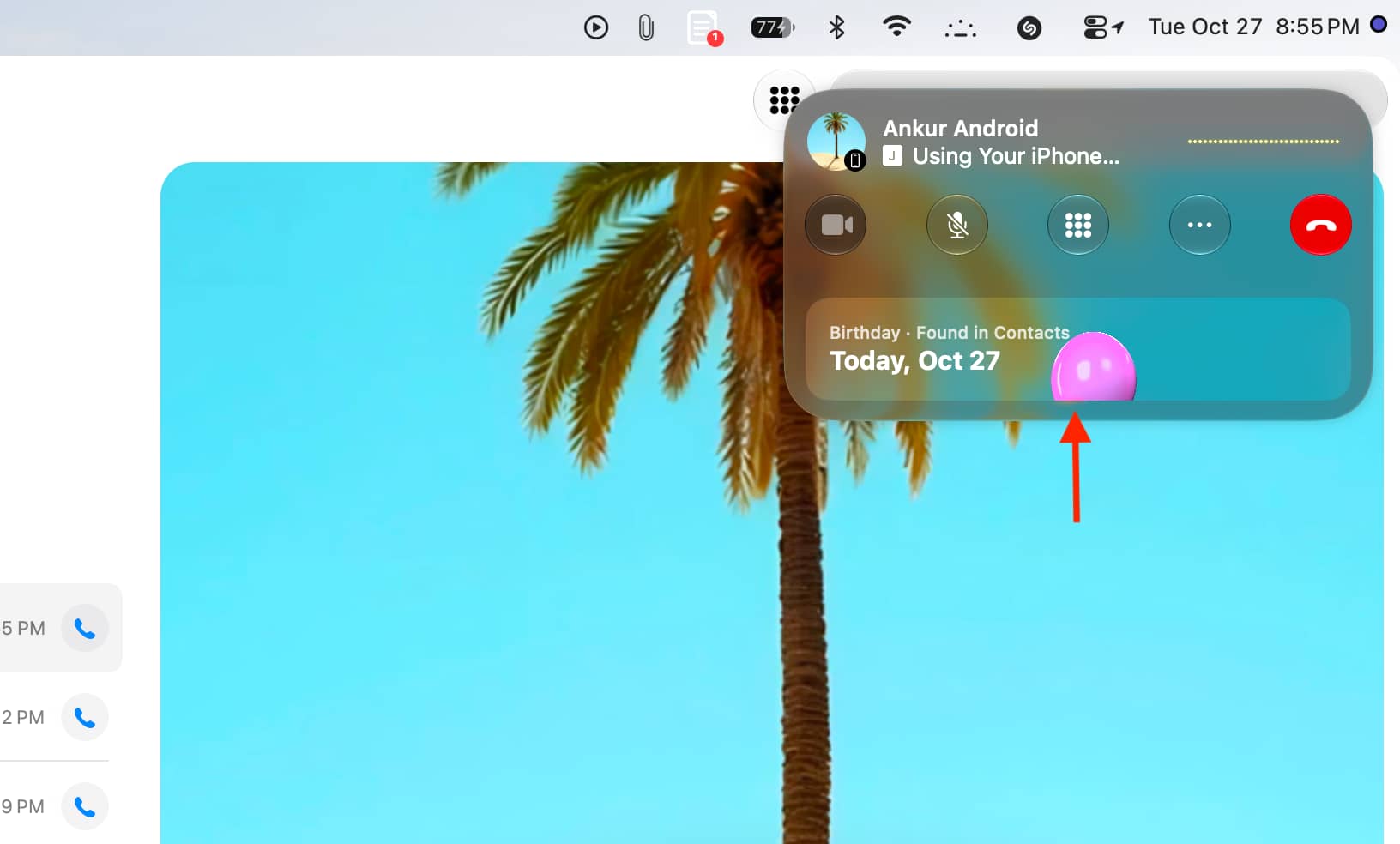
Call context also piggybacks off your iPhone and is shown in the Phone app on your iPad and Mac running iPadOS 27 and macOS 27 Golden Gate.
Here’s how it looks on iPad:
and Mac:
What do you think of this? I sure love it!
Also, check out: How to keep track of birthdays on iPhone, iPad, and Mac