In this tutorial, we’ll show you how to block people from calling or texting you, as well as unblock a person if you change your mind later.

After blocking someone’s phone number, you won’t receive cellular phone calls, SMS/iMessages, and FaceTime calls from them. Blocking is a great way to get rid of telemarketing calls, spammers, and a creepy ex still trying to be your friend.
Block a person on iPhone
There are five ways to do that.
Method 1. Using the Phone app
- Open the Phone app.
- Depending on whether you have Classic or iOS 26 Unified layout, go to the Recents or Calls tab.
- Tap the info button ⓘ next to the number, email address, or contact you want to block. If you don’t see the info button ⓘ, just tap the entry.
- Scroll down, tap Block Contact or Block Caller, and confirm.

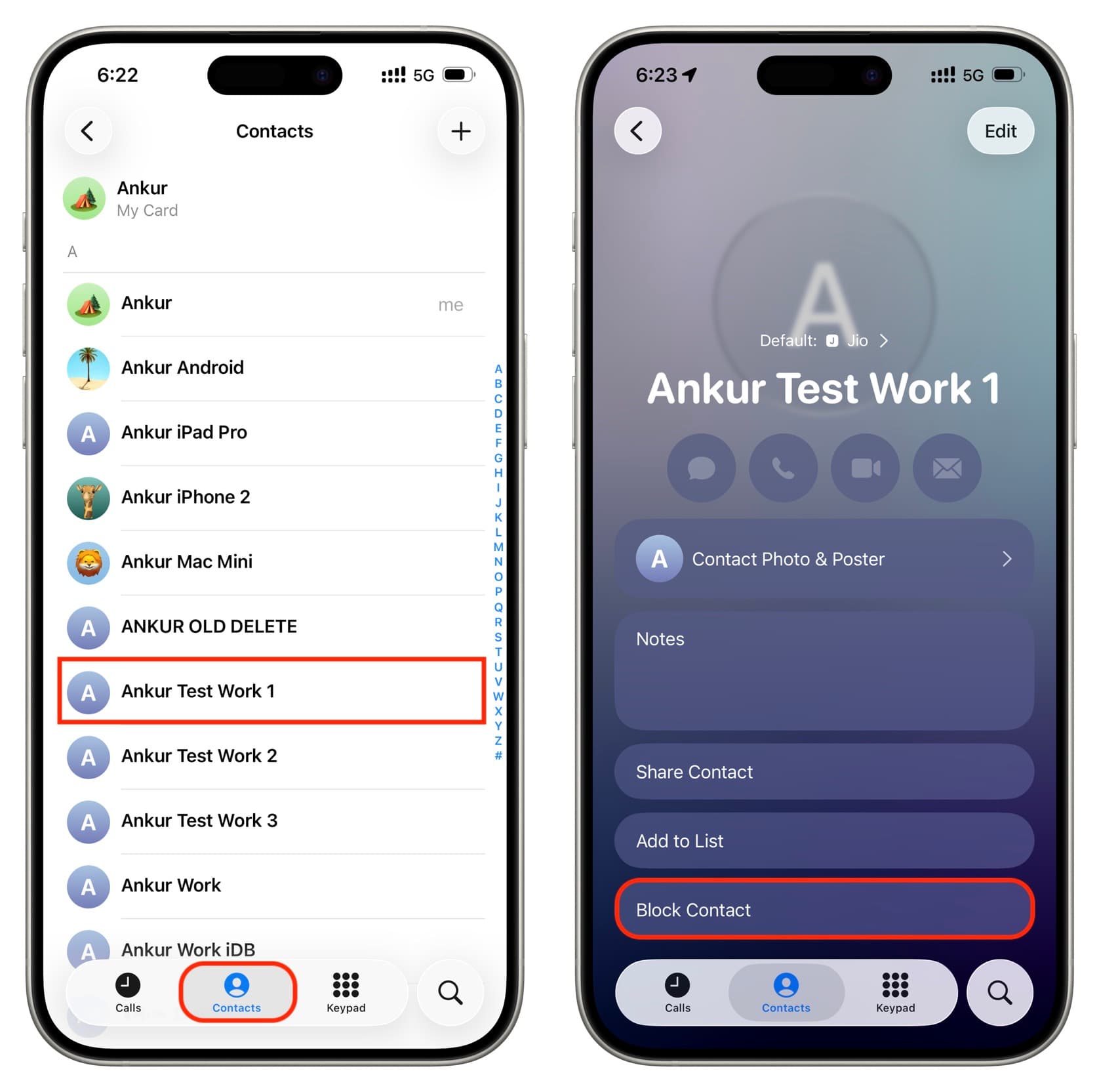
Method 2. From the Contacts tab
- Open the Phone app and go to the Contacts tab.
- Tap the name of the person you want to block.
- Scroll down and choose Block Contact.
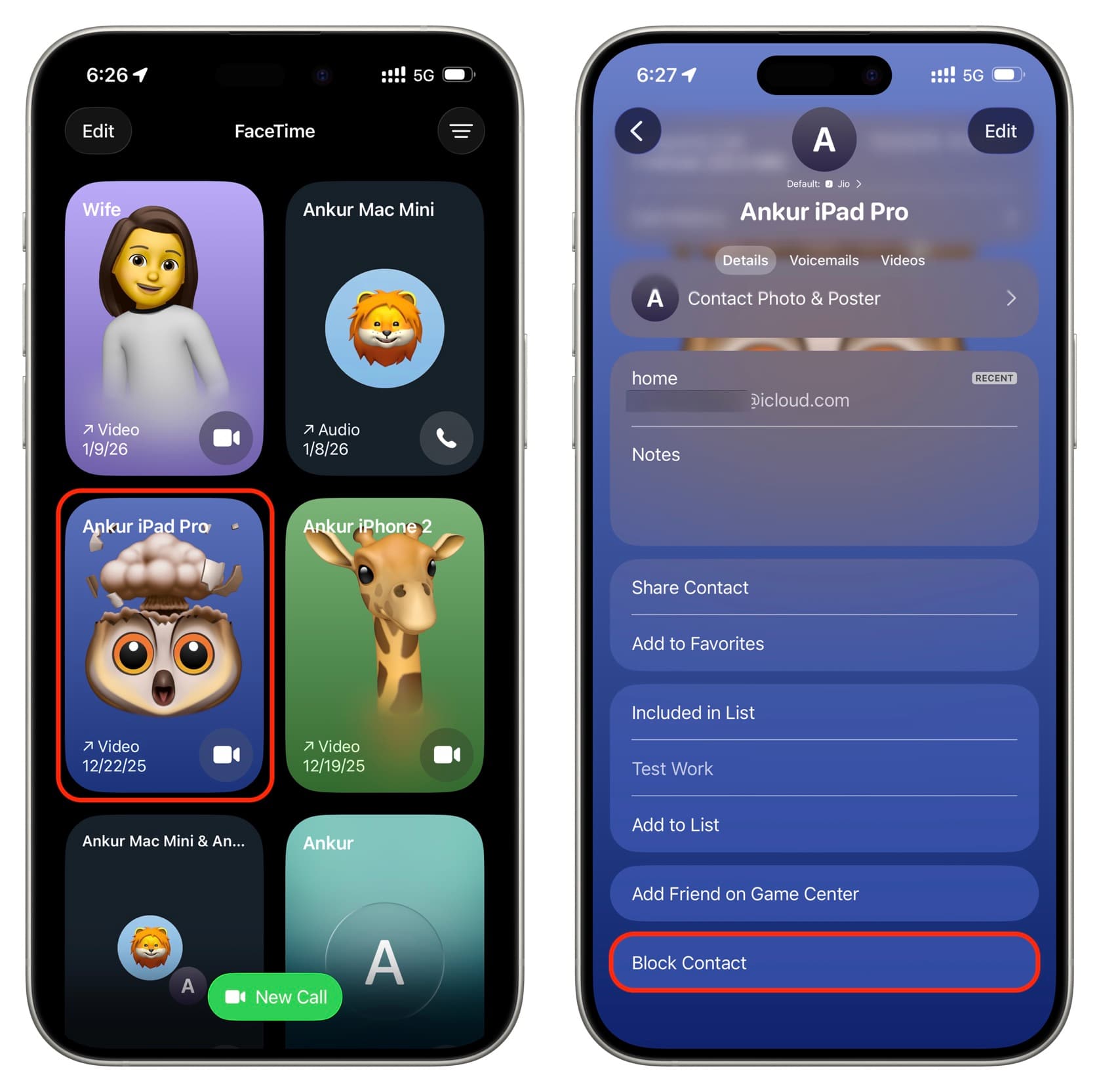
Method 3. From the FaceTime app
- Open the FaceTime app on your iPhone.
- You’ll see your recent calls here. Tap to select one.
- Scroll to the bottom and use the Block Contact button.
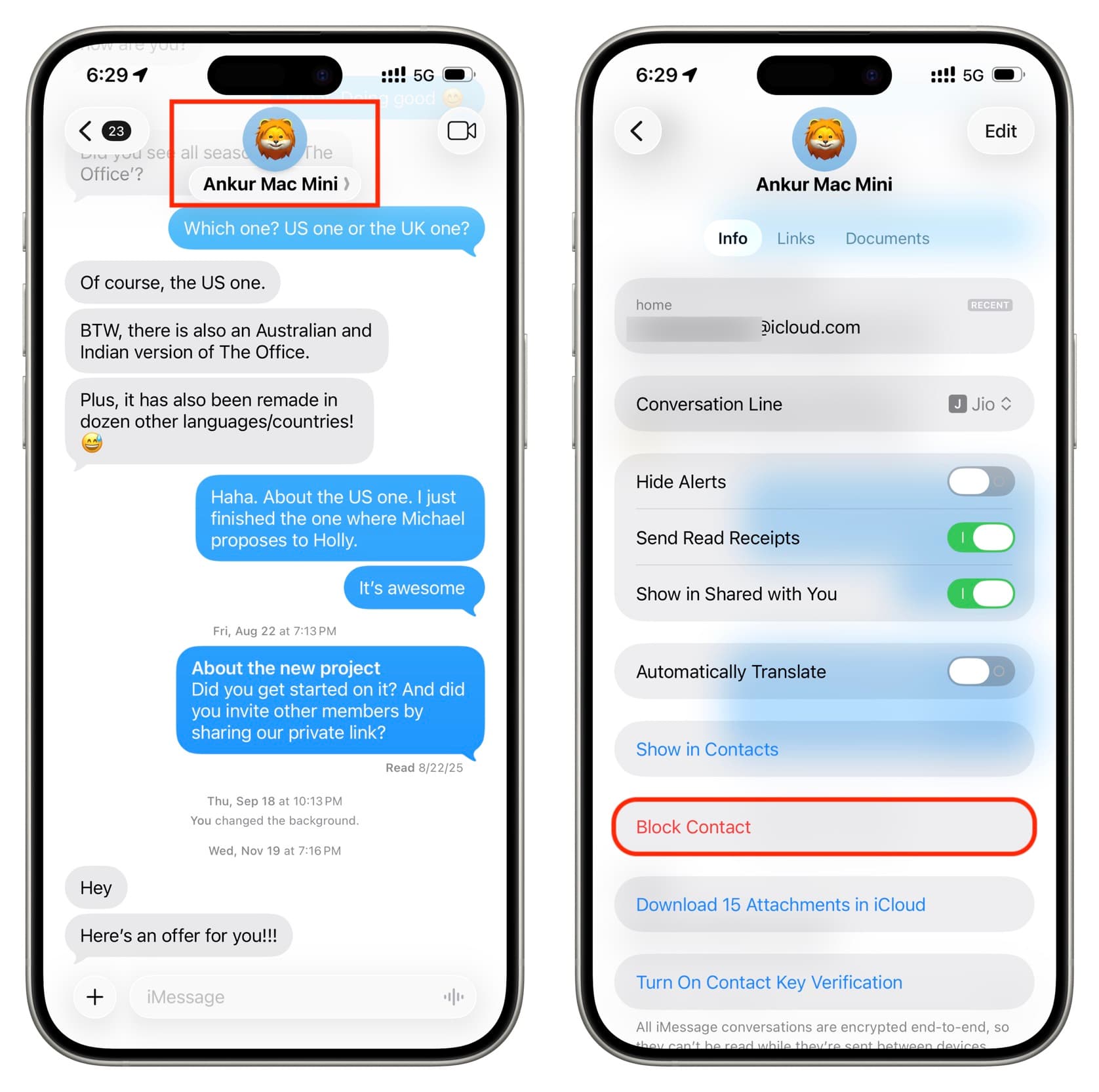
Method 4. From the Messages app
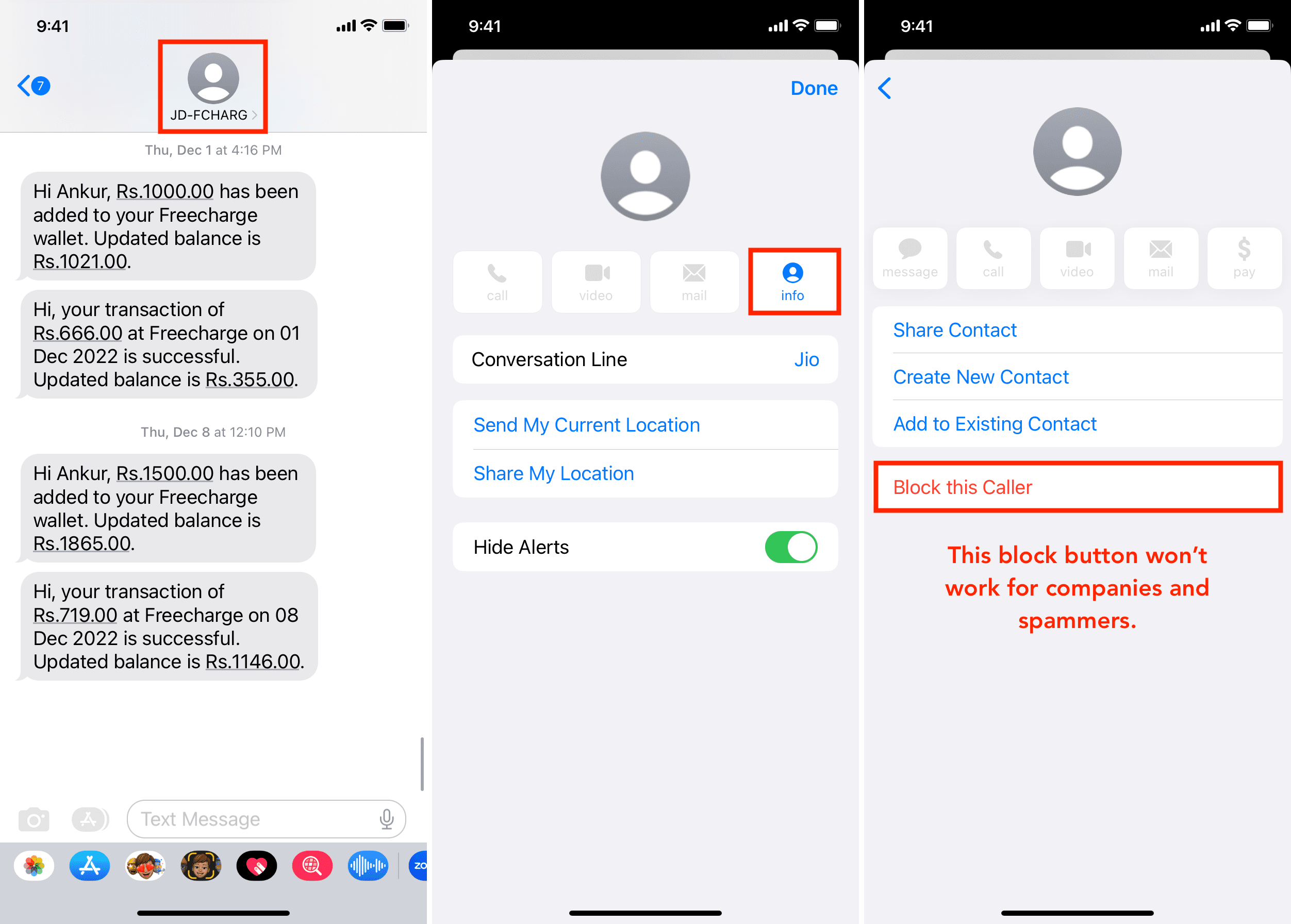
- Open the Messages app and go into a conversation.
- Tap the person’s name and profile picture at the top.
- Scroll down the Info tab and tap Block Contact.
Method 5. From the Settings app
- Open the Settings app on your iPhone, tap Apps at the bottom, and then select Phone, Messages, or FaceTime.
- Tap Add Blocked Contact.
- Enter the name and select it from your contacts list, or just type the phone number or email address. And then tap the Block Contact button to add it to your block list.

Unblock a person on iPhone
To unblock a person, follow the steps above, then select Unblock this Contact. To see all your blocked contacts in one place and unblock them from there:
- Open the Settings app and navigate to Apps > Phone, Messages, or FaceTime.
- Scroll down and tap Blocked Contacts.
- Tap the blocked number count.
- You’ll see a list of all the contacts you’ve blocked on this iPhone. To unblock one, swipe left on their name and hit Unblock. You can also tap Edit > red minus button > Unblock.

FAQs
Does my blocked contacts list sync via iCloud?
Yes! Once a person is blocked on your iPhone, they’re also added to block lists on your other Apple devices, like iPads, Macs, or other iPhones using the same Apple Account. In short, you don’t have to block them on every single device you own.
Does blocking a phone number on iPhone also stop that person from reaching me on WhatsApp, Telegram, Facebook, etc.?
No. After following the above steps, only the calling and messaging features that the built-in Phone and Messages apps support are disabled for that contact, meaning cellular phone calls, FaceTime calls, and SMS/iMessage texts. But that doesn’t stop them from messaging and calling you on third-party apps like WhatsApp, Telegram, Facebook Messenger, Signal, etc. The good news is, most such apps have their own blocking features in settings or elsewhere.
Can I block someone only from FaceTime but not iMessage?
No. The block list unifies all call types. Once you’ve blocked a person, they’re barred from reaching you via any means, be it phone calls, SMS/iMessage, or FaceTime.
Related: How to disable and prevent access to FaceTime on your iPhone or iPad
I have blocked a phone number, but I still get FaceTime calls and iMessage from them! How to fix this?
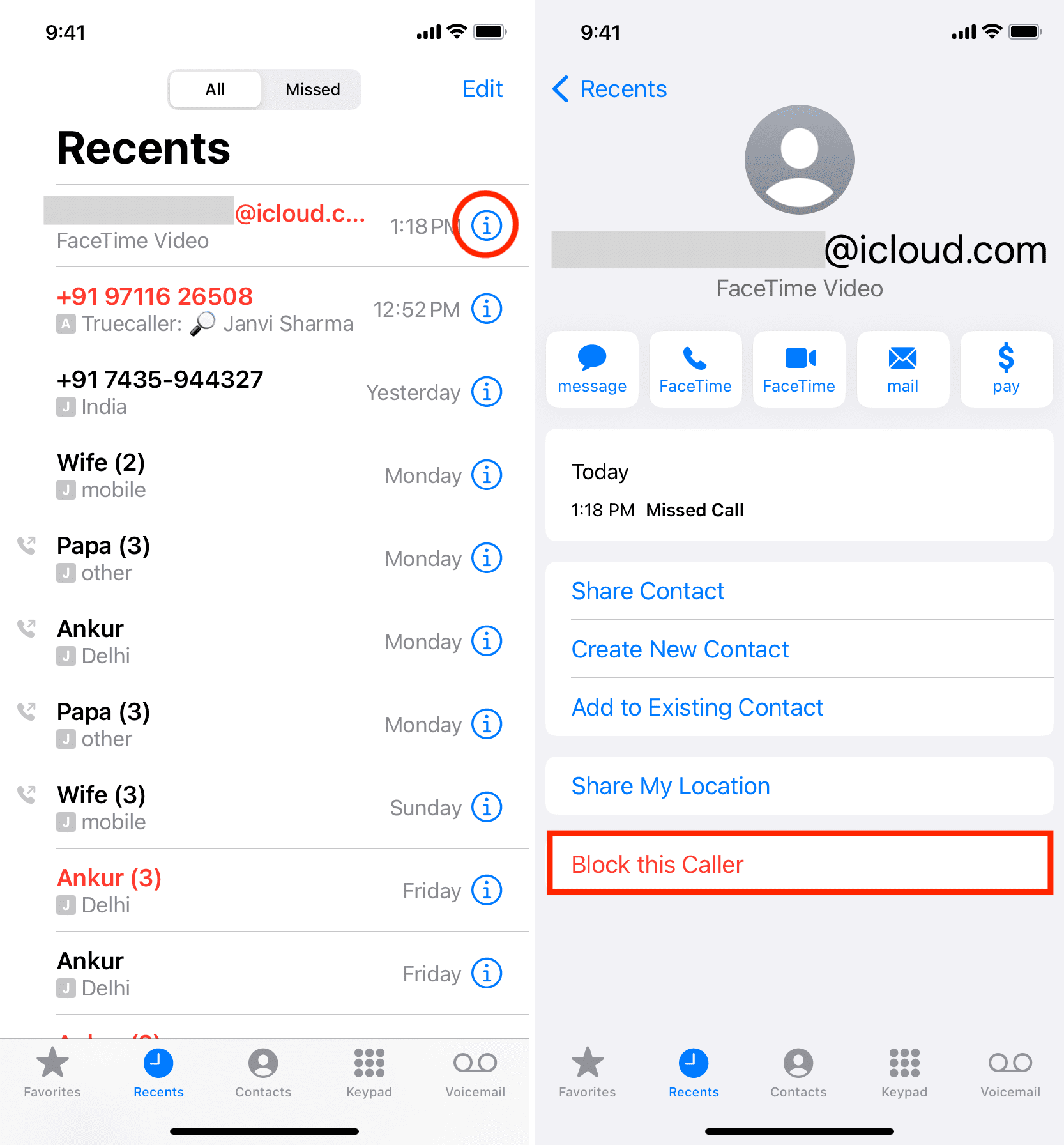
They probably use an email address as their handle for FaceTime or iMessage. To address this, open the Phone app and select the Recents tab, then hit the info button ⓘ next to a person’s email address and select Block Caller > Block Contact. The person can no longer FaceTime or iMessage you with this email address.
Help, I don’t see the option to block a sender in the Messages app!
Companies, businesses, and spammers send text messages with only the company name appearing and no visible phone number. When you go to block such senders, you may not see the usual Block Caller button (and even if it’s there, it won’t work). To test this, follow our earlier steps for the Messages app and choose Block Caller > Block Contact. Return to the previous screen and then go to the block screen, and you’ll see that the contact wasn’t blocked (such blocked callers also don’t appear in your block list within the Settings app).
In other words, you can’t block such senders from texting you on your iPhone. What you can do instead is set up message filters that will cut down the distraction.
Is blocking a sure-shot way to protect myself?
Unfortunately, it’s not. If someone is harassing you, blocking their number will only get you so far; they can still call or text you using another phone number or a different app, like Facebook Messenger or WhatsApp.
On a related note: