Learn how to set your Apple TV to automatically shuffle through different kinds of screensavers in tvOS 27.2 instead of rotating through the same kind.

Up until the tvOS 27.2 update, you could only select a particular type of screen saver for your Apple TV, like Snoopy and Woodstock, Aerial (Cityscape, Earth, Landscape, and Underwater), items from iCloud Photos (Memories, Slideshows, and Portraits), and music album art.
tvOS 27.2 now lets you shuffle through all screensavers, not just the single one you select. This way, your television screen shows a variety of screensavers instead of just one type.
Shuffle all screen savers on Apple TV
- Update your Apple TV to tvOS 27.2 or later.
- Open the Settings app.
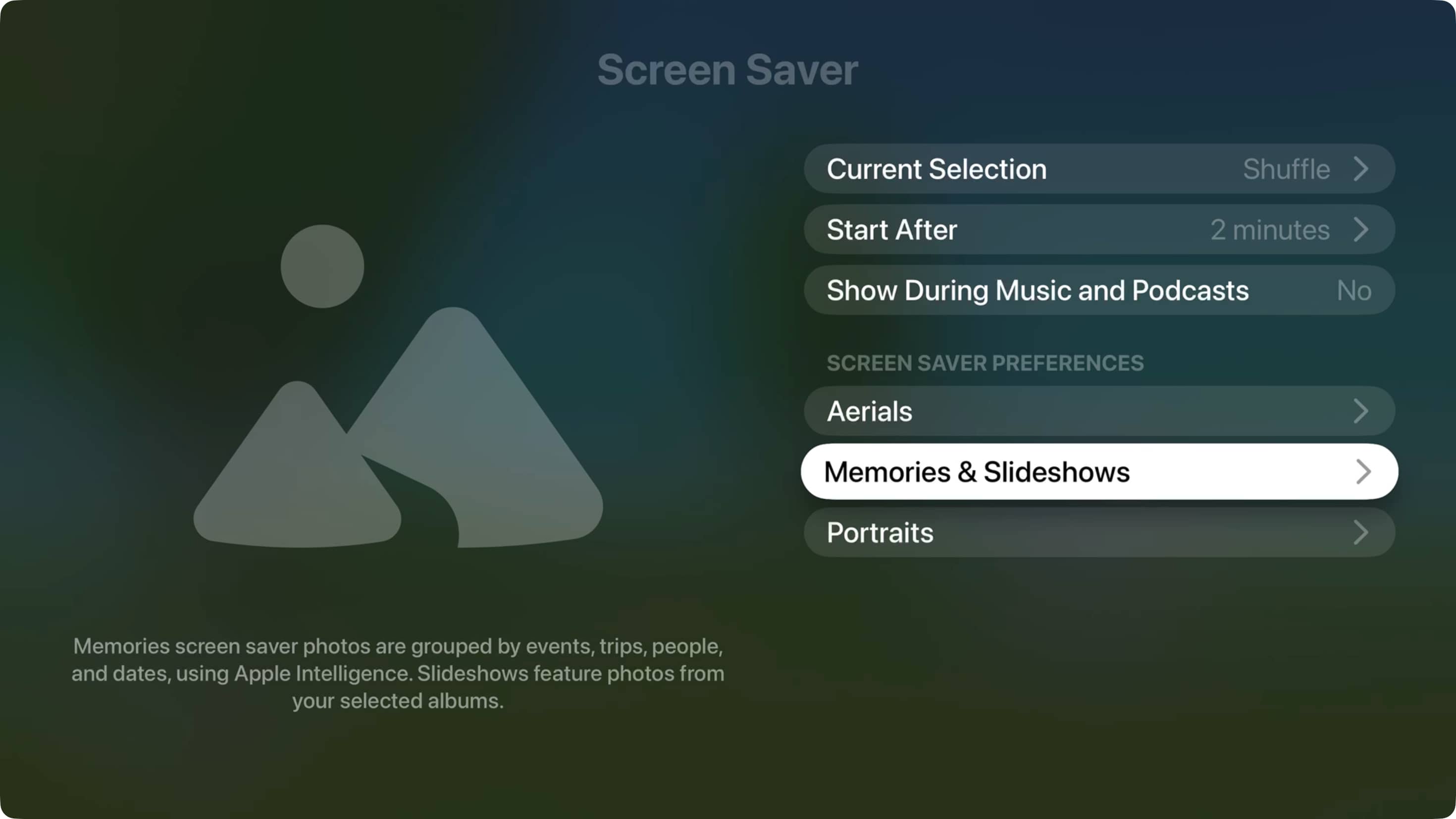
- Select Screen Saver.
- Select Current Selection.
- Pick Shuffle from the list of options.
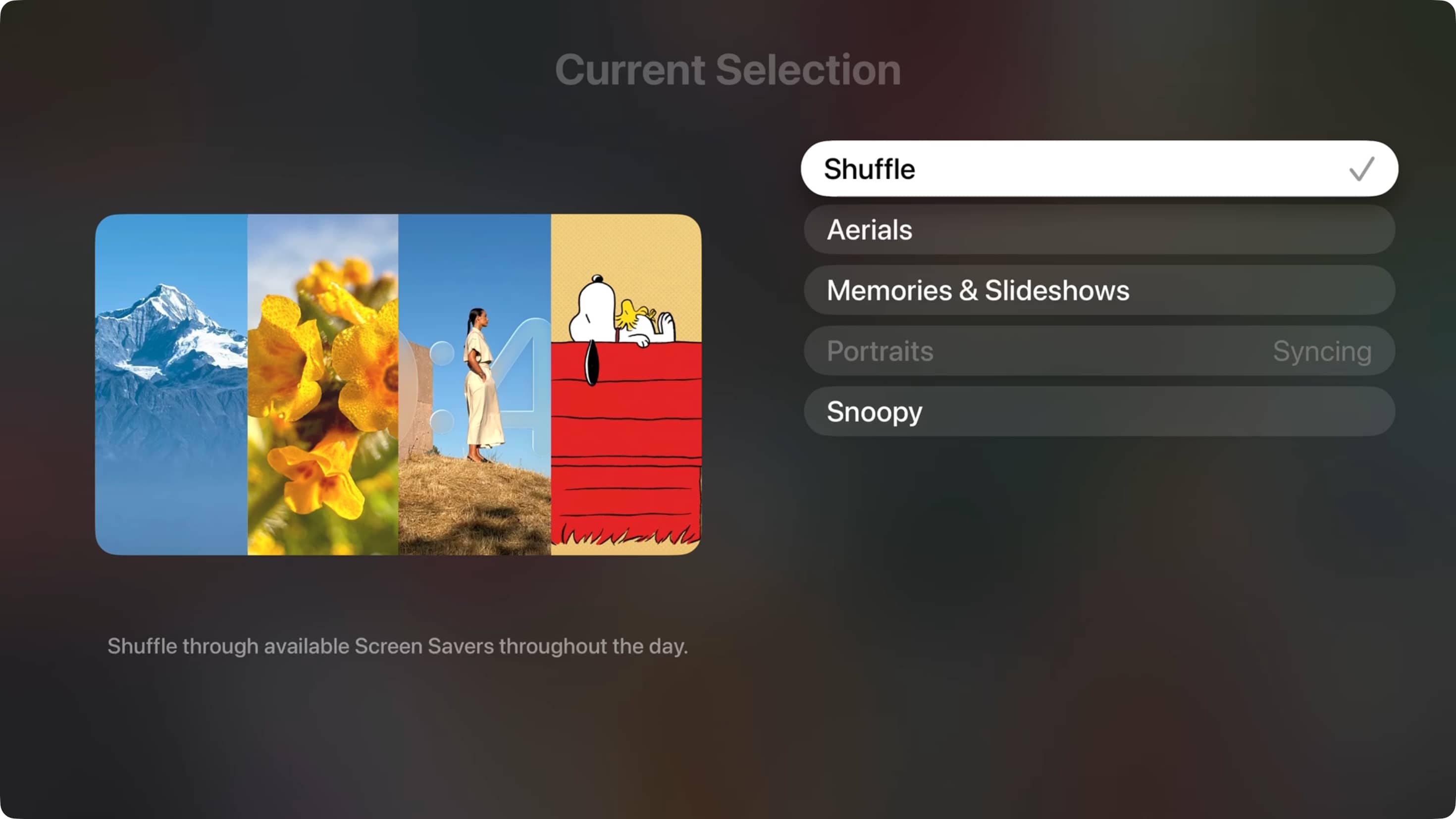
To check, go to your Apple TV Home Screen and press the Back button (<) once or twice on the Siri Remote to start the screen saver. After a while, exit the screen saver and press the Back button again. You should now see a different screen saver.
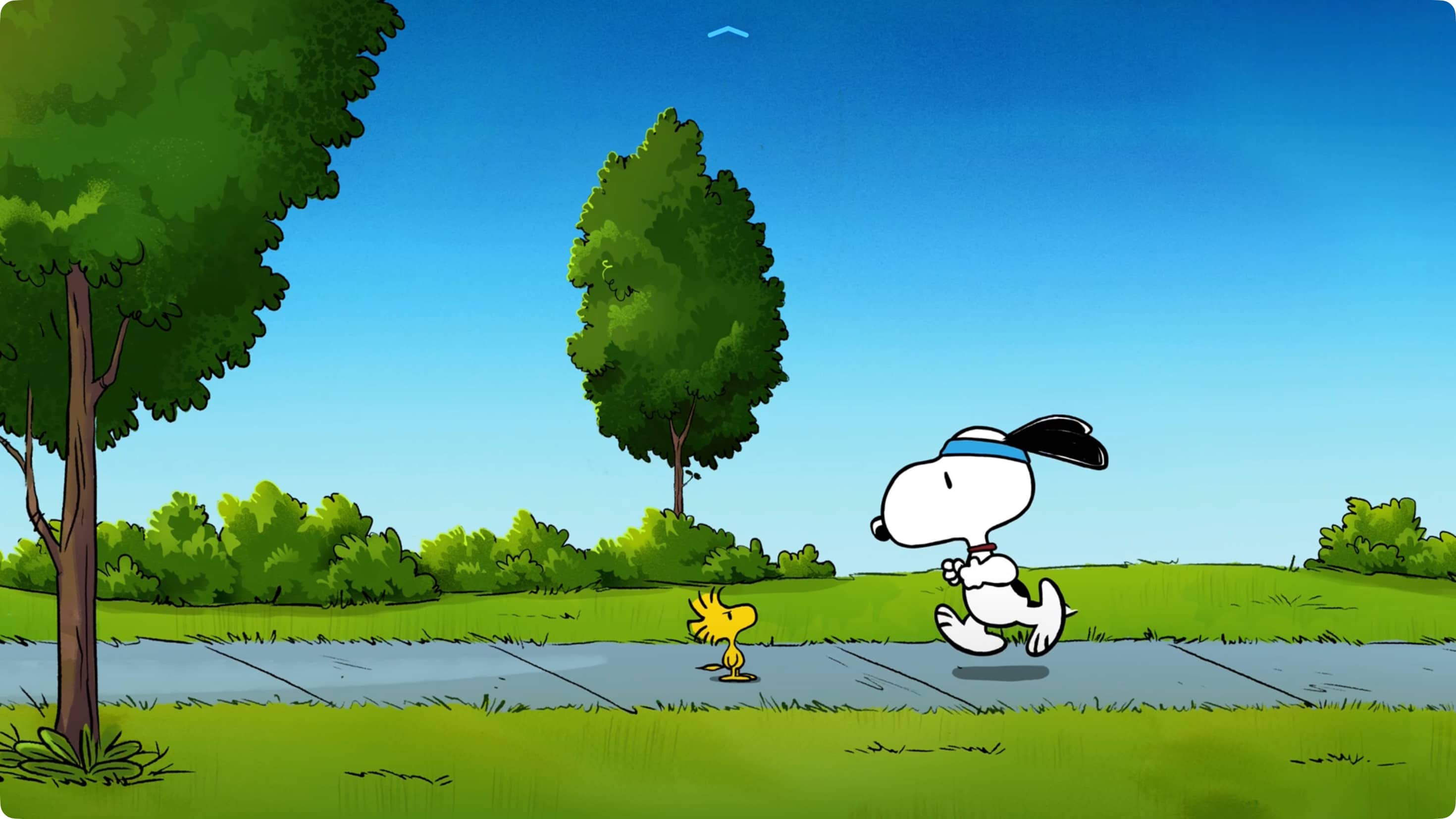
Going forward, whether you start the screen saver manually by pressing the < button or it starts automatically, you’ll have something different on your television screen.

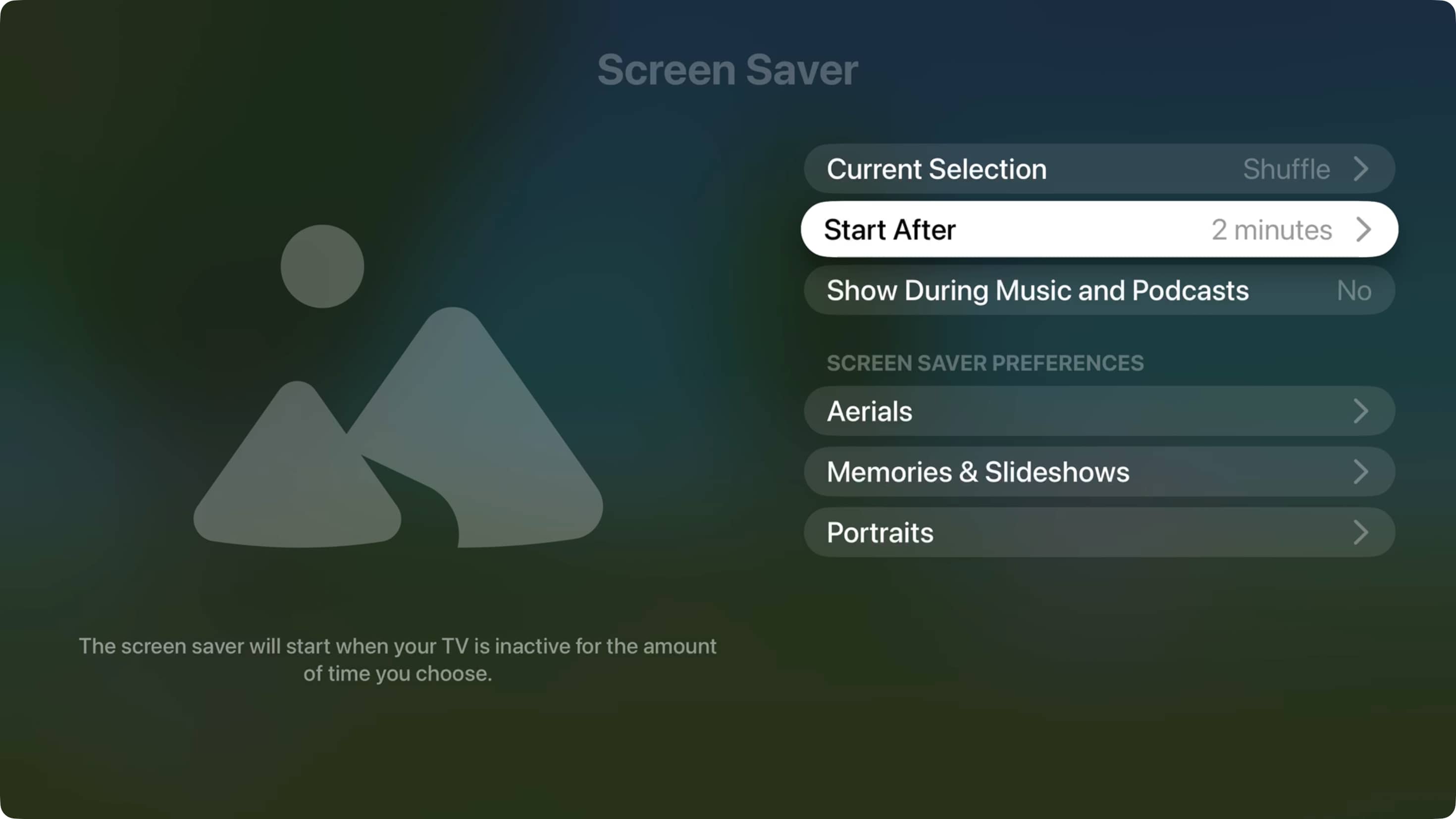
Next, return to Apple TV screen saver settings and adjust the start time and other settings as needed.
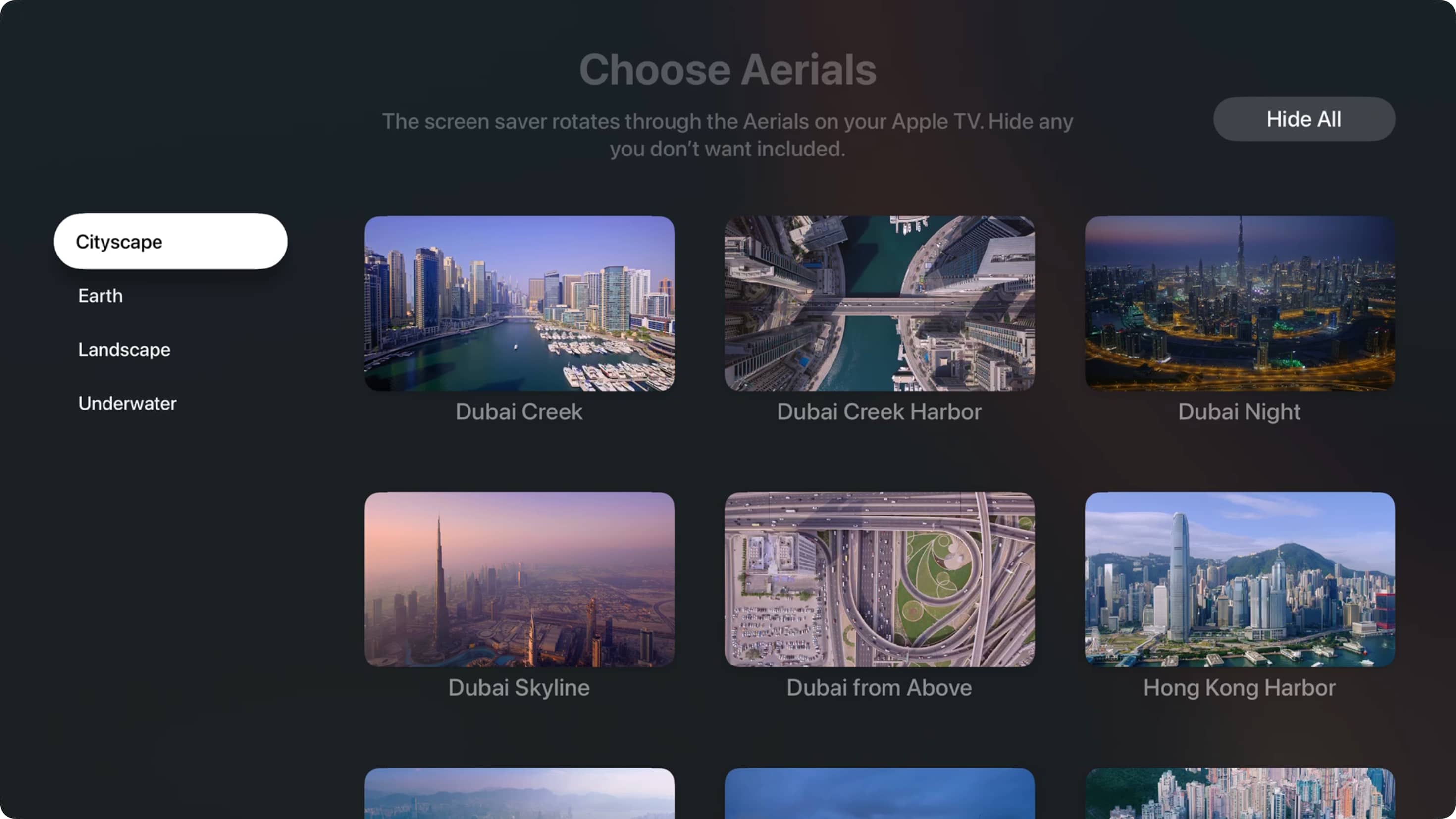
While you’re here, consider customizing the Aerials theme by choosing (showing/hiding) only the options you want in your shuffle bundle. I have shown (unhidden) all aerial cityscape and landscape options (my favorites) so they can shuffle through.
Similarly, set up the Memories & Slideshows and Portraits screen savers as well so the right items show during shuffle mode. These options require iCloud Photos to be set up.
Also, check out: