Whether it’s browsing X inside a web browser, a dedicated app, or from your menu bar, here are five ways to use it on your Mac.

1. Use it in a web browser
I’m pretty sure you know about this!
You can access X in Safari, Chrome, Firefox, Brave, Opera, and pretty much any web browser you have installed on your Mac.
The best thing about this method is that you can open X in its own browser window and then use it in Split Screen mode or place it on a separate desktop space. Other X apps may not necessarily support Split Screen, but most web browsers do.
Using X in a web browser also lets you view external news and article links comfortably.
Furthermore, you can use third-party web browser extensions to change X’s behavior. For instance, the Calm Twitter Chrome extension hides trending information from your X timeline, ensuring a clean experience. You can go to the Chrome Web Store and search for X or Twitter to see more such extensions.
X Pro or TweetDeck: If you have subscribed to X Premium or Premium+, you also get access to X Pro (earlier known as TweetDeck). You can use this only inside a computer web browser.
2. Turn the X website into an app

If your Mac is running macOS Sonoma or later, you can convert the X.com website into an app. After that, you’ll have the X app in your Mac’s Dock, like a regular Mac app. It will also send you notifications as a standard Mac app.
3. Install X as a PWA

If you use Chrome, Edge, Brave, or other Chromium-based web browsers, you can install X as a Progressive Web App (PWA) on your Mac.
Without going into too much detail, a Progressive Web App is an application that you can run from your browser. Being delivered through the web, it can run on any platform, work offline, and provide features similar to a downloadable app from the App Store.
A PWA is said to be responsive, faster after loading, installable without the App Store, and work and feel like any other app.
- Open up the Chrome browser, head to X.com, and log in.
- On the right side of the browser address bar, you’ll see a computer icon with an arrow. Click it and hit Install in the small pop-up window.
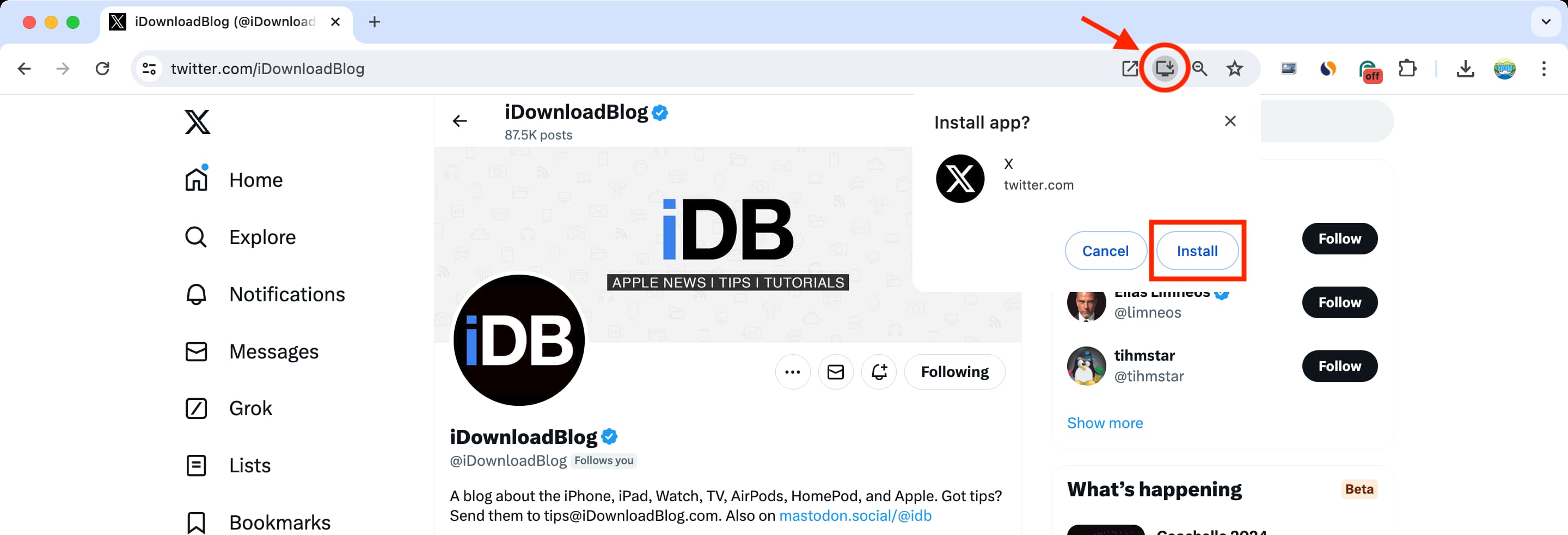
Boom! X should open right up in its own window for you.
In addition, the folder should open that now contains the X app. So you can drag it or create an alias and drag that to your desktop or Dock as a shortcut if you like.
If you close the folder too quick and want to reopen it, open Finder, click Go > Go To Folder, and then copy/paste the path below, replacing YourUsername with your account username, into the box and click Go.
/Users/YourUsername/Applications/Chrome Apps.localized/X.app
If you don’t want to create a shortcut to it, you can still open the X app directly from Chrome. It will be available in your Launchpad and the collection of other Chrome Apps.
Also see:
- 3 ways to delete Chrome apps on Mac
- What Progressive Web Apps are and how to install and use them on iPhone and iPad
4. Use X in your Mac’s menu bar
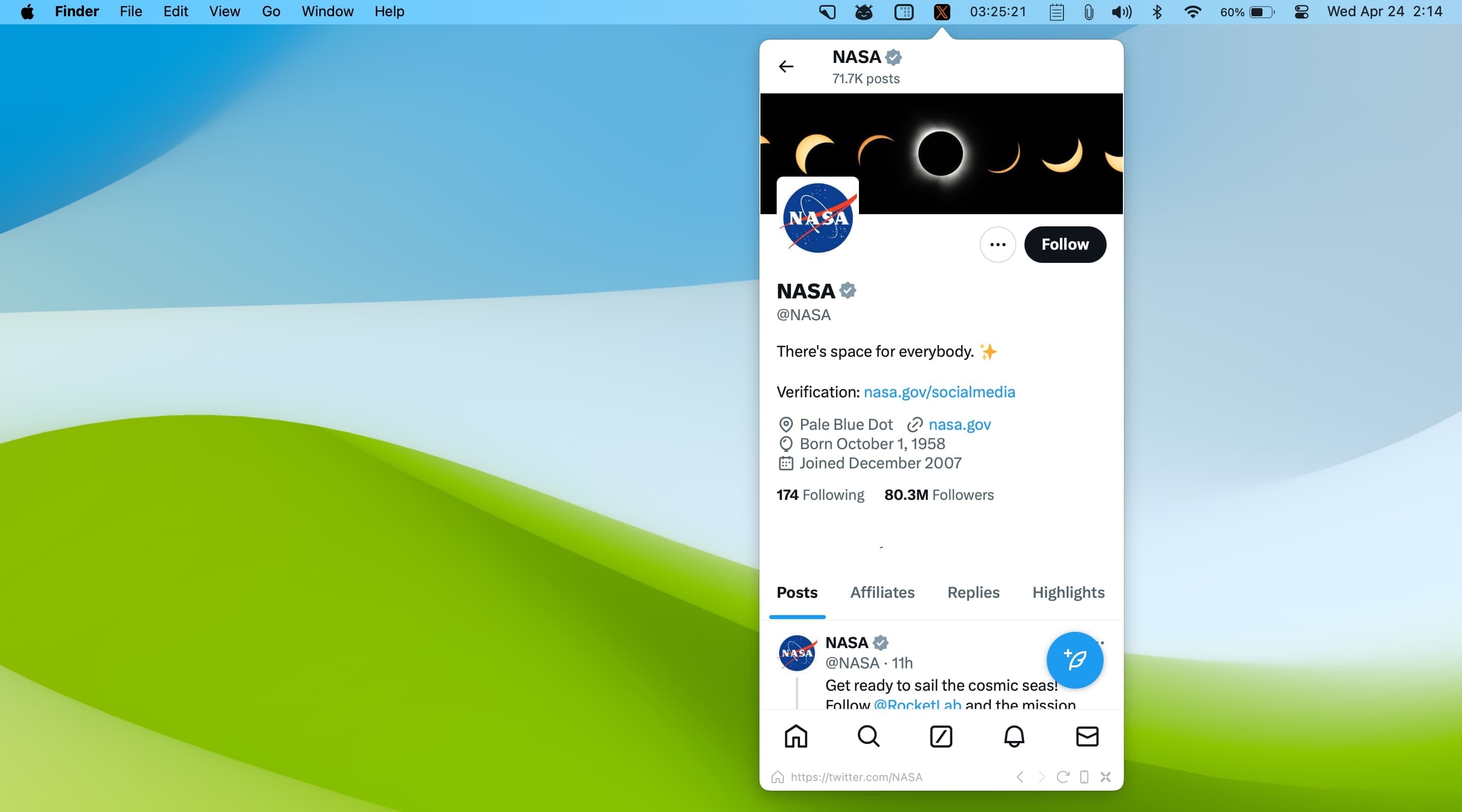
You can use a menu bar app like MenuBarX and then browse Twitter in that little popup window. This way, you can check the latest posts and trending topics even when you’re inside other apps.
5. Use third-party Twitter clients

Lastly, if you’re still exploring additional ways, you can search for Twitter on the Mac App Store and download third-party clients like Friendly for Twitter.
If your Mac has an Apple silicon chip, you can even install some iPhone or iPad X clients like TwitterIt.
Depending on your preferences, the experience you get with third-party X clients may be better, but some clients may show their own ads.
About using the official Twitter app on Mac

X or Twitter app is no longer available on the Mac App Store. But if you still have it installed, you should be able to use it.
Check out next: How to cross-post to X, Mastodon, and other platforms at the same time