Learn what to do if the screenshots you take on your Apple Watch are not showing up in the Photos app on your iPhone.

Apple Watch has a Photos app, but screenshots you take on your watch don’t appear there. Only the pictures you sync from your iPhone to your Apple Watch appear in the watchOS Photos app.
When you take a screenshot on your Apple Watch, it automatically transfers to the Photos app on your iPhone in near real-time. So, if you take a screenshot of a completed workout, achieved goal, or award, it will appear on your iPhone, and you can share it or post it to social media.
However, if your Apple Watch screenshots aren’t transferring/syncing to your iPhone, the following tips will help you fix it.
Make sure your Apple Watch and iPhone are near each other
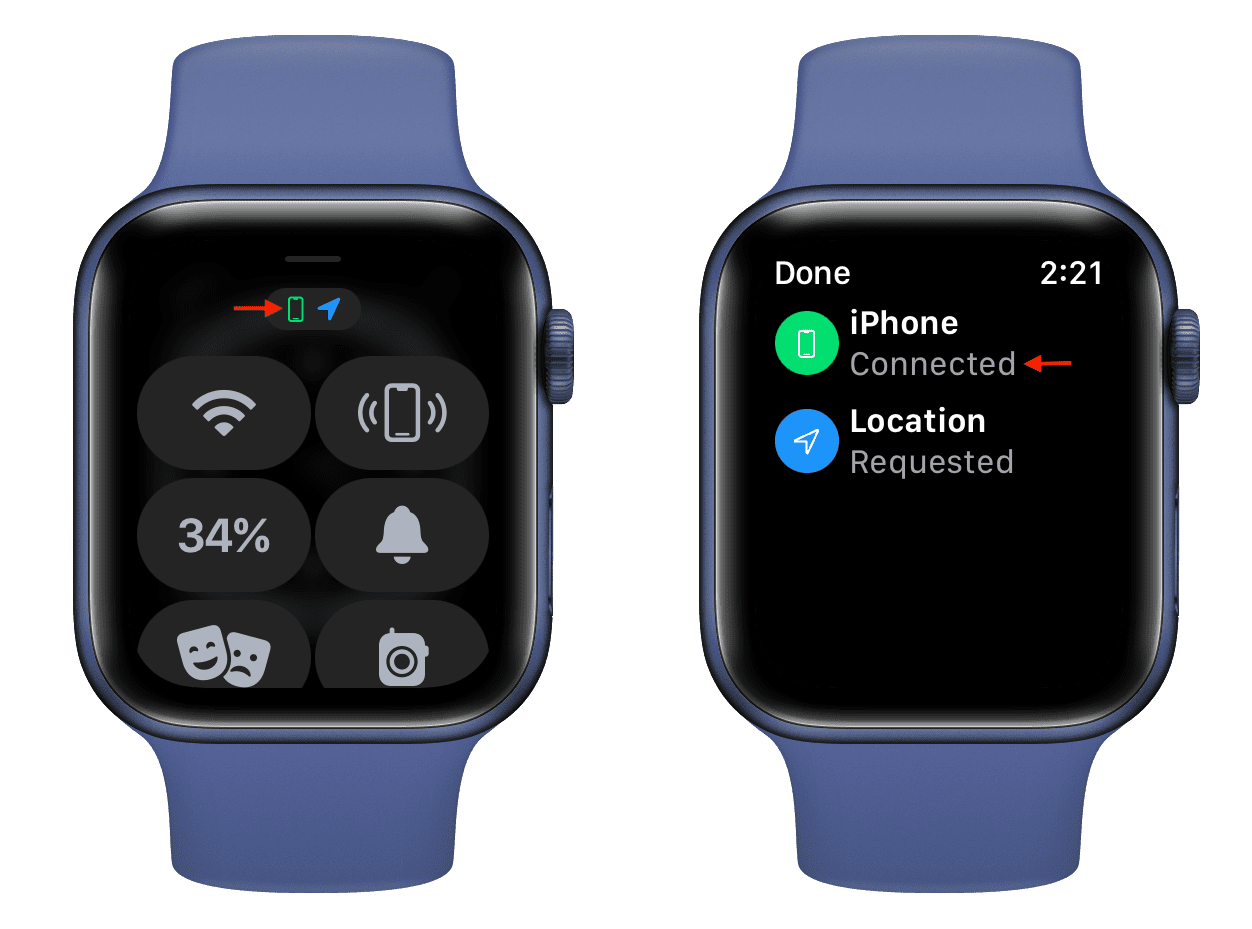
The Apple Watch screenshots are transferred to your iPhone over Bluetooth. So, ensure both devices are near, and your Apple Watch is connected to your iPhone. You’ll see a green iPhone icon in watchOS Control Center when your watch is connected.
Open the Photos app on your Apple Watch and wait
This trick works 90 percent of the time, and I have recommended it to my colleagues when their Apple Watch screenshots don’t sync to their companion iPhone.
- Take screenshots on your watch.
- Since they haven’t transferred to your iPhone, just open the Photos app on your Apple Watch and wait a few seconds.
- Now, open the Photos app on your iPhone, and you should see your watch screenshots here.

Take a screenshot of the Photos app
If the above tip does not help, make sure you are in the Photos app on your Apple Watch, then take another screenshot of the Photos app itself.
The addition of a new screenshot will refresh the stuck syncing process, and in a few seconds, all your pending screenshots should show up on your iPhone.
Turn off Low Power Mode and charge your watch
I have noticed this over a dozen times and can assure you that the watch screenshots don’t sync to the iPhone when the Apple Watch battery is very low, like less than 10%, or when the wearable is in Low Power Mode or Power Reserve Mode.
In this case, try the Photos app trick mentioned above. It may work, as it has for me on a handful of occasions. But if the screenshots still don’t transfer over, charge your watch and turn off battery-saving modes.

While you are at it, turn off Low Power Mode on your iPhone and make sure it’s charged adequately.
Restart your Apple Watch and iPhone
If the above solutions have not worked for you, turn off your Apple Watch and iPhone, wait for a minute, and turn them back on.
After that, open the Photos app on both devices, and your watch screenshots should now appear on your iPhone. If not, take a new screenshot on your watch, and it will force even the old ones to sync.
Update your devices
If your devices are running older versions of watchOS and iOS, head over to Settings and install the latest update.
Free space on your iPhone and Apple Watch
Although Watch screenshots are not huge in size, they may fail to transfer if your Apple Watch and iPhone’s local storage are full. So, delete some unnecessary apps and videos to free up space.
Last resort
In the rare case that the above solutions have not worked, you can try these more invasive troubleshooting tips:
- Reset all settings on your iPhone and Apple Watch.
- Erase and set up your watch again.
If your problem is solved, please use the comments section below to let us know which tip worked for you!
Other screenshot tips: