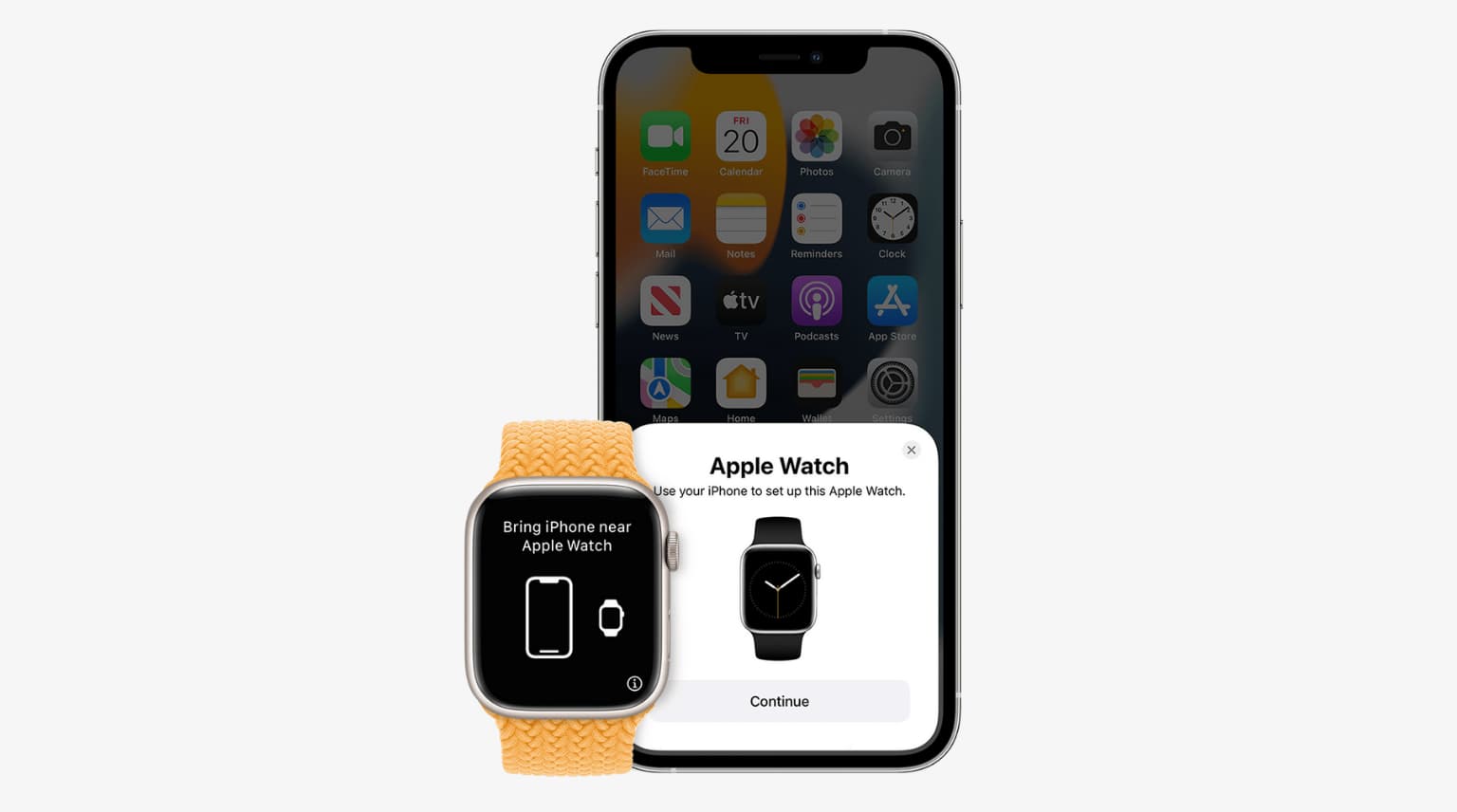
Learn about three ways to unpair your Apple Watch from its paired iPhone. Unpairing the Apple Watch is equivalent to erasing it. And after you do this, you’ll have to set up your Apple Watch again.
Why you might want to unpair your Apple Watch
- If your Apple Watch isn’t performing correctly and basic solutions like restarting, force restarting, closing apps, or updating to the latest watchOS don’t help, you might consider unpairing it.
- If you plan to pass on your Apple Watch to a family member or sell it, it becomes essential to unpair it from your iPhone so that the watch can be paired with the second owner’s iPhone.
- In case you forgot the Apple Watch passcode, you’ll have to erase it and set it up again, during which you can create a new passcode.
- If your Apple Watch is stuck on the Apple logo or syncing screen, other solutions don’t work; erasing it is the surest way to fix it.
- Finally, if you lost your Apple Watch and have no chance of finding it, you might want to erase it remotely.
Keep in mind that you can’t follow all three methods in all cases. For example, when your watch is frozen, you can’t erase it using the on-device settings. Similarly, if your watch is far off, you’ll have to use Find My instead of the Watch app.
Depending on your situation, use the method you’re comfortable with.
1. Unpair Apple Watch from the Watch app
Note: If you use a transit card in the Wallet app on your Apple Watch, remove it before following the steps below.
1) Open the Watch app on the paired iPhone.
2) Tap All Watches from the top left of the My Watch tab.
3) Tap the info button ⓘ next to the watch you want to erase.

4) Tap Unpair Apple Watch and confirm. If asked, enter your Apple Account password to disable Activation Lock.
On the cellular Apple Watch model, if you plan to pair the watch and iPhone again, you should keep the cellular plan. Otherwise, remove it.

You have successfully executed the unpairing request. Now, your iPhone will create a fresh backup of the Apple Watch, which can take a while. Once that’s done, your Apple Watch is unpaired and erased, and it’s ready to be paired and set up again with any iPhone.
2. Erase your Apple Watch from the watch itself
You can use the on-device options to erase the Apple Watch. Proceeding with this method doesn’t remove the Activation Lock. As a result, no one except you can set up this watch with their iPhone. To address this, you must follow the method mentioned above. If you don’t, you’ll have to use your Apple Account password to bypass the Activation Lock while setting up this Apple Watch.
1) Open the Settings app on your Apple Watch and tap General.
2) Scroll to the bottom and tap Reset.
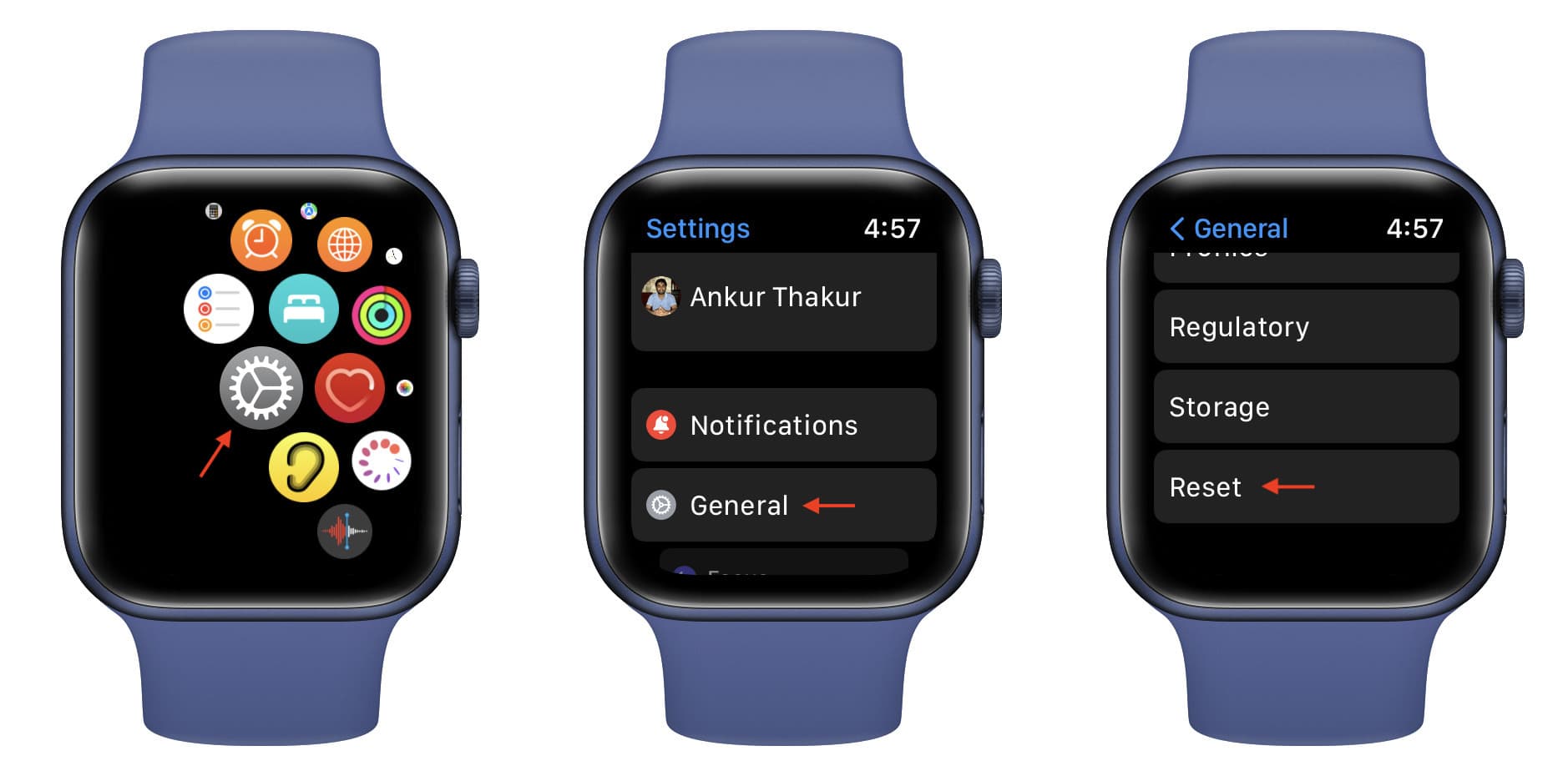
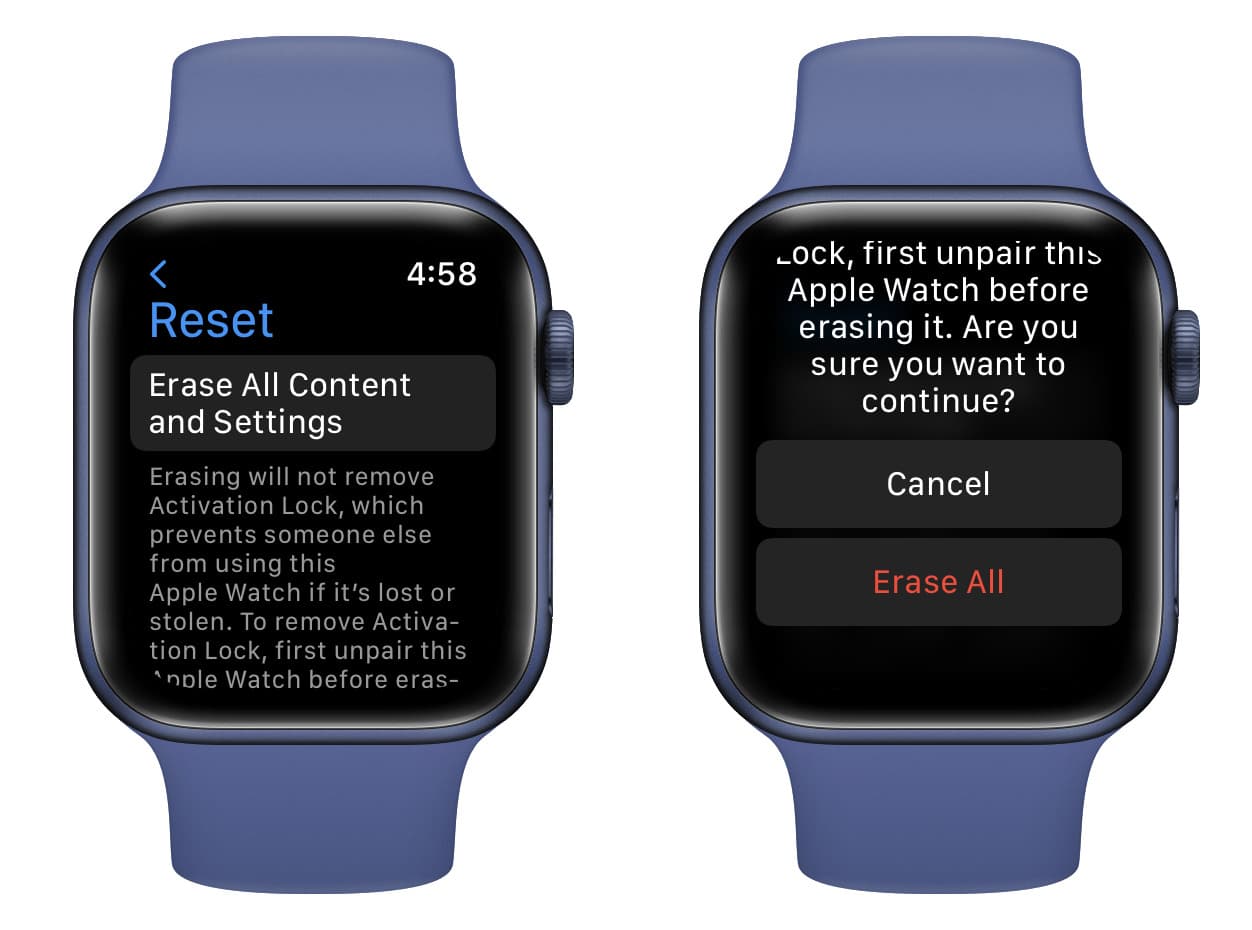
3) Tap Erase All Content and Settings.
4) Enter the watch passcode if asked.
5) Finally, tap Erase All.
3. Erase your lost Apple Watch remotely
When you can’t use the aforementioned methods, you can erase it remotely using the Find My app or iCloud.com. These steps to erase your Apple Watch will only work when the watch is connected to the internet via Wi-Fi or mobile data on a cellular model.
Please note that once you erase your Apple Watch, it will stop appearing in the Find My service, and you can no longer keep track of its location, play a sound, or find it.
Here are the steps to unpair and erase your Apple Watch even if it isn’t with you:
1) Open the Find My app on your iPhone, iPad, or Mac and tap Devices. You can also use iCloud.com/find/ in a web browser. We’re using the Find My app.
2) If your iPhone is on iOS 27, tap your Apple Watch name, followed by the three-dots menu icon. On older versions of iOS, tapping just the Watch name is enough.
3) Scroll to the bottom and tap Erase.

4) Tap Continue and optionally enter a phone number that will be displayed on the Apple Watch screen after the watch is erased. Any kind person who finds your watch can see this phone number and contact you. Finally, tap Erase.

Also, check out: