Protect your iPhone, iPad, Mac, and Apple Watch from theft and unauthorized access by enabling Find My Activation Lock, ensuring enhanced security.
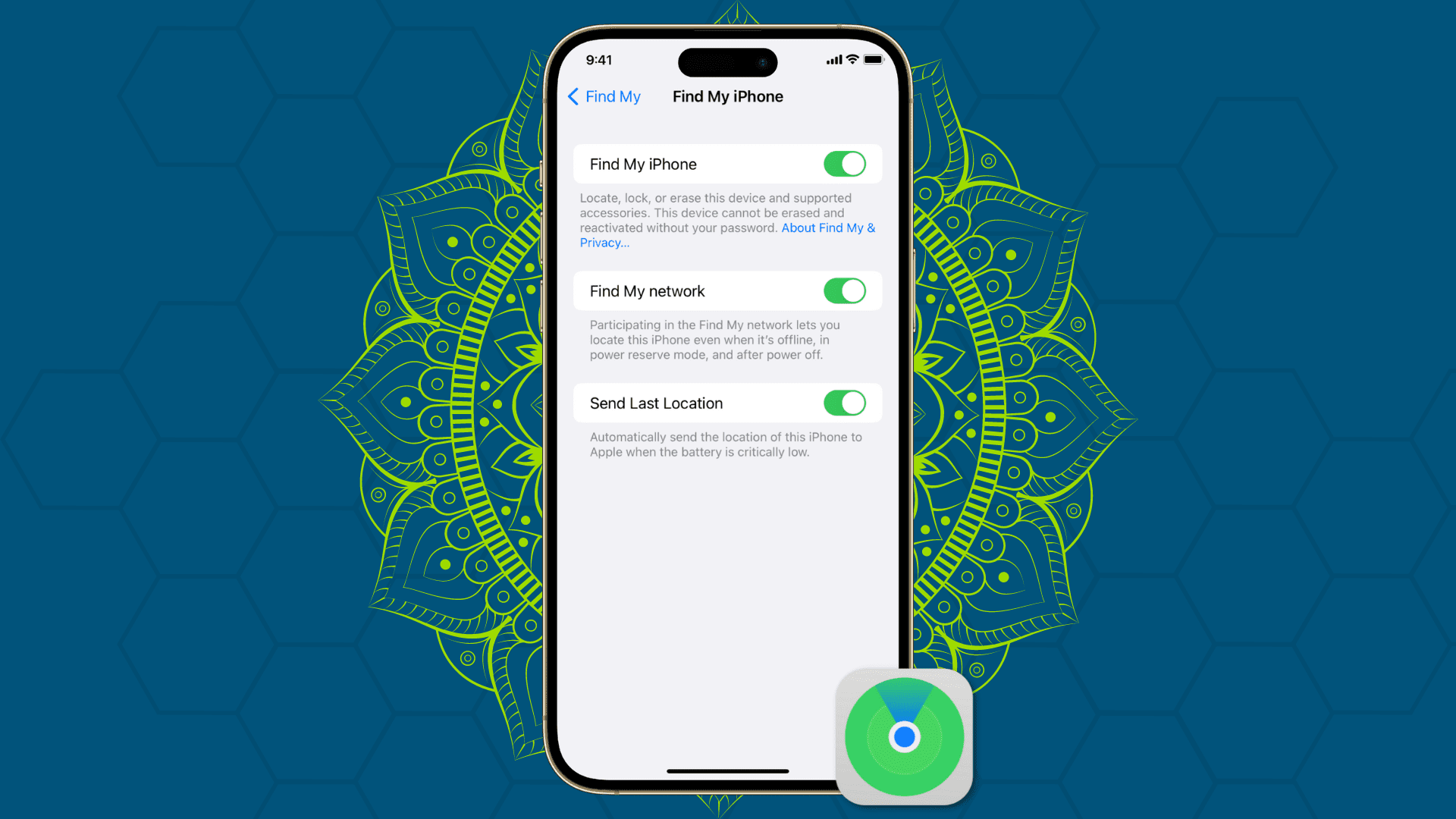
On the surface, Activation Lock is just an extension of Find My, a service that lets you track a lost or stolen Apple device and remotely erase it.
In reality, Activation Lock is more powerful than it appears: it prevents anyone from activating your device without first entering your Apple Account and password or the previous device passcode. Therefore, you must always check for it before buying a second-hand Apple device.
The best part of Activation Lock is that it is deeply integrated into Find My. There is no special setting to turn on to take advantage of Activation Lock, and Apple itself doesn’t make a big deal out of the feature, which has been praised by authorities for curbing iPhone thefts in certain metropolitan areas. If Find My is ON, that means Activation Lock is also ON.
When you first activate a new iPhone, iPad, Mac, or Apple Watch, or after a full restore, if you sign in with your Apple Account, Find My, and by extension Activation Lock, are likely already enabled. However, the setting can be manually turned off later. So, if you’re unsure, here’s how to check if Find My Activation Lock is enabled on your devices.
iPhone and iPad
iOS 7 and later support Find My Activation Lock.
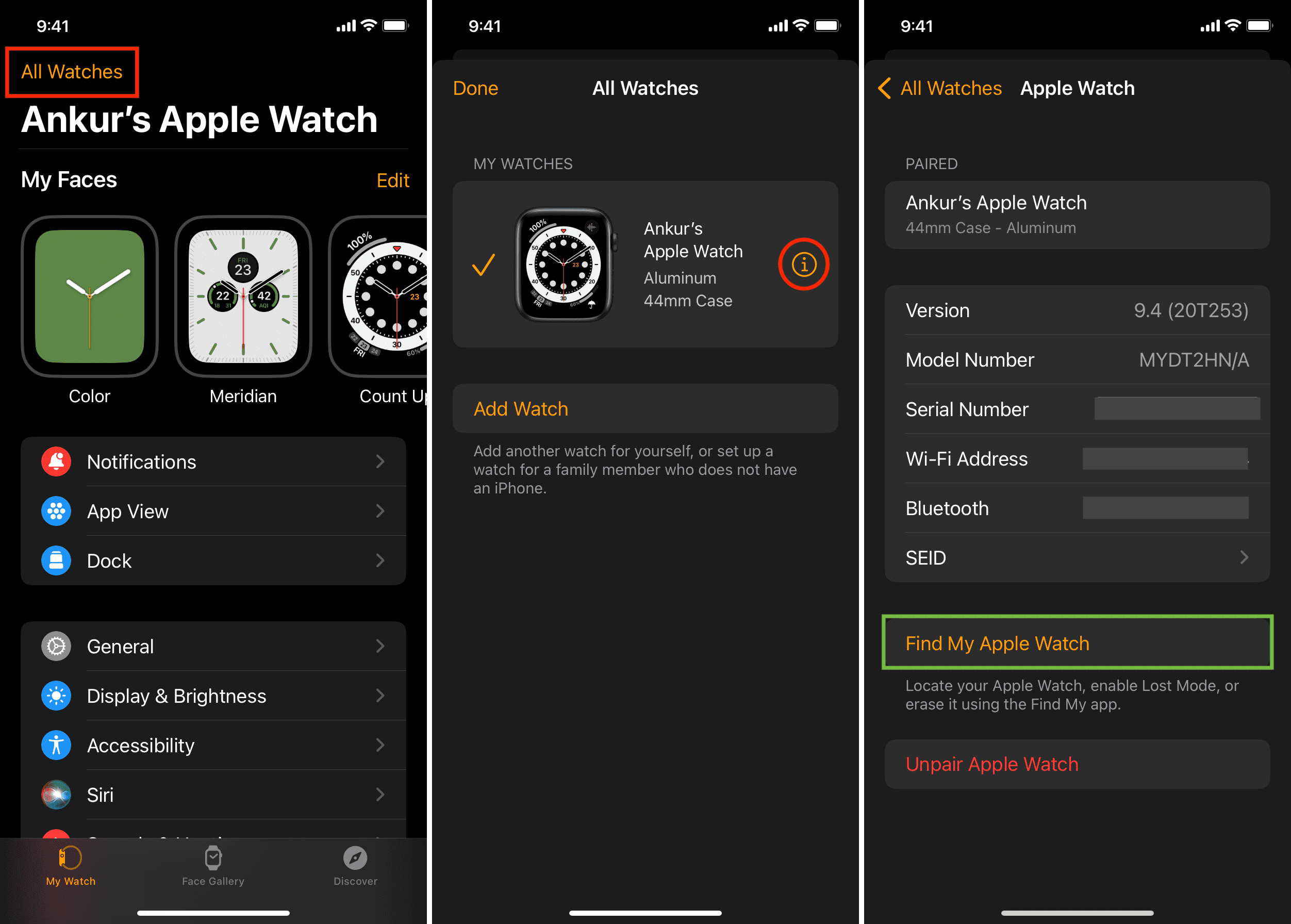
- Open the Settings app and tap your name at the top.
- Tap Find My.
- Make sure it says On next to Find My iPhone. If it’s off, tap it and turn on the switches next to Find My iPhone and Find My network.
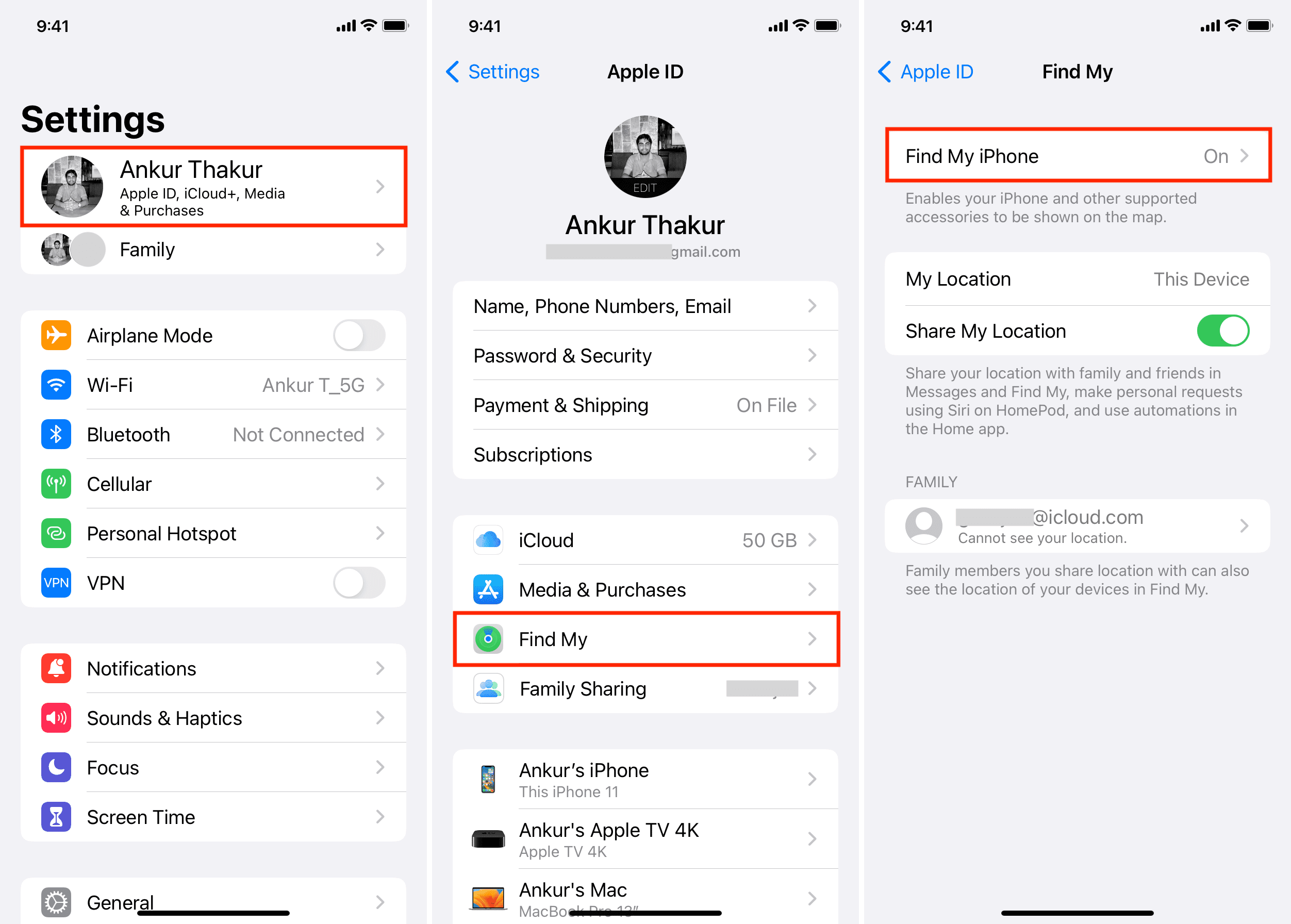
Send Last Location
Additionally, you have the option to enable “Send Last Location.” This feature will automatically send the last known location of your iPhone or iPad to Apple when the device runs out of battery and is about to shut down. This can be a great feature if you left your phone somewhere and it ran out of battery. At a minimum, Find My will tell you where it was last located.
Apple Watch
Once you enable Find My on your iPhone, it’s automatically enabled on the paired Apple Watch. But you can follow these steps if you want to be sure that Find My Activation Lock is turned on for your Apple Watch. Note that it’s available on watchOS 2 and later.
- Open the Watch app on your paired iPhone and tap All Watches in the top-left corner.
- Tap the info icon ⓘ next to your Apple Watch.
- If you see the Find My Apple Watch option, that means Activation Lock is enabled on your watch.
Mac
Intel Macs with Apple T2 Security Chip and Macs with Apple silicon chip running macOS Catalina and later support Find My Activation Lock. Here’s how to check if it’s enabled:
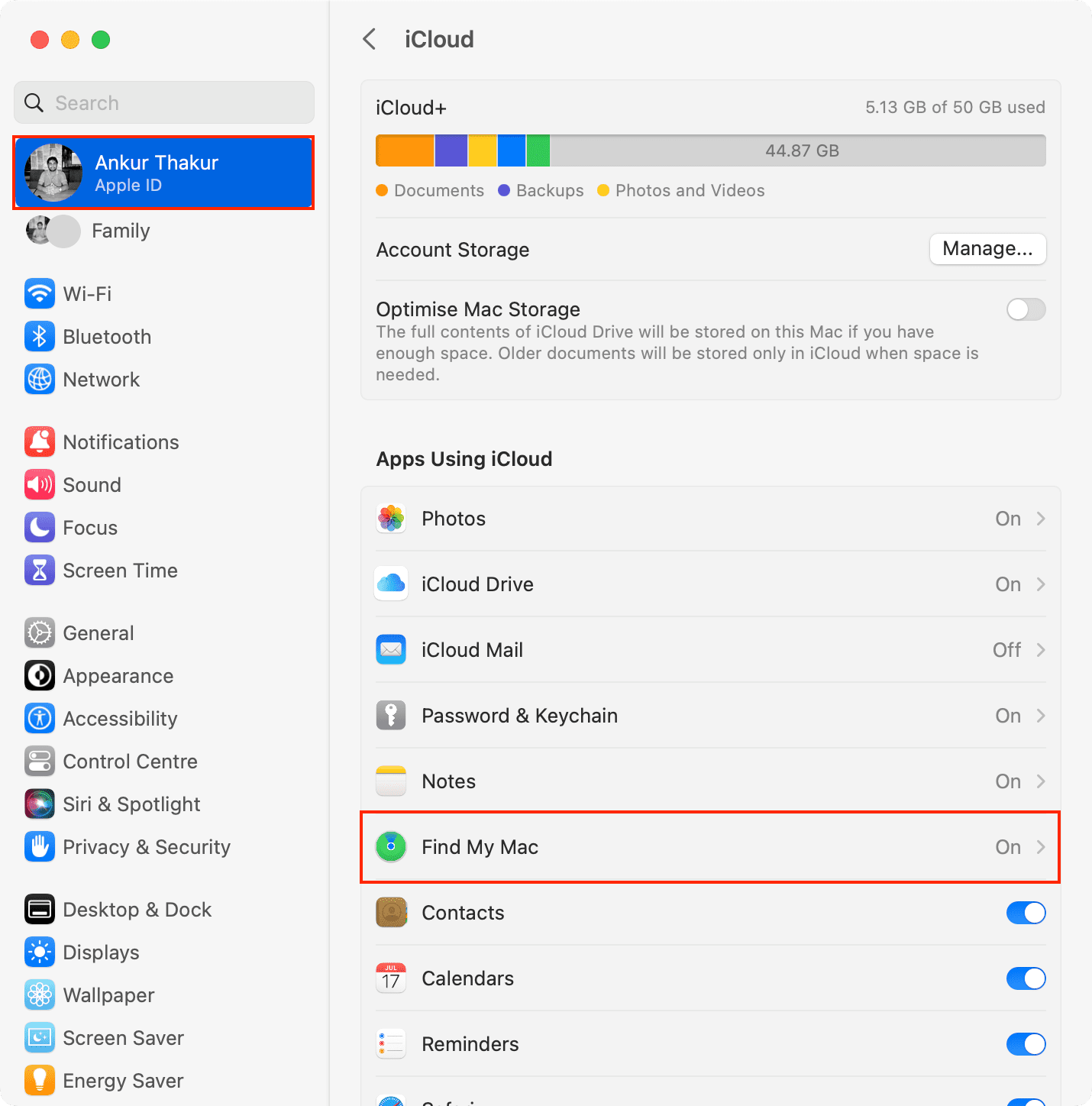
- Open System Settings and click your Apple Account from the top left.
- Click iCloud, followed by the See All button.
- Make sure it says On next to Find My Mac. If not, click Find My Mac and turn it on.
We have covered a lot more about Mac’s Activation Lock in our dedicated tutorial.
As mentioned above, there is no special setting to turn on to take advantage of Activation Lock. If you enabled Find My, then you enabled Activation Lock. From now on, if your device is lost or stolen, and you put it in Lost Mode using Find My, Activation Lock will prevent anyone from erasing or reactivating your device.
If your device is lost or stolen…
Now that you know for sure Activation Lock is enabled, here is what you should do next in the event your device is lost or stolen: