Learn how to make sure the Activation Lock feature is enabled on your Mac, disable it if necessary, and find out if your computer is compatible with this security protocol.
Activation Lock is a Mac security feature that can help foil thieves and others from using your computer. It makes your computer far less attractive to thieves.
With Activation Lock and the Find My app, you can remotely brick your Mac after it’s stolen or lost. In fact, the Find My app might even help you locate your misplaced computer, even if it’s not currently connected to a network.
Activation Lock on Mac works just like on your iPhone, iPad, iPod touch, and Apple Watch. Once it’s on and your Mac gets stolen, the thief will find it completely useless because they cannot even install or boot the computer without your Apple Account credentials to activate it.
Activation Lock is available on all Mac models with an Intel processor and Apple’s T2 security chip. It’s also available on all Apple silicon (M1, M2, M3, M4, M5, and so forth) Macs.
Activation Lock requires macOS Catalina 10.15 or later, two-factor authentication feature for your Apple ID, and Secure Boot enabled on the default setting: Full Security, with “Disallow booting from external media” selected under the External Boot section.
Check if Activation Lock is enabled on your Mac
Activation Lock is enabled automatically when you turn on Find My on your Mac during setup or later from System Settings. If you’re unsure, follow these steps to check the status of Activation Lock on your Apple computer.
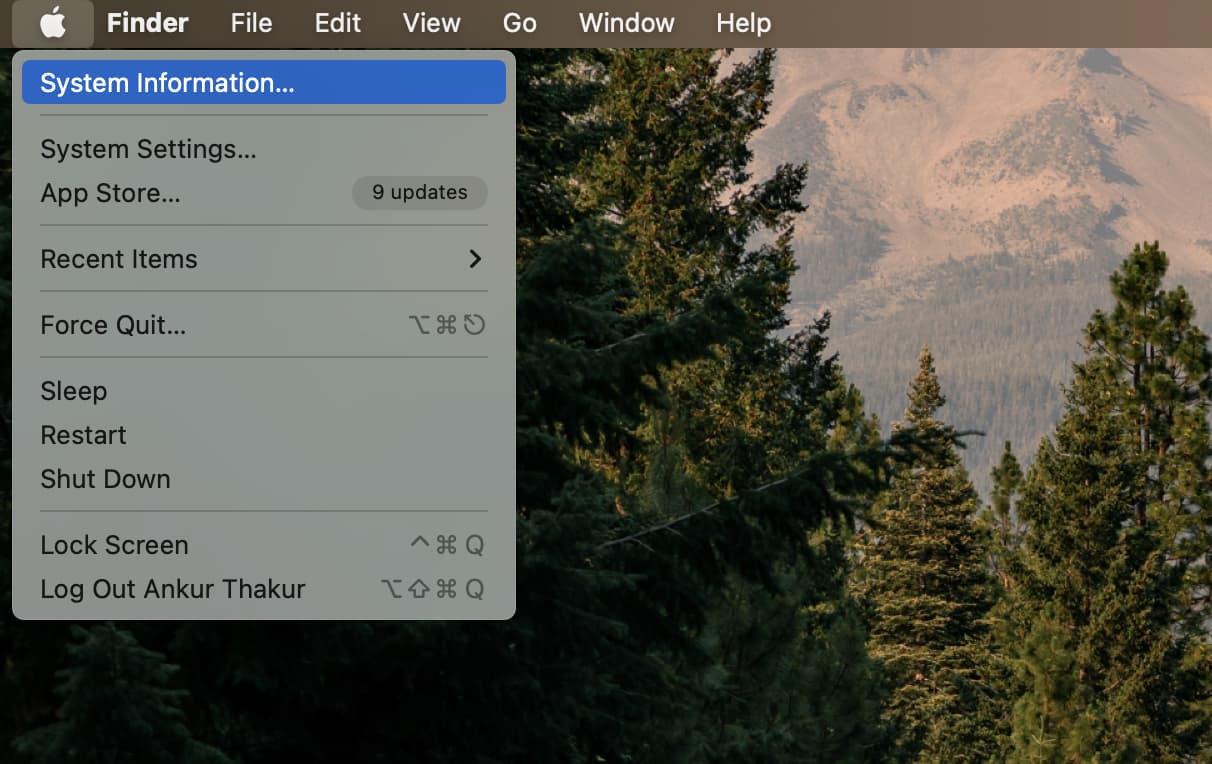
1) Click the Apple icon in the top left corner of the screen while pressing and holding the Option key on your Mac, and choose System Information.
2) Make sure Hardware is selected from the left sidebar. On the right, you’ll see the Activation Lock Status.
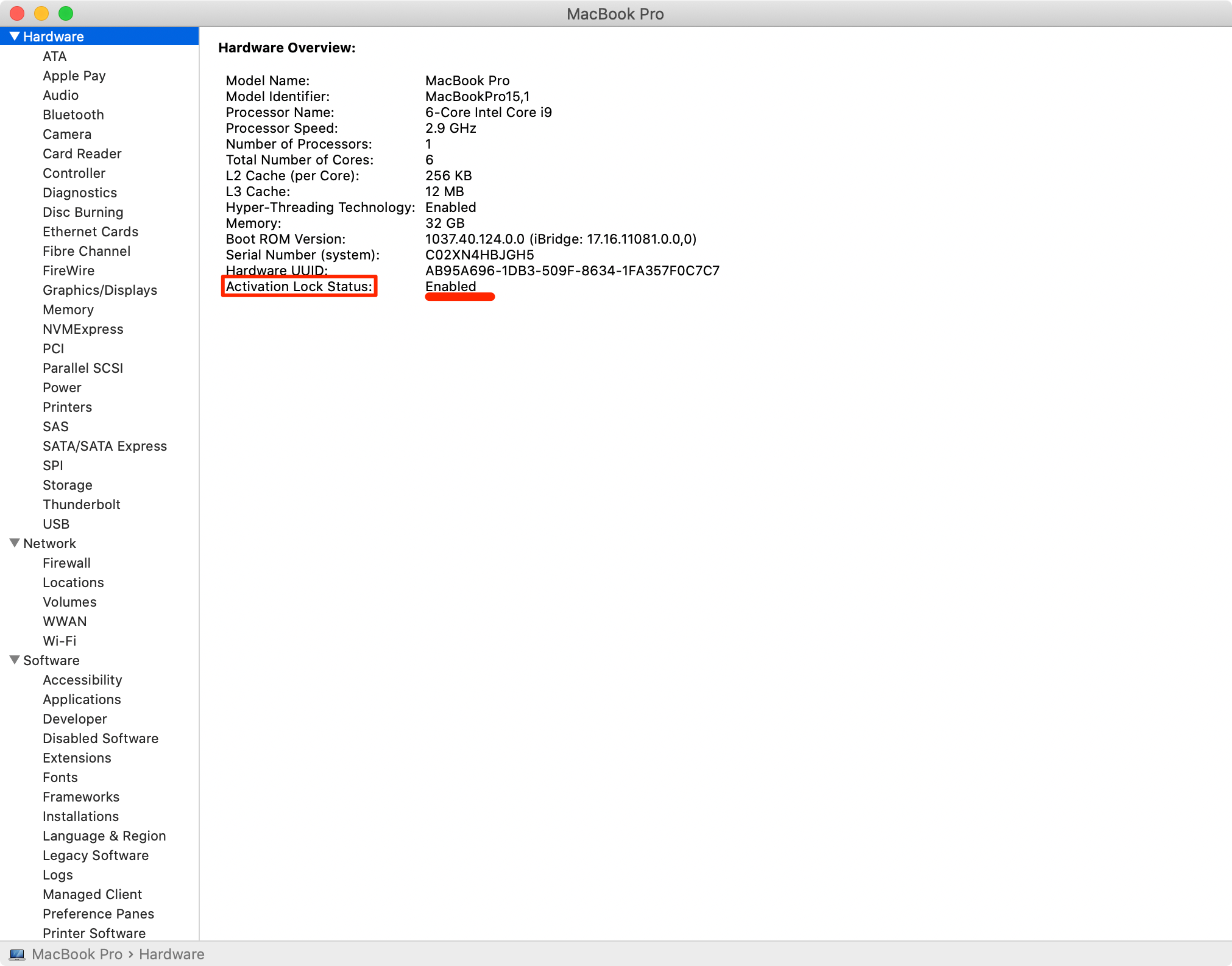
If the entry “Activation Lock Status” in the right-hand column reads “Enabled,” then you can rest assured that this theft-deterring tool has been enabled on your Mac. Conversely, if “Activation Lock Status” reads “Disabled,” this indispensable security feature is currently off.
According to Apple:
Activation Lock works in the background to make it more difficult for someone to use or sell your missing device, but you can still remotely lock your device with Find My to secure it with a unique passcode and display a message for anyone who may find it.
Turning on Find My Mac automatically enables Activation Lock, which prompts macOS to require your Apple Account password or device passcode before anyone can turn off the Find My service, erase the computer, or reactivate and use it.
Disable Activation Lock
Apple advises disabling Activation Lock before sending your Mac in for service, selling it, or giving it away.
In fact, when you bring your Mac to the Apple Store or an Apple-authorized service provider, you’ll be required to disable Activation Lock before they can do any work on it. That’s because doing so ensures the machine is no longer linked to your Apple Account. That’s necessary when service providers swap out essential parts, and it’s also crucial for buyers, who will otherwise end up owning a machine that starts up to an Activate Mac window with no way to get past it.
If you have access to your Mac
- Open System Settings and go to your Apple Account settings from the top left.
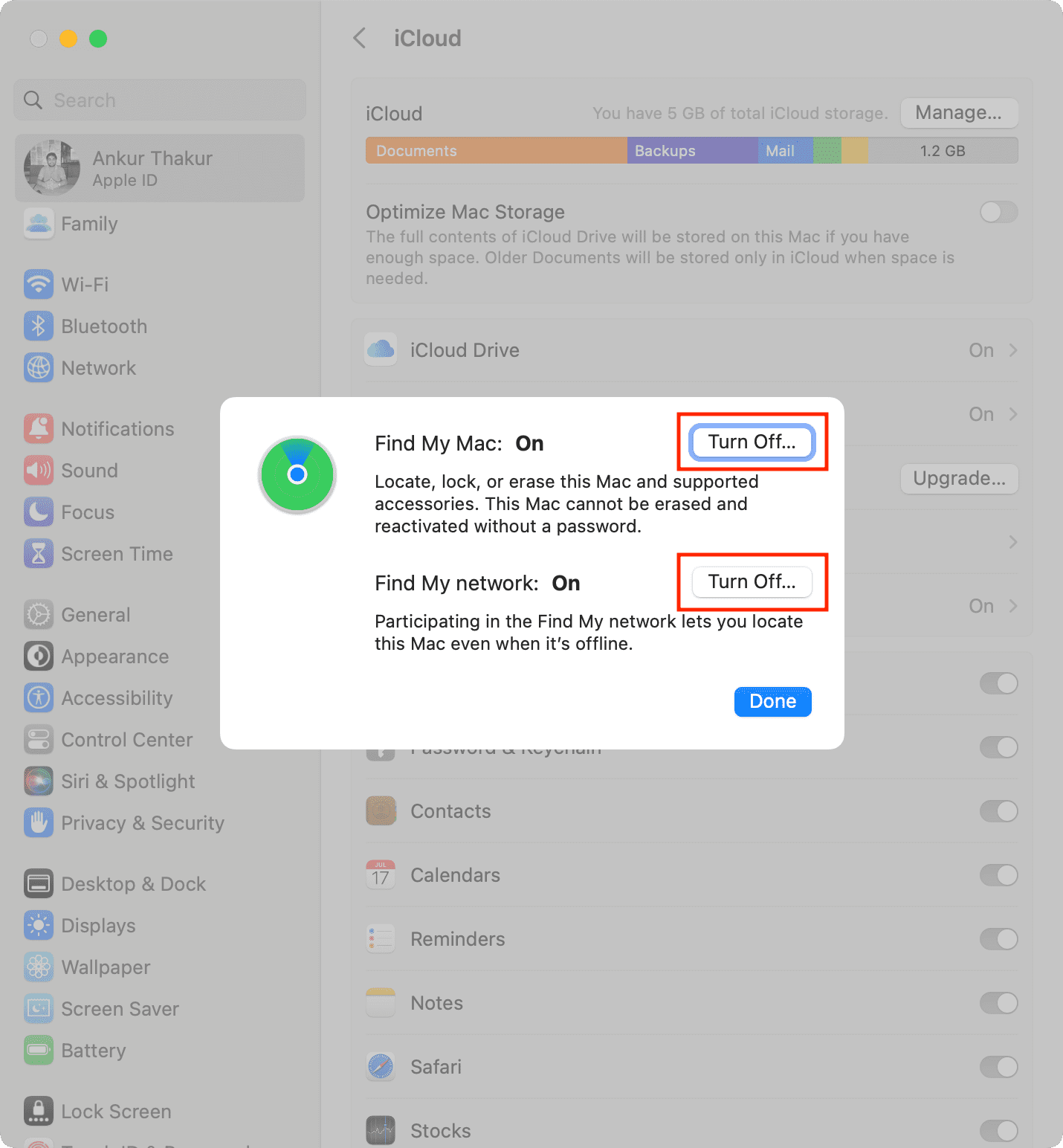
- Click iCloud > See All > Find My Mac.
- Click the Turn Off button next to Find My Mac and enter your Apple Account password if asked.
- Now go back to the main Apple Account settings screen and click the Sign Out button at the bottom. Activation Lock is turned off even if you don’t sign out from your Apple Account.
If you can’t access your Mac
- Visit iCloud.com/find on your computer and sign in with your Apple Account.
- Select your Mac from the list of devices.
- Click Erase or Erase This Device, and follow along until the computer is erased. This’ll ensure your Mac is remotely erased as soon as it establishes network connectivity, preventing it from being linked to your Apple Account and disabling Activation Lock.

Toggling Find My Mac on or off automatically enables or disables the Activation Lock.
Check out next: