Check out these 15 tips to declutter your Mac desktop, organize Finder folders, and tidy up apps to reduce distractions and enhance productivity.

Nobody enjoys starting their computer only to face a cluttered desktop filled with screenshots, folders, and random files. Similarly, opening a folder like Downloads or Documents can feel daunting when it’s packed with outdated PDFs, images, ZIPs, apps, and web files.
To tackle this and create a more organized workspace, try these quick tips to clean up your Mac desktop and folders.
Use Stage Manager
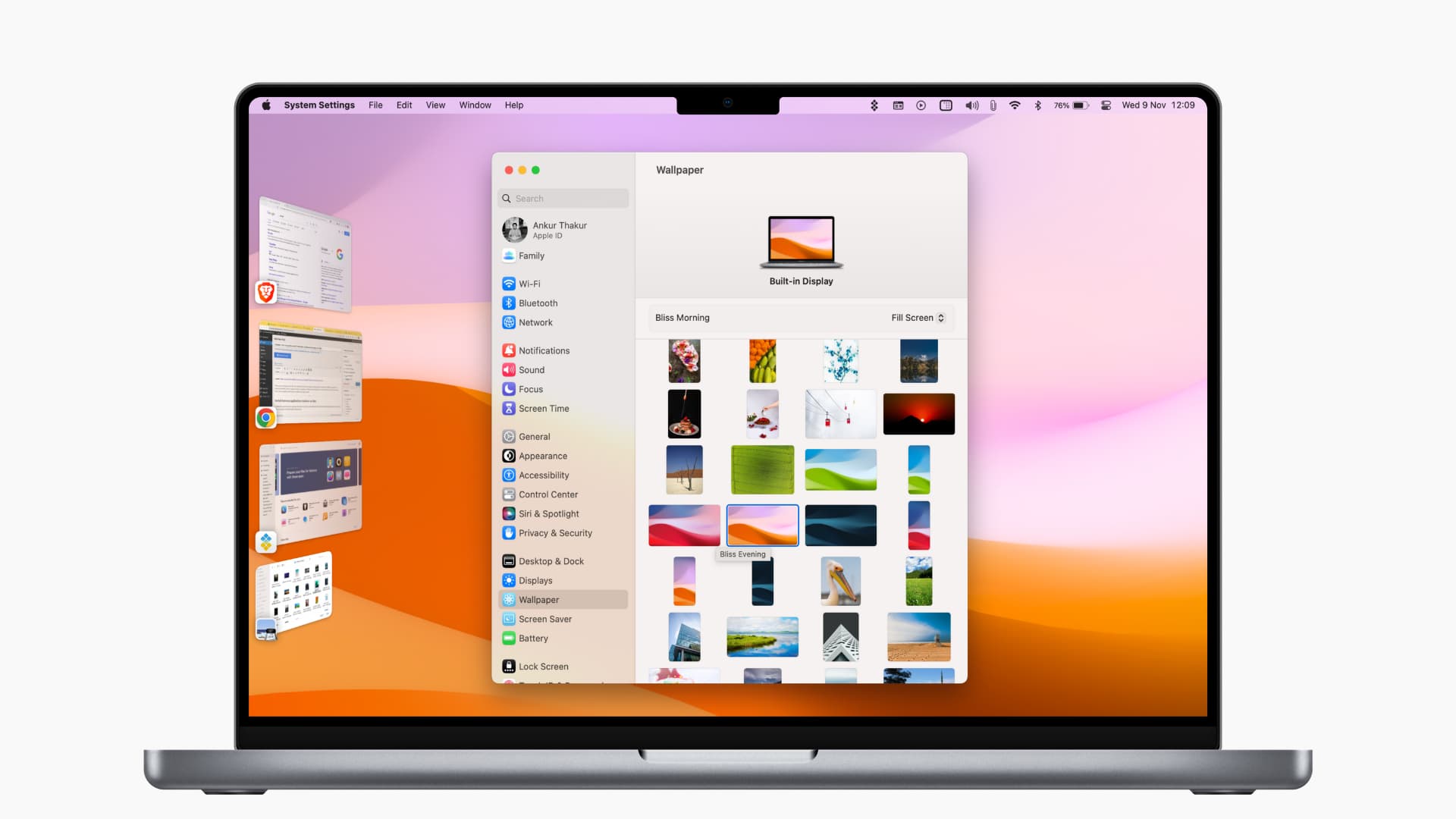
Let’s begin by tackling the clutter caused by open app windows.
Too many overlapping app windows can be distracting when you’re writing an email or watching a video. A simple solution is to use Stage Manager, which organizes all but one open app into small tiles on the side of the screen, helping you focus on a single app.
When you need a different app, click its tile in the Stage Manager sidebar to bring it into the main view. To drag and drop files from an app like Finder, you can pull that window onto the screen to keep it alongside your current app window.
To turn Stage Manager on or off, go to the macOS Control Center.
If Stage Manager isn’t your preference, consider the HazeOver app (free with Setapp), which dims everything in the background, helping you concentrate on the active app window.
Use a few virtual desktop spaces

One of the first things I do after setting up a new Mac is to create some virtual desktop spaces. Then, when working, I place one or, at most, two apps on each desktop for a clutter-free experience. To switch between these virtual spaces, all I need to do is swipe left or right with four fingers on MacBook’s Trackpad or Apple’s Magic Trackpad.
Extra info: You can also use virtual desktops on Windows PC.
Turn on desktop Stacks

One of the quickest ways to declutter your Mac is to use Stacks, which puts files into bundles that you can expand and collapse at will. Control-click on your desktop and choose Use Stacks from the menu. You can further decide how the files stack up by picking an option under Group Stacks By.
Put several folders and files into one folder
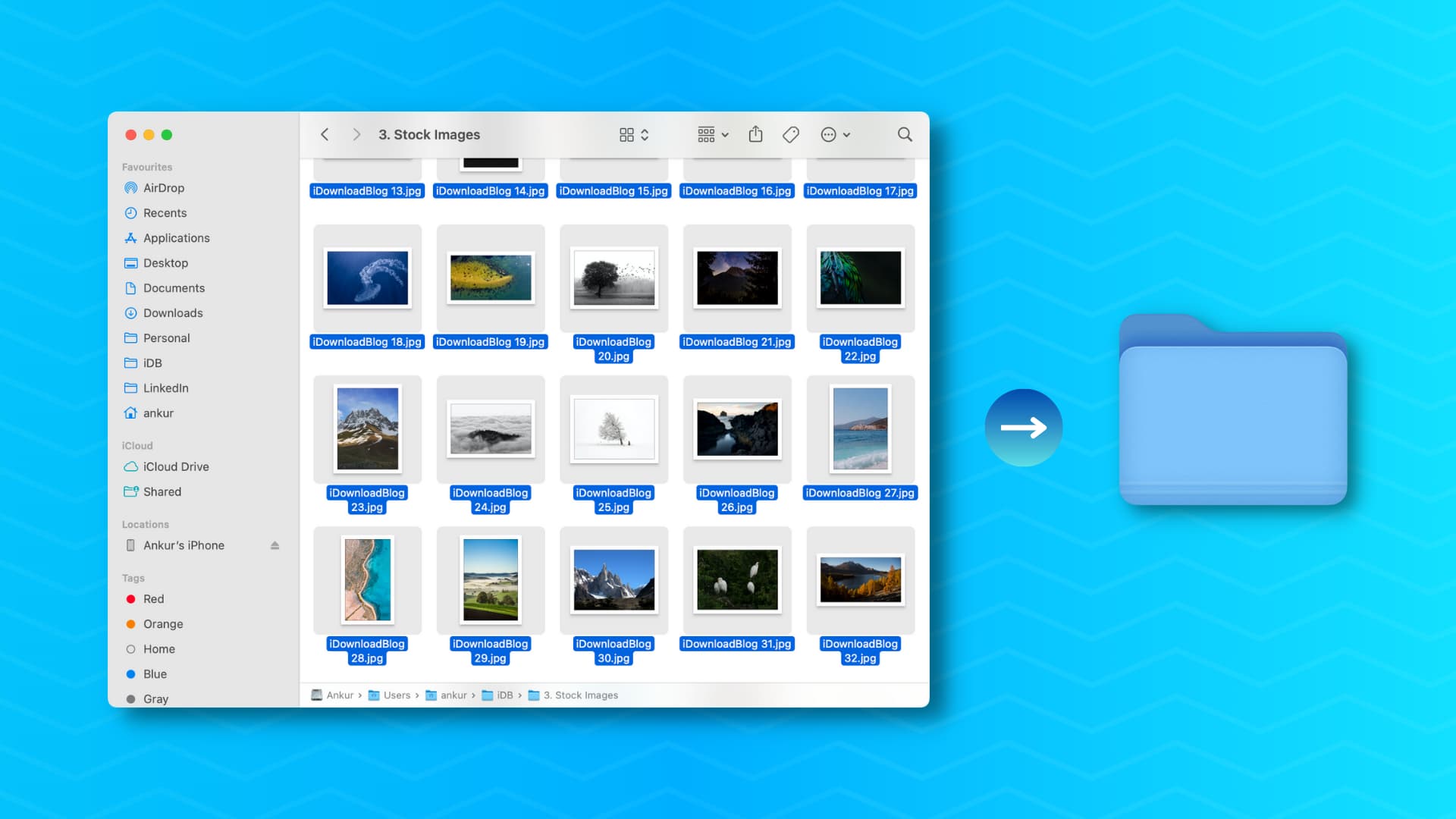
Having a single folder with 100 files is undoubtedly neater than scattering those 100 files across your Desktop, Downloads, Documents, or iCloud Drive as lists or icons.
One of the hidden gems of macOS is that it allows you to create a new folder with all selected files and folders. So, select all or multiple files, Control-click, and use the New Folder with Selection option.
Remove desktop widgets
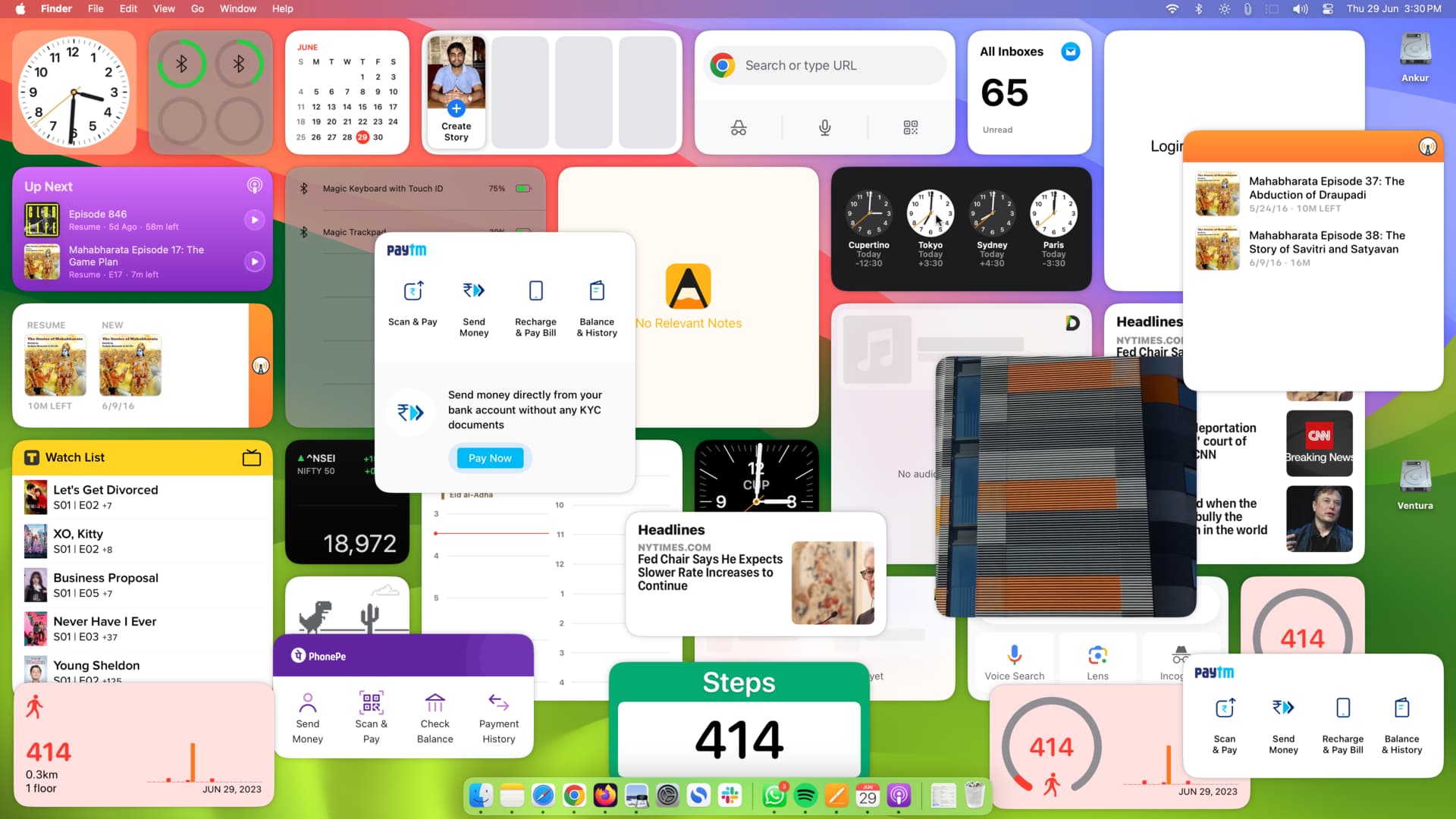
You can add widgets from both Mac and iPhone apps to your computer desktop, but if you went overboard and added too many, you can remove the ones you don’t use much. Alternatively, you can tuck some of the app widgets into the Notification Center area, moving them off of your desktop.
Change the screenshot location
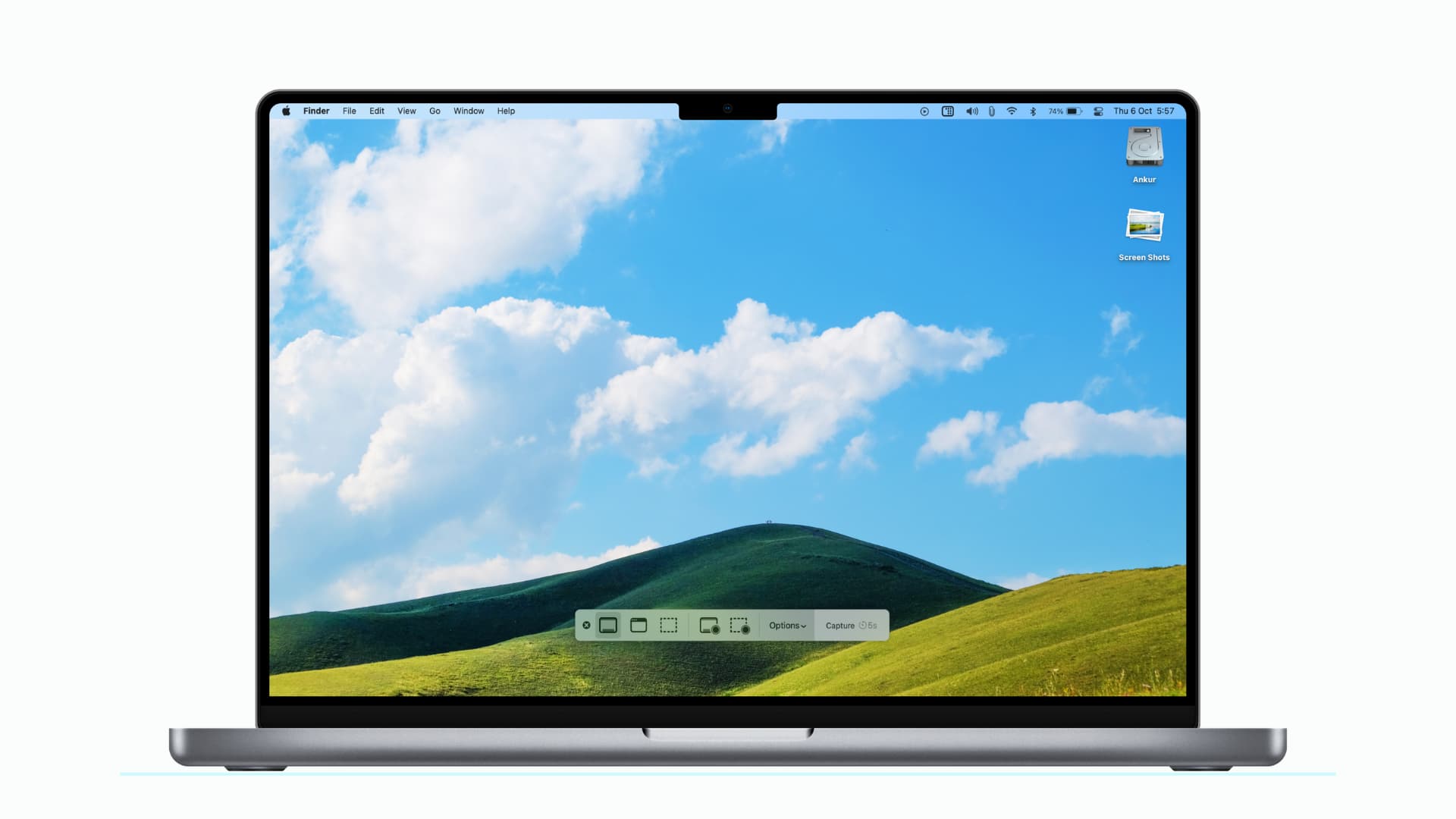
By default, Mac saves every screenshot to the desktop, which is one of the main reasons the desktop gets cluttered. To remedy this, I’ve set my Mac’s screenshots to save to Downloads, but you can also choose a custom folder — just press Command + Shift + 5, hit Options, and select a folder under the “Save To” heading.
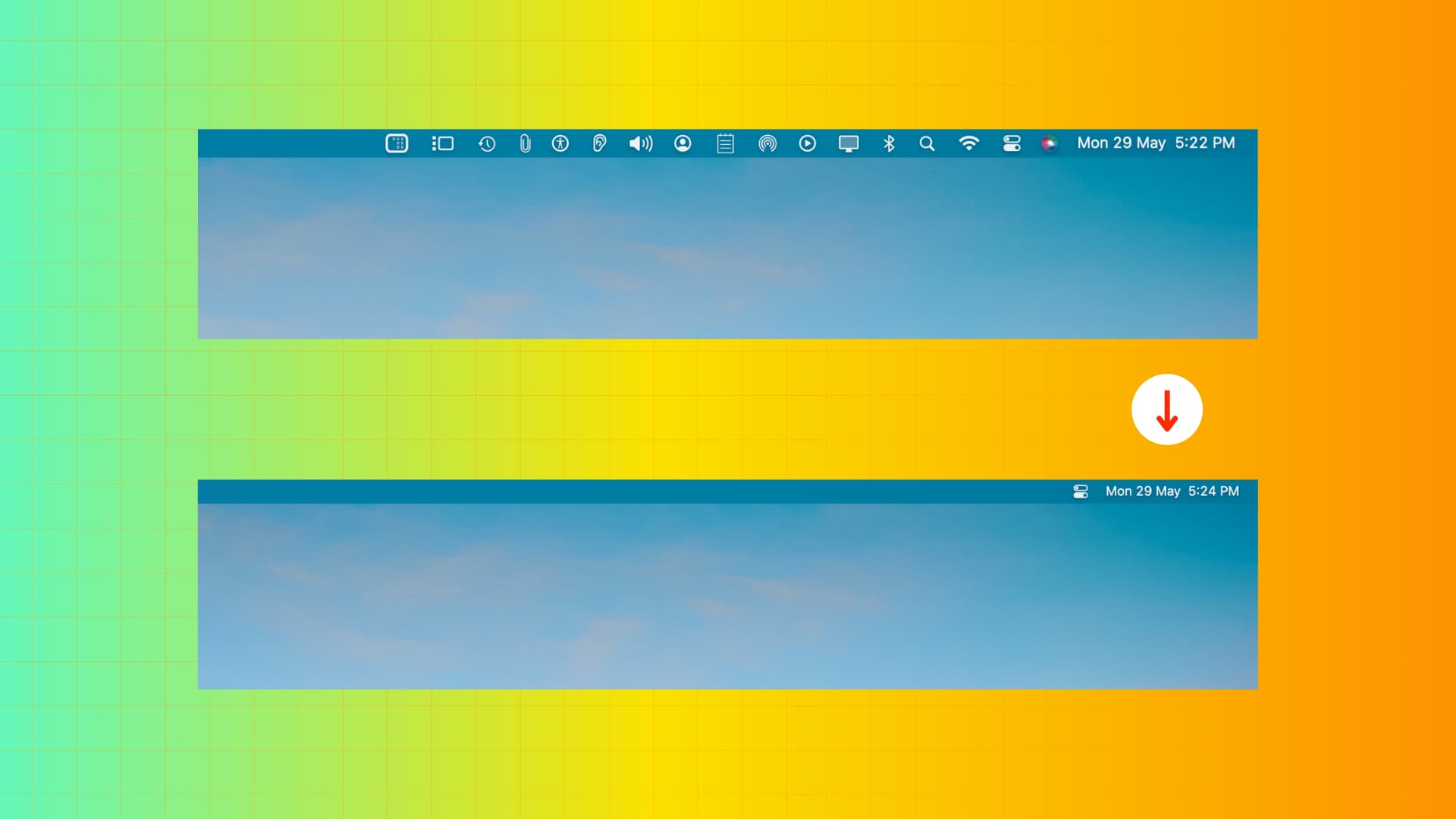
The Dock sits at the bottom (or the left/right edge of the screen) of your Mac’s display, and it’s easy to ignore taking care of it. But just like a messy desktop or Finder folders, having a huge Dock with many apps can hinder your productivity. Here are some tips to take care of that:
- Add only your most-used apps to the Dock to keep it small and focused.
- Adjust its size accordingly, ensuring it’s not too big to take up a lot of space or too small that you have to squint your eyes to open an app.
- Set the Dock to hide and show automatically. If you do this, don’t forget to make this action almost instant.
- Use empty spaces on your Dock to add a partition between your apps.
While you’re at it, don’t forget to remove or hide extra icons from your top menu bar to achieve a cleaner look.
Identify useless files and delete them

Another reason your Mac can feel disorganized is it gets bogged down with old, unnecessary files you no longer need. So, comb through your Mac’s Desktop, Downloads, Documents, and other folders and delete all of these useless files.
If you want to preview an image, video, audio, or PDF file before deleting it, just select it and hit the Space Bar to open it in Quick Look. Then, press the Space Bar again to close Quick Look.
If manually going inside every Finder folder is cumbersome, you can use an app like OmniDiskSweeper to see the contents of your local disk on a single interface and move them to the Trash (screenshot above).
Get rid of duplicate files
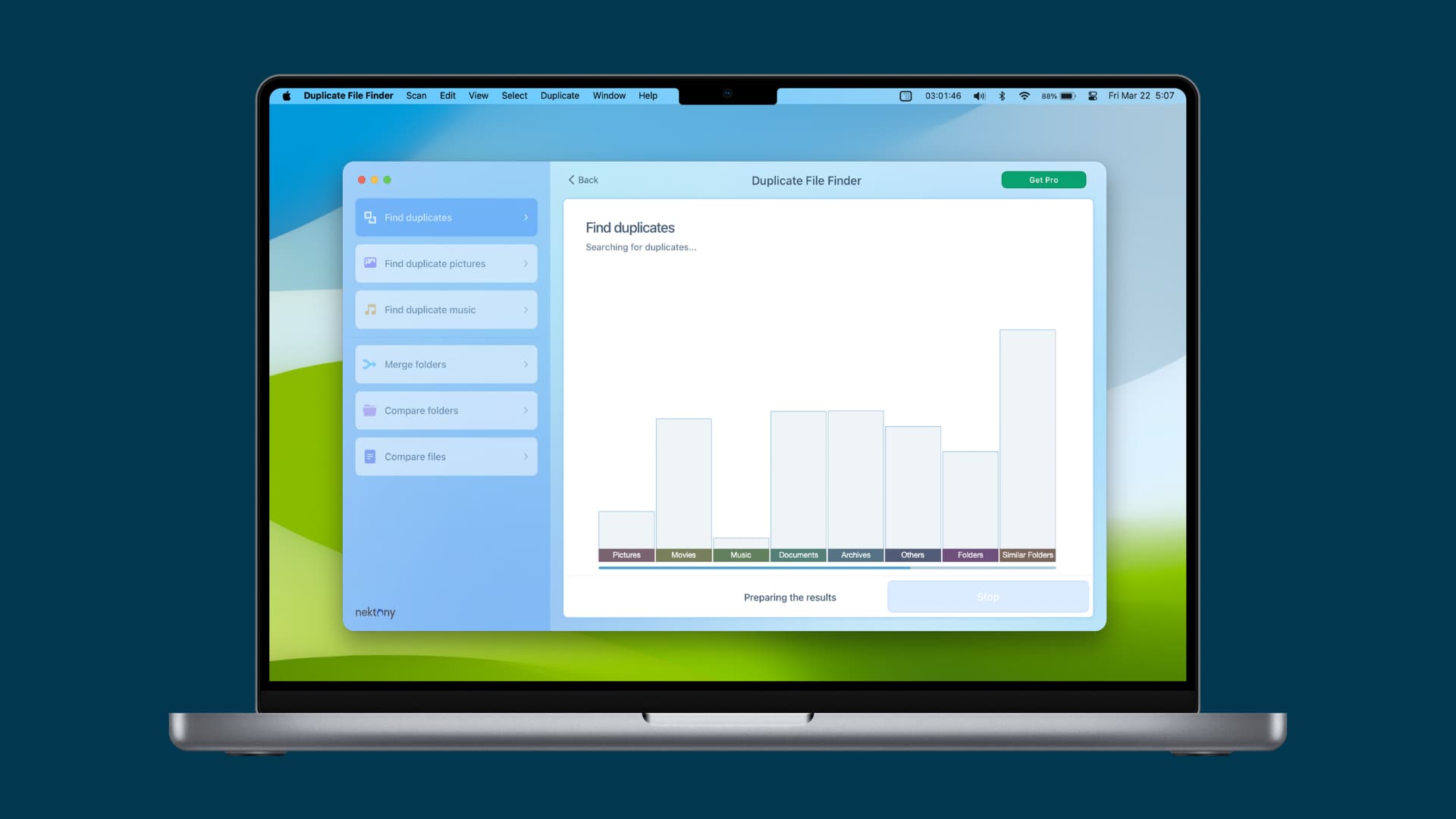
If you’ve been using the same computer for a while, it likely has several identical files taking up extra local storage space and cluttering multiple folders. Check out our dedicated tutorial on finding and deleting duplicate files on your Mac.
Tidy up your Photos app library

Similar to Finder, you can open the Photos app on your Mac and delete unnecessary pictures and videos.
If you already use iCloud Photos on your devices, you can delete unwanted images from your iPhone or iPad, and they will also be removed from your Mac.
Delete unneeded apps

I love trying new applications, and Setapp lets me do that with ease. However, on several occasions, I download an app and forget to use it, or I don’t like it much but still leave it installed.
This laziness or negligence often leads to a cluttered Launchpad or Applications folder. You can fix this by making it a regular habit to cleanly uninstall apps you no longer need, along with their associated files and folders.
Use Smart Folders
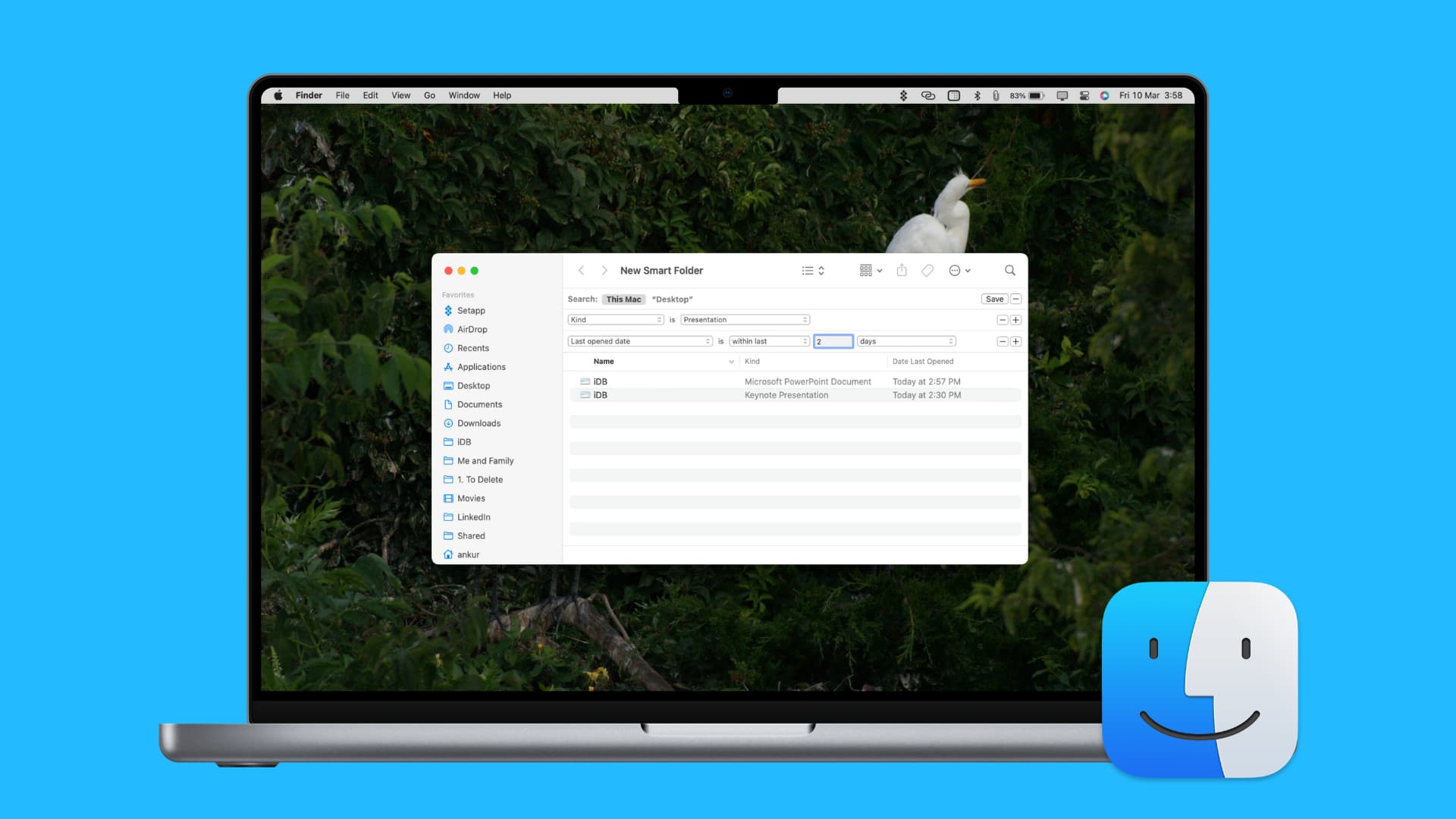
You can create Smart Folders in Finder with the desired settings, and then existing or new files that fit those settings will automatically get added to the folder.
As an example, if you work with lots of PDFs, create a Smart Folder that will automatically assemble all PDFs that have a specific name.
Extra info: You can also create Smart Albums in Mac’s Photos app and Smart Playlists in the Music app.
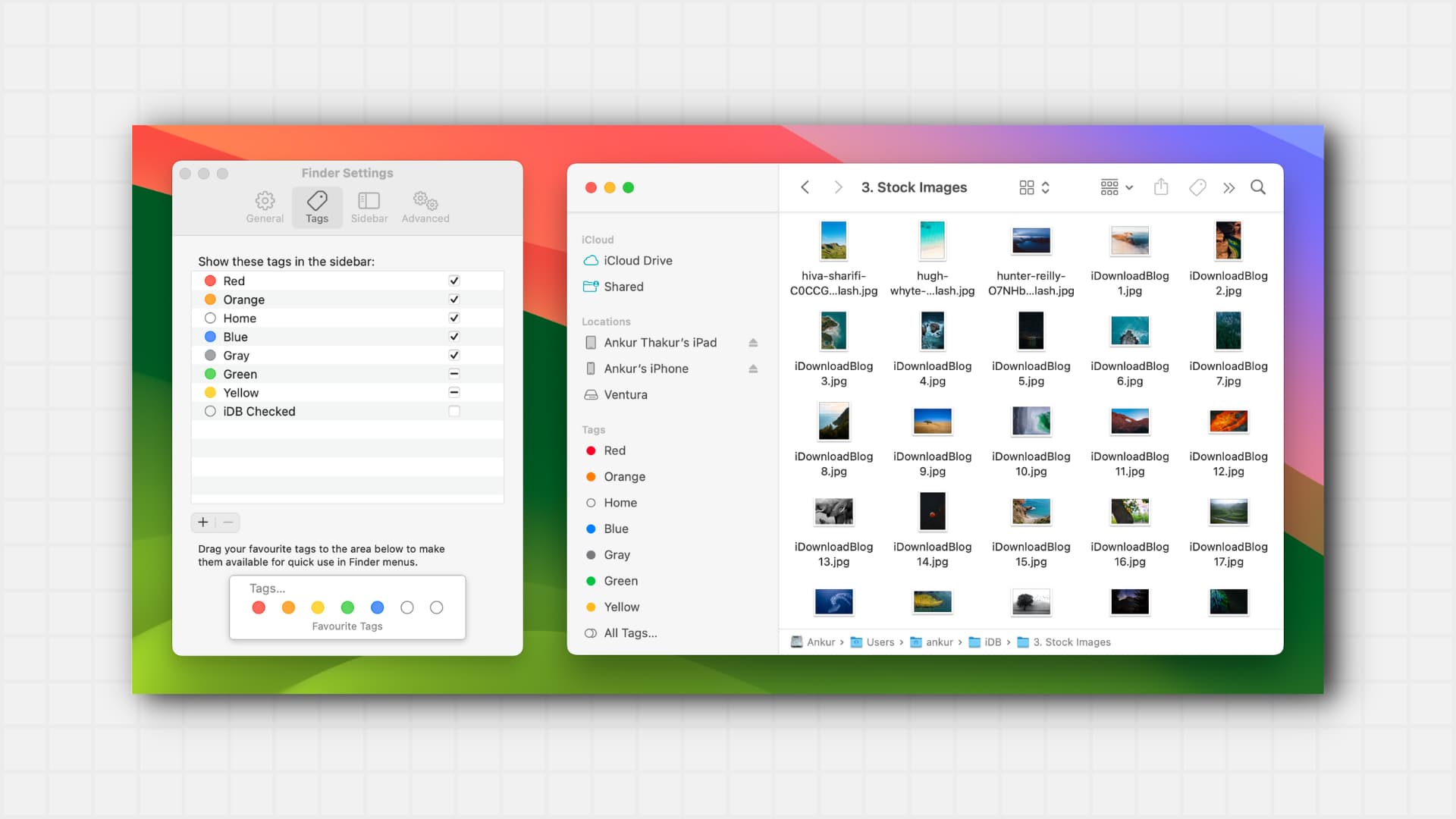
The tags feature in Finder allows you to mark files and folders with colored dots for easier identification and organization. For example, I use the gray tag to mark files and folders I plan to back up to my external SSD. When it’s time to transfer them, I simply click that tag in Finder to view all the marked files.
You can also rename tags, remove them from the Finder Sidebar, or delete them based on your preferences.
Clean your mailbox, music library, and other apps
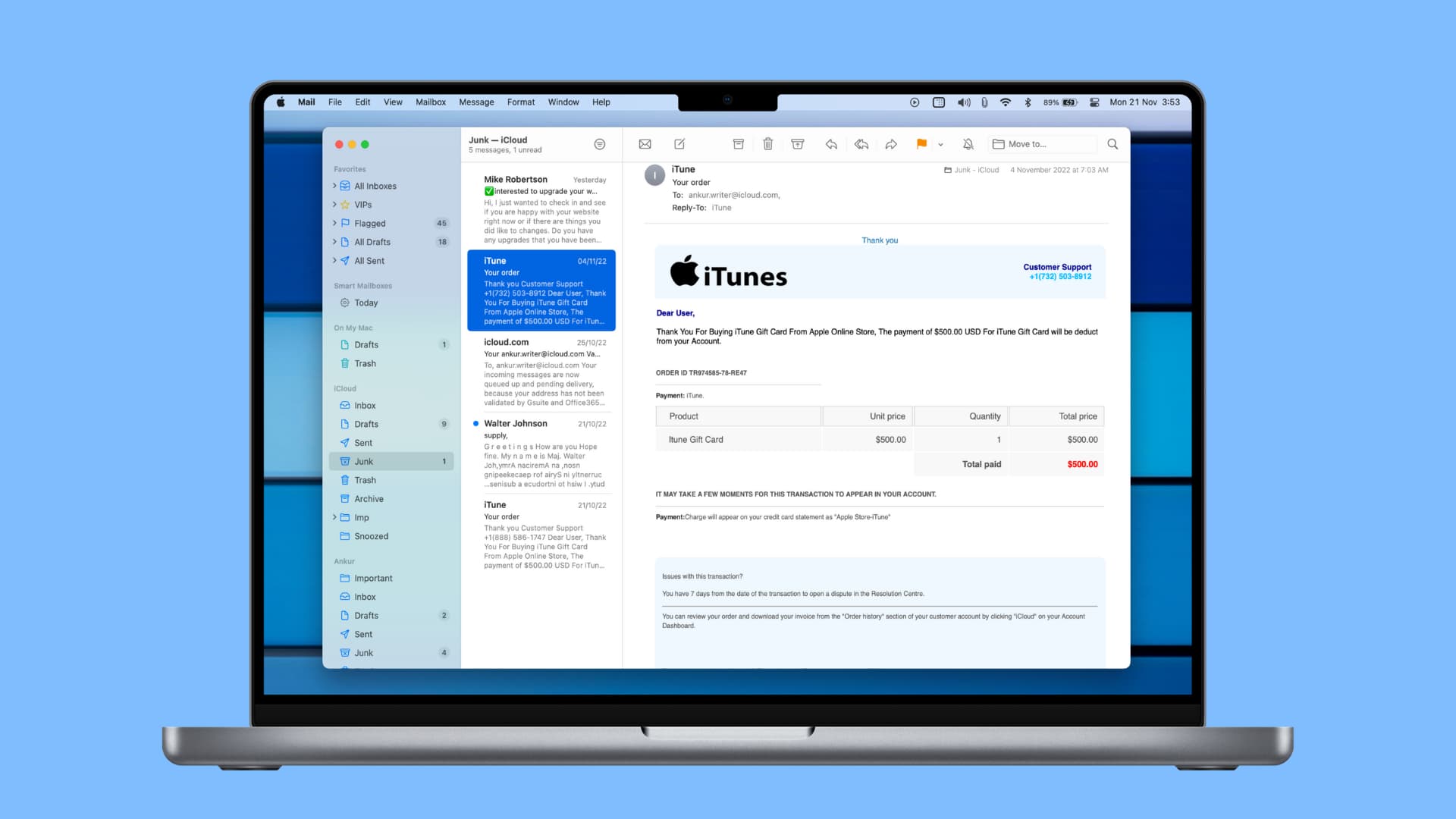
The next tip is to clean your apps, starting with Mail.
I often feel demotivated to open my inbox when it’s cluttered with useless, unopened emails. To tackle this, I dedicate a few minutes every Friday after work to delete spam, unsubscribe from unnecessary newsletters, block persistent spammers, and respond to any missed important messages. This simple routine keeps my inbox tidy and removes the mental block when opening the Mail app or visiting Gmail in a browser.
Likewise, for any app you frequently use, ensure it contains only the projects and files that are genuinely useful. Again, in my case, I take time every Friday to delete unnecessary pages from my Canva project or unneeded device frames from the Mockuuups Studio app.
These small things ensure a clean and tidy workspace when I resume work on Monday. You can see what works best for you and adjust accordingly.
Empty Mac’s Trash
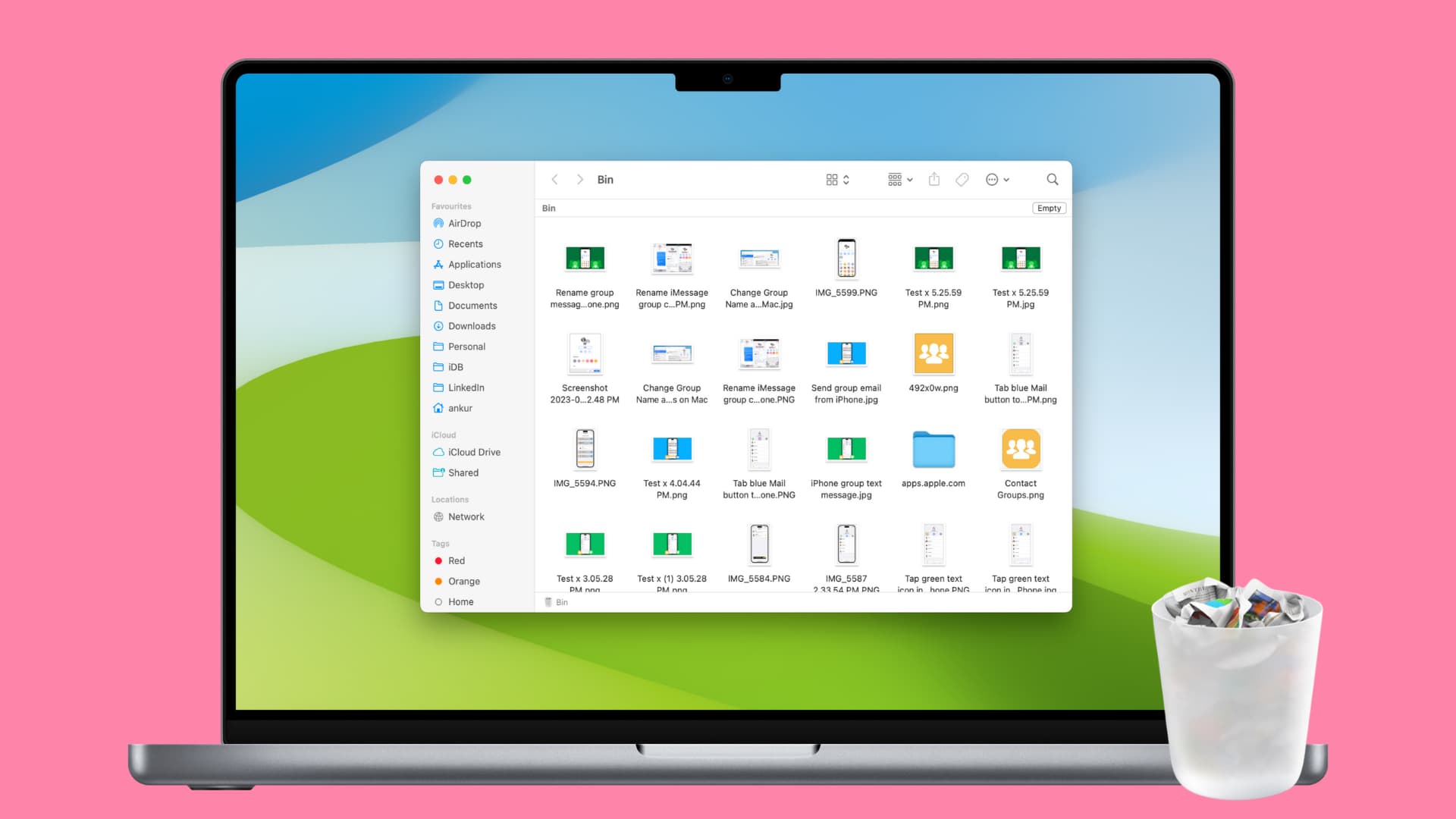
The last tip is to empty the Trash regularly or set it to automatically clear deleted files that are 30 days old. Of course, you can also permanently delete select files in the Trash or recover them if needed.
I think these basic ways to declutter your Mac are good enough to help most people increase productivity. Are there things you do to keep your Mac clean and free of distractions?
Also, check out: 20+ Work From Home tips for Mac and iPhone users