Learn how to create a new folder on your Mac containing a bunch of files you’ve selected in the Finder in one fell swoop, saving you time when organizing files.
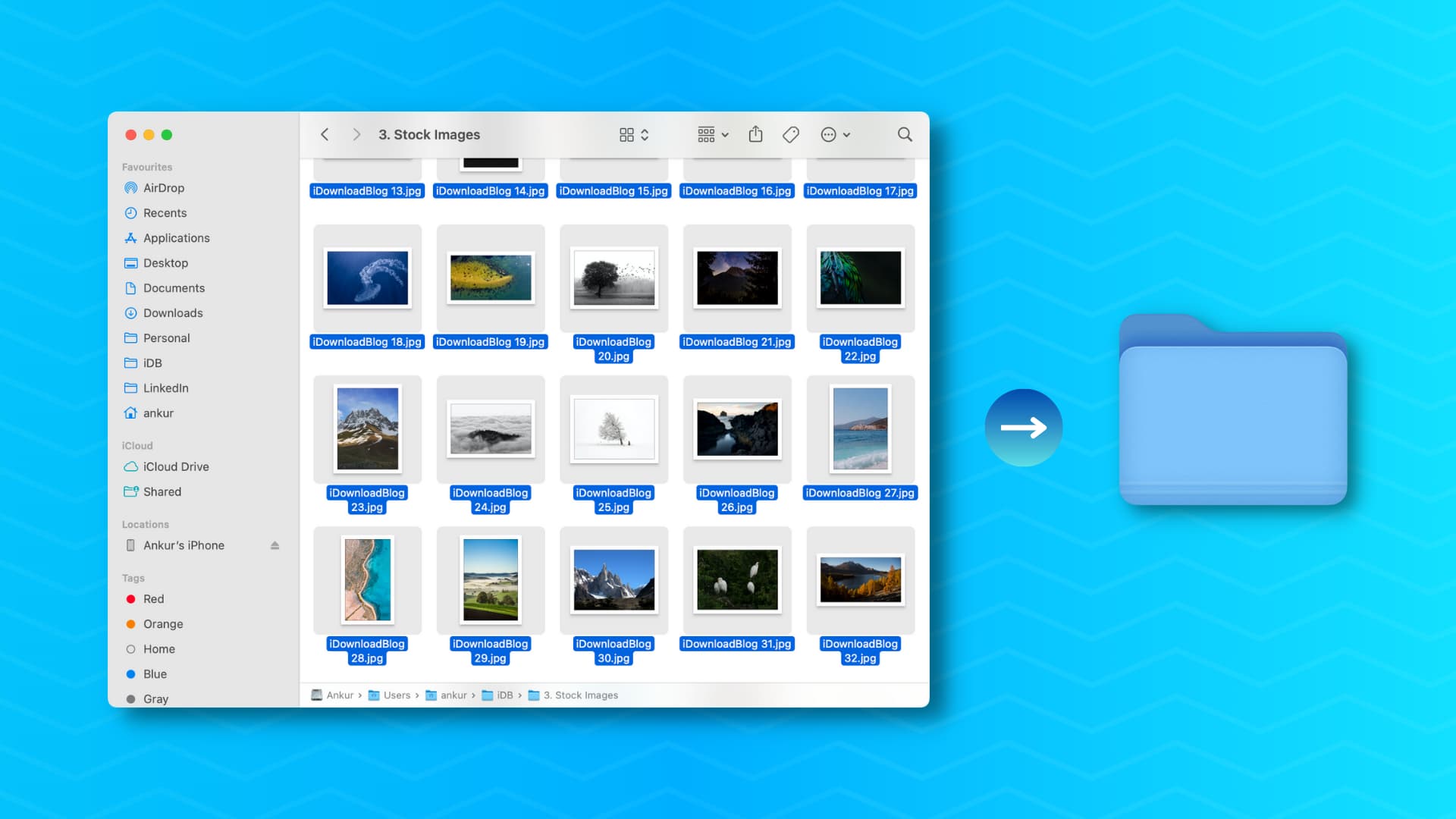
Among other things, the Finder lets you create folders from preselected items.
It’s one of my favorite features in macOS; all you need to do is select multiple files and choose an option from the Control-click menu to place them in a new folder. It makes file management and organization much easier, and I use it nearly every day.
Add all selected files to a new folder on Mac
- Select multiple files and folders you’d like to move into a new folder.
- Right-click or Control-click your selection and choose New Folder with Selection (N Items) from the menu (the value in brackets refers to the number of selected items).
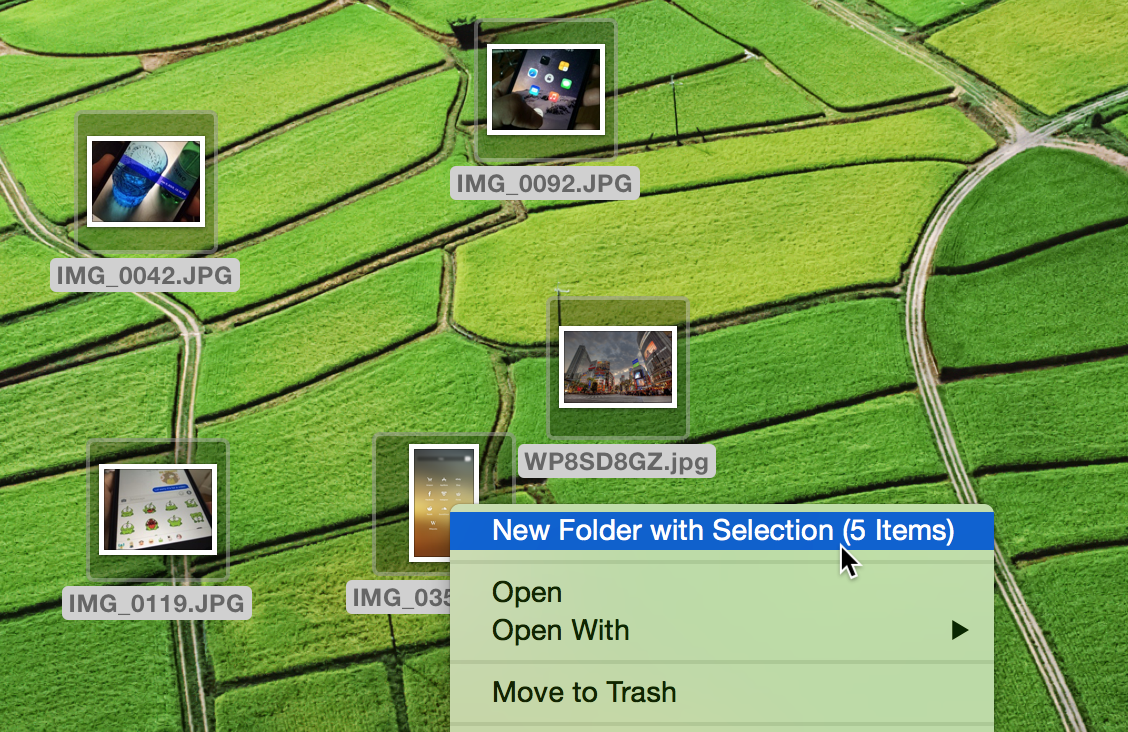
macOS creates a folder and moves the selected files there. All you need to do is name your folder and press the return or enter key.
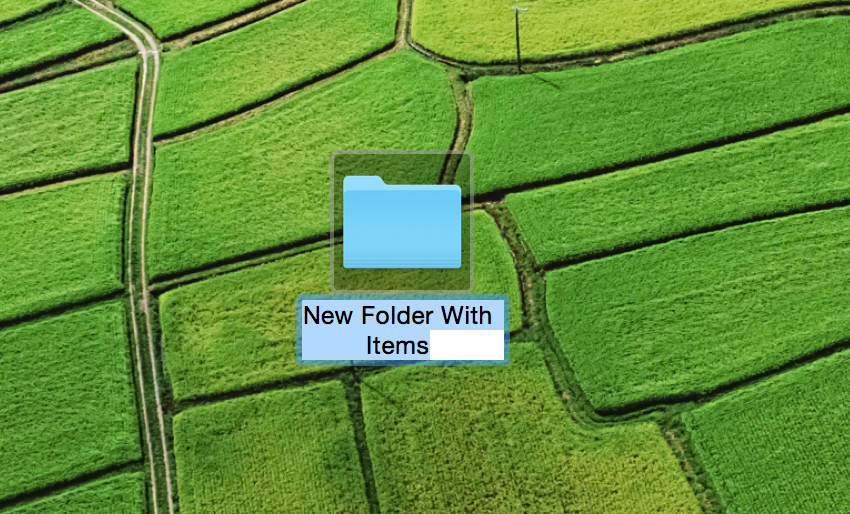
If your Mac is running macOS 27 Golden Gate, Siri AI will also suggest a name based on the contents of this new folder. Just select the suggested name to set it.

Use a keyboard shortcut to put selected files in a folder
You can also press a dedicated keyboard shortcut to put away the selected files into a new folder. Unlike the above-mentioned right-click method, the keyboard shortcut lets you place a single file into a new folder.
- Select one or more files to move into a new folder.
- Press the Control + Command + N combo on the keyboard.
To undo this action and move the item(s) back into their original location, trigger the undo command by pressing the Command + Z keys. or choosing Edit > Undo from the Finder’s top menu.
The New Folder With Selection command is very handy for file organization and management, and I like its sweet-looking animation.
Features and little touches like this are why I love macOS so much, in case you couldn’t sense my admiration already.
What do you think of this nifty trick? Will you be using it on your Mac, do you think?
Other Finder tips for you: