Learn how to fix the App Store not working on your iPhone or iPad, and solve the “Cannot Connect to App Store” error.
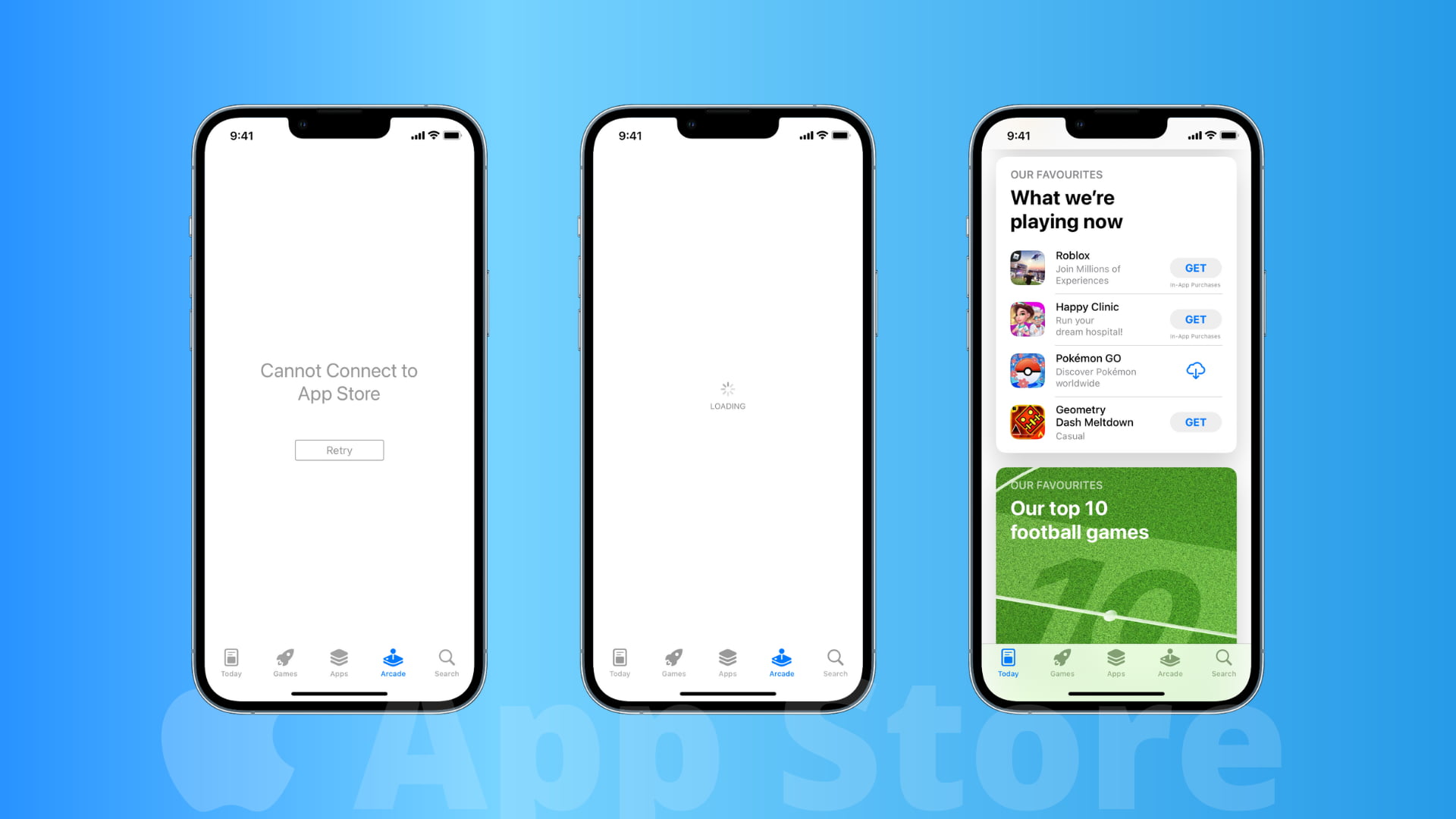
The App Store is the only source to download apps for iPhone and iPad users. However, in rare cases, the iOS App Store may fail to load and display a message saying, “Cannot Connect to App Store.” As a result, downloading, re-downloading, or updating apps will fail.
If you find yourself in a situation where you can’t browse, download, or update iPhone apps, the solutions below should help fix the problem.
1. Ensure Wi-Fi or cellular data is working
Usually, you can’t use the App Store because your iPhone or iPad isn’t connected to the internet. On some occasions, your device may show the Wi-Fi icon, but there may be no internet access. Other times, you may think your mobile data is working, but it actually isn’t.
The easiest way to check this is to open Safari or YouTube and visit a webpage or play a video. If you’re successful, that means your iPhone or iPad can connect to the internet, and the App Store should work as well. But if it isn’t, please go to the next solution.
However, if the internet isn’t working on your iPhone, the following tutorials should help:
- How to fix cellular data not working on iPhone or iPad
- What to do when your iPhone or iPad can’t connect to Wi-Fi
Additionally, you should try these fixes.
Restart your Wi-Fi router
If you’re connected to Wi-Fi, power off the router from the main switch, and after waiting for a minute, switch it back on.
Try another Wi-Fi network
It could be that the Wi-Fi network you’re on has restricted the network to prevent App Store access. This is common in schools and institutions. So, try connecting to another Wi-Fi network or a Personal Hotspot.
Change your iOS device’s DNS settings
If you have a certain custom type of DNS setting on your iOS device, it’s possible that the App Store is simply getting blocked. We have a great guide on how to change your iPhone or iPad DNS settings.
Change the DNS settings on your wireless router
Your wireless router also has DNS settings embedded into it. We have a tutorial that walks you through changing DNS settings on your wireless router.
Enable cellular data for App Store
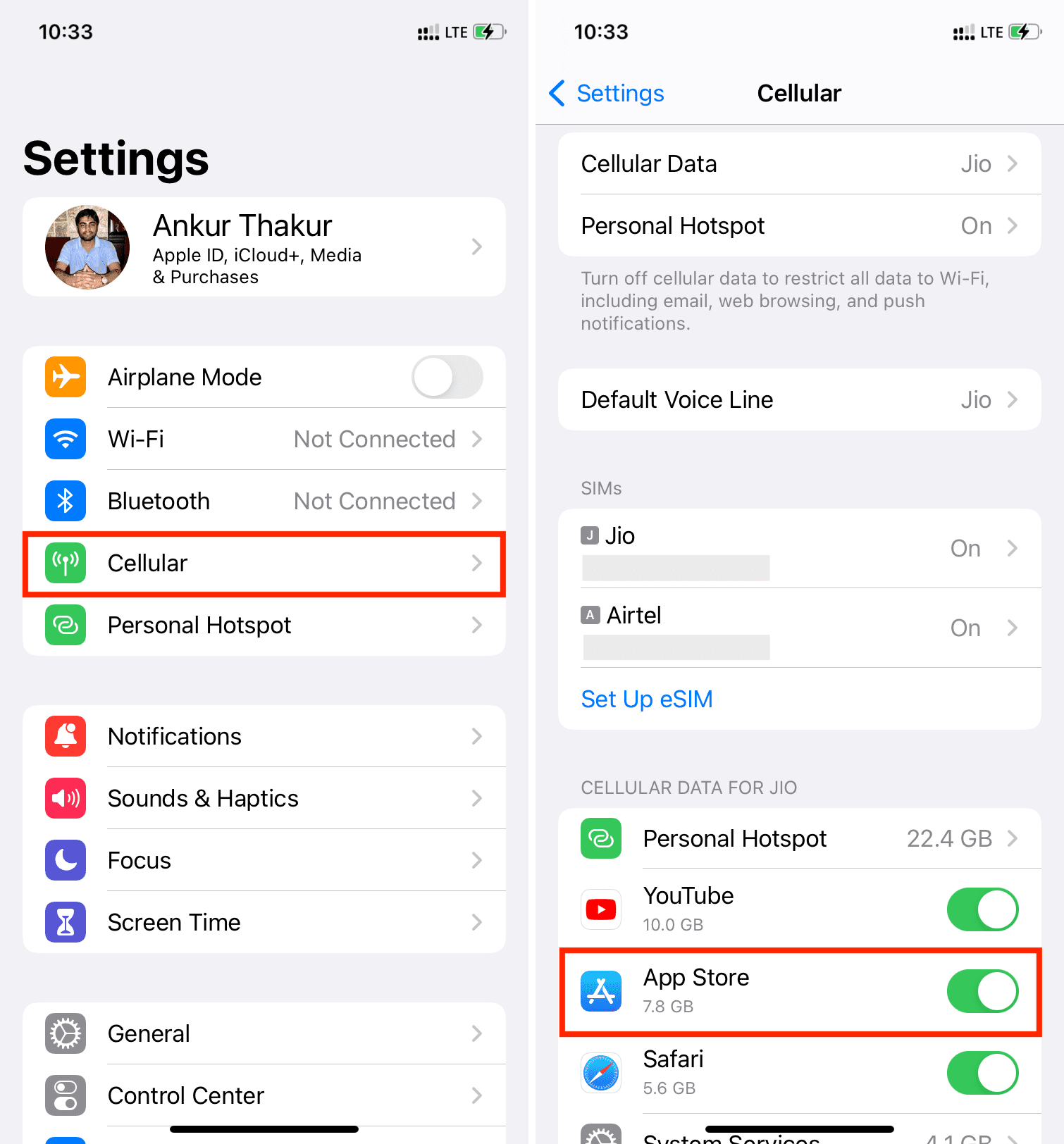
Go to the Settings app on your iPhone or cellular iPad and tap Cellular (or Mobile Data). Now, make sure the toggle next to App Store is enabled, which means it’s allowed to use cellular data.
2. Force App Store to refresh
Open App Store and bring your attention to the navigation bar at the bottom of the screen with the Today, Games, Apps, Arcade, and Search tabs. Try tapping one of them ten times in a row, and this should force the App Store to reload even on a slow, laggy network!
Note that this trick no longer works on recent versions of iOS.
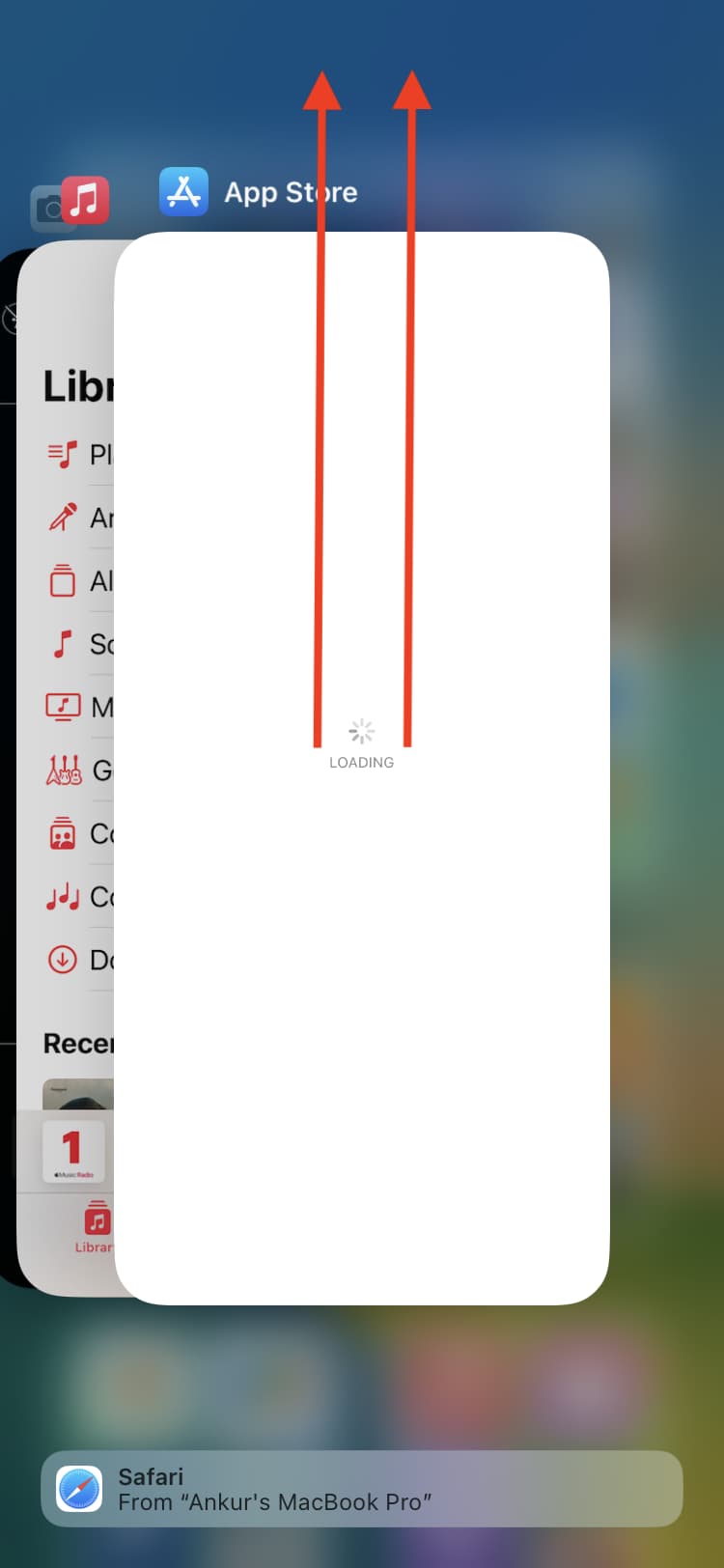
3. Quit and relaunch the App Store
If you suspect your device just isn’t loading the App Store because of memory problems or software glitches, force-quit the app, and then reopen it.
4. Restart your iPhone
Often, several iPhone issues are solved just by turning it off and back on. If App Store isn’t working on your device, make sure you do this, and hopefully, the problem may be solved.
5. Check App Store’s system status
It’s possible that everything is perfect on your end, and still, the App Store is not working because of a temporary failure on Apple’s end. To check, go to their official System Status page:
- If you see a green dot or the word Available for App Store, that means the service is working fine.
- In case it shows a different shape in yellow or red, that signifies a temporary issue, and you’ll have to wait until Apple implements a fix. This waiting period may be a few minutes to a few hours!
Note: Sometimes, the App Store might be working and have a green dot, but related things like iCloud Account & Sign In may be experiencing a problem, because of which you can’t use the App Store. In this case, too, you’ll have to wait for Apple to smooth out the issues.
6. Set the correct date and time
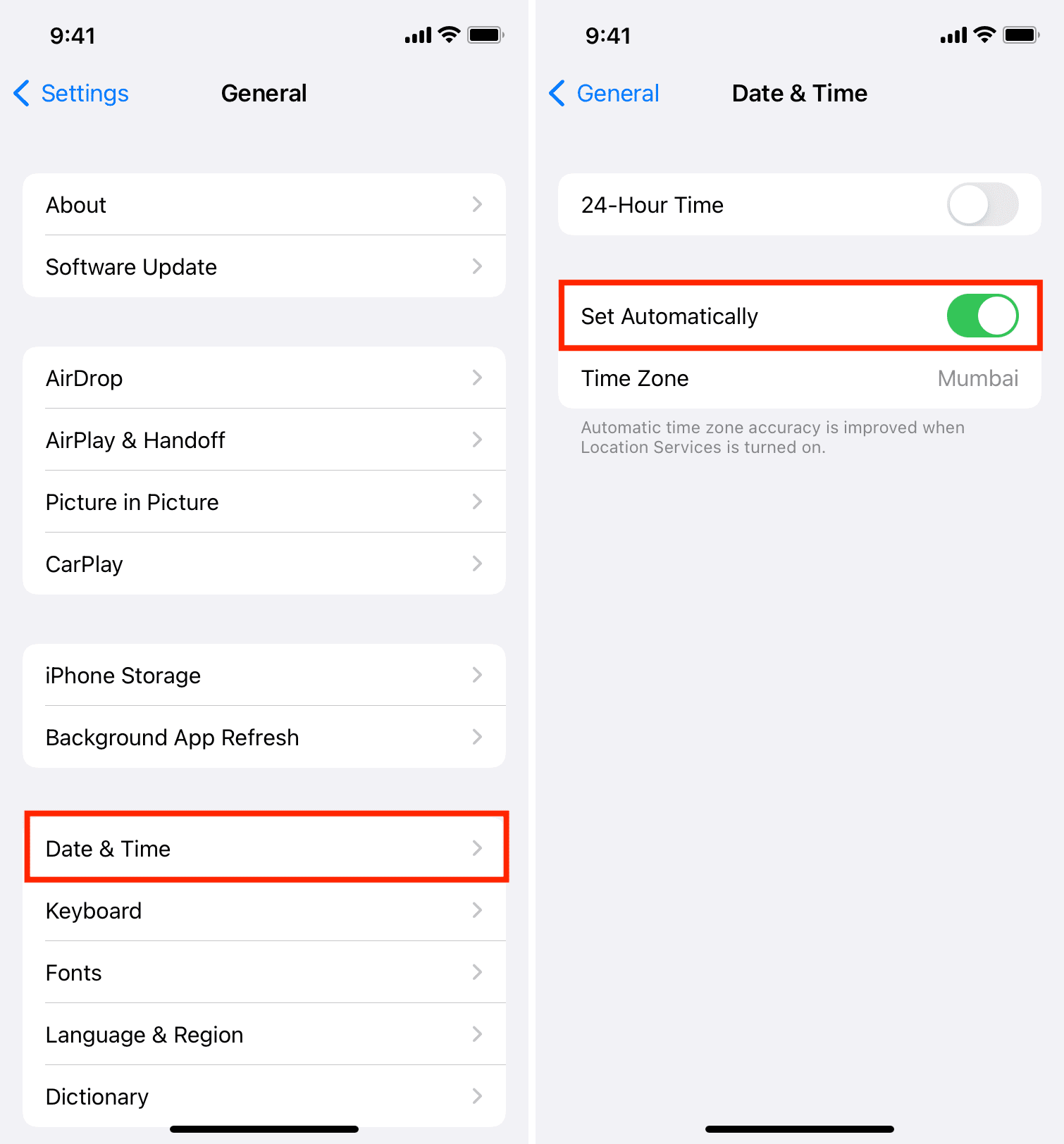
App Store may not work if your iPhone’s date and time are incorrect. To fix this, go to Settings > General > Date & Time and make sure the toggle next to Set Automatically is green.
7. Turn off VPN
Some VPNs may not allow you to access the App Store, or a free VPN may offer terrible speed, because of which the App Store (with high-res images, videos, app icons, etc.) may not load and give up after a while, resulting in the “Cannot Connect to App Store” error message. Turn off the VPN and retry accessing the App Store.
8. Update to the latest version of iOS
Go to the Settings app > General > Software Update to get the latest available version of the operating system.
Note: If you’re on the latest beta version of iOS and can’t connect to the App Store, consider switching to the non-beta version or send feedback to Apple, hoping they address this problem in the next update.
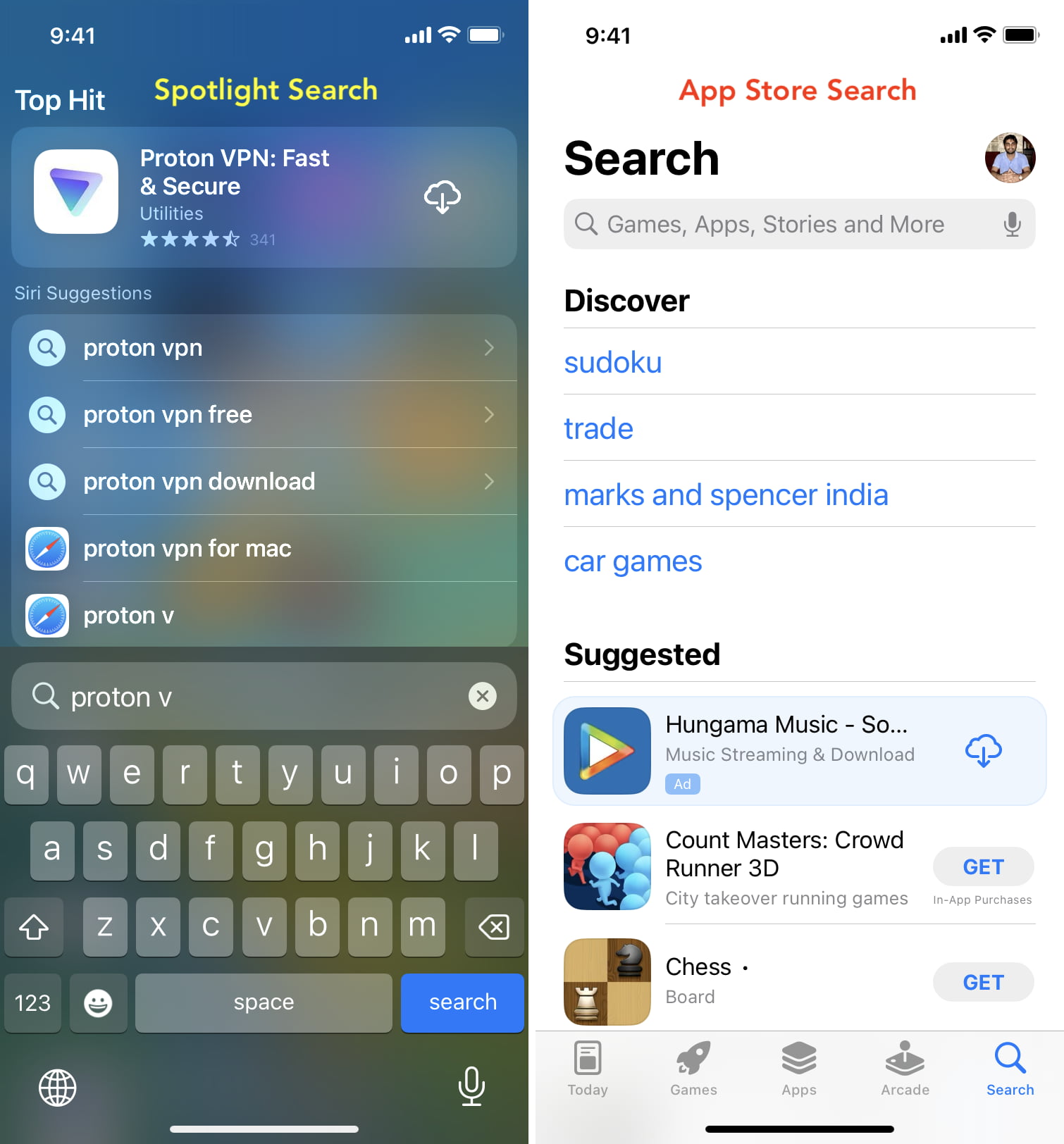
9. Use the App Store instead of Spotlight Search
I often pull down my Home Screen to access Spotlight Search, type the app name, and get the relevant App Store suggestion. From here, I just tap GET or the download icon to install the app. It works well.
However, note that the Search screen doesn’t show all the results, and sometimes, it may not display relevant App Store apps at all. Thus, I recommend opening the App Store (when it works) and using the search bar there to see all search results.
10. Reset network settings
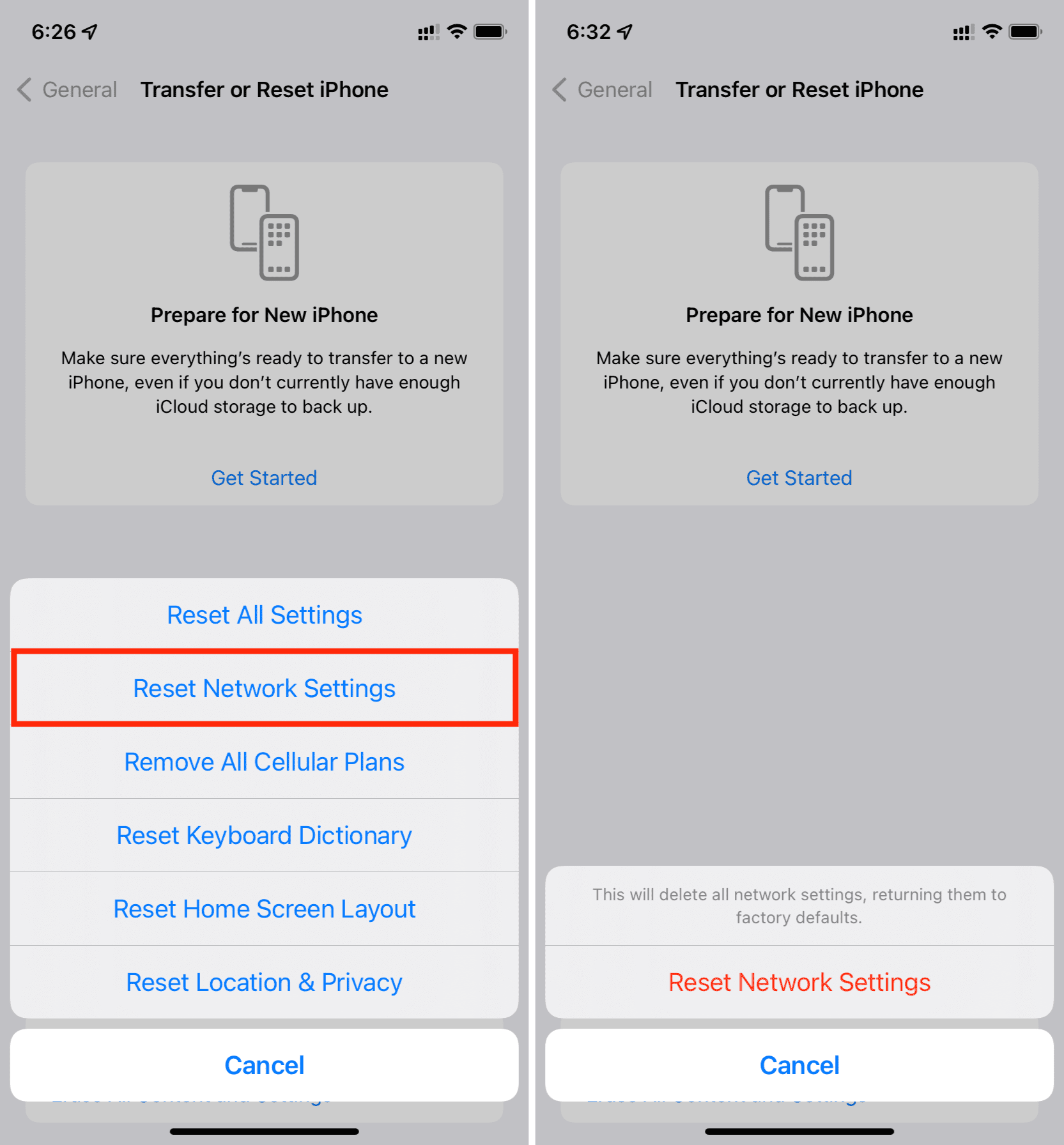
Still unable to use the iPhone App Store? Go to Settings > General. Scroll to the bottom, and tap Transfer or Reset iPhone > Reset > Reset Network Settings. Once that’s done, connect your iPhone to Wi-Fi or cellular data and open the App Store. You should be able to download and update apps now.
11. Reset all settings
Finally, if nothing helps, reset all your iPhone settings, and this will almost certainly solve the App Store problems.
Check out next: