Are some of your App Store updates getting stuck? Here are a few things you can try to help get things moving again.
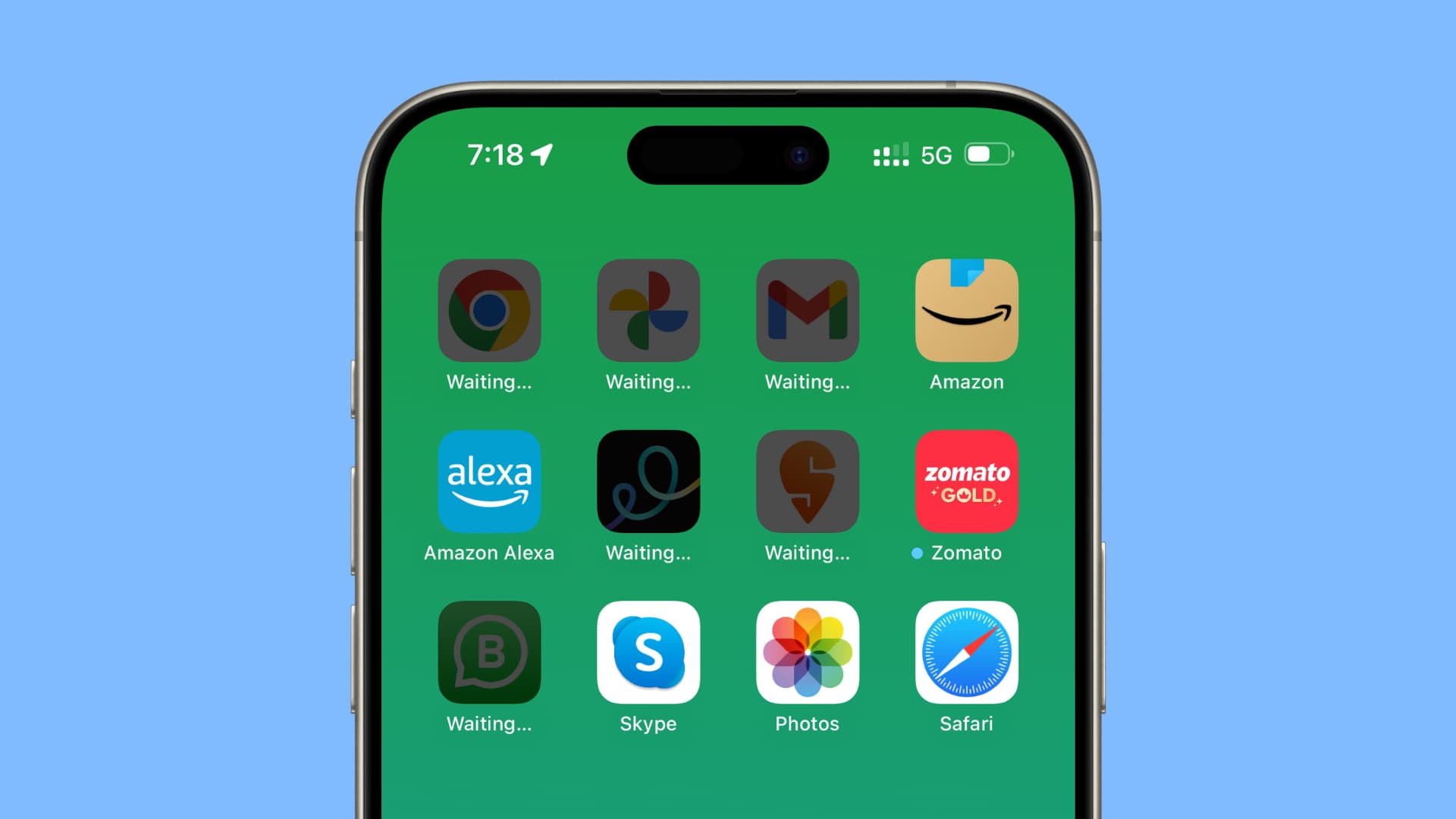
Making sure you’re running the latest version of an app is important.
App developers frequently update apps with new features, bug fixes, security improvements, and other essential changes so you’re up to date and using the latest and safest technology possible.
Sometimes, these downloads get stuck, and it isn’t always clear what’s causing the problem, so we will help you address this.
If you’re on iOS 26…
I have been facing this weird issue when updating apps on my iPhone running iOS 26.5 and earlier iOS 26 builds, where a pop-up appears saying “Unable to Install ‘app name.’ Please try again later.” Usually, retrying the app update or tapping the “Update All” button a second time fixes the problem and installs the new app updates successfully.
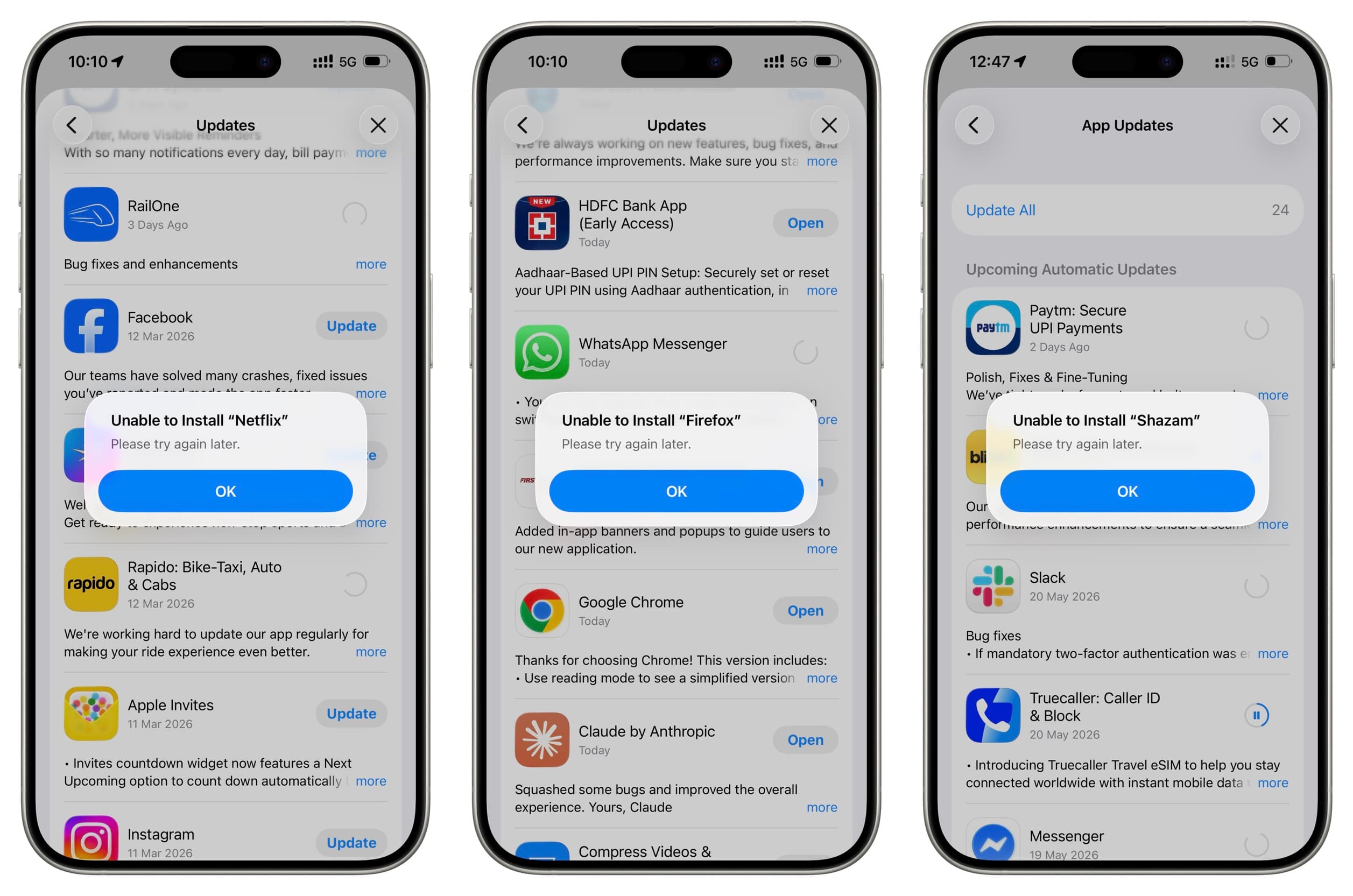
But I have not been able to fix this problem permanently for good. I have tried all basic solutions (except resetting all settings or erasing my iPhone), but the problem keeps coming back. I assume only a future iOS 26 or iOS 27 update will fix this!
If the app update is stuck midway
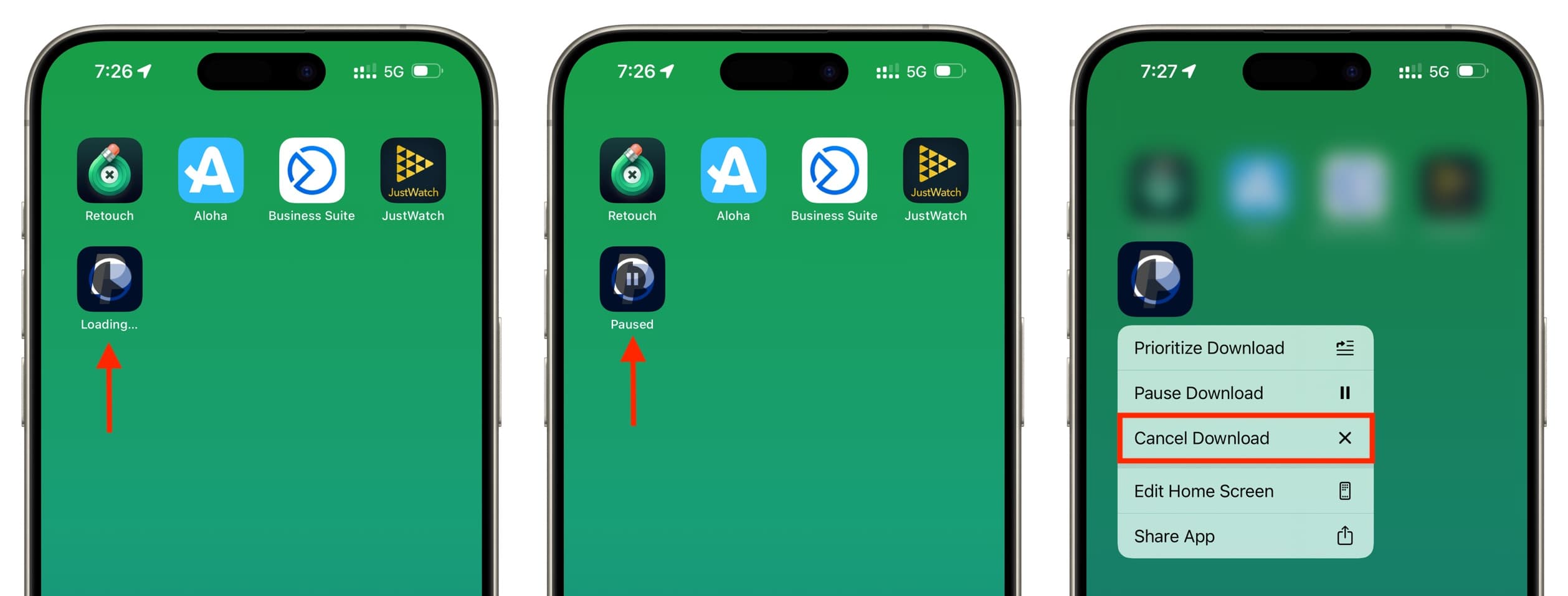
In case the app update starts but then gets stuck, tap the app icon to pause it. Now, wait for a few seconds and tap it again to resume the download. If this doesn’t help, touch and hold the app icon and cancel the update. Now, go to the App Store and start the update process again.
Hopefully, by now, your app updates are downloading successfully. Let us know if you still run into problems.
Take a moment to learn how to update apps
If you’re new to the iPhone, we recommend learning about all the ways to update the apps on your iOS device. The easiest method is to touch and hold the App Store icon and choose Updates.
Restart your device
It’s an old joke, but there’s truth to it: have you tried turning it off and back on again? This simple thing can fix the stuck app update and get things moving.
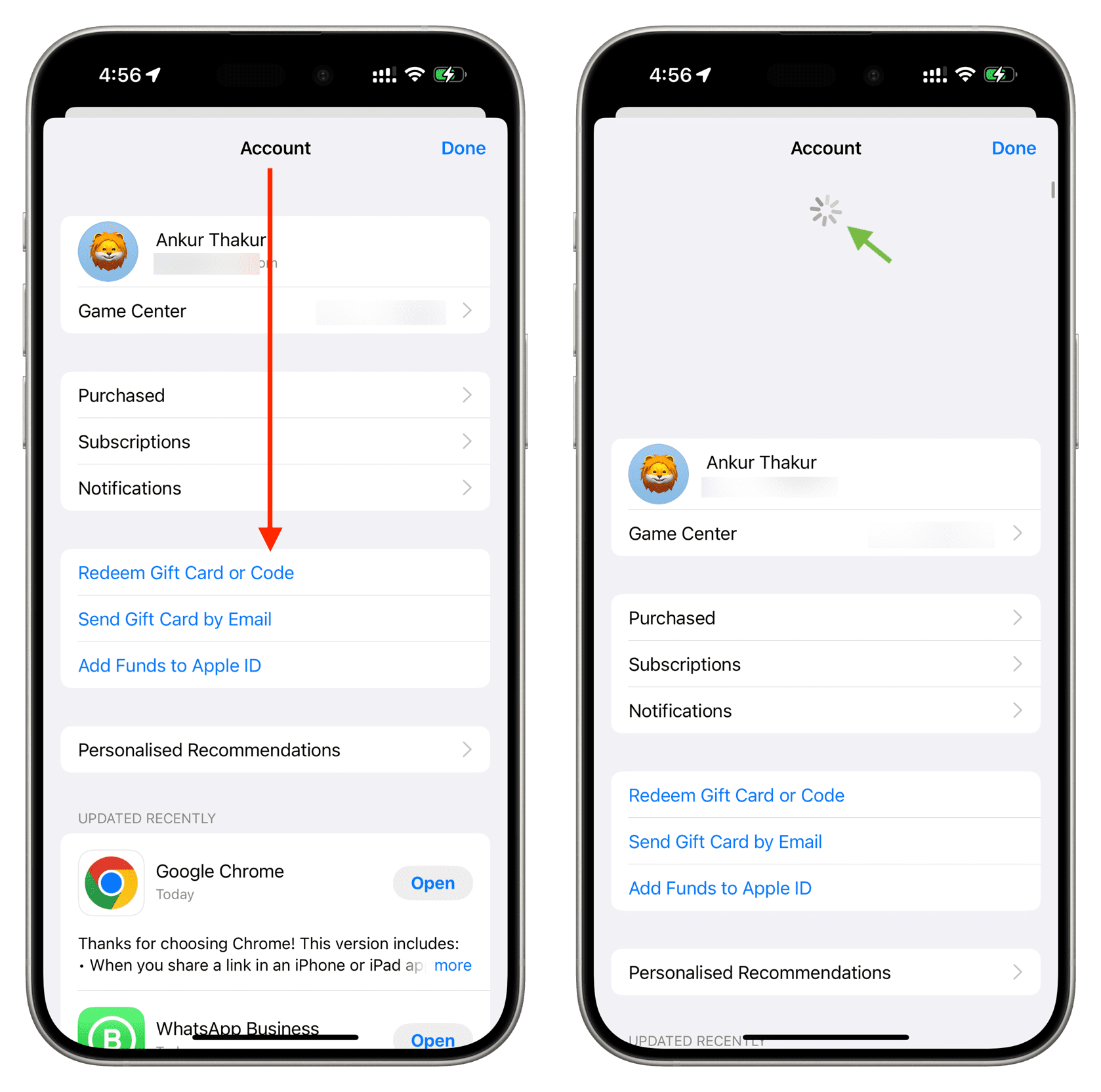
Pull down the Updates screen
It can happen that you don’t see all the pending app updates in the App Store. To address this, just swipe down on the updates screen, and it should refresh, showing pending app updates.
Adjust App Store data settings
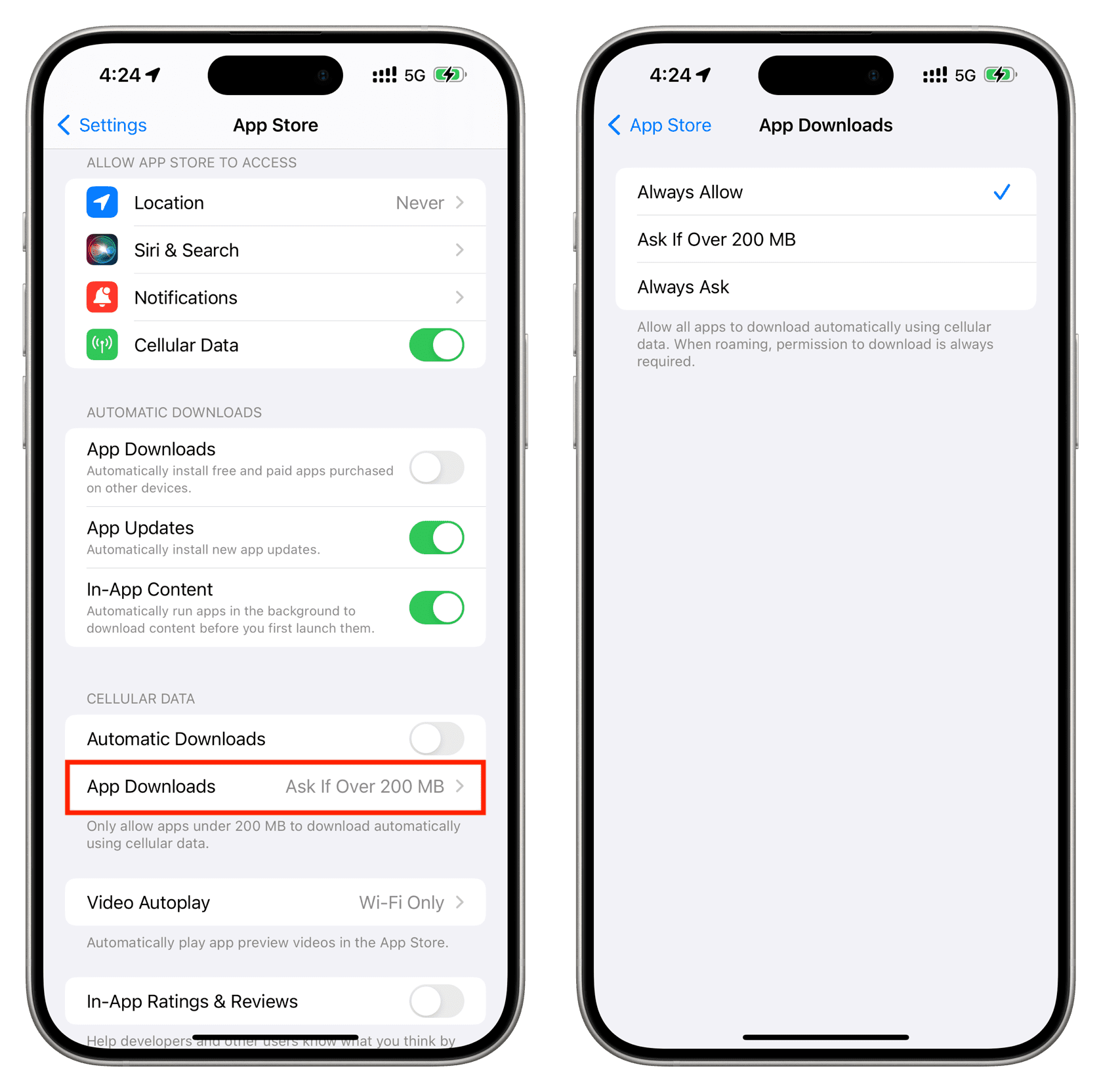
Your iPhone may not automatically download app updates larger than 200 MB unless the device is connected to a Wi-Fi network.
If you have an unlimited data plan, you can go to iPhone Settings > Apps > App Store and tap App Downloads under the Cellular Data screen. Now, select Always Allow, and your iPhone won’t ask when you download large apps using mobile data.
Switch to a different network
If you can’t download app updates over a particular Wi-Fi network, change to another or use a mobile hotspot. If that doesn’t help, and you’re not concerned with data caps on your cell service, you can alternatively switch to cell service.
Turn off VPN
Do you regularly use a Virtual Private Network (VPN) connection? If so, turn it off temporarily to see if that resolves your issue.
Try again after a while
It’s possible that the App Store servers are facing a temporary outage. You can check Apple’s system status and wait a few hours until they fix the problem.
Enter your Apple Account password
If you get a popup or see an alert in the Settings app to enter your Apple ID password, make sure you do that. New app downloads and updates may be temporarily blocked until you reauthenticate with your Apple Account password.
Did you use a different Apple Account to download the app?
App purchases are tied to your Apple Account. So, if you temporarily used another Apple Account on your iPhone or iPad, downloaded a bunch of apps, and then signed out and are now using a different account, then the apps downloaded earlier won’t update.
To fix this, you’ll have to sign in with the Apple Account that you used to download the app. If you can’t, deleting and redownloading the app with your Apple Account is your only option.
Related: How to download an iPhone app that’s not available in your country
Verify your payment method
In some circumstances, the App Store will require you to re-enter your credit card info – especially the Card Verification Value (CVV) number imprinted on the back of the card – in order to continue processing your orders. If you see an alert asking you to verify your payment method, make sure to honor that.
You can also update it manually by going to Settings > your name from the top > Payment & Shipping.
Reset device settings
If the above steps have not worked, you can try resetting the network settings of your iPhone or iPad. And if that doesn’t help, go ahead and reset all settings.
Delete the app and download it again
Delete the app and download it again from the App Store. The App Store always has the most recent version of the app available for download. However, you may lose your app’s existing data in the process. So, try offloading the app first.
On a related note: How to download apps on iPhone without Apple ID password, Face ID, or Touch ID authentication