Find out how to have the red Apple Music icon on your iPhone or iPad Home Screen if you prefer the old icon to the new black-and-white one added in iOS 27.
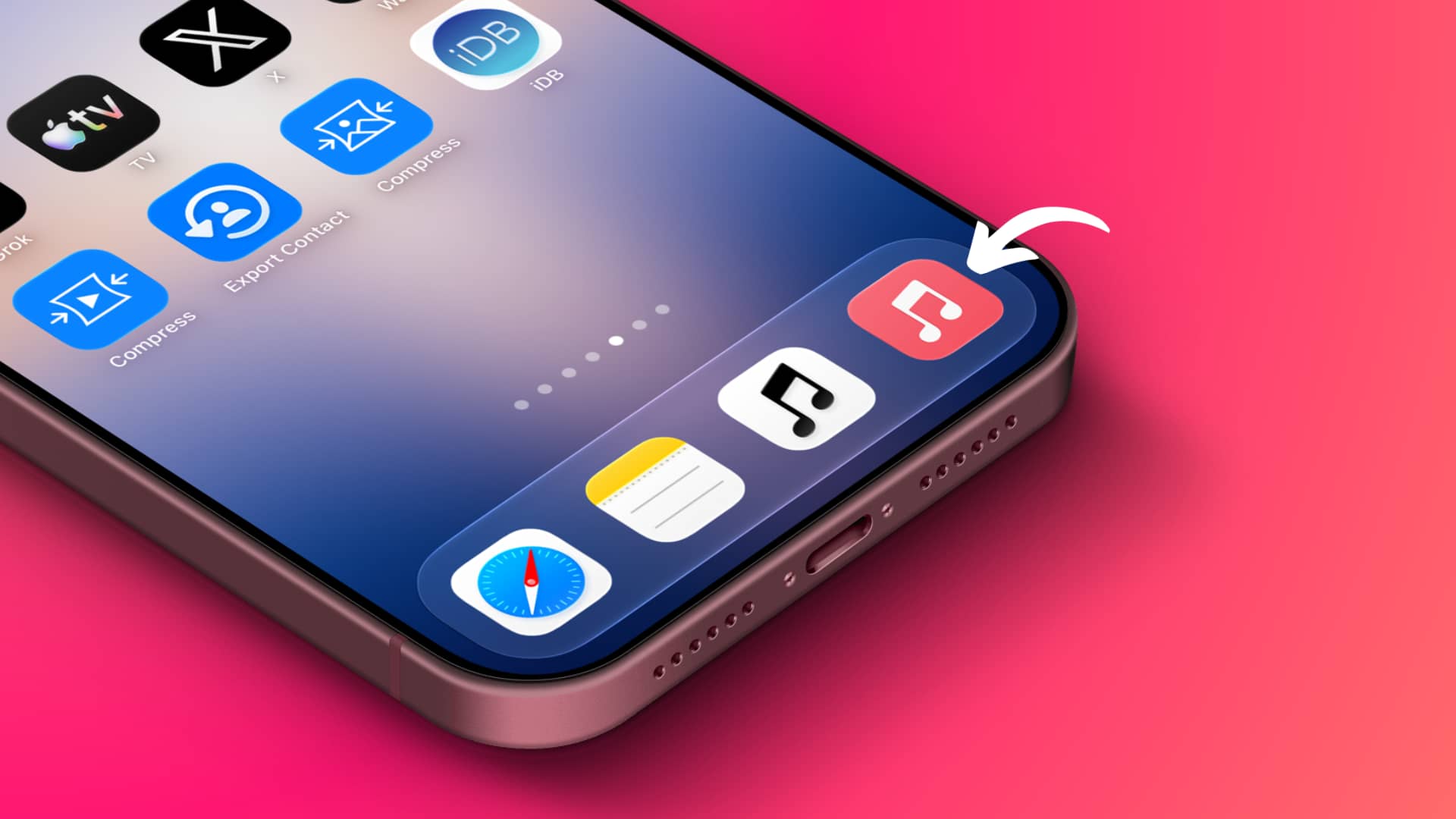
iOS 27, iPadOS 27, macOS 27 Golden Gate, and tvOS 27 have removed the red Apple Music icon and replaced it with a black-and-white version. In my opinion, the new icon is amazing and better than the old one. I always found the red icons and red app theme to be a bright eyesore.
That said, many people don’t like this change and would rather keep the red icon they’re already familiar with and have built muscle memory around. If you are one of them, here’s how to get back the red icon on your iOS 27 Home Screen.
Note that, unlike some other apps, Apple Music doesn’t offer an easy, user-available option to select a different icon. So you’ll need to use the Apple Shortcuts app to create a quick Home Screen open-app shortcut for Music, and it will use the original red-and-white icon.
The shortcut approach works perfectly, but you will miss the touch-and-hold shortcut actions, as shown in the screenshots below. Plus, you’ll still see the original icon in the App Library, and two Music icons in the App Library’s alphabetical view.
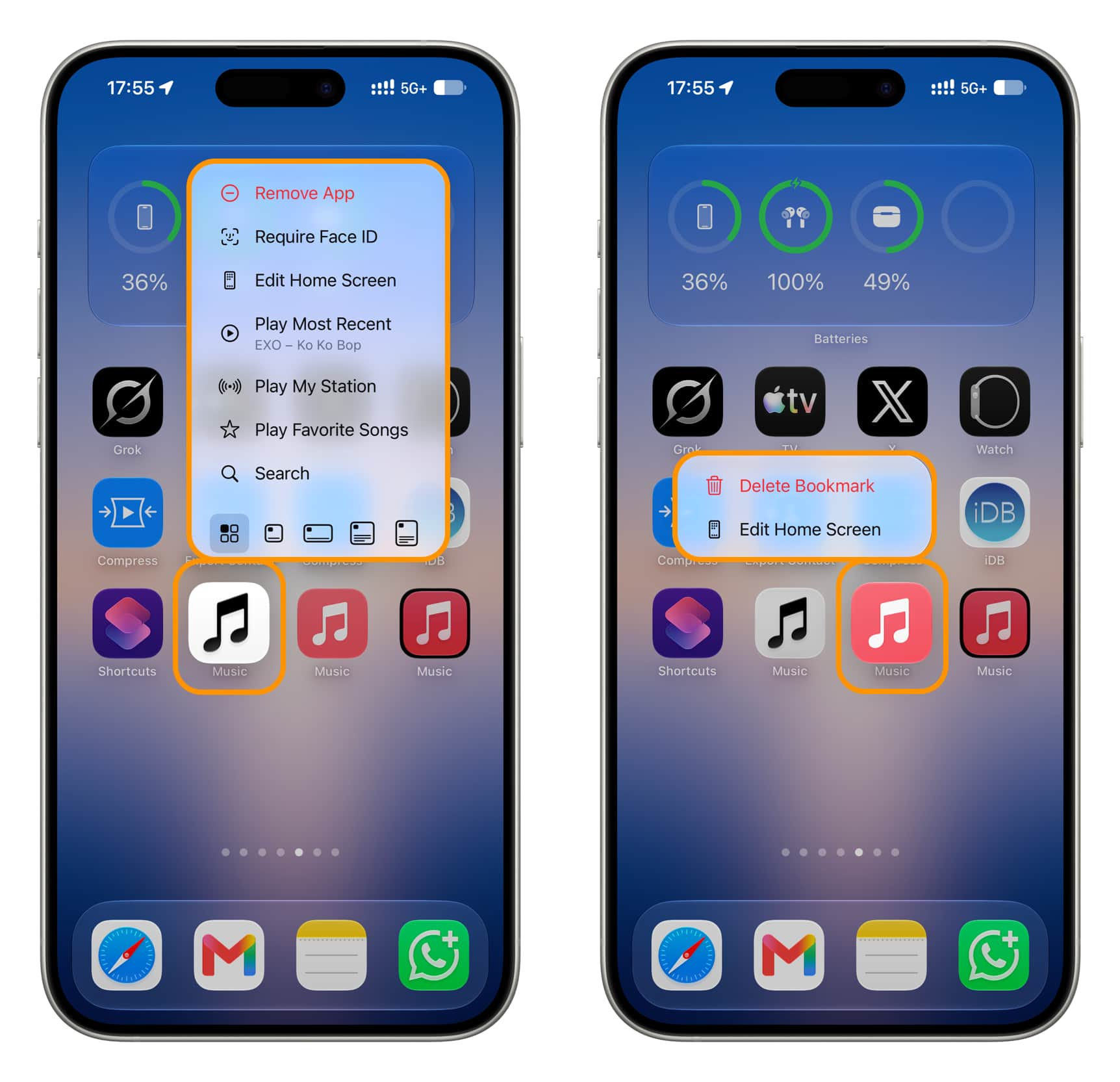
Additionally, this tip only works on iOS and iPadOS; it isn’t of much use on macOS; and it isn’t even possible on tvOS.
Restore the red Music app icon in iOS 27
1) Download and save this original red Apple Music app icon to your iPhone or iPad’s Photos or Files app. You can also skip this step and still get a similar-looking red icon, as explained in Step 8 below.
2) Open the Apple Shortcuts app and tap the plus button (+) to create a new one.
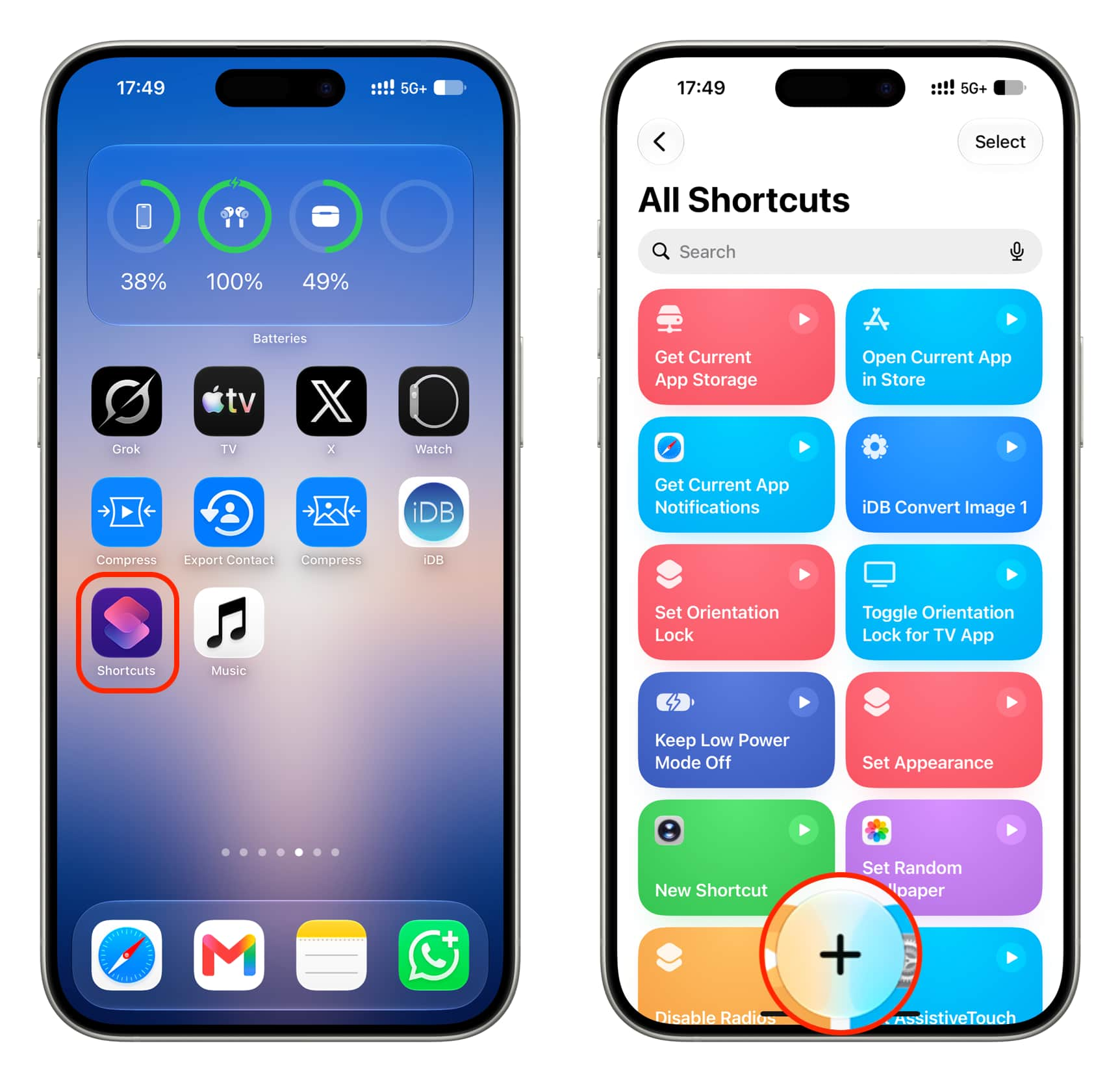
3) Tap Edit at the top to bypass the new AI shortcut building feature.
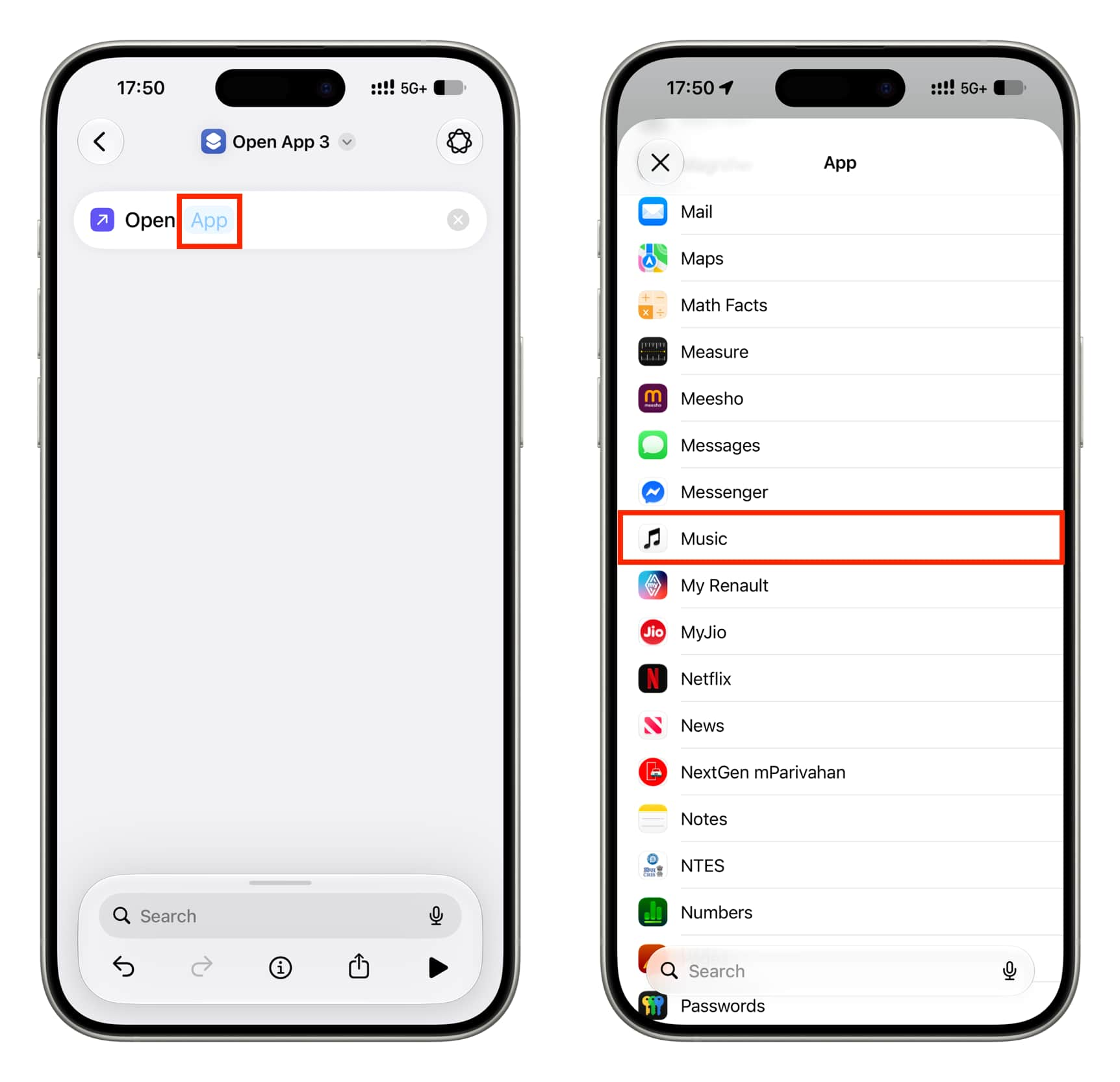
4) Tap Open App.
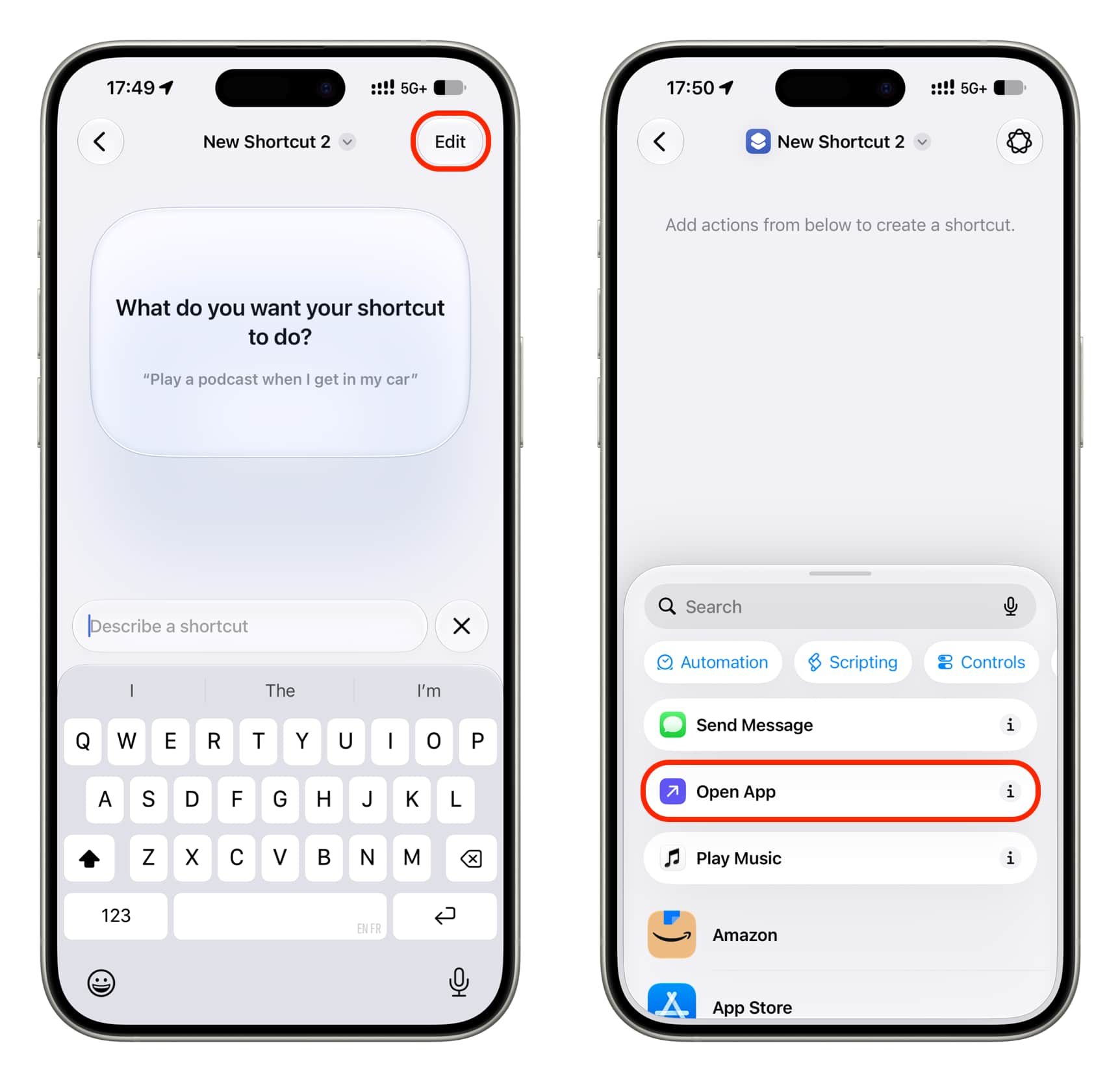
5) Tap the light blue ‘App’ placeholder text and select Music from the list of applications.
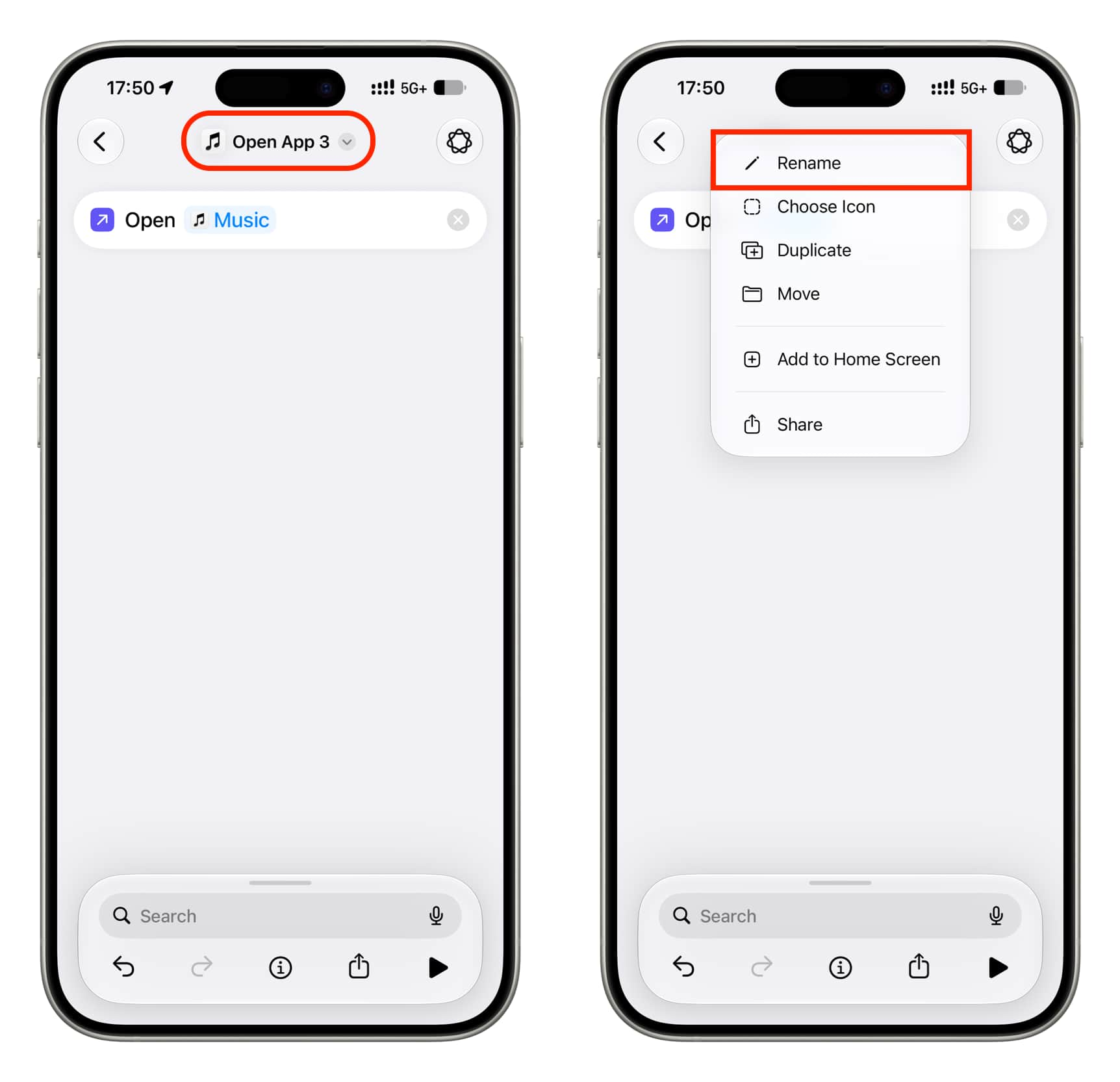
6) Tap the current shortcut name at the top and rename it to ‘Music.’
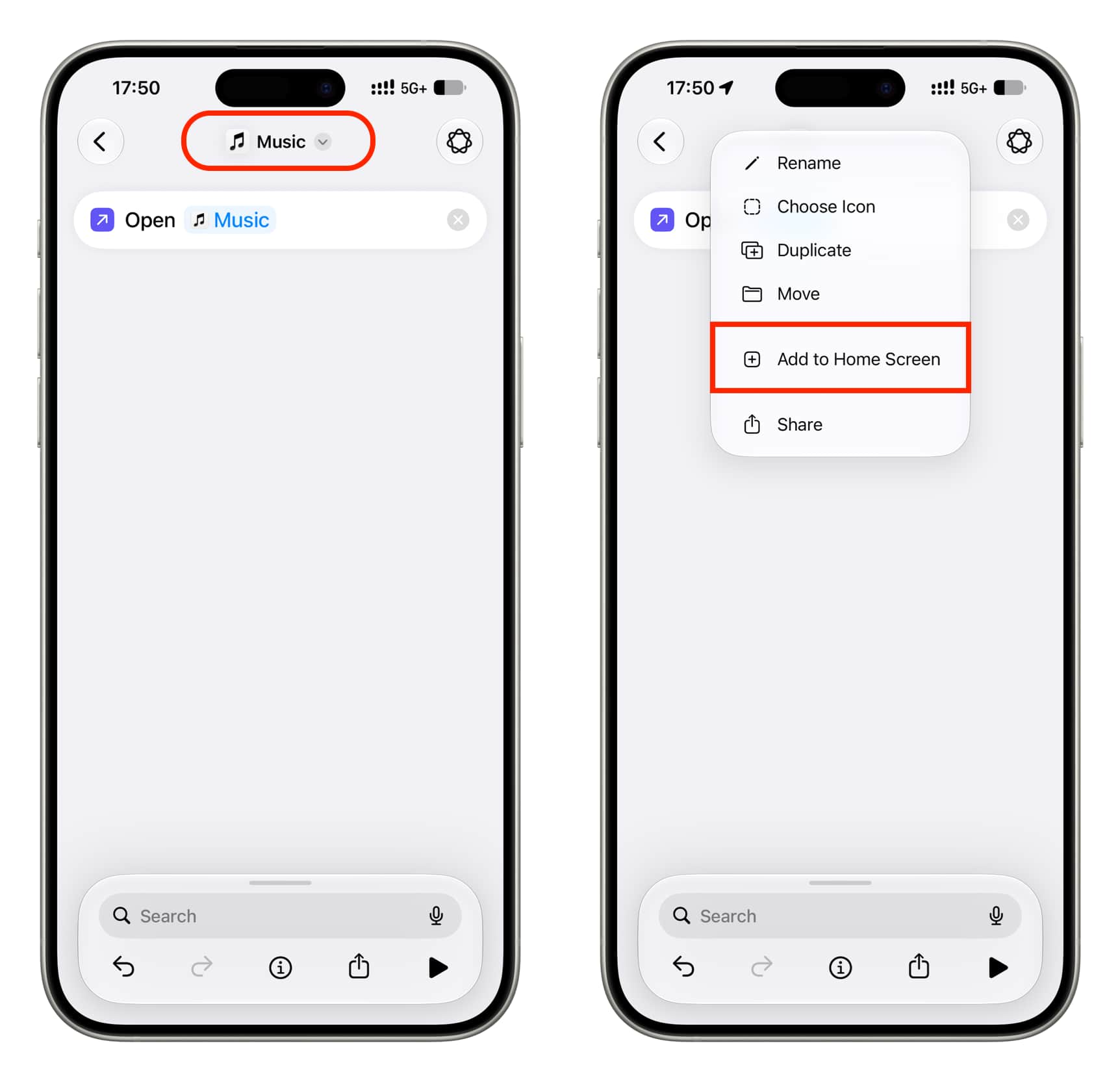
7) Then, tap the new name again and select Add to Home Screen.
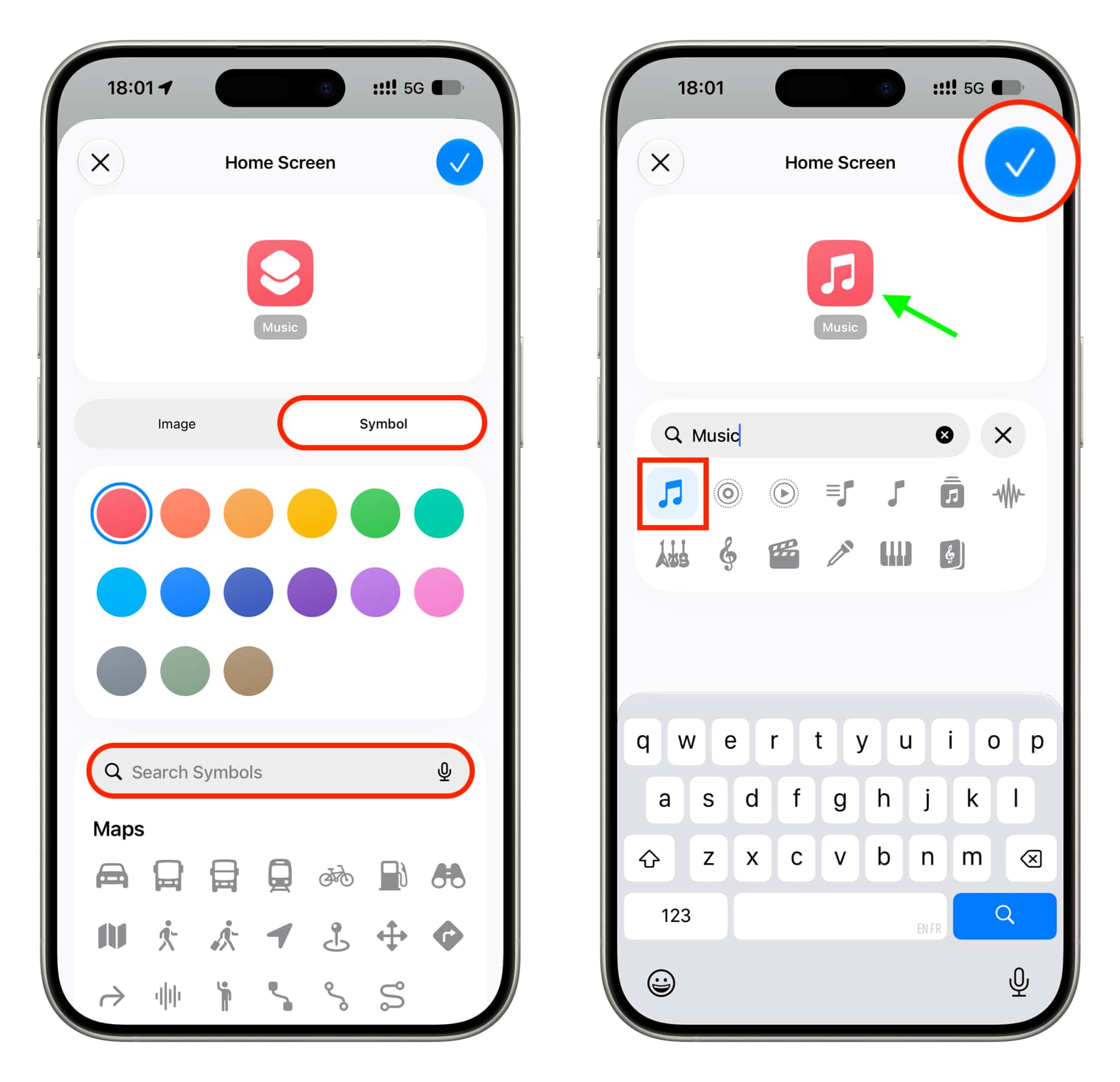
8) Now:
- Similar red app icon (I prefer this): To get a similar-looking red icon, stay in the Symbol tab and select the red color. Then, search for the music symbol and tap it. You’ll see the red app icon at the top that looks much like the original Apple Music icon. Tap the checkmark icon to add it to the Home Screen.
- Original app icon: If you want to use the original Music icon you downloaded in Step 1, switch to the Image tab, choose the icon image from Photos or the Files app, adjust the icon crop, and tap the checkmark icon to add it to the Home Screen.
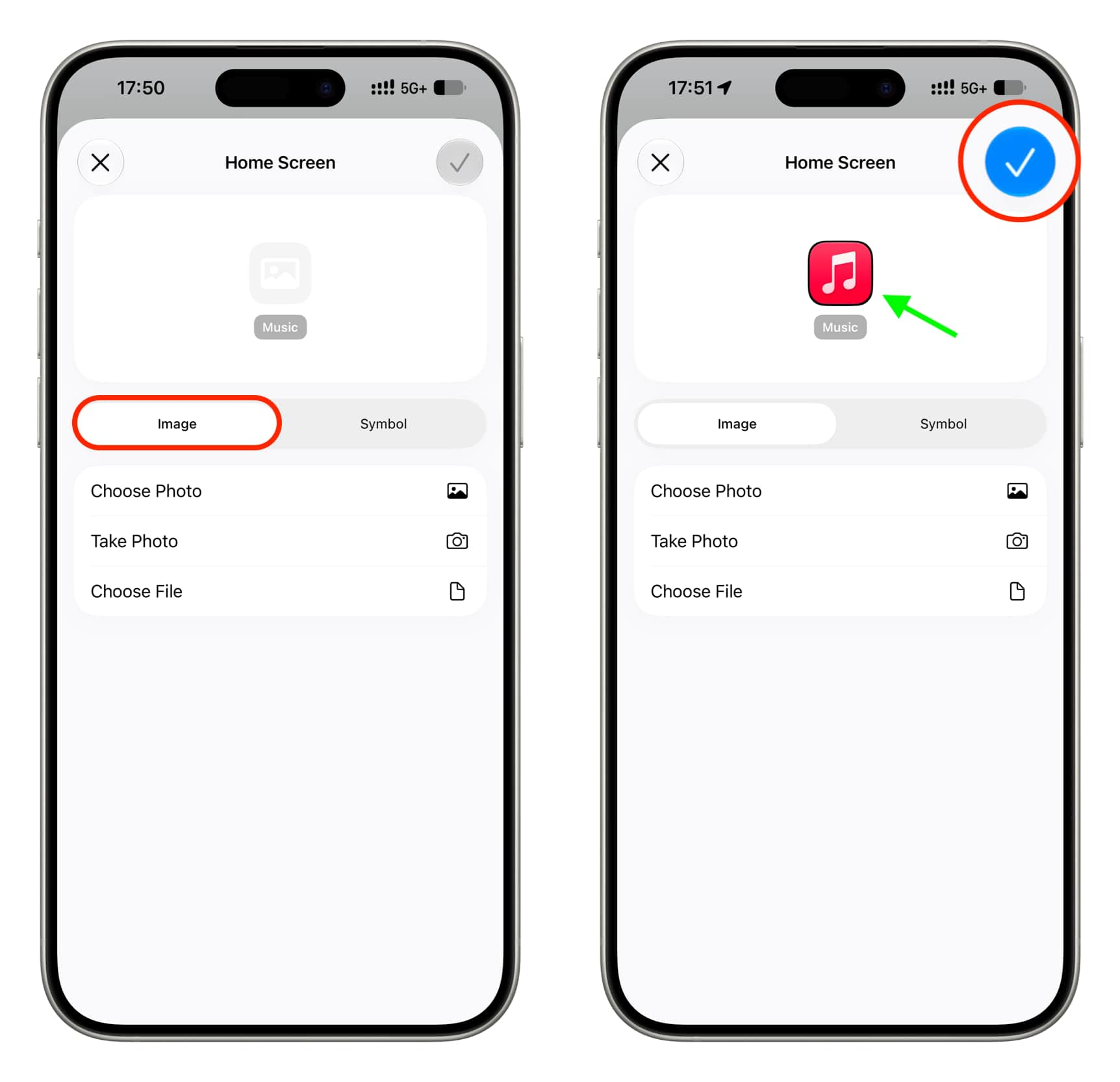
Note that a transparent PNG icon may add a thin black outline, as shown in the screenshot below.
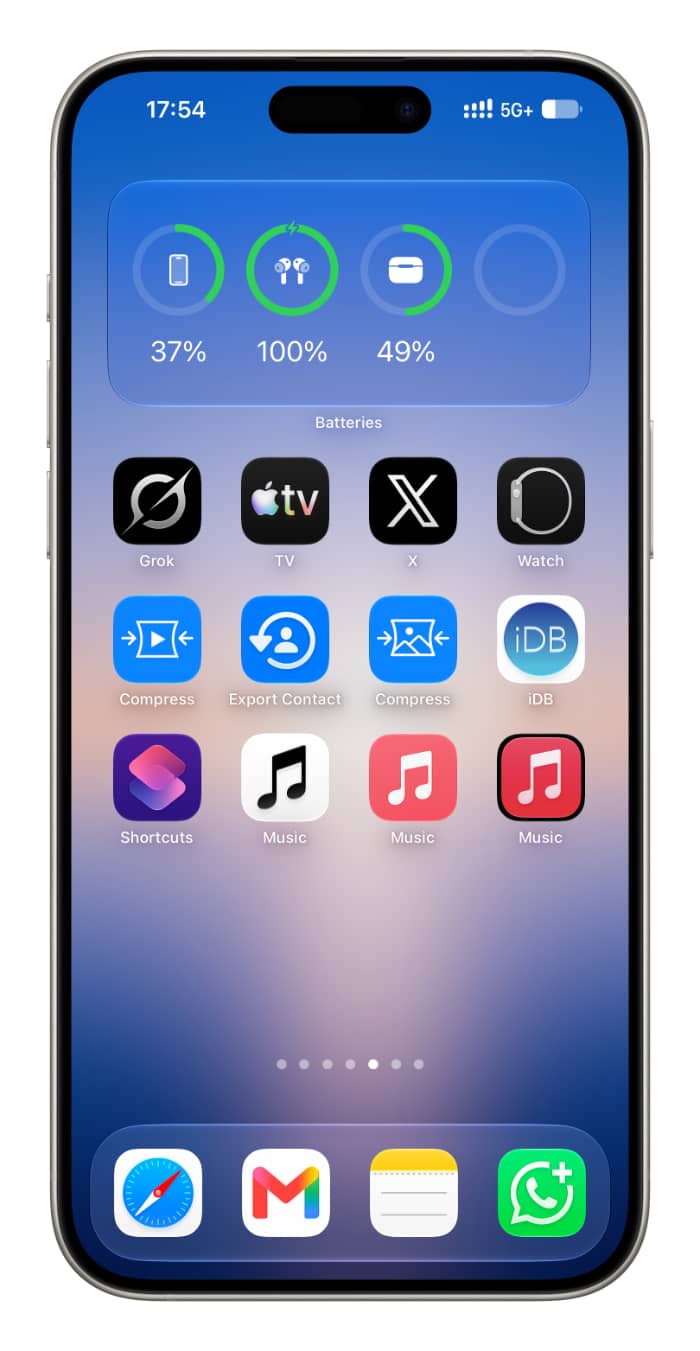
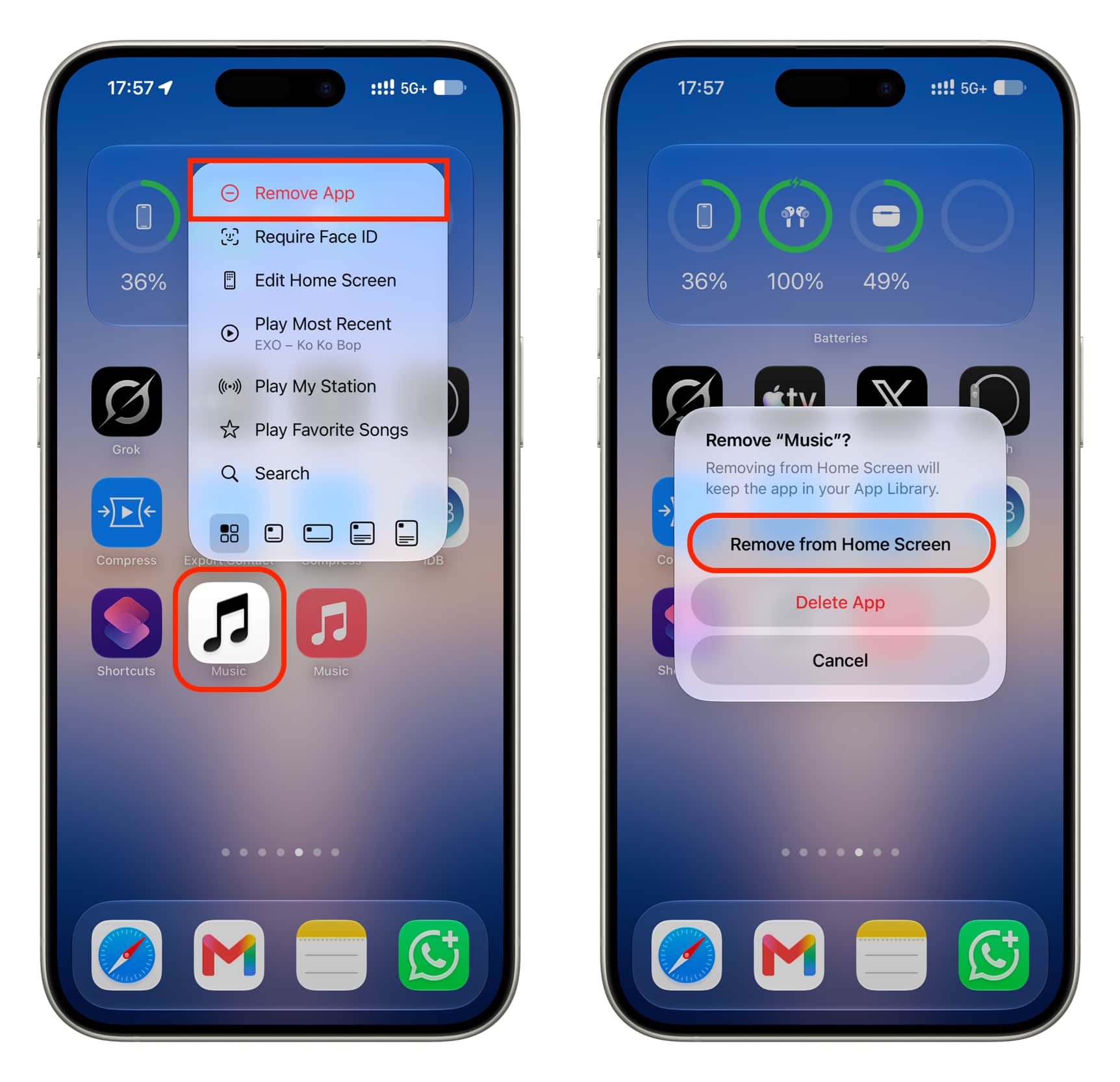
9) Once you have the red Music app shortcut on the Home Screen, remove the white original app icon from there to reduce confusion. Tap the new red Music icon shortcut to open the Apple Music app instantly.
More on Apple Music: