Curious who is looking at your stories? In this tutorial, we'll show you how to see how many people viewed your Instagram story and the usernames of those who did.
How to see who viewed your Instagram story (even after 24 hours)

Learn how to master your Apple devices with our comprehensive tutorials. From iPhone and iPad to Mac, Apple Watch, AirPods, and more, our expert guides will help you unlock the full potential of your Apple products. Discover new features, tips, and tricks each day to enhance your user experience.
Curious who is looking at your stories? In this tutorial, we'll show you how to see how many people viewed your Instagram story and the usernames of those who did.
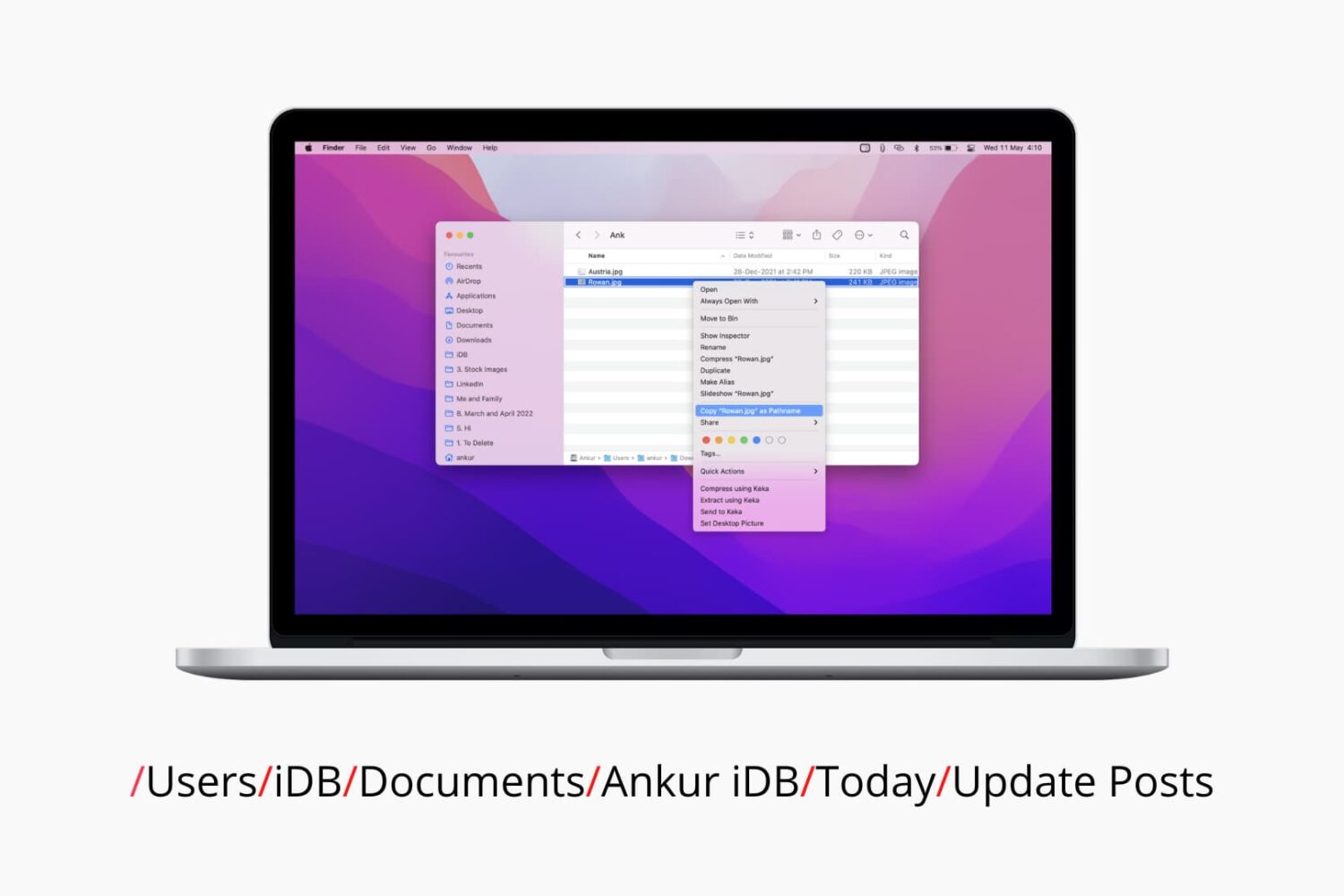
Check out six different ways to find the path or address of a file or folder on your Mac using Finder, Terminal, and more.
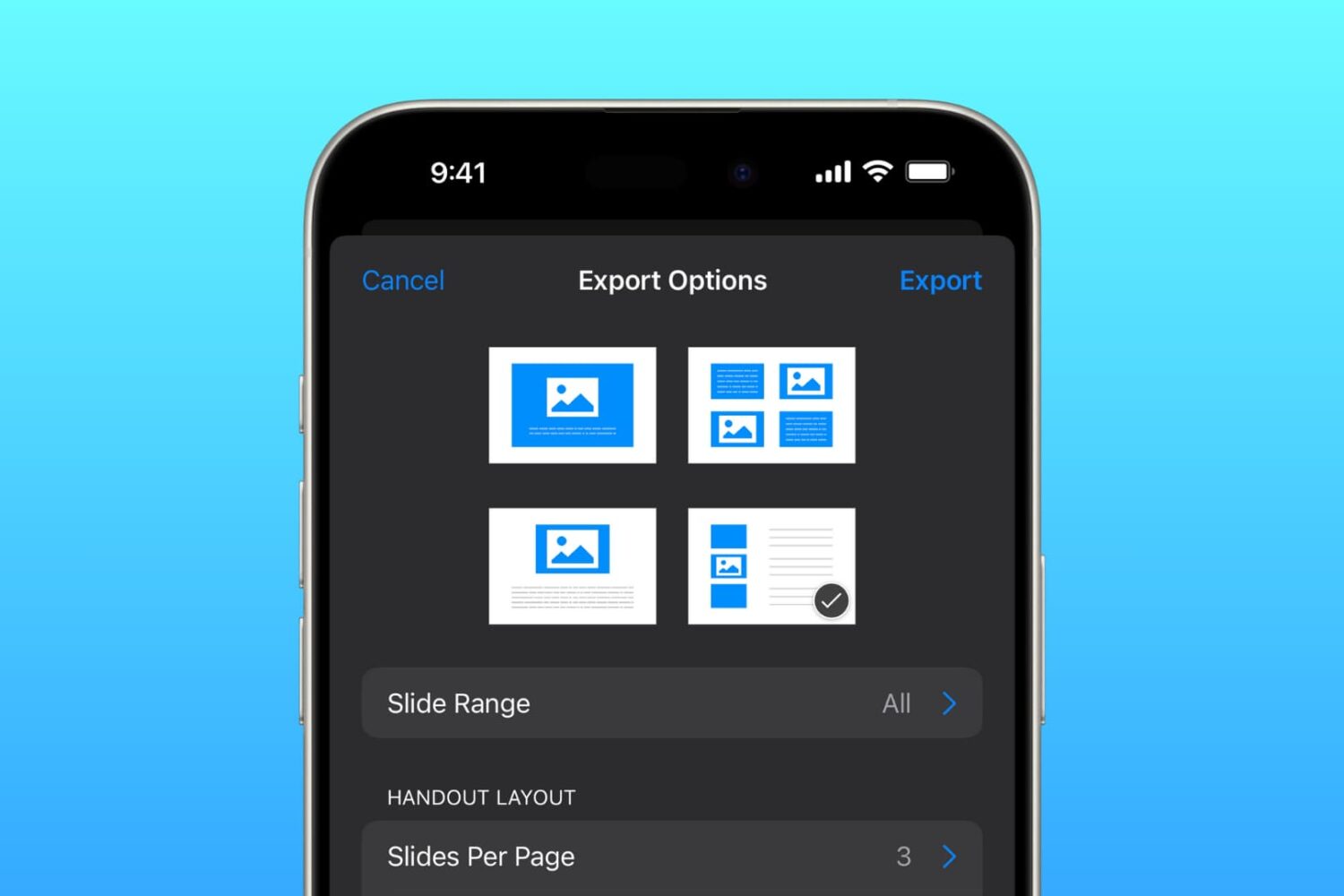
Learn how to save a presentation in Keynote as a PDF in a handout or outline view so you can send or share the file easily.

Learn how to quickly and easily send any document (PDF, DOC, HTML, etc.) to your Kindle or Kindle app just by sending an email.

If you love playing games on your Nintendo Switch as much as I do, then you probably already know about the handy screenshot feature. Maybe you capture shots of high scores or levels you’ve tackled. And while it’s great you have an album to see all your screenshots, maybe you’d like to do a bit more with them.
You might want to post those awesome gaming moments on social media. You may want to brag to a pal that you got further in the game than they did. Or, you might even want to help a friend who is new to a game by showing them how to do something.
Whatever the reason, you can take those Nintendo Switch screenshots and plop them right onto your iPhone. From there you can send, share, post, or do whatever you like with them. Here’s how it’s done.

Learn how to use the Hover Typing and Hover Text accessibility features on Mac to see a huge version of text under the pointer when you’re typing or navigating around macOS.

Learn how to add slide transitions in Keynote on Mac, iPhone, and iPad to give your slideshow a professional appearance.
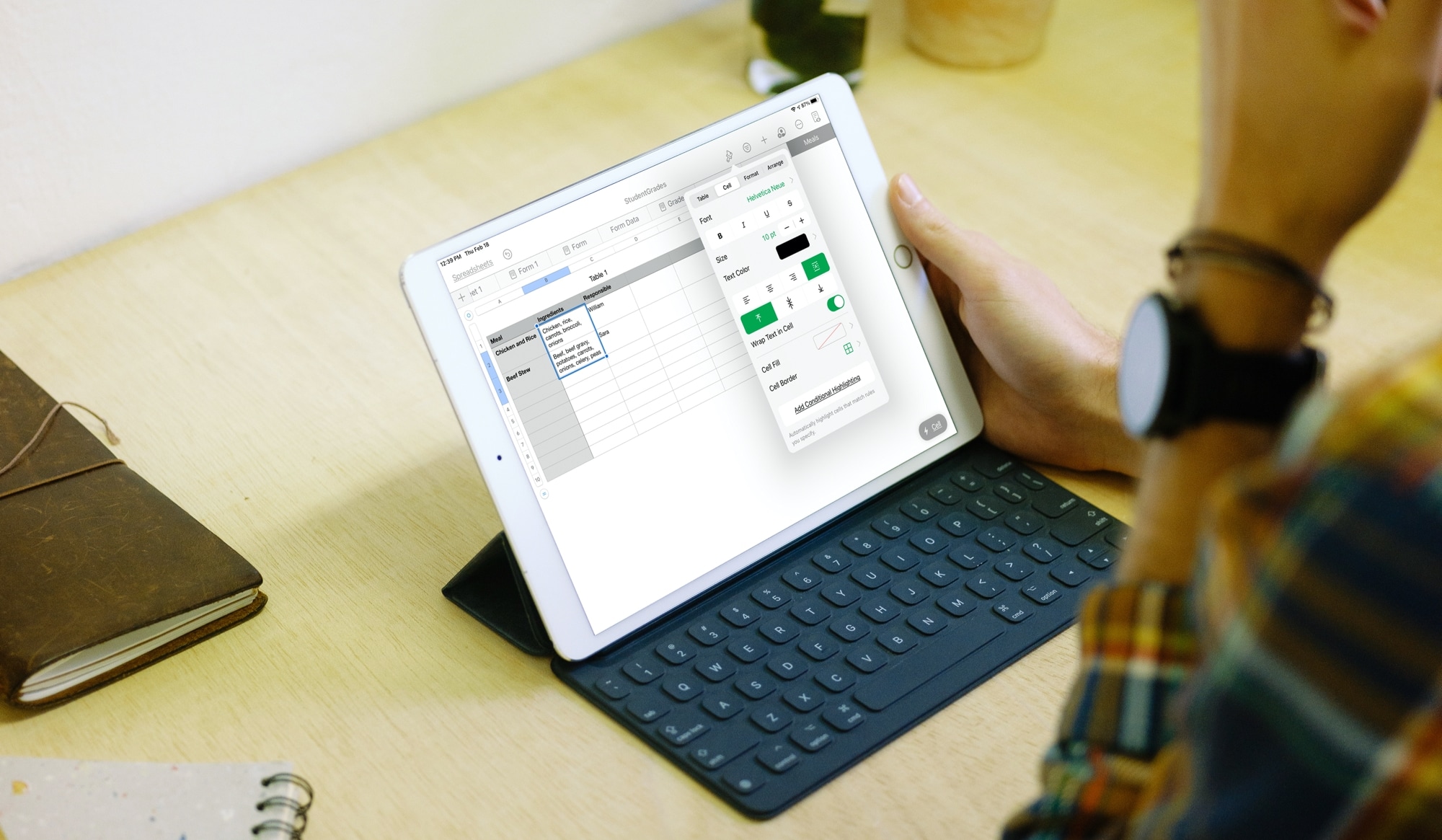
Learn how to wrap text in a cell, group of cells, or the whole table of the Numbers app on your iPhone, iPad, and Mac so you can display all your data without missing anything.

Learn how to require a password in the Keynote app on Mac, iPhone, and iPad to open a presentation or exit one.
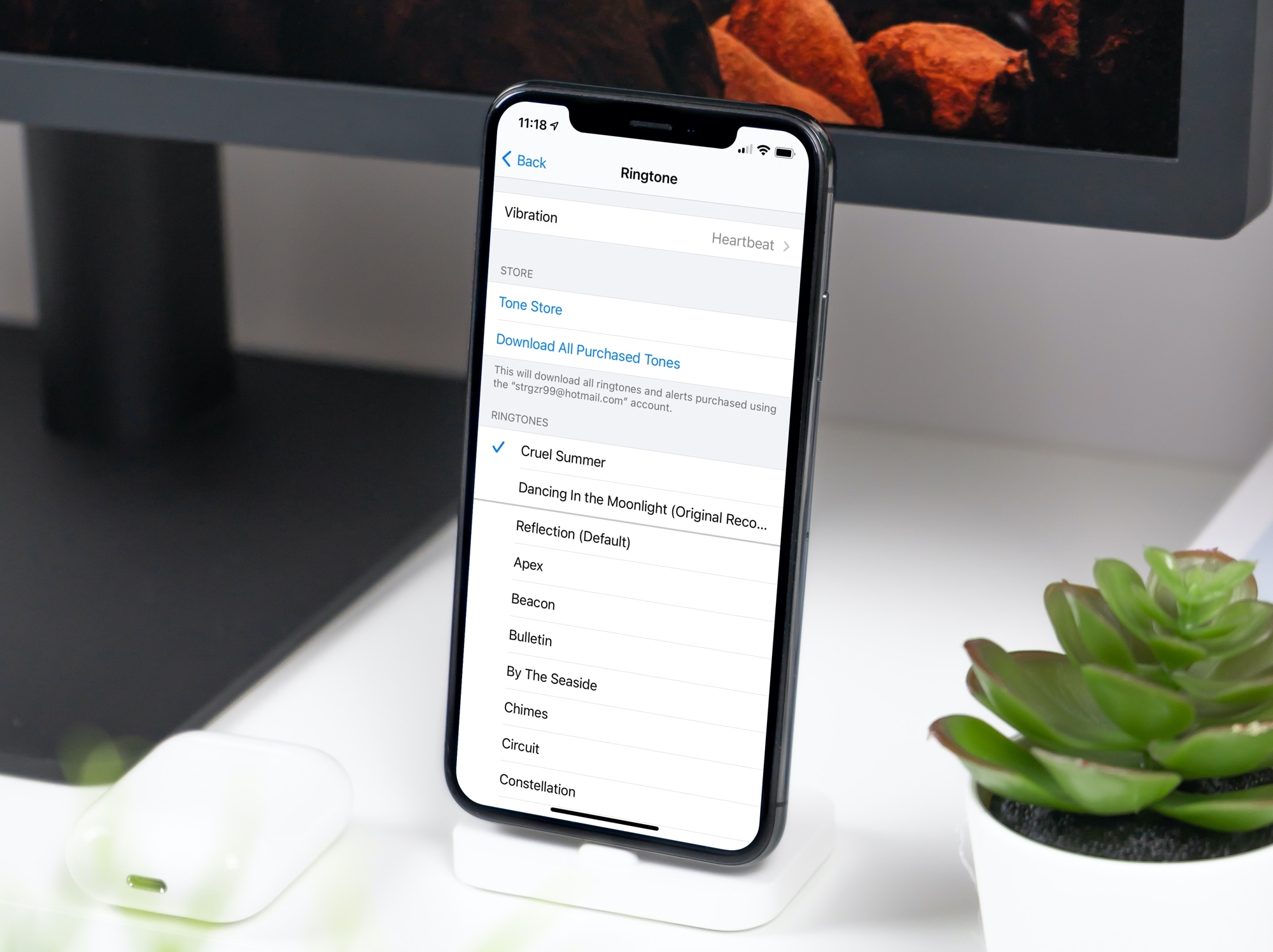
In this tutorial, we will show you how to convert a song or music file into a ringtone for your iPhone or iPad using the Music app on your Mac.
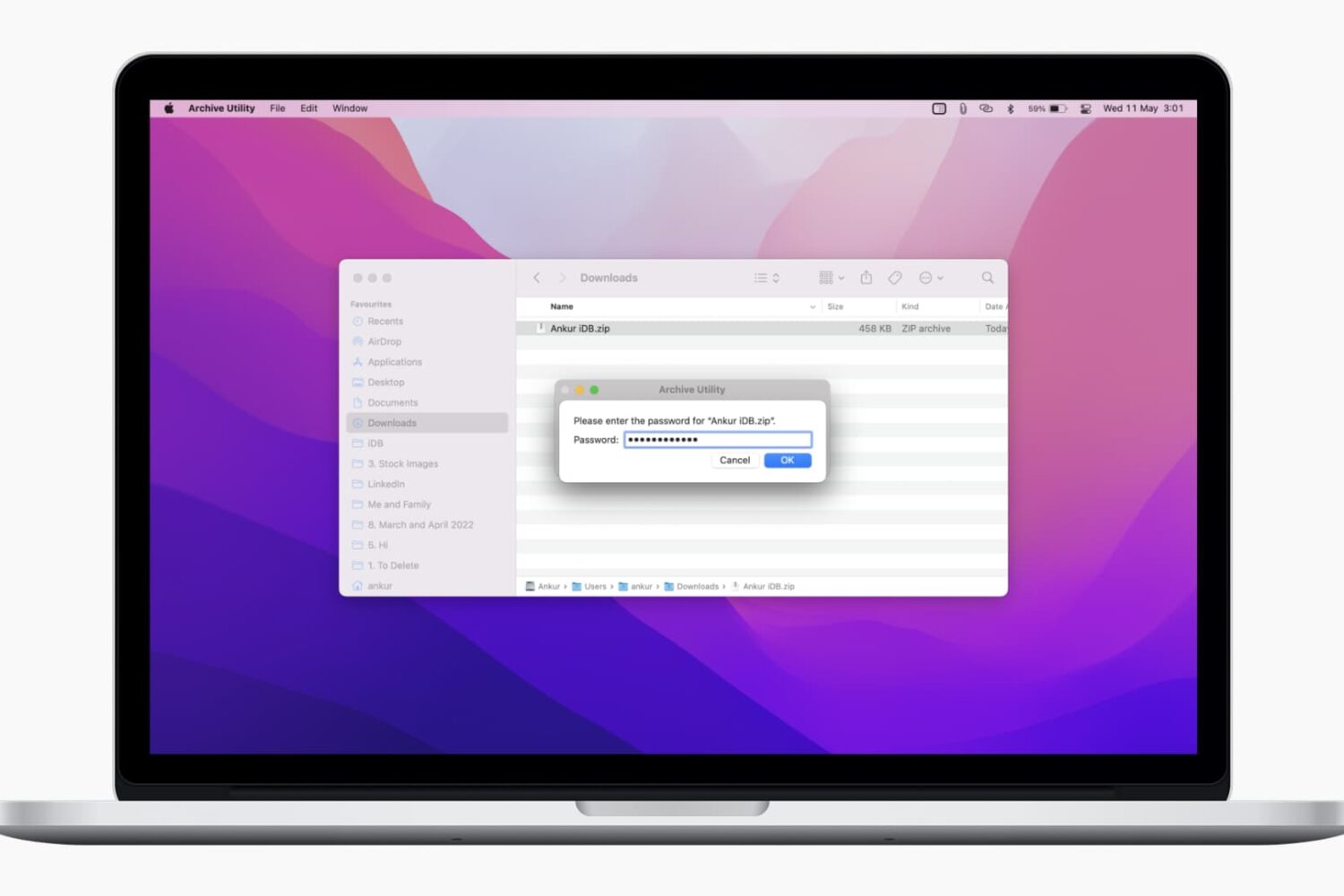
In this tutorial, we’ll show you two free and easy ways to secure your ZIP files on Mac with a password to prevent unauthorized use.

Learn how to color every other row in the Apple Numbers app on Mac, iPhone, and iPad to make a table in your spreadsheet easier to read.