Check out eleven tips for customizing your Mac’s top menu bar to personalize its look and increase your productivity.

The menu bar is displayed at the top of the Mac’s screen. Unlike the Dock, which can be placed on one of the three sides of the screen (bottom, left, or right), the menu bar’s location is fixed at the top. However, there are several tips you can follow to personalize it and make it unique.

You can choose to show or hide items on the menu bar from your Mac’s settings. If you like a minimalist look, you will probably want your important toggles in Control Center rather than the menu bar. However, if you want all options to be just a click away, you can add them to the menu bar.
- Open System Settings and select Menu Bar (or Control Center on older versions of macOS).
- Go through the list of options and choose to show or hide them from the menu bar.

2. Add items from Control Center
Imagine you have chosen not to show the Bluetooth icon in the menu bar, but at some point need to display it there for a few hours. In this case, you can open Control Center on your Mac and drag items from here onto the menu bar to add them to it. But note that when you do this in macOS Tahoe 26, the icon in question will be removed from Control Center and only show in the menu bar.
3. Remove items manually
To remove an icon from the menu bar, hold the Command key and drag it down to the desktop.

Note that you cannot remove some fixed icons, such as the Control Center icon and the data and time icons. Additionally, the icon of an open app that shows in the menu bar cannot be removed until you quit that app.
Just hold the Command key and drag & drop an icon to its new place. You can use this tip to properly organize all the icons just the way you like them.
5. Show or hide icons at will
You can use third-party tools like Bartender to clean up the menu bar and have it hide and show icons at will. Learn all about it in our dedicated tutorial.

You have a few options when it comes to clock settings for your menu bar. For instance, you can choose to show or hide the date, day of the week, seconds, and AM or PM. You can also switch to an analog clock instead of a digital clock.
- Open System Settings and select Menu Bar (or Control Center on older versions).
- Click Clock Options next to Clock.
- Adjust the options and click Done.

And using easy third-party options, you can also display clocks for other time zones in your Mac’s menu bar.
You can display your Mac’s user account name in the menu bar. In addition to showing which account you are logged into, this name thing can also serve as a watermark for your screenshots.
Your Mac keeps the menu bar visible at all times, unless you open an app in full-screen mode. However, if you don’t use it much and would like that area for your app windows, you have the option to set it to hide automatically. And when you need to access the menu bar, simply take the pointer to the top of the screen.
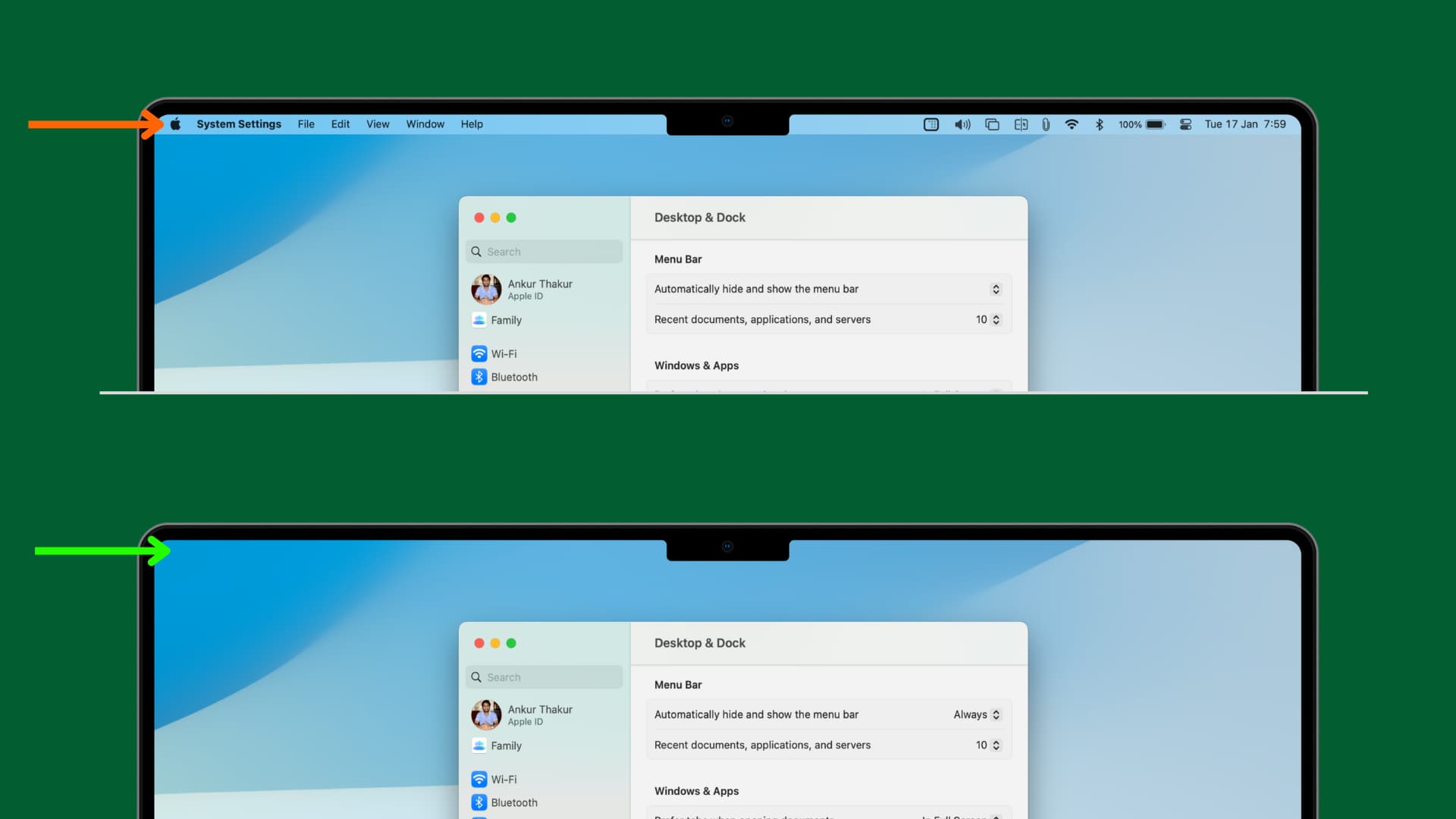
By default, macOS hides the menu bar when you open an app in full-screen mode. But if you need to see your menu bar at all times, you can easily have it displayed on the screen even when you open an app in full screen.
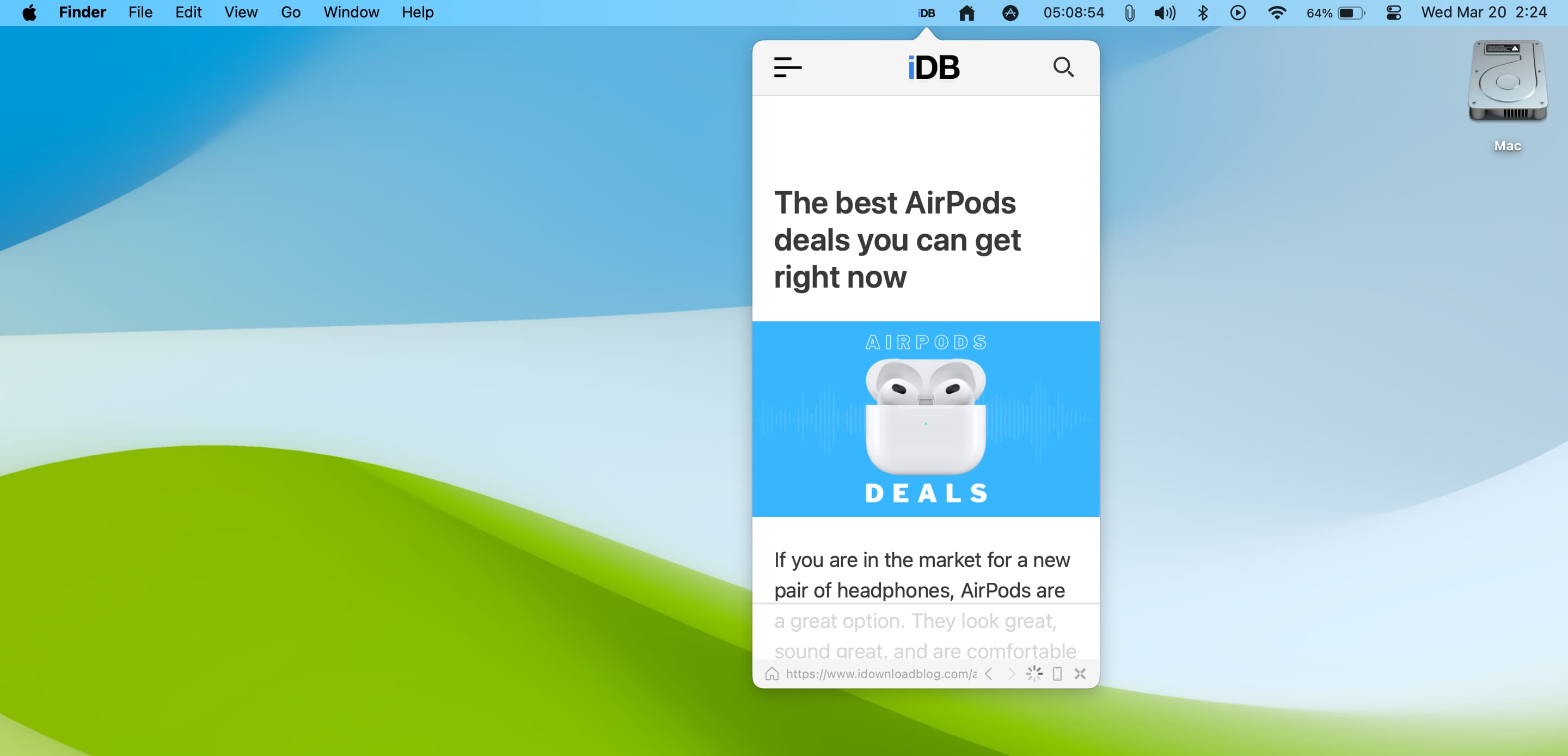
There are several Mac apps that can run straight from the menu bar. From using a web browser to navigating Finder folders, we have curated a list of the best menu bar apps for Mac that you must check out.
The top menu bar background and your desktop wallpaper appear as one unit in macOS Tahoe. But if you’d like to make it look separate, go to System Settings > Menu Bar and enable ‘Show menu bar background.’

Secondly, the menu bar’s appearance depends on the wallpaper you have set. However, if you are not a fan, you can go to System Settings > Accessibility > Display and turn on Reduce transparency. After this, the menu bar, Dock, app windows, and several other macOS elements will lose their transparency effect and have a mostly solid background.
Furthermore, you can use apps like Lickable Menu Bar or Old Menu Bar to significantly change the appearance of your menu bar. If you are not a fan of the default look or don’t want to turn on Reduce transparency, these apps may be just what you are looking for!
On a related note: