Try these troubleshooting solutions to fix “Hey Siri” or “Siri” invocation not working on your iPhone or iPad, thus preventing Apple’s voice assistant from springing into action when you say the wake word.

Make sure Hey Siri is turned on
- Open the Settings app.
- Navigate to Apple Intelligence & Siri or Siri.
- Select Requests or Talk & Type to Siri.
- Check “Siri or Hey Siri” or “Hey Siri.”

Check your internet connection
Basic Siri commands work offline, but others like “Hey Siri” require an active internet connection via Wi-Fi or cellular data to reach Apple’s servers. Otherwise, you’ll get an error message.
If the device is connected to the internet via Wi-Fi, check for network problems by opening Safari and trying to load a website. If it works, you’re online. Otherwise, reboot the router or connect to another Wi-Fi network.
Take the iPhone out of your pocket; don’t keep it facedown
Siri won’t respond if your iPhone is in your pocket, or covered with something, or laid with its screen facing down. This is actually a feature (called Facedown Detection), not a bug, to quickly silence notifications.
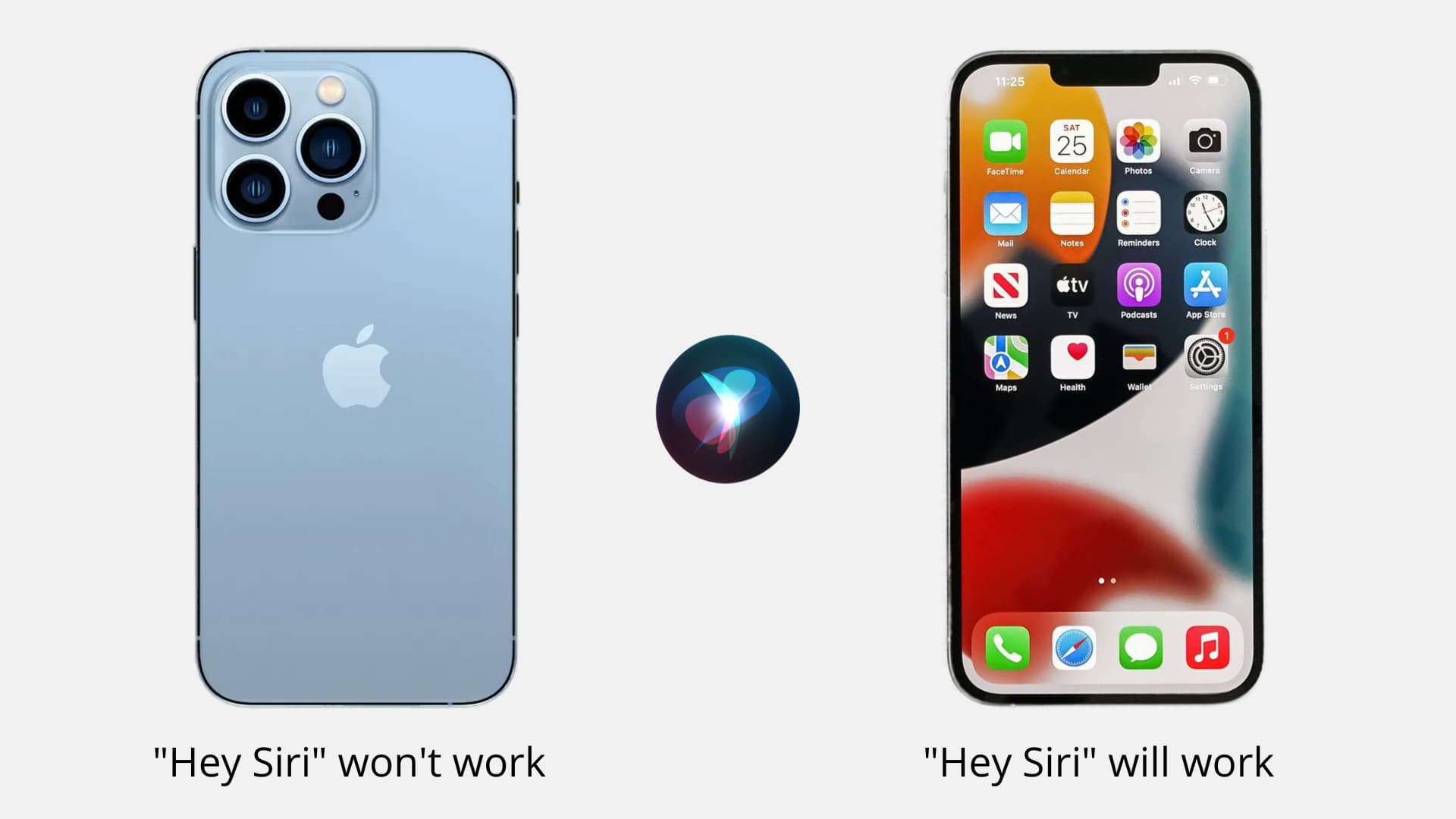
To override Facedown Detection, go to Settings > Accessibility > Siri and turn on ‘Always Listen for Siri.’ You can now invoke Siri even when the iPhone is face down or covered.

Reboot your device
A quick restart can fix temporary software glitches and intermittent problems. Turn your iPhone off and back on, and see if that fixes the “Hey Siri” problem.
Are there multiple “Hey Siri” devices nearby?
When you say “Hey Siri” with multiple devices within Bluetooth range, only one device will respond. That’s because your nearby Apple devices communicate between themselves to decide which one should respond to Hey Siri. The HomePod gets preferential treatment, but iOS may prioritize the nearest device or one you happen to be using at the moment. If “Hey Siri” keeps failing, check that Bluetooth is enabled on all devices, so they can negotiate wirelessly.
Are AirPods connected but not in your ears?
Newer AirPods and Beats earphones support “Hey Siri.” If your iPhone won’t respond to “Hey Siri,” check that the connected AirPods are in their charging case. If not, put them back in the case or wear them and see if your iPhone now responds to “Hey Siri.”
Is Low Power Mode turned on?
“Hey Siri” works even when your iPhone is in Low Power Mode. If not, that’s a clear sign of software glitches. Still, try turning off Low Power Mode and see if that resolves the issue.
Update your iPhone
If software bugs are preventing Siri from responding to “Hey Siri” requests, check for iOS updates in Settings > General > Software Update.
Try recalibrating “Hey Siri”
As part of “Hey Siri” setup, you must speak aloud several onscreen sentences to help calibrate the algorithm. If Siri never seems to understand the invocation phrase, try recalibrating “Hey Siri” by turning it off and back on. This tip is especially handy for non-native speakers, people with heavy accents, or those who mumble words (try speaking louder when invoking Siri).

Check Siri’s availability in your country
Localized Siri is available in 42 countries and regions. Check Apple’s iOS Feature Availability page to confirm that Siri is available in your country and speaks your language.

Is the iPhone’s mic working?
Water damage or debris can affect microphone performance, causing Siri to misinterpret your words. To check your iPhone’s mic is working, open the Notes app, bring up the onscreen keyboard, and tap the microphone key to use the Dictation feature. If the voice waveform doesn’t animate when you speak, the microphone may be muffled or malfunctioning.
Try removing the case. Rugged, thicker cases from Otterbox and Lifeproof can cover the microphone. Another tip is to blow at the microphone opening to remove dust particles that might be obstructing the sound waves.
If Hey Siri fails in your car
Check that your iPhone is connected to your vehicle’s infotainment system wirelessly via Bluetooth or CarPlay, and ensure the in-car mic is functioning. If the iPhone is connected via a 3.5mm aux cable but the car lacks its own microphone, Hey Siri and other apps that record audio won’t hear any commands. That’s because iOS turns off the iPhone’s microphone when connected to your car via a cable.
Ensure iPhone isn’t stuck in headphone mode
Sometimes, your iPhone can get stuck in headphone mode, which can happen if you’ve used wired earphones like Apple’s EarPods. For some reason, iOS thinks a pair of earphones are connected whereas in reality none are. This will cause the operating system to ignore the on-device microphone and speakers, in turn causing “Hey Siri” to fail. Peruse our separate troubleshooter to fix an iPhone stuck in headphone mode.
Reset all iPhone settings
Resetting all iPhone settings may help fix Hey Siri not working on your iPhone.
Contact Apple
If none of these troubleshooting tips work for you, it’s time to have a quick chat with Apple. If there’s a hardware defect covered under Apple’s standard 1-year warranty or AppleCare, Apple will repair it free of charge. Otherwise, you’ll be given a repair quote.