In this tutorial, we’ll show you how to toggle Low Power Mode on and off on your iPhone or iPad and explain what happens when you do.
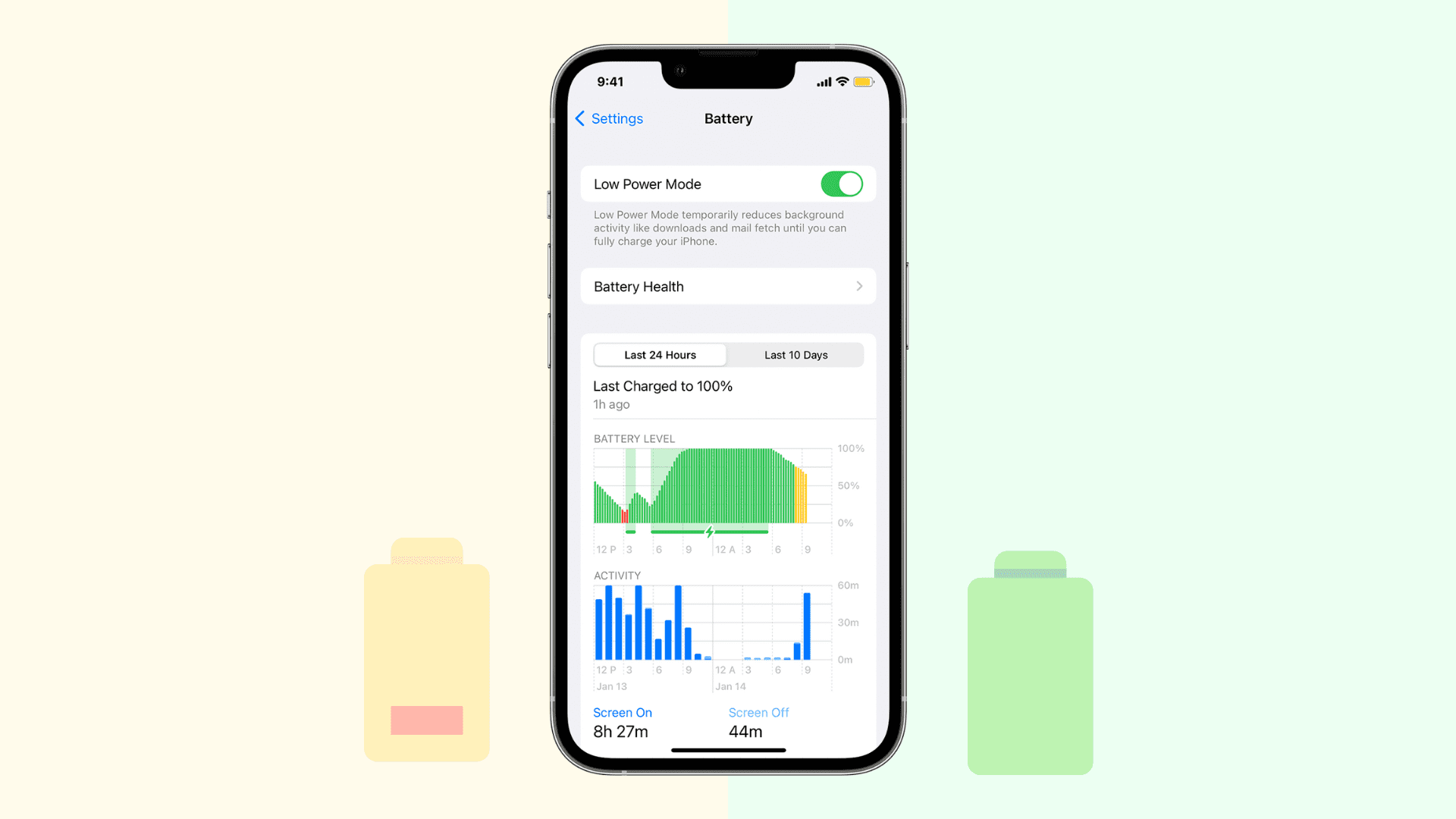
Low Power Mode is a built-in battery-boosting feature on your iPhone, iPad, Apple Watch, and Mac. When Low Power Mode is enabled, it can extend your iPhone’s battery life by up to 3 additional hours of runtime before you need to charge your device again.
How Low Power Mode saves battery
Low Power Mode was introduced for iPhone in iOS 9 and for iPad in iPadOS 15. Apple says Low Power Mode “pulls switches you didn’t even know existed.” These switches optimize your iPhone for power efficiency by throttling down its processor and shutting down a few non-essential features like Background App Refresh, mail fetch, automatic downloads, fancy visual effects, etc.
With Low Power Mode enabled, your device temporarily reduces power consumption until it’s fully charged.
What happens during Low Power Mode on iPhone and iPad
During Low Power Mode:
- Screen refresh rate is limited to 60Hz on iPhone and iPad models with ProMotion displays.
- Low Power Mode can disable 5G (except for video streaming and large downloads).
- Background App Refresh is turned off.
- Display brightness is reduced.
- Auto-Lock defaults to 30 seconds.
- Some visual effects are affected or reduced.
- iCloud Photos updates get temporarily paused.
- Automatic downloads are disabled.
- Email fetch is disabled.
- CPU may be throttled down by as much as forty percent.
Enable or disable Low Power Mode on iPhone and iPad
When your iPhone battery falls to 20%, it shows an alert asking if you would like to enable Low Power Mode. Additionally, you can enable it manually whenever you want.
- Open the Settings app.
- Tap Battery.
- Tap Power Mode.
- Turn on Low Power Mode.

You’ll also see an option for Adaptive Power, which we have explained in another tutorial.
On older versions of iOS, go to Settings > Battery and turn on Low Power Mode.
When Low Power Mode is active, the battery icon in the top status bar turns yellow instead of the standard white, black, or green.
Other ways to turn Low Power Mode on or off
In addition to the Settings app, here are a few other ways to toggle Low Power Mode on iPhone and iPad.
Ask Siri
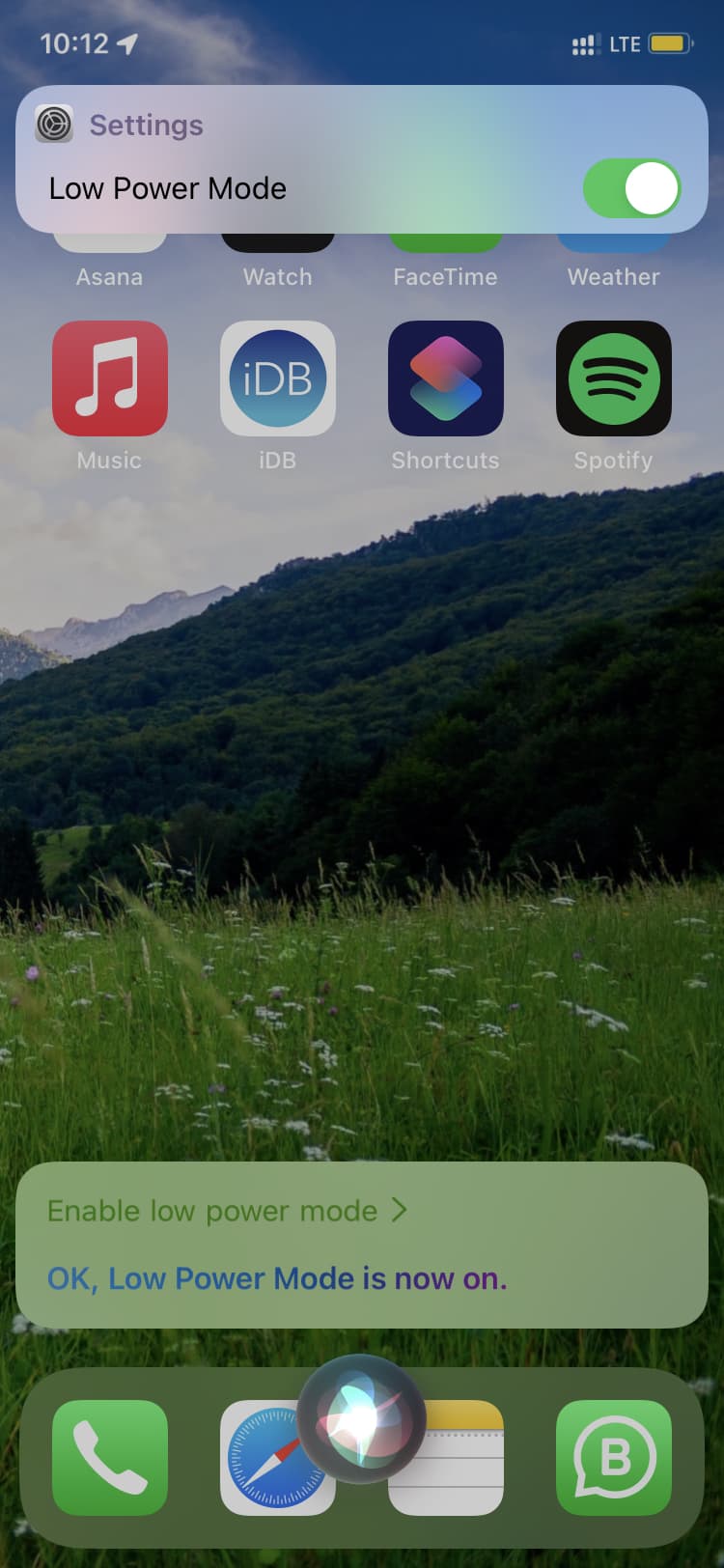
Invoke Siri and ask it to “enable Low Power Mode” or “disable Low Power Mode.”
Edit your iOS Control Center to add the Low Power Mode button. After that, you can open Control Center and quickly enable or disable Low Power Mode.

Use iOS shortcut
Tap this link to get a very simple iOS shortcut I built. After that, you can tap this shortcut anytime to toggle on or toggle off Low Power Mode.
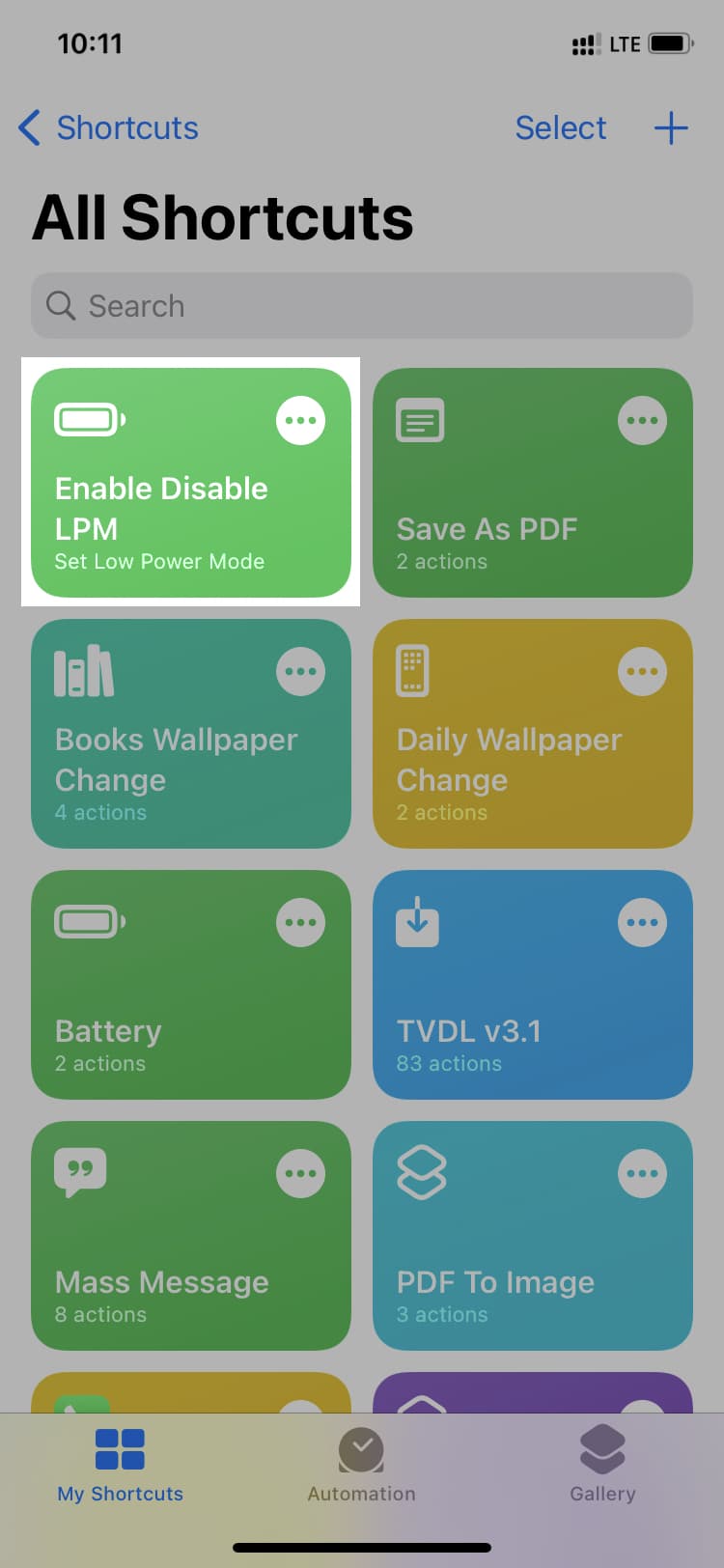
To make things super quick, you can even add this shortcut to your iPhone Home Screen and turn on or off Low Power Mode from there.
Use a custom automation
As mentioned earlier, you see a prompt on the screen or the Dynamic Island to enable Low Power Mode when your iPhone reaches 20% battery or your iPad reaches 10% or 5% battery. However, you can use simple automation to automatically enable Low Power Mode when your iPhone reaches a specific battery percentage, such as 35% or 40%. You can even force your iPhone to always stay in Low Power Mode.
Should I use Low Power Mode?
Low Power Mode is a viable option for conserving juice when there isn’t an outlet nearby, or you don’t have the charger on you. Secondly, if you’re unhappy with your iPhone’s battery, try Low Power Mode for a day or two to see if it helps.
But as mentioned above, the extra juice comes at a price.
If you don’t mind manually checking your email and app updates in the App Store, waiting a little longer for your favorite apps to load, and not seeing fancy visual effects, then I’d say these tradeoffs are worth taking Low Power Mode for a spin.
Just don’t use it while playing games, as Low Power Mode was discovered to throttle down the iPhone 6 by as much as forty percent, making the device comparable to the iPhone 5s in terms of sheer CPU performance.
Even if you don’t turn on Low Power Mode manually, your iPhone will still put up a prompt when you’re nearly out of juice, asking if you’d like to turn it on. It’s worth reiterating that Low Power Mode is a completely optional feature, meaning Apple doesn’t force you into using it.
While useful, I don’t put my iPhone or iPad in Low Power Mode as it turns off the 120Hz ProMotion display. So, I prefer using the new Adaptive Power mode in iOS 26. Previously, I had even set up an automation on my iPhone to prevent it from entering Low Power Mode.
On a related note: