Learn how to add, remove, rearrange, and resize the buttons in your iPhone or iPad Control Center to make it look and function just the way you want.

Control Center icons in iOS 27, iOS 26, and iOS 18 are circular with borrowed Apple Vision Pro design cues. Additionally, Control Center is not a single screen; it’s spread across multiple pages, giving you far more options to add to it than in previous versions of iOS.
Open Control Center
You can access iPhone or iPad Control Center by swiping down from the top right corner of your Home Screen or Lock Screen.

Close Control Center
Tap a spot outside all the buttons to exit Control Center. Note that you can no longer swipe up to go out of Control Center (unless you have a one-page Control Center, explained later below); swiping up simply takes you to the next page.
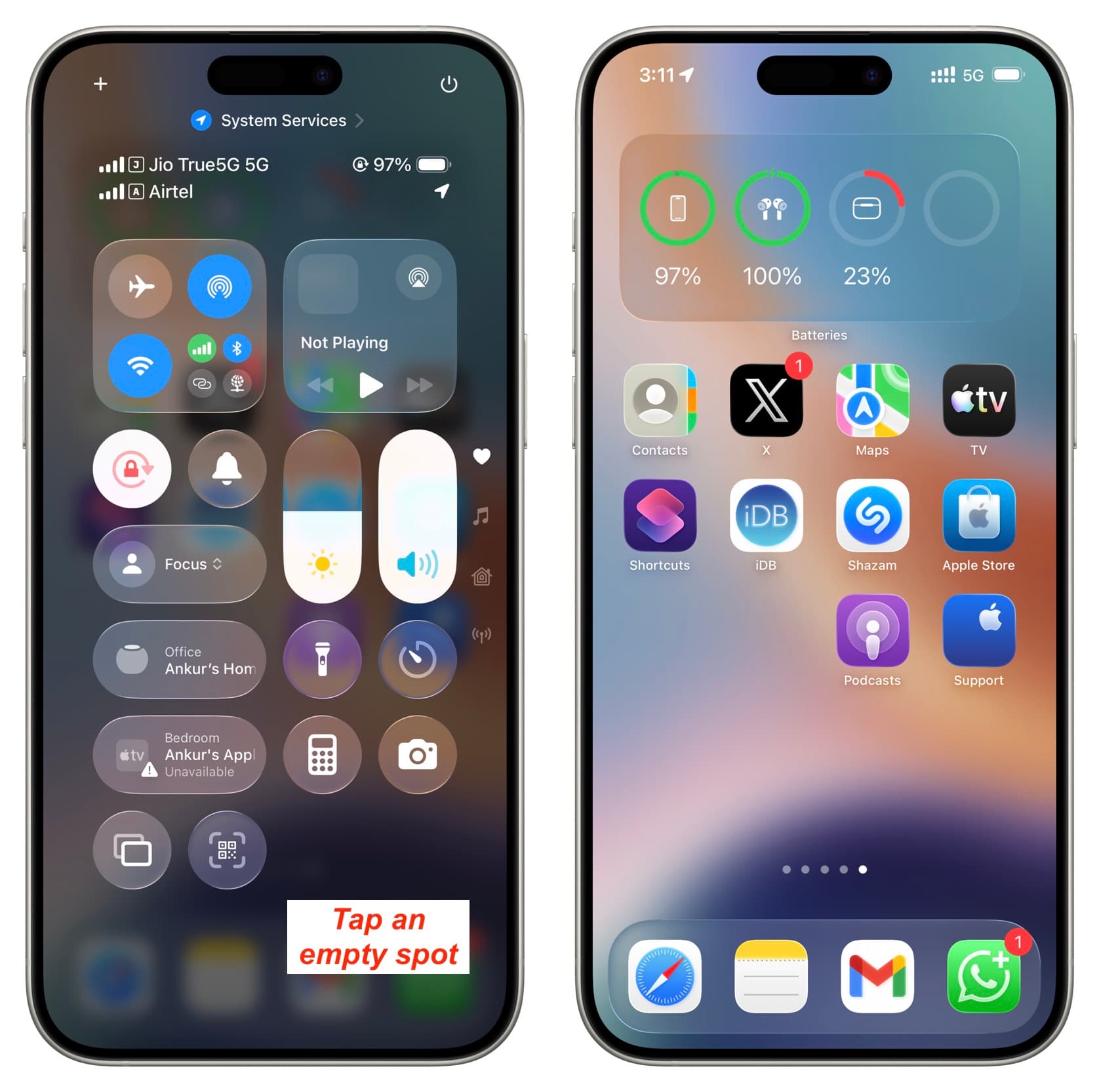
You can add the desired controls to make it more functional.
- Open your iPhone or iPad’s Control Center.
- Tap the plus button (+) in the upper left corner or touch & hold an empty spot to enter editing mode.
- Tap Add a Control.
- Swipe down to see the long list of available options and select the button you want to add.
- Tap an empty spot to exit editing mode.

Extra info: If you’re on iOS 17 or earlier, go to Settings > Control Center and tap the green plus button to add more options to your Control Center. And tap the red minus button to remove an added control.
While there is no shortage of available spots in this new Control Center, you may still want to remove the features you don’t need or use to declutter this screen and let you have the most important controls on the first and second pages.
- Open Control Center on your iPhone or iPad and swipe to the page whose toggle you want to remove.
- Tap the plus button (+) or touch & hold an empty spot to enter editing mode.
- Tap the minus button (-) for a toggle to remove it.
- Tap anywhere on an empty spot to exit editing mode.

You can change the position of buttons to arrange them to your liking. For instance, you may want to place your most-used controls on the right side so they are easy to reach with one hand if you are a righty.
- Go to Control Center and access editing mode by tapping the plus button or holding an empty spot.
- Touch and hold a button and drag it to a different spot on that page. You can also hold a button and then use your other hand to go to another Control Center page. If you can’t swipe, tap the icons on the right edge of the screen, and then drop the button there. Note: You are not restricted to placing the buttons adjacent to one another. You can put them anywhere you want.

You can turn a circular button to look more like a rectangle with rounded corners, or change a big rectangle button into a smaller square, and more. You’ll have to try the different combinations before settling on the one you like.
- Go to your iPhone or iPad’s Control Center and enter editing mode by tapping the plus button.
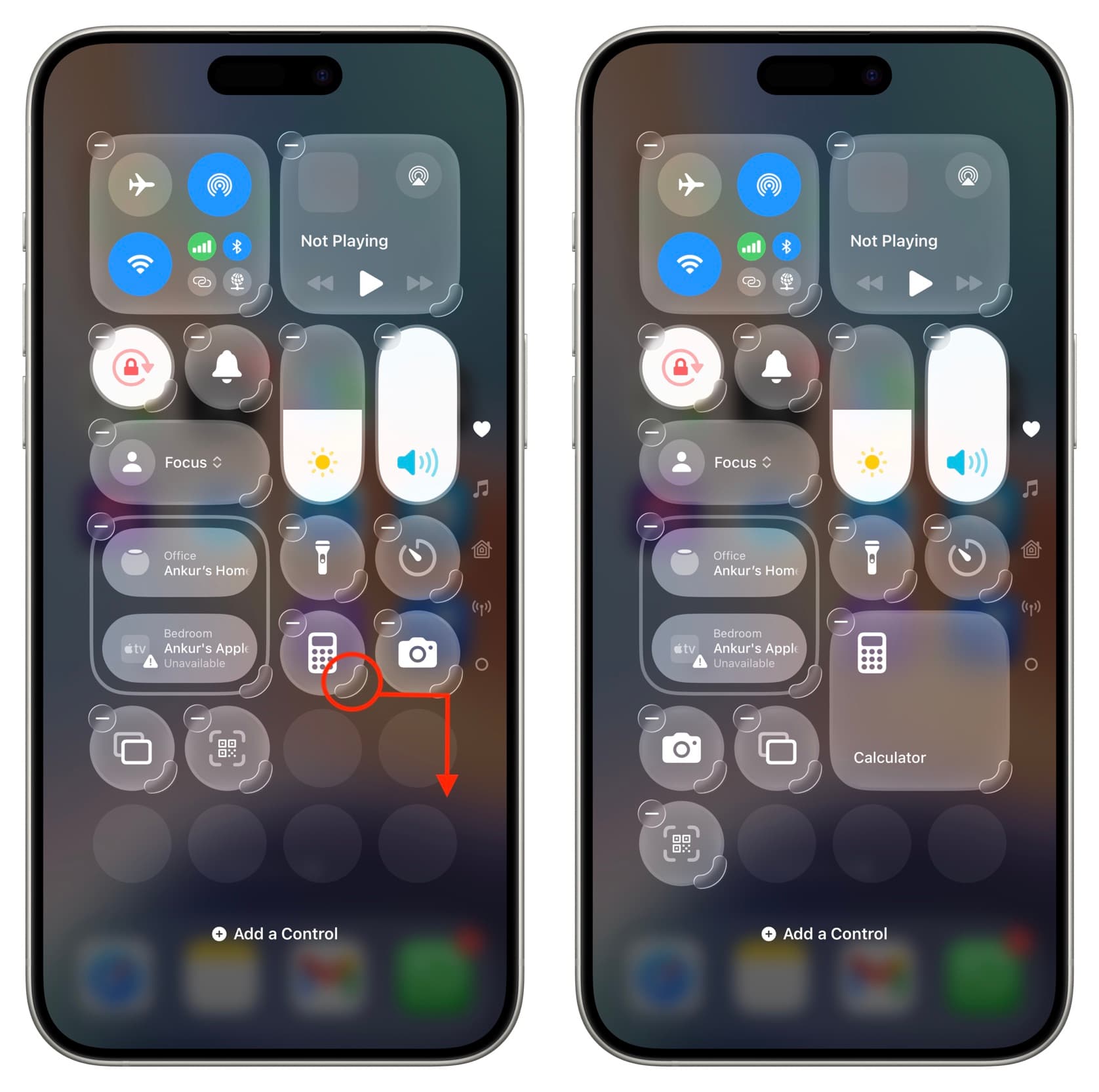
- Touch the size-changing arc tab at the bottom right of a button, then drag it to change the size.
- Note that while you can change the button size for most controls, there are some restrictions. For instance, you cannot elongate the Calculator button to span four horizontal buttons, but you can drag it down to make it a square. Try out the various options to build Control Center just the way you like it.
Get a one-page Control Center like before
You can enter editing mode and remove all the buttons from the second, third, and other subsequent pages of Control Center. After that, you will be left with just one page. And you can now swipe up to exit Control Center like before.

Stop Control Center from opening when you are inside apps
Out of the box, you can swipe down from the upper right corner to access Control Center even when you’re inside an app. However, you have the option to change this by going to the Settings app > Control Center and turning off Access Within Apps. After this, you can open Control Center only from the Home Screen and Lock Screen. Swiping down from the right corner of the screen will get you to the Notification Center.

Block Control Center when your iPhone or iPad is locked
If you leave your iPhone or iPad unattended, you may want to secure your Lock Screen, and one way to do that is by turning off Control Center access on a locked device. Go to the Settings app > Face ID & Passcode and turn off the Control Center switch under the Allow Access When Locked section.

Reset Control Center layout
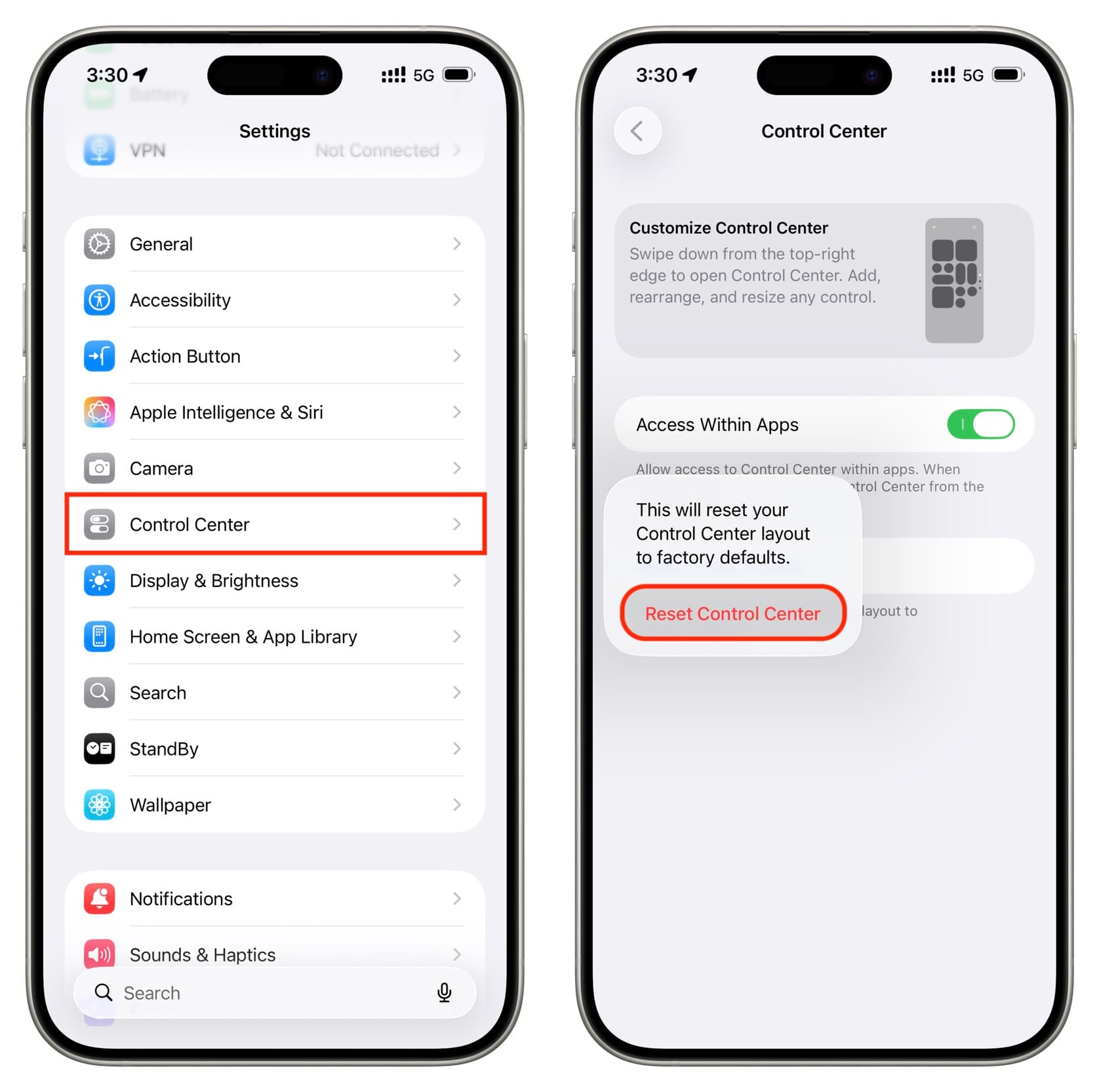
If you have made a lot of customizations and now want to start fresh, go to iPhone Settings > Control Center and tap Reset Control Center to return to factory defaults.
On a related note: How to customize Control Center on: