Learn how to add, remove, and rearrange Control Center toggles on your Apple Watch so you can add more options or remove the ones you don’t use.
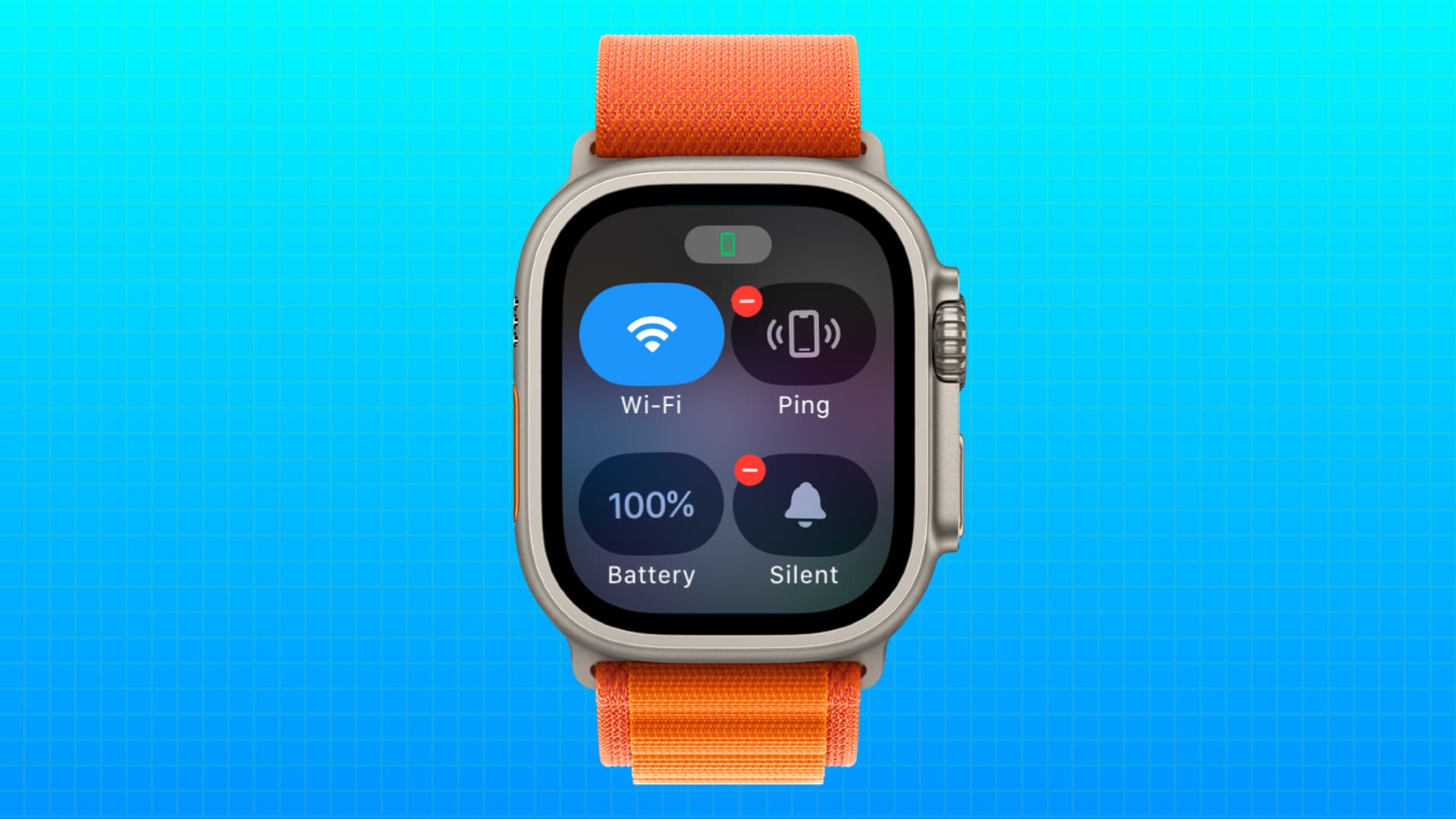
Just like Control Center on your iPhone, iPad, Mac, or Apple Vision Pro, you can customize the watchOS Control Center to make it your own. You can add or remove items from there or reorder the toggles to your liking.
Edit your Apple Watch Control Center
1) Open Control Center on your Apple Watch:
- On watchOS 10 or later, press the side button.
- On watchOS 9 or earlier, swipe up from the watch face. If you’re inside an app, touch & hold the bottom of the screen, and then swipe up.
2) Scroll down to the bottom of Control Center and tap the Edit button.

3) The added icons will start wiggling like they’re doing a dance. You can now customize your Apple Watch Control Center:
- Remove an added control: Tap the red minus button.

- Add an available control: Tap the plus button and then select an option. On older versions of watchOS, tap the green plus button instead.

- Reorder the added controls: Touch and hold an option and drag it horizontally or vertically to its new spot and drop it there.

4) After you finish editing, tap the Done button at the bottom or press the Digital Crown.
Keep in mind that you cannot edit the Apple Watch Control Center through the companion Watch app on your iPhone. But you can reset it from there, as shown in the screenshot below.

How is this useful?
Different people have different needs, so making Apple Watch Control Center your own is contingent upon your daily usage patterns.
If you happen to own an LTE-enabled watch but don’t use LTE connectivity much, you may want to drag that Cellular toggle down the list to make room for a more frequently used item.
Frequent moviegoers, on the other hand, might want to move the Theater Mode toggle higher than the Expel Water button for quick access.
Conversely, those who rarely use Theater Mode may move other frequently-used toggles, like Do Not Disturb or Battery, to the very top of Control Center overlay.
Check out next: