Learn how to change Siri’s voice on your iPhone, iPad, Apple Watch, Mac, and HomePod so you can try different accents and genders and set the one you like.

The nice thing about Siri is that you can make it sound any way you like. You can have a male Siri with an Australian accent or a female Siri with an Irish one. Or maybe you’d like to hear one Siri voice on your family’s HomePod, but you prefer a different one on your iPhone.
If you like to change things up now and then and are an avid Siri user, here’s how to change Siri’s voice on your Apple devices.
Note:
- You can tap different Siri voices and preview them, which will help you decide which one you like.
- Some voices need to be downloaded, and that will happen when your device is connected to Wi-Fi. In the case of the Apple Watch, it should be plugged into a charger as well.
- If Siri is not speaking the responses, go to Siri Settings > Siri Responses and select Prefer Spoken Responses. On older versions of macOS, turn on Voice feedback.
- The voice you select for Siri also applies to turn-by-turn guidance in Apple Maps and the Listen to Page feature.
iPhone and iPad
- Open the Settings app and tap Apple Intelligence & Siri or Siri.
- Tap Voice.
- Choose a country under the Variations heading to get feedback in that accent.
- After that, select an option under the Voices heading.

Apple Watch
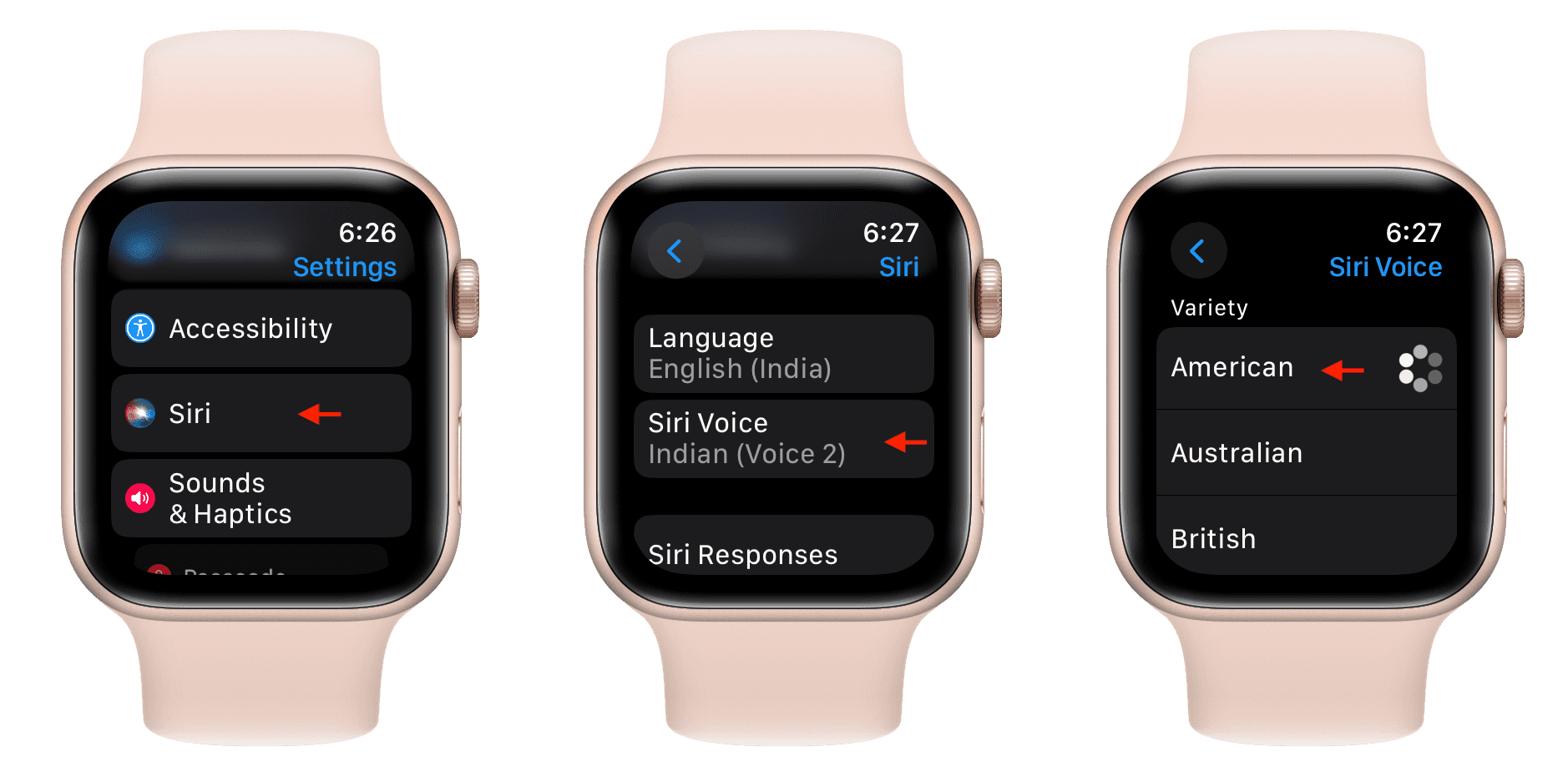
Siri’s voice on Apple Watch matches that on your iPhone. However, you can change it to something else, but remember that it may change the Siri voice for your iPhone as well.
- Open the Settings app on your Apple Watch and go to Siri > Siri Voice.
- Choose a variation at the top and then pick a voice.
Mac
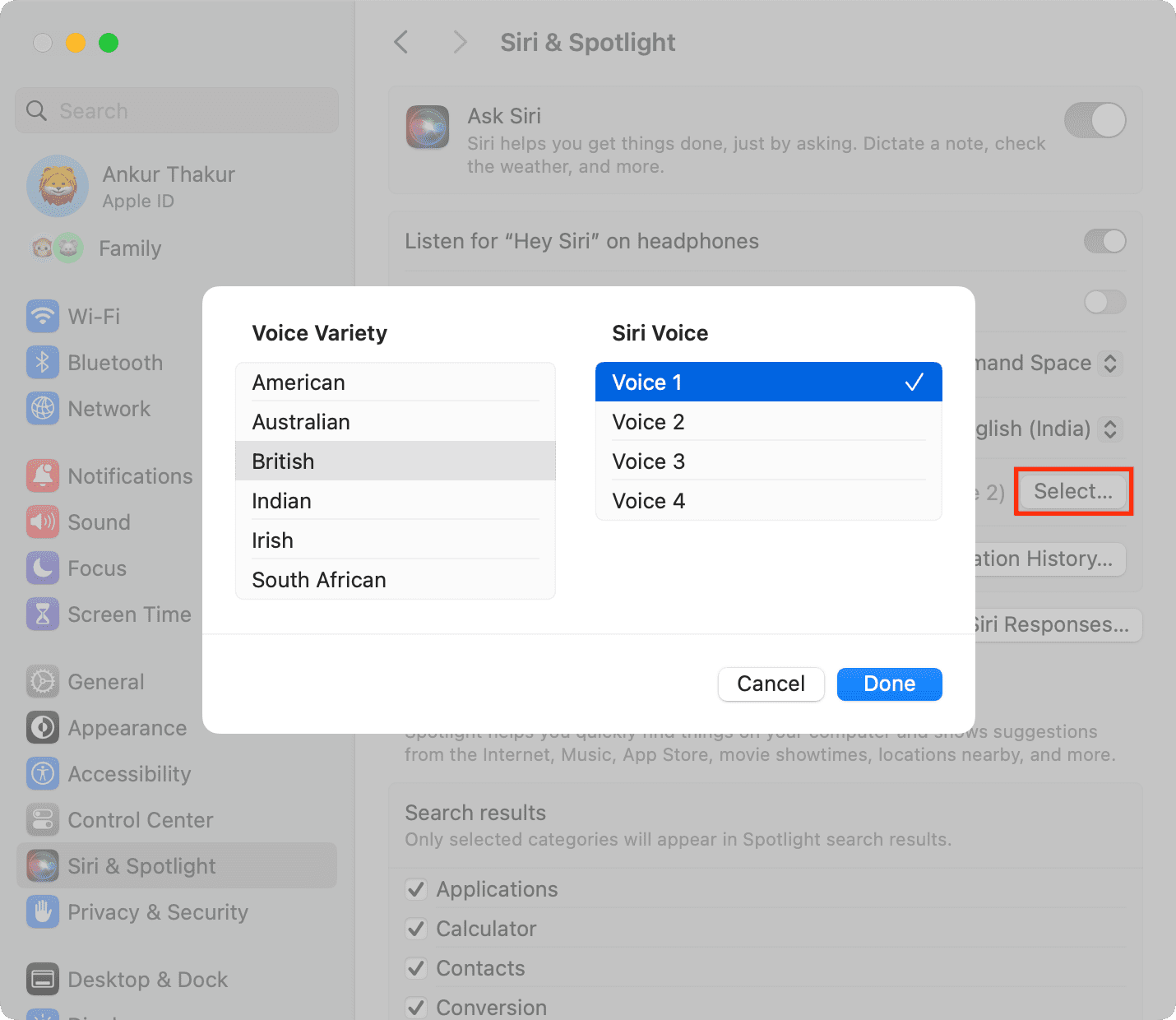
- Launch System Settings and select Apple Intelligence & Siri or Siri & Spotlight.
- Click the Select button next to the Voice option.
- Pick a Voice Variety and then the Siri Voice.
HomePod
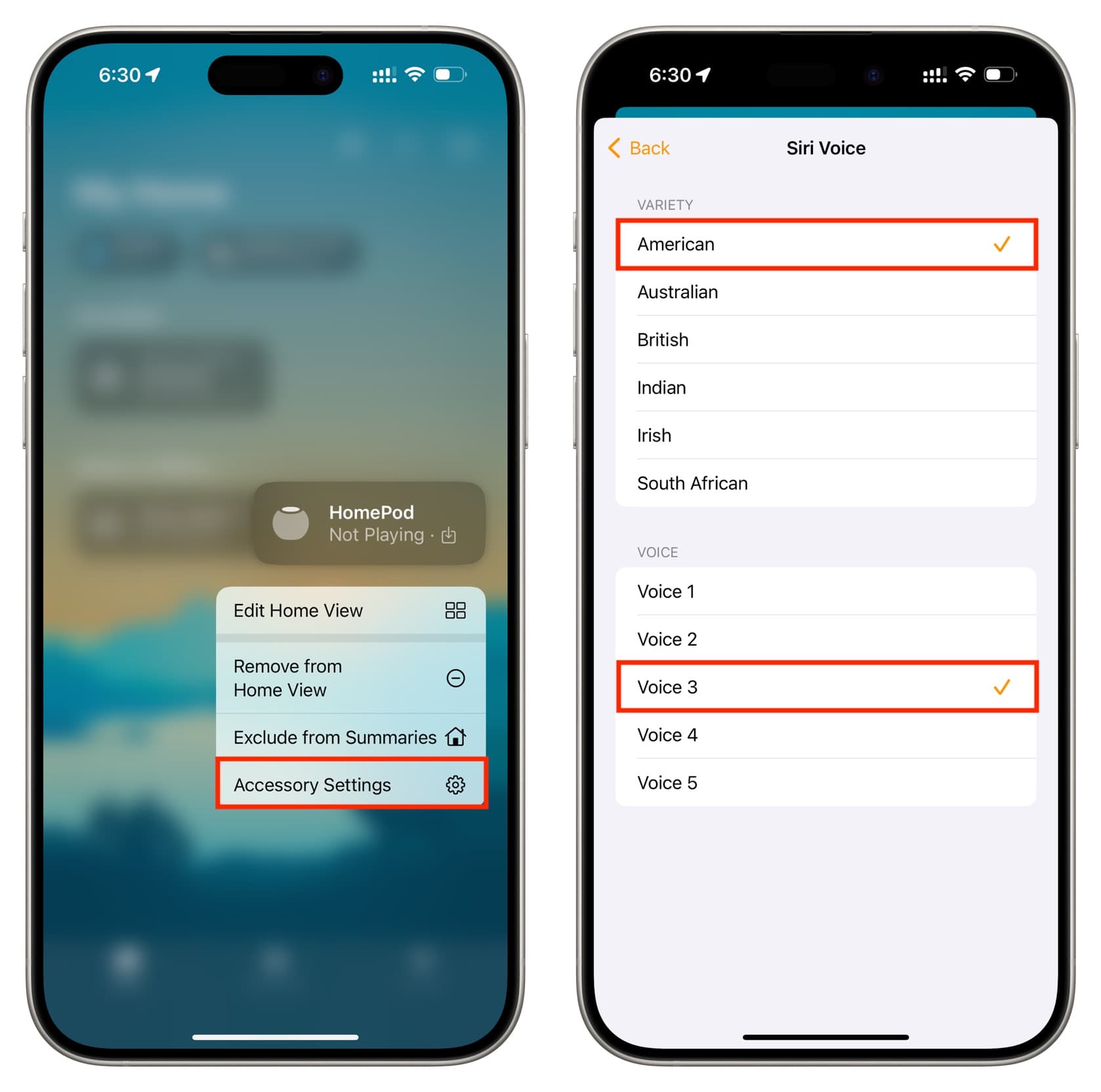
- Open the Home app on your iPhone or iPad.
- Touch & hold the HomePod tile and choose Accessory Settings.
- Scroll down and tap Siri Voice.
- Pick a variety and voice for your Siri responses.
You can also make these changes using the Home app on your Mac. Take a look at our how-to for changing the voice and language for Siri on your HomePod for additional information.
CarPlay
Siri Voice in your car will be the same as the Siri Voice on your iPhone when you’re using wired or wireless CarPlay.
What about Apple TV?
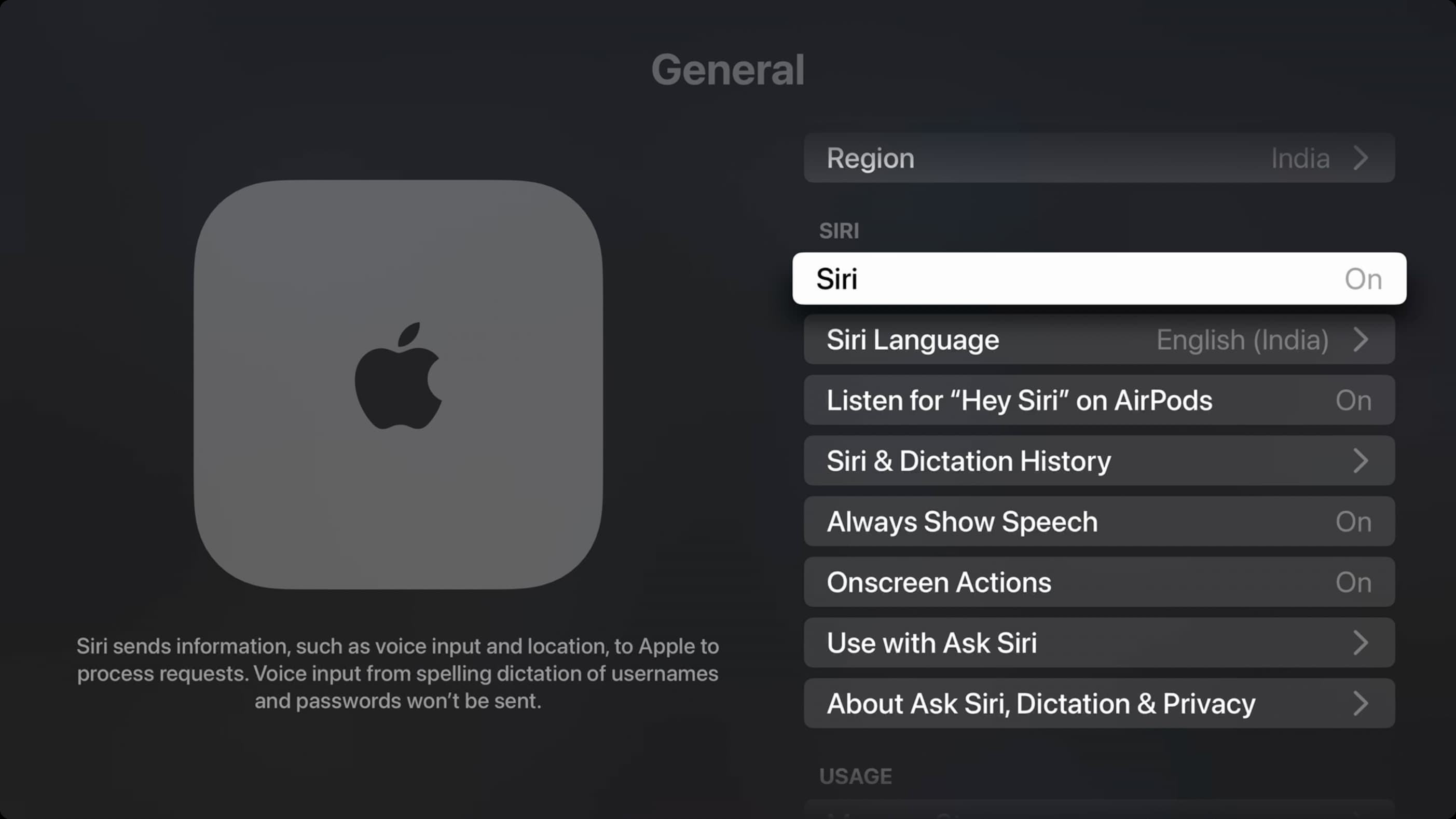
Siri on Apple TV doesn’t offer voice responses to keep your movie-watching undisturbed. Therefore, you won’t find an option to select Siri Voice in Apple TV settings.
Siri is a terrific digital assistant, and if you use it regularly, you can mix things up by changing the voice. Whether you like a different one on all your devices or prefer them all to be the same, it’s easy to change Siri’s voice on your Apple devices.
What do you think of the selection of voices for Siri? Do you think there should be more options, or do you have a favorite?
Check out next: