Learn how to easily print mailing labels or envelopes for your contact list on a Mac with this step-by-step guide.
How to print mailing labels or envelopes for contacts on Mac

Learn how to master your Apple devices with our comprehensive tutorials. From iPhone and iPad to Mac, Apple Watch, AirPods, and more, our expert guides will help you unlock the full potential of your Apple products. Discover new features, tips, and tricks each day to enhance your user experience.
Learn how to easily print mailing labels or envelopes for your contact list on a Mac with this step-by-step guide.
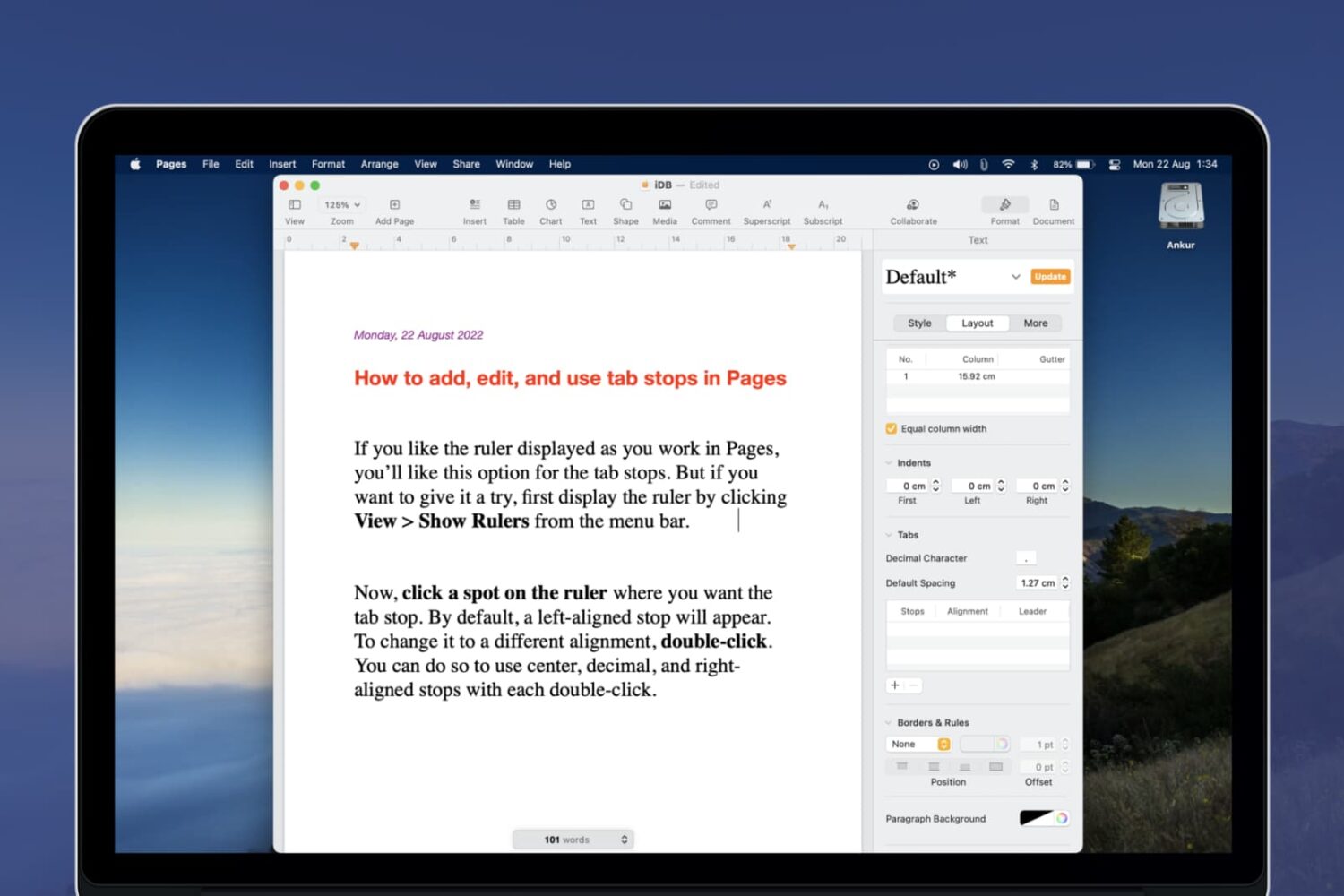
Learn how to add, edit, and use tab stops in the Apple Pages app to set up your document layout right from the start and make your document creation process quicker and easier.

Learn how to change the language or region on your Apple TV with this simple guide, customizing your viewing experience in a few easy steps.

Learn how to plan your next road trip or getaway using the Apple Maps app on your Mac by seeing how far locations are from each other and adding stops along the way.

If you purchase a Kindle Paperwhite for your child to enjoy reading books, you may want to make a few adjustments. Depending on your child’s age, you can enable parental controls with a password. Then, allow or disallow specific settings, create Kindle FreeTime, choose books for them to read, and more.
Here’s how to set up the parental controls on your Kindle Paperwhite.
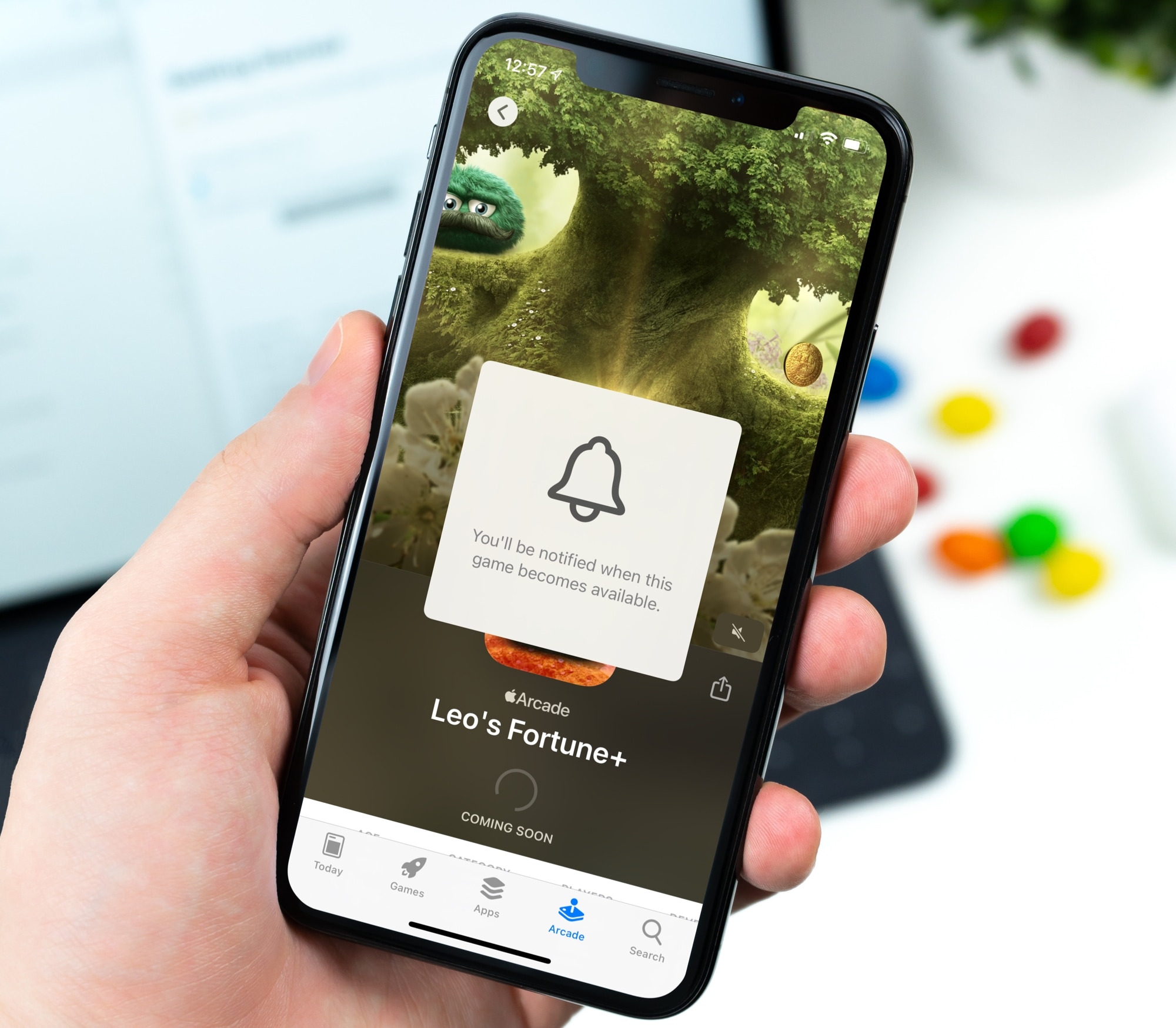
Keeping up with new games can be tough no matter which device you use. But if you’re an Apple Arcade subscriber, you can receive notifications for new games when they become available.
This is a great way to know exactly when that awesome new game you’ve been waiting for hits the App Store for you to download. Here’s how to get notifications for new Apple Arcade games on iPhone, iPad, and Mac.
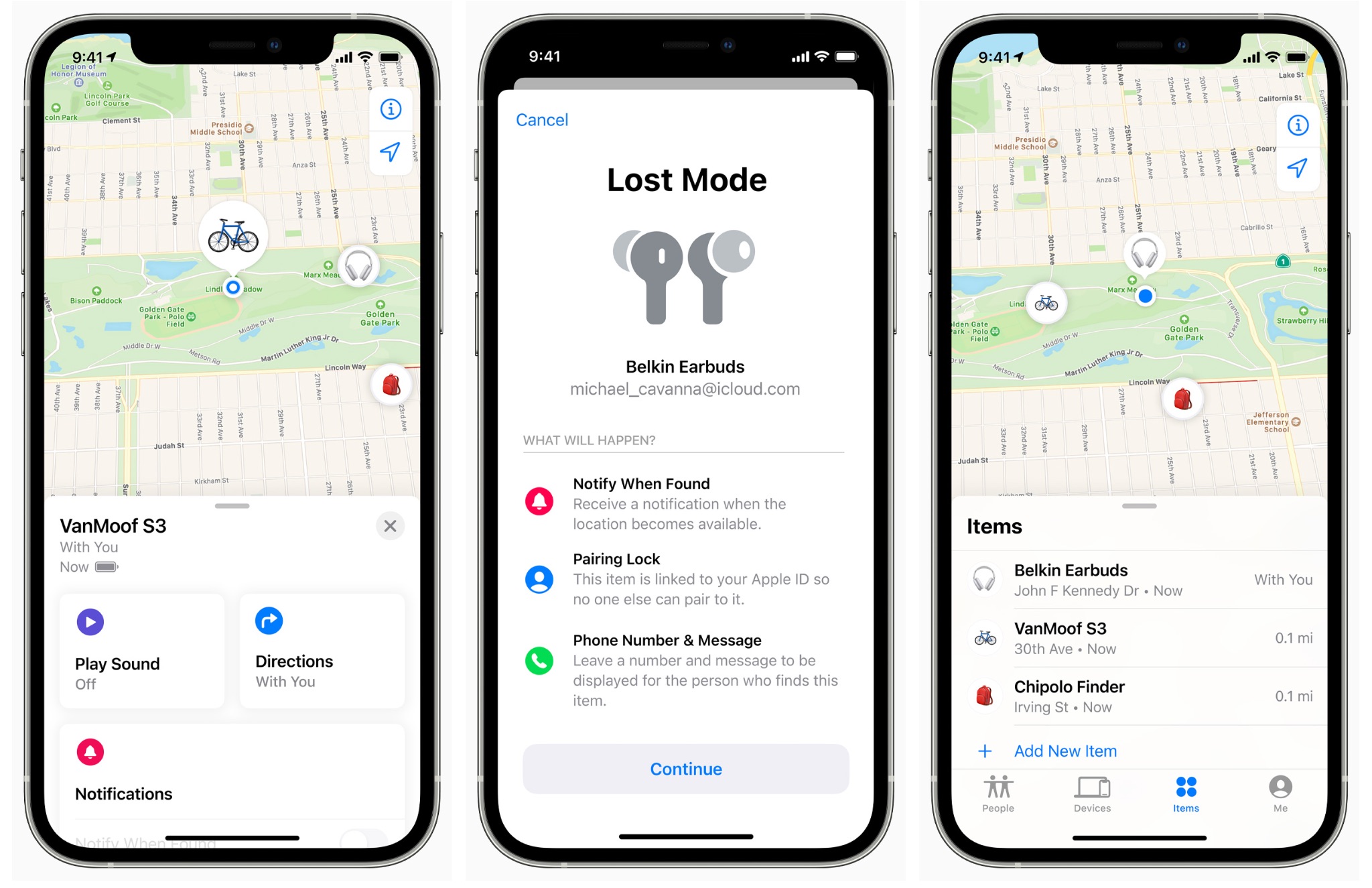
Learn how to add compatible third-party accessories to the Find My app and keep track of them from your iPhone, iPad, or Mac.
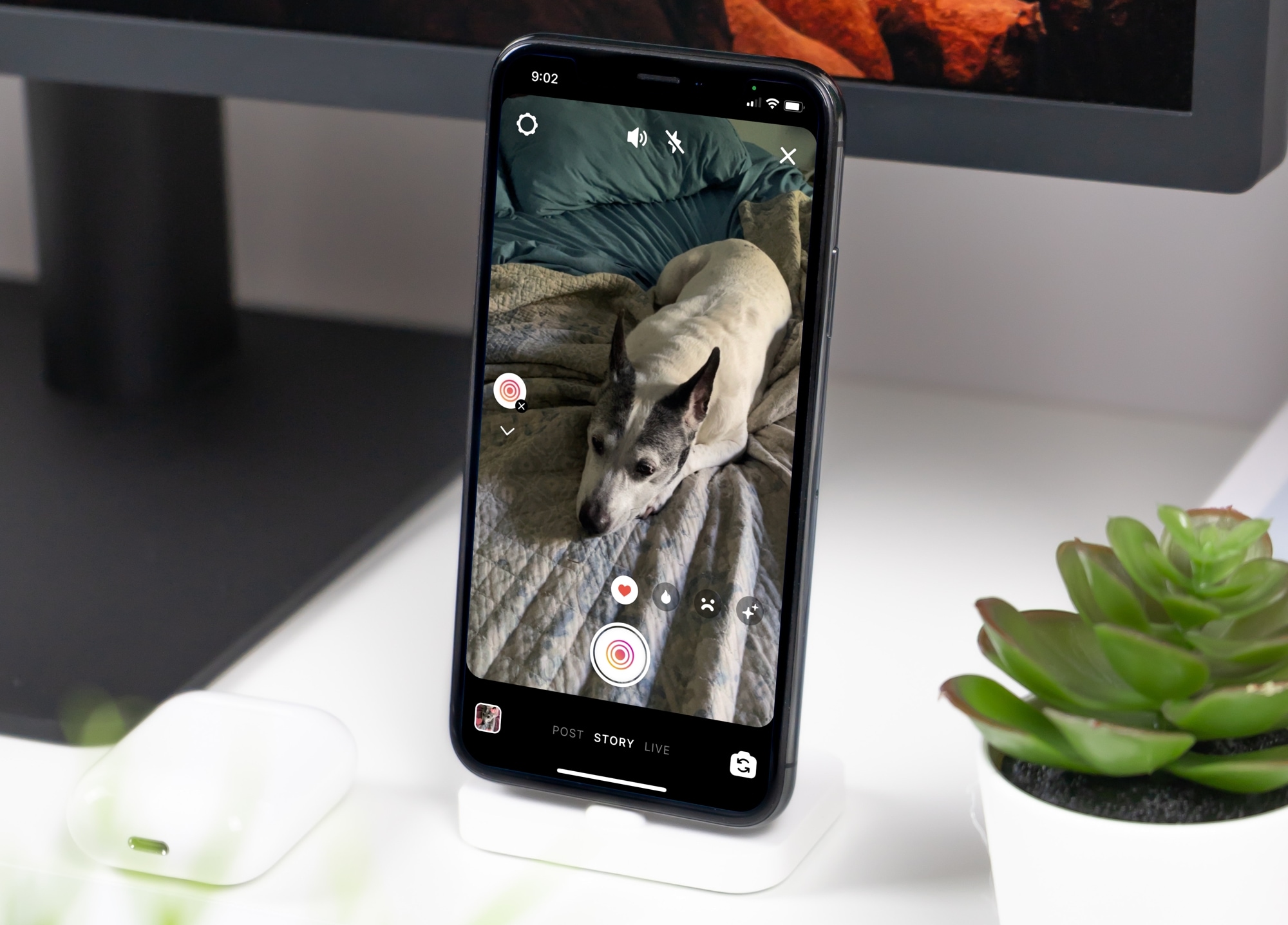
Learn how to use the Superzoom feature in your Instagram story to zoom in on the subject, along with some special effects to tell your story in a unique way.
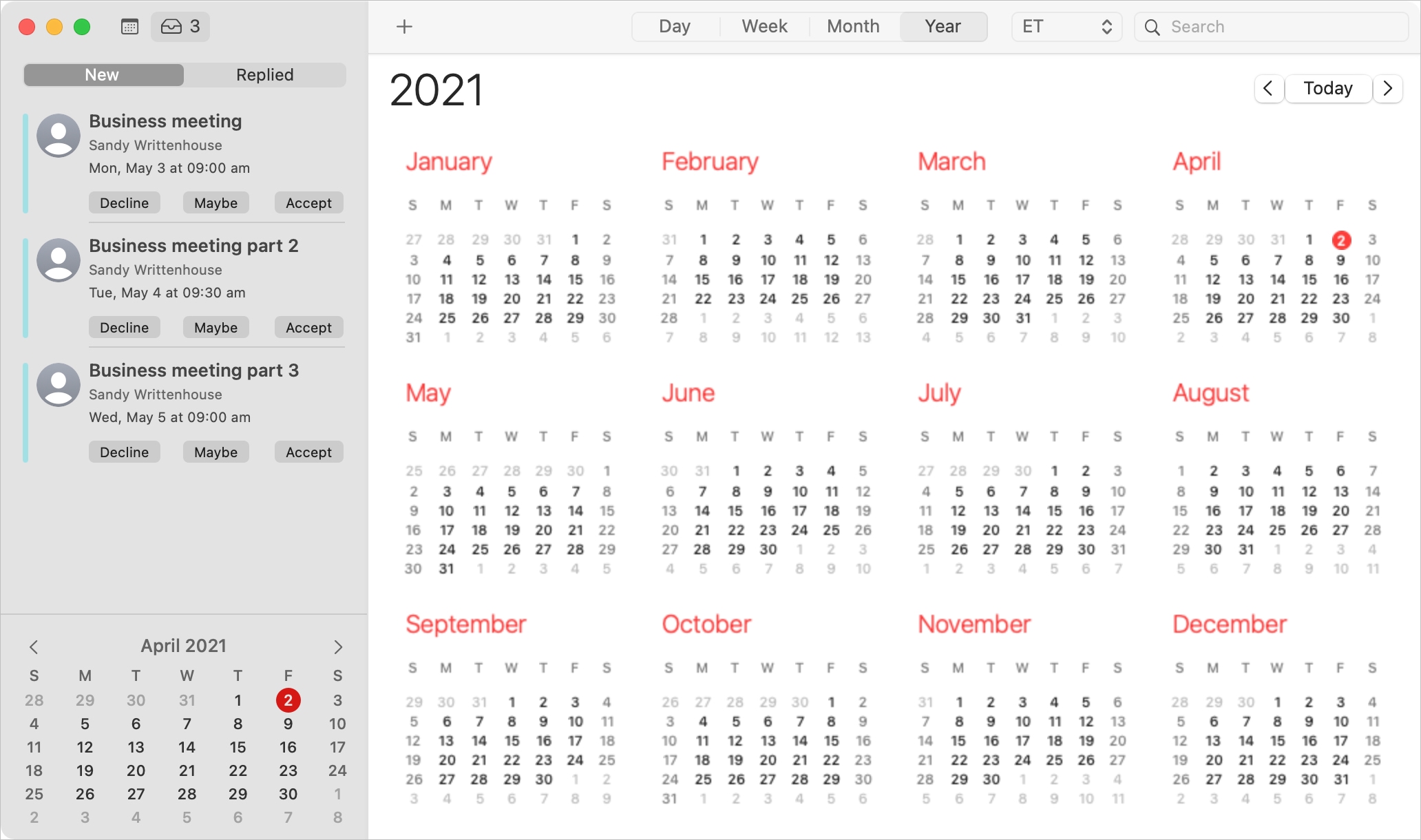
When you receive an invitation to a Calendar event on Mac, you have more than one way to see it and reply to it.
Depending on how your notifications are set up, you might see an alert on your screen, in the Notification Center, or badge app icon in your Dock. You should also have email for the invitation waiting for you in your mailbox and a notification in the Calendar app itself.
With the flexibility you have for viewing Calendar event invitations, you also have several ways to reply to them. Here, we’ll walk you through your options.

Learn how to adjust the brightness level of your iPhone flashlight to provide the perfect lighting for any situation.
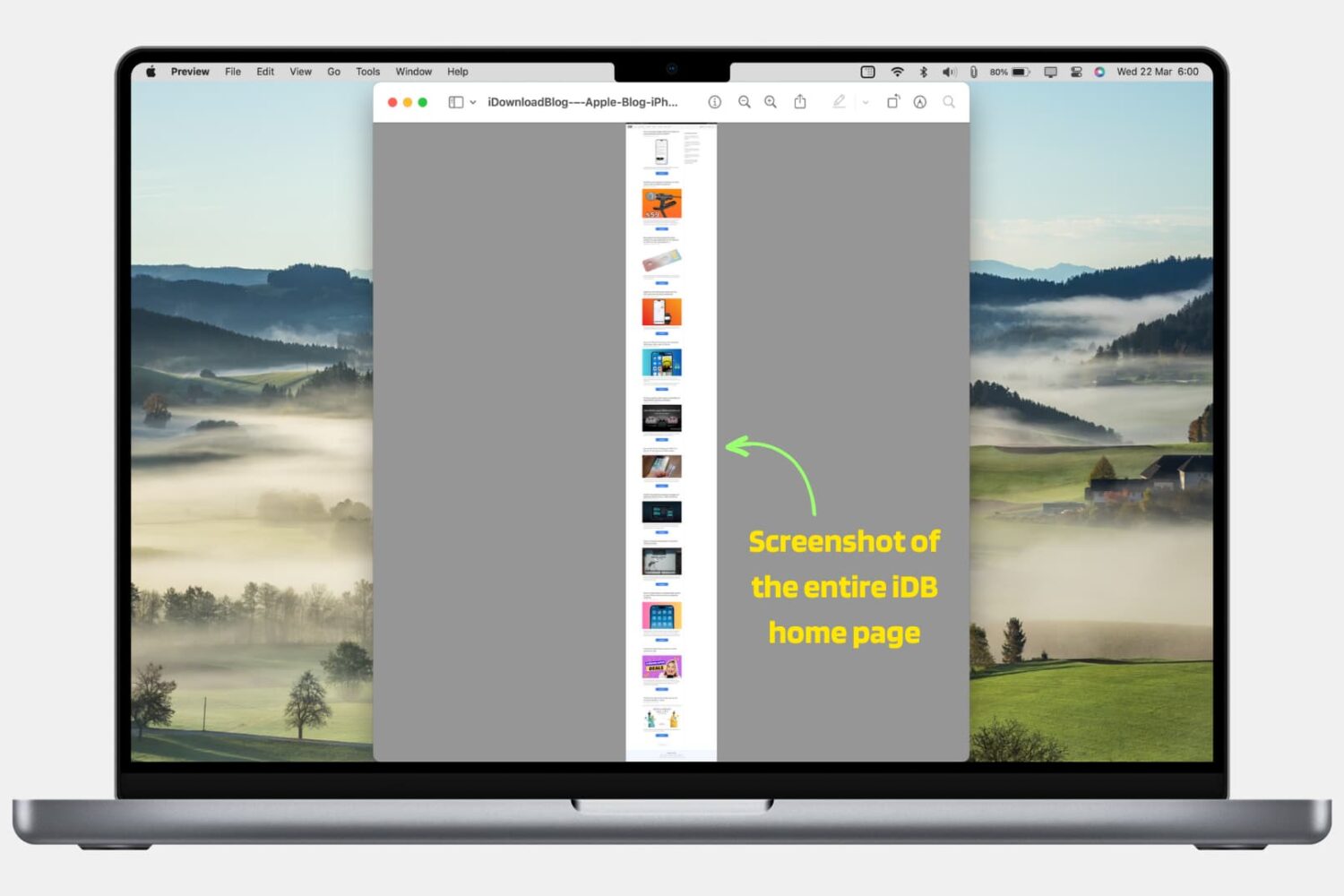
In this step-by-step tutorial, we’ll show you how to take a screenshot of a full web page in Safari, Google Chrome, and Firefox on your Mac using built-in methods. We have also mentioned an excellent third-party tool at the end.
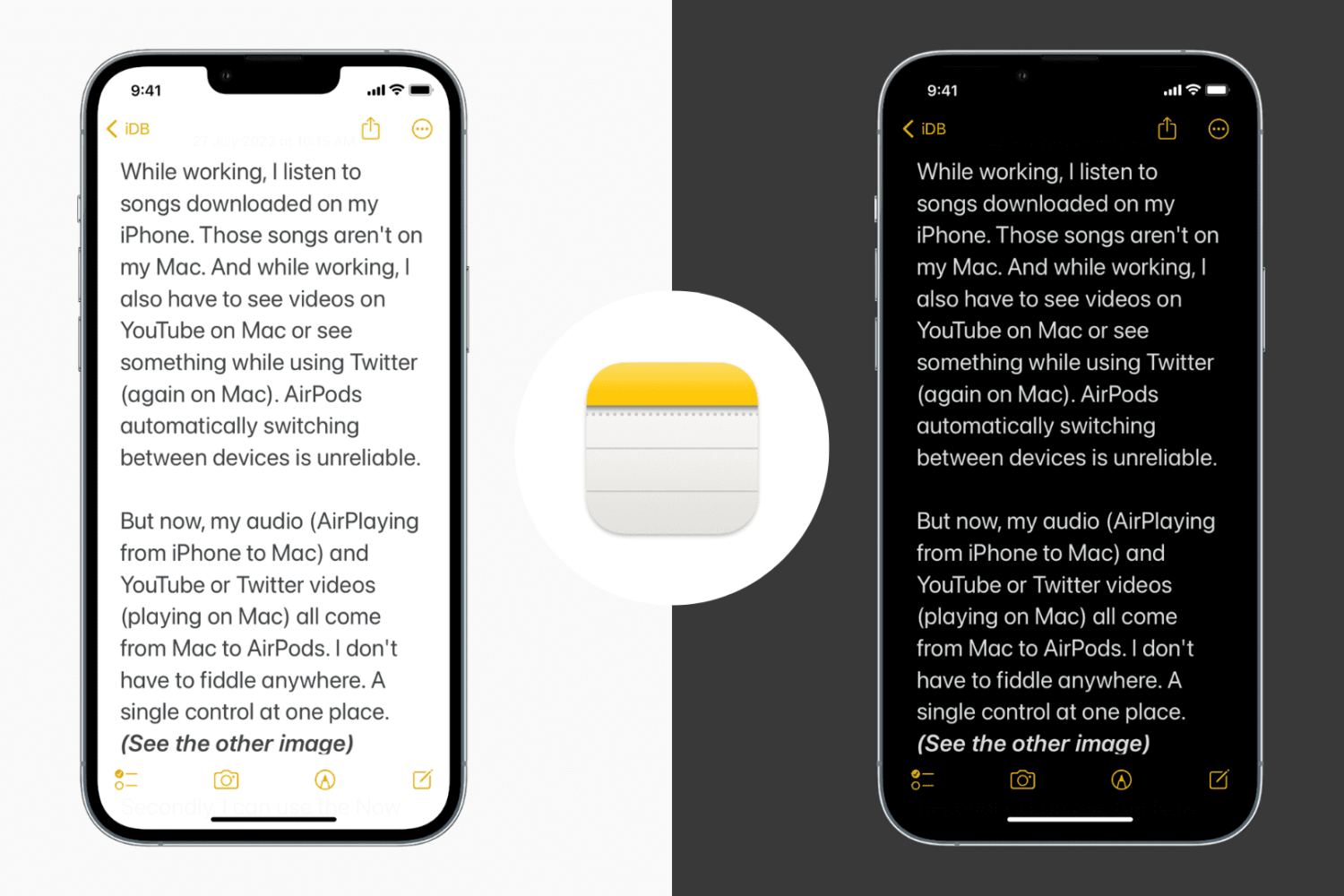
In this tutorial, we show you how to use both dark and light backgrounds in the Notes app on iPhone and iPad. We’ve also included a handy option to keep the Notes app in Dark Mode permanently, even if your iPhone is in Light Mode.