Check out these 14 tips to maximize the use of your AirTag and unlock its full potential.
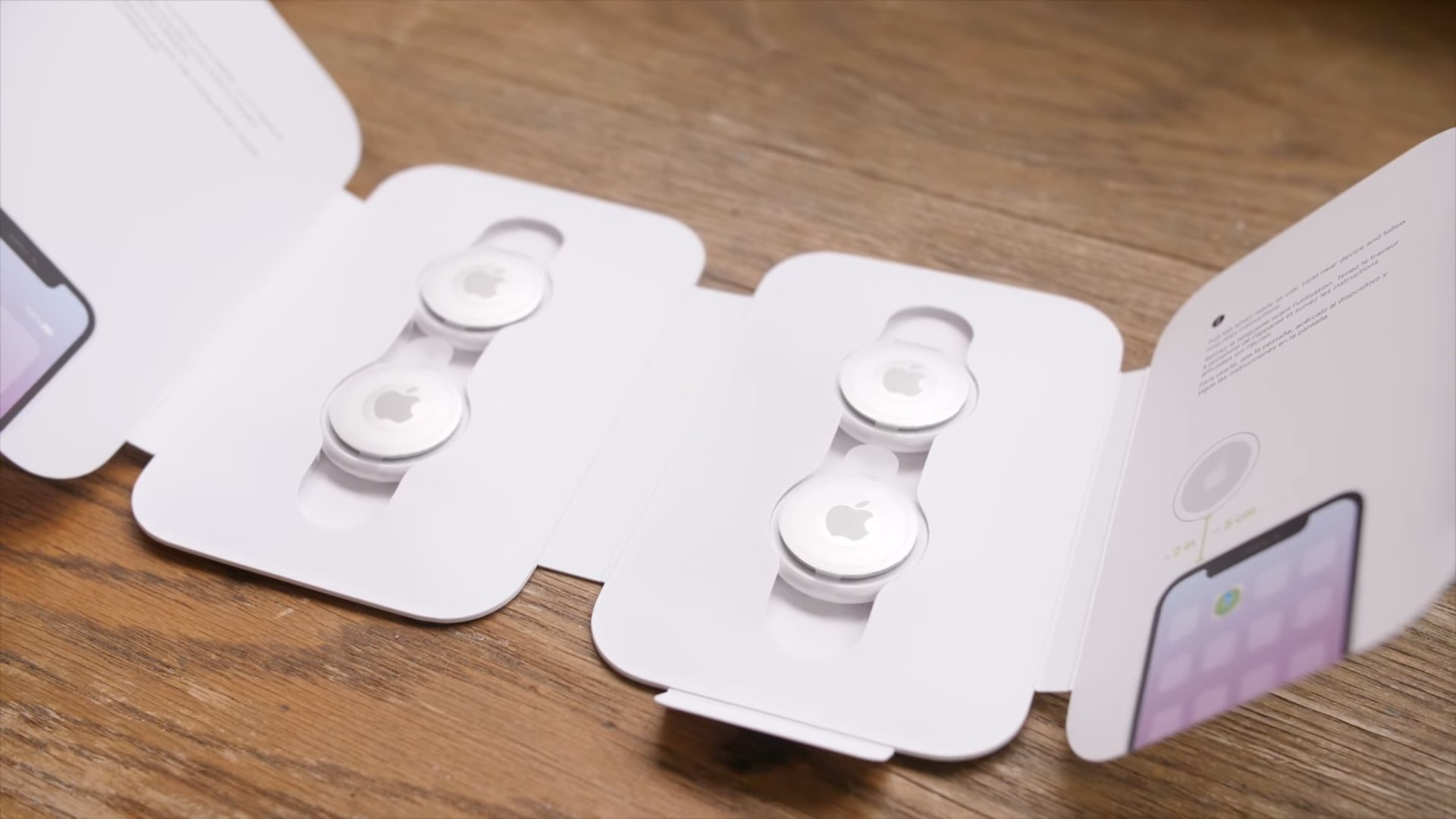
AirTags are Apple’s personal item trackers.
These tiny trackers can be used for all sorts of purposes, ranging from tracking checked luggage, children, and pets (Apple says you shouldn’t be doing that) to tracking your personal belongings, such as car keys, or using these tiny accessories as parked car locators, anti-theft bike trackers, and beyond.
Our videographer, Harris Craycraft, shares some handy tips for getting started with your Apple item locator. Go through that and then scroll down for some extra tips to use AirTag to the fullest.
1. Customize your AirTag name and icon
You’re asked to give your AirTag a name and pick a distinctive emoji or icon for it. But these are not hard-coded, and you can change the name and emoji later using the Find My app on your iPhone.

2. Locate your AirTag
If you cannot find the item attached to the AirTag, go to the Find My app > Items and select the AirTag or item name.
- Now you can play a sound on the AirTag to help you find it.
- Alternatively, you can tap the Find button to use Precision Finding. Your iPhone 11 or newer will show you where to turn and look for the item attached to your AirTag.
- In addition to the above two options, you can also see the location of the AirTag on the map and under its name to learn where the item is.

3. Get some handy accessories for your AirTag
AirTag comes with no accessories nor a built-in way to attach a lanyard or something.
So, you can keep AirTag in a bag or car and things like that. However, if you want to attach it to your keys or something similar, you’ll have to buy a keychain for it. Apple sells them, but they are pricey compared to options you’ll find on Amazon.

4. Share your AirTags with family and friends
Imagine you’ve attached an AirTag to your house keys. Now, in addition to seeing its location in the Find My app on your iPhone, you can share it with five additional people (for a total of six, including you), and they can all locate it — just like you can — using their respective iPhones.

5. Stop getting notified at specific familiar locations
If you don’t want to get notified of leaving your item with AirTag behind in familiar locations like your Home, go to the AirTag screen in the Find My app and tap Notify When Left Behind. Now, add a familiar location under the Notify Me, Except At section.
6. Learn what to do if an unknown AirTag is tracking you
There have been several reports of ex-partners, snatchers, and nefarious people using AirTag to track victims. Learn what to do if you get alerted that an AirTag is following you or if you find an unknown AirTag in your bag or car.
7. Learn about the different AirTag sounds
AirTag can play different sounds to inform you of various things. For instance, the sound an AirTag plays when you’re trying to find it is different from the alert an unknown AirTag relays when it’s moving with you.
8. Update your AirTag
Apple pushes updates to AirTag, but they are not as frequent as your iPhone.
Secondly, AirTag updates install automatically in the background, but if you’re curious, you can learn how to do that and view the current firmware version in our dedicated tutorial.
9. Check your AirTag’s battery
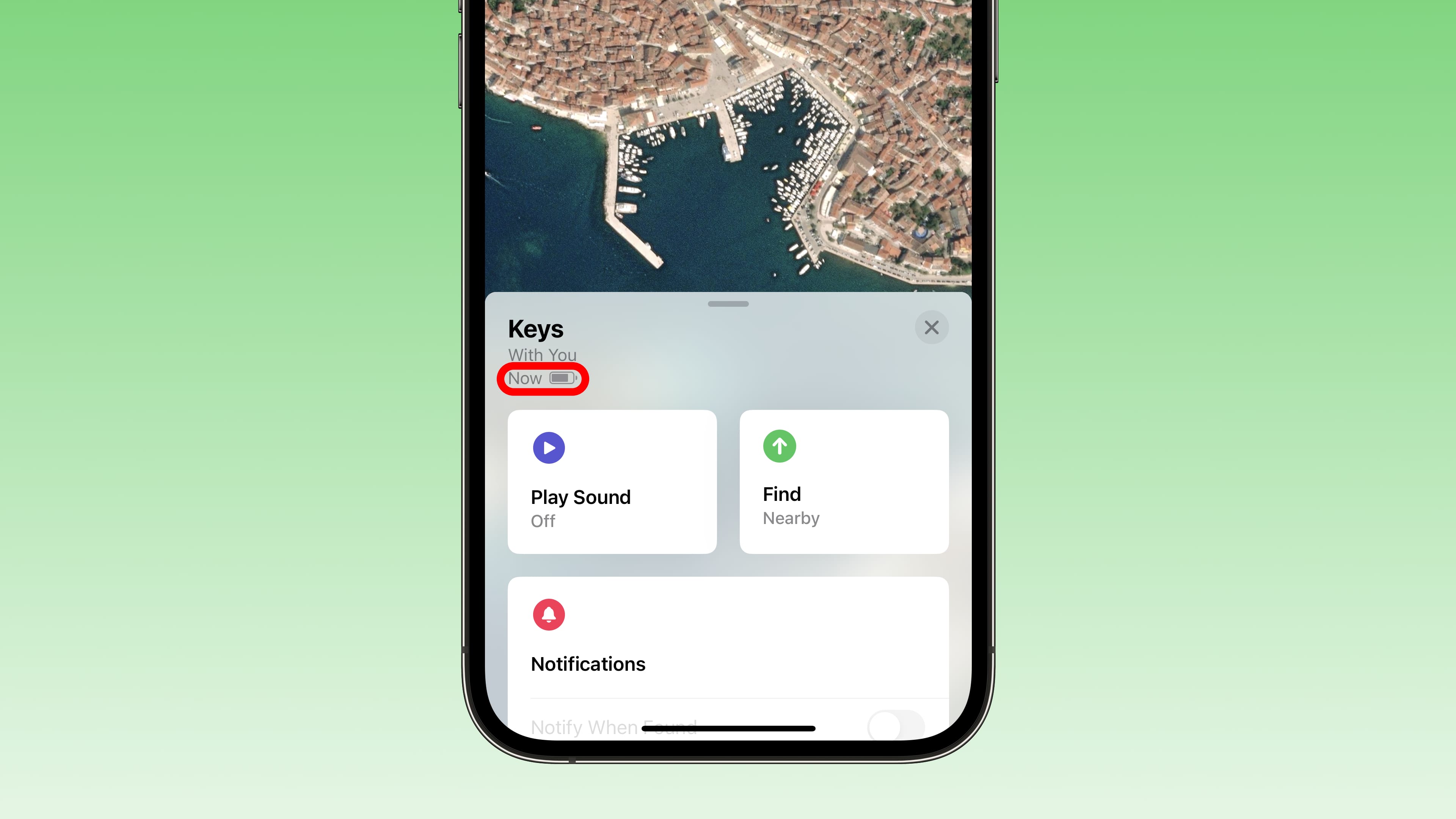
AirTags have a tiny CR2032 lithium 3V coin battery. You can see its remaining charge in the Find My app.
10. Replace AirTag’s battery
AirTag’s battery can last well over a year. Mine lasted nearly three years, but your mileage may vary if you play sound or track it very often.
When the battery is low, the Find My app on your iPhone shows its status and also alerts you to replace it. You can buy a CR2032 lithium coin battery on Amazon and replace it by opening the AirTag’s back cover.

11. Put AirTag in lost mode
AirTag uses the Find My network to function. To explain it in the simplest terms, your AirTag can securely communicate with other iPhones and Apple devices — even those not belonging to you — to transmit its location.
Now, if your AirTag is lost, you can put it in lost mode. Once your AirTag comes near some other iPhone, you’ll get alerted to its location. Go to Find My app > Items > AirTag and tap Show Contact Info under the Lost AirTag heading. You can learn more about it in our tutorial on enabling Lost Mode if your iPhone or iPad is missing or stolen.
12. Get your AirTag engraved
You cannot engrave your existing AirTag, but if you decide to buy another in the future, you can get it engraved with an emoji or text. Remember that this can be done only if you order AirTags from Apple’s online store, not elsewhere, like the physical Apple Store, Walmart, Amazon, etc.

13. Put two AirTags in one important bag
I recently saw a video in which the person said he keeps an AirTag in the front and obvious section of his laptop bag and a second AirTag in a hidden section of that bag. This means that a thief can find the first AirTag and think he is sorted, but the second AirTag will keep relaying the location to the owner.
I can’t confirm how well this works, given that an AirTag can send an alert when it’s with an unknown user, but it still doesn’t hurt to have more than one AirTag with your very important items.
14. Reset your AirTag
If you want to pass your AirTag on to someone else, sell it, or just start fresh, you must reset it first.
Check out next: Apple and Google join forces to address unwanted tracking via Bluetooth devices like AirTag