Learn how to block web browsing in Safari, Google Chrome, and other browsers to increase security, limit distractions, and protect children from inappropriate content on iPhone or iPad.

Web browsing is an essential part of smartphone usage, but there may be a few niche reasons to block it, among the most compelling being protecting your kids from misinformation and inappropriate content on the World Wide Web.
A few alternatives to know about first
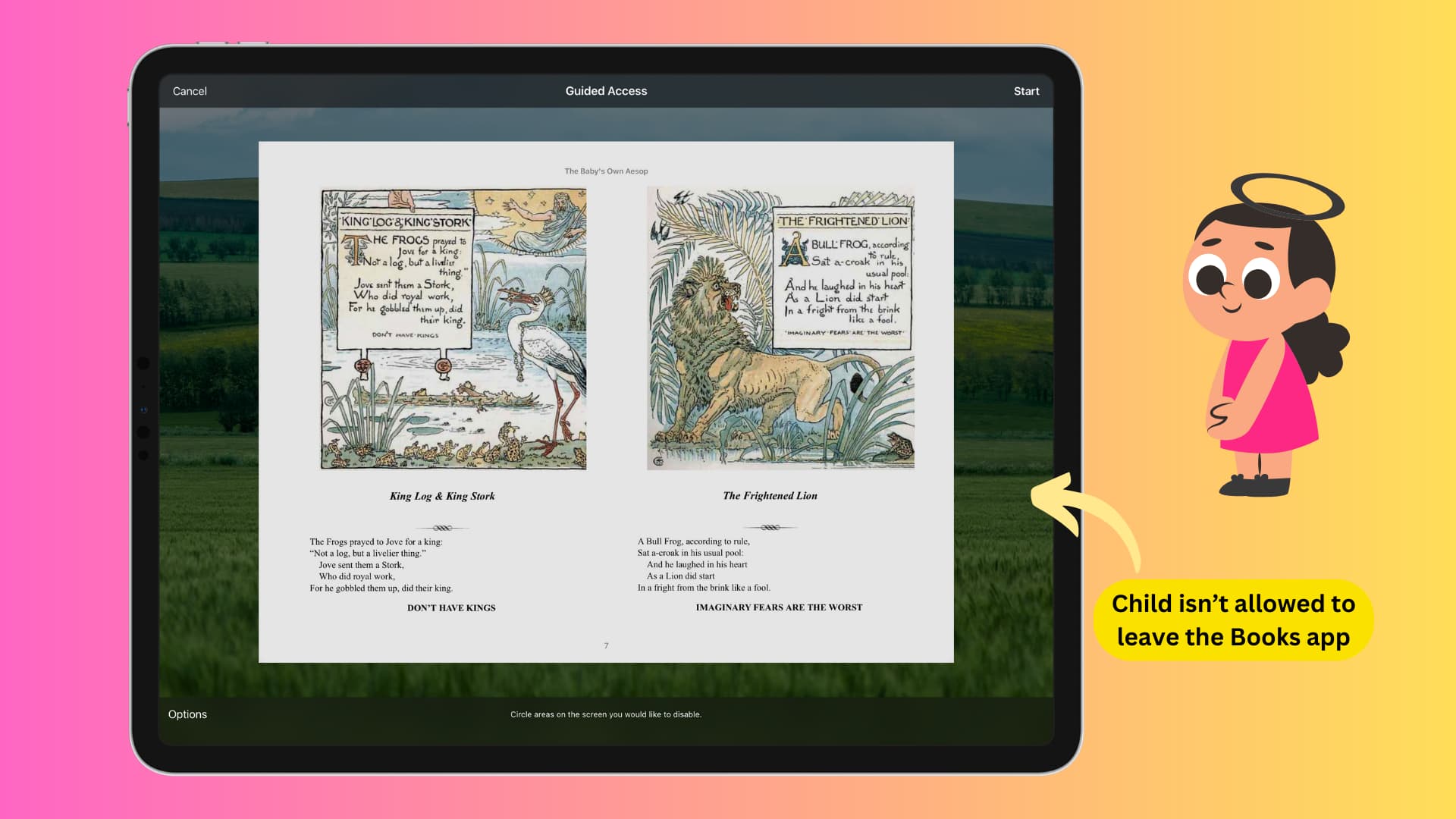
Before we get to it, check these iOS features to restrict web activity:
- The built-in Guided Access feature can keep your kids locked into a specific app they cannot exit, thus keeping them away from Safari.
- Limit adult sites to shield your kids from mature content. Or, you can cherry-pick and allow access to only specific websites on iPhone and iPad. You can also block specific websites like cnn.com, foxnews.com, or anything else you’d like.
- Set a daily time limit if your child spends way too much time inside Safari or other apps; you can restrict apps for the rest of the day.
- Check out our Safari privacy tips if you’re worried about privacy.
If you think it’s better to restrict all web browsing on your iPhone or iPad, follow the steps below.
Block Safari on iPhone or iPad
This is a per-device setting; you must block Safari separately on every device where you’d like to restrict web browsing.
To block web browsing on a child’s device, tap their name in the Screen Time settings on your own device. If you haven’t already set up a Screen Time passcode, do it now.
- Open the Settings app on your iPhone or iPad and tap Screen Time.
- Tap Content & Privacy Restrictions. If you’d like to restrict web browsing for your kid’s device, tap their name under the Family heading first, then select Content & Privacy Restrictions.
- Turn on the Content & Privacy Restrictions switch, then tap Allowed Apps & Features.
- Enter your Screen Time passcode, if asked. For a child’s device, enter their Screen Time passcode.
- Turn off the Safari switch and exit the Settings app.

The Safari icon will disappear from the Home Screen, App Library, Spotlight search, and the Dock after about ten seconds. If not, restart the device.
Safari may pop up as a suggestion from the App Store in Spotlight search; however, tapping it will display a ‘Restrictions Enabled’ message instead of launching Safari.

Block other iOS browsers: Chrome, Firefox, Opera, Brave, etc.
With Safari restricted on a kid’s device, most of their web browsing will be limited. But if your kid is savvy enough to open the App Store and download another browser like Chrome or Firefox, perform these steps to block installing apps.
- Delete other browser apps currently installed on your child’s iPhone or iPad.
- Follow the steps to block installing apps on the device. Doing so will temporarily hide the App Store, thus blocking the installation of apps.
If you change your mind, revisit these steps to allow Safari and app installation.

Note: With all web browsing blocked on your iPhone, only URLs inside apps will continue to open using an in-app browser. However, a Safari icon in an in-app browser will be grayed out, indicating the page cannot be opened using Safari.
On a related note: