Learn how to forget a Wi-Fi network on your iPhone, iPad, or Mac to remove saved network credentials, improve wireless security, and troubleshoot connection issues.
How to forget a Wi-Fi network on iPhone, iPad and Mac

Learn how to master your Apple devices with our comprehensive tutorials. From iPhone and iPad to Mac, Apple Watch, AirPods, and more, our expert guides will help you unlock the full potential of your Apple products. Discover new features, tips, and tricks each day to enhance your user experience.
Learn how to forget a Wi-Fi network on your iPhone, iPad, or Mac to remove saved network credentials, improve wireless security, and troubleshoot connection issues.

Learn how to stop Instagram from compressing the photos you post and other related information to publish high-quality photos and videos.
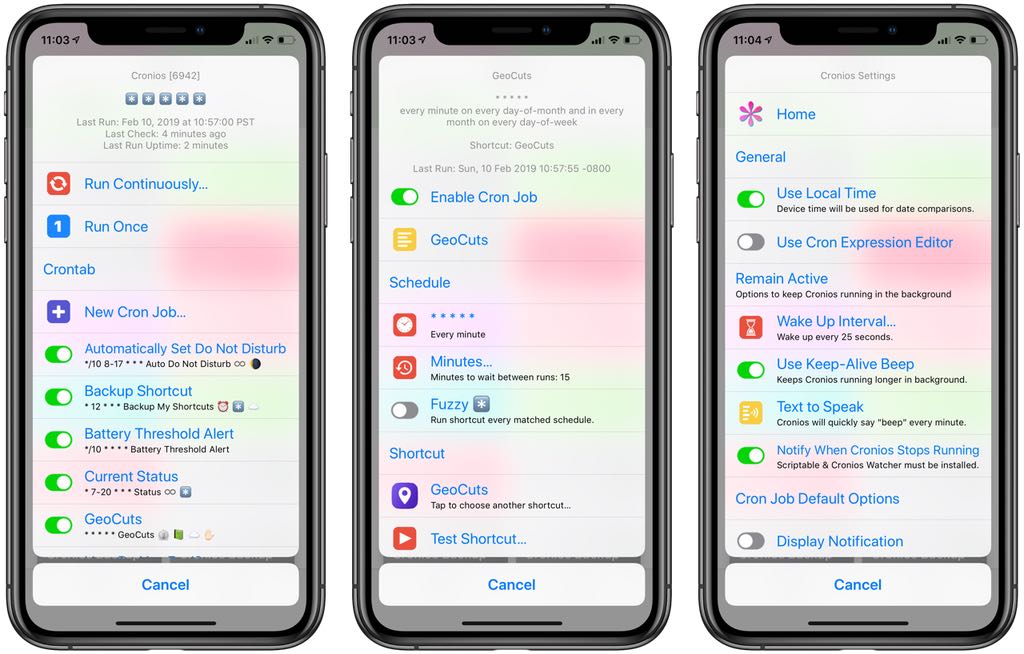
Wouldn't it be great if your shortcuts could run on an automatic schedule, in the background, without any further intervention on your part? Cronios makes that possible by bringing some impressive scheduling powers to your iOS automation scripts.

Whether you're working remotely, collaborating with your team or staying in touch with your loved ones, making a conference call on your iPhone can make your life easier. In this article, we'll take you through the simple steps on how to start a conference call on your iPhone.
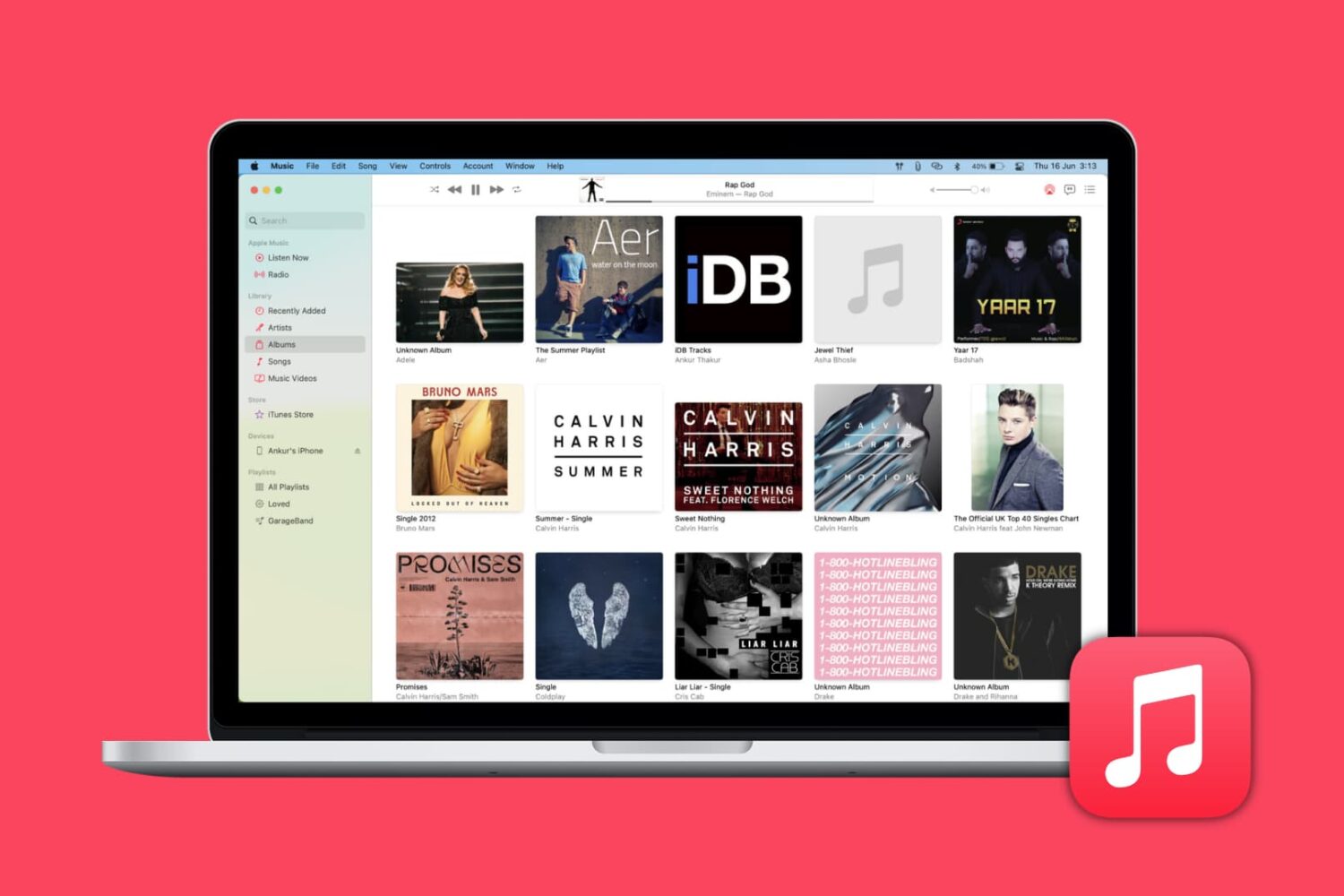
Learn how to automatically download missing album artwork from Apple or upload custom cover art in the built-in Music app on your Mac or Windows PC.

Find out how to quickly remove Gmail, Outlook, Yahoo, or other email accounts from the Apple Mail app on your Mac or iOS device to declutter and streamline your inbox.
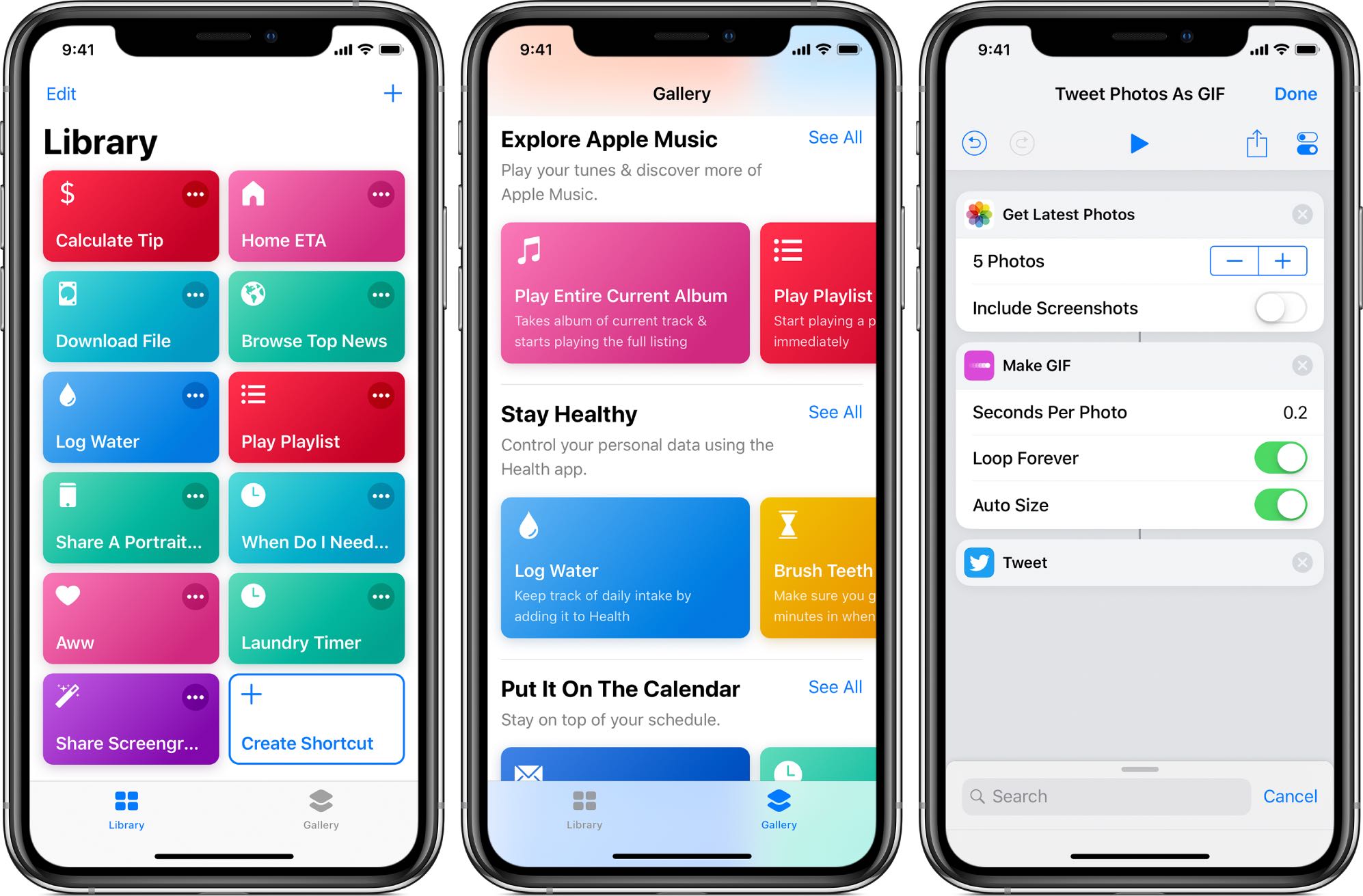
Apple's not made distributing scripts for its Shortcuts app particularly easy as there's no central repository where people could upload and share their own shortcuts with everyone else.
You may buy items in the Music app, TV app, or iTunes that you want to keep to yourself from time to time, especially if you use Family Sharing. It could be a movie, song, album, TV show, or audiobook. You can hide purchases and keep them hidden on all devices that use the same Apple ID.
If you need to keep something you buy away from prying eyes, here’s how to hide and unhide your purchased media on Mac.

This tutorial helps you see the world from your couch using the Flyover feature of the Apple Maps app on your iPhone, iPad, and Mac.
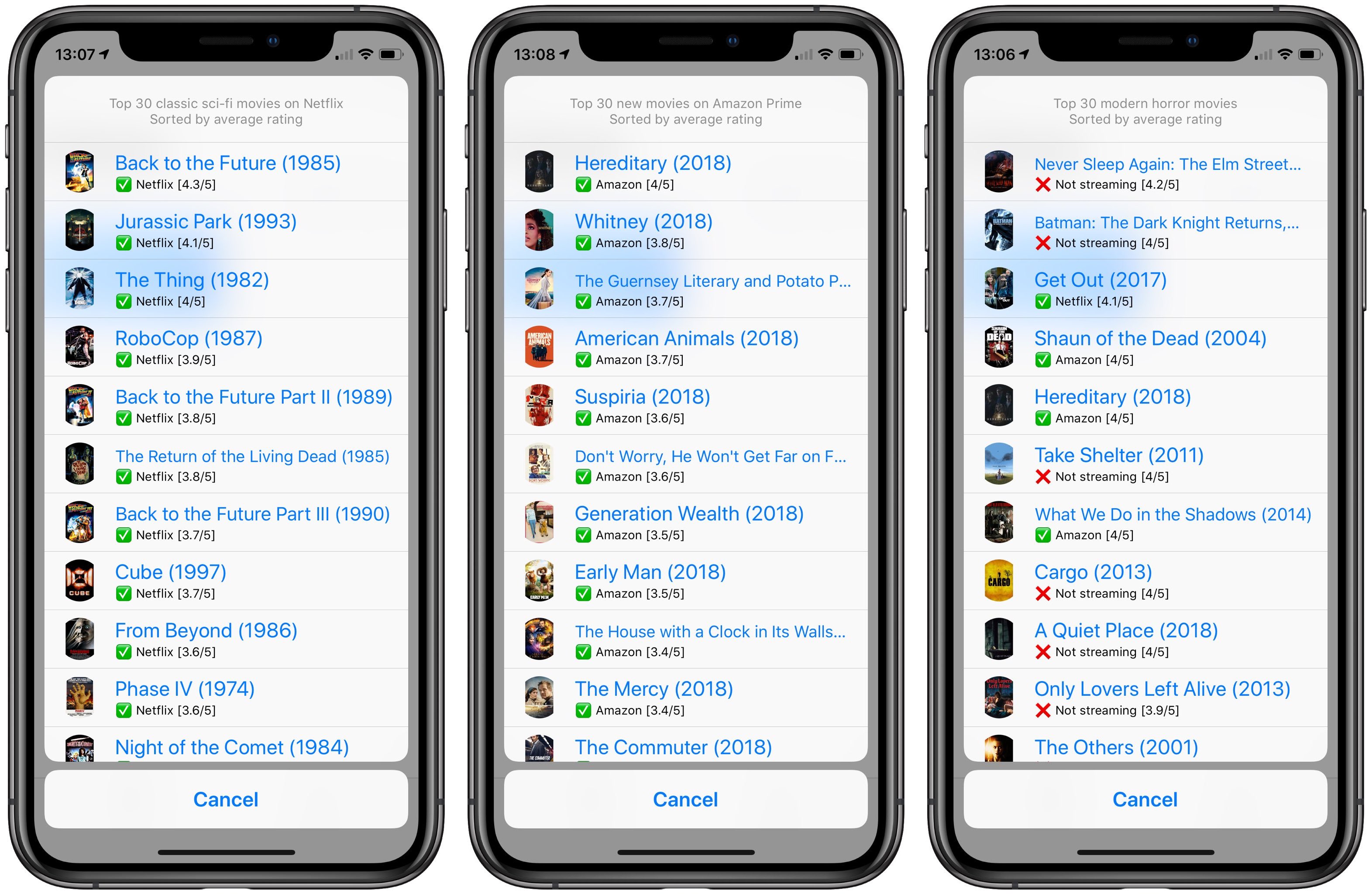
When it comes to movies and TV shows, popular streaming services offer more content than you could ever watch in a lifetime. Hence, finding the very best movies and TV shows is essential. If you've ever struggled to pick what to watch on Netflix or Amazon Prime, this handy shortcut lets you effortlessly find the best movies streaming on those services.
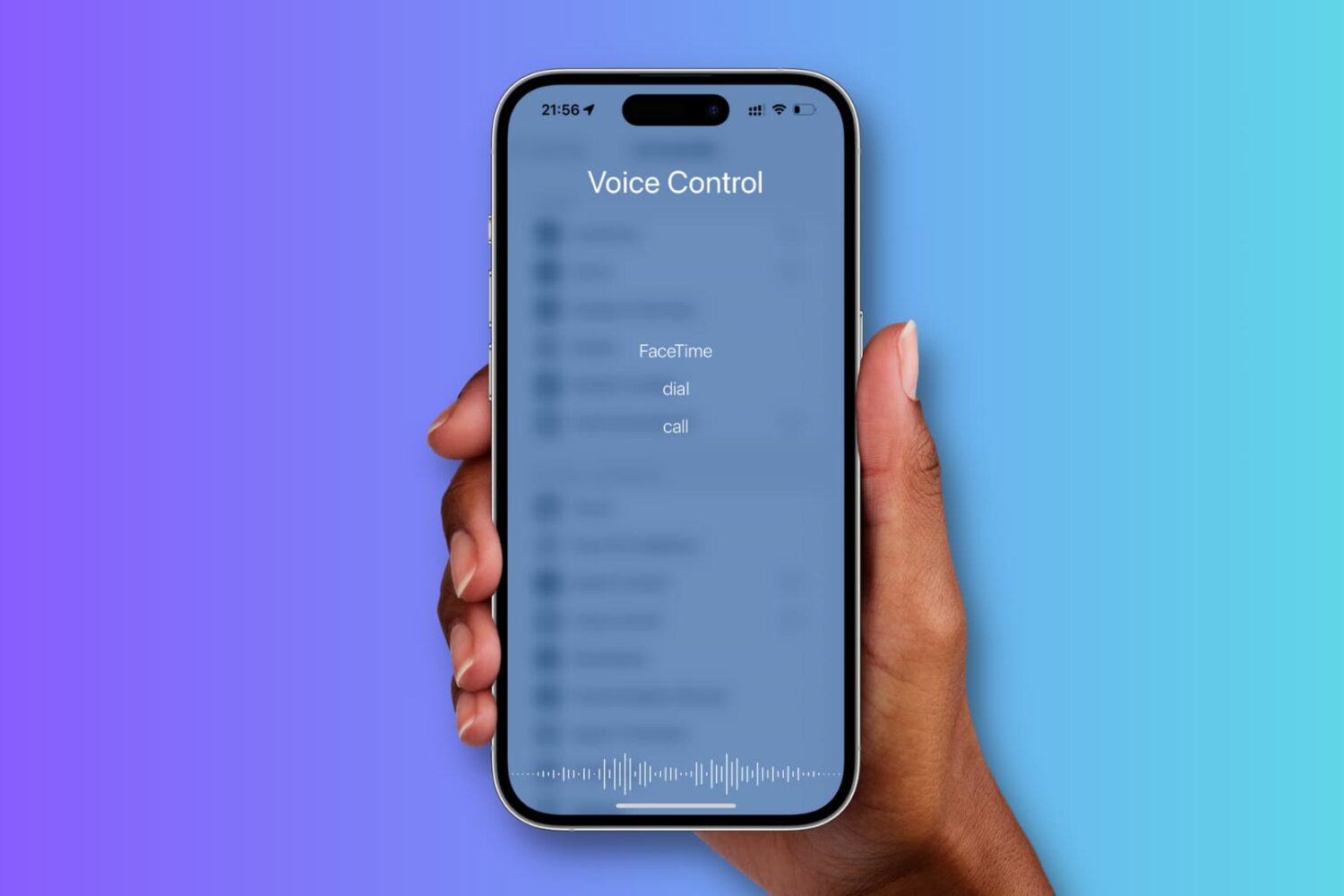
This tutorial shows you how to enable and use Voice Control instead of Siri on your iPhone.

Learn how to efficiently organize your emails by automatically color-coding them using the built-in rules feature in the Apple Mail app on Mac.