Learn how to forget a Wi-Fi network on your iPhone, iPad, or Mac to remove saved network credentials, improve wireless security, and troubleshoot connection issues.
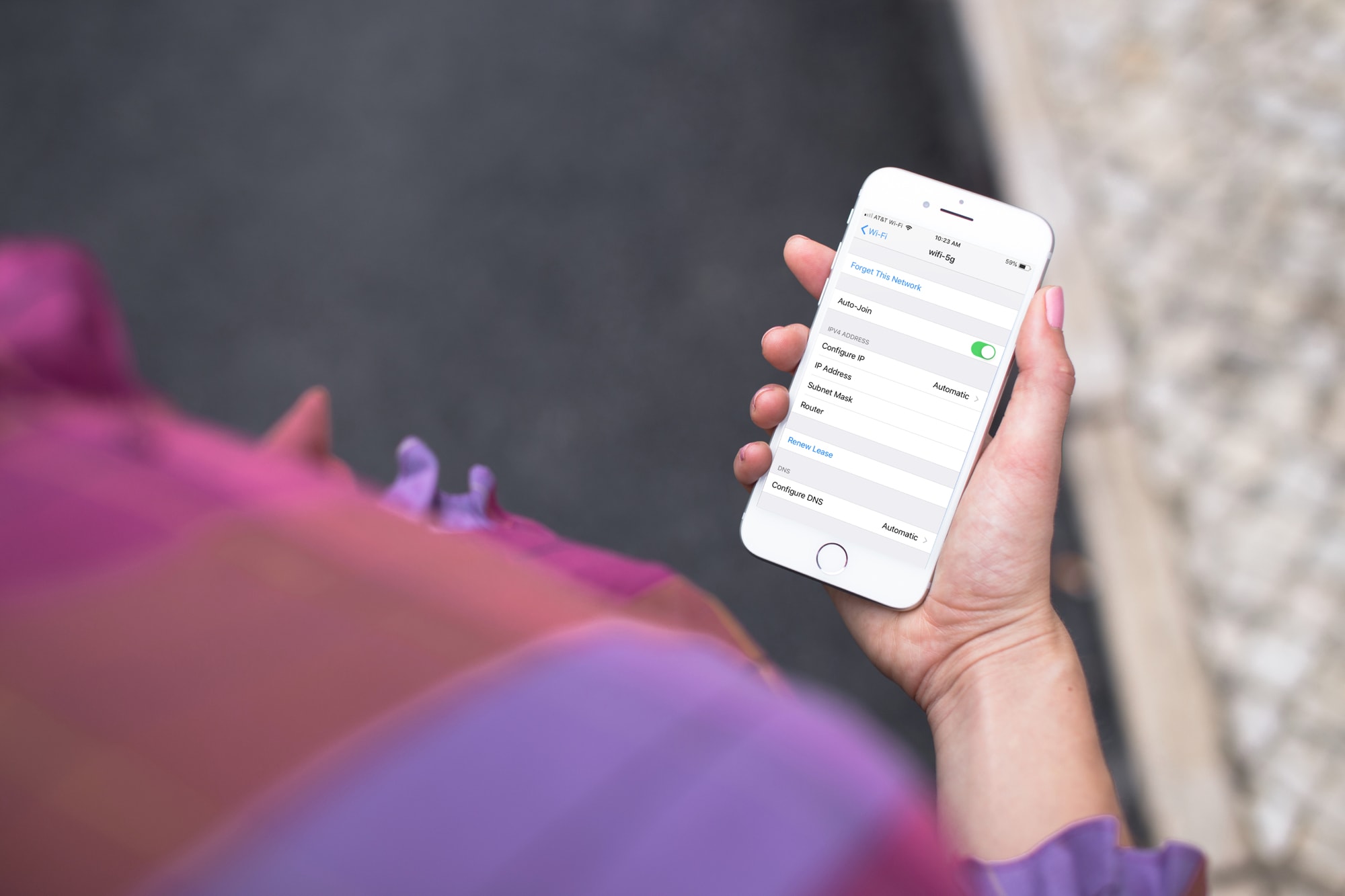
Your iPhone, iPad, and Mac remember security credentials for Wi-Fi networks you’ve joined so they can automatically reconnect when you’re in range. This is convenient, but sometimes it’s better to forget specific Wi-Fi networks, like the hotel Wi-Fi you joined on vacation or Wi-Fi hotspots at random coffee bars.
This can also help troubleshoot connection issues. Here’s how to forget previously joined Wi-Fi networks on your iPhone, iPad, and Mac, which removes saved credentials and prevents the device from automatically rejoining them.
iPhone and iPad
- Open the Settings app and select Wi-Fi.
- Tap the info icon ⓘ next to the Wi-Fi network name. To forget a Wi-Fi network you’re not currently connected to, tap Edit, then authenticate with Face ID or Touch ID, and tap the info icon ⓘ.
- Tap Forget This Network and confirm.
Apple notes you may be unable to forget a Wi-Fi network on a supervised device issued by a school or employer.

Tapping the Edit button on the Wi-Fi settings page may reveal a Managed Networks heading; if your iPhone automatically joins a network in this section, tap the info button ⓘ next to its name and turn off the Auto-Join switch.

Mac
- Open System Settings.
- Select Wi-Fi in the System Settings sidebar.
- Click the Advanced button in the bottom-right.
- Click the three-dot icon next to a known network and choose Remove From List in the menu.

If your Mac is running macOS Monterey or an older version:
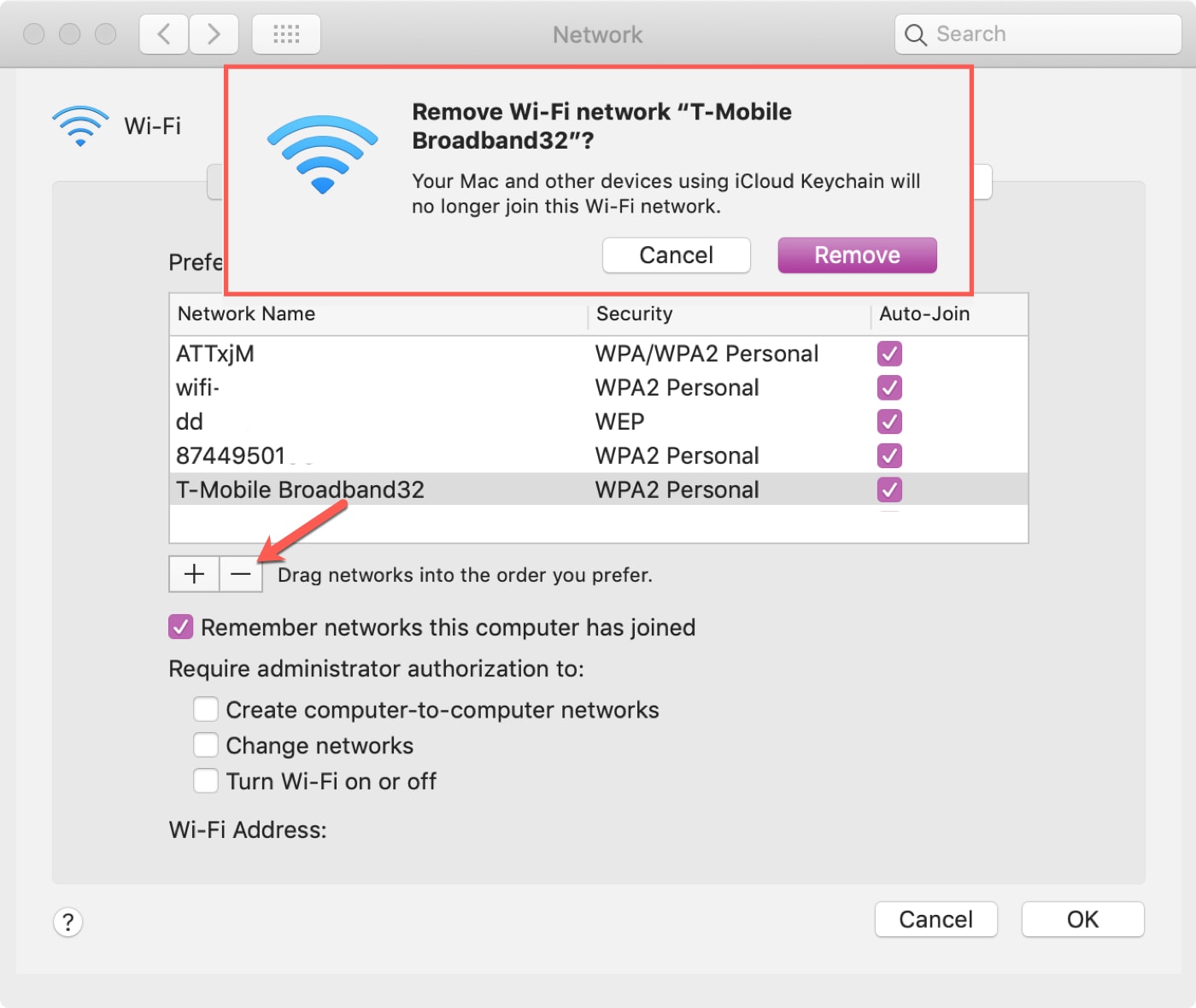
- Navigate to System Preferences > Network, select the Wi-Fi network on the left, then click the Advanced button.
- Select the Wi-Fi option at the top.
- Select the Wi-Fi network you’d like to forget, then click the minus sign and confirm the action by clicking the Remove button.
Forgetting saved Wi-Fi networks you no longer use is recommended, as it reduces the risk of Wi-Fi-related attacks via known networks.
Also, check out: How to stop your iPhone, iPad, or Mac from asking to join Wi-Fi networks