Learn how to save a note as a PDF on your iPhone, iPad, or Mac without having to use a third-party app.
How to export a note as PDF on iPhone, iPad, and Mac
Learn how to master your Apple devices with our comprehensive tutorials. From iPhone and iPad to Mac, Apple Watch, AirPods, and more, our expert guides will help you unlock the full potential of your Apple products. Discover new features, tips, and tricks each day to enhance your user experience.
Learn how to save a note as a PDF on your iPhone, iPad, or Mac without having to use a third-party app.
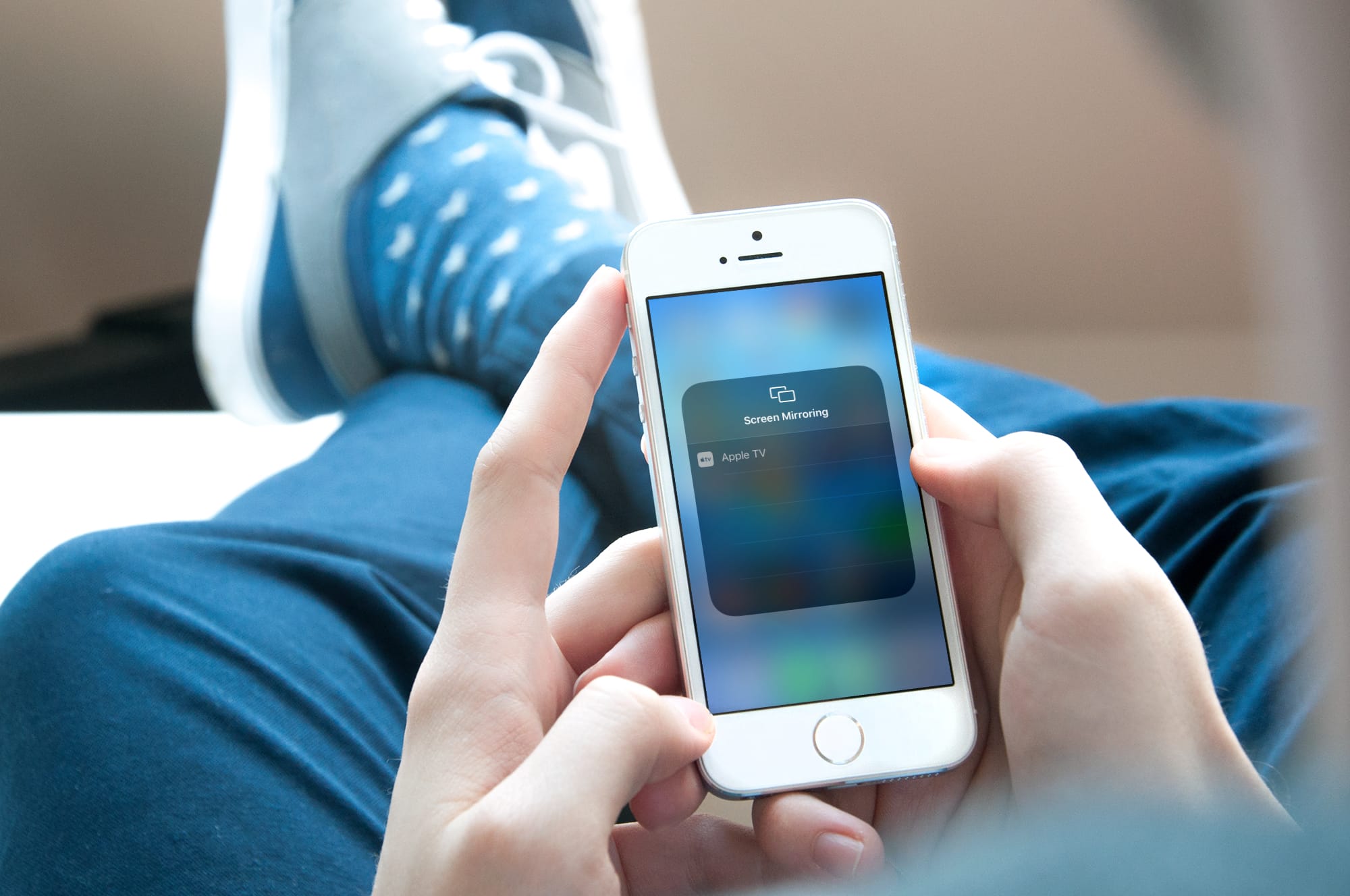
You can easily send your Mac screen to your Apple TV and either mirror it or use it as a second display. So, if you want to show something you have on your iPhone or iPad up on your Apple TV, this is just as simple.
You can use AirPlay if you have a video on your iPhone you want to show everyone in the room. And if you want to see a bigger picture of something on your device and interact with it, you can use Screen Mirroring.
Here’s how to both AirPlay and mirror your iPhone or iPad display to Apple TV.
This tutorial shows you how to customize the sound quality in the Music app or iTunes so that your favorite songs sound spectacular when you play them on your Mac.

Don’t want to read news stories from a specific channel or topic? The Apple News app on iPhone, iPad, and Mac gives you the option to block them, and we’ll show you how.

Learn how to set a default email account on iPhone, iPad, and Mac, and save yourself from sending emails from the wrong account.
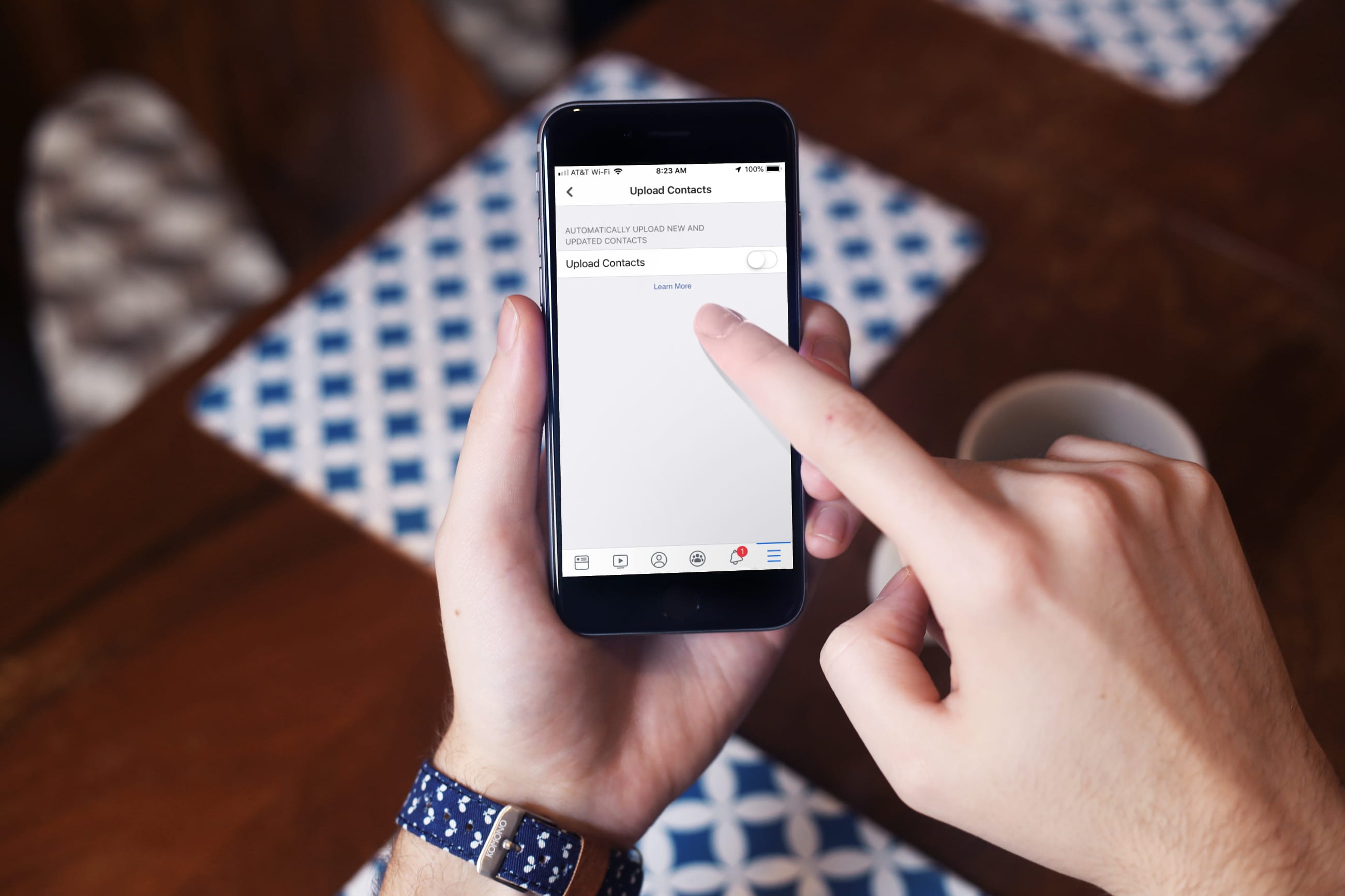
Learn how to protect your privacy by preventing your iPhone from automatically uploading your contacts to Facebook and having Facebook delete your contacts it has already saved.
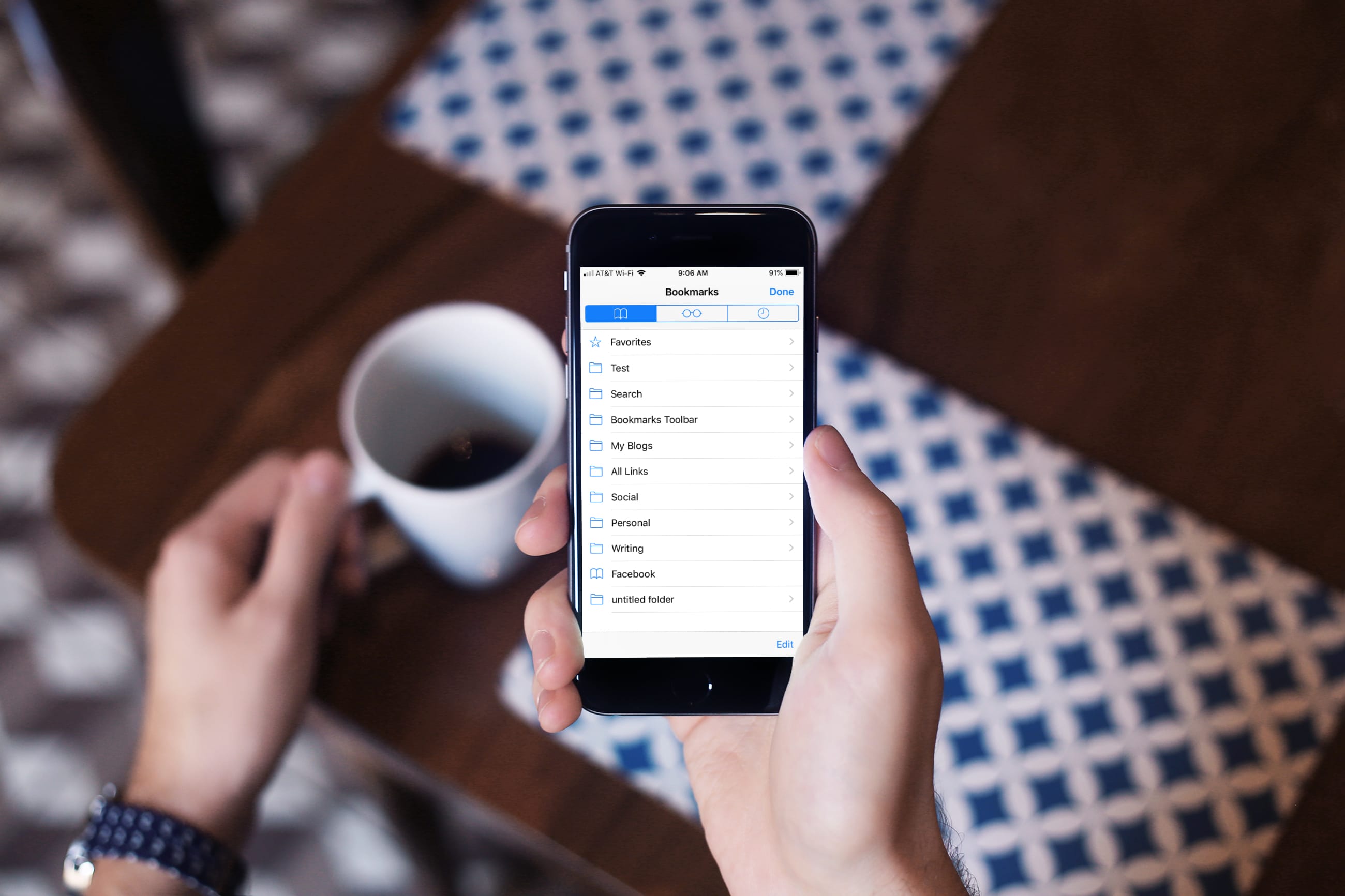
Learn how to turn off bookmark sync in Safari, Chrome, and Firefox on your iPhone and iPad if you'd like a different set of bookmarks on each device.
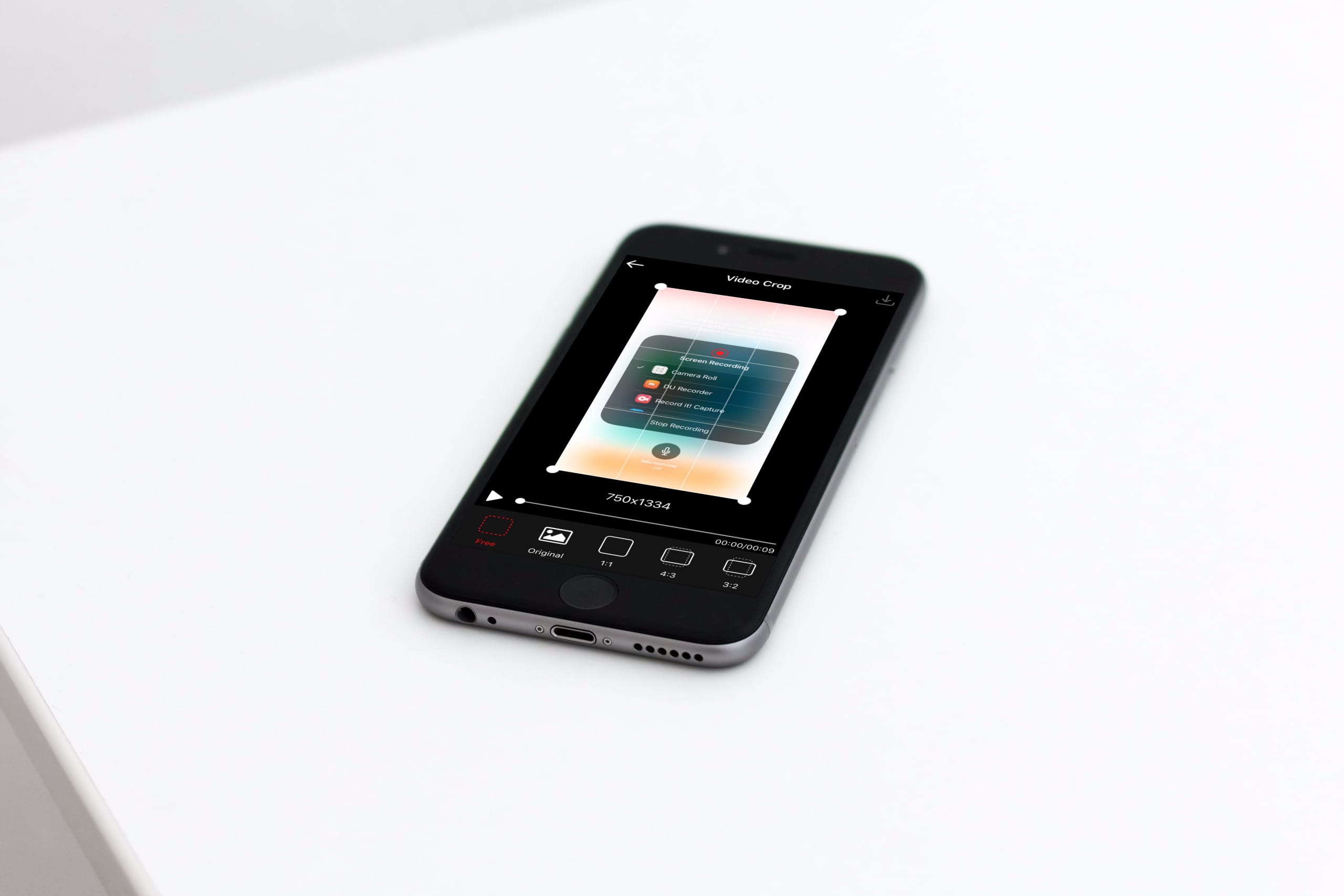
This tutorial shows you three free ways to crop videos on your iPhone or iPad, which is a great way to remove unwanted content and focus on the important parts.
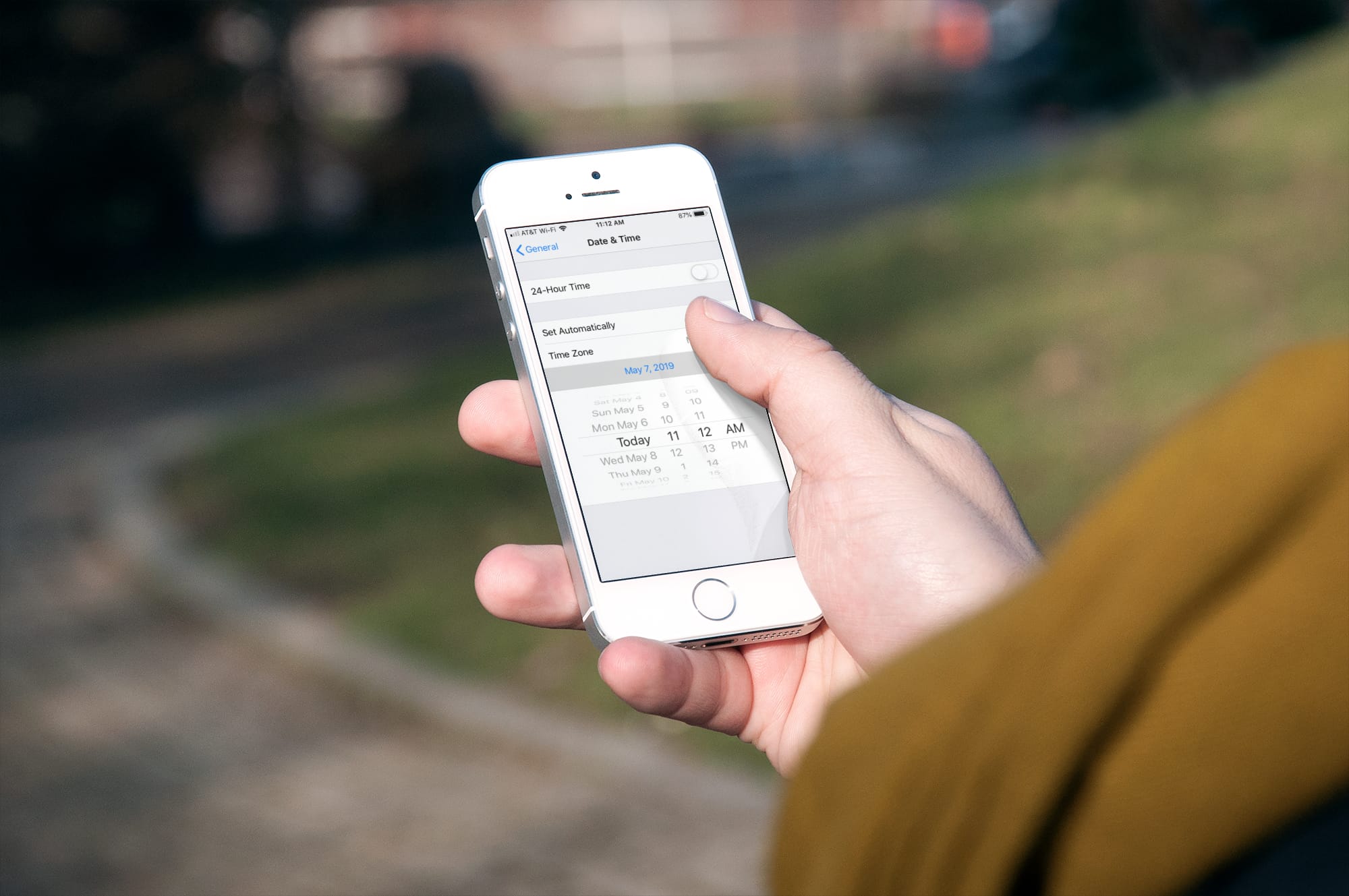
Learn how to stop your iPhone, iPad, or Mac from automatically changing time zones on its own and take back control of date and time into your own hands.
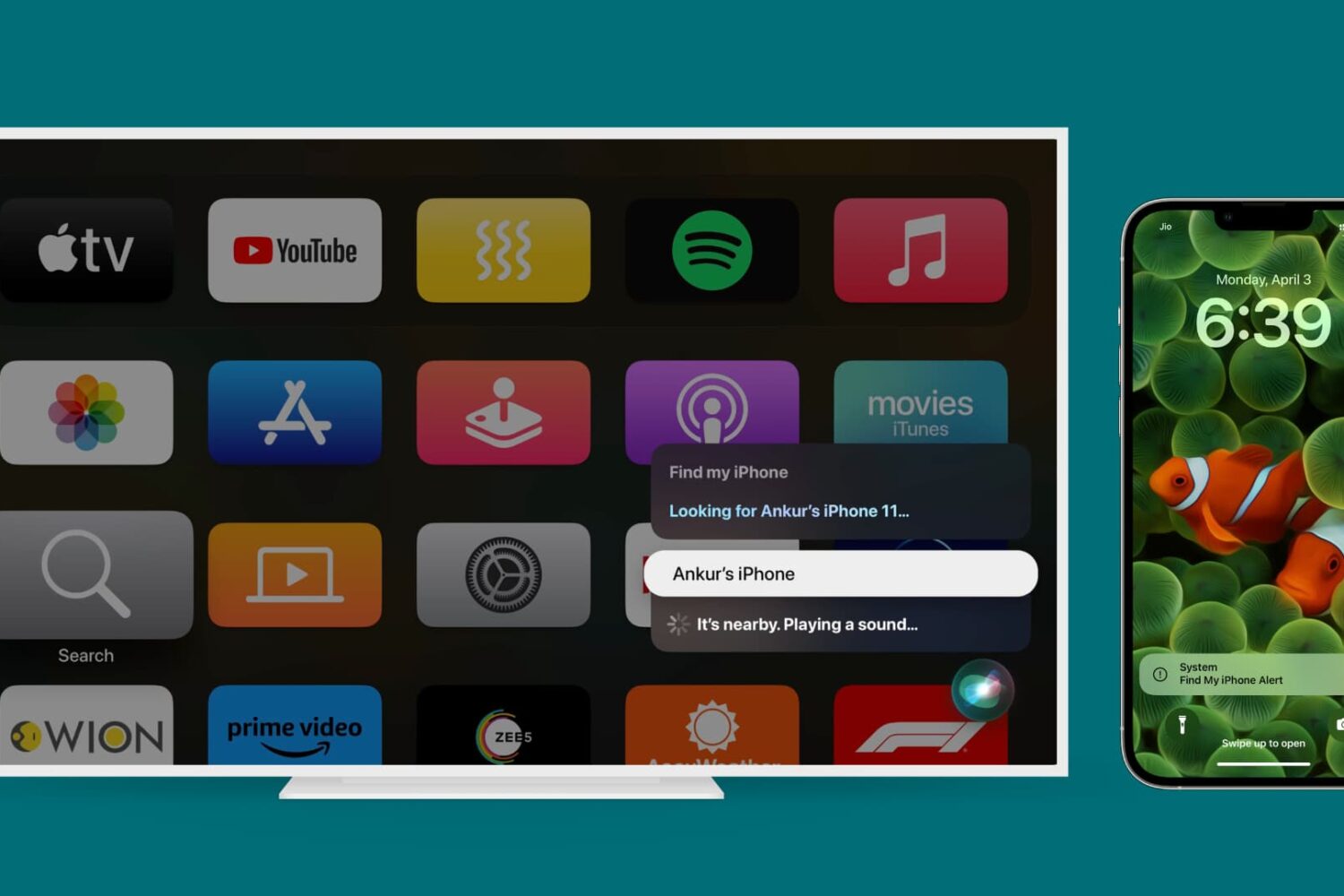
Learn how to find a missing iPhone, iPad, or Mac with your Apple TV. You can use your voice to locate a nearby device and play a sound to track it faster.

Are you new to iPhone or iPad? This short tutorial shows you how to change your phone call ringtone and text tone to something you like.

Here are five simple ways to turn off screen rotation on your iPhone and keep the display in portrait mode.