Learn how to turn off bookmark sync in Safari, Google Chrome, and Firefox on your iPhone and iPad if you’d like a different set of bookmarks on each device.
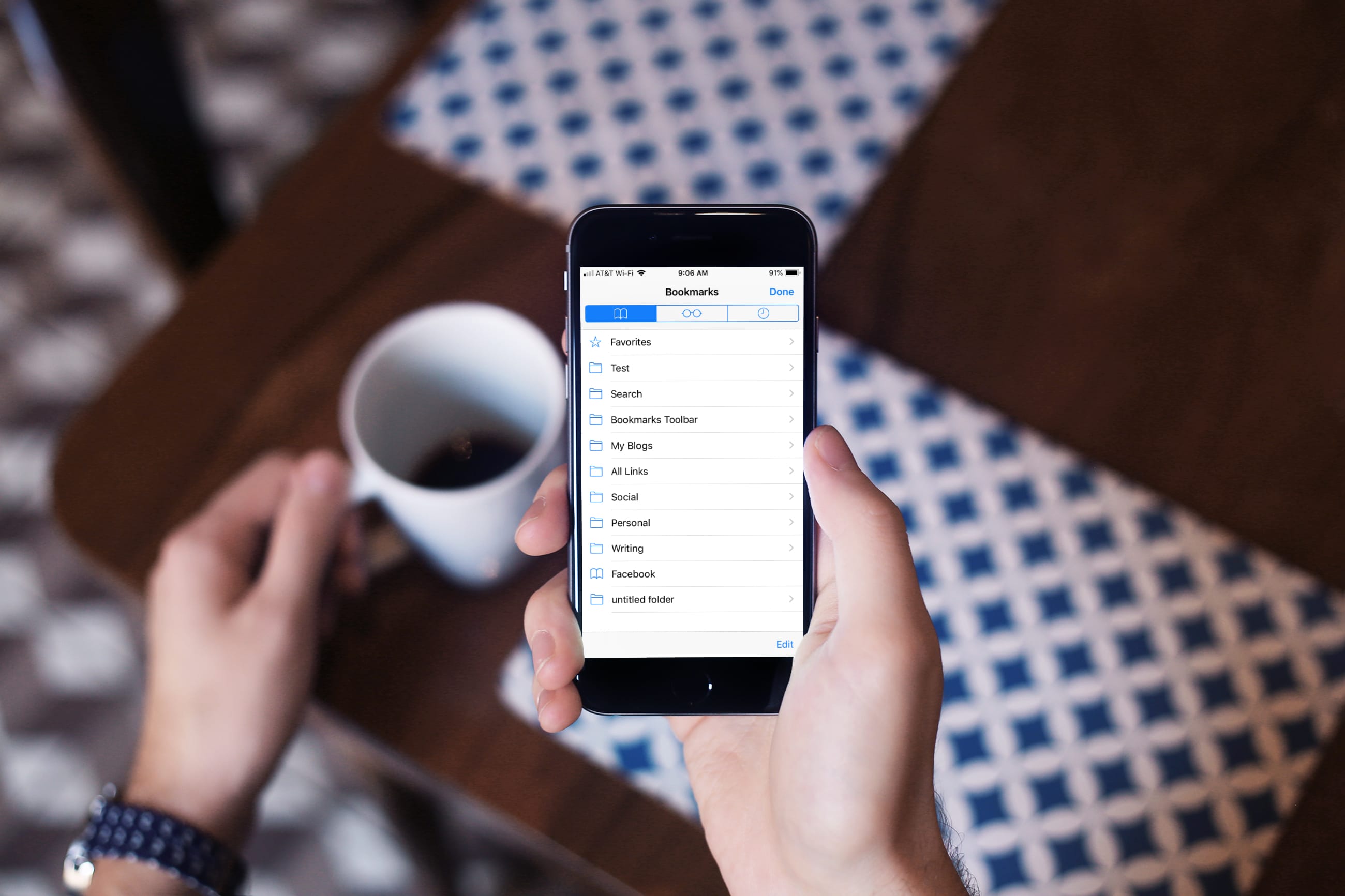
Bookmark sync is a convenient feature if you’d like to access the same bookmarks across other devices, like your iPad or Mac, but it’s not for everyone.
If you have a work iPhone, you want to keep your personal and business bookmarks separate. Some people prefer to keep website bookmarks private on their iPhone and unavailable on other devices.
You can stop your iPhone from syncing bookmarks in Safari, Chrome, and Firefox with just a few taps.
Safari
- Open the Settings app on your iPhone.
- Tap your Apple account at the top.
- Tap iCloud.
- Tap See All to view all apps and services that save data to iCloud.
- Turn off the switch for Safari. You’ll see a message offering to keep or delete synced data, so choose whatever option you prefer.

Google Chrome
- Open the Chrome app on your iPhone.
- Tap your profile picture in the top-right corner. Or, tap the three-dot menu in the bottom-right corner and select Settings.
- Tap your Google account at the top.
- You’ll see a list of everything being synced; turn off the toggle next to Bookmarks and tap Done to stop syncing Chrome bookmarks on your iPhone with other devices that use the same Google account.

Firefox
- Open the Firefox app on your iPhone.
- Tap the three-dot menu icon in the bottom-right corner, and choose your account name.
- Turn off the Bookmarks toggle under Sync Settings, then close this pane.

Many iPhone owners use Safari, but some prefer Chrome or Firefox. It doesn’t matter which one you use, as it’s not complicated to turn off bookmark sync in any of them.
Also, check out: