Learn how to use the new Adaptive Dark Mode feature in Safari on iPhone, iPad, and Mac to force dark mode on websites that don’t support it natively.
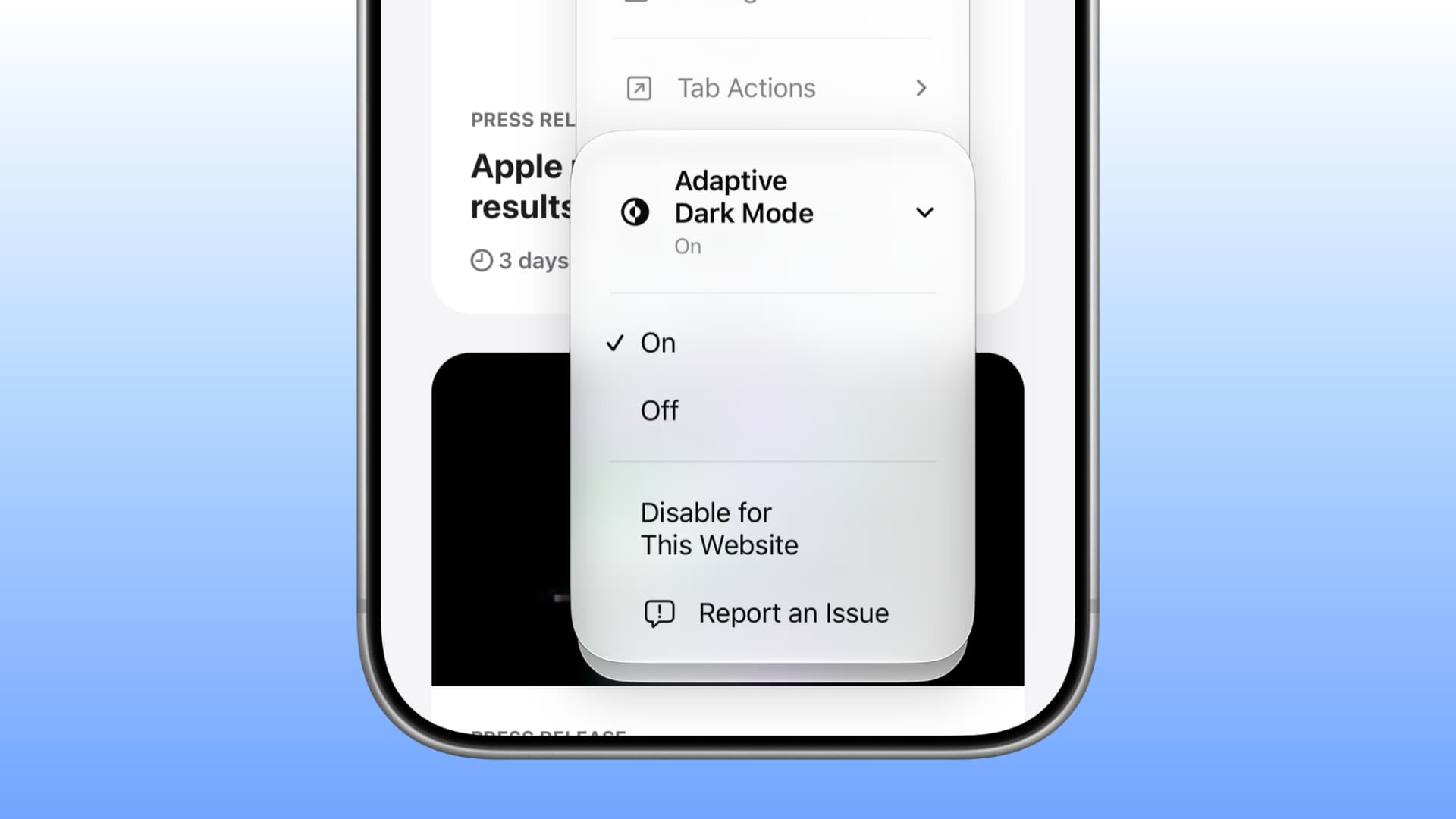
Many websites support system Dark Mode, meaning that if you enable Dark Mode on your device, the webpage mimics that. However, several sites don’t do this or offer their own on-page Dark Mode toggle.
In this case, you can use third-party Safari app extensions like Dark Mode, or have Apple Intelligence build a Dark Mode extension just for you! Both methods are easy, but not everyone knows about them.
Therefore, Apple has now gone a step further and added a forced Dark Mode option for Safari called Adaptive Dark Mode. It requires no app installations or extension building. You can enable or disable it right from your browser tab in a couple of taps.
According to Apple and MacRumors, Adaptive Dark Mode darkens the webpage background, lowers the contrast of certain elements like text, may invert logo and graphics colors, recolor vector artwork, lift raised surfaces, and rebalance layered shadows. Importantly, it does this based on the site you’re on to make it readable, so not all tweaks apply to every website or page.
Turn on Adaptive Dark Mode in Safari
1) Update your iPhone, iPad, or Mac to iOS 27.3, iPadOS 27.3, or macOS 27.3 Golden Gate or later. As of writing, they are in beta, with general release expected in the coming weeks. We’re using an iPhone for these steps.
2) Open Safari and visit the website that doesn’t support Dark Mode.
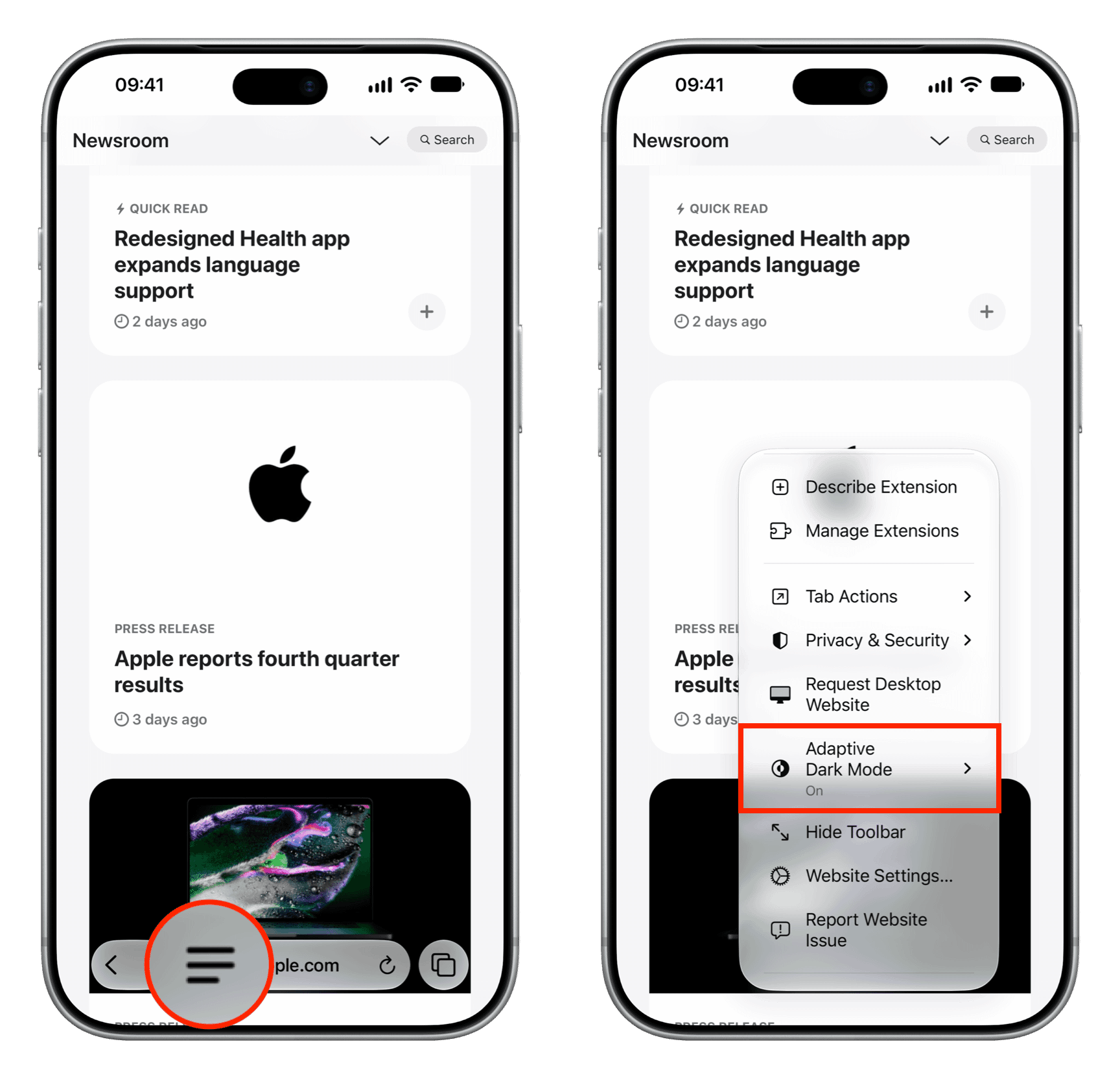
3) Tap the three-line menu icon in the URL address bar and select Adaptive Dark Mode.
4) If this is your first time using this new feature, you should see a full-screen explaining the feature. Tap Try. You should then see a banner at the top that says “Previewing Adaptive Dark Mode.” Tap the blue checkmark icon.
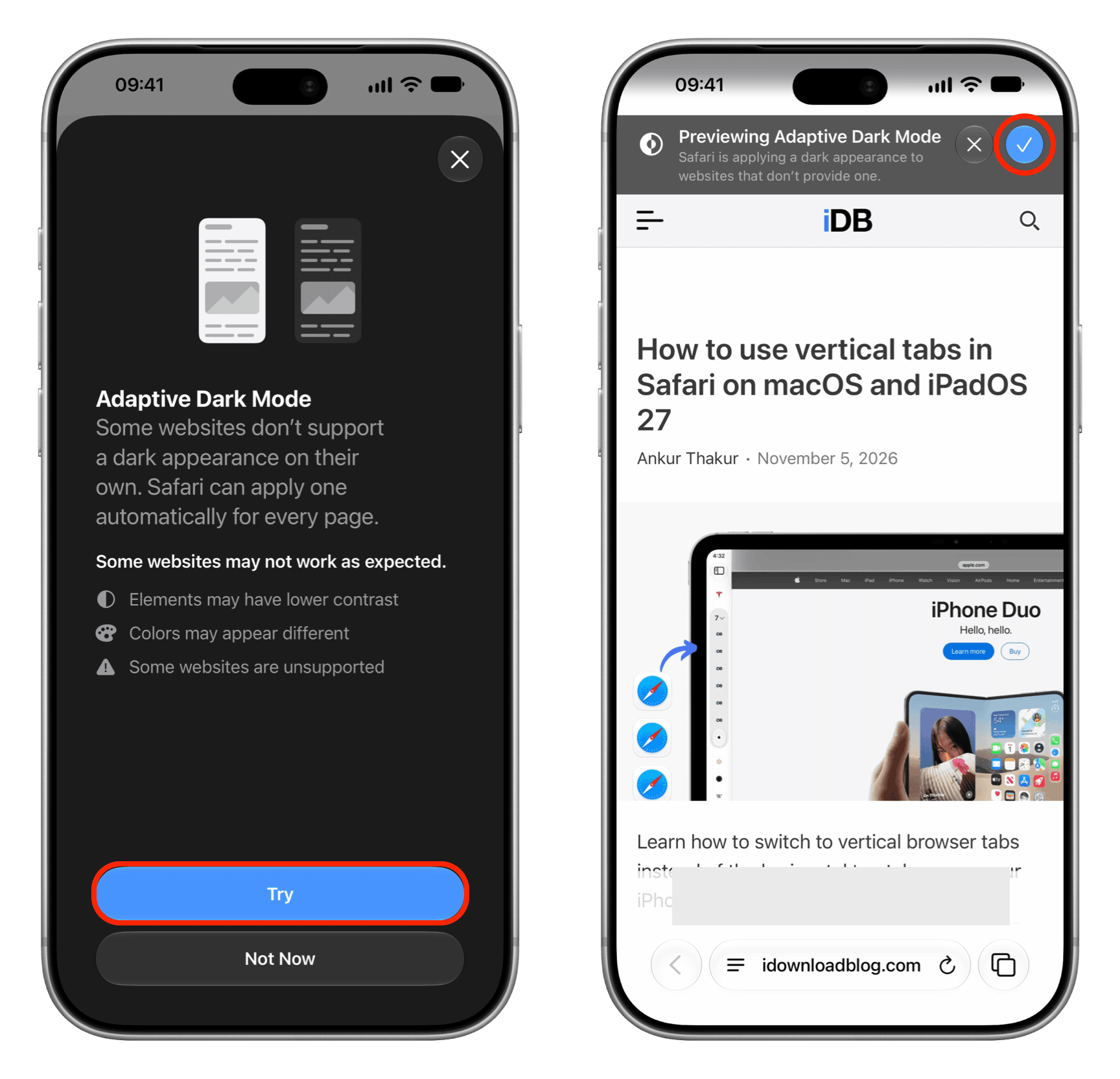
5) In the future, just tap the three-line menu icon > Adaptive Dark Mode > On or Off.
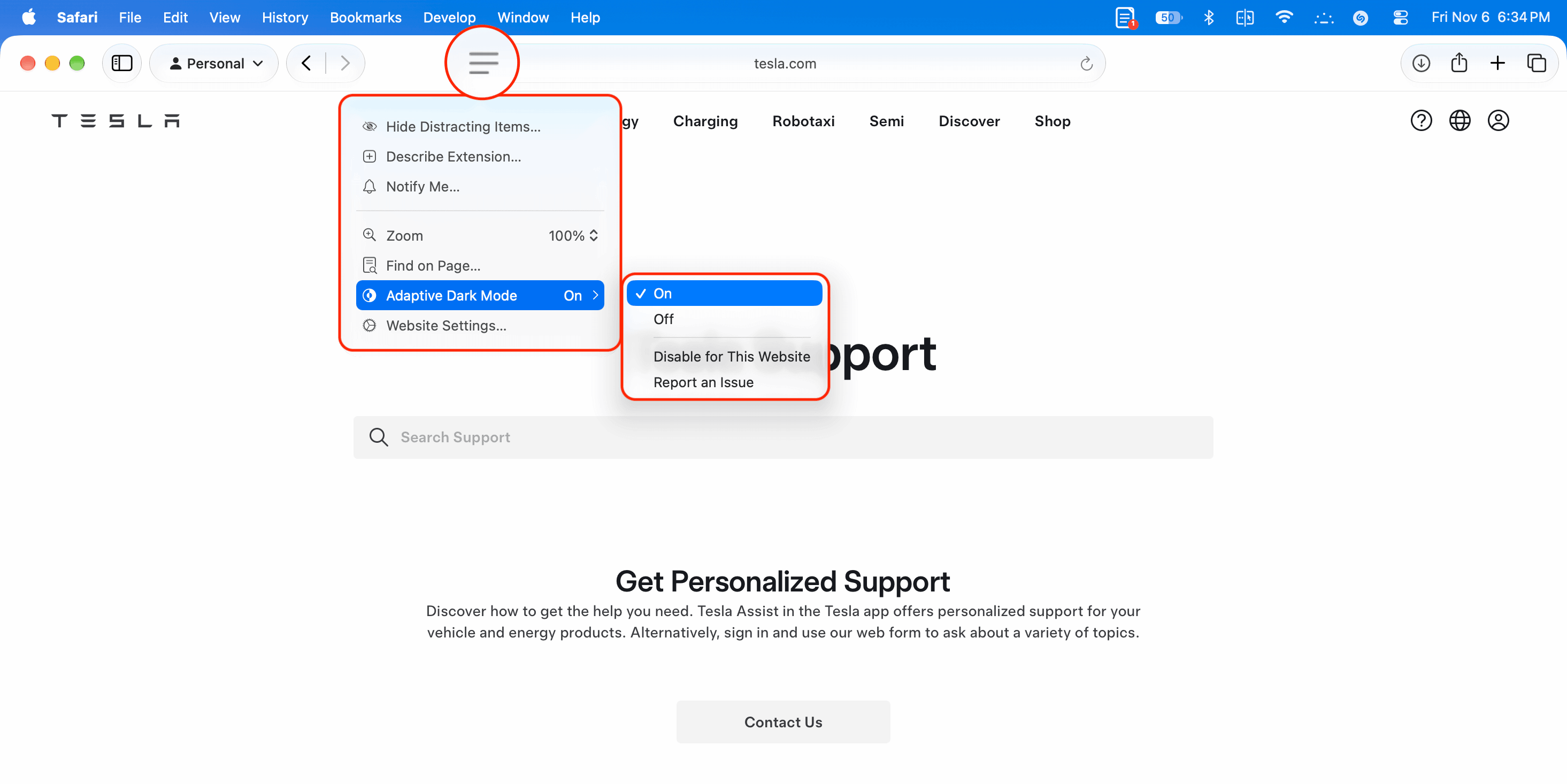
Here’s how it looks on Mac:
You can also go to Safari Settings to manage Adaptive Dark Mode for all sites or specific sites you configured when in Safari.
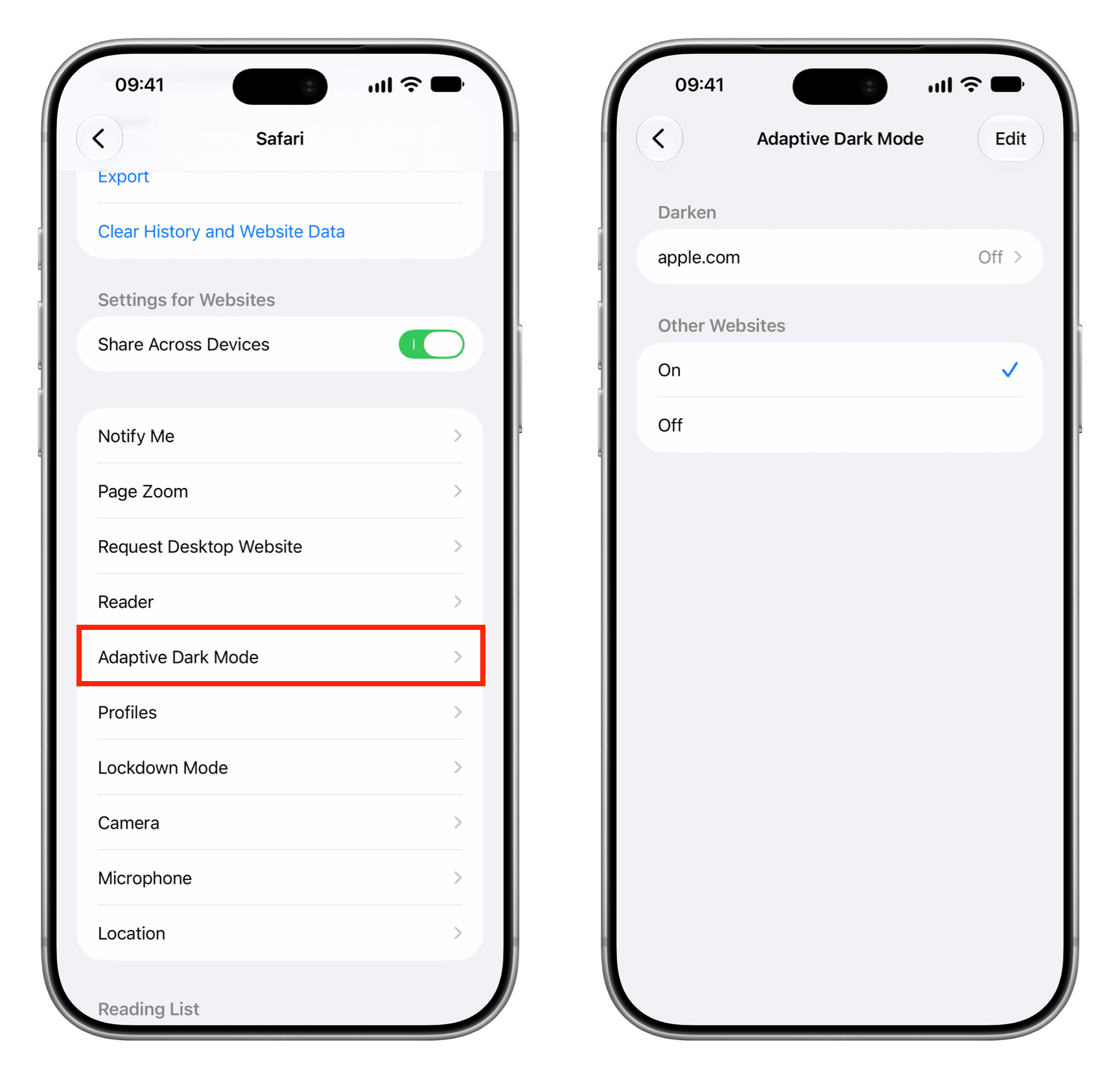
On Mac, go to Safari Settings > Websites and select Adaptive Dark Mode to manage it for all or currently open sites.
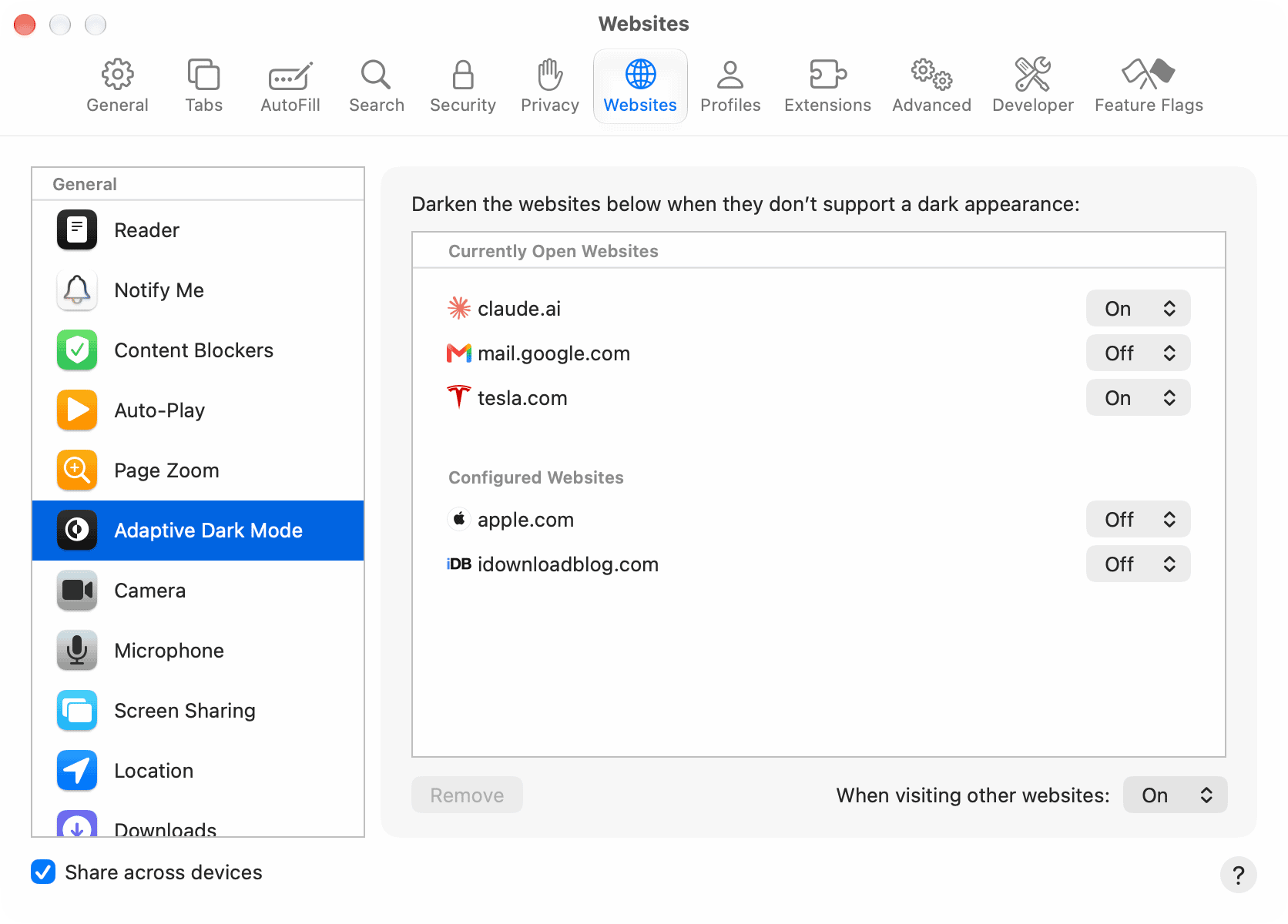
In my experience, Adaptive Dark Mode in iOS 27.3 beta is inconsistent and unreliable. For example, it doesn’t work on iDB’s site. Then I tried tesla.com, where it worked the first time and then refused the rest of the time. Similarly, many sites, including apple.com/iphone-duo/, don’t seem to support it.
Secondly, even if it fails to enable Dark Mode, it won’t say so; it will simply show ‘Adaptive Dark Mode On’ while doing nothing. Restarting the device didn’t fix the problem.
Overall, it’s unpredictable. So, make sure you have backup options like Dark Mode apps or extensions also installed if this is important to you.
Also, check out: