Learn how to save a note as a PDF on your iPhone, iPad, or Mac without having to use a third-party app.
This is great if you need to share the note via email or with other platforms like Android. It’s also helpful if you want to import a note into another app.
You can also use this tip to create a second copy or backup of your important notes and save them as PDFs to non-iCloud services such as Google Drive, Dropbox, OneDrive, or Box.
On iPhone and iPad
You can use the print option to export most text and images as a PDF on iPhone or iPad in pretty much any app (like emails in the Mail app).
- Open the note you want to save as a PDF and tap the share button.
- Select Print from the Share Sheet (you may have to tap View More first).
- Put two fingers on the thumbnail and pinch out, as shown in the middle screenshot below.
- Tap the share icon and choose Save to Files or one of the other options to share this note as a PDF document file.
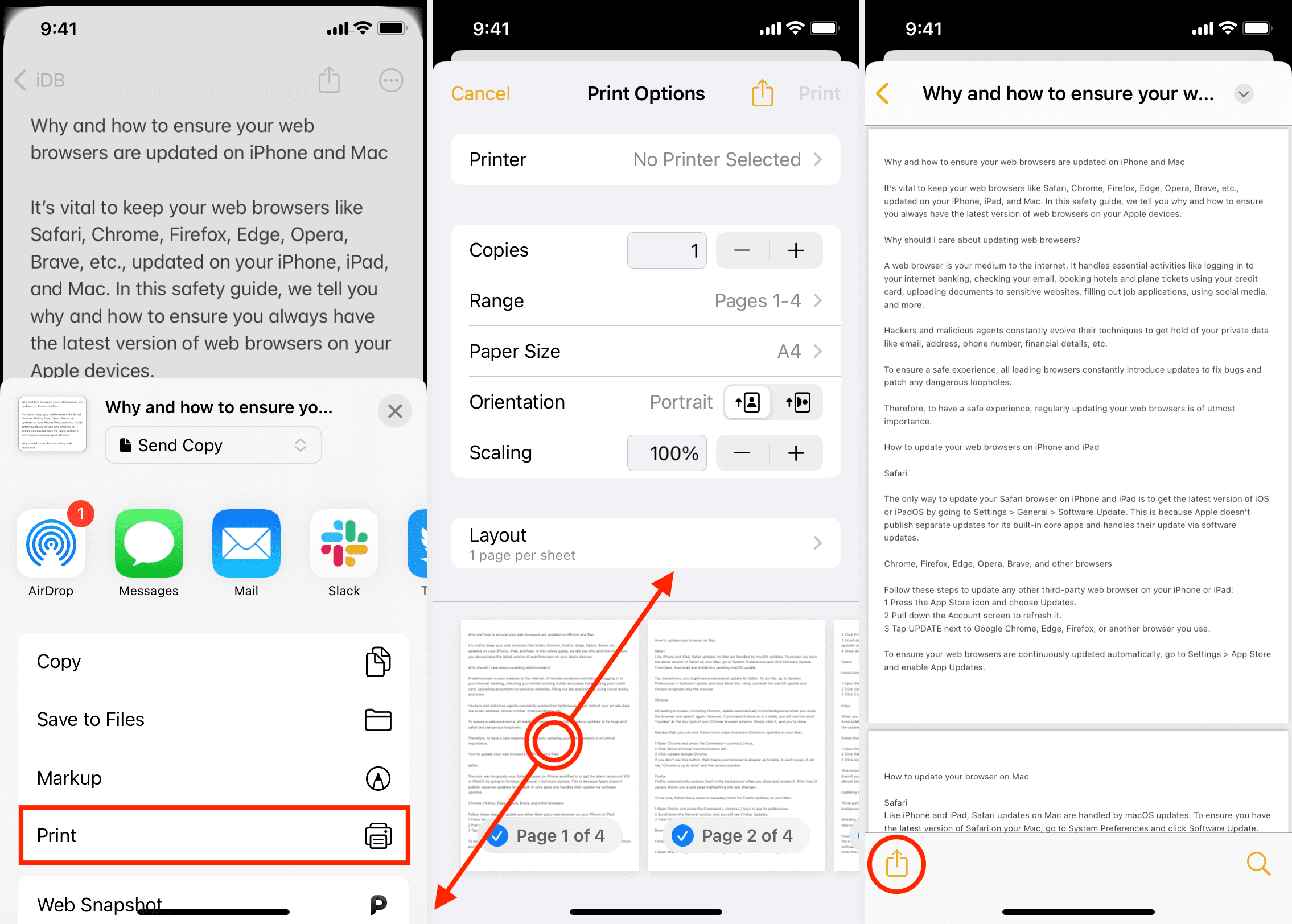
Alternatively, instead of ‘Print,’ you can select ‘Markup’ on the iOS Share Sheet to convert the note into a PDF. Then, tap the X button and choose to save the PDF in the iOS Files app.
The PDF should retain in-note attachments like an image. However, unsupported files, like an audio recording added to your note, won’t show up in the PDF.
If you select the “Save to Files” option directly from the iOS Share Sheet, it exports your Apple note as a TXT file.
On Mac
Open the macOS Notes app and follow these steps to export a note as a PDF:
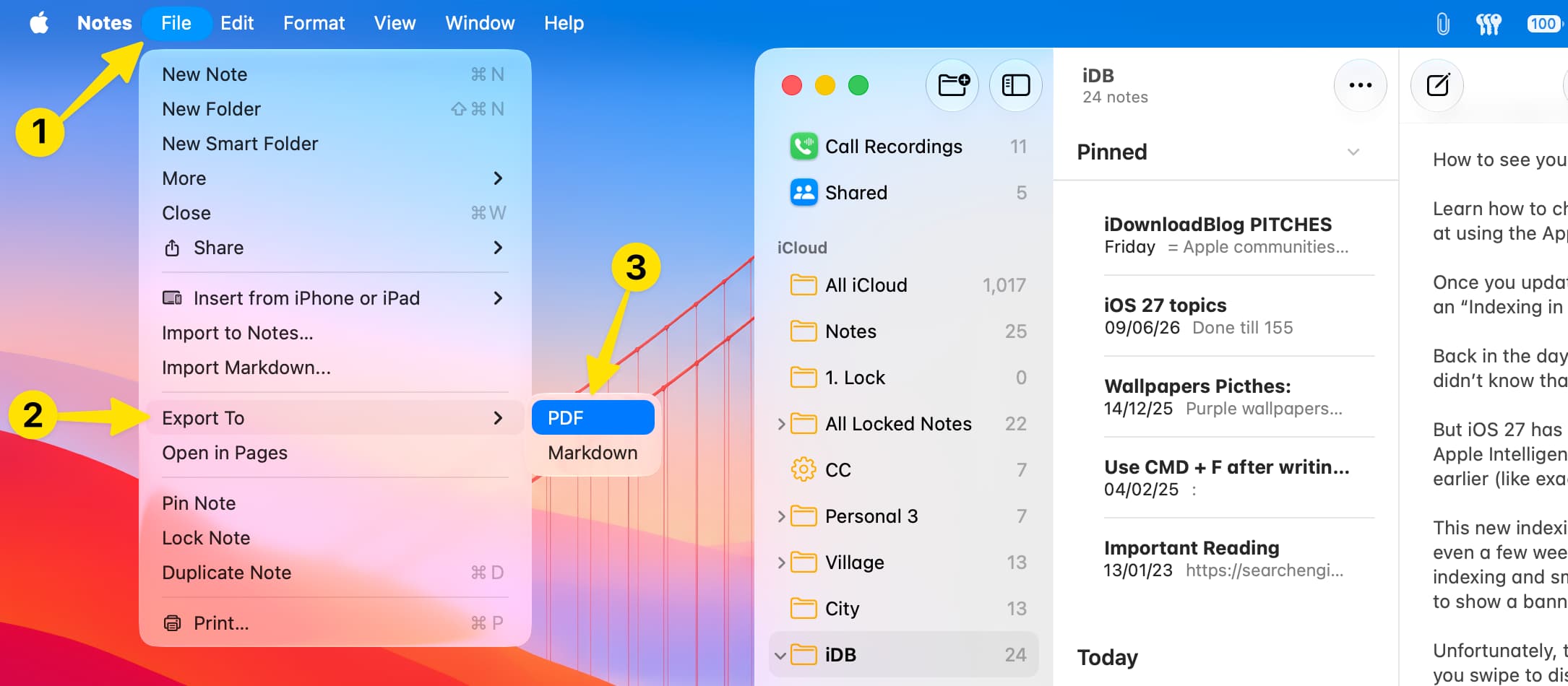
- Select the note you want to export.
- Click File from the top menu bar, followed by Export To > PDF.
- Rename your file or add a tag if you like. Then select the export location and click Save.
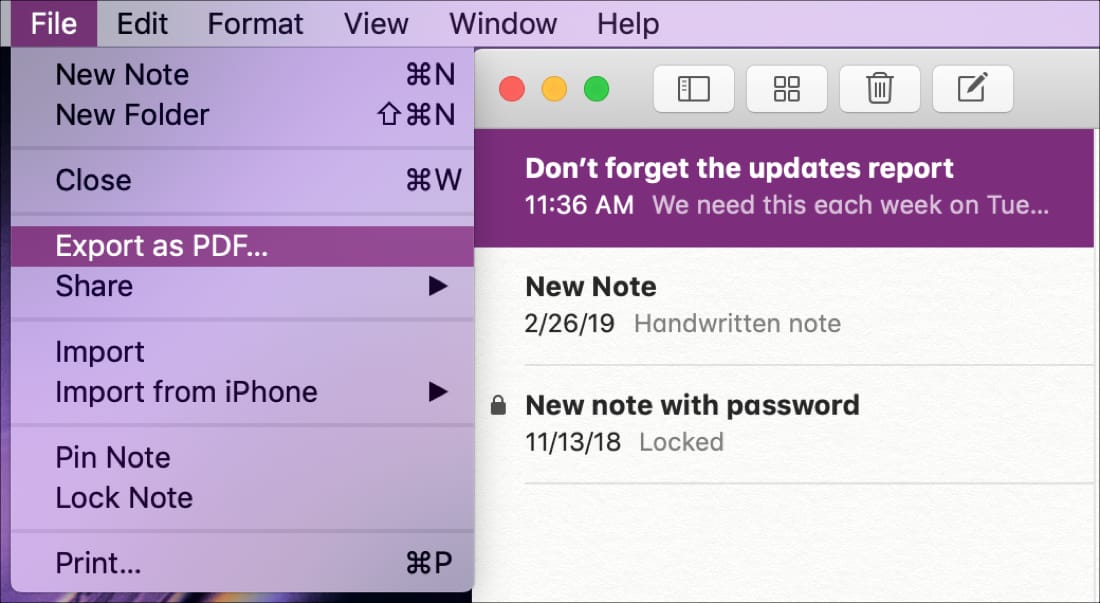
In older versions of macOS, just click File in the menu bar, followed by Export as PDF.
Additionally, you can click File > Print in the menu bar and then hit the little arrow next to PDF to save the note as a PDF.

If you ever need to export notes from the Notes app on either iOS or Mac, you can see that it’s a fairly easy process.
Other useful Notes app tutorials: