Don’t want to read news stories from a specific channel or topic? The Apple News app on iPhone, iPad, and Mac gives you the option to block them, and we’ll show you how.
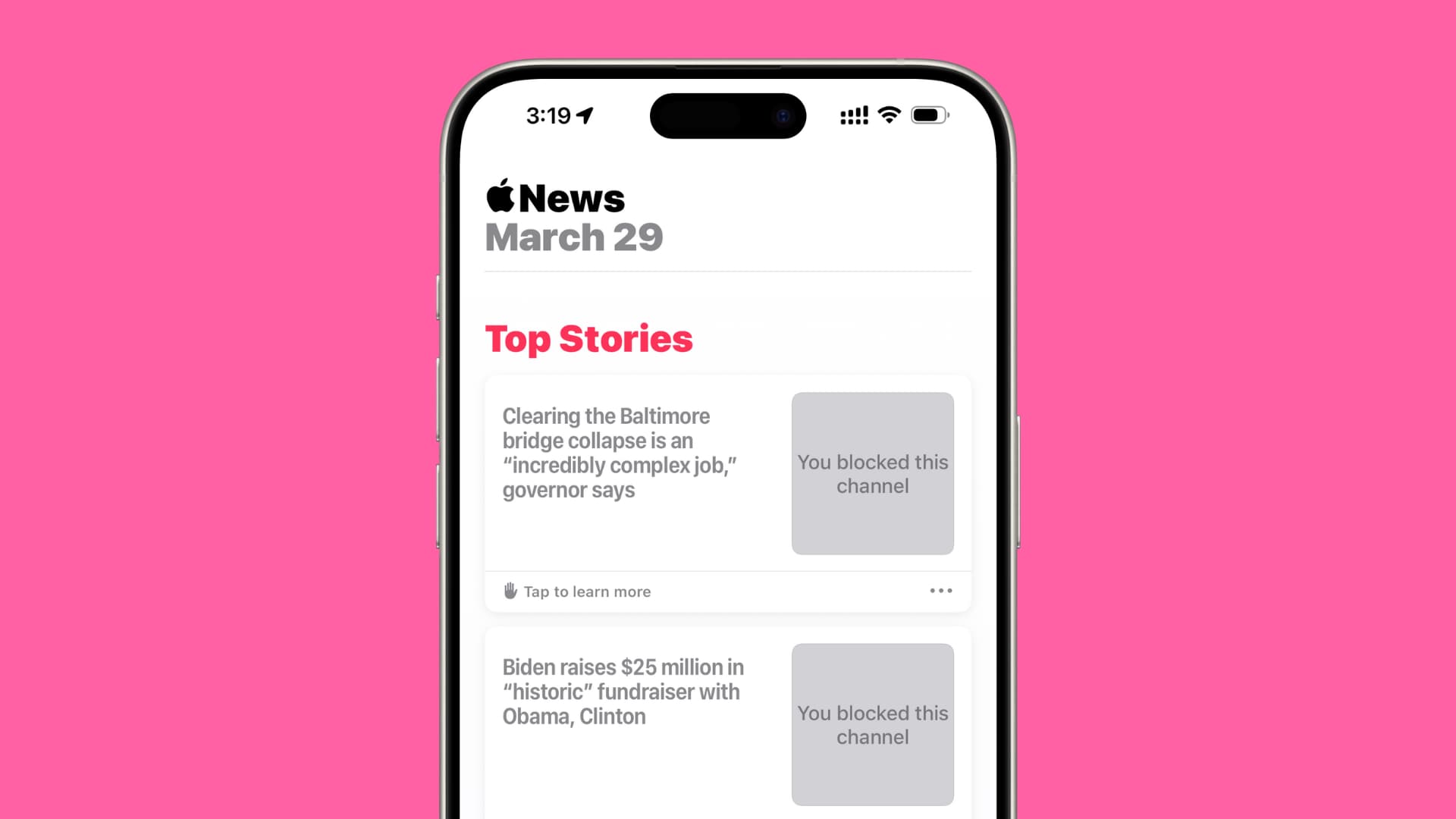
If you use Apple News as your primary news source, you likely have certain topics and channels you prefer over others. You may love browsing the sports or entertainment section, but you always see that one source (channel) you just don’t like very much.
With Apple News, you can block those channels or topics that you don’t care for, and if you change your mind later, you can easily unblock them too. So, here’s how to do both.
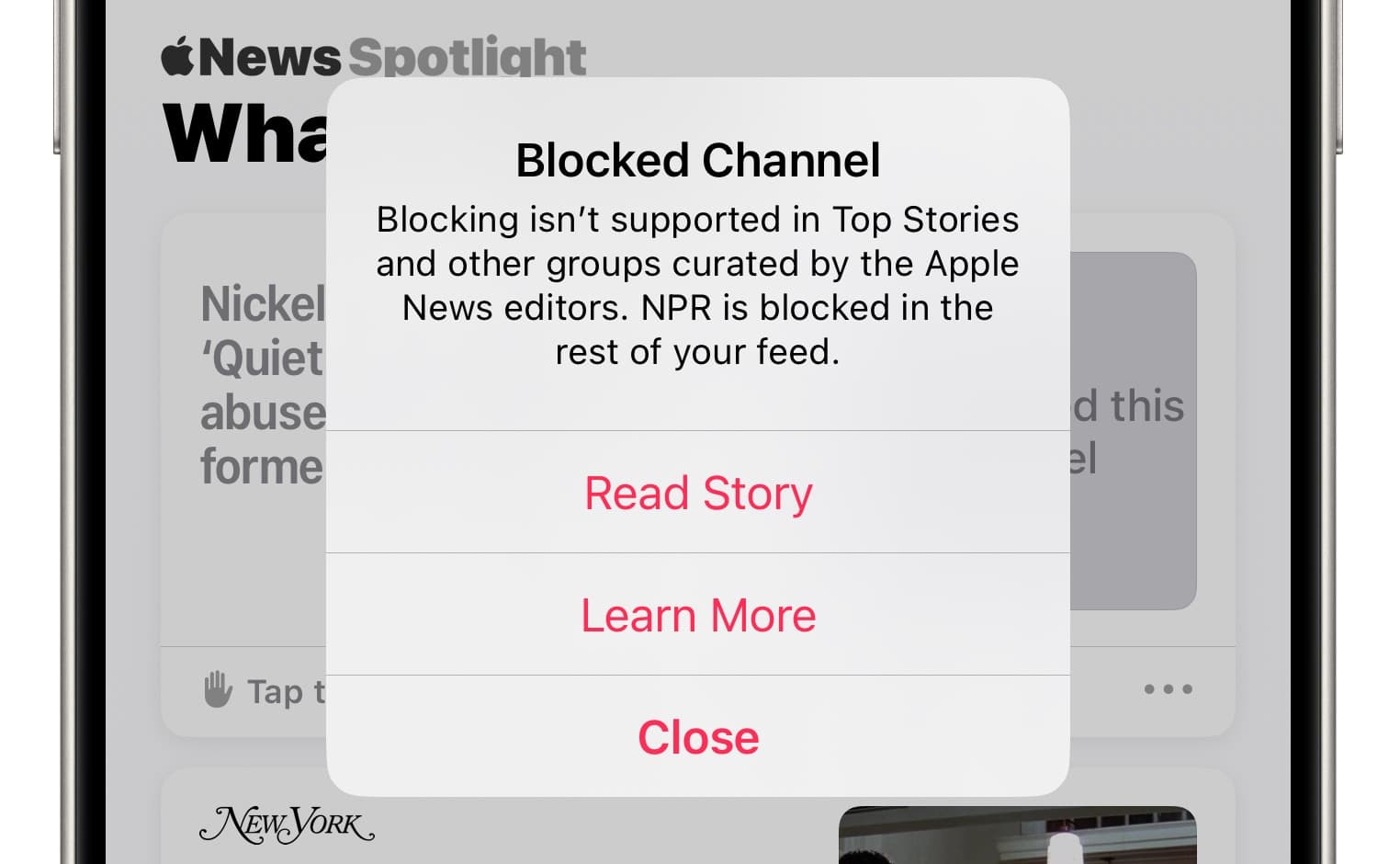
Important: Stories from blocked channels and topics will continue to appear in the Top Stories section of the app and in other groups curated by Apple News editors. However, stories from blocked sources won’t appear elsewhere in the News app.
Block a news source or topic in Apple News
On iPhone
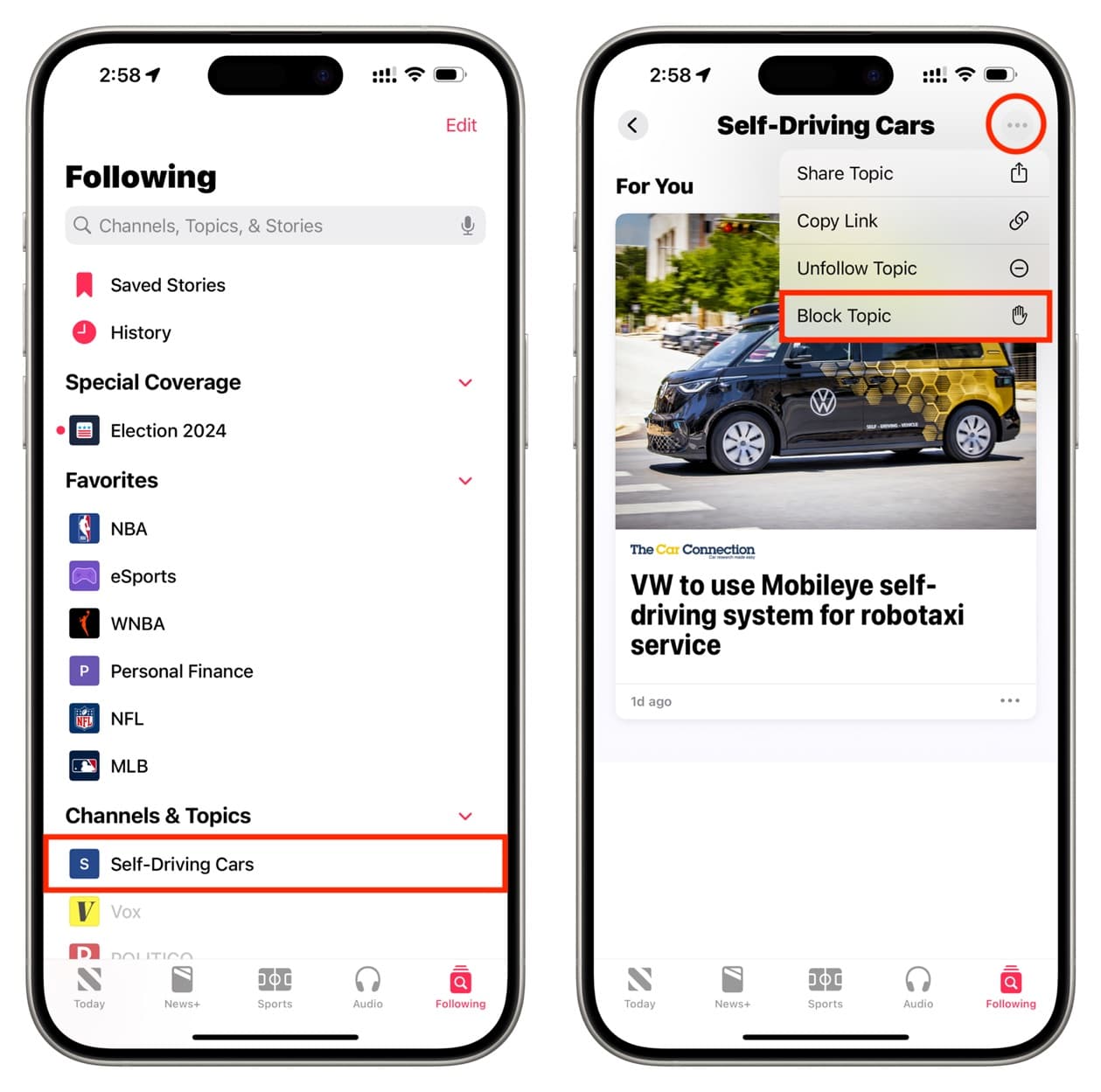
- Open the News app and go to the Following tab.
- You’ll see all the channels and topics you have followed. Select the one you want to block.
- Tap the three-dot menu icon at the top, then choose Block Channel or Block Topic.
On iPad
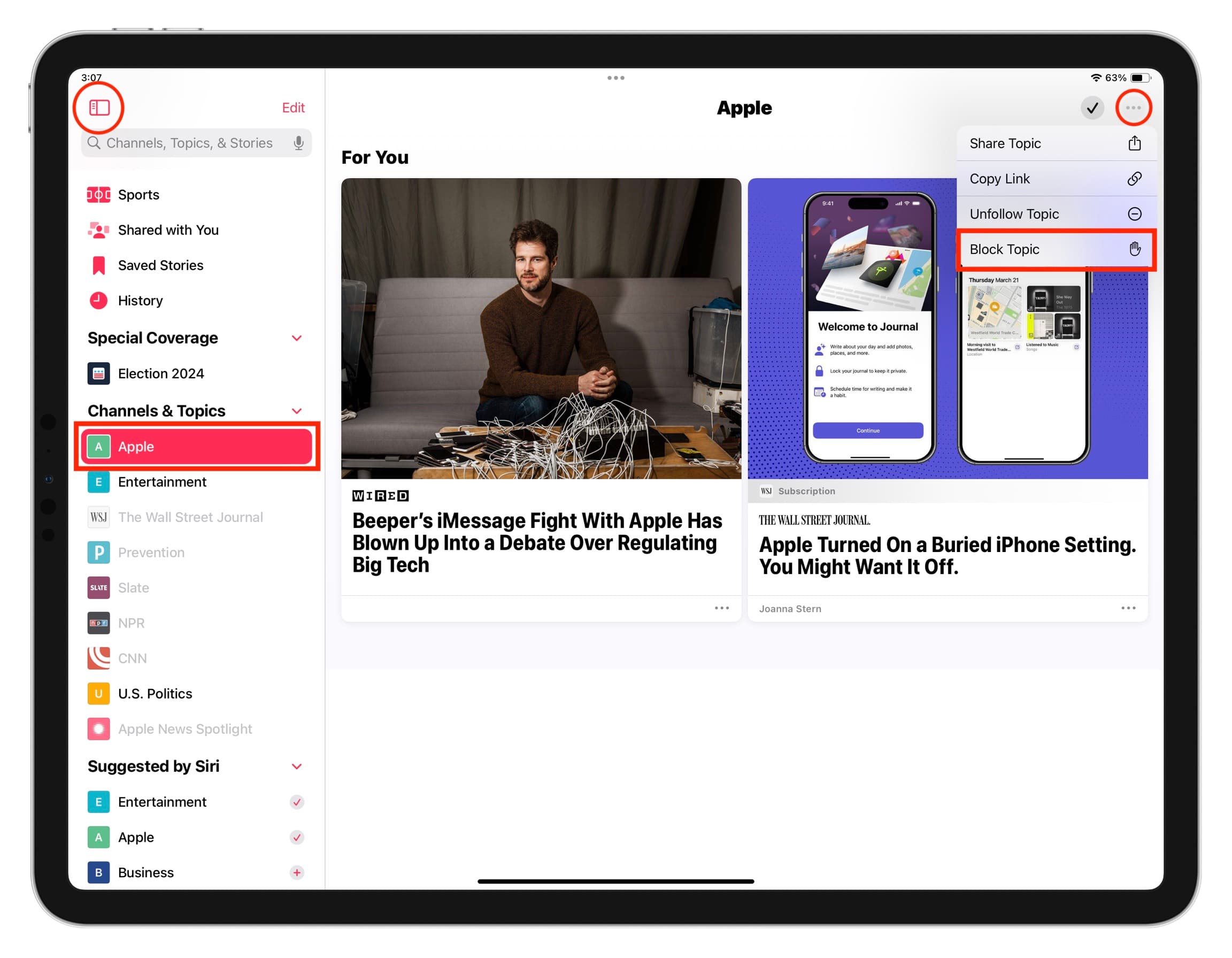
Select the channel from the left sidebar. If it isn’t visible, tap the sidebar button first. Now, select a channel or topic, hit the three dots menu button, and tap Block Channel or Block Topic.
On Mac
- Make sure the left sidebar is visible. If not, click View > Show Sidebar from the top menu bar.
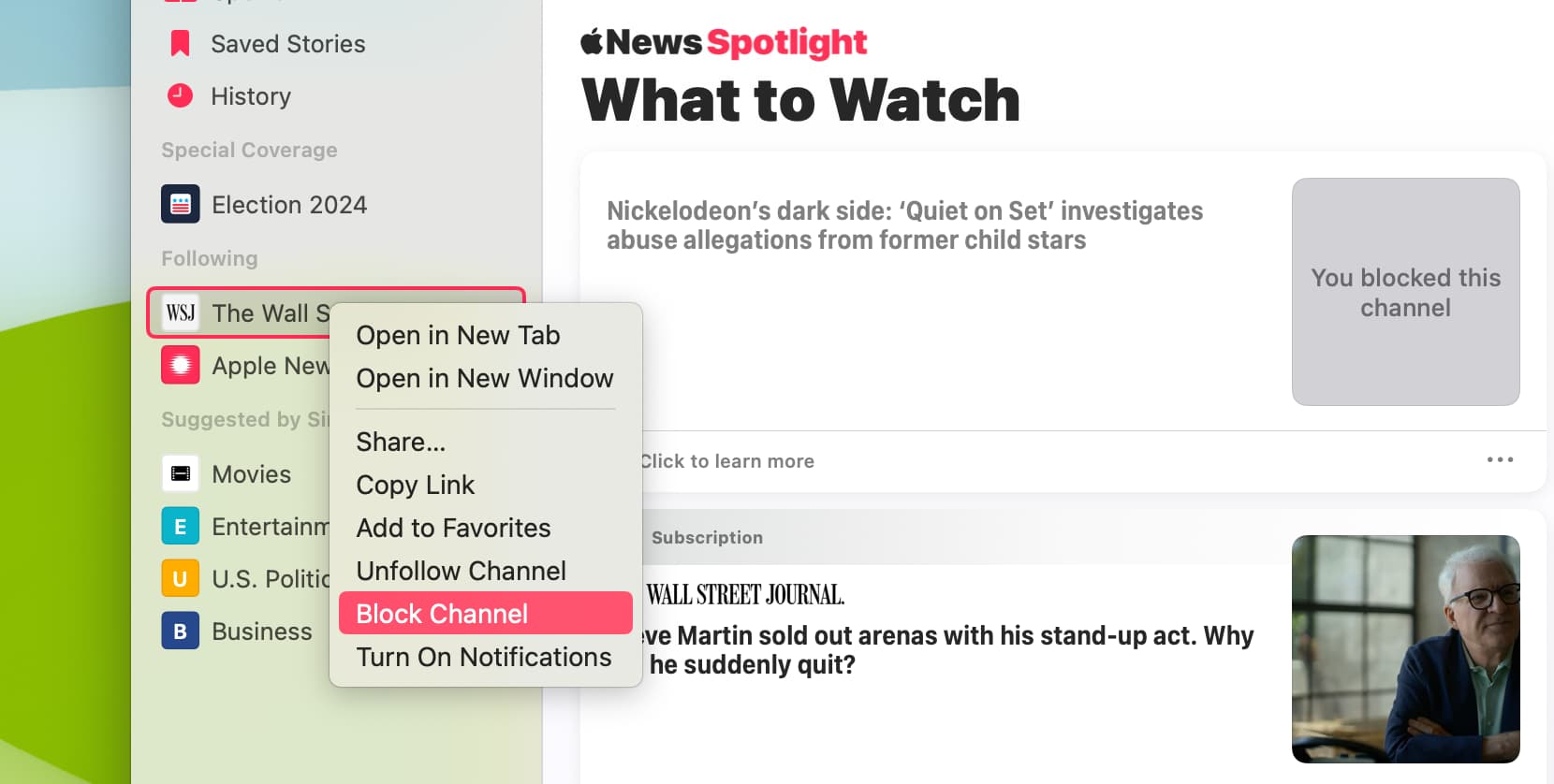
- Right-click over a channel or topic you are following and select Block Channel or Block Topic.
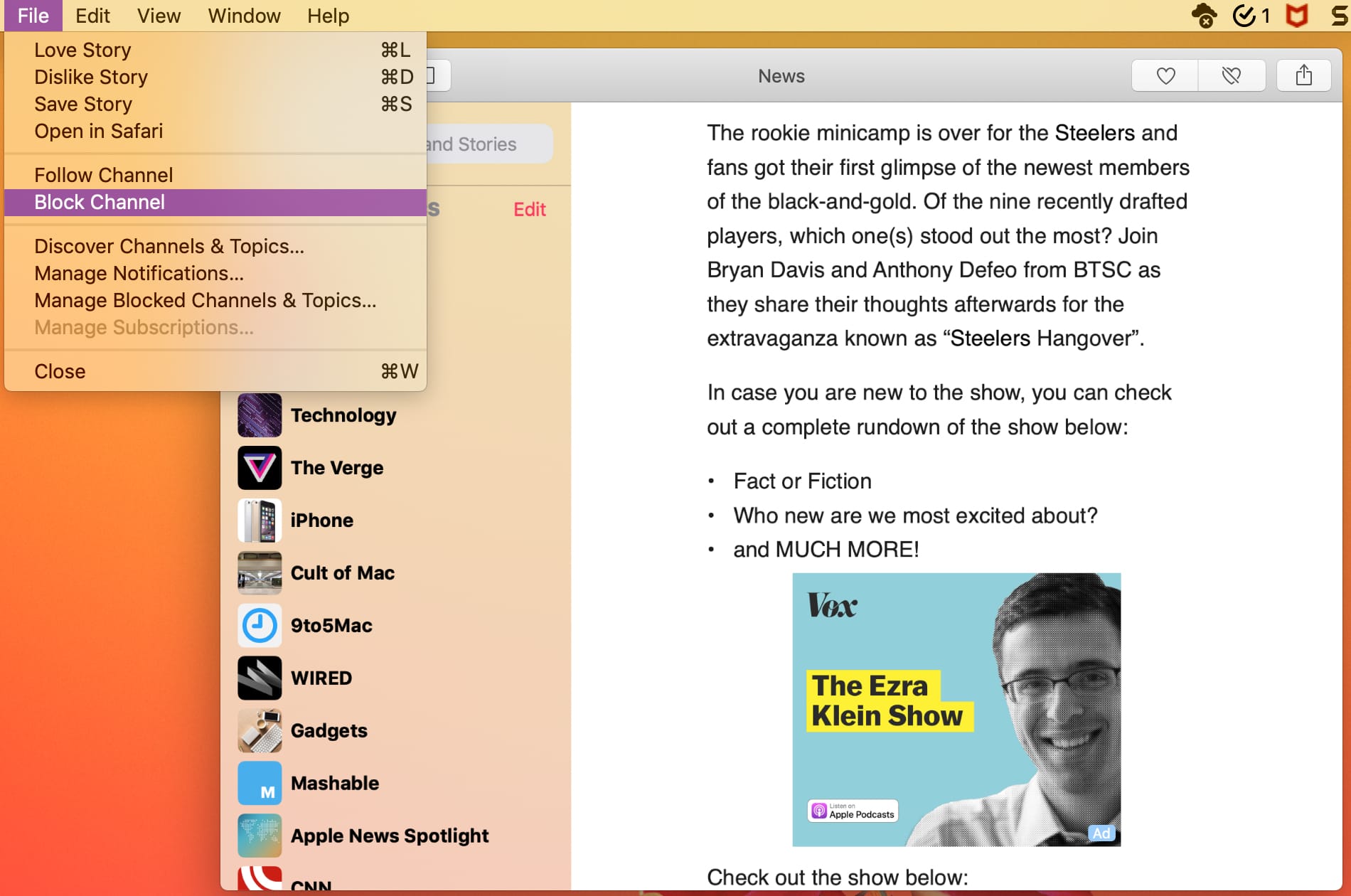
You can also select a channel and click File > Block Channel from the top menu bar.
Another method
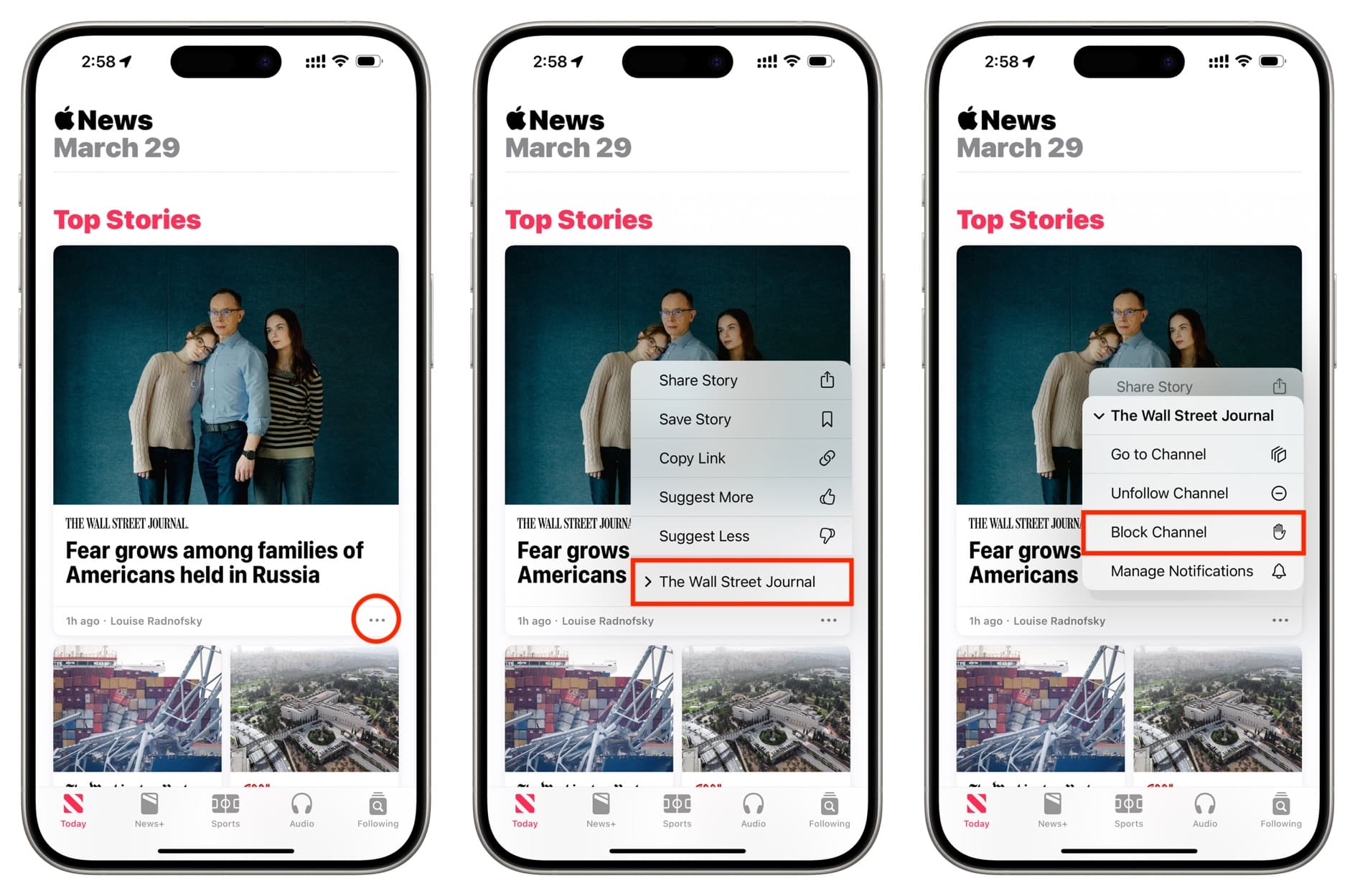
Make sure you are in the Today tab of the Apple News app on your iPhone, iPad, or Mac. Now, tap the three dots icon in a story tile and select Block Channel or Block Topic. If you don’t see it, hit the channel or topic name to reveal the block button.
Unblock a news channel or topic in Apple News
If you change your mind about a news source you have blocked, you can put it back in your good graces easily. After that, you’ll see that channel within its topic once again for you to choose.
On iPhone
- Open the News app and tap Following.
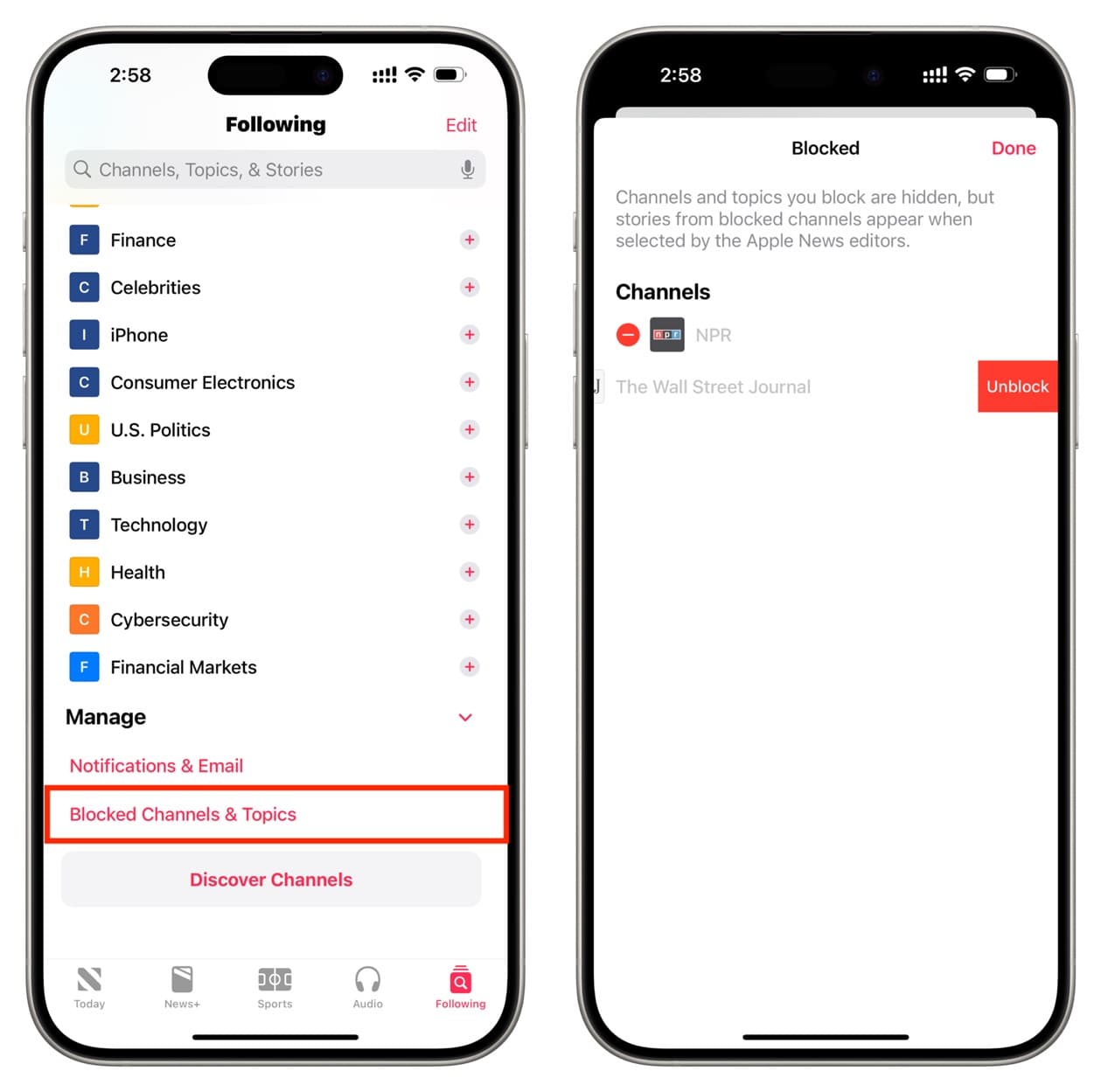
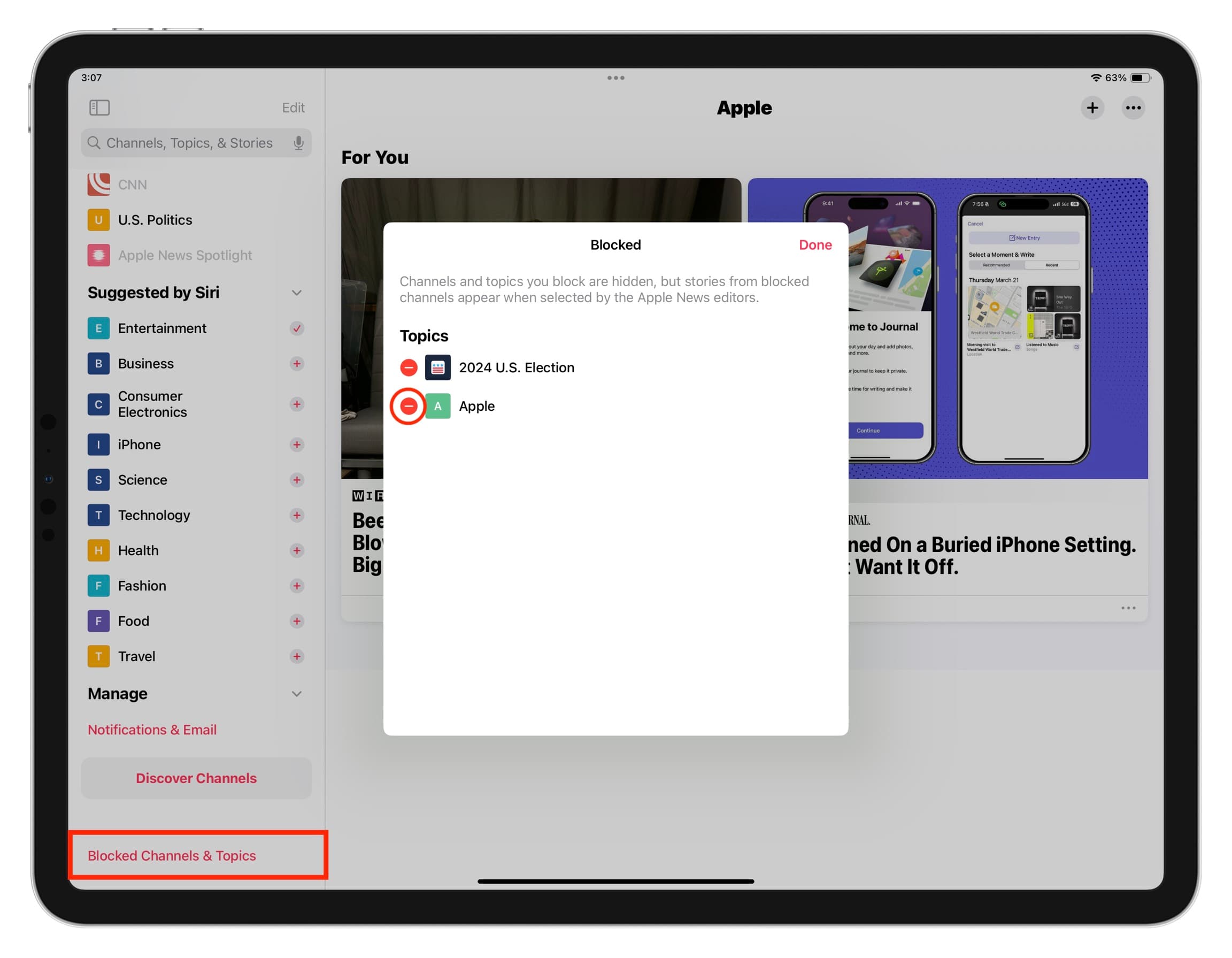
- Scroll down to the bottom and tap Blocked Channels & Topics from under the Manage section.
- Tap the red minus button and hit Unblock.
On iPad
The steps are similar to iPhone; just make sure to select the Blocked Channels & Topics option from the left sidebar.
On Mac
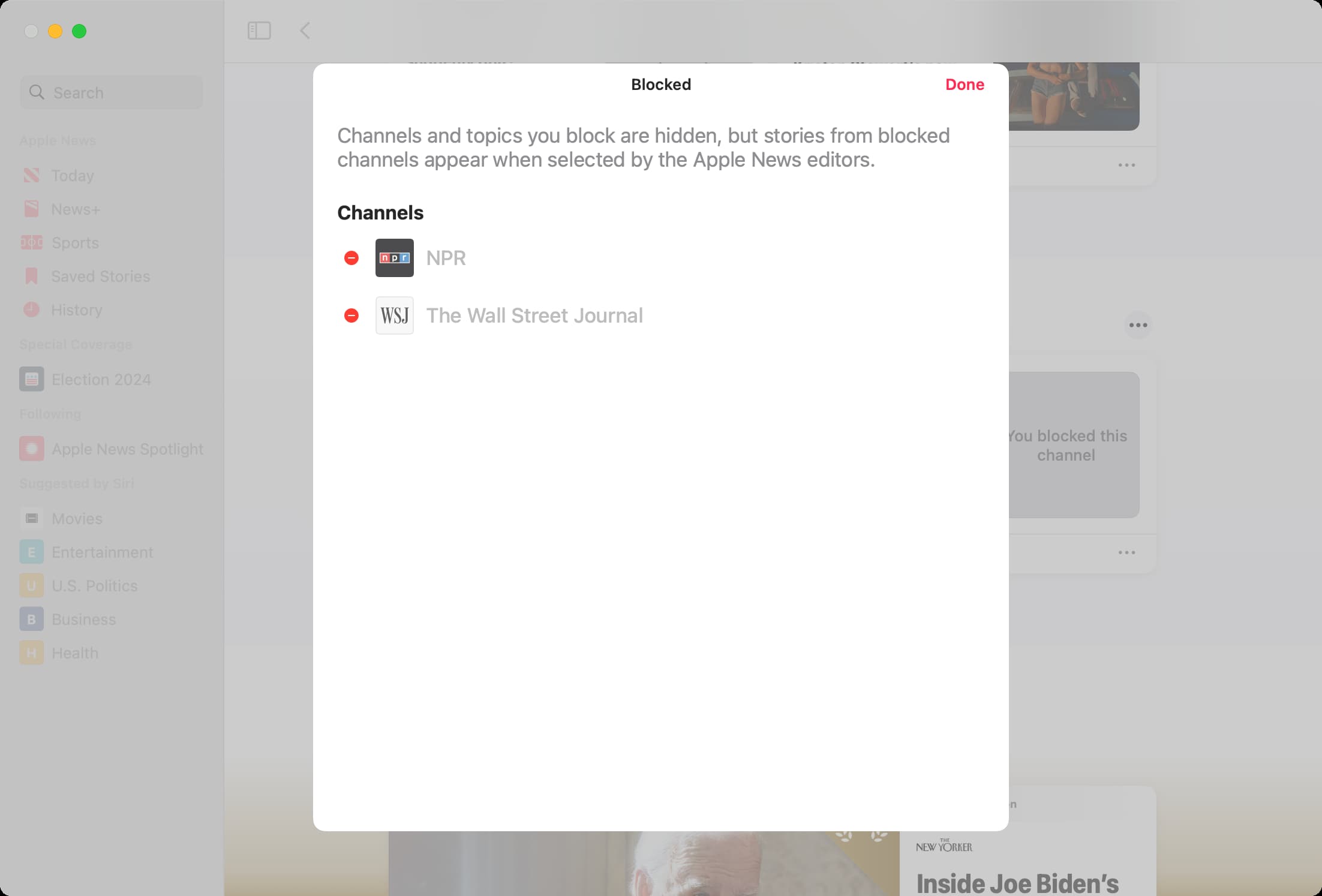
- Open the Apple News app and click File > Manage Blocked Channels & Topics from the top menu bar.
- Hit the red minus button and click Unblock.
How do you feel about Apple News? Is it your preferred news app? Do you subscribe to receive access to even more sources? Are you planning to block any channels?
Other tips for Apple News: