Apple’s Photos app on the iPhone or iPad lets you quickly crop an image while pinch-zooming without entering editing mode first, and we show you how.
How to quickly crop an image in the iPhone’s Photos app while viewing it
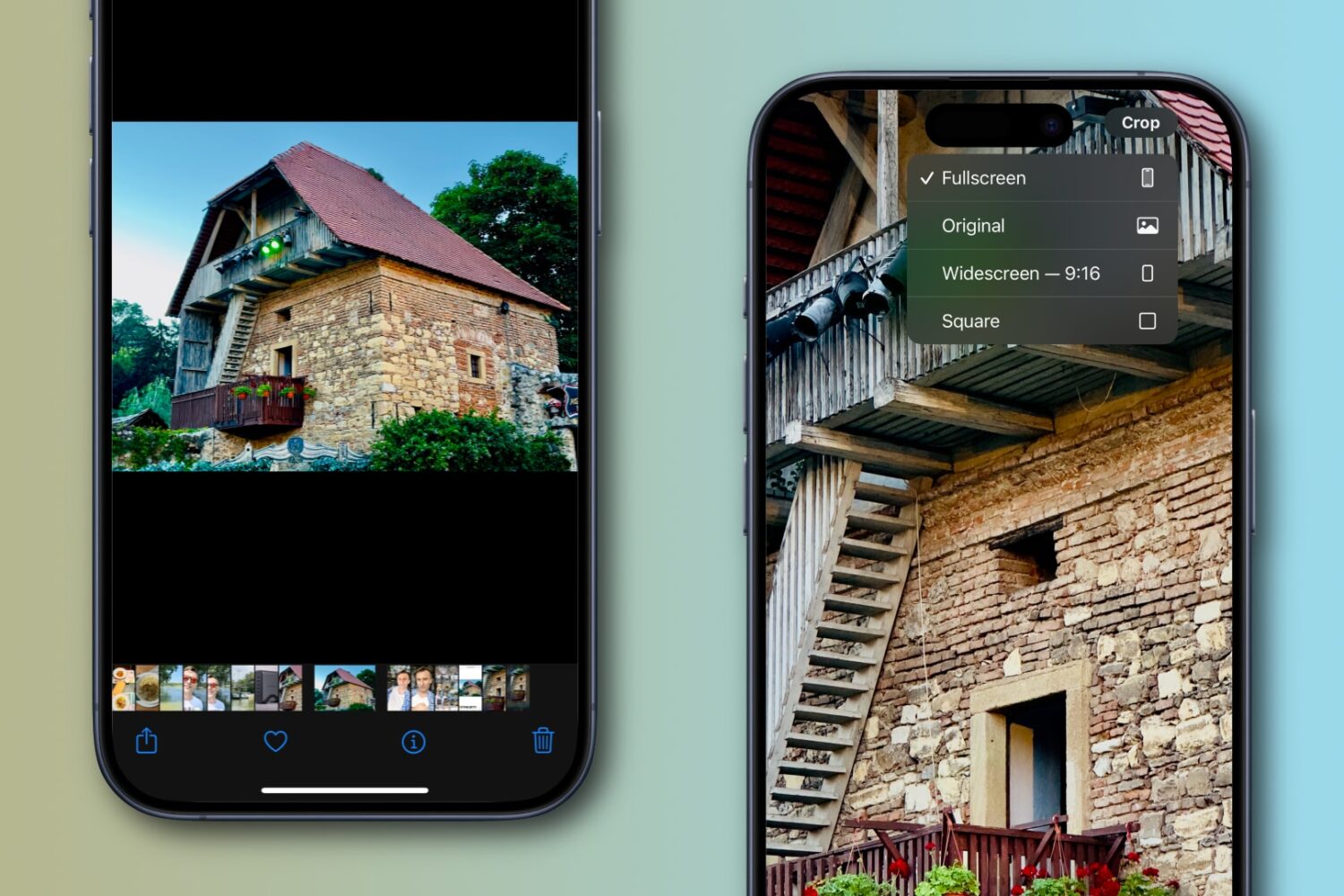
Apple’s Photos app on the iPhone or iPad lets you quickly crop an image while pinch-zooming without entering editing mode first, and we show you how.
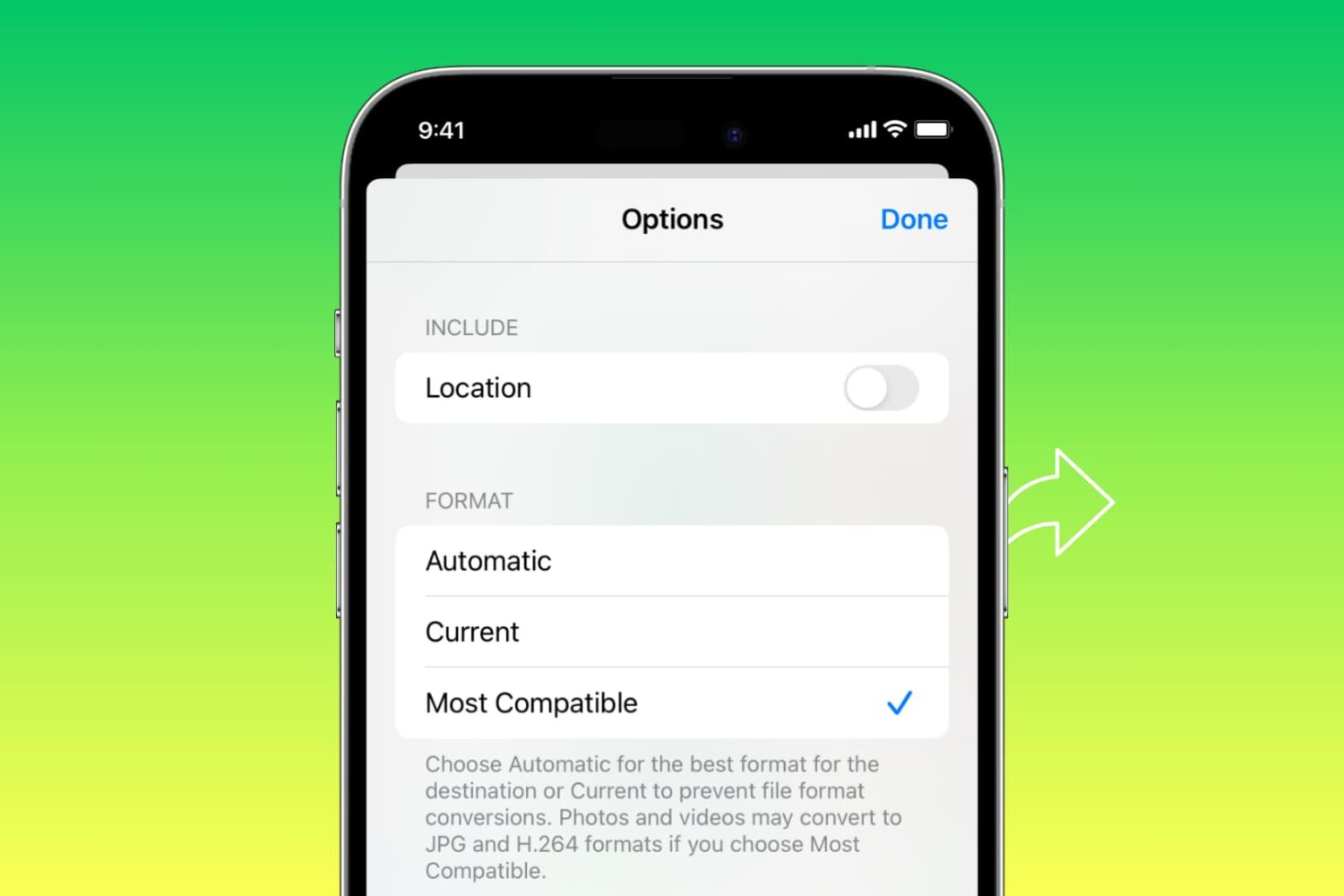
Learn how to automatically convert pictures to the JPG format and videos to MOV when you share them from your iPhone or iPad.
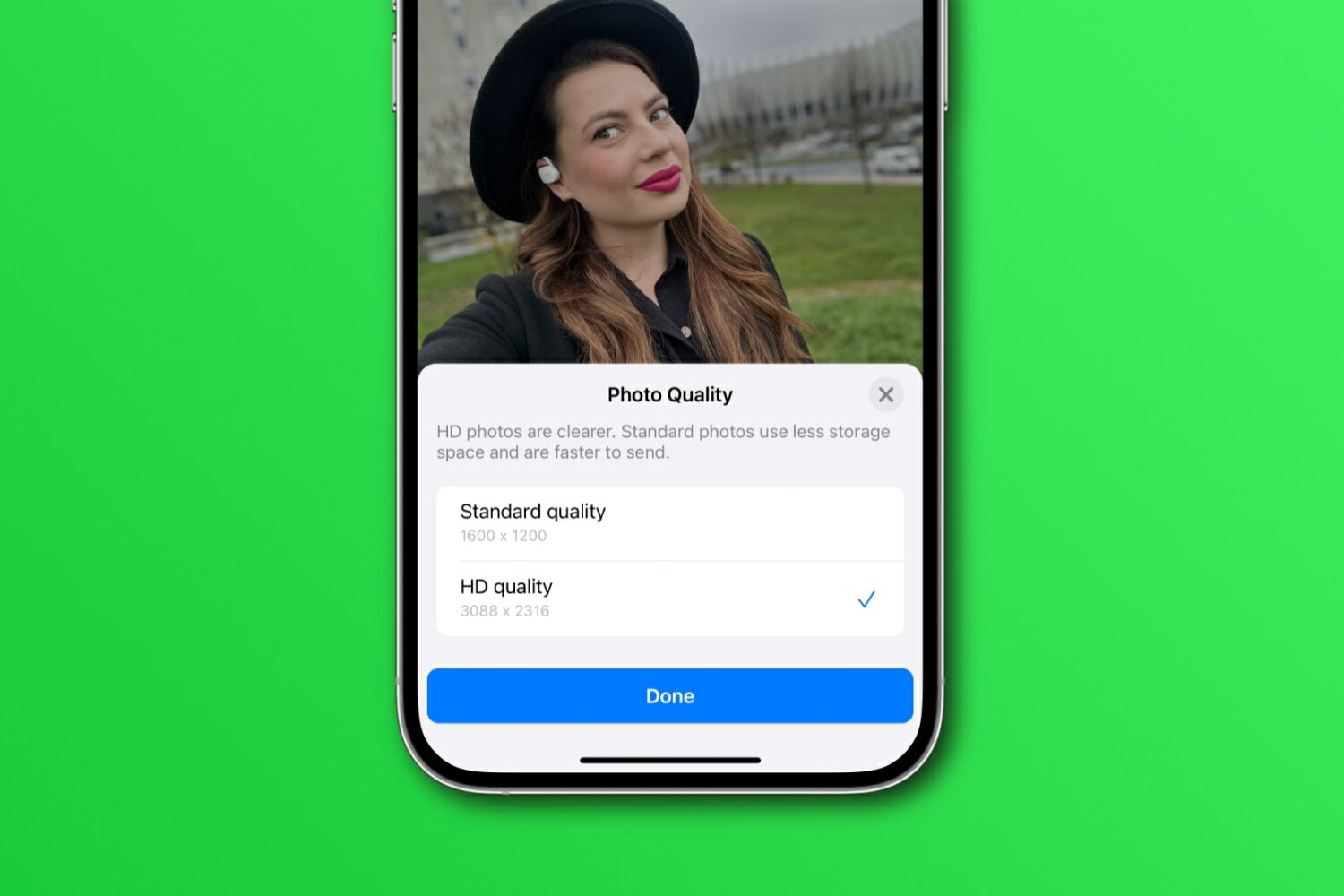
Learn how to share WhatsApp photos and videos in their original resolution instead of compressed, lower-quality versions with fewer details.
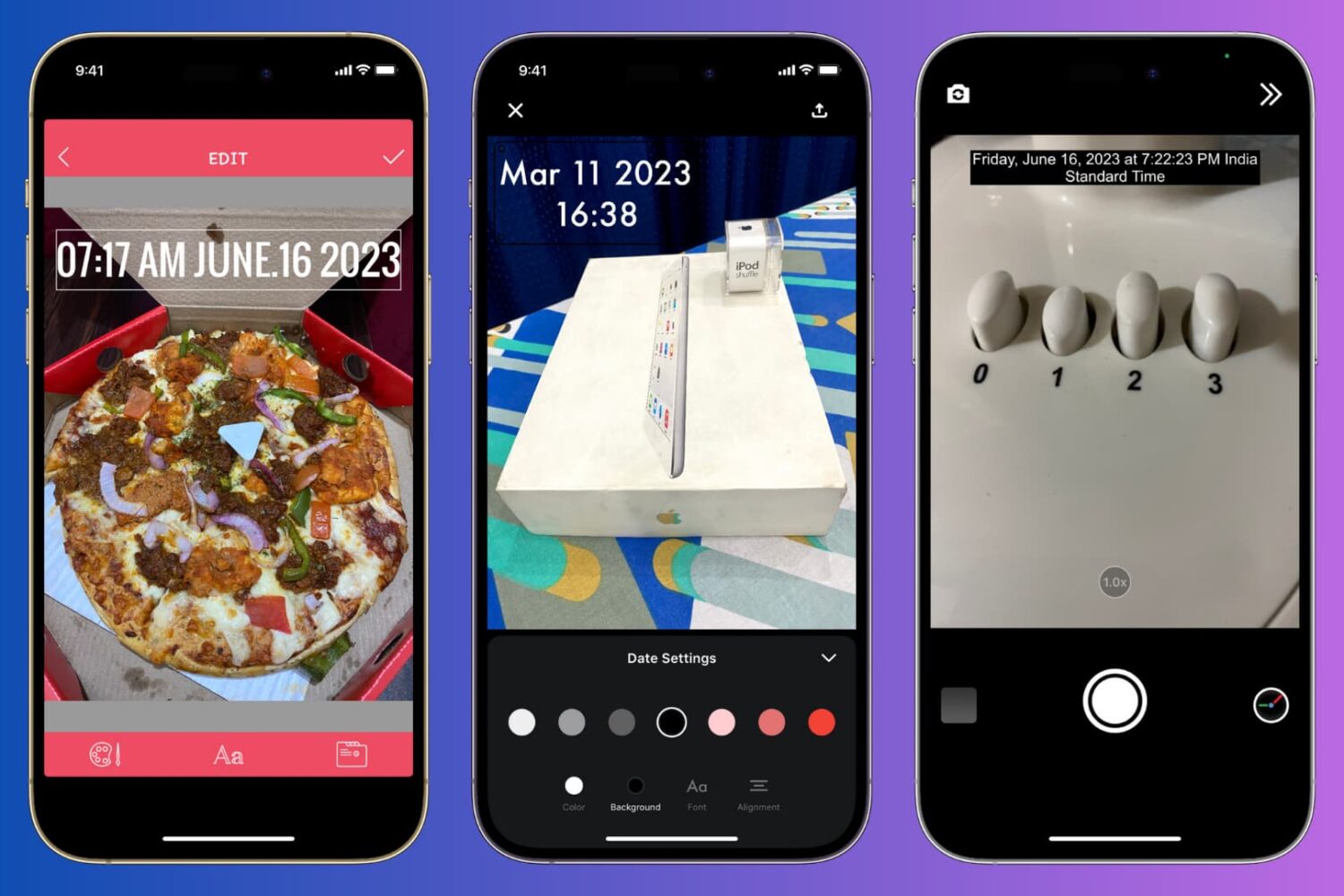
Learn how to manually add the current date and time to your iPhone photos or use a third-party app to automatically timestamp your snaps.
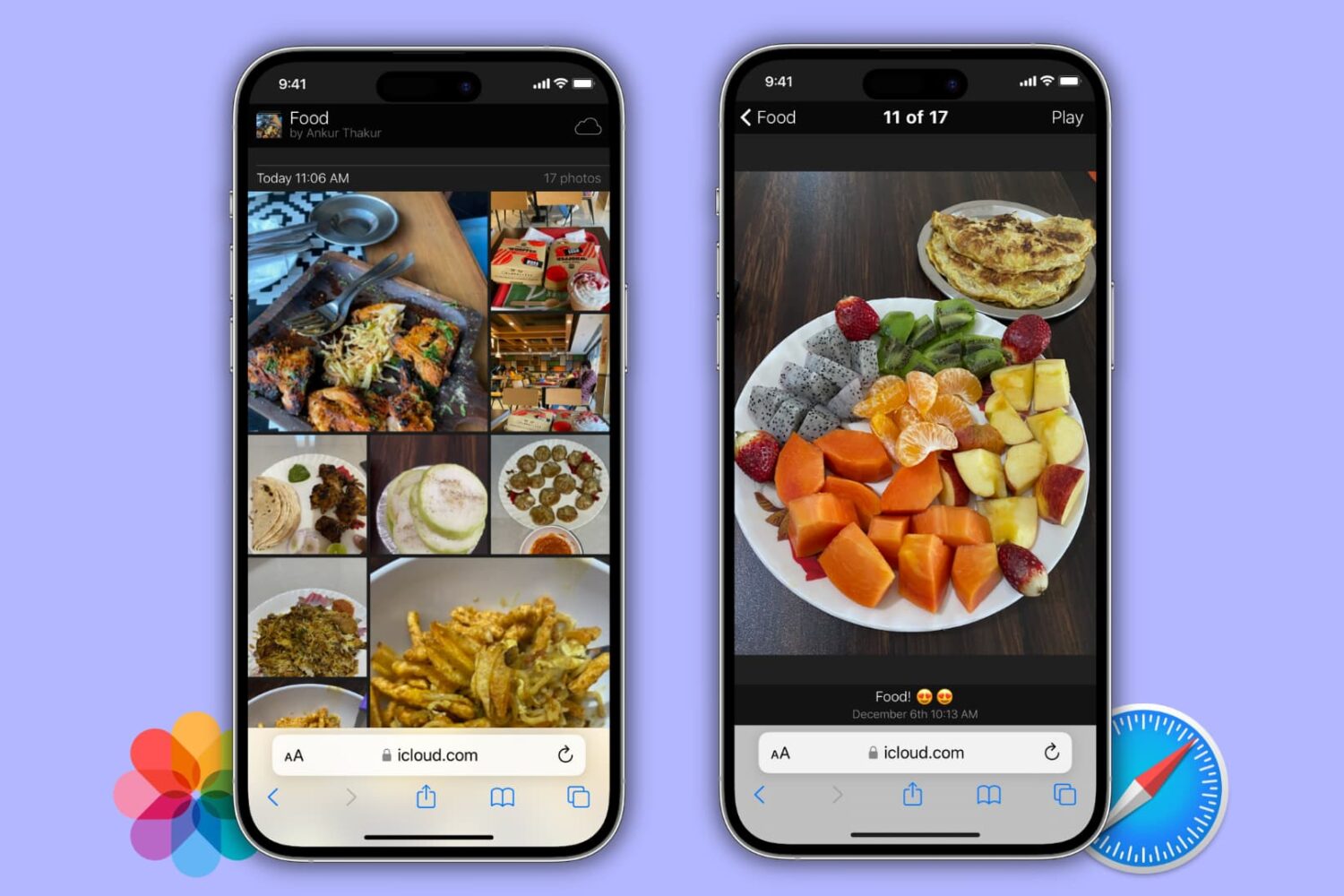
Learn how to turn a photo album on your iPhone, iPad, or Mac into a public website for free that anyone can visit directly from their phone or computer!
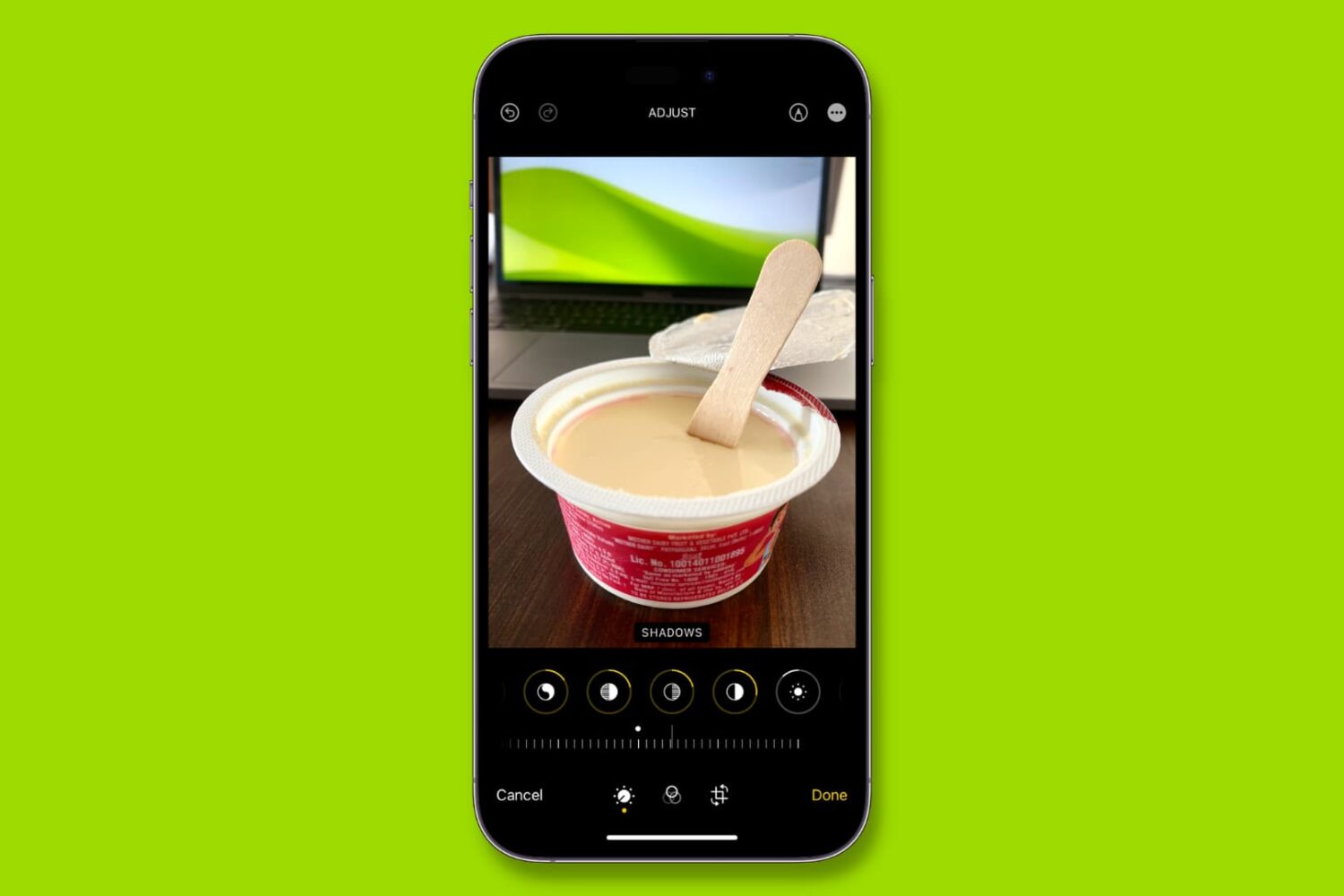
Learn how to copy edits from one photo and paste them onto other images in the Photos app on your iPhone or iPad, allowing you to apply the same adjustments to multiple pictures without editing each one separately.

Learn how to remove the security lock from your Hidden and Recently Deleted folders in the Photos app on your iPhone, iPad, and Mac.
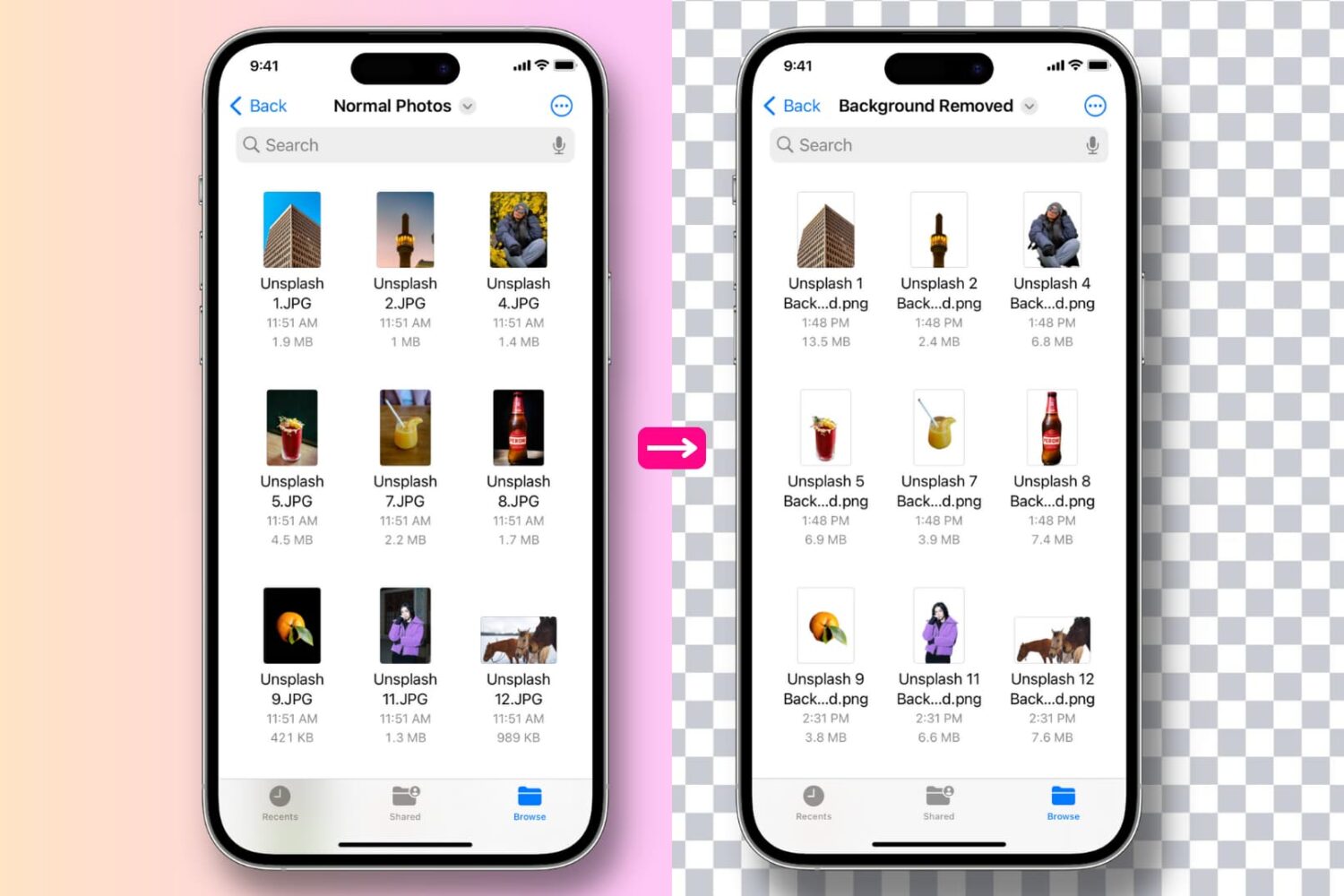
Learn how to remove the background, extract the main subject of one or several images to get a background-less PNG image, and use the subject in Messages or other photo editing apps.

Learn how to create and enjoy a slideshow of images and videos on iPhone, iPad, and Mac right from the Photos app.
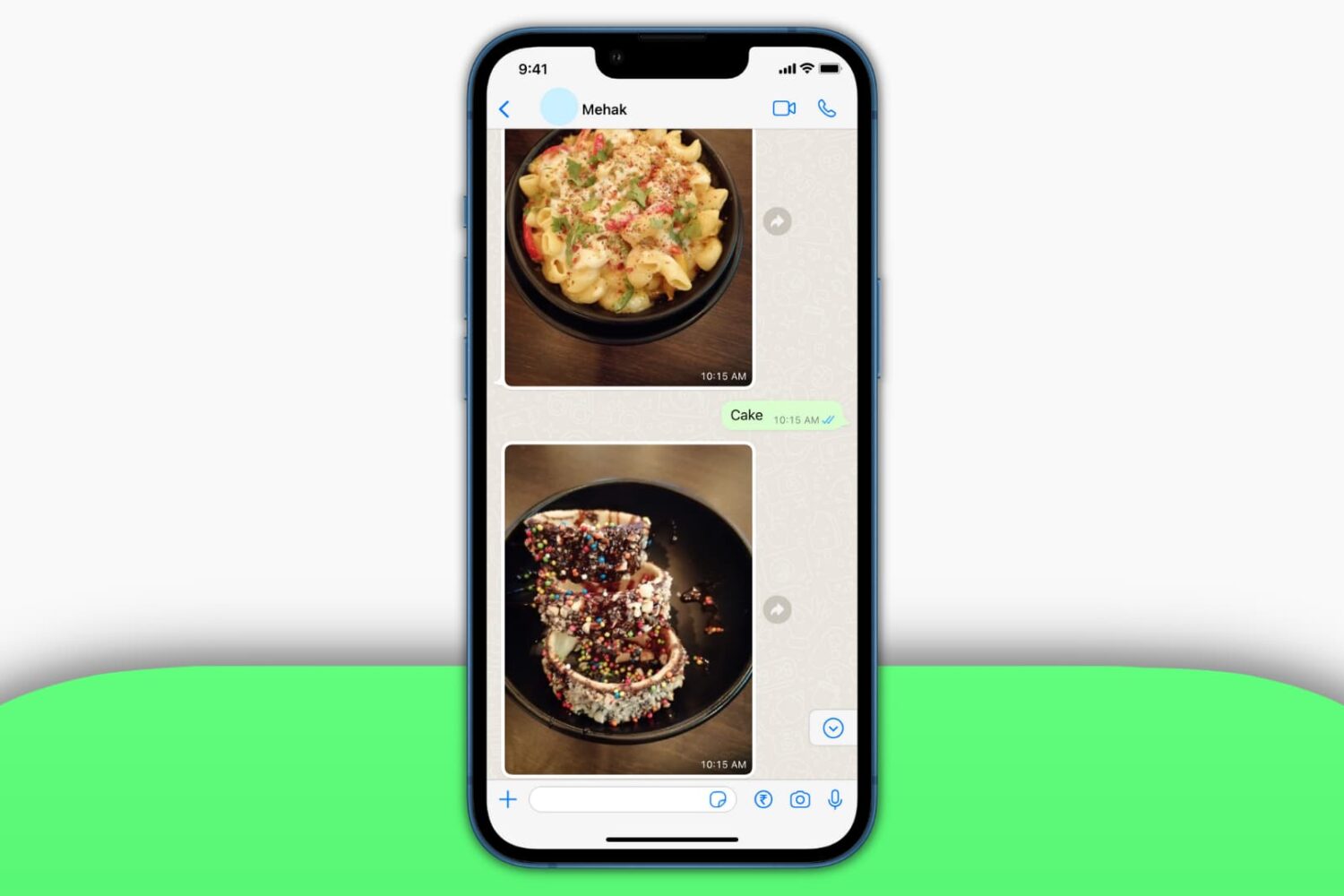
In this tutorial, we’ll show you how to prevent WhatsApp from saving media to your iPhone if unnecessary images and videos sent from friends, family, and businesses are filling up the iOS Photos app.
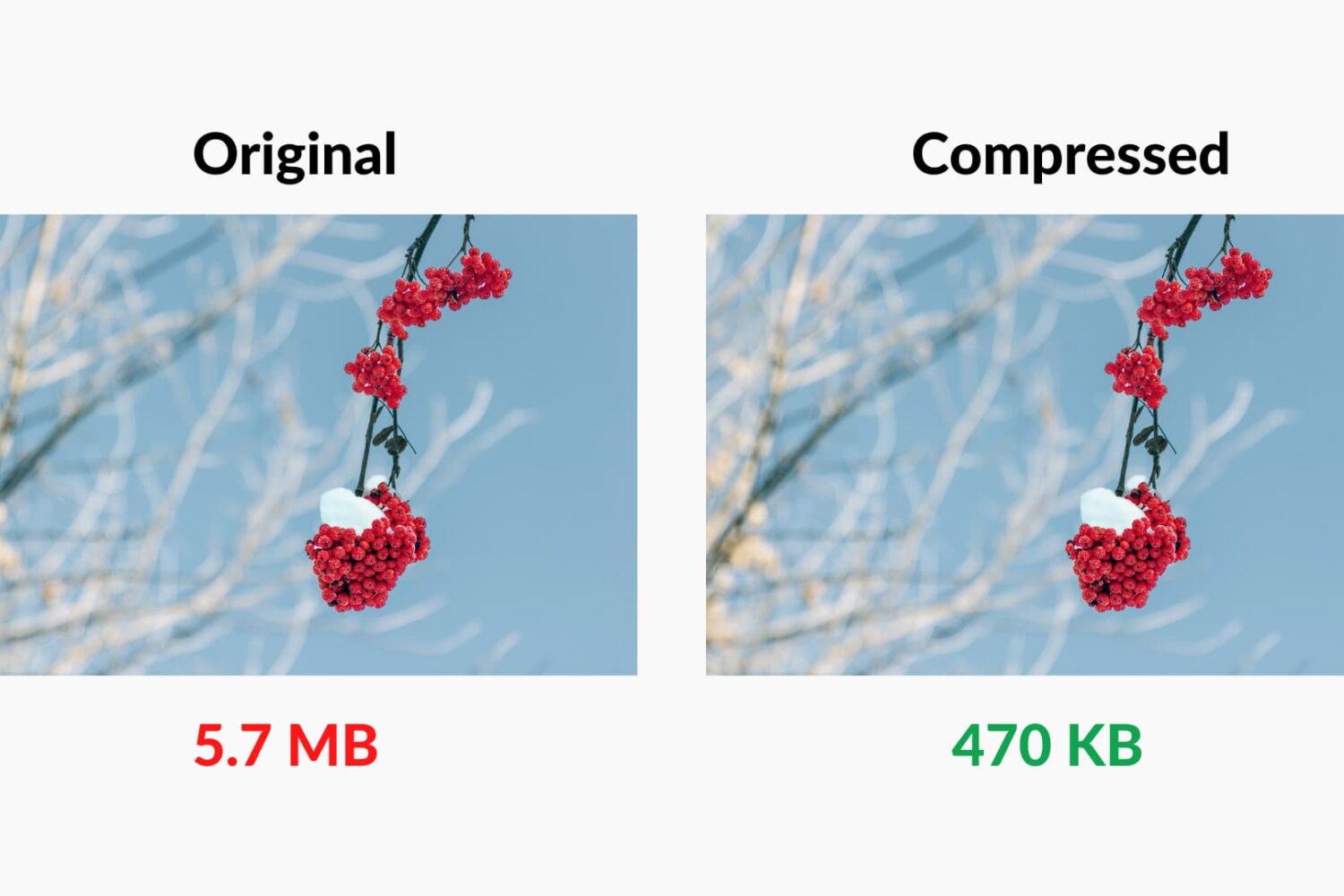
Check out these 7 easy tools to compress images on your Mac to save space without compromising quality.

Don't like the current cover image of a photo album? Check out these quick steps to use any other picture or video as the cover photo or "Key Photo" for an album on your iPhone, iPad, or Mac.