Check out these free iOS apps that let you turn a portrait image or picture into a sketch, watercolor, oil painting, and more.
How to convert photos to paintings and sketch on iPhone or iPad

Check out these free iOS apps that let you turn a portrait image or picture into a sketch, watercolor, oil painting, and more.
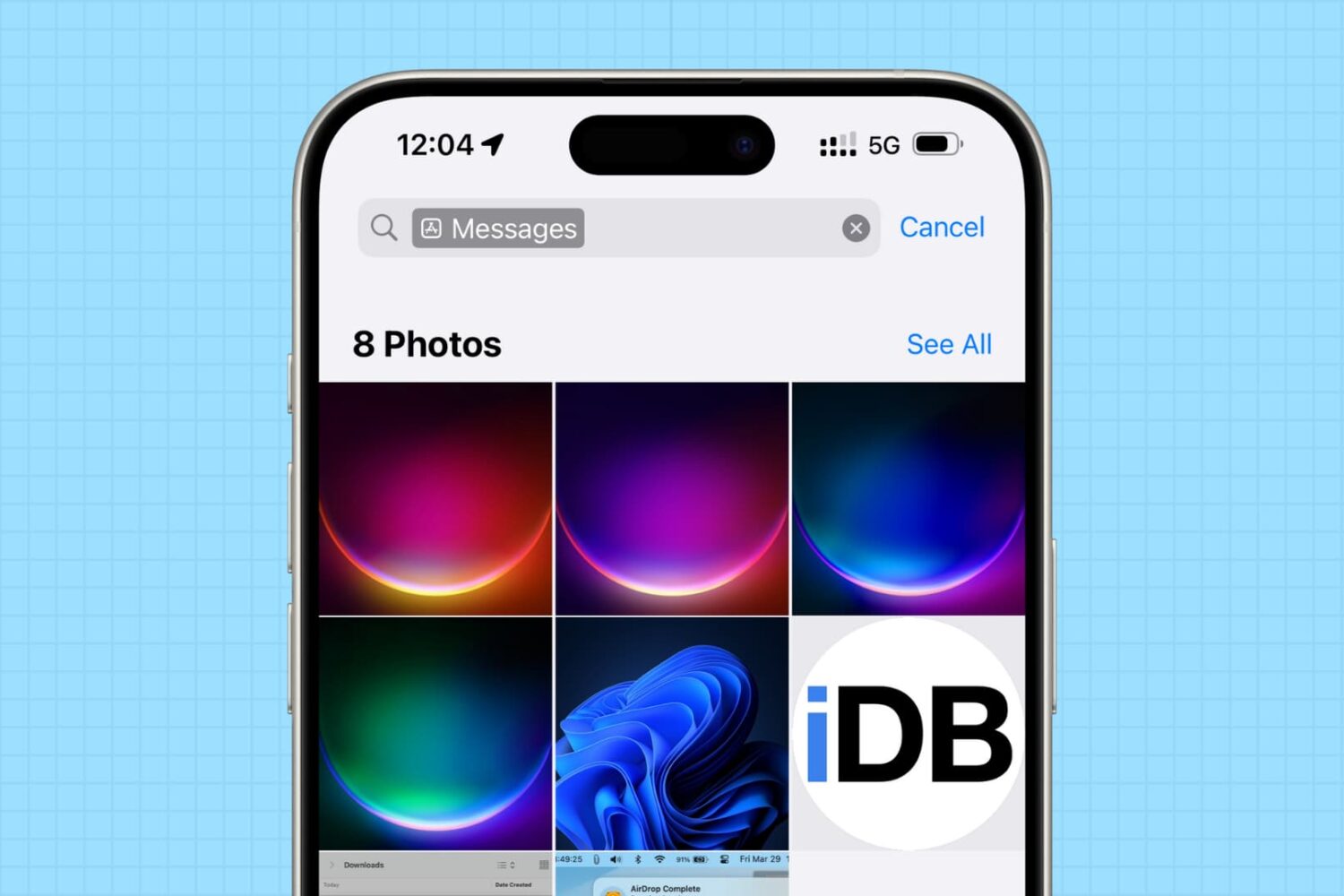
In this tutorial, we will share how to see the photos saved by a specific app on your iPhone or iPad, and delete them all to clean up your library and free up space.
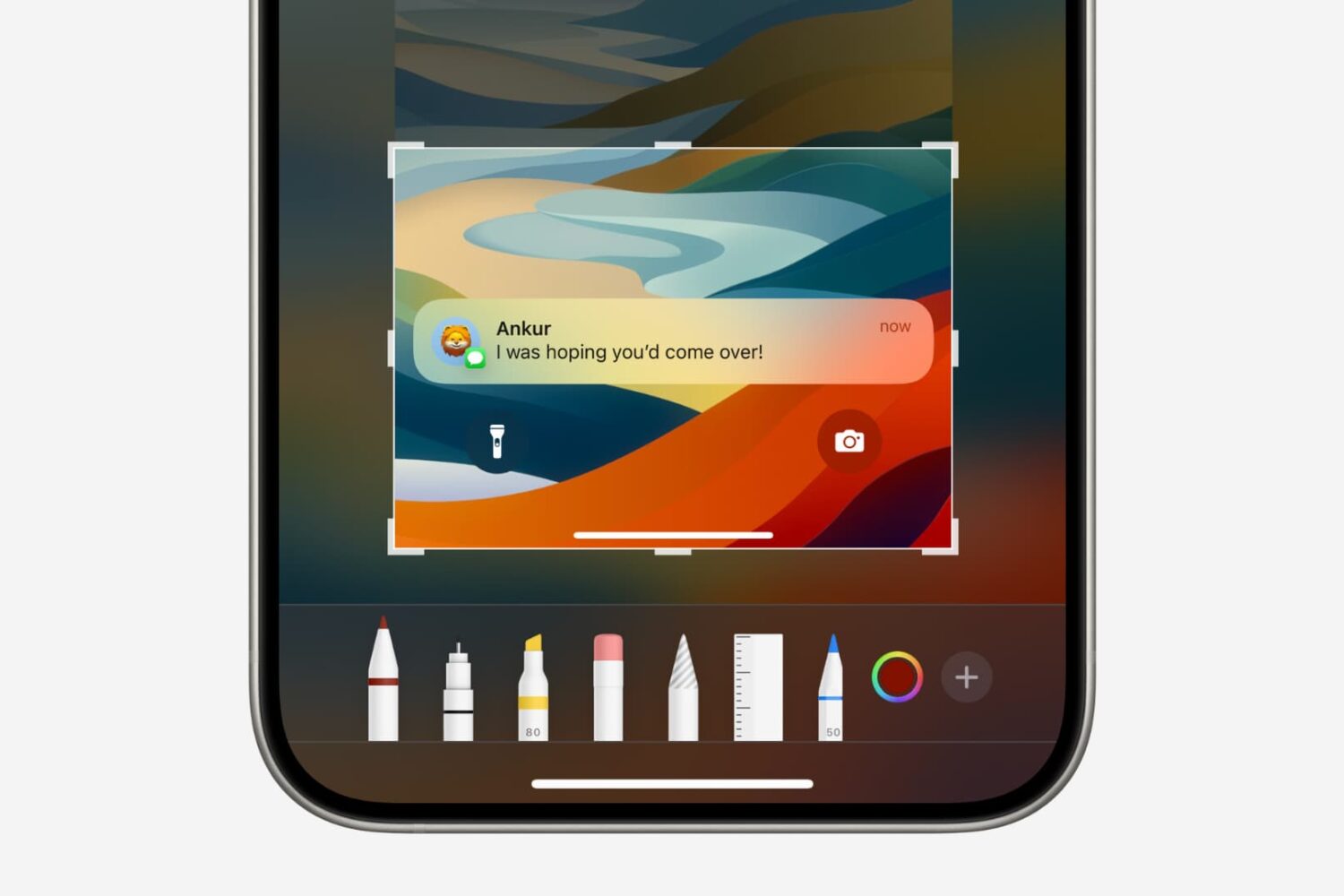
In this tutorial, we will show you how to quickly crop a screenshot or screen recording on your iPhone, iPad, or Mac before you save or share it.
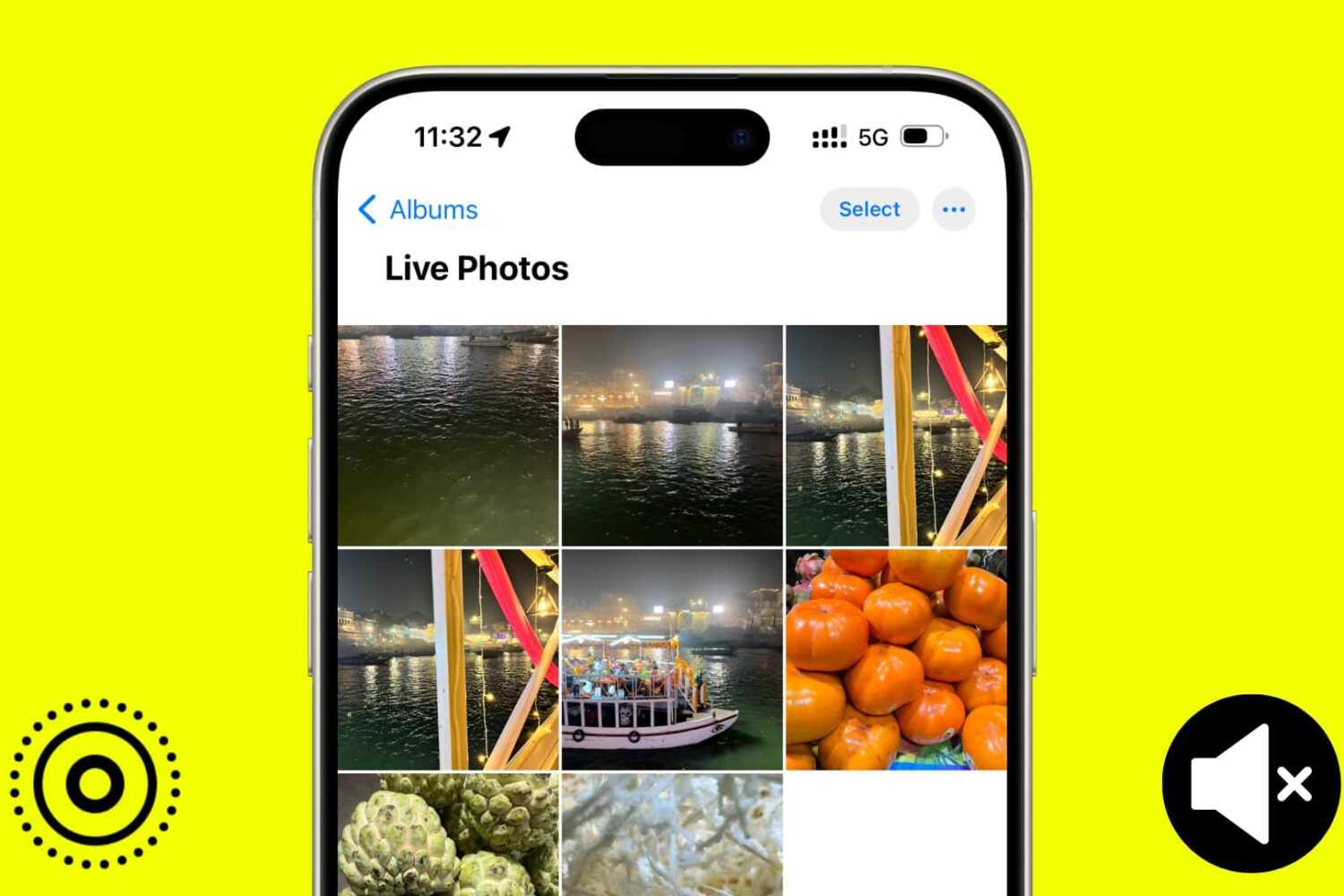
In this tutorial, we will show you how to use the Apple Photos app to remove sound from your Live Photos and save them as soundless media files.
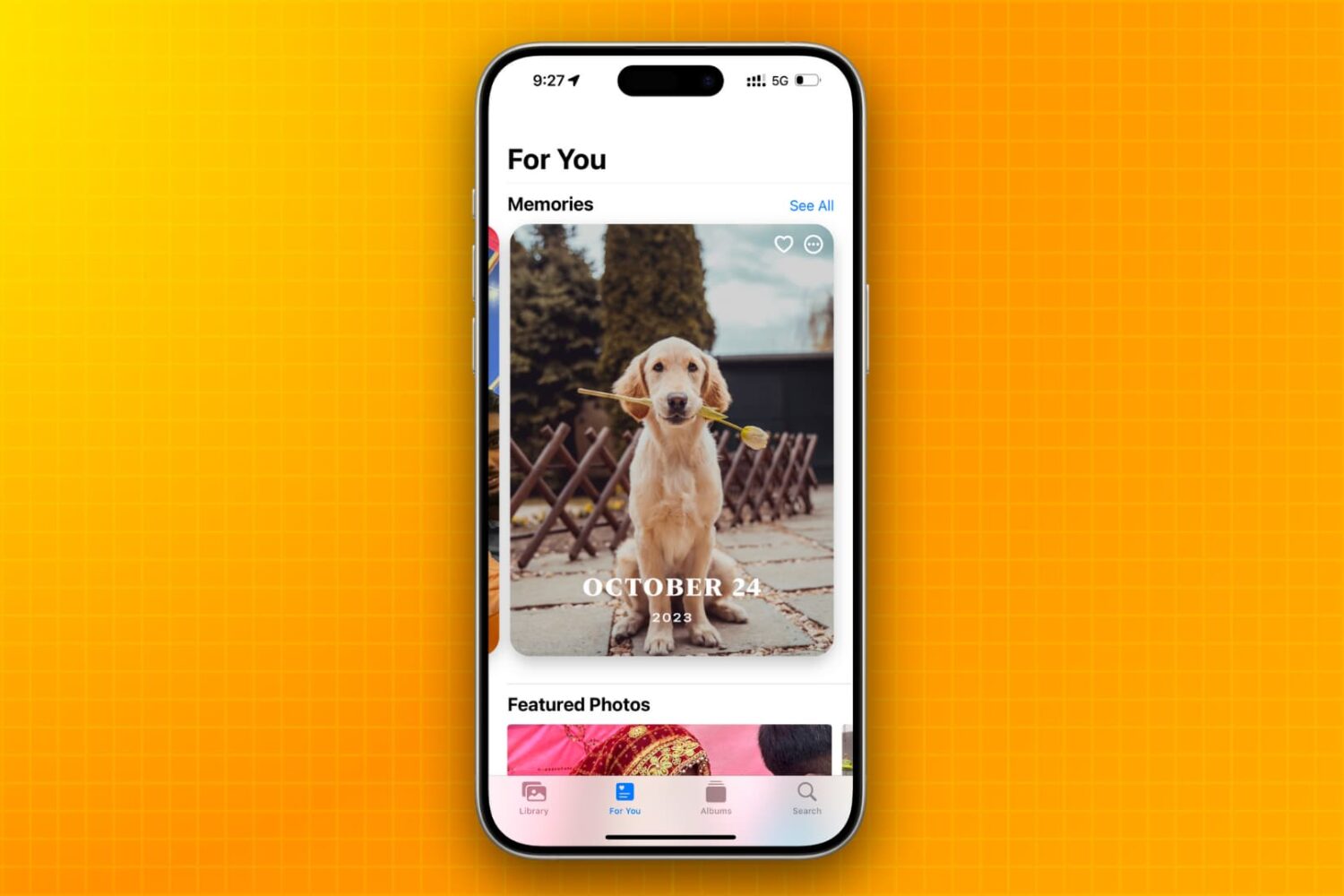
Learn how to stop your iPhone, iPad, or Mac from showing pictures in the Memories and Featured Photos sections of the Photos app as well as the photo widget.
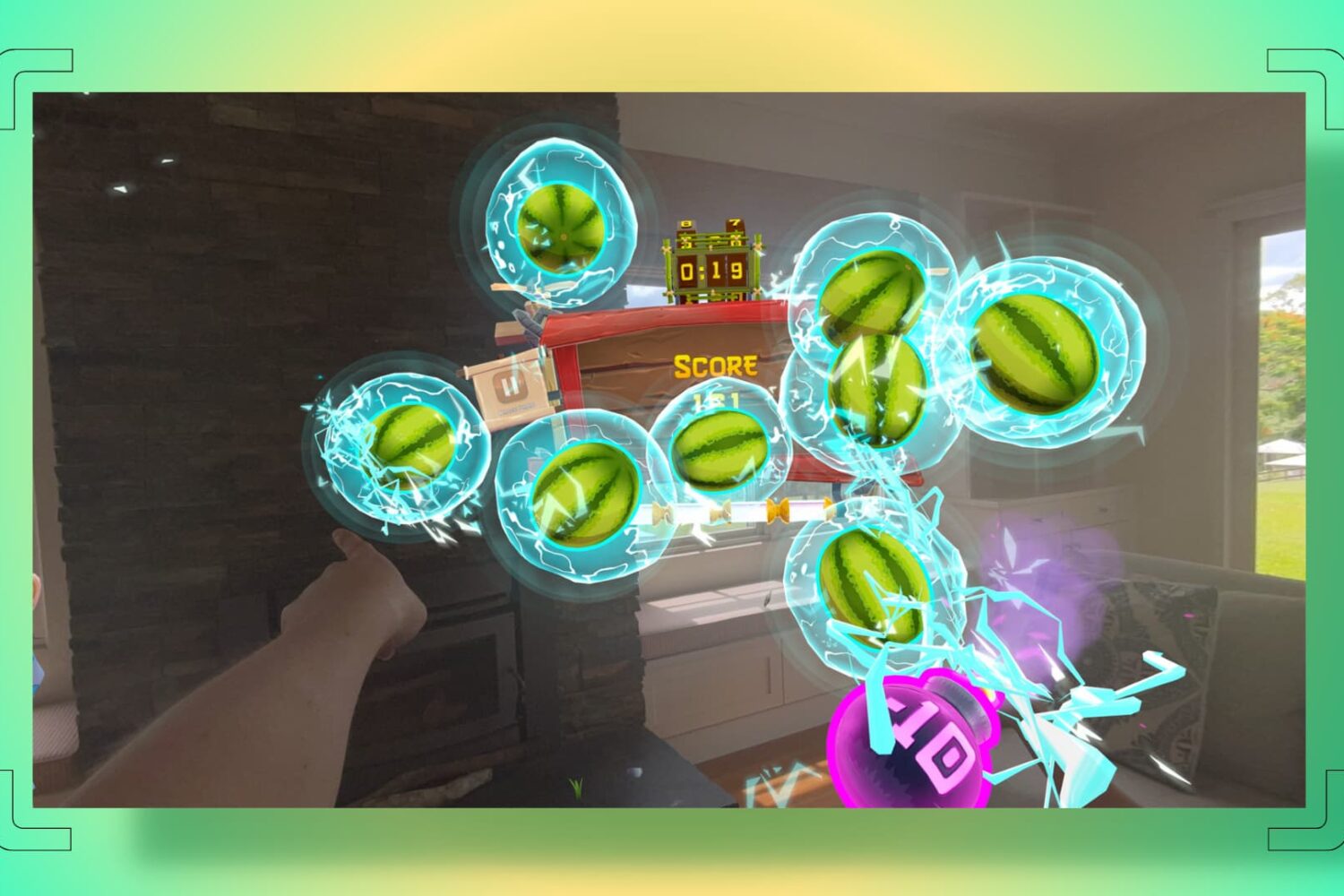
In this tutorial, we will show you how to take a screenshot of the virtual view that appears in front of you when you're using the Apple Vision Pro headset.

In this tutorial, we will show you how to use WhatsApp to turn a photo into a sticker and send it in a chat or save this custom sticker for future use.
In this tutorial, we will explore some handy tips to organize your iPhone and iPad Photos app. These tips will ensure you do not have to struggle to find the desired pictures at the right time, even if your photo library has thousands of images and videos.
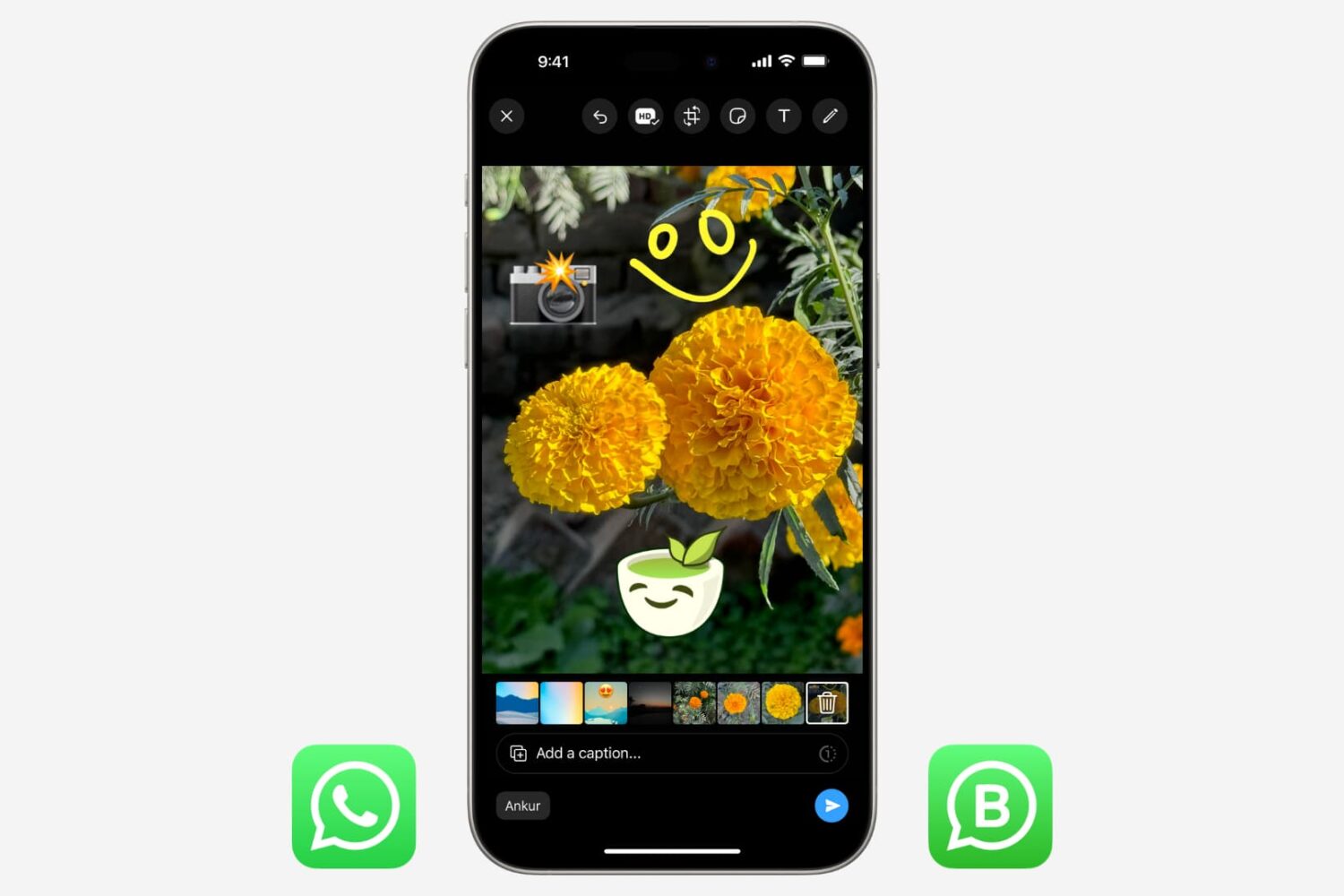
In this tutorial, we will show you how to crop a photo or video, pixelate sensitive parts, and add text, sticker, emoji, or drawing over the media before sending it to a person or group using WhatsApp or WA Business on your iPhone.

Check out these 7 easy ways to recover deleted WhatsApp photos and videos on your iPhone or Android device.
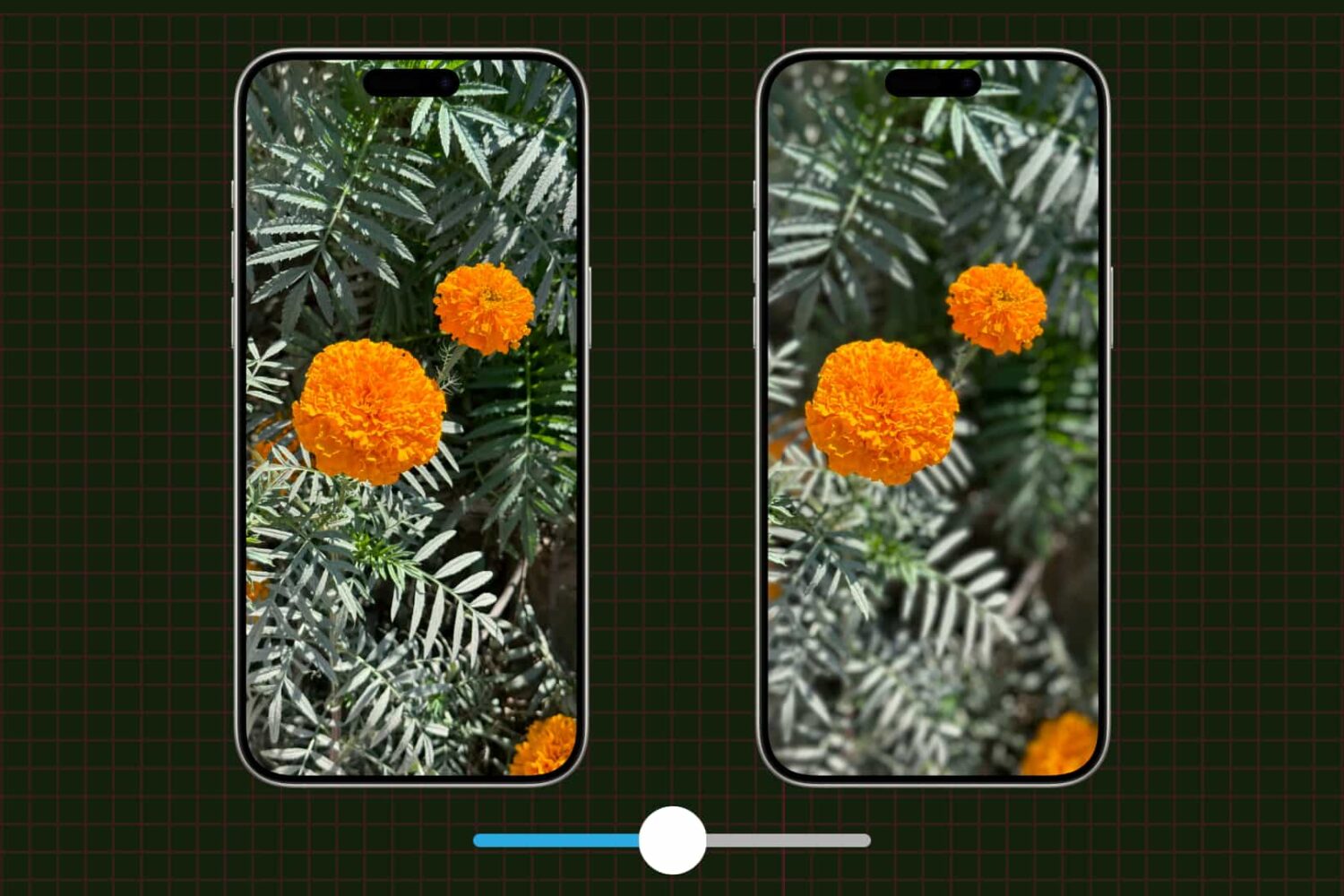
Learn how to adjust a photo's depth of field and focus point on your iPhone to change the amount of background blur, also known as bokeh.