Learn how to use one or more custom videos as your screen saver on Mac to bring motion and life to your display when your computer is idle.
How to use a video as your Mac screen saver
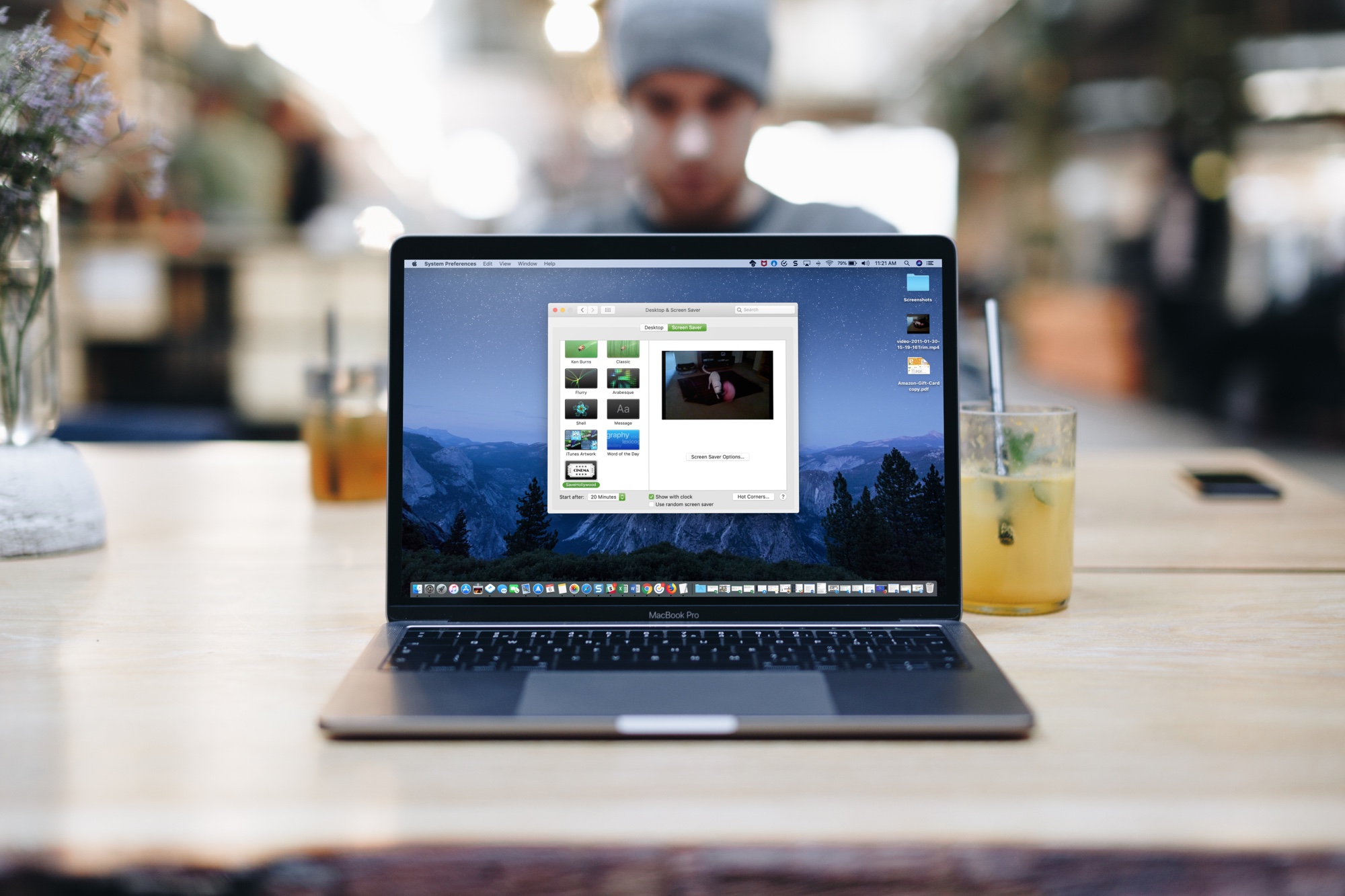
Learn how to use one or more custom videos as your screen saver on Mac to bring motion and life to your display when your computer is idle.
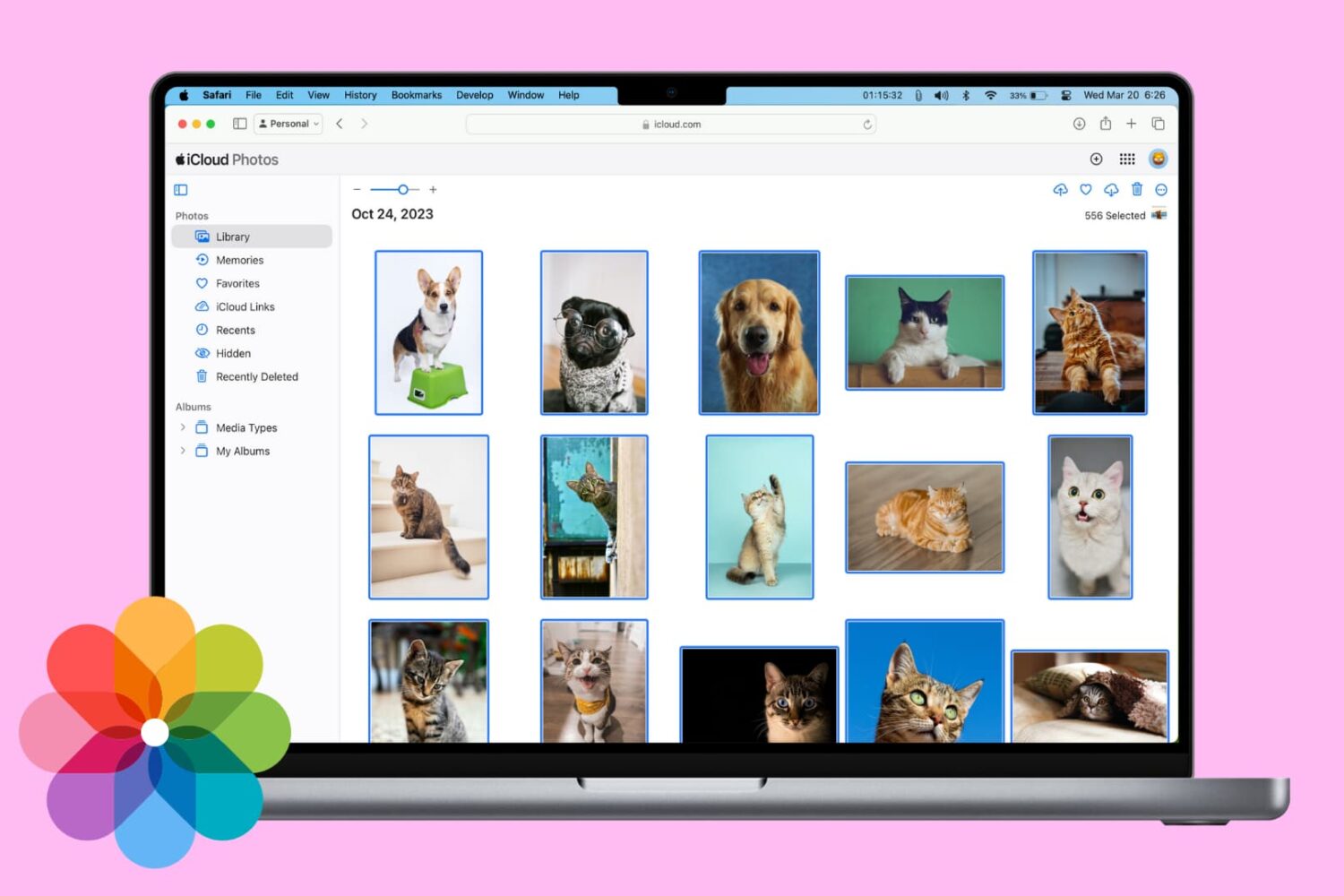
In this tutorial, we will show you three ways to download the photos and videos you have in iCloud to your Mac or Windows PC.
Once you have the photos saved locally, you can back them up elsewhere, edit them with software, or work with them as you please.
Learn how to use the Magic Move transition effect in Keynote presentations on Mac to animate objects as you move from one slide to the next.
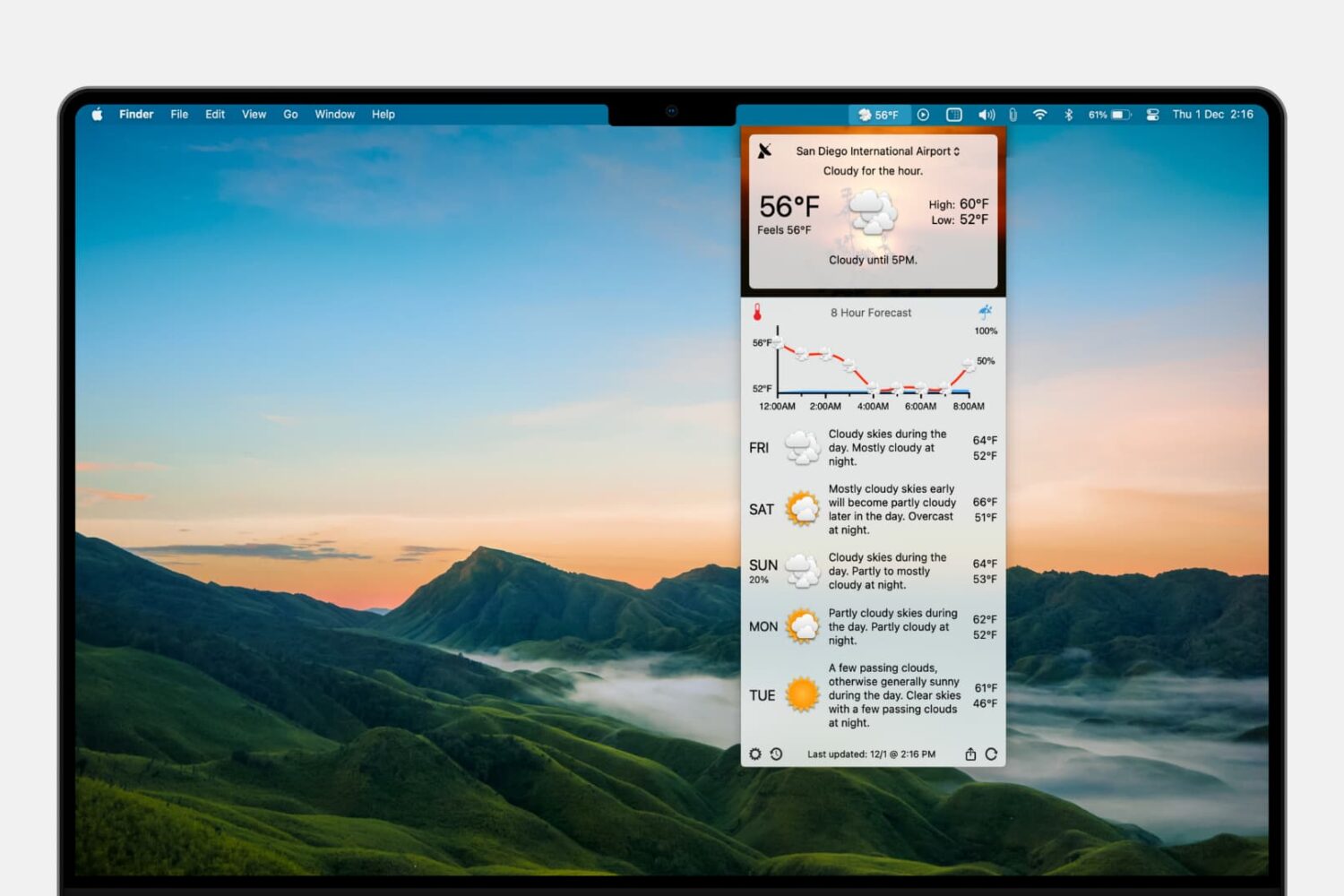
Learn how to add the forecast and current conditions to your Mac menu bar so you can view them at a glance and save yourself from opening a separate app each time you want to check the weather.
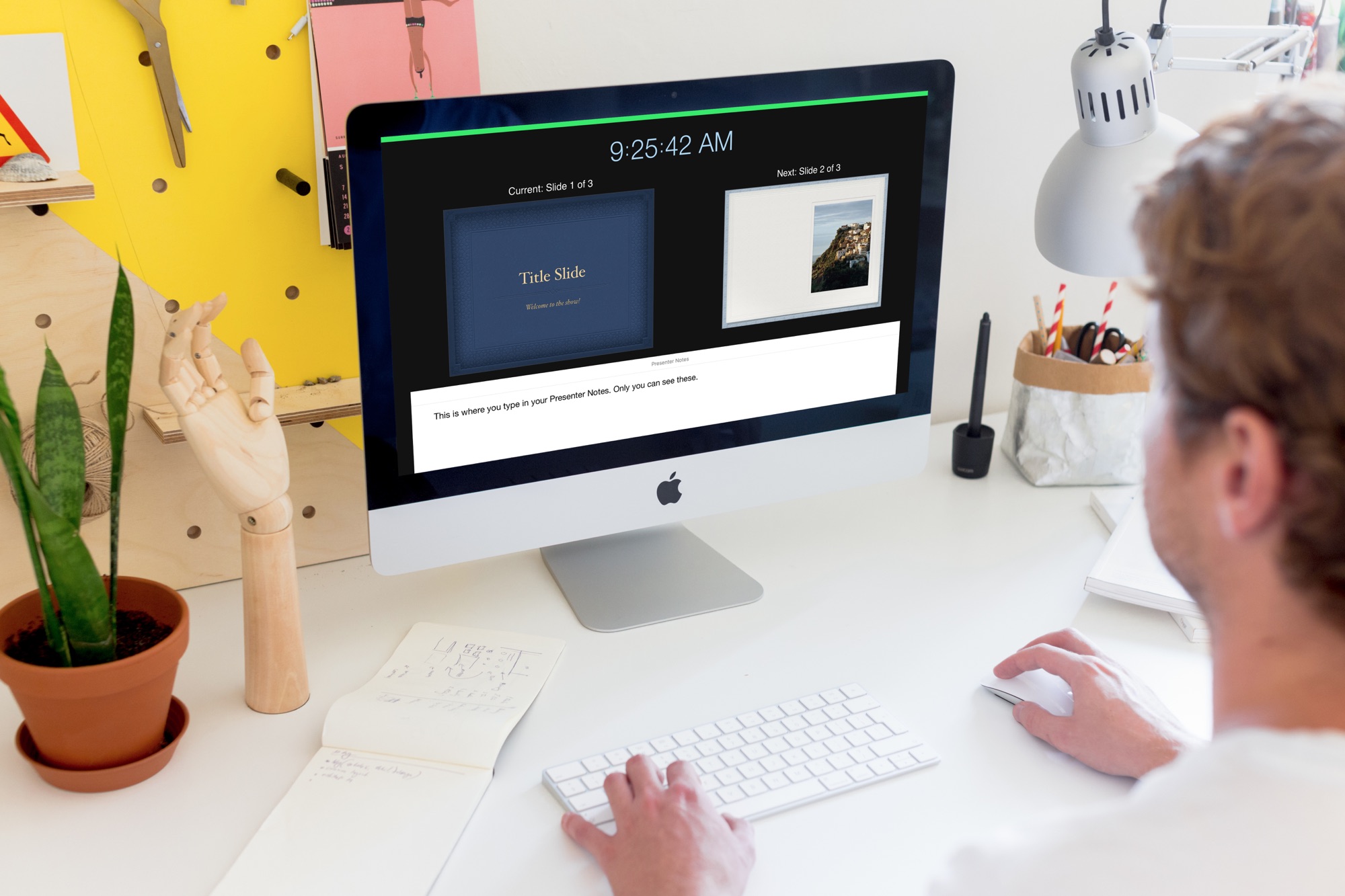
Learn how to create and use Presenter Notes in the Apple Keynote app on Mac, iPad, and iPhone to help you remember what you need to say or emphasize important points during your presentation.
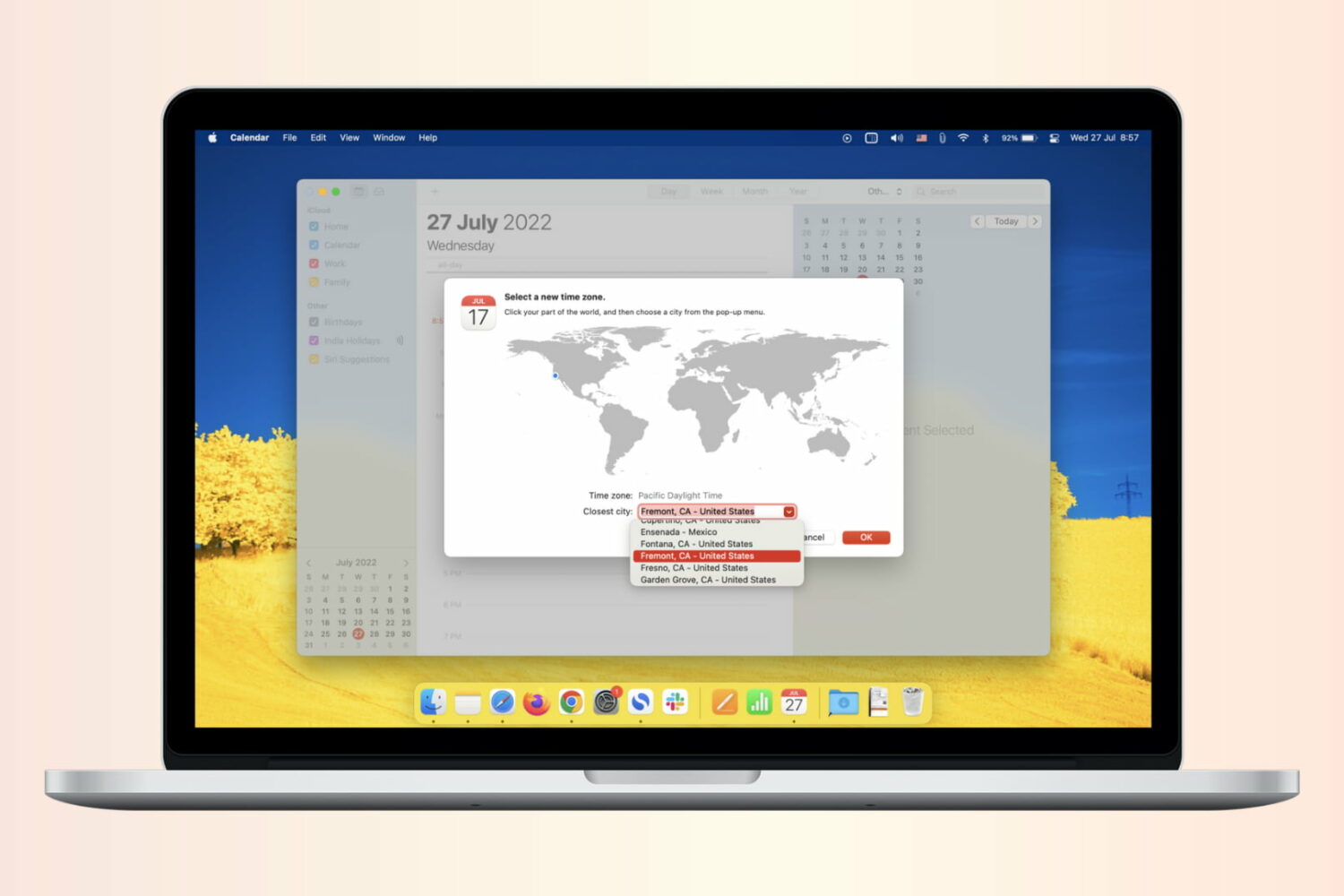
If you work with people in different time zones, scheduling remote meetings can get difficult. You may be in the eastern time zone, with others in the Pacific, European, or Asian time zones. To make this a bit easier, the Calendar app gives you a way to plan for various locations. Here’s how to add and use time zone support for Calendar events.
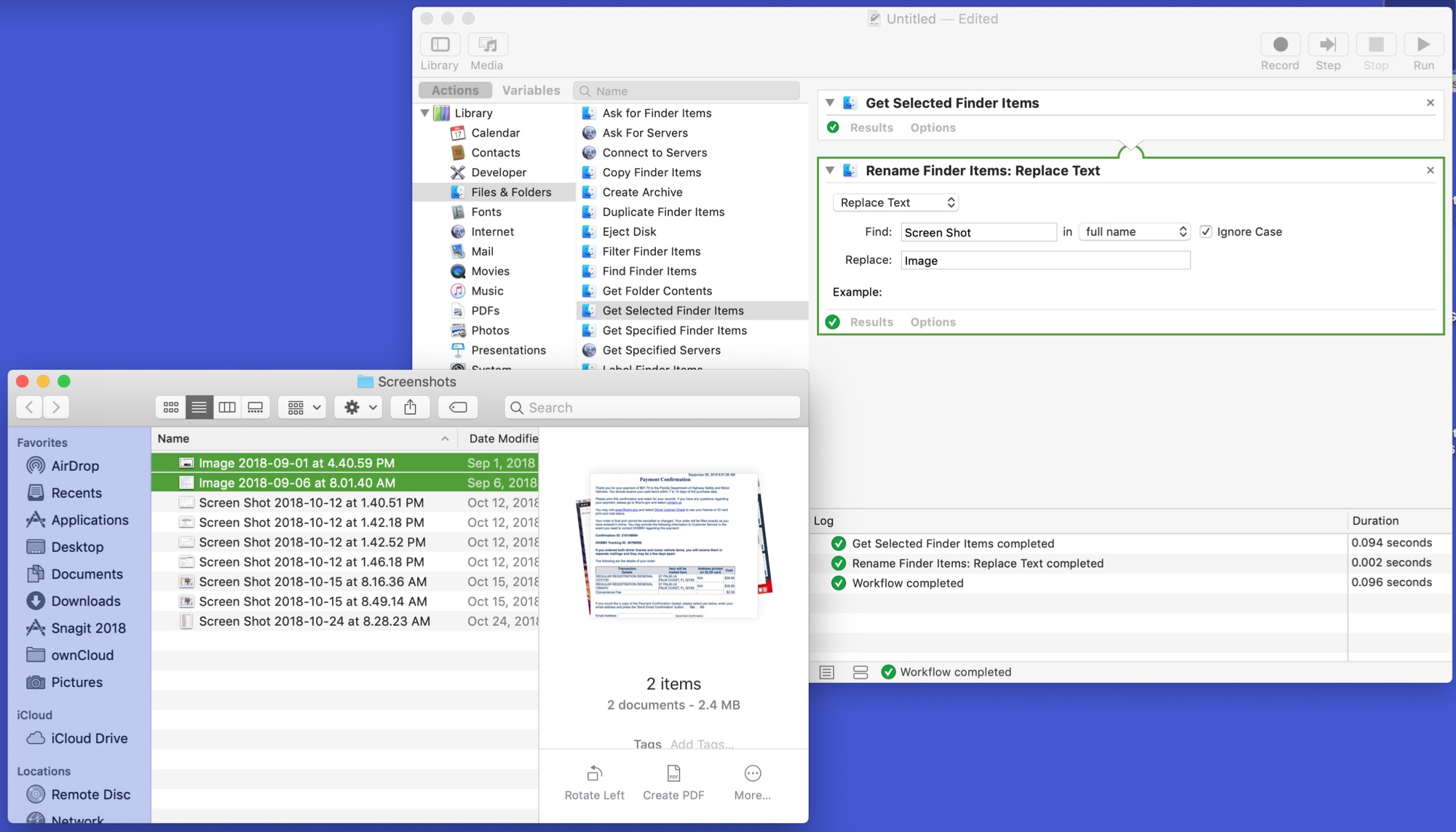
The Automator tool on Mac might be intimidating to some users, but it can be a very handy app. You can create automated workflows, actions, or applications that help you perform tedious tasks. Along with that, there are some tasks you can do with it that are just plain neat.
Here are 10 cool things you can do with Mac Automator.

Some Mac models include the second-generation Apple T2 Security Chip, and in this tutorial, we'll show you how to check if your Mac has this or not.

Learn how to instantly declutter your desktop by merging all separate Safari windows and using tabbed browsing in a single window instead.
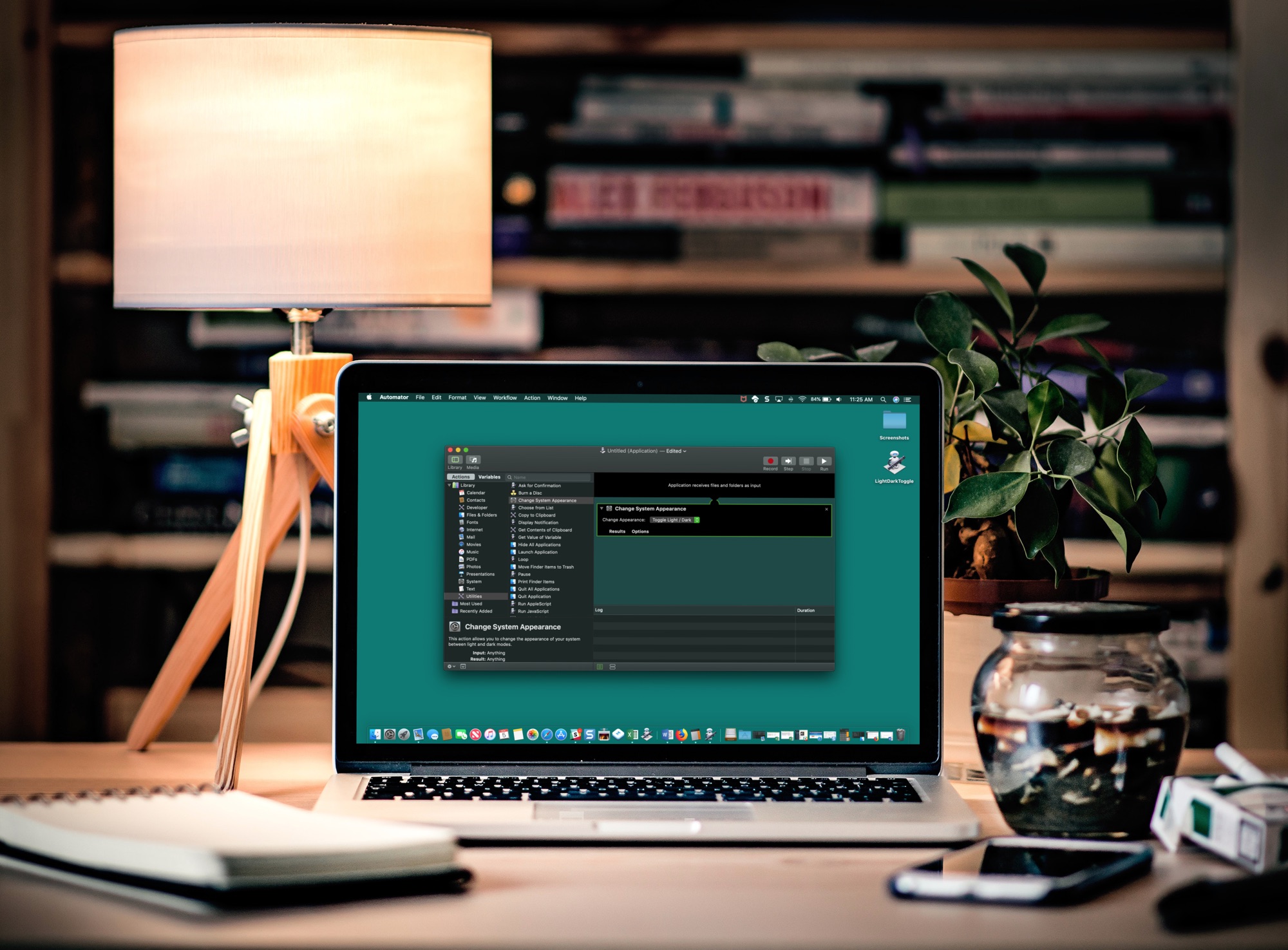
If you like switching back and forth between Light Mode and Dark Mode on your Mac but get tired of going through the process to do so, there’s an easier way.
In just a few minutes, you can create and add a Light/Dark Mode switch to your Mac Dock. It’s super simple, and here’s how.
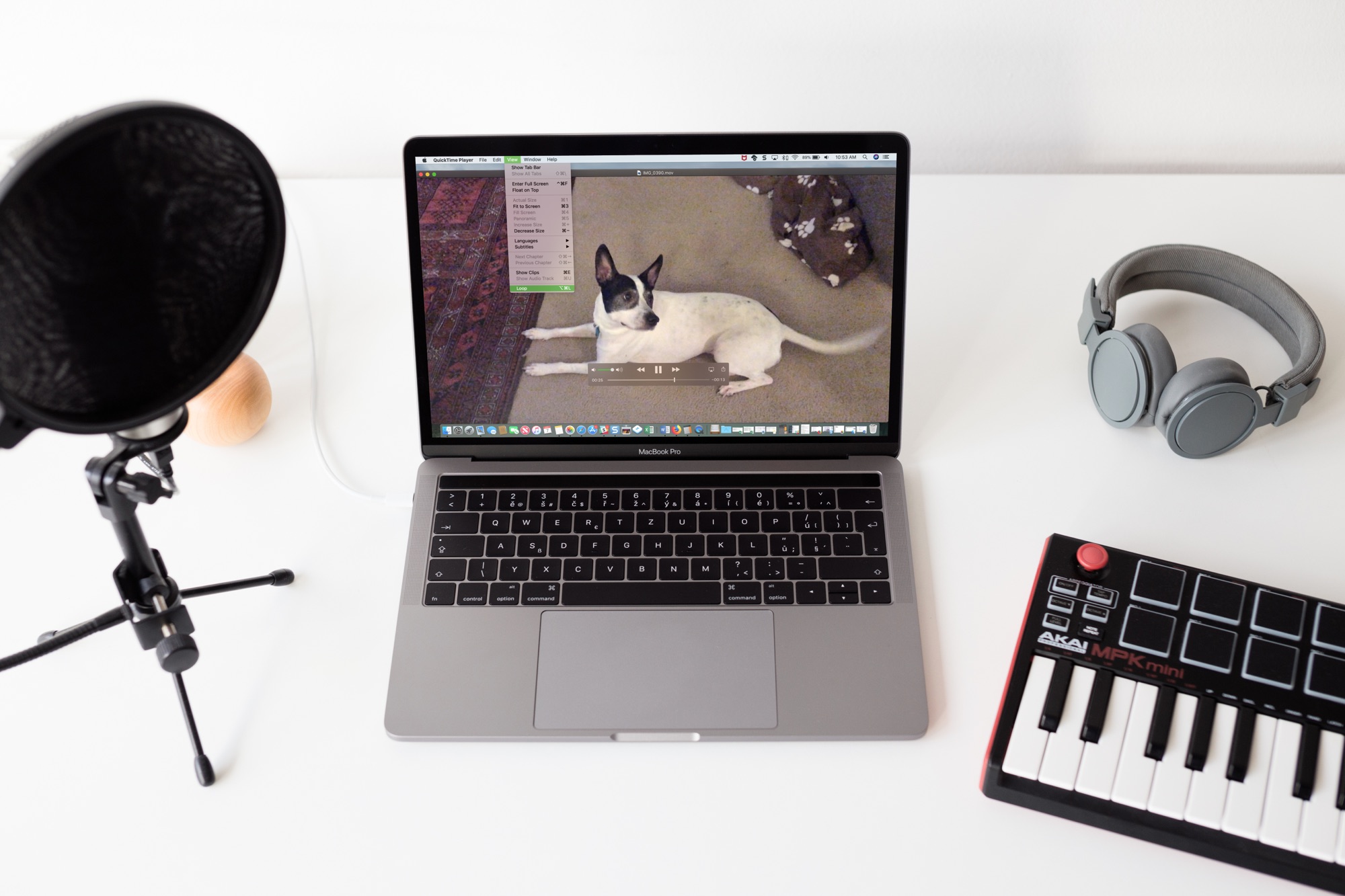
Sometimes you just can’t get enough of a video. Whether it’s one you created or one that someone shared with you, whether it's audio or visual, you can easily play it over and over without hitting a button. If it can be played in QuickTime, it can be looped in QuickTime. And you can do this in just a few clicks.
Here’s how to loop a video in QuickTime Player on Mac.

Learn how to make the Mac’s Mail app play a custom sound notification for emails containing specific phrases or keywords like “Urgent,” “Notice,” or other important text.