Learn how to loop YouTube videos on your iPhone, iPad, computer, or Android-powered phone or tablet to replay the favorite part of a clip over and over again.
How to loop YouTube videos and playlists on phone and computer

Learn how to loop YouTube videos on your iPhone, iPad, computer, or Android-powered phone or tablet to replay the favorite part of a clip over and over again.

As with customizing your Quick Access Toolbar or Ribbon buttons when you use Microsoft Word on Mac, you can also adjust the tabs. By default, you should see tabs like Home, Insert, Layout, and View across the top. But, you can change these to fit your needs.
Here’s how to change the tabs you see in Microsoft Word on your Mac.

If you own an Apple computer, especially a modern one, then you’ve probably come to notice how particularly thin these machines have become. Despite that, most Macs still sport internal cooling fans to keep the CPU and GPU temperatures in check.
By default, Apple’s internal cooling fans run as silently as possible for a quiet user experience, but this isn’t without its caveats. Thinner machines like the MacBook Pro are more susceptible to heat soak because the cooling capabilities of such a compact chassis are limited; this is something you’ve undoubtedly felt while the machine sits on your lap during intensive tasks.
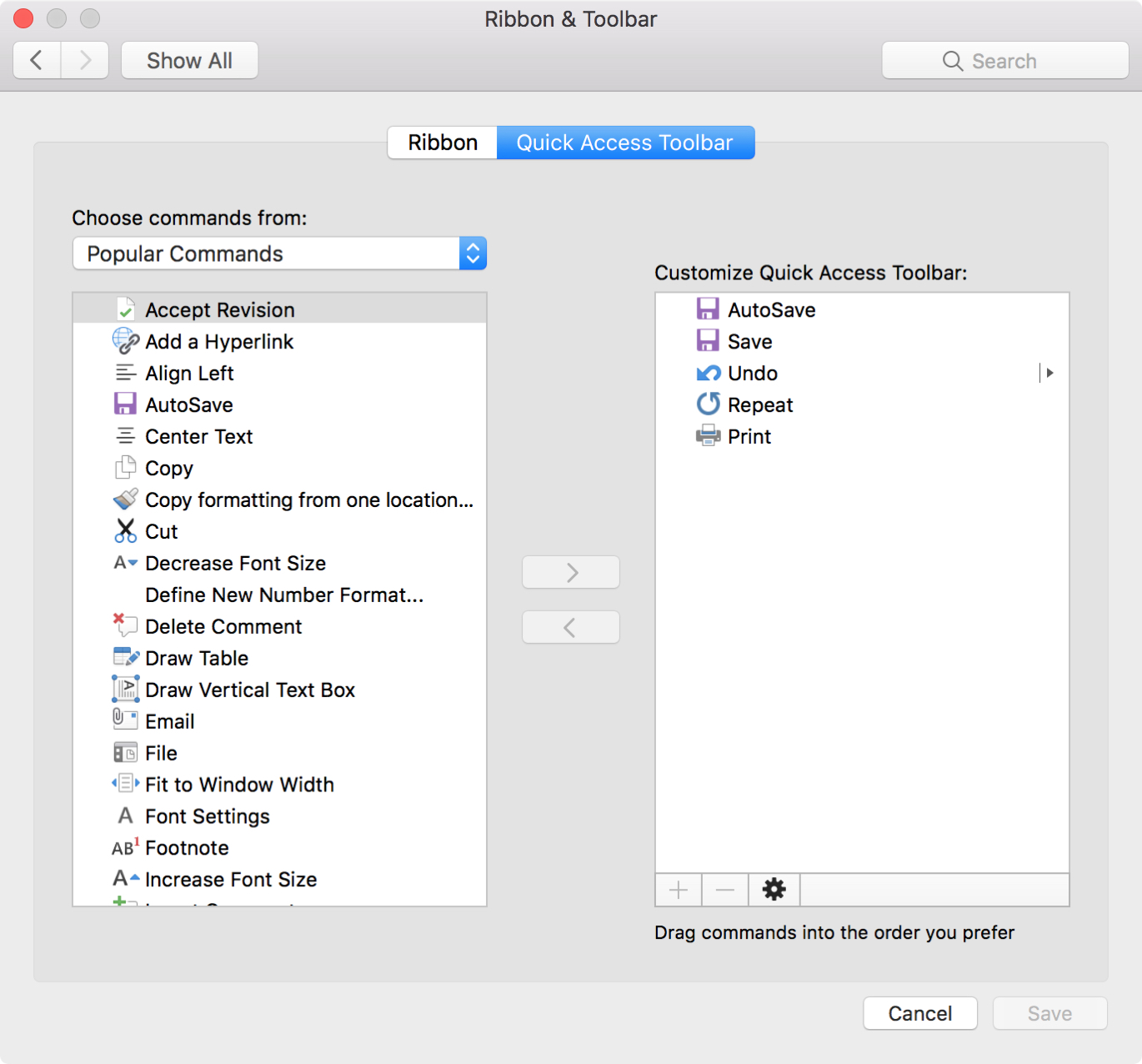
One nice thing about working with Microsoft applications like Word and Excel is that you can customize your tools. From the status bar at the bottom to the ribbon at the top, you can remove and add exactly what you need.
Another area you can customize is the Quick Access Toolbar. This is the small toolbar above your ribbon on the top left of the window. The point of this toolbar, as its name implies, is for quick access to tools you use most.
To help you make the most out of this area, this tutorial explains how to customize the Quick Access Toolbar to suit your specific needs.

Are you switching from Evernote to the Notes app, or just want to move a note or two? You can easily import notes from Evernote to Notes.
Start by checking out our tutorial on how to export notes from Evernote. Then, once you have the files you need, follow this tutorial to import those notes into your Notes app.

Whether you want to annotate an image for work, mark up a photo for fun, or add your signature to a PDF, it’s easy to do with the Markup tool inside your Mac's Mail app.
In this article, we show you how to use Markup to add shapes, text, signatures, drawings, and more to your email attachments.
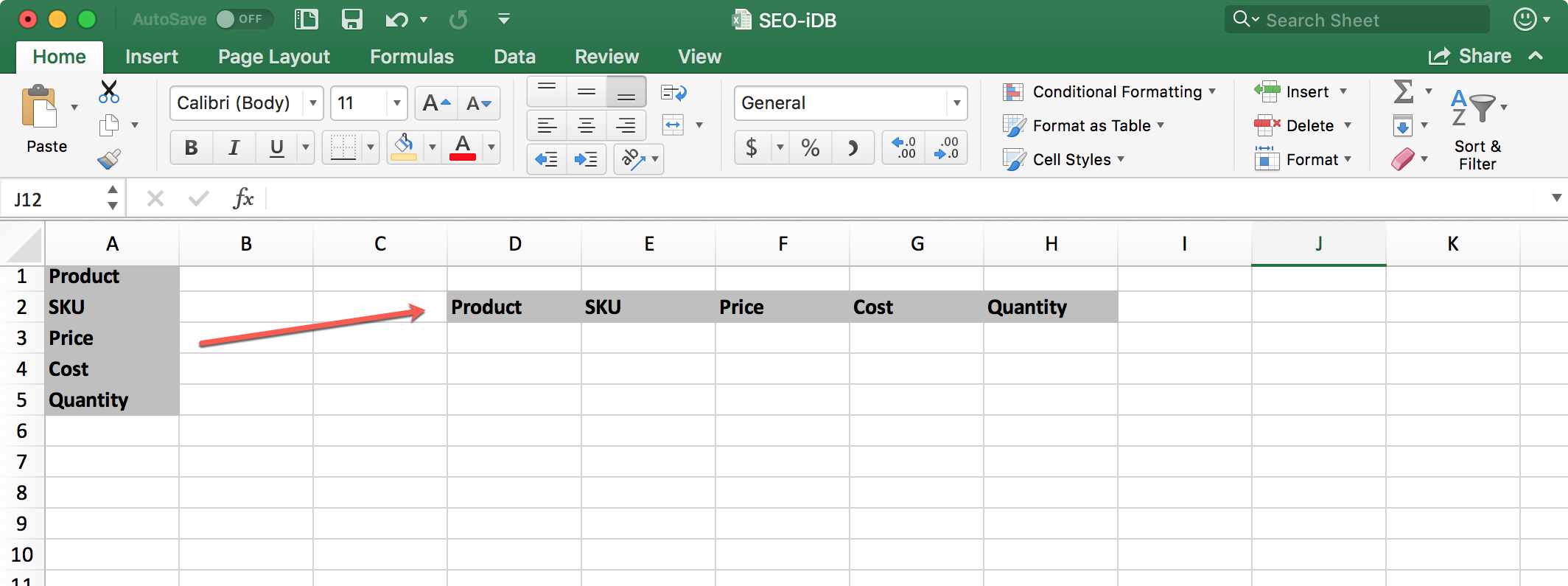
When you use Microsoft Excel on your Mac for creating spreadsheets, you have plenty of layout options. But, sometimes it’s not until after you start entering your data that you wish you had structured the spreadsheet differently.
You may have entered column headers that would work better as row headers or vice versa. Luckily, you have a quick and easy way to make this type of switch with the Excel Transpose feature and here’s how to use it.

Evernote is a robust note-taking application with availability across multiple platforms, but it does have its limitations. For instance, the Evernote Basic plan only allows you to use the app on two devices for free. So, maybe you’ve decided to use another app in addition to Evernote. Or, maybe the time comes when you want to switch to a different note-taking app completely.
You can easily export notes from Evernote to a file that can then be imported to another note-taking application, and here’s how.

Get rid of the garbage that clutters your inbox by enabling and customizing the Junk Mail filter settings in the Apple Mail app on Mac.

Learn how to use additional search engines in Firefox on your Mac or Windows PC without the need to change the default search engine.

Learn how to set up multiple email signatures in the Spark email app on your iPhone or Mac and use them based on the email you are composing.
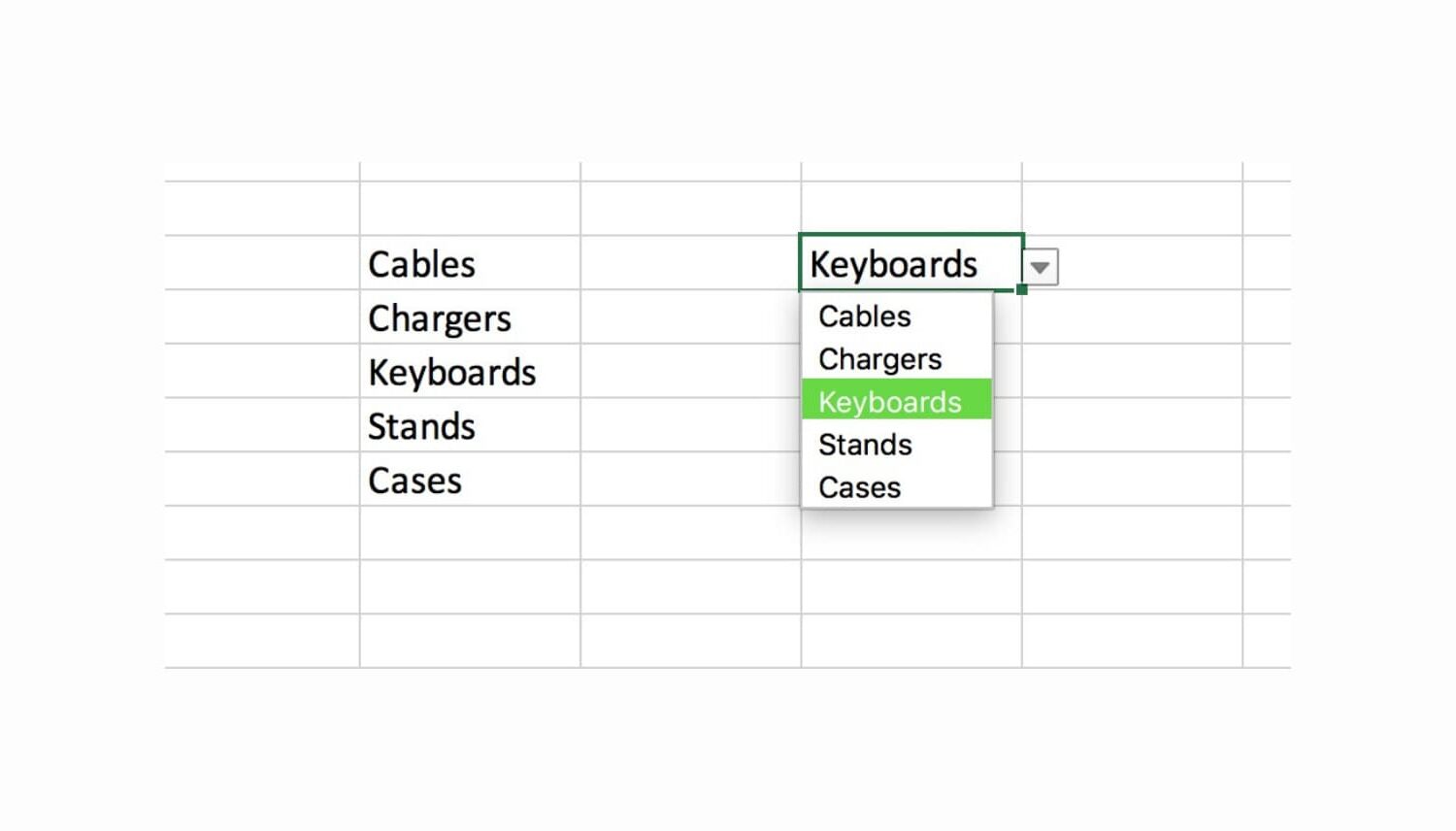
Using custom lists in Microsoft Excel on your Mac makes tedious data entry relatively quick and easy. Drop-down lists are no different; you can create one in just a few clicks.
Drop-down lists in Excel are ideal for limiting the options for cell entries. They come in handy for selecting items like colors, sizes, products, people, days, and so much more.
Here’s how to quickly create a drop-down list in Excel on Mac.