Learn how to install Google Chrome extensions on your Mac or Windows PC to get extra features, as well as manage, update, or remove them.
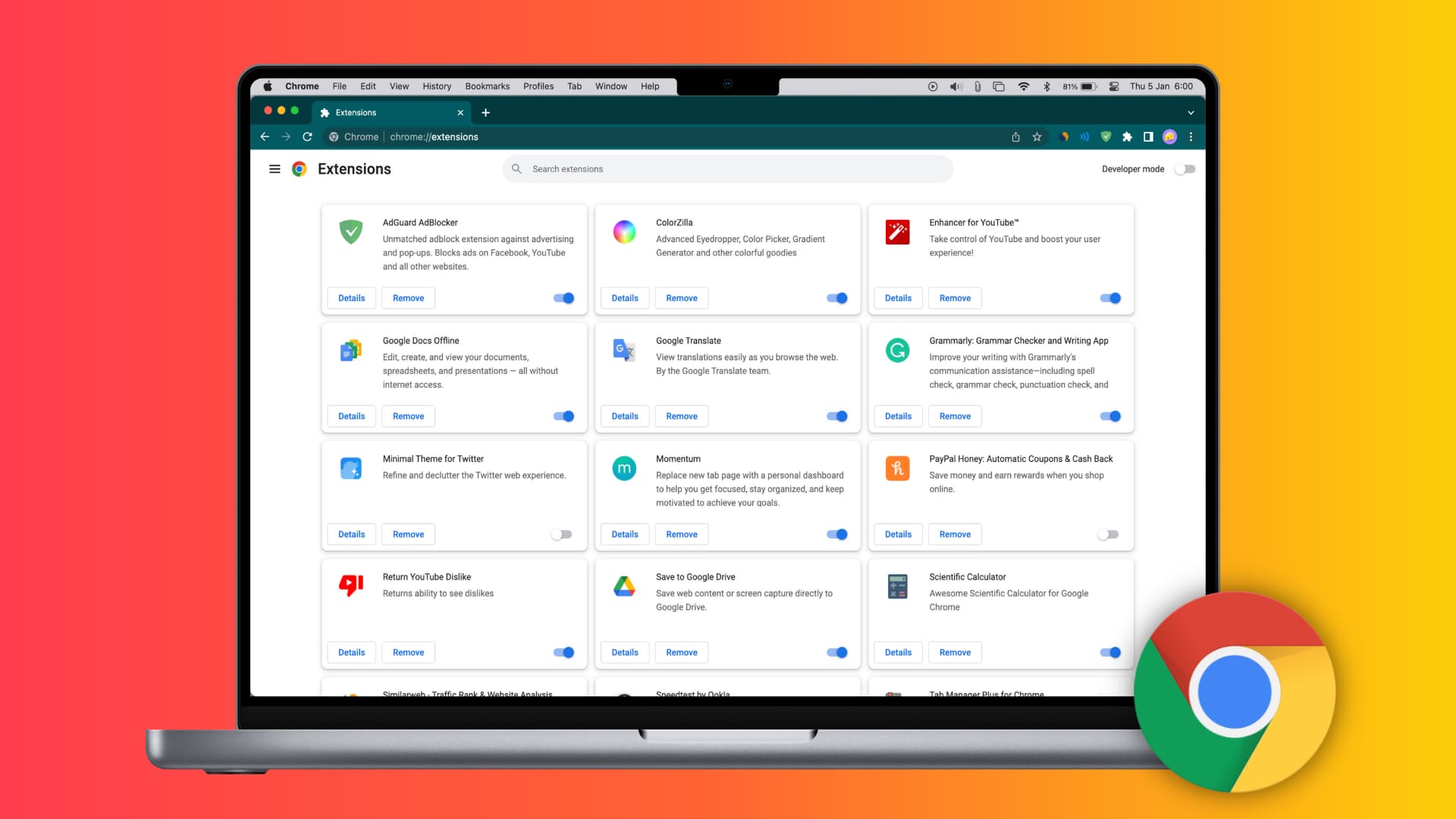
Extensions are small web apps that add extra features to a browser. Of course, you can surf the web in Chrome without installing extensions, the same way you can use your iPhone without downloading additional apps. But just as third-party apps add extra features to your iPhone, extensions make Chrome more useful overall.
Extensions help you do things that aren’t possible out of the box. For instance, Chrome lacks an easy way to download all images from a page, but there’s an extension for that!
Note: Don’t confuse extensions with progressive web apps or Chrome apps.
The steps below also apply to other Chromium-based browsers like Brave, Microsoft Edge, Opera, Vivaldi, etc. With the exception of some visual differences, the fundamentals will be the same.
However, this tutorial doesn’t apply to non-Chromium browsers like Apple’s Safari and Mozilla’s Firefox. But don’t worry, we have a separate tutorial showing the steps to install Safari extensions.
Install Chrome extensions
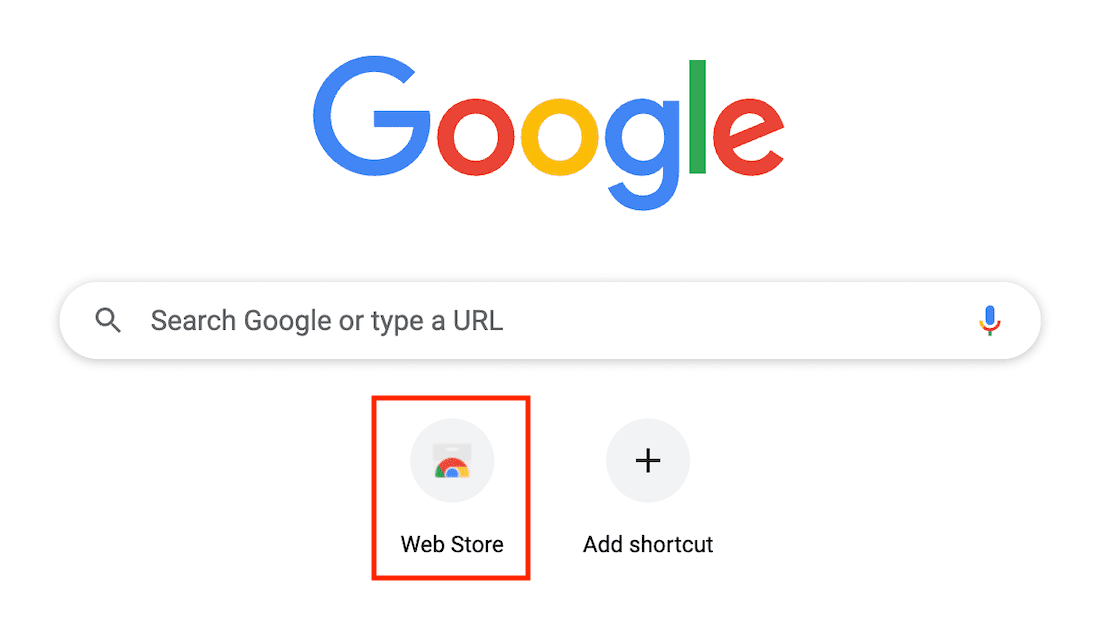
1) With Chrome downloaded and installed on your Mac or Windows PC, open the browser and you should be greeted with the Web Store shortcut below the Google search field. Click it to open the Chrome Web Store. Otherwise, point Chrome to chromewebstore.google.com/category/extensions.
2) Explore the store to find extensions you think might be helpful. Click an extension to learn what it does, view screenshots and ratings, read reviews, etc.
3) To install the extension, click Add to Chrome > Add extension.
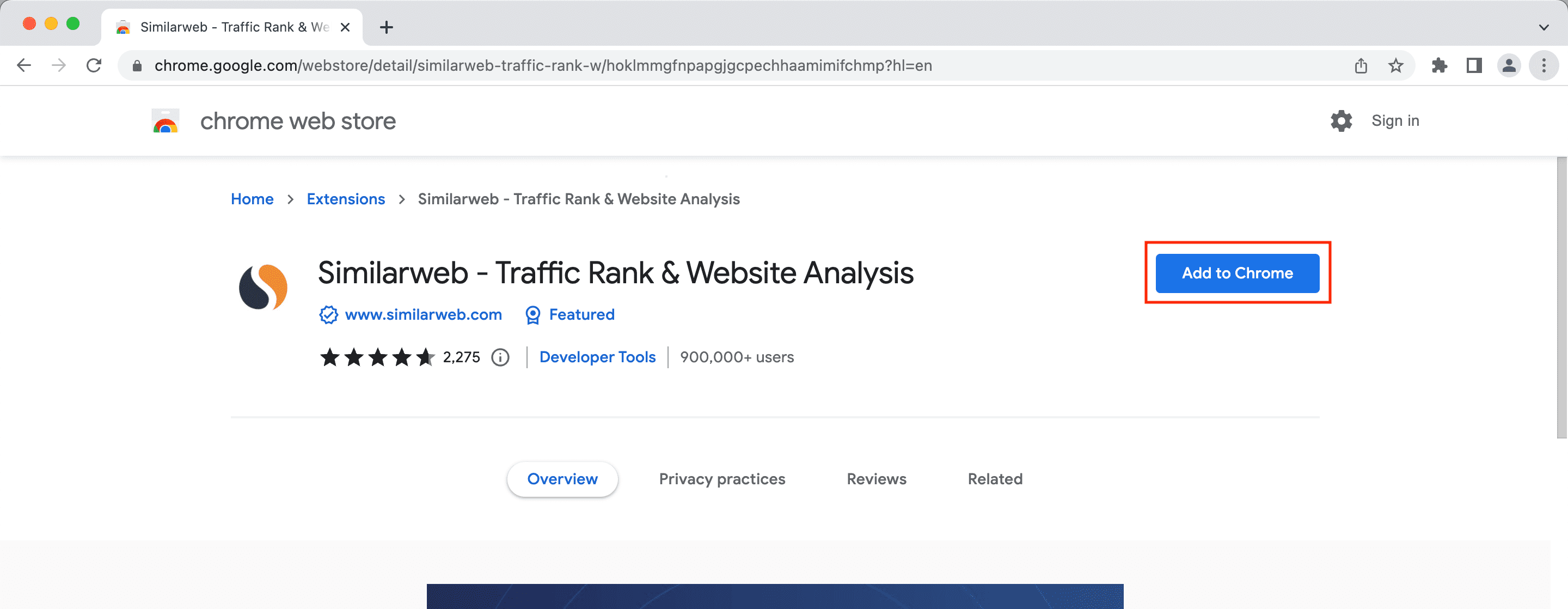
4) The extension will automatically download and install for the current Chrome profile. Some extensions may open a special page upon installation to configure it or read more about how it works.
See Chrome extensions
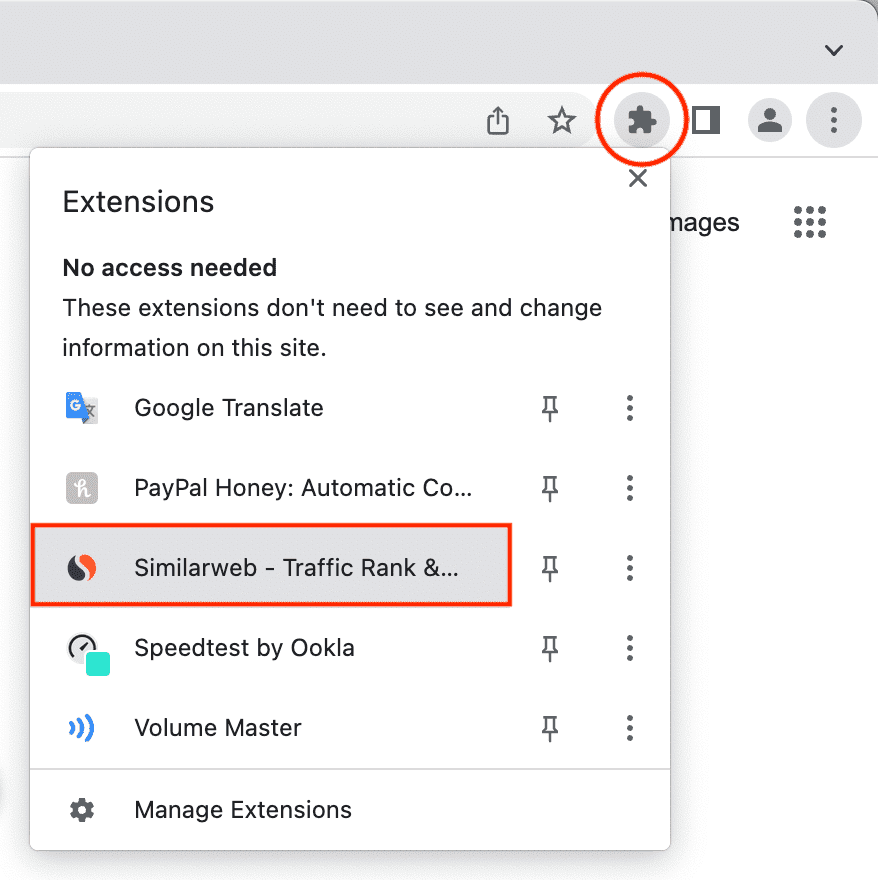
1) Click the puzzle piece-like icon near the top-right corner of the Chrome window to see all of the extensions you’ve installed in Chrome.
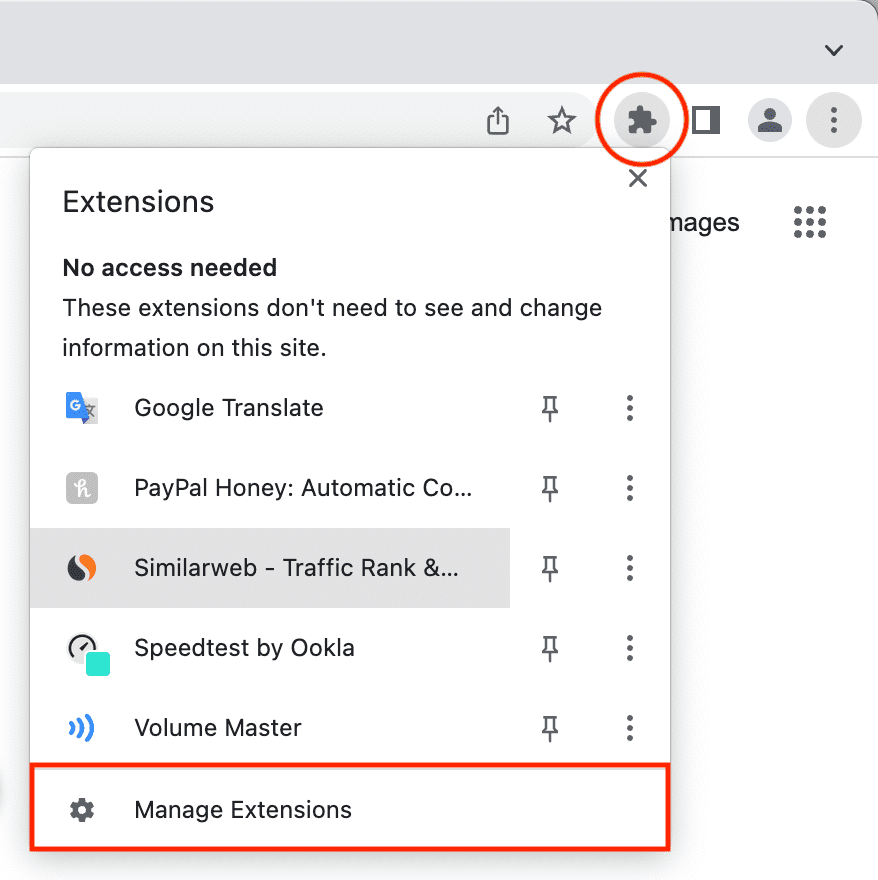
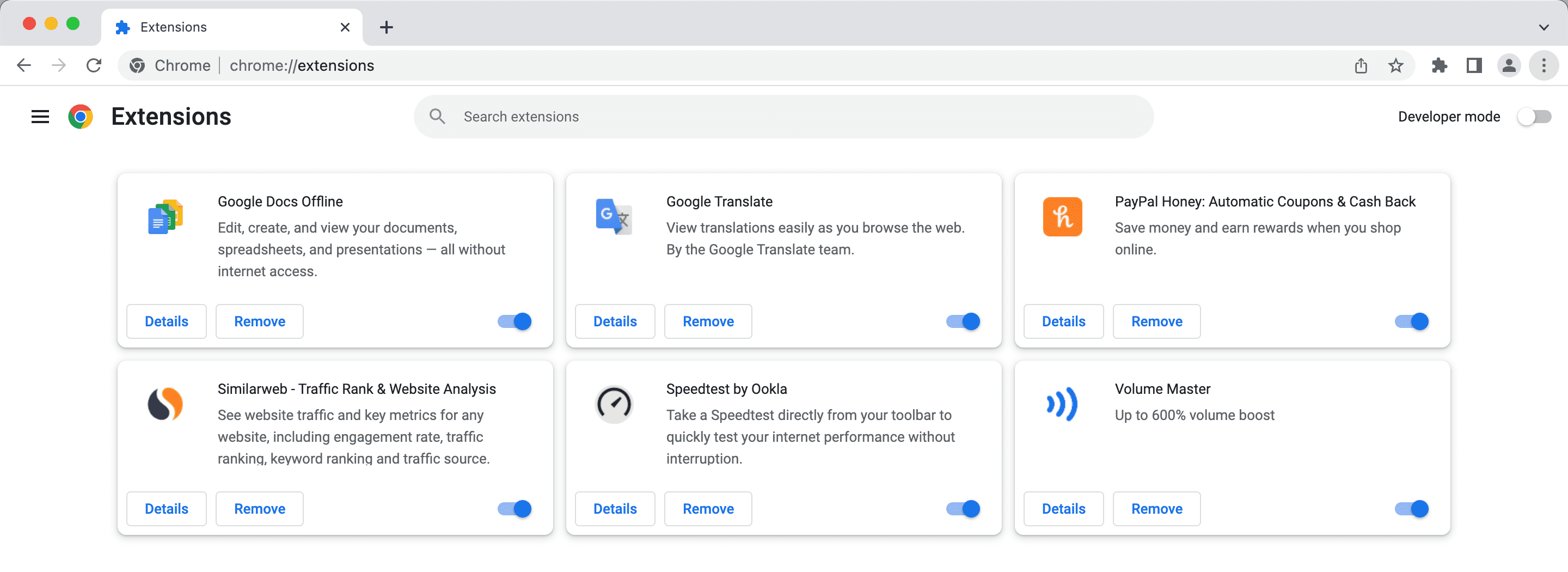
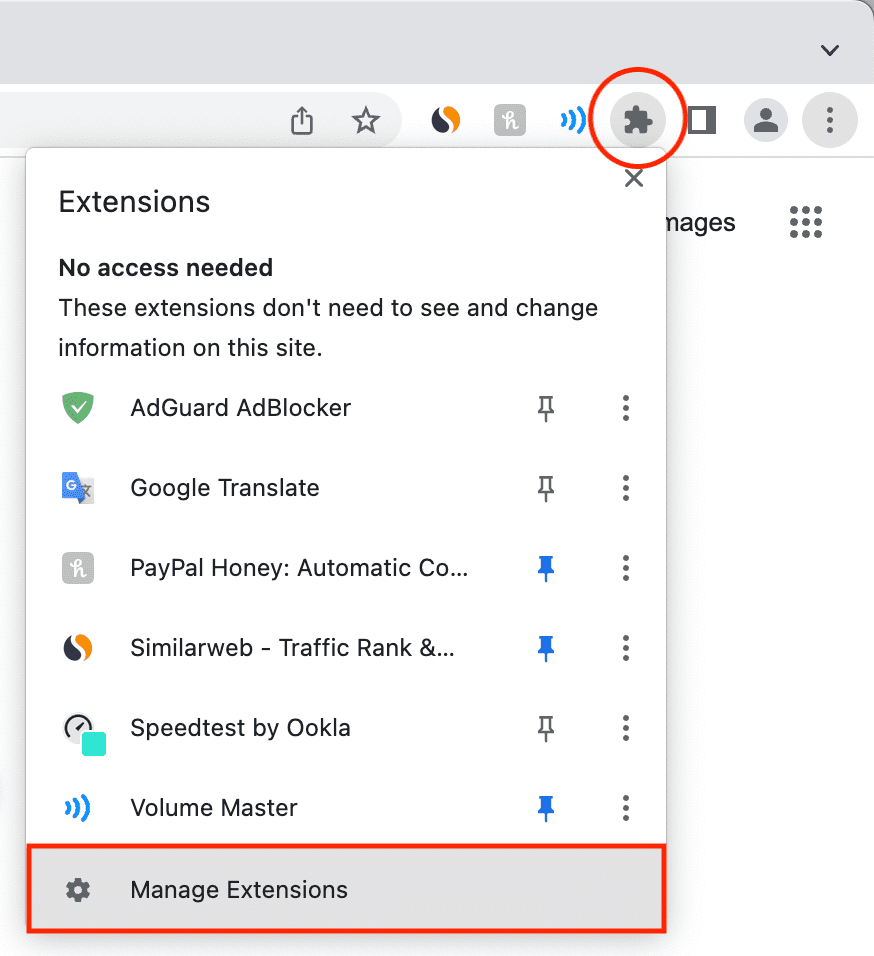
2) If you don’t see all extensions in this menu, choose Manage Extensions or go to chrome://extensions/ to see all installed extensions.
Open and use a Chrome extension
1) Click the puzzle piece icon to view the list of installed Chrome extensions.
2) Click the extension name to run it.
Notes:
- Not all extensions run on all websites. For example, a coupon code extension does nothing on our site as we don’t have a web store or checkout page. However, the same extension can be very helpful on Amazon.
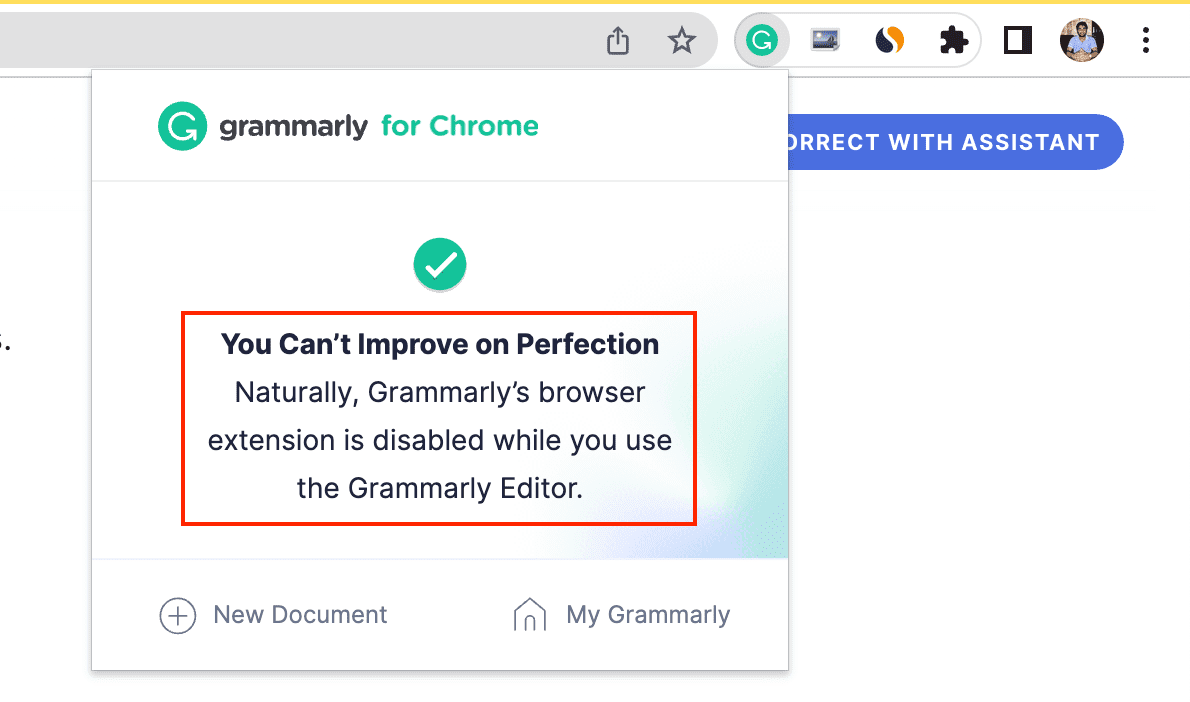
- Similarly, running the Grammarly extension on the Grammarly website doesn’t make much sense and will display a cheeky message.
When to disable an ad blocker Chrome extension
You’ll want to disable an ad blocker extension on a particular website if:
- You want to allow ads on that website to show your appreciation and support.
- Some websites obstruct content until you turn off ad blockers.
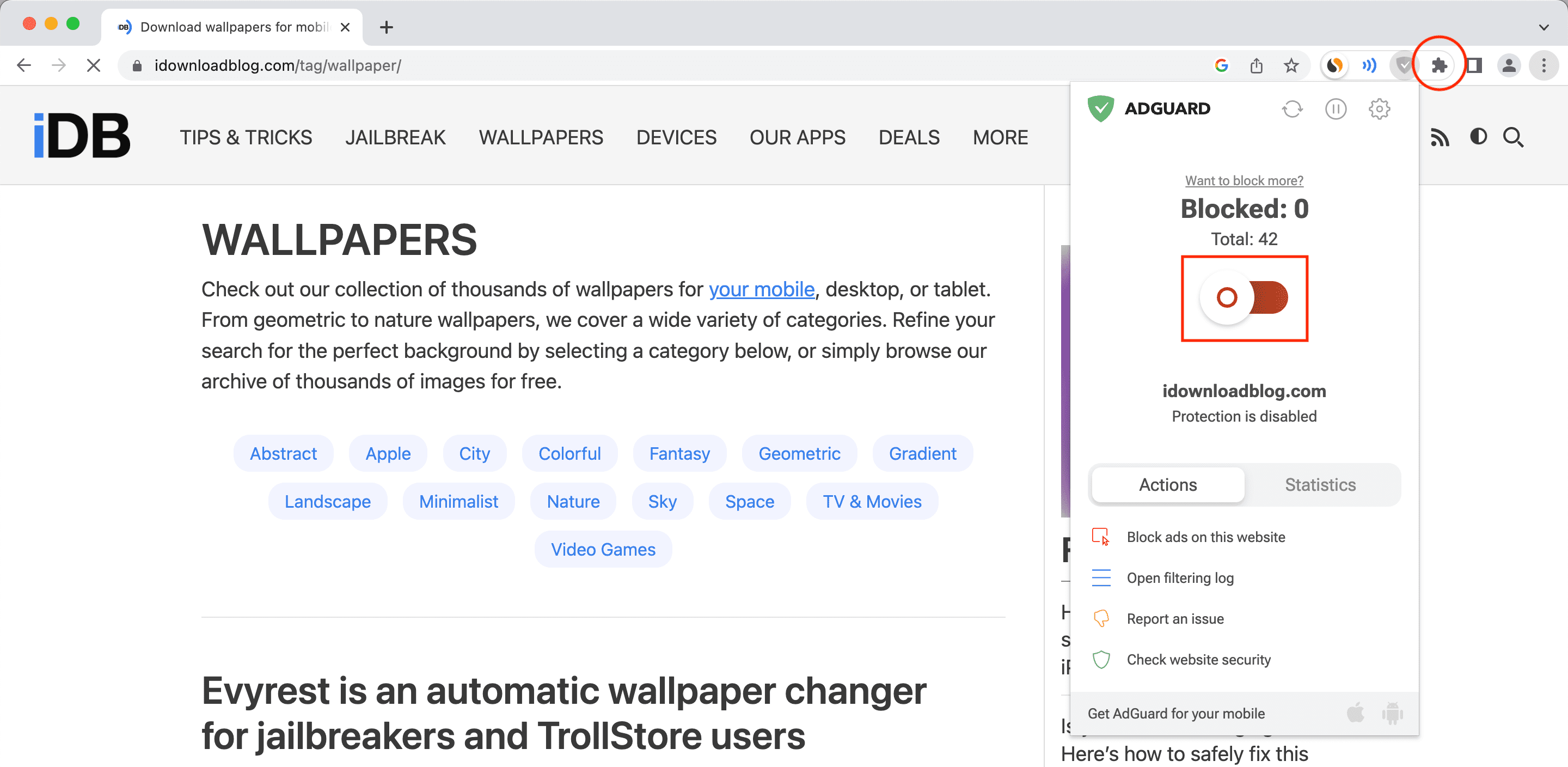
Here’s how to turn off your ad blocker in Chrome for a particular website:
1) Click the puzzle piece icon and then hit the ad blocker extension to show its options.
2) Turn off the ad blocker switch. The website will automatically refresh with ads displaying properly.
To start blocking ads again:
1) Click the puzzle piece icon > ad blocker icon.
2) Turn on the switch for your ad blocker.
Change settings for a Chrome extension
Some Chrome extensions offer additional customization options:
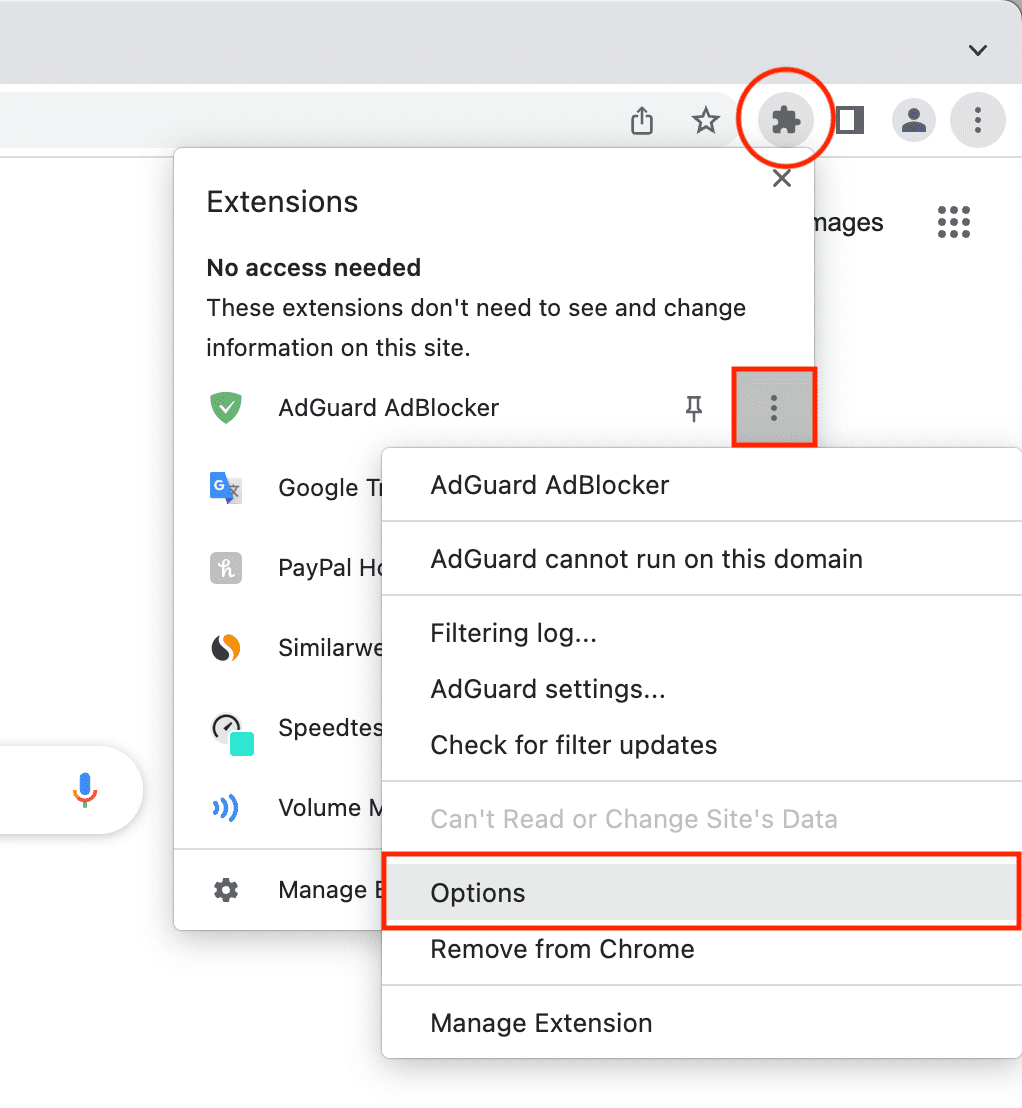
1) Click the puzzle piece icon, then hit the three-dotted icon next to an extension.
2) Choose Options (if you see it).
3) Adjust the extension’s settings to your liking.
Pin extensions to Chrome’s toolbar
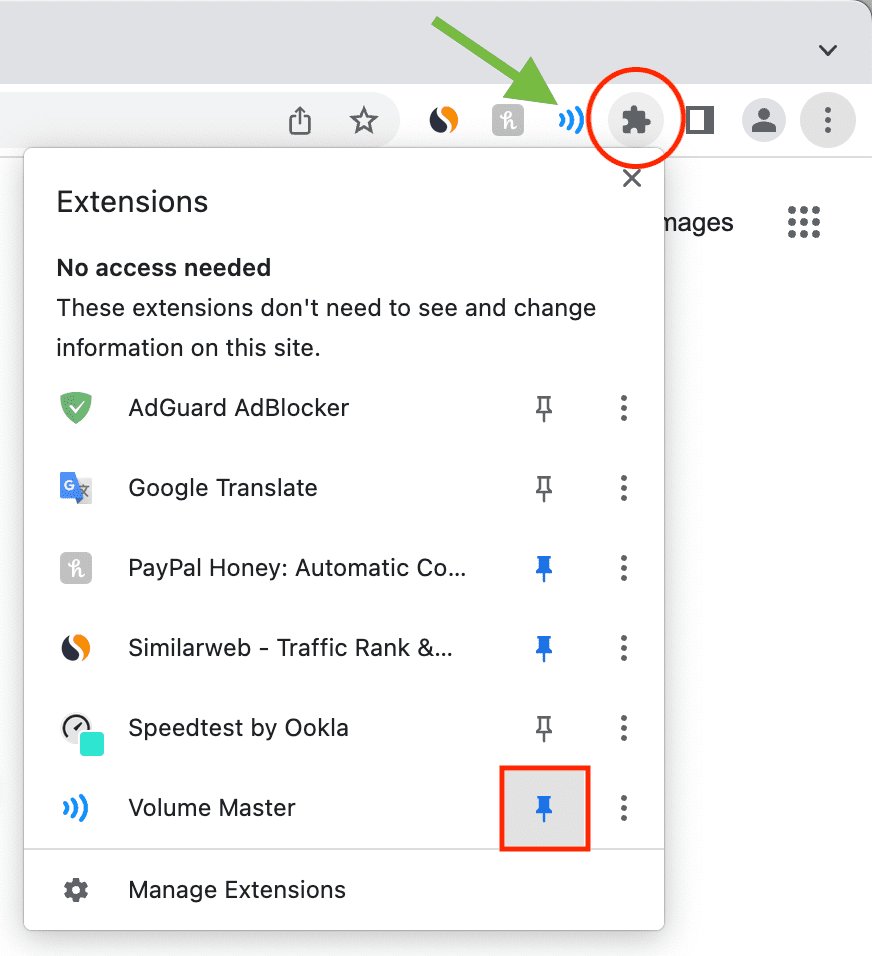
You can pin a few of your most-used extensions to Chrome’s toolbar at the top for one-click access. For example, I’ve pinned Grammarly, Similarweb, and Download All Images extensions on my Mac.
1) Click the puzzle piece button in the top-right corner.
2) Hit the pin button next to an extension to add it to Chrome’s toolbar for quick access.
Stop Chrome extensions from reading data on all websites
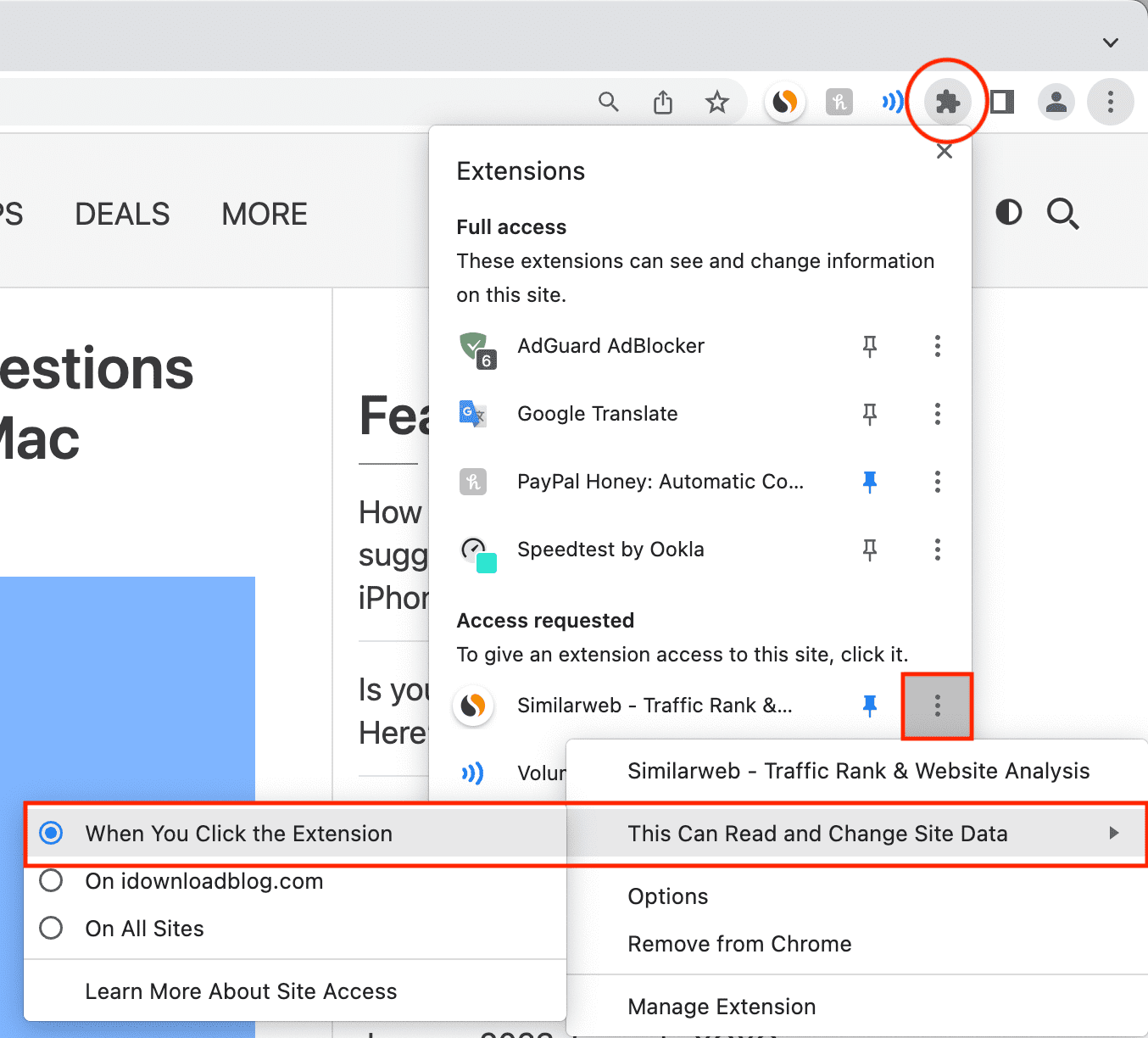
You may want to prevent an extension from reading data on banking, payment, and other sensitive websites.
1) Visit a website and click the puzzle piece icon to view all your extensions.
2) Click the three-dotted icon next to an extension and hover the pointer over This Can Read and Change Site Data.
3) Instead of On All Sites, select When You Click the Extension (I use this) or On [website name].
Using extensions in Chrome’s private browsing mode
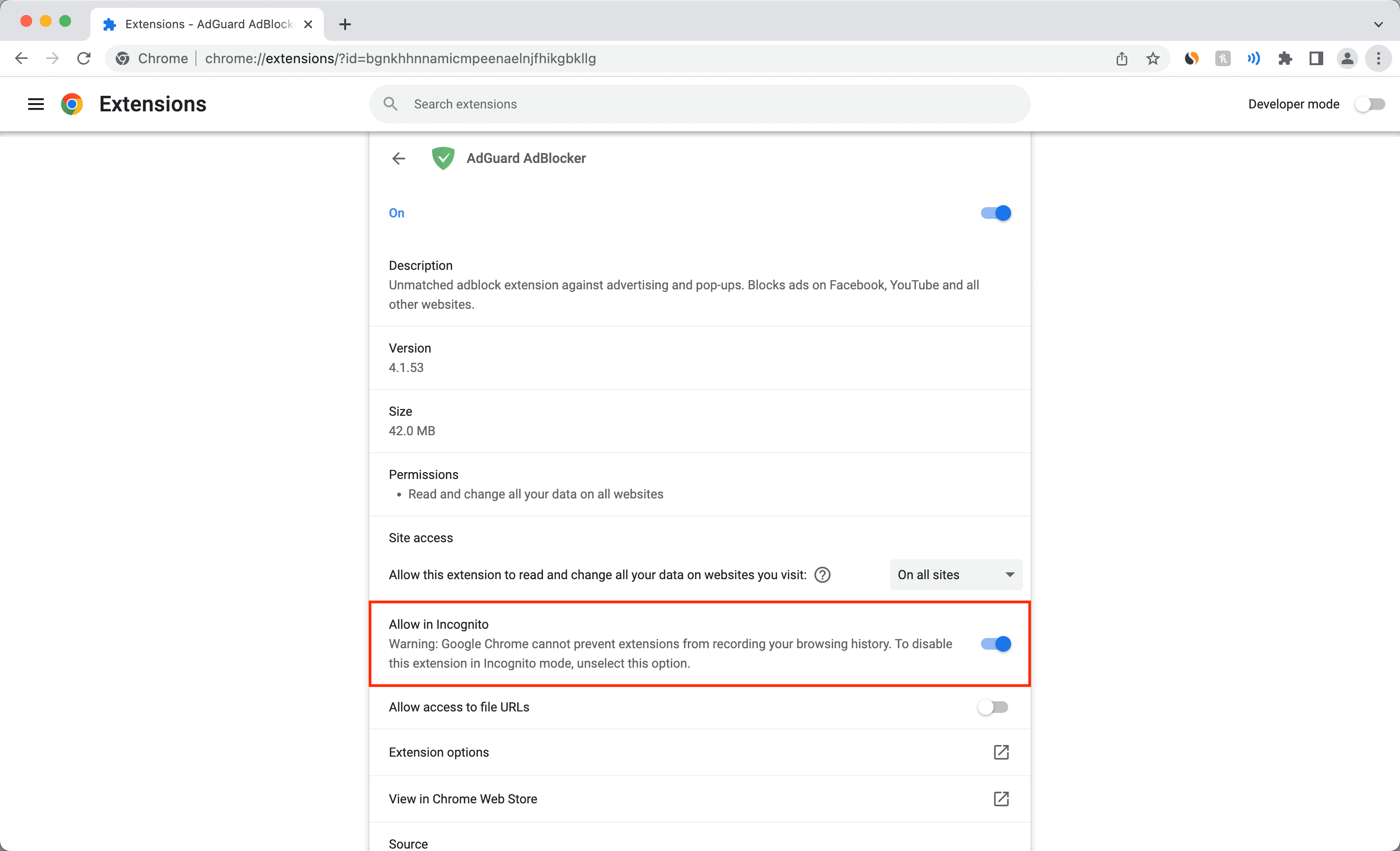
By default, extensions won’t run when you open a private window in Chrome, called Incognito window, but you can change that with a few clicks.
1) Click the puzzle piece icon to see your extensions.
2) Hit the three-dotted icon next to an extension and choose Manage Extension.
3) Turn on the switch next to Allow in Incognito.
See details of installed Chrome extensions
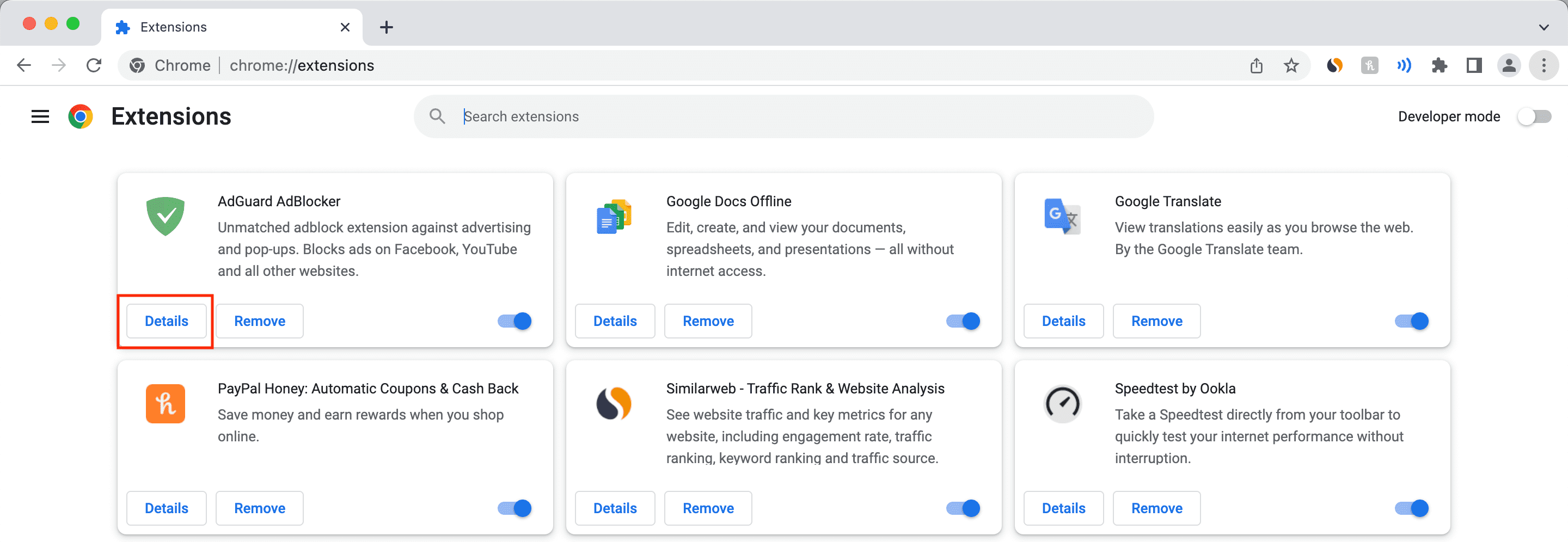
1) Click the puzzle piece icon and hit Manage Extensions.
2) Click Details for an extension.
3) You’ll see useful details for the selected extension like its description, version, file size, permissions, and more.
Turn off a Chrome extension without uninstalling it
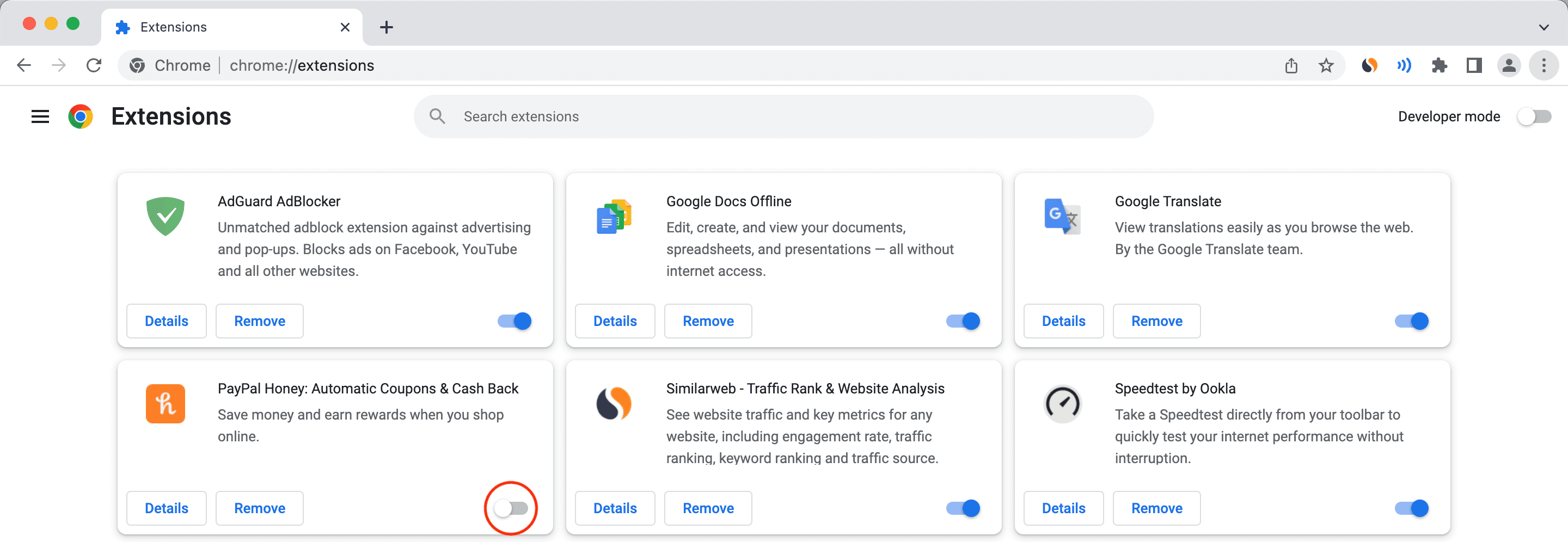
1) Hit the puzzle piece icon to view your installed extensions.
2) Click Manage Extensions.
3) Turn off the switch for an extension you’d like to temporarily turn off.
Uninstall Chrome extensions
If you no longer use an extension, follow these steps to uninstall it from Chrome.
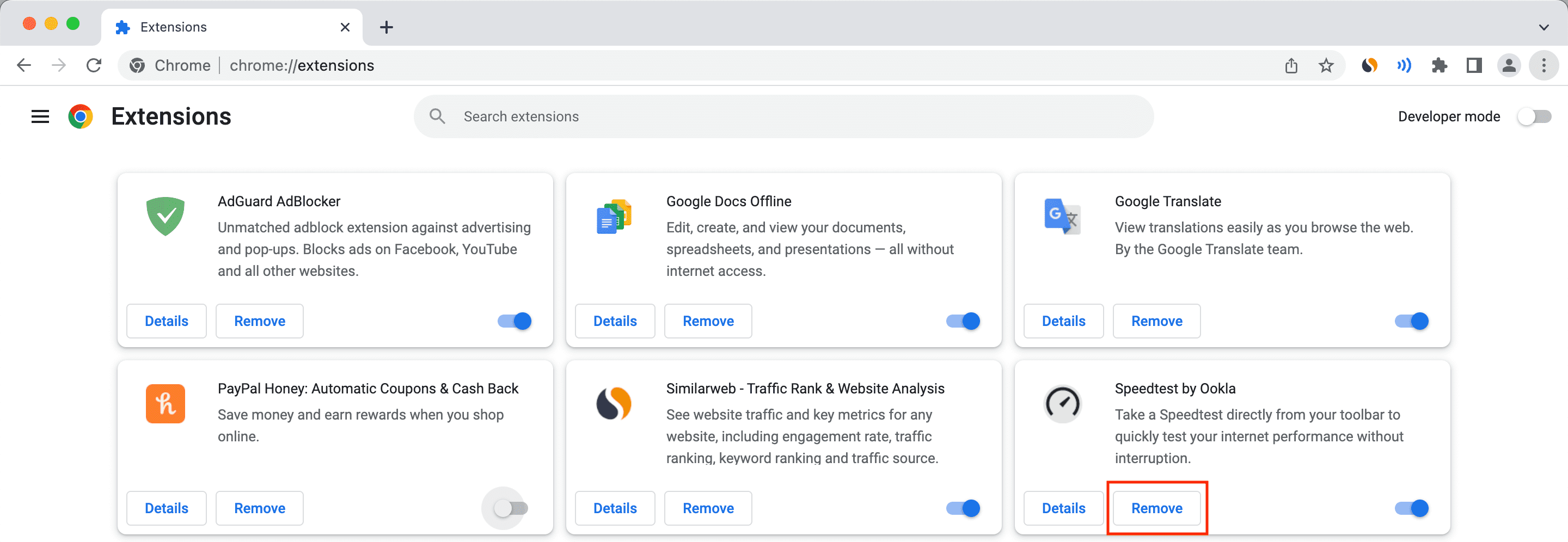
1) Click the puzzle piece icon near the top-right of the Chrome window and choose Manage Extensions to view all your installed extensions.
2) Click Remove for an extension you’d like to uninstall from Chrome.
3) Click Remove again to confirm.
5 Chrome extensions I use on my Mac
- Grammarly: Corrects typos and errors when writing on web forms and such.
- Enhancer for YouTube: One of the first extensions I install on my Mac after setting it up, because it lets me use YouTube like a pro with dozens of interesting tools.
- Similarweb: View a website’s visitor rank and other metrics.
- AdGuard Blocker: This one blocks ads and trackers on some websites.
- Download All Images: Many images on webpages can be saved to a computer via the right-click menu, but some block this action; with this free extension, I can easily download all images used on a page.
Also, check out: