Learn how to add a signature to your document in the Apple Pages app on Mac, iPad, and iPhone to sign it digitally and provide approval, authorization, or legal validation.
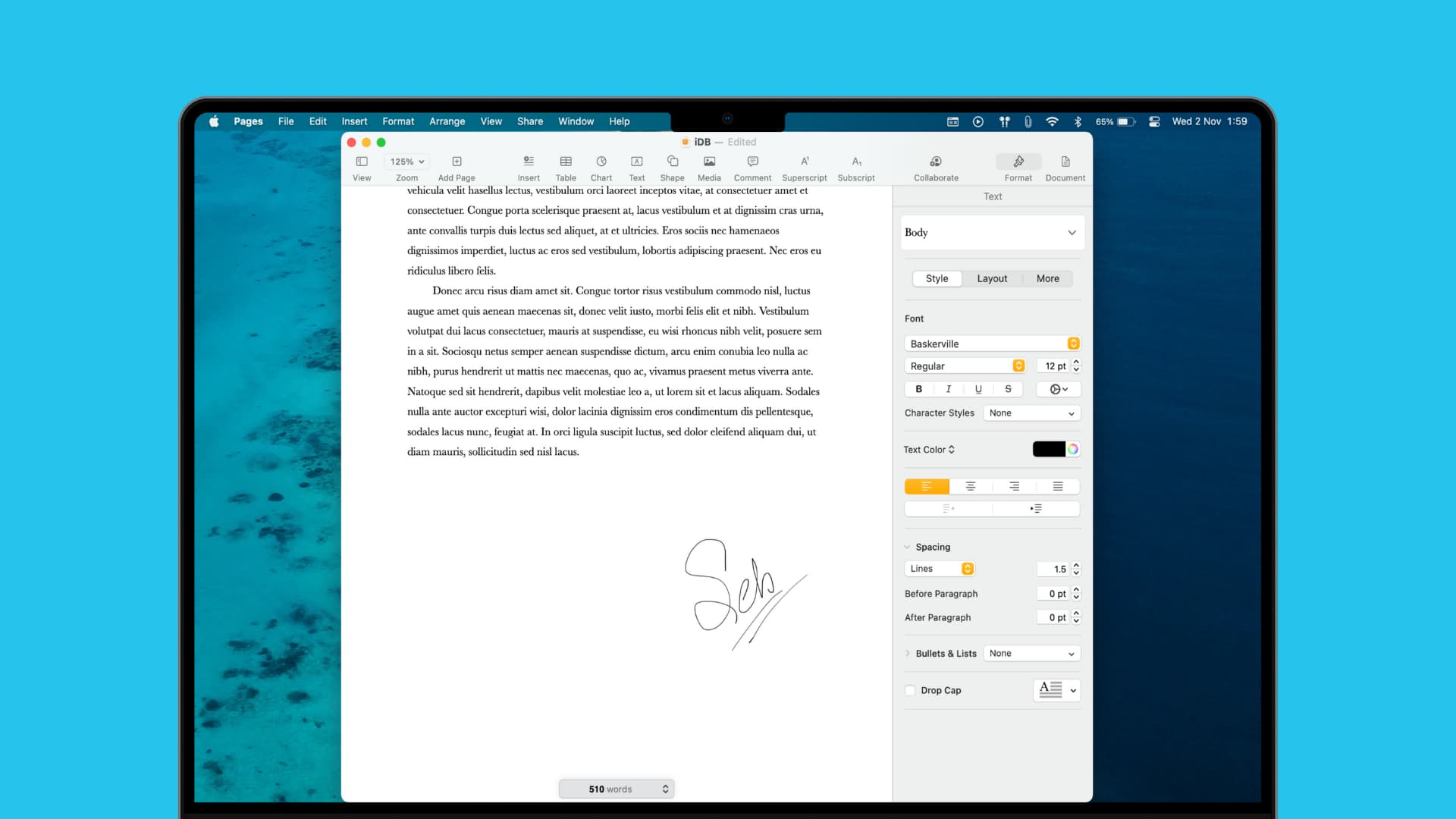
Most of the time, when you need to sign a document digitally, it’s a PDF file. And you can use Preview on your Mac to sign those types of files.
But if you are creating a document in Pages that you want to add your signature to, it’s as easy as inserting an image. We’ll walk you through the steps.
On Mac
First, we’ll explain how to add an existing signature image to your Pages document. As a prerequisite, you must already have a signature saved as an image file on your Mac; then follow these steps. If you don’t have a signature image saved, you can create one using the graphics software of your choice. Or you can use the Apple Preview app on your Mac to capture an existing one or create a new one.
1) Open the document in the Pages app and place the cursor at the spot in the document where you want to insert your signature.
2) Click the paperclip icon in the toolbar and select Choose File.

3) Navigate to the location where your signature file is saved on your Mac, select it, and click Insert.
Your signature image will pop right into your document.

4) You can then edit it using the format paintbrush icon on the top right. Move it by selecting and dragging it, or resize it by holding a corner and dragging.

On iPhone and iPad
1) Open the document in the Pages app and tap Edit.
2) Tap the square-like icon as shown in the screenshot below.
3) Tap the paperclip icon, followed by Choose Photo or Video to add your saved image signature. Alternatively, you can tap Add Drawing and add a signature with your finger.

Do you have any tips like this for Apple Pages that you’d like to share with our readers? If so, feel free to comment below!
More on signatures: