From changing your Apple Account email address to checking your Apple Cash Balance, you can access and manage your Apple ID account information right from your Mac’s System Settings, and this guide walks you through it.

Access your Apple Account

Open System Settings on your Mac, and you’ll see the Apple Account or Apple ID option in the top left corner. Click it to access your account information.
You’ll see your account profile picture, which matches the My Info picture in the Contacts app. Under it, you’ll see your Apple ID name and email address.
If you’re on an older version of macOS, open System Preferences and click the Apple ID option from the main view.
Manage your personal information

Click Personal Information to view your name and birthday. You can update them if they are incorrect. Furthermore, you can manage your email communication preferences from Apple and set age range permissions for apps.
Manage Sign-In & Security

Next, select the Sign-In & Security option from the main Apple Account screen. This lets you manage the following:
- Email and phone numbers: You can change your Apple Account email and add new emails and phone numbers to your account.
- Change password: You can update your Apple ID password from here.
- Two-factor authentication: Use this to view trusted devices, add new trusted phone numbers, and set up physical security keys for your Apple ID account. On older versions of macOS, you can also get a verification code when signing in to your Apple/iCloud account on a new device or browser.
- Sign in with Apple: View which apps are using your Apple ID to create a profile. You can choose to stop forwarding emails sent from an app or revoke its access.
- Account Recovery: Use this to set up a recovery contact and recovery key so you can recover your account if you forget the password.
- Legacy Contact: Add a trusted person who has access to your Apple Account data after you pass away.
- Automatic Verification: This should be enabled by default. It verifies you automatically in some places with a CAPTCHA.
Check Payment & Shipping
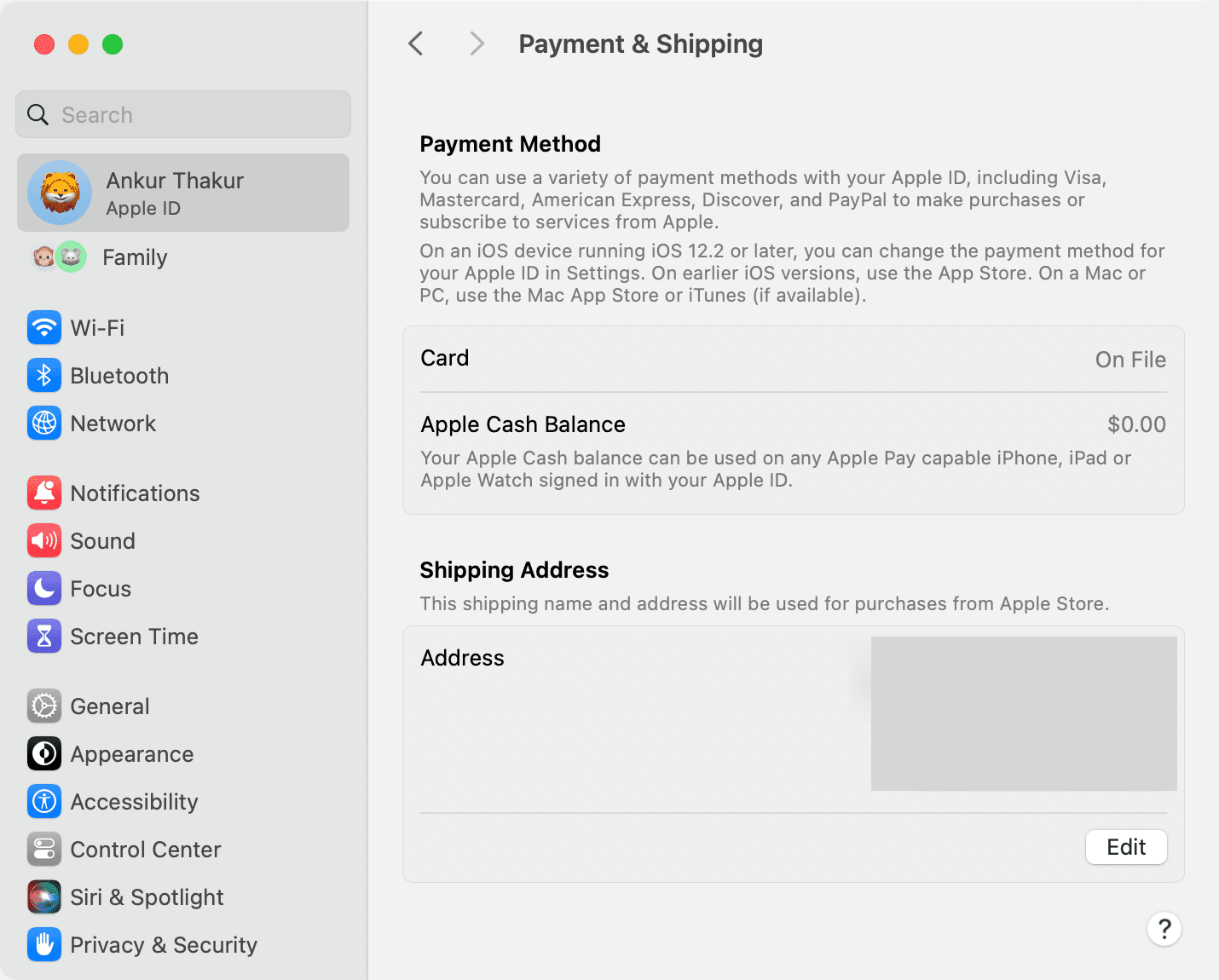
Adjust your default payment method for purchases, view your Apple Cash and Apple Card balances if applicable, and edit your shipping address. On newer versions of macOS, you can manage them at account.apple.com.
Manage iCloud

Click iCloud from your main Apple Account screen in System Settings, and manage how apps sync iCloud data to this computer. You can also manage your iCloud storage and iCloud+ offerings.
Additionally, you can enable Advanced Data Protection to enable end-to-end encryption for more apps and services.
Lastly, turning off Access iCloud Data on the Web will prevent you from accessing iCloud Mail, Contacts, Calendar events, Photos, and more at iCloud.com.
Media & Purchases

You can adjust your purchase settings for the App Store, Books Store, and media store (Music, TV) here. You can choose whether to enter your Apple Account password or use Touch ID when you initiate a free download or make a purchase. You can also hit the Manage button to take care of your account and ongoing subscriptions.
Family Sharing

Use it to set up and manage your family members added to your Family Sharing. You can also use this screen to create an Apple ID for your child.
Manage your devices
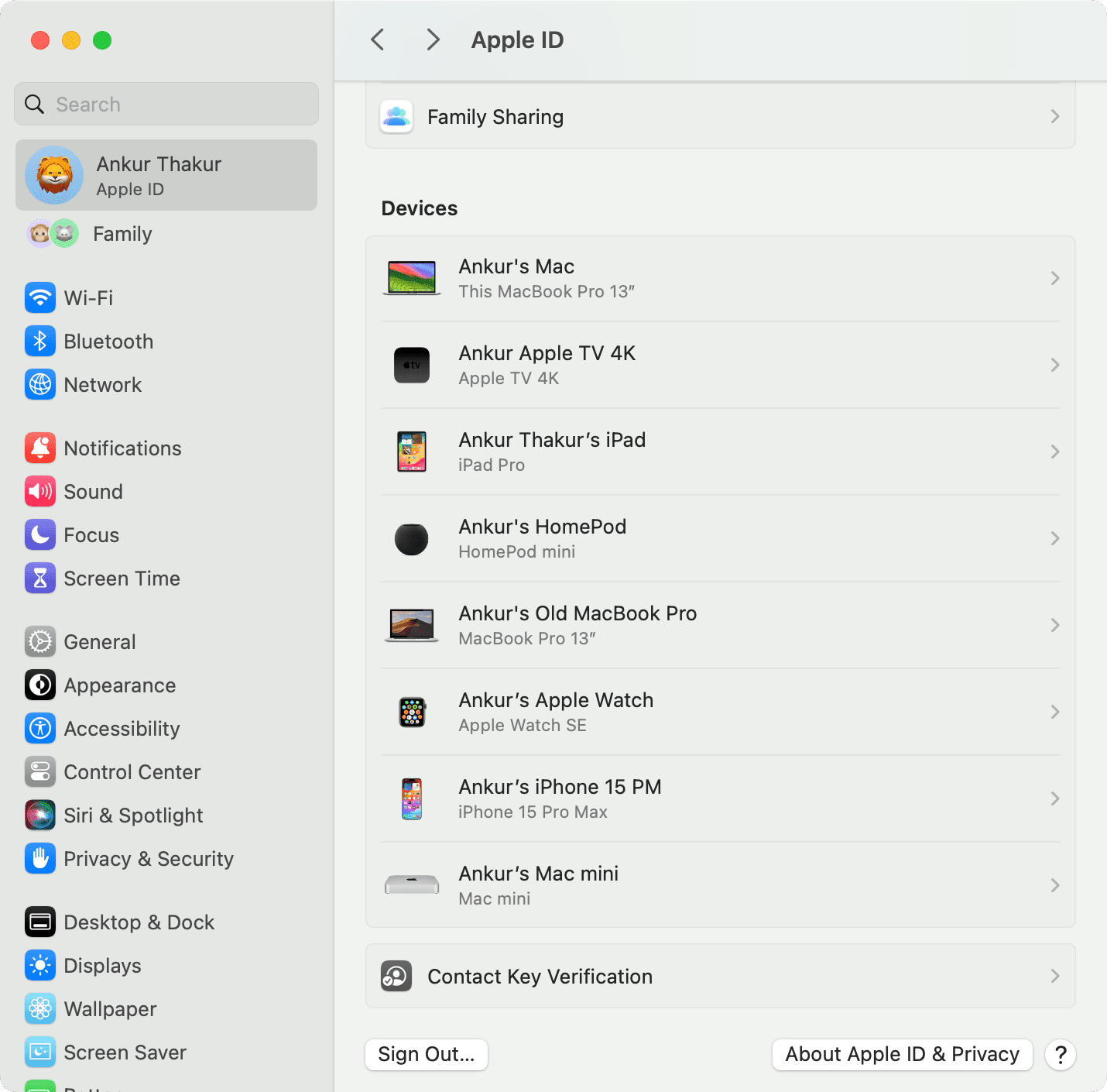
Finally, this screen lists all the devices where you’re using your Apple Account. You’ll see all of those listed and can click one for further details and actions.
For instance, if you view your iPhone or iPad, you can see your model, version, serial number, whether Find My is on, and more.
Also, check out: How to keep your Apple ID and iCloud ID secure