Check out the quick steps to force-close unresponsive apps on your iPhone, iPad, or iPod touch for smooth performance and to quickly resolve app issues.
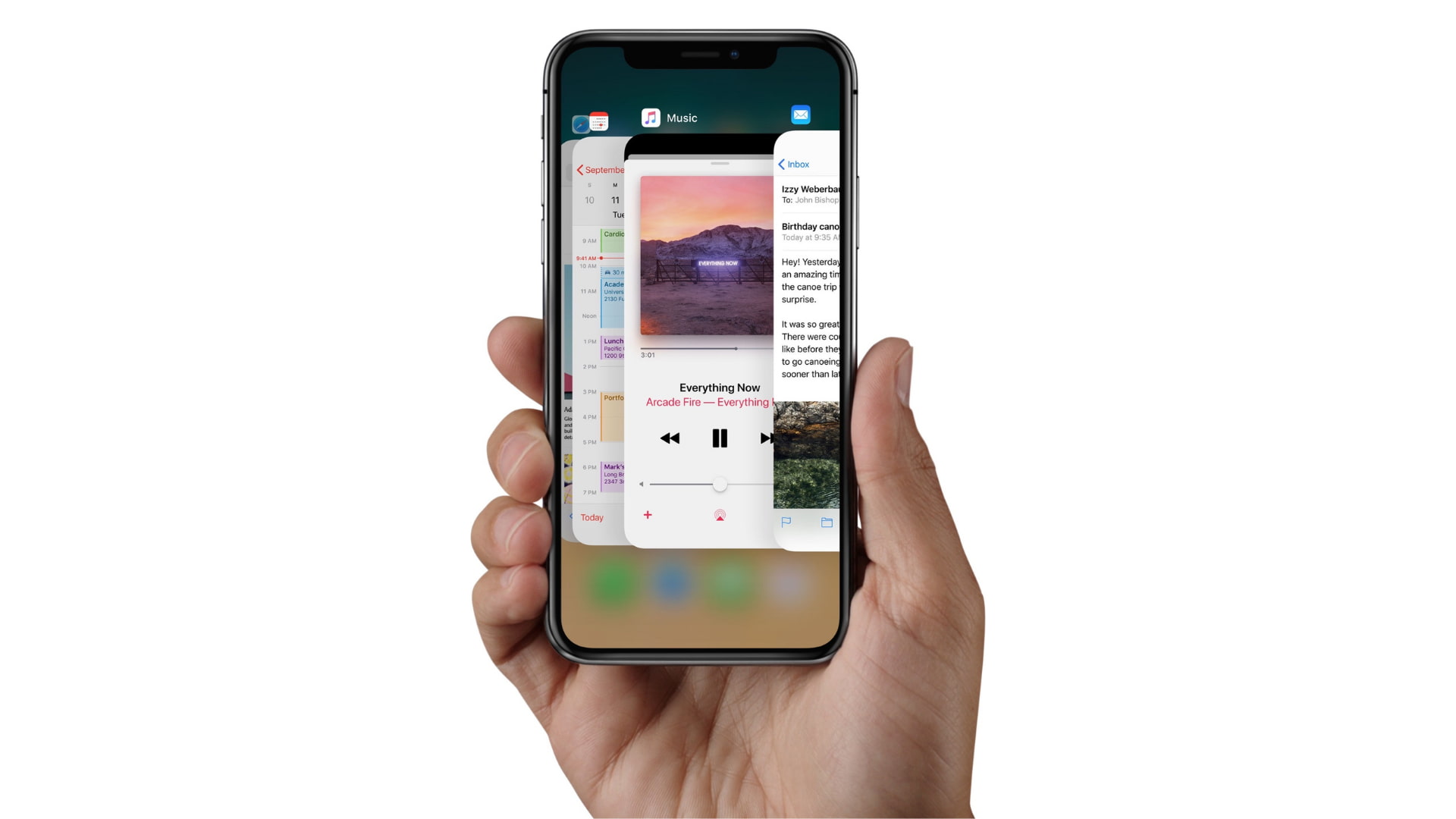
Should you force quit apps on iPhone and iPad?
You can force close and reopen an app when it freezes, misbehaves, gets stuck, or doesn’t work as intended. In most cases, doing this fixes the ongoing issue, and the app starts working fine. However, it would be best to force-close the app only when it is truly unresponsive, or if you don’t need that app for a very long time.
For instance, the Uber app on my phone has access to my location. So after taking a ride, if I don’t plan to use it again today, I force-close it. But for productivity, browsers, music, and similar apps, I rarely force-quit them.
In a separate post, we discussed this topic in more detail and explained why force-quitting apps to save battery life is a terrible idea. It’s also worth noting that Apple has confirmed that force-closing apps doesn’t extend the iPhone’s battery life.
That all being said, if the app isn’t working properly, hangs, is unresponsive, or has other problems, feel free to force quit and reopen it as many times as needed. And if that doesn’t help, simply restart your iPhone or iPad.
Force close apps on iPhone with Face ID
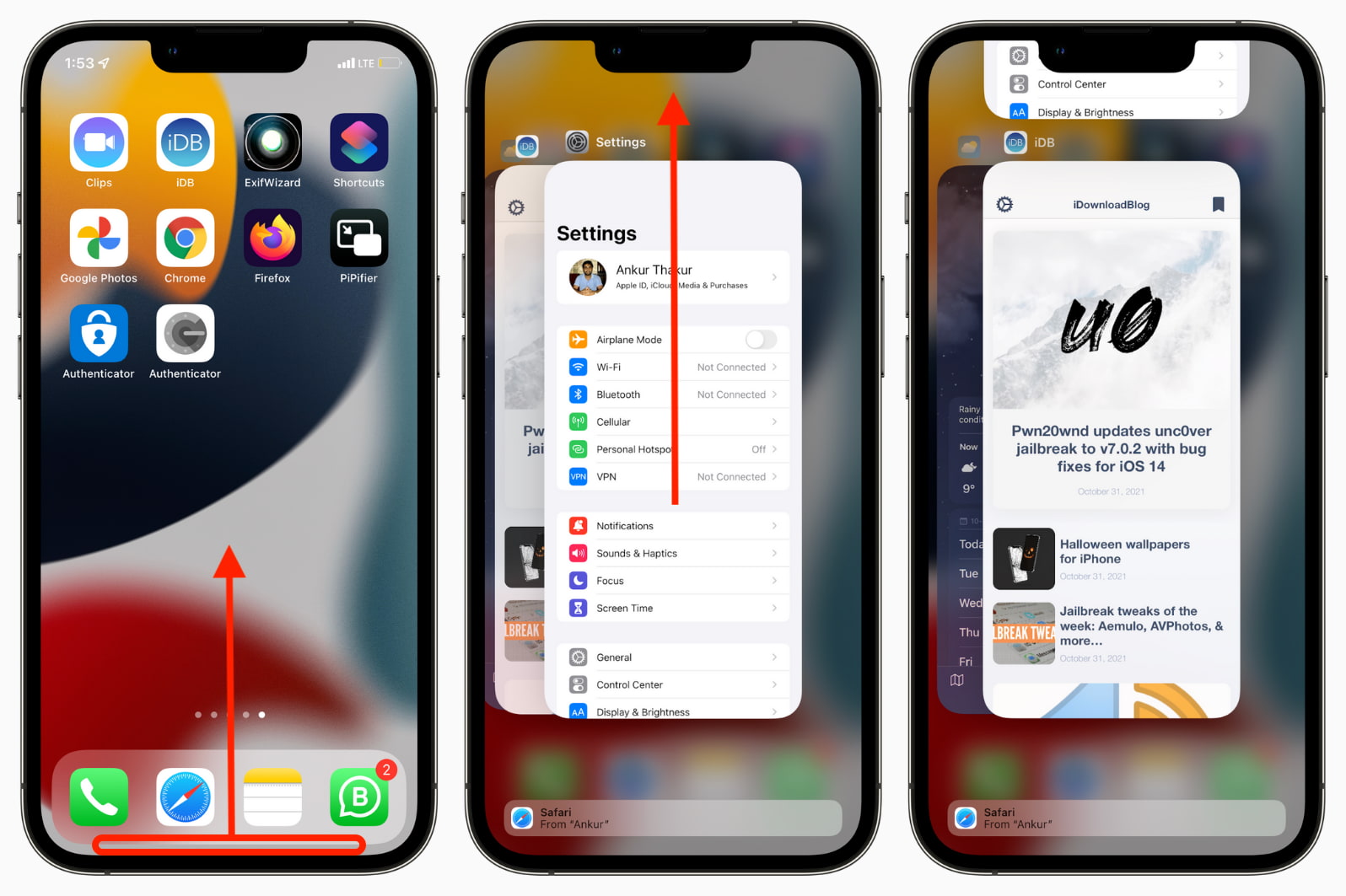
These steps apply to iPhone models with Face ID: iPhone X, XR, XS, 11, 12, 13, 14, 15, 16, 17 series, and iPhone Air.
- Swipe up from the bottom of the screen and hold.
- Swipe horizontally to see all recently used apps and find the one you want to force-close.
- Drag the app’s preview card all the way up to close it. You can also place two or three fingers on adjacent cards and then swipe up together to close them.
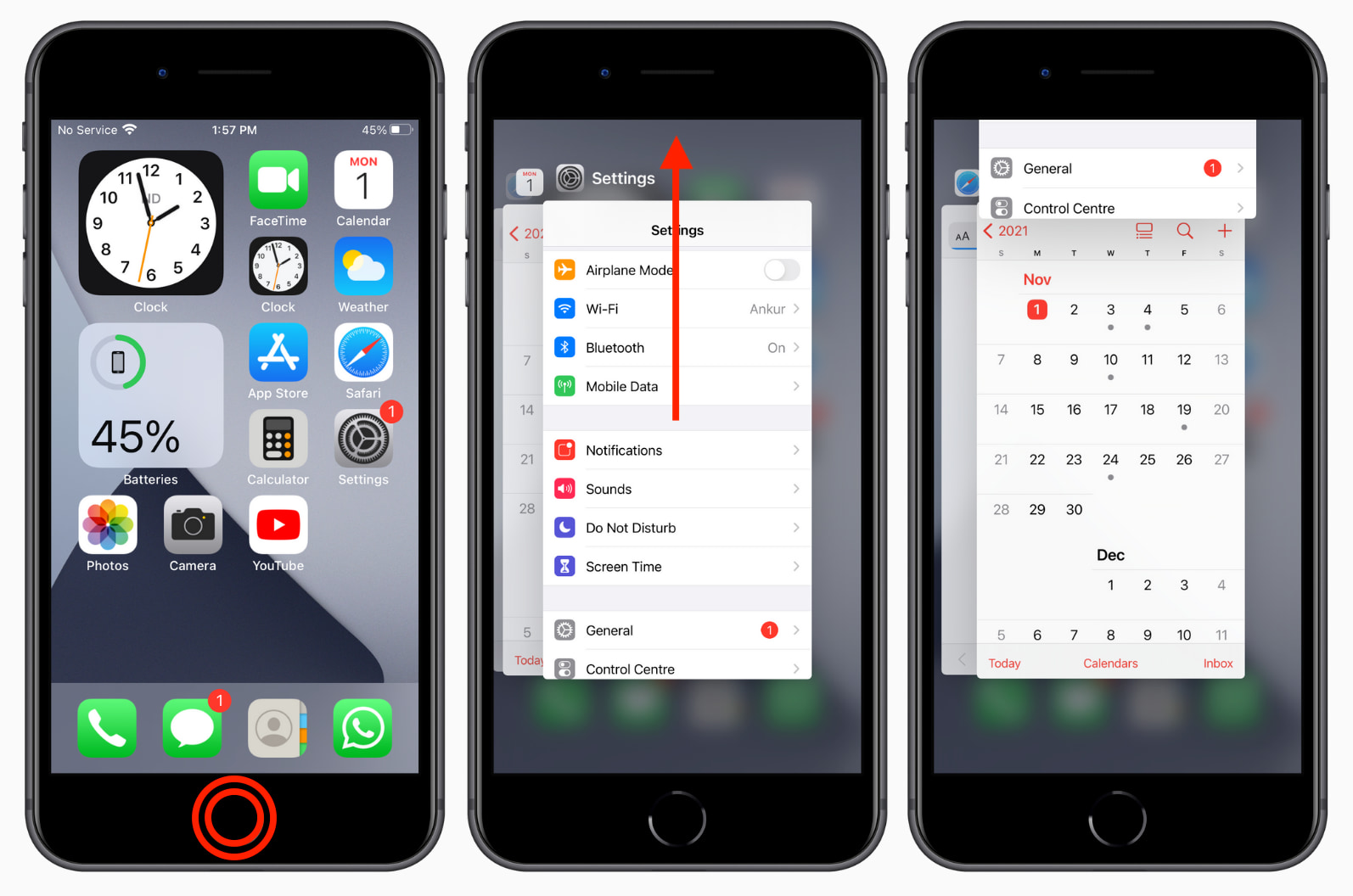
These steps apply to the iPod touch, iPhone SE 2022, SE 2020, 8, 7, SE 1st generation, 6S, 6, 5S, 5, and other models with a Home button.
- Double-click the circular Home button in quick succession to see all open apps.
- Swipe right or left to find the app you want to close.
- Drag the app’s card all the way up to force quit it.
Do you have difficulty quickly double-clicking the Home button?
If you aren’t able to click the Home button twice in very short succession because of old age, weak muscles, or a disability, you can change its click speed by going to iPhone Settings > Accessibility > Home button and choosing Slow or Slowest under Click Speed. After that, even if you press the button twice after a relatively long gap, it will register as a double-click.
Force quit apps on iPad
Like iPhones, some iPad models have a front-facing Home button, while others, like the high-end iPad Pro, don’t. However, regardless, the steps to close apps on all iPads are the same, as long as they are running a newer version of iOS or iPadOS.
- Swipe up from the bottom of the screen and hold. You’ll see all open apps and their preview.
- Swipe horizontally to find the app you want to close. Finally, swipe up on an app card to force quit it.
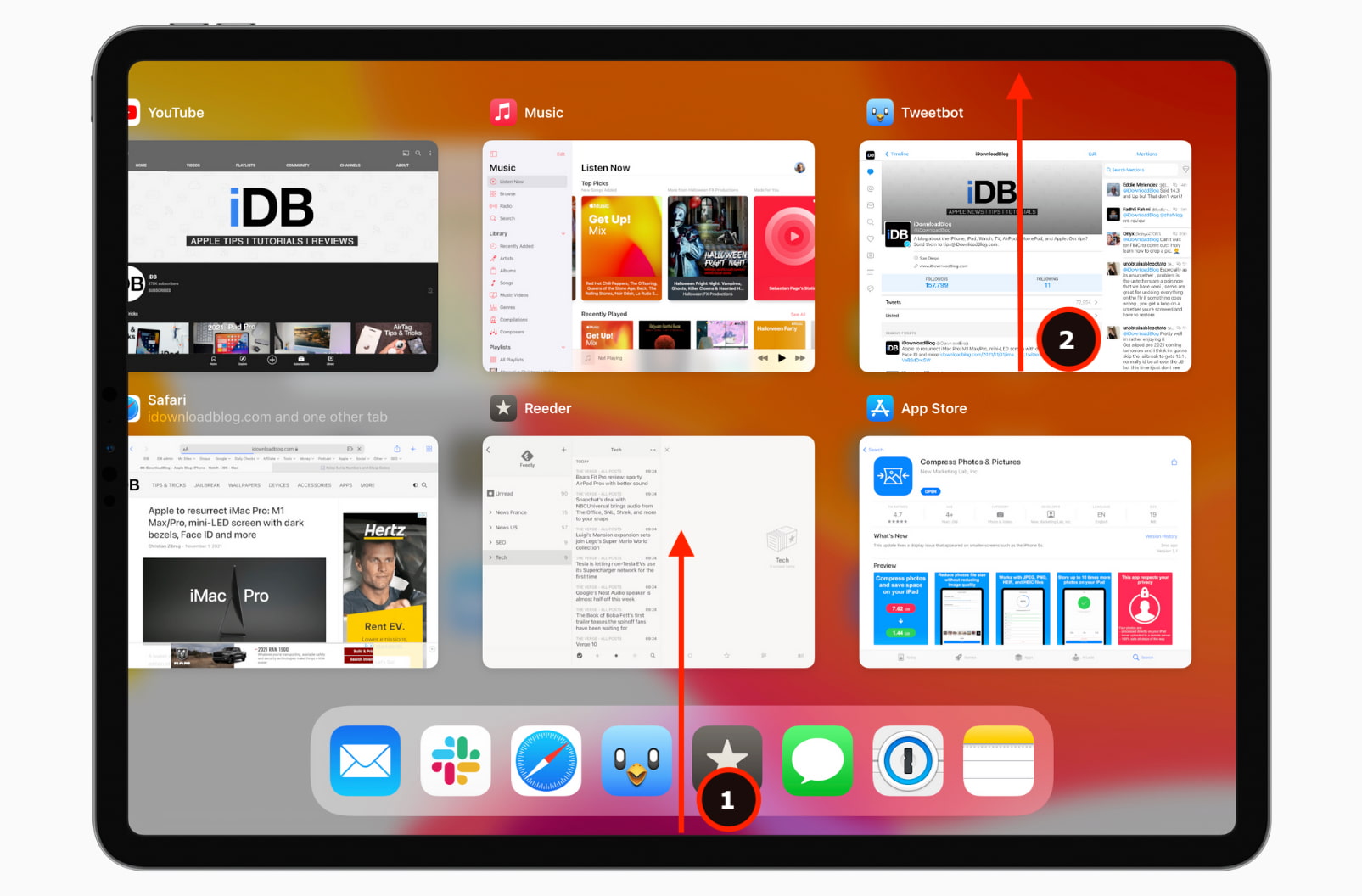
Note: If you have an iPad with a Home button running a very old version of iOS, double-click the Home button to see all open apps. Now, drag the app card up to close it. This is similar to an iPhone with a Home button.
Reopen a closed app on iPhone or iPad
Now you know how to close apps on iPhone, iPad, and iPod touch. If the app was unresponsive and you closed it, you can relaunch it using the following methods.
- Tap the app icon on the Home Screen or in the App Library.
- Type the app’s name in Spotlight Search, then tap its icon.
- Ask Siri to “Open [app name].”
- Tap the app widget from the Home Screen or Today View, and that app will open. For instance, if you tap the Clock widget, the Clock app opens.
Next, learn how to force quit apps on: