Learn how to check the Activation Lock status before using a used/pre-owned iPhone, iPad, Mac, Apple Watch, or Apple Vision Pro to ensure a safe purchase.
We published an article listing things to do before selling your iPhone, iPad, Mac, Apple Watch, or Vision Pro. However, if you’re on the other side and want to buy a used, secondhand Apple device, you must check Activation Lock and ensure it’s disabled.
If you buy an Apple device with Activation Lock still in place, you will end up with an expensive paperweight that cannot be set up with your Apple Account, leaving you locked out of the device!
Why worry about Activation Lock before buying a used device
Activation Lock is automatically switched on when users enable Find My on their iPhone, Apple Watch, iPad, and Mac. This lock is tied to that owner’s Apple Account (nearly every user has Find My enabled, as it’s automatically turned on while setting up the device, and during use, almost no one turns off this safety feature).
If the device is erased without first turning off Find My, the Activation Lock prevents it from being set up again. On the setup screen, the only way to bypass Activation Lock is by entering the Apple Account password of the last owner. Failing to do so makes setting up the device impossible, rendering it entirely unusable!
In other words, when Activation Lock is enabled, the previous owner’s Apple ID password is required to reactivate and use the device.
If you buy a used iPhone, iPad, Apple Watch, Mac, or Vision Pro from secondhand marketplaces, a few nefarious sellers may deliberately leave the Activation Lock enabled. Once you contact them, they will demand an extra payment to remove Activation Lock remotely. Even after payment, there is no guarantee that they will honor their words. It’s also likely that the device sold to you is stolen, and the seller himself doesn’t know the password!
Also see: How to check if an iPhone is new, refurbished, or a replacement unit
How to check Activation Lock remotely
You can check a device’s Activation Lock only in person. In years past, there was a way to remotely check Activation Lock by entering the device’s serial number or IMEI on a dedicated iCloud Activation Lock page. But Apple discontinued it around 2017. Now, you can no longer check Activation Lock remotely.
Important: You shouldn’t trust third-party websites that claim to check the Activation Lock for used or stolen iPhone, iPad, or other Apple devices. They don’t work!
Check Activation Lock before buying a used iPhone, iPod touch, iPad, or Vision Pro
Use these methods to check Activation Lock on used Apple devices before buying. Note that you must have the device in your hand and that it must be turned on to see the Activation Lock status.
Method 1
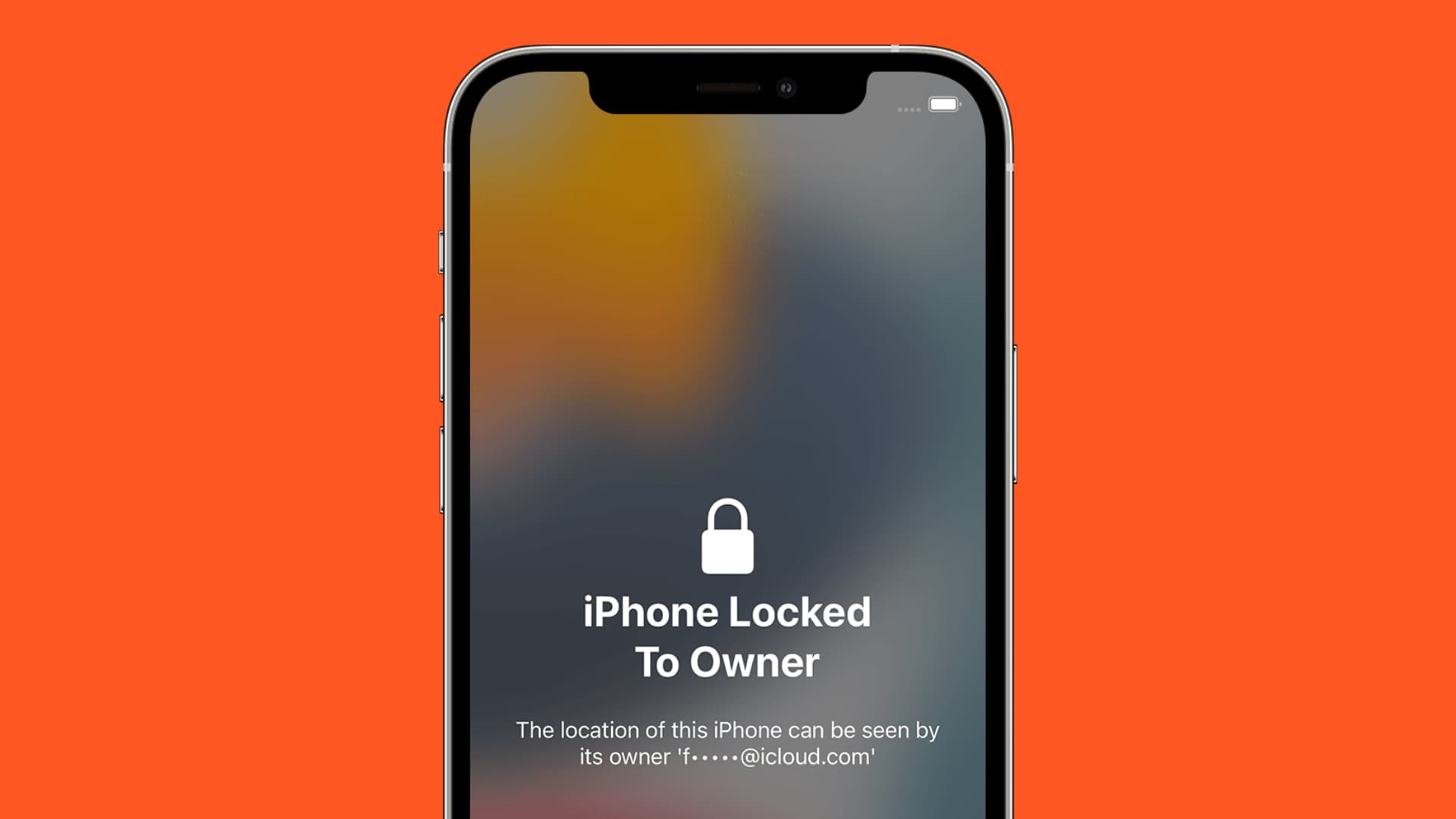
Power on the device and complete the basic setup process, including choosing a language, region, and connecting to a Wi-Fi or cellular network. After this, if you see one of the following screens (or something likewise), that means the iPhone, iPad, iPod touch, or Vision Pro has Activation Lock enabled:
- iPhone/iPad/iPod/Apple Vision Pro Locked to Owner: The location of this iPhone can be seen by its owner.
- Activation Lock: This iPhone is linked to an Apple ID. Enter the Apple ID and password that were used to set up this iPhone.
- Activate iPhone: This iPhone was lost and erased. Enter the Apple ID and password that were used to set up this iPhone. Message from Owner. This means the device not only has Activation Lock, but it’s also been stolen, and the original owner has put it in Lost Mode!
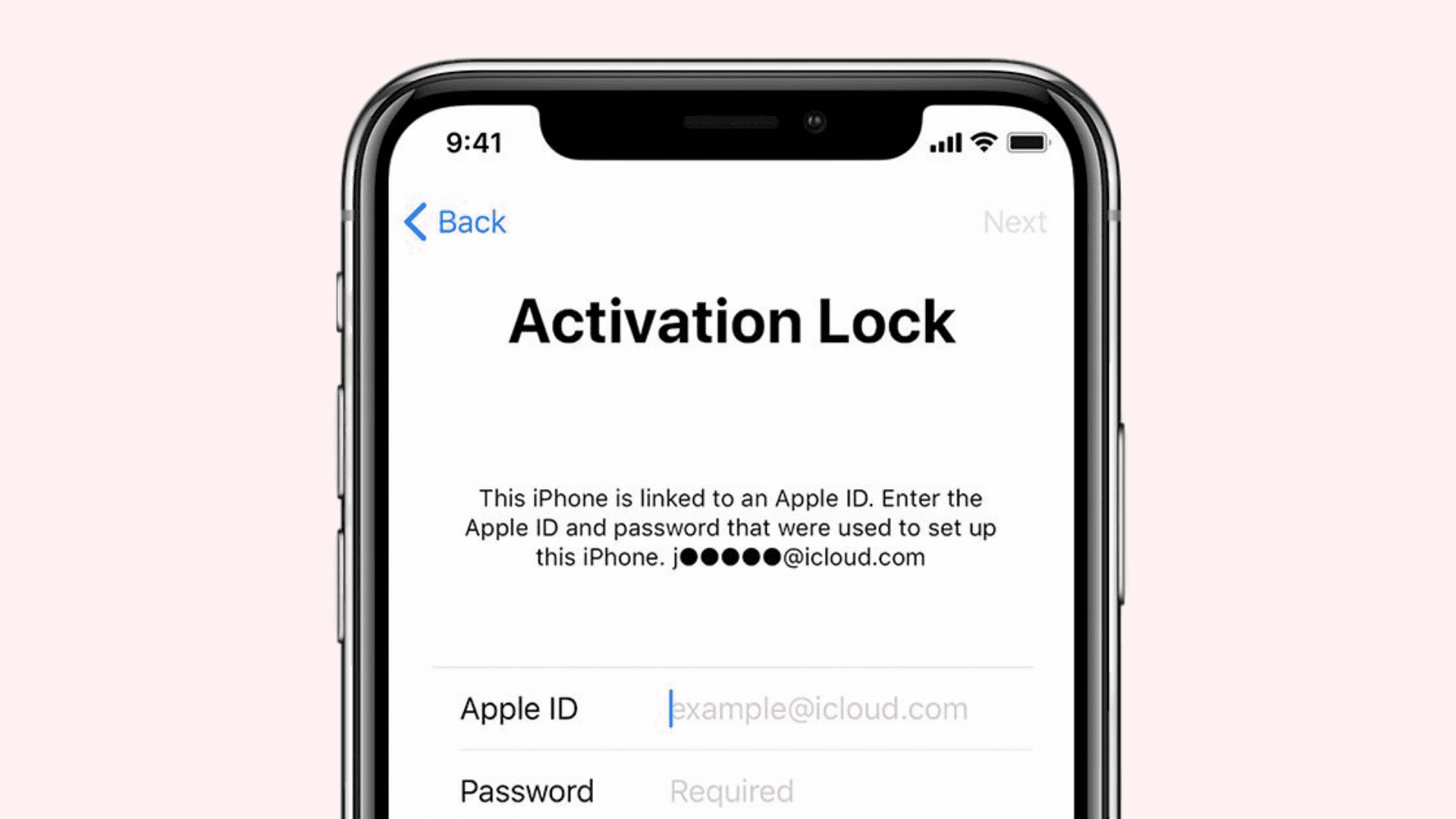
Don’t buy the device if you see any of the above messages.
To remove the Activation Lock, ask the device owner to enter their Apple Account password on this screen. After that, use your Apple Account to set up the iPhone, iPad, iPod, or Vision Pro. In case you can’t use your Apple Account, ask the seller to follow these steps to turn off Find My and then erase the device. Once that’s done, you can buy the device and set it up using your Apple Account.
If you don’t see the above messages, there is no Activation Lock on that device. Proceed with the device setup and enter your Apple Account (or create one) to use on it.
Method 2
When you take the device in hand, and it shows a Lock Screen to enter the device passcode, it means the device is not yet erased, and Find My (and Activation Lock) is probably still enabled. Ask the previous owner to turn off Find My and erase the device. After that, you can buy it.
Method 3
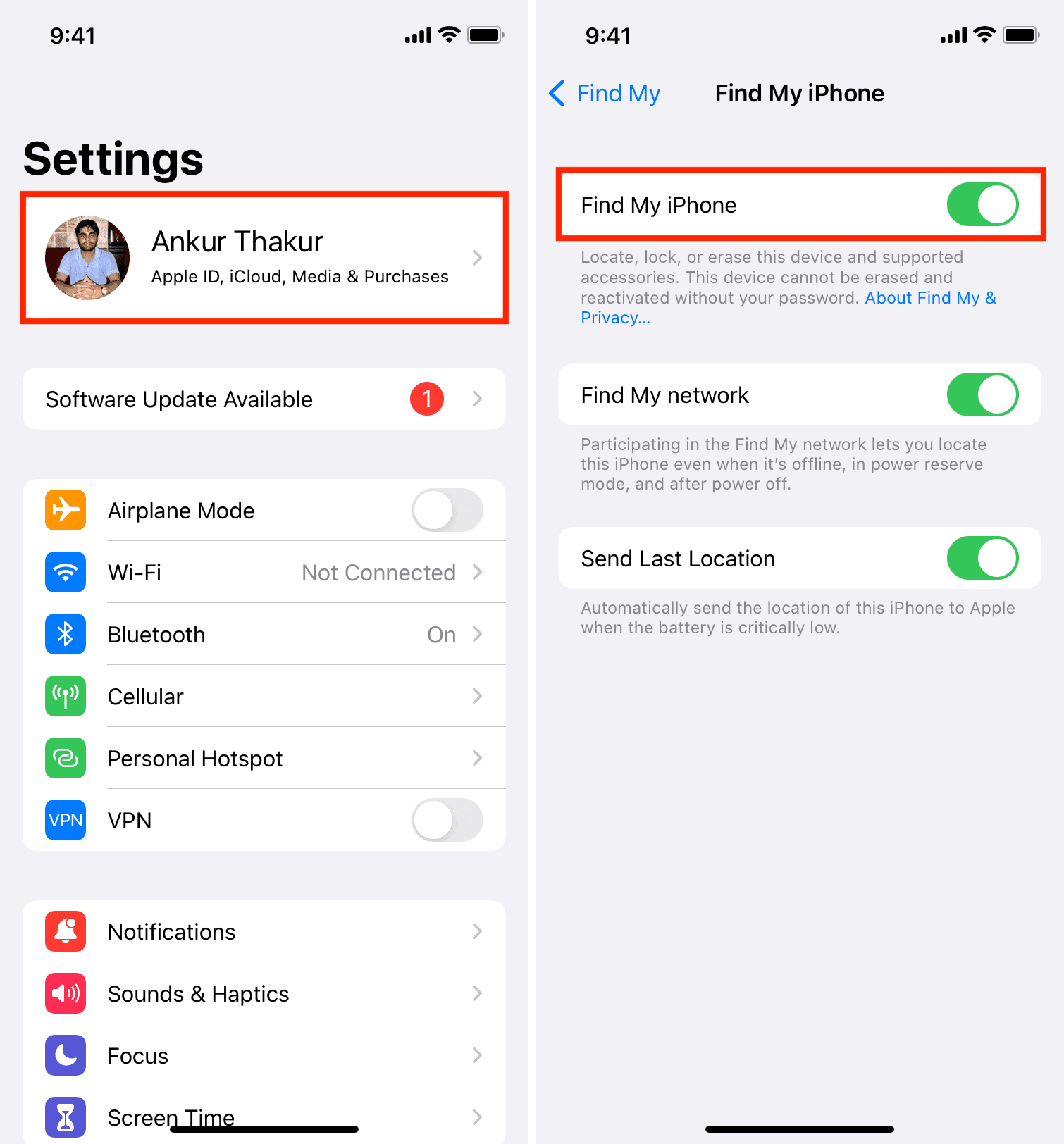
If the device is set up, go to the Settings app > tap the name you see at the top > Find My > Find My device, and if Find My device is green, that means Activation Lock is enabled. Don’t buy this device unless the owner turns it off and erases the device. If Stolen Device Protection is activated, it must be turned off first (which can take up to an hour) before disabling Find My.
Check Activation Lock before buying an Apple Watch
When Find My is enabled on iPhone, it’s automatically enabled on the paired Apple Watch. While setting up your Apple Watch, if you see the Activation Lock screen, the watch isn’t removed from the previous owner’s Apple Account. Ask them to remove it from their Apple Account.
If the Apple Watch is already set up and you can see the watch face, apps, etc., that means the owner has not erased it. Ask them to go to the Watch app on their iPhone and unpair the Apple Watch. Don’t let them erase it from the Apple Watch Settings app, as this may leave the Activation Lock enabled.
Check Activation Lock before buying a MacBook
Like iPhone and iPad, if you see the Activation Lock screen while setting up the Mac, contact the owner and ask them to remove it from their account.
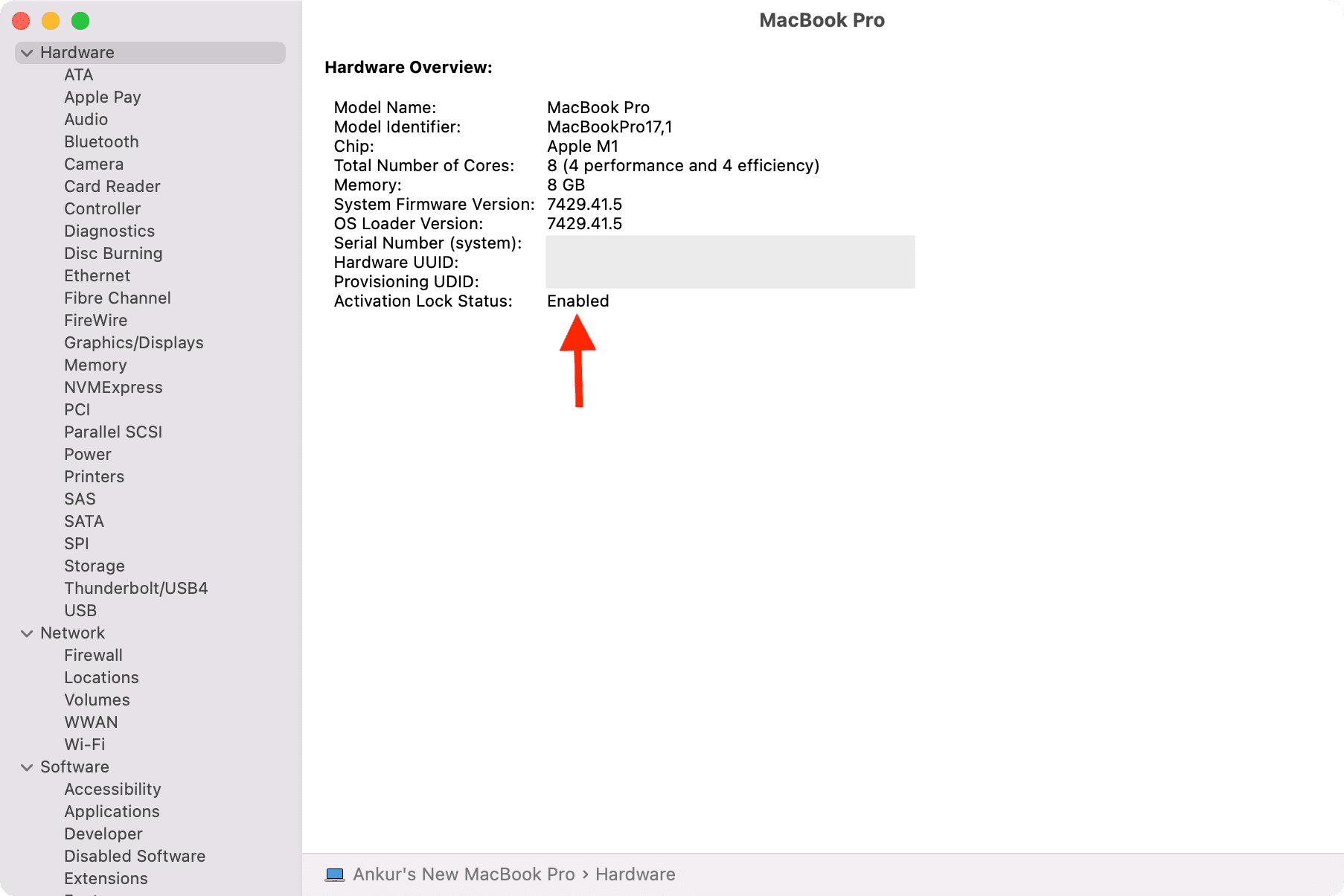
In case the Mac is already set up, you can see if Activation Lock is enabled or not by going to the System Information screen.
What to do if you already bought an iPhone or Apple device with Activation Lock
If you have already bought an iPhone, iPod touch, iPad, Apple Watch, Vision Pro, or Mac that has the Activation Lock enabled, contact the seller or previous owner and ask them to remove the device they sold you from their Apple Account. The seller can do that by following these steps:
- iCloud.com/find > login with their Apple Account that was logged in to the device sold to you > All Devices > select the device sold to you > Remove from Account.
- Or, open Find My app on their iPhone or iPad > Devices > select the device sold to you > Remove This Device.
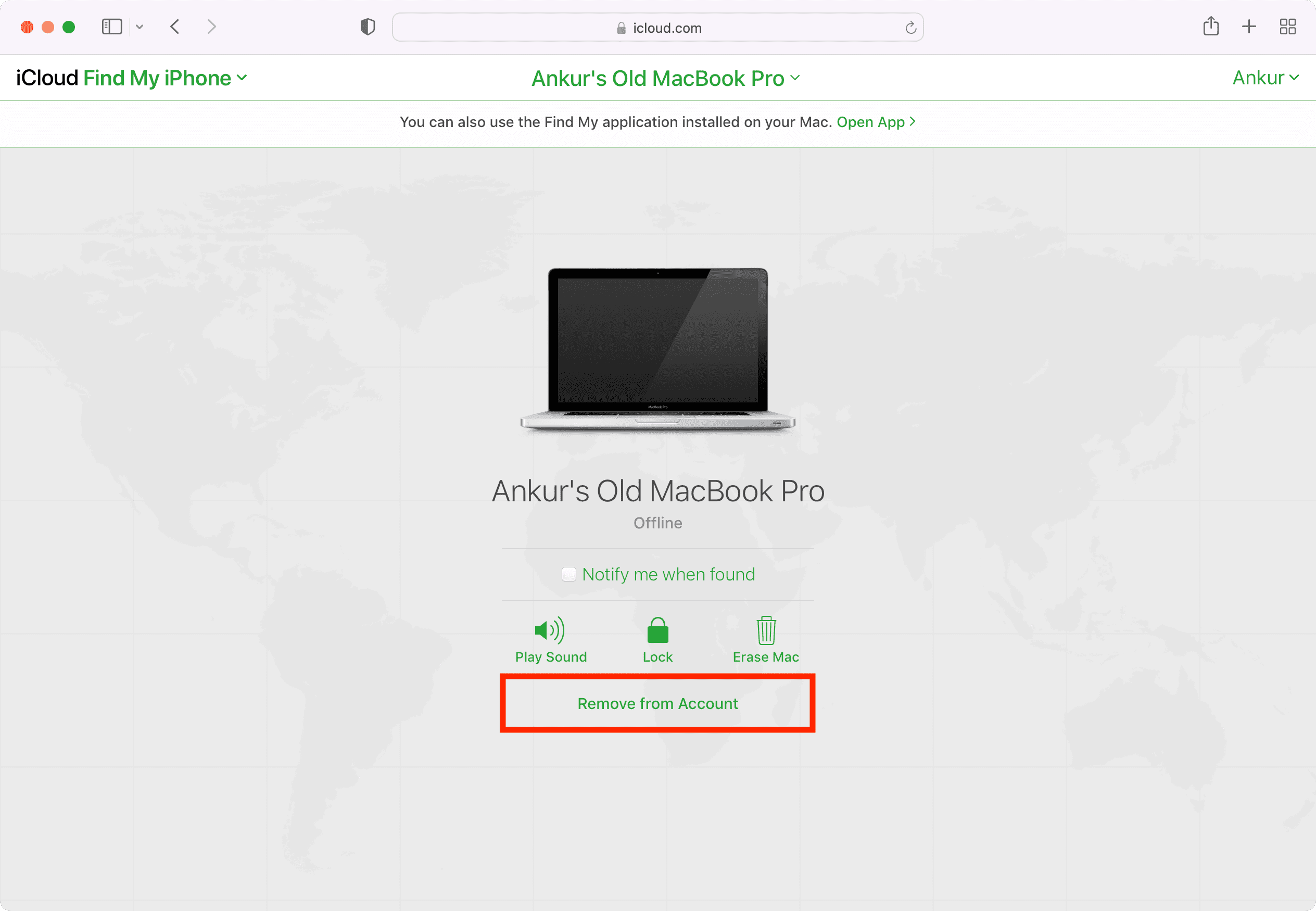
In case Remove from Account or Remove This Device isn’t visible to the seller:
- Turn off the device you have or disconnect it from the internet so that it appears offline. Once the device is offline, the seller should see the option to remove it.
- If the seller still does not see it, ask him to choose Erase [device] or Erase This Device using Find My. Doing so will remotely erase the device they sold to you (as long as it’s connected to Wi-Fi or cellular data). Once that’s done, ask them to remove this device if you still see the Activation Lock.
If the seller can’t follow the above steps:
- Ask them to get help from someone near them.
- Meet the seller in person and have them enter their Apple Account password on the device they sold you.
Related: How to remotely erase an iPhone or iPad that was lost or stolen
Remove Activation Lock on an iPhone with an unknown Apple Account
The first letter of the Apple Account linked to the device is shown on the Activation Lock screen. Now, here are some things you can do if you forgot that Apple Account:
- Check your Apple Account on your other devices and see if it matches the first letter of the Apple Account shown on the Activation Lock screen.
- Reset your forgotten Apple Account password and use it on the Activation Lock screen.
- If you can’t remember the Apple Account and/or its password, your only way is to contact Apple Support or take the device to an Apple Store. If you have a valid invoice for the device, and the device is not in Lost Mode (to rule out the possibility that it is stolen), Apple Support might remove that device from the forgotten Apple Account, which turns off Activation Lock. After that, you can set up the device and use any other Apple Account.
A few years back, my older brother somehow restored his iPhone and then couldn’t set it up because of Activation Lock. He had forgotten the Apple ID signed in on that iPhone. After a while, he gave up and bought a new iPhone. A few months later, when I went to his house, I dug out the original invoice for that device, contacted Apple Support, explained the situation, and in about two weeks, they removed that iPhone from the Apple ID, and I could set it up again!
Check out next: