Whether you’re thinking about filing a claim or just curious about your device’s coverage, this article will show you how to quickly check the warranty status of your iPhone, iPad, Mac, Apple Watch, HomePod, and any other Apple device using official methods.
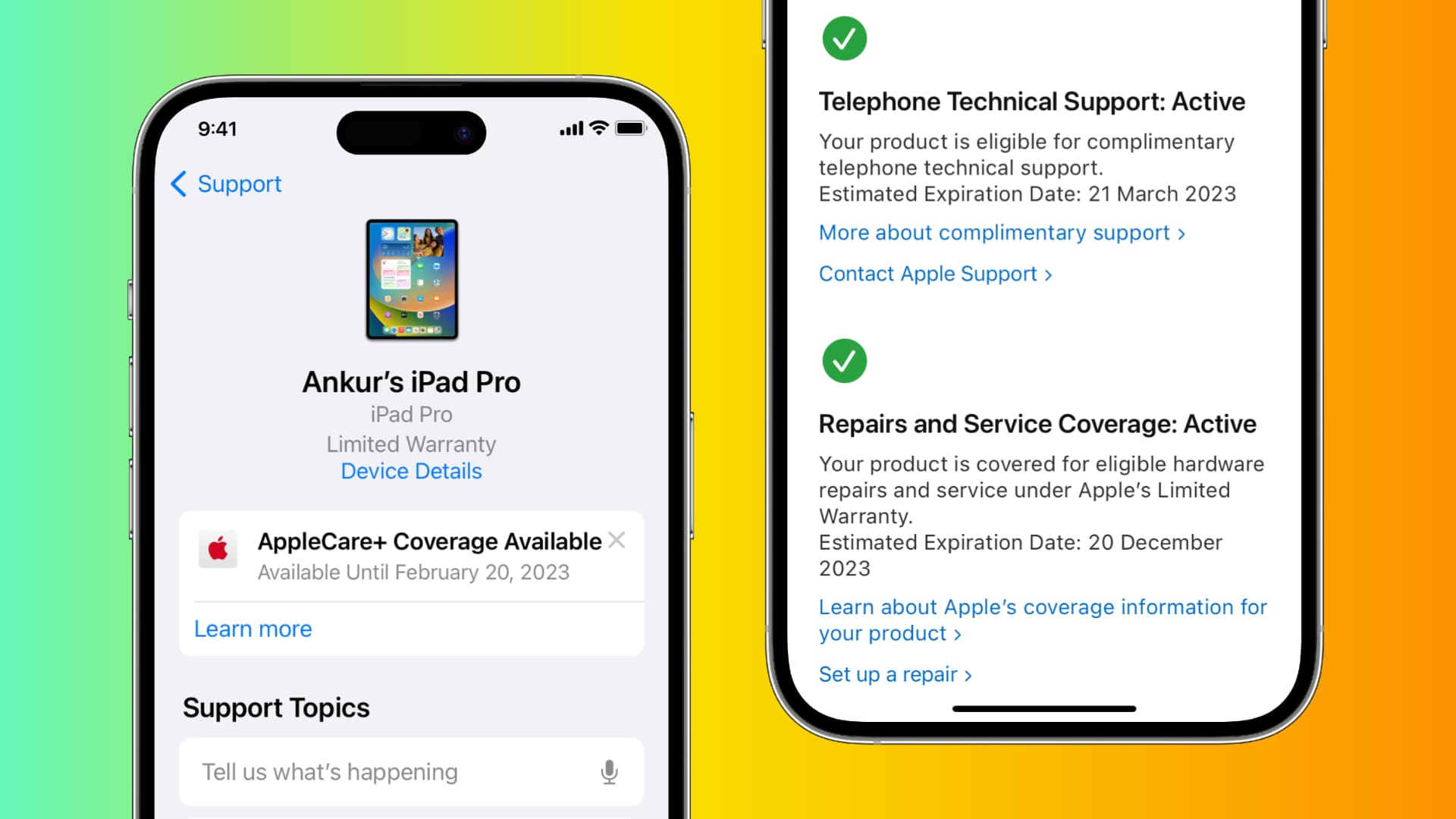
Every Apple product comes with a one-year warranty in the United States and most other countries. However, there is a two-year warranty in some jurisdictions, such as the European Union.
After checking your warranty status, also remember to learn about 13 things not covered under your iPhone warranty.
Check the warranty of your Apple devices
Here are the steps for all popular Apple products.
iPhone or iPad
- Open the Settings app and tap General.
- Tap AppleCare & Warranty.
- The current device will be listed at the top, followed by all your other Apple devices that have the same Apple Account. Select a device to know its warranty status. If you have an active warranty, it will say “Limited Warranty” with a date by which the warranty is set to expire. If you no longer have a warranty, you’ll see Coverage Expired.

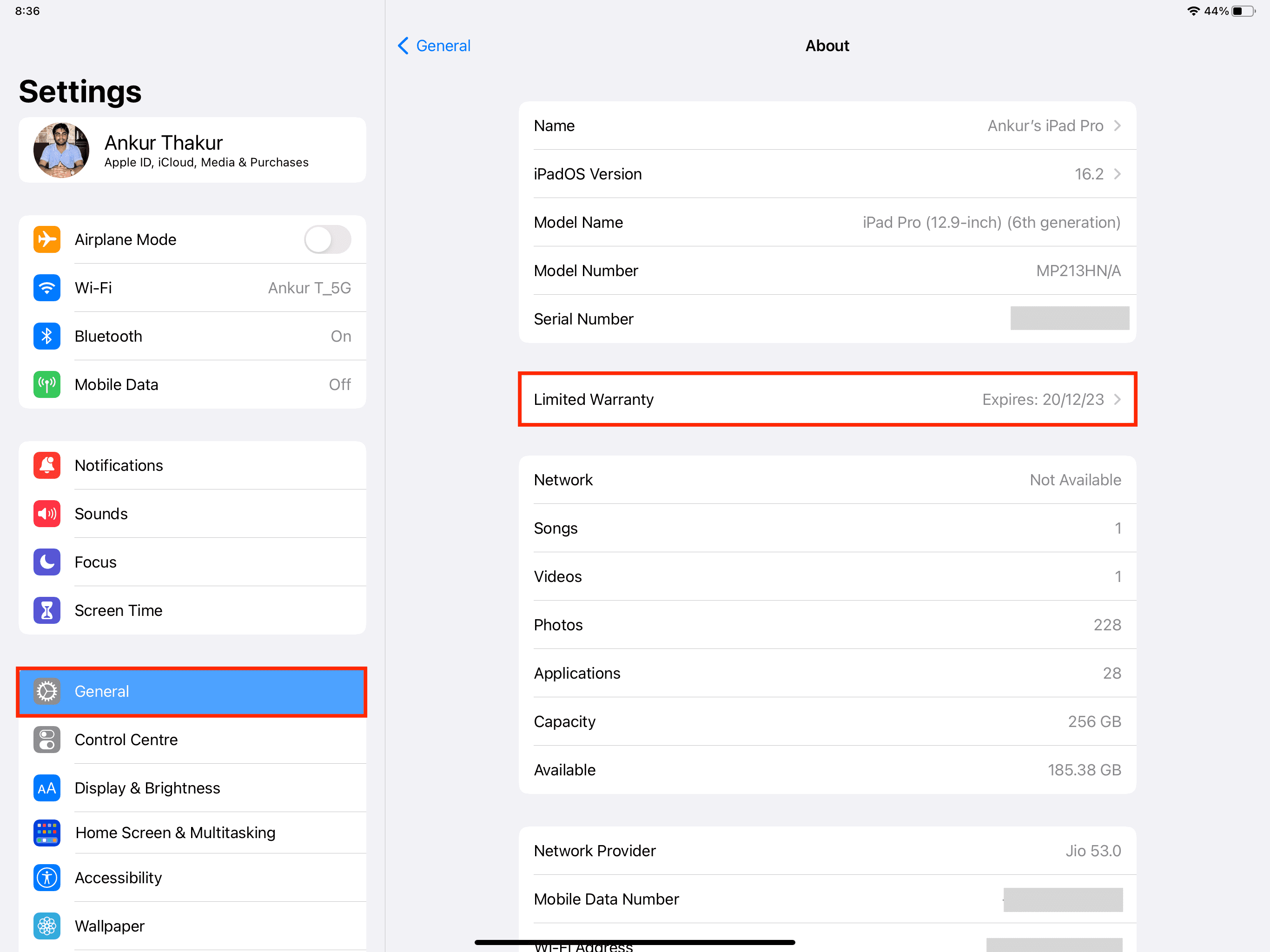
If your iPhone, iPad, or iPod touch is on iOS/iPadOS 17.2.1 or earlier, go to the Settings app > General > About. If you have an active warranty, it will say Limited Warranty with a date when the warranty is set to expire. If you no longer have a warranty, you’ll see Coverage Expired. Tap Coverage Expired or Limited Warranty to learn more.
Mac
Follow these steps to see the warranty status of your iMac, MacBook Pro, MacBook Air, Mac mini, Mac Studio, or Mac Pro running macOS Sonoma 14.3 or later:
- Click the Apple icon and choose System Settings.
- Select General from the left sidebar.
- Click AppleCare & Warranty to see the coverage for this computer or your other Apple devices.

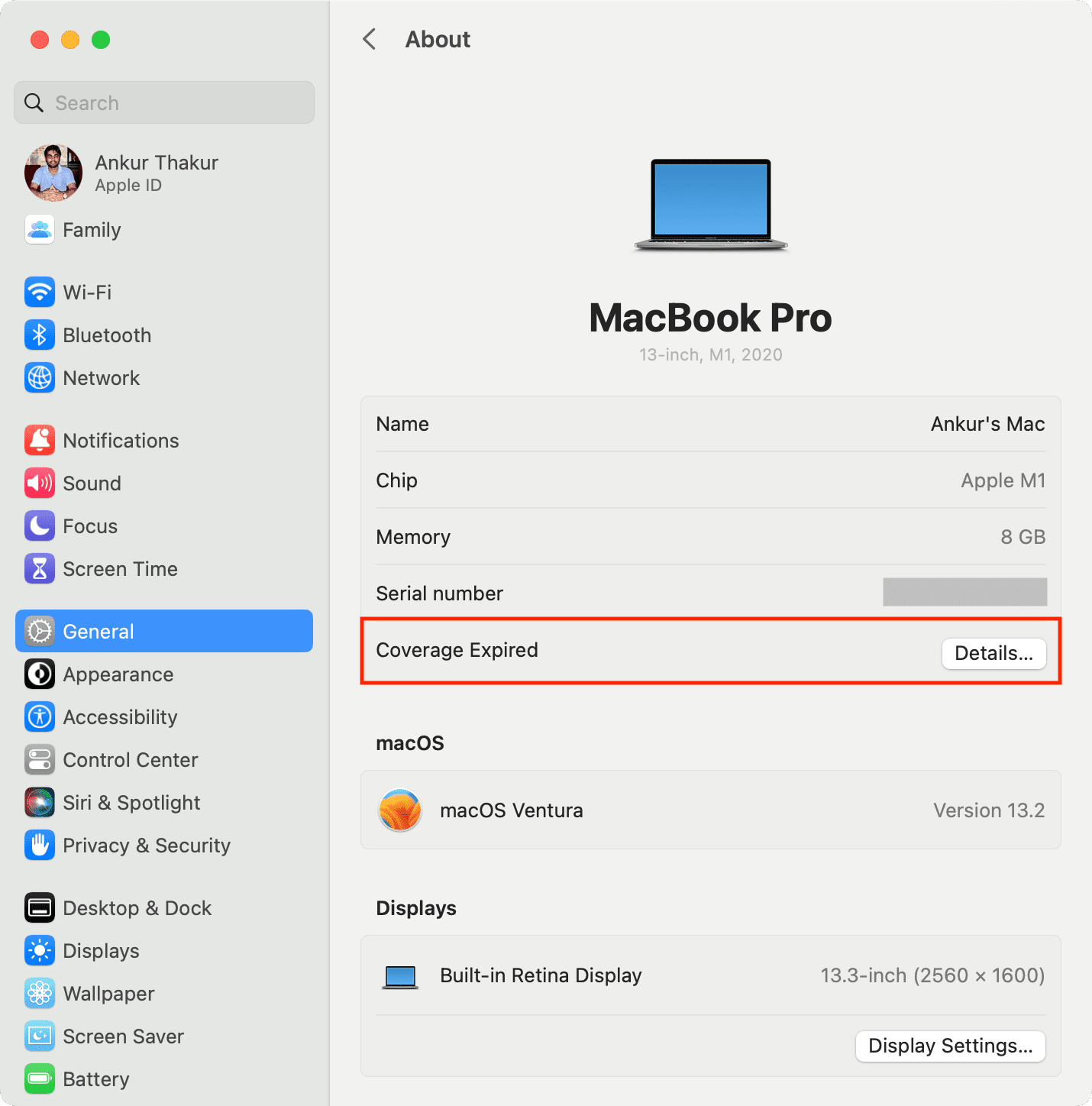
If you’re on an older version of macOS, like macOS Ventura, up to macOS Sonoma 14.2.1, go to System Settings > General > About. Depending on when you purchased your Mac, you’ll see Coverage Expired or Limited Warranty. Click the Details button here to learn more about your computer’s warranty.
Apple Watch
- Open the Watch app on your paired iPhone.
- Tap General > About.
- You’ll see Limited Warranty if you have a warranty remaining or Coverage Expired if you don’t have an active warranty.

AirPods, AirPods Pro, or AirPods Max
- Connect your AirPods to your iPhone or iPad.
- Open the Settings app and tap your AirPods name from the top.
- Scroll to the bottom, and you’ll see Limited Warranty with a warranty expiration date, or it will say Coverage Expired if you don’t have an active warranty.

Other methods to check the remaining warranty of any Apple device
In addition to the steps above, you can use the following methods to determine how much warranty remains for your Apple Pencil, Apple TV, and other Apple devices.
Use Apple’s Check Coverage website
- Go to checkcoverage.apple.com.
- Enter the serial number of your iPhone, iPad, Mac, AirPods, Apple Watch, Apple TV, HomePod, etc. Type in the verification code and hit Continue.
- On the next page, you’ll see your service and support coverage, such as valid purchase date, telephone support, repairs, and service coverage status, etc.

Note:
- If you visit Apple’s Check Coverage website in Safari on your iPhone, you may see the option to use its App Clip. Just tap Open and follow along to check your Apple device warranty with this special App Clip.
- Even though Magic Mouse, Magic Trackpad, Magic Keyboard, and such peripherals have a serial number, entering them on Apple’s CheckCoverage website may show an error saying, “We’re sorry, we’re unable to check coverage for this serial number. Please check your information and try again. For help with Apple accessories, please contact Apple Support.” In these situations, follow the last method mentioned at the end of this article.
Use the Apple Support app
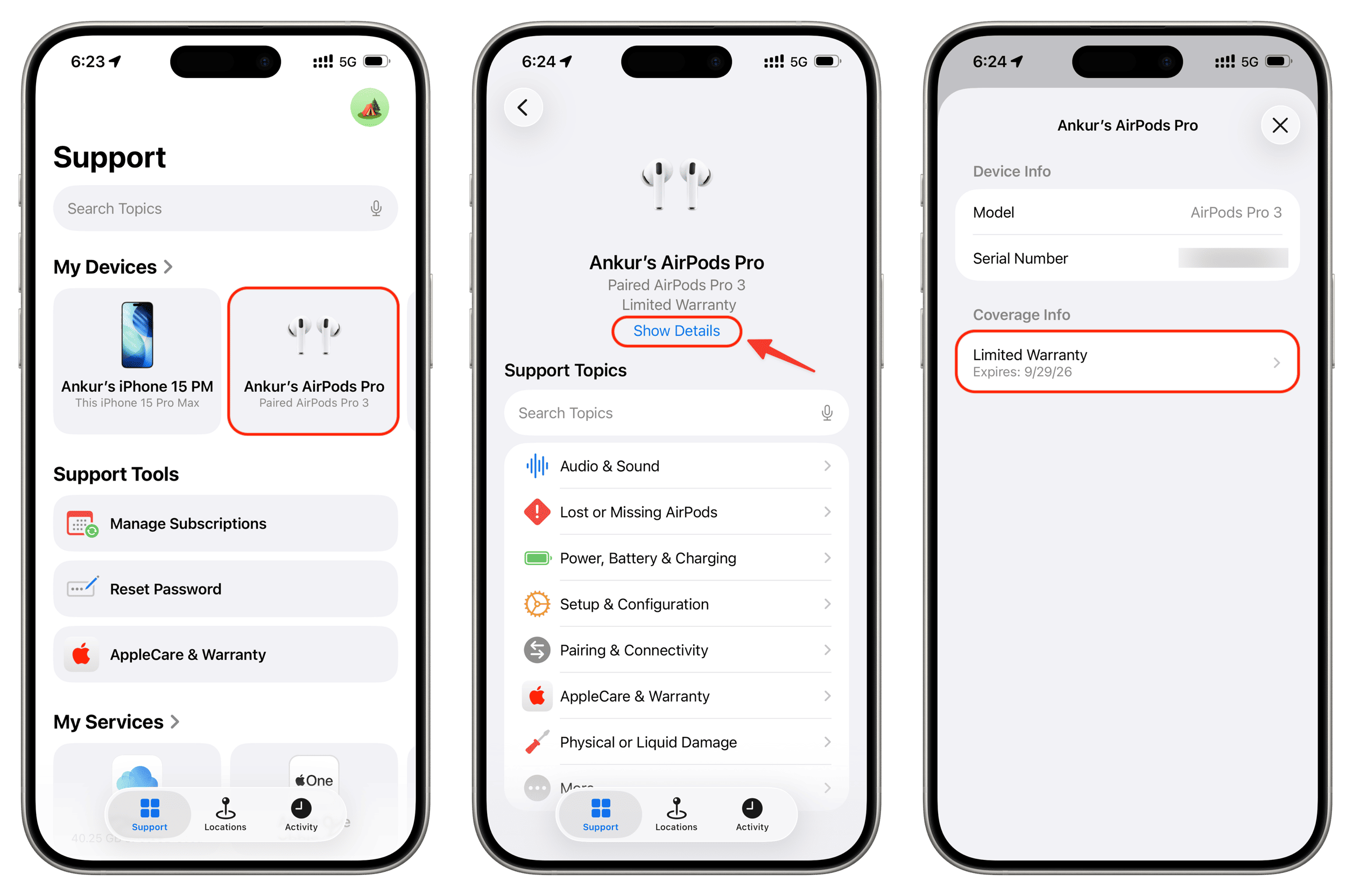
- Download the official Apple Support app on your iPhone or iPad. Then, open the app and go through the basic setup. It should automatically log you in using the Apple ID added to that device.
- Select your iPhone, iPad, Watch, AirPods, Mac, HomePod, or another device from the My Devices section.
- Tap Show Details below an Apple product of yours.
- You’ll see Limited Warranty or Coverage Expired. Tap one for more info about your repairs, service, chat and phone support, hardware coverage, or AppleCare+ coverage availability.
Use Apple’s My Support page
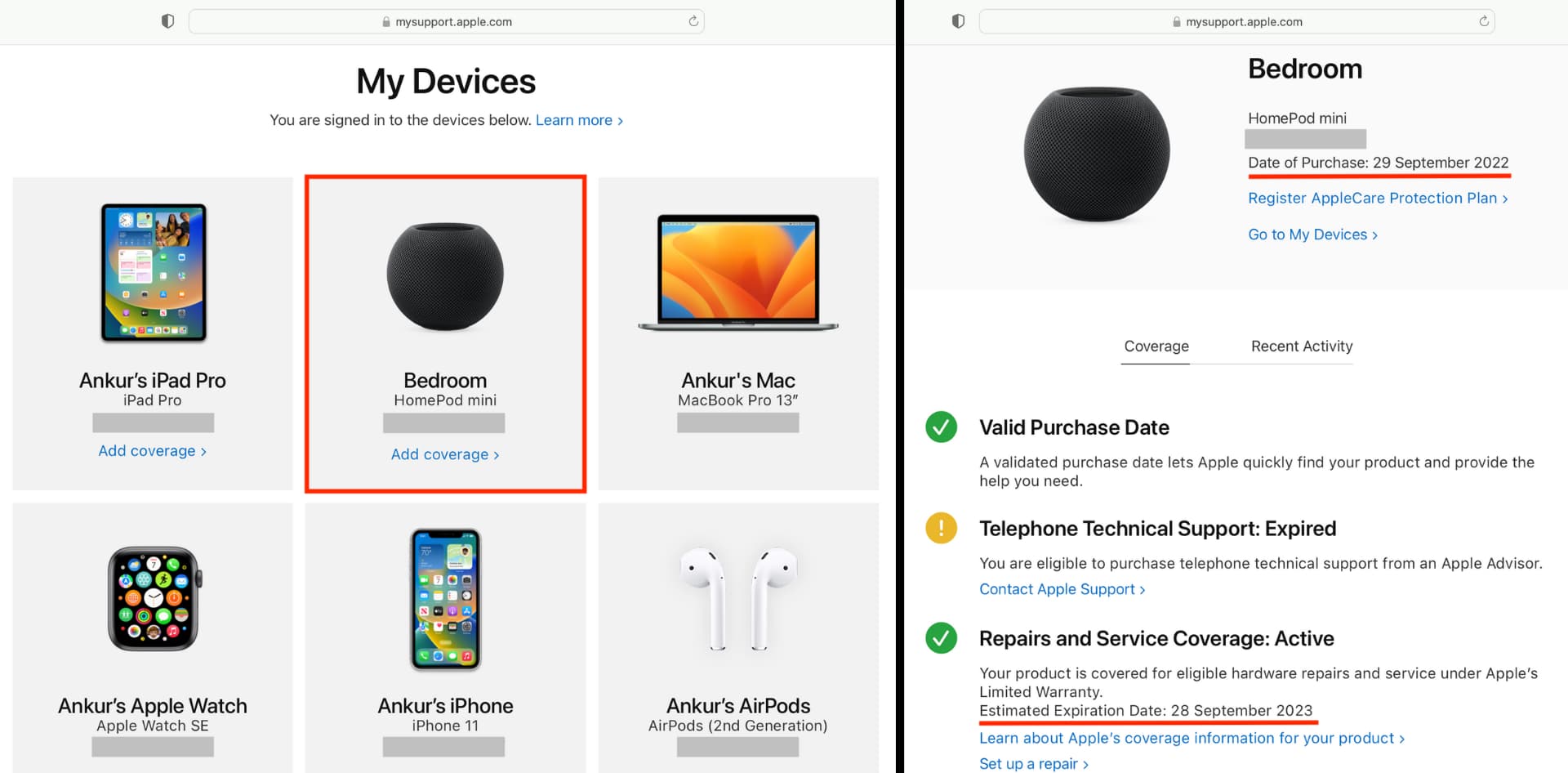
- Visit mysupport.apple.com and sign in using your Apple Account and password.
- Select your iPhone, iPad, Mac, AirPods, Apple Watch, HomePod, or another device under the My Devices heading.
- On the next screen, you’ll see the date of purchase, repairs & service coverage, and other details of this selected device.
Calculate the remaining warranty using the purchase or delivery date
As mentioned at the beginning of this post, every Apple product has a limited one-year warranty (and two years in some countries). Now, if you can’t get the remaining warranty status of an Apple device, such as a Magic Mouse, Magic Trackpad, Magic Keyboard, etc., simply follow these steps:
- Find the original invoice that shows the purchase date.
- Use today’s date and the purchase/delivery date to calculate the remaining warranty.

On a related note: