Tricks

15 Instagram hacks, tips and tricks you should know about

Over the years, I've learned or picked up a few Instagram hacks and tricks that I'm going to share with you. They aren't life changing by any means, but they can be helpful, fun, or just make your Instagram usage more enjoyable. Chances are, you already know some of these tips, but I'm hoping you will still learn a thing or two along the way.

5 alternatives to a SIM eject tool for easy SIM removal

SIM eject tools are useful for getting SIM cards out of iPhones and iPads, and honestly, I would recommend everyone who owns one of these devices carry at least one of them at all times, whether in your wallet or on a key ring.

Of course, there are always those times when you're out and about and don't have a SIM eject tool with you when you really need one. So what alternatives can you use instead?

In this piece, we'll talk about five alternatives to a SIM eject tool you can use to get the SIM card out of your iPhone, iPad, or Android phone.

Tip: customize the Safari toolbar on your Mac

Last week, we showed you how you could customize the toolbar on your Mac's Finder window to better suit your needs, but there are other apps throughout the macOS operating system that come with toolbar-editing capabilities as well.

In this tutorial, we'll show you how you can customize the toolbar in the Safari web browser to make your web surfing experience the best it can be for your specific needs.

What to do when Siri doesn’t pronounce your name right

Siri is an amazing piece of software and Apple has tried so hard to make it capable of pronouncing everyone's names right, but there are just too many names in the world for Siri to be perfect and pronouncing all of them.

On the other hand, if you're sick of Siri not being able to pronounce your name correctly, there is a way to train her so she will pronounce it right going forward.

We'll show you how this is done in this quick tutorial.

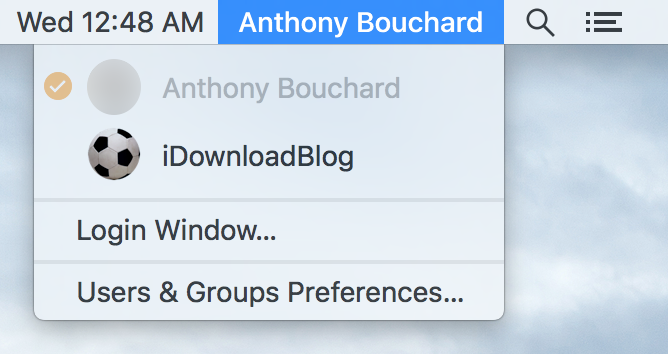
Clean up time: how to remove your account name from your Mac Menu Bar

Any time you set up a new Mac, or make a new user account, macOS will automatically display your account name in the Menu Bar so you know what account you're logged into.

But for some people, you probably already know what account you're logged into because you only have one account, or perhaps that text is just cluttering up your Menu Bar and you want it gone.

No matter what the scenario may be, there's an easy way to remove your macOS account name from the Menu Bar and we'll show you how it's done in this simple tutorial.

Changing the default payment method in Apple Pay

Despite some Apple device users being skeptical of using Apple Pay for security reasons, many are embracing the power of NFC payment technology everywhere it is supported.

If you're like many Apple Pay users, then you might have more than one credit or debit card linked to your Apple Pay Wallet. If this is the case, then it would be good to know how to choose which card is set as the default card when you choose to carry out payments at the register.

In this tutorial, we'll show you how that's done.

Bummed by iOS’s erratic text selection in Safari? Try this simple trick

Sometimes it feels like I'm wrestling with iOS's text-selection feature in Safari instead of it making my life easier. Increasingly, certain webpages either wouldn't let me copy body text at all or would leave me struggling trying to make a precise selection.

More often than not, zooming doesn't prove much of a help. This issue is particularly infuriating when trying to highlight a URL. But don't worry, this is where iDownloadBlog's how-to series comes to the rescue!

Here's a simple trick which helps override this behavior, letting you highlight and copy text on webpages that don't necessarily play nicely with iOS's text-selection feature.

Customizing the toolbar in your Mac Finder window

If you own a Mac, you most likely use the Finder window on a daily basis; probably more than you even realize. But one thing you may not have known throughout the eons of using the Finder interface as Apple has created it to be used, is that you can actually customize the Finder toolbar to your liking.

By doing so, you can supercharge your Finder window's functionality with additional easy-to-reach features, and we'll show you how to customize your Mac Finder toolbar in this simple tutorial.

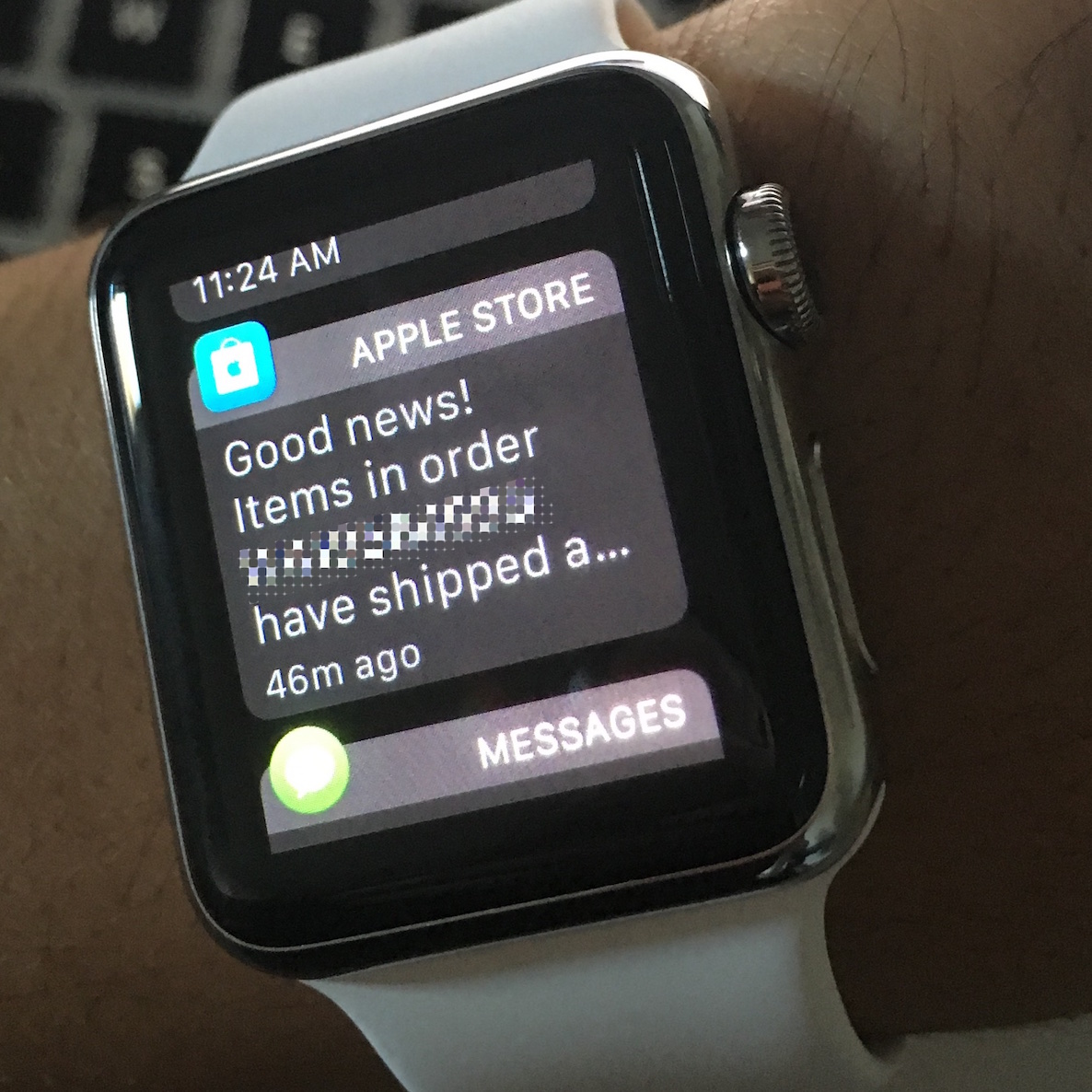
Notifications not forwarding to Apple Watch? Check these likely causes

It's a nice feeling when software works as it should, but that's not always the case. In the case of the Apple Watch, notifications that are supposed to be tapping on your wrist may not work when you expect them to.

If you're having problems with your Apple Watch not receiving the notifications your iPhone is putting out, then you'll want to follow the steps in this piece to troubleshoot what's going on and fix the problem.

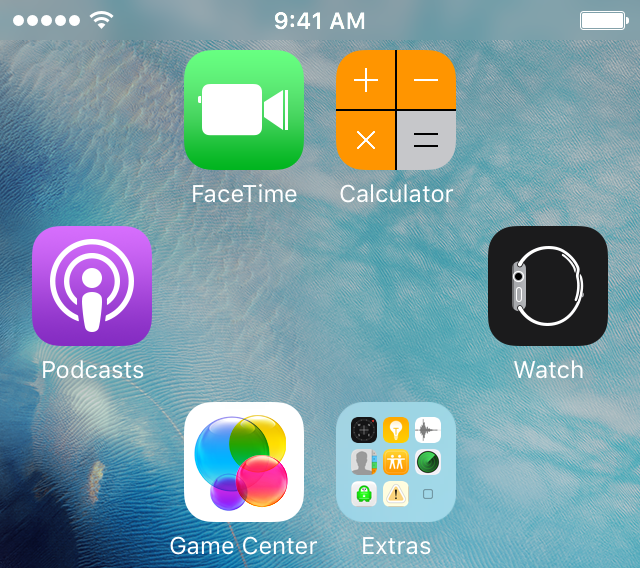
Tip: create empty spaces between apps on the Home screen, no jailbreak needed

One of the top things that those without jailbreaks wish they could do is put blank spaces between app icons on the Home screen.

Whether it's to help with your creative organization technique, or to simply add a personal touch or pattern to your Home screen, you may be excited to hear that it's possible to create blank spaces between your app icons on a completely stock, non-jailbroken iOS device.

In this tutorial, we'll talk about how you can generate blank spaces between your app icons on the Home screen, as shown above, without having a jailbreak.

Mac tip: preventing Login Items and Finder windows from opening when you log in

Like Windows, macOS makes having apps, documents, folders or server connections launch automatically whenever you log in to your Mac as easy as dragging them to the System Preferences → Users & Groups → Login Items section.

Sometimes, one or more Login Items may cause software problems or prevent your computer from starting up properly.

Rather than remove all of your Login Items permanently, here's how you can temporarily prevent them from opening automatically when you log in, without needing to adjust your settings.