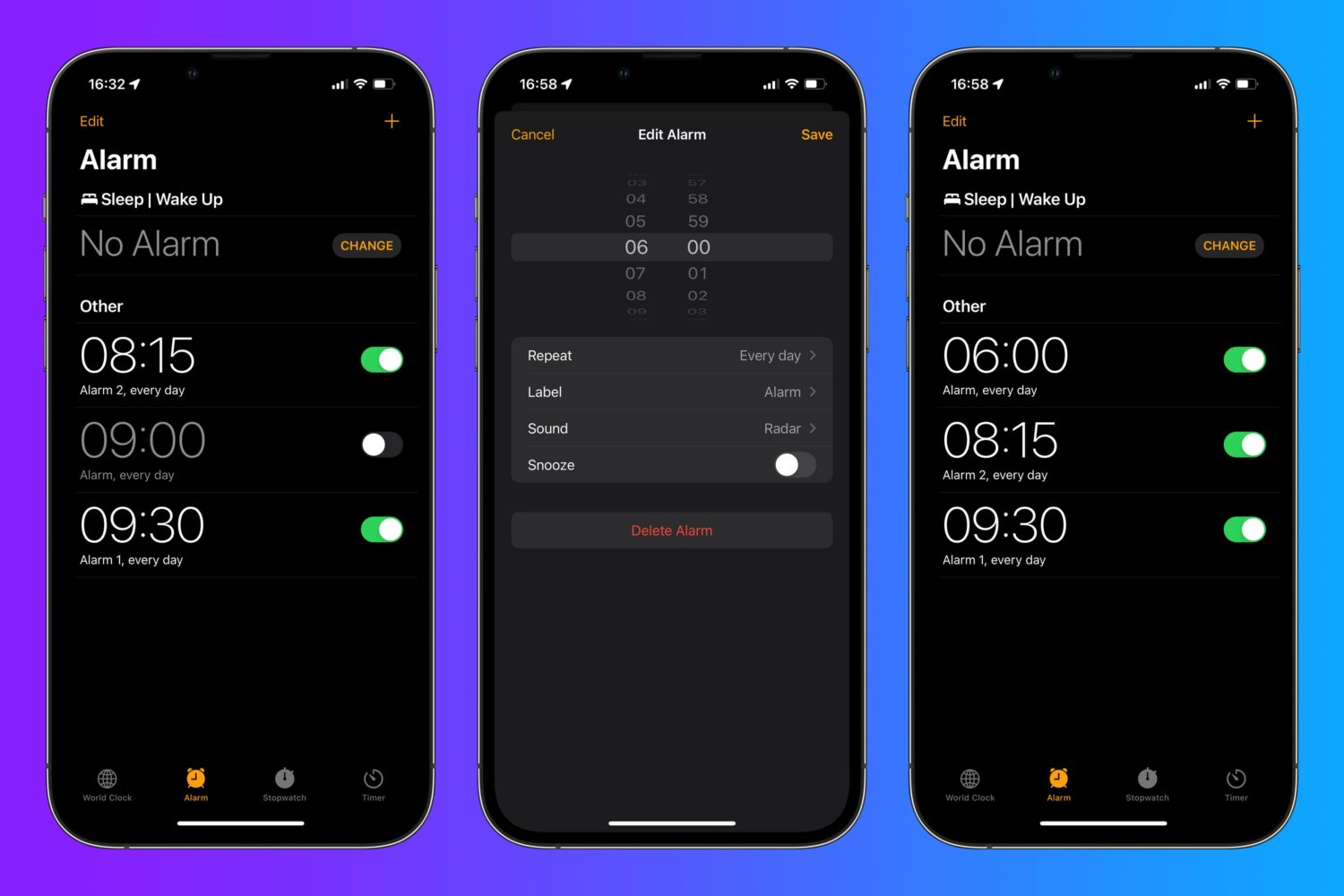
Think twice before concluding there's nothing new to learn about editing iPhone alarms. If you have iOS 15.0 or later on your iPhone, use this handy tip to quickly edit an alarm.
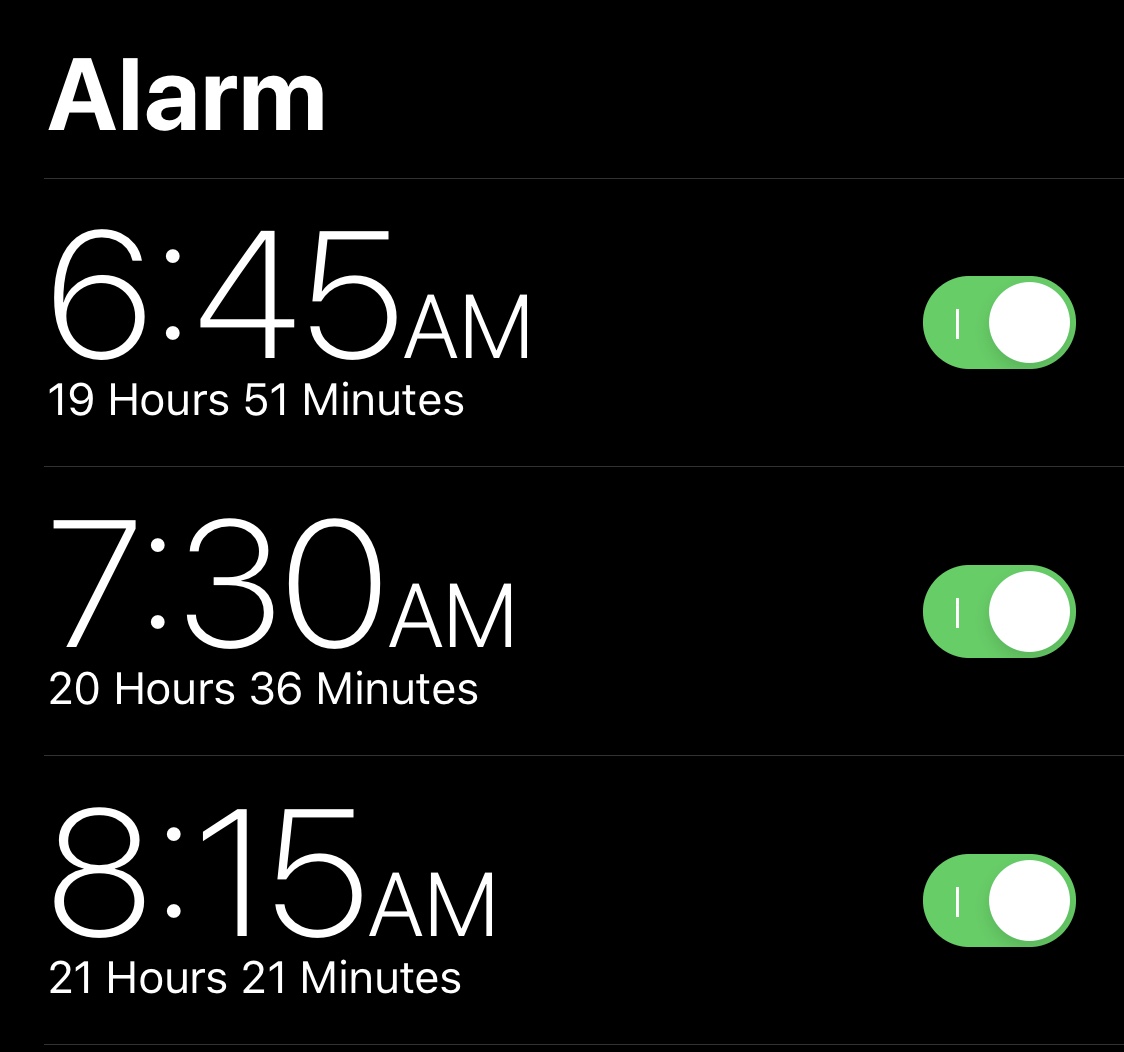
Tip: Edit an alarm on your iPhone without hitting an Edit button first
Think twice before concluding there's nothing new to learn about editing iPhone alarms. If you have iOS 15.0 or later on your iPhone, use this handy tip to quickly edit an alarm.
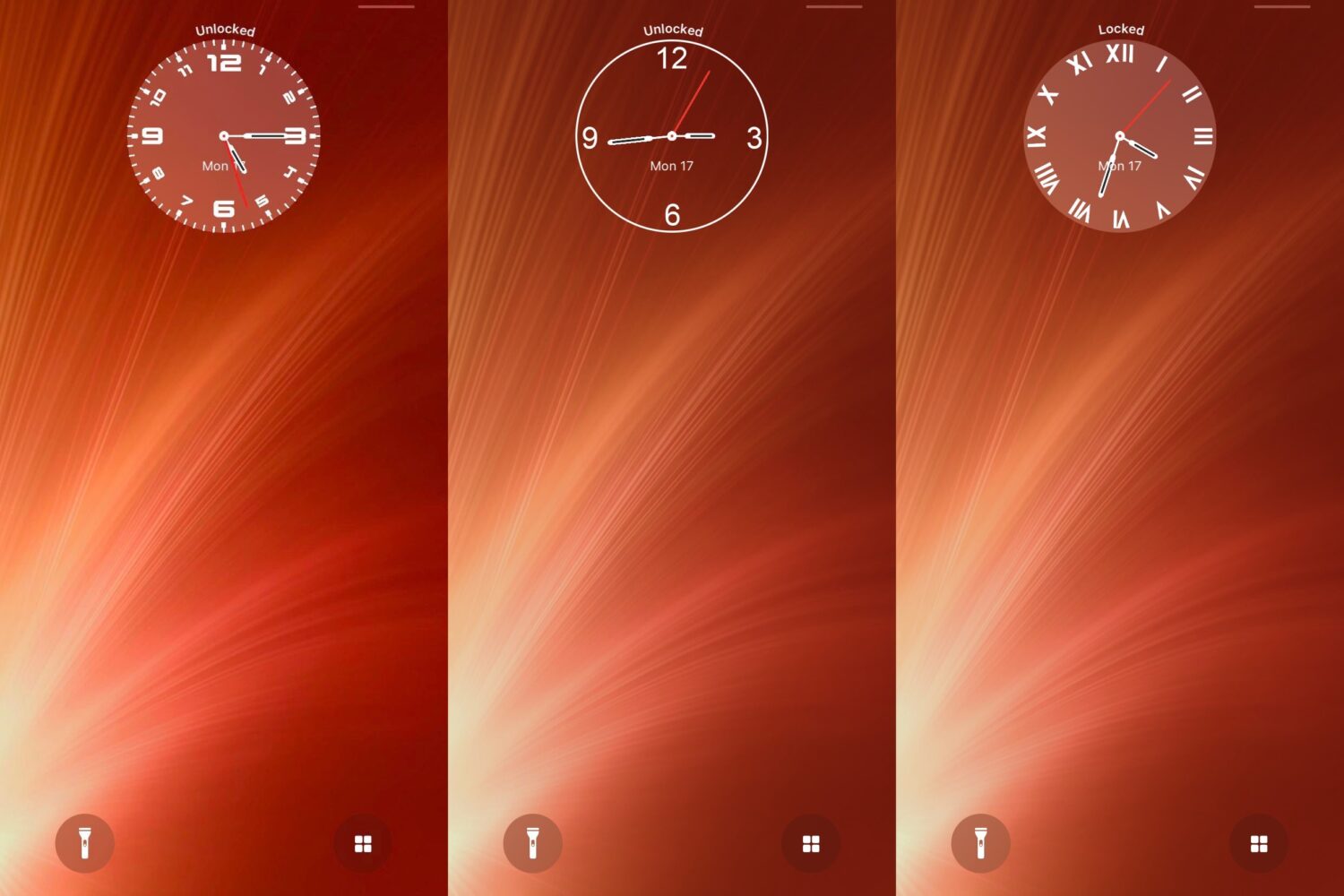
Do you have a soft spot for the timeless aesthetic of an analog clock? If so, then a new jailbreak tweak subtly named Analog by iOS developer ginsudev could be right up your alley!
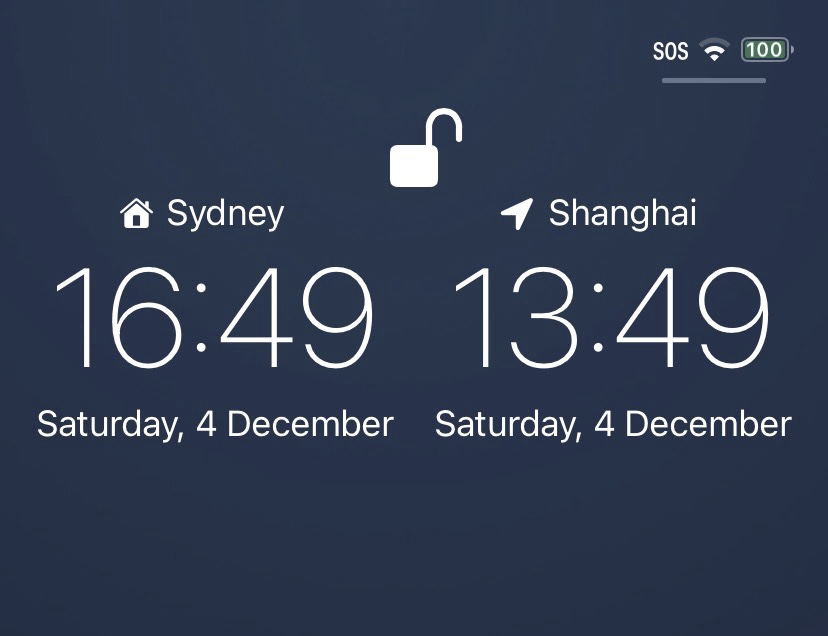
The old saying that goes “out of sight, out of mind” has a lot of truth behind it, and if you border two different time zones or have friends outside of yours, then it can be easy to forget what time it is in that other place.
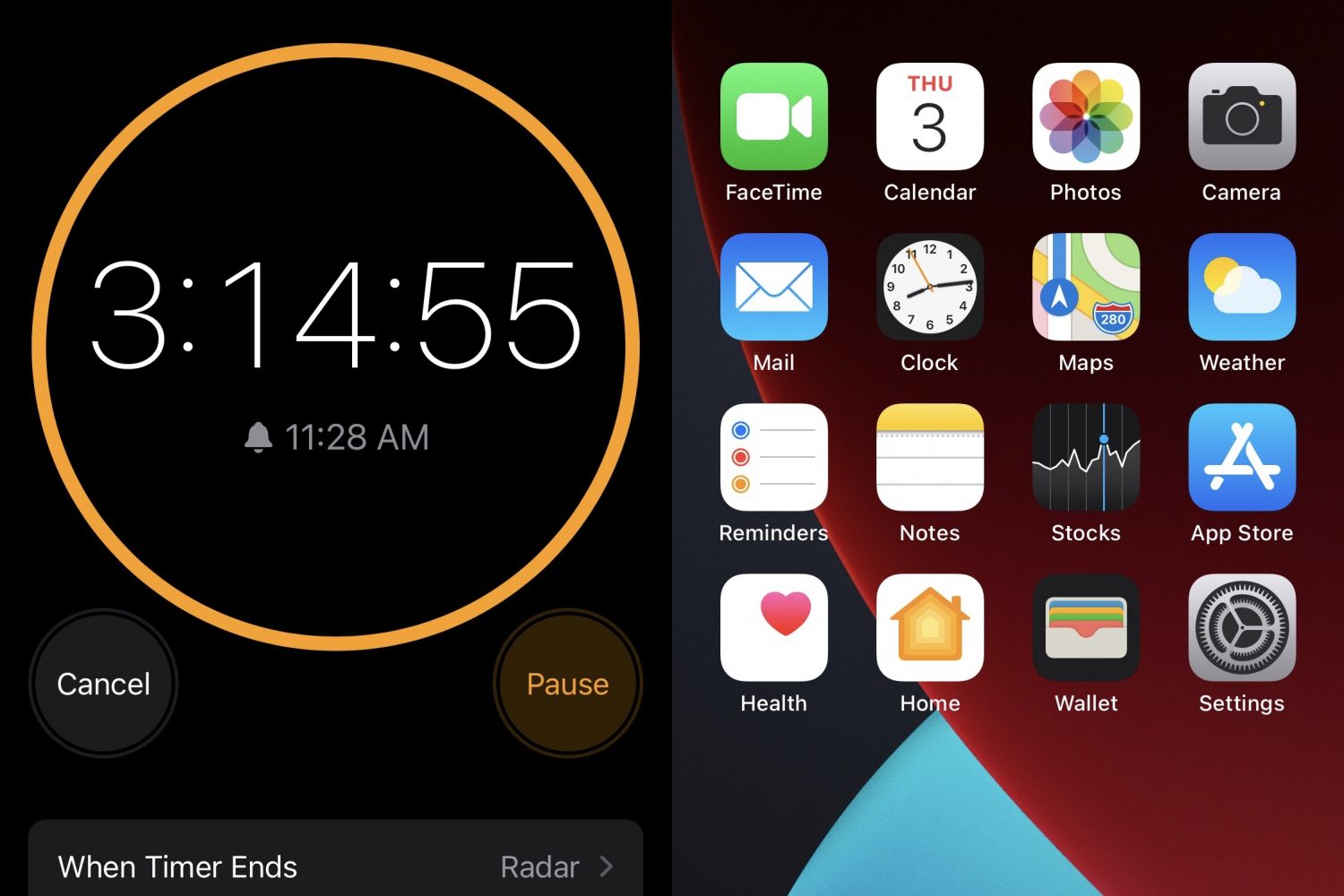
After setting a timer on your iPhone, you can either glance at the Lock Screen or open the Clock app to see the remainder before it rings. Sadly, there’s no in-between; your iPhone either needs to be locked or you’ll have to glue your eyes to the Clock app.
That’s something that a new and free jailbreak tweak called StatusBarTimer by iOS developer ldefix2020 aims to fix, as it puts the timer remainder in the Status Bar so that you can see it from just about anywhere in iOS.
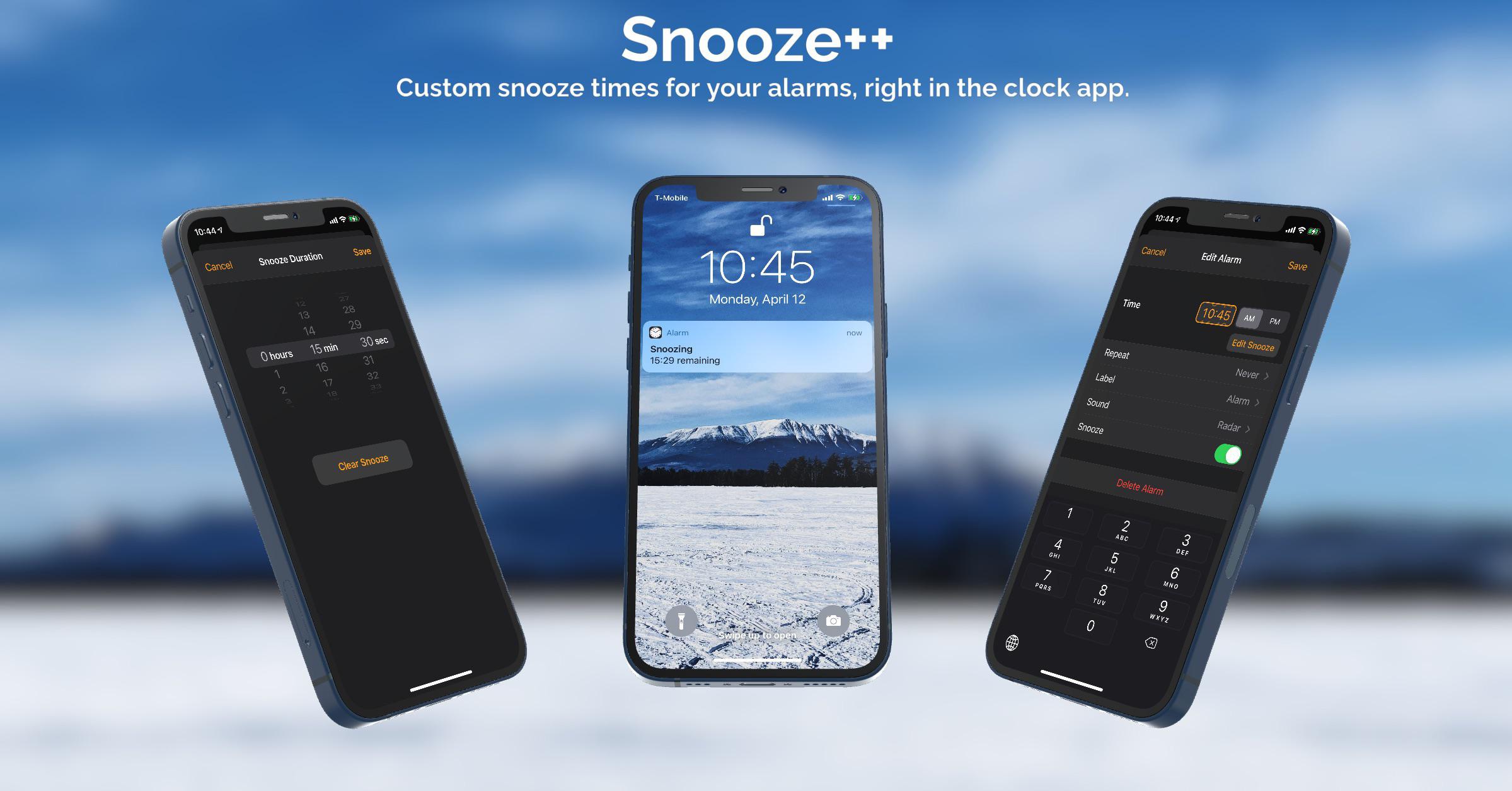
Anyone who uses an alarm to get up in the morning should be at least vaguely familiar with the snooze function, which allows you to procrastinate with respect to waking up for a short period of time before the alarm goes off again. The iPhone’s built-in alarm function also provides this feature, albeit not with as much customization as some would like.
Snooze++ is a newly released and free jailbreak tweak by iOS developer arya1106 that changes this for alarm-using jailbreakers. With it, users can optimize each of their individual alarms’ snooze durations directly from iOS’ native Clock app.
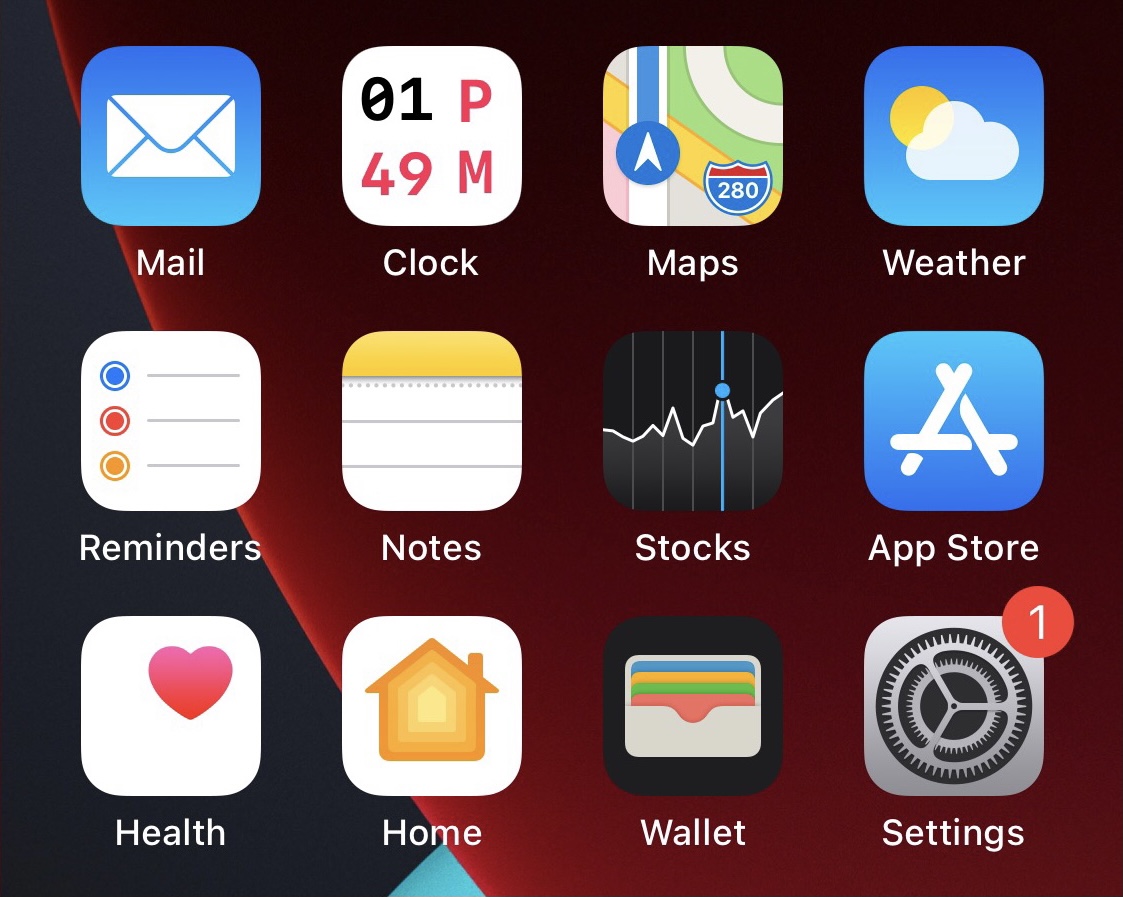
One of the small details that I appreciate about my iPhone’s Home Screen is the fact that the Clock app’s icon has been animated with moving hands (seconds, minutes, and hours) to display the correct time in real time. But it’s still strange to me that Apple only provides an analog option.
With a newly released and free jailbreak tweak called DigitalClock by iOS developer Chr1s, you can replace the Clock app’s animated analog clock Home Screen icon with a digital clock alternative. Additionally, the tweak comes with a plethora of different options for customizing the appearance.
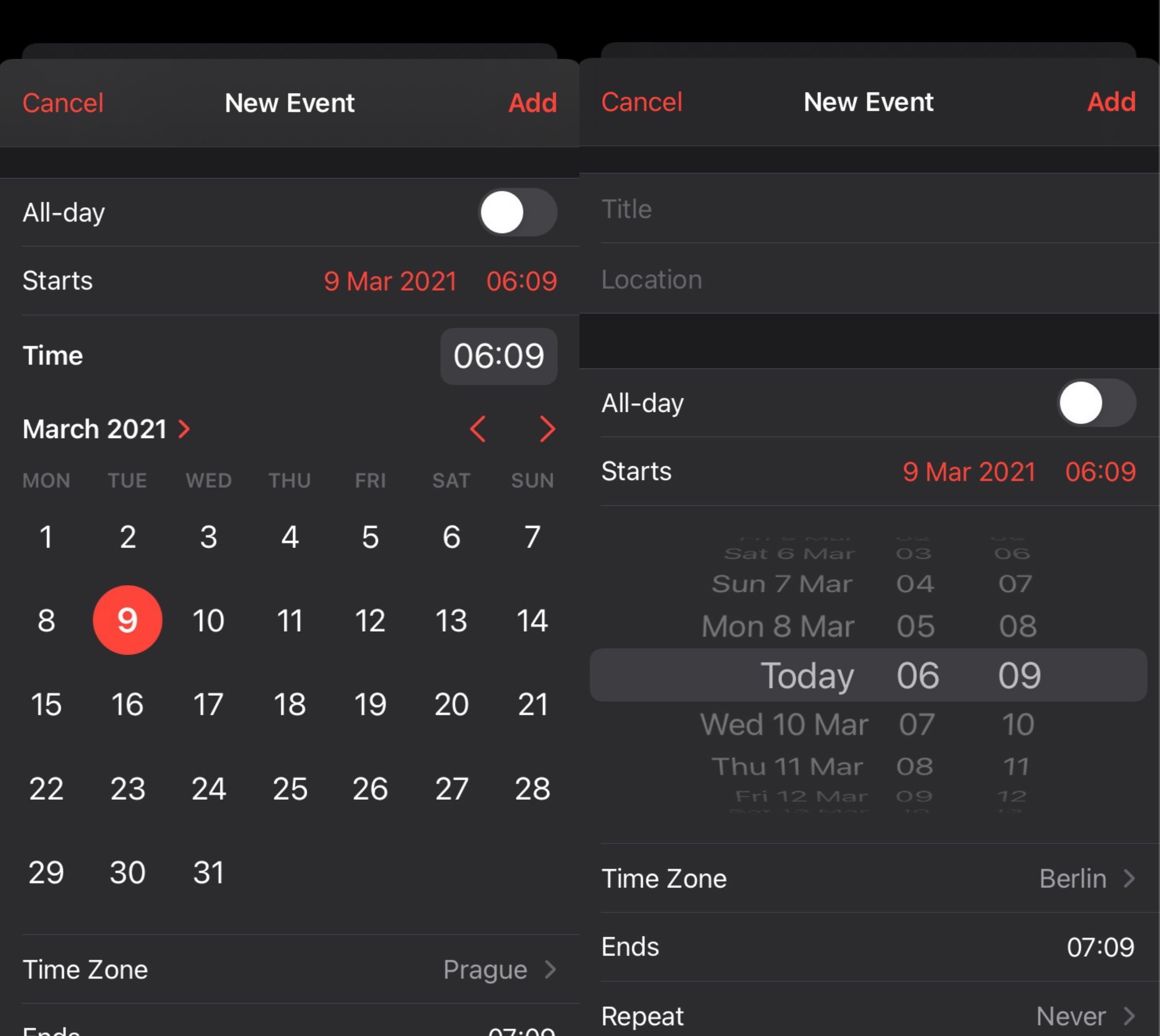
If you ever set up alarms in your iPhone’s native Clock app or upcoming events in the Calendar app, then you’re probably used to having to enter a specific time and date for those types of configurations.
As many noticed, iOS & iPadOS 14 have replaced the traditional wheel-style date selector with an inline version that displays a combo box for the time and a full-blown calendar picker for the date. While some really like this new inline selector, others aren’t used to it and have found it to be more cumbersome.
Many iPhone users rely on their handset to wake them up each and every morning with its built-in alarm feature, myself included.
While I certainly appreciate just how easy it is to set up alarms in the iPhone’s native Clock app, I also recognize that there are a few different ways Apple could make it better. One of those would be to add a countdown timer to the native alarm interface.
It was only yesterday that we showed you a jailbreak tweak dubbed Gears, which animated the Settings app icon on the Home Screen such that the gears depicted inside the icon actually rotated, much like one used by the OTA software update mechanism from the days of iOS 7.
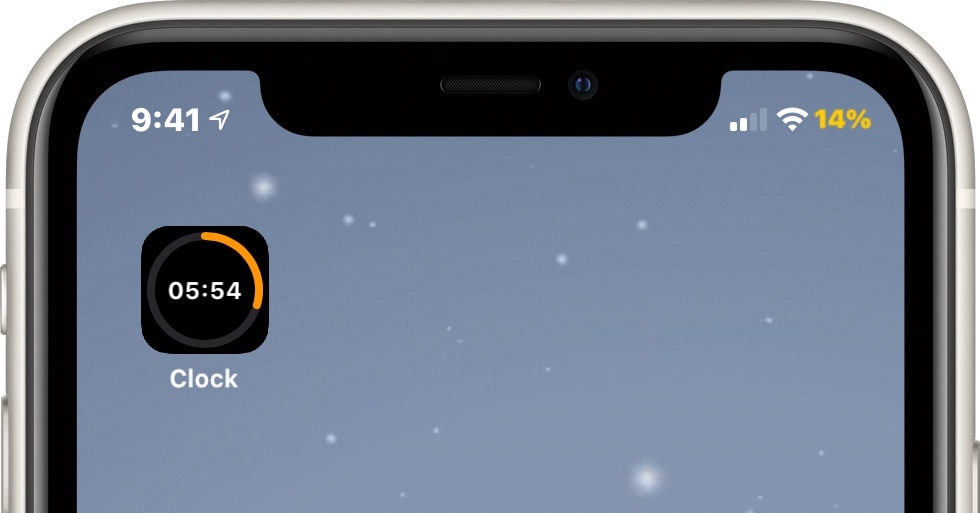
Today, we look at an entirely different type of animated Home Screen icon – one that impacts the likes of the Clock app to depict the current state of any active timers you might have counting down in the background. Such an icon is brought to us by way of a new jailbreak tweak called TimerIcon by iOS developer Idefix0202.
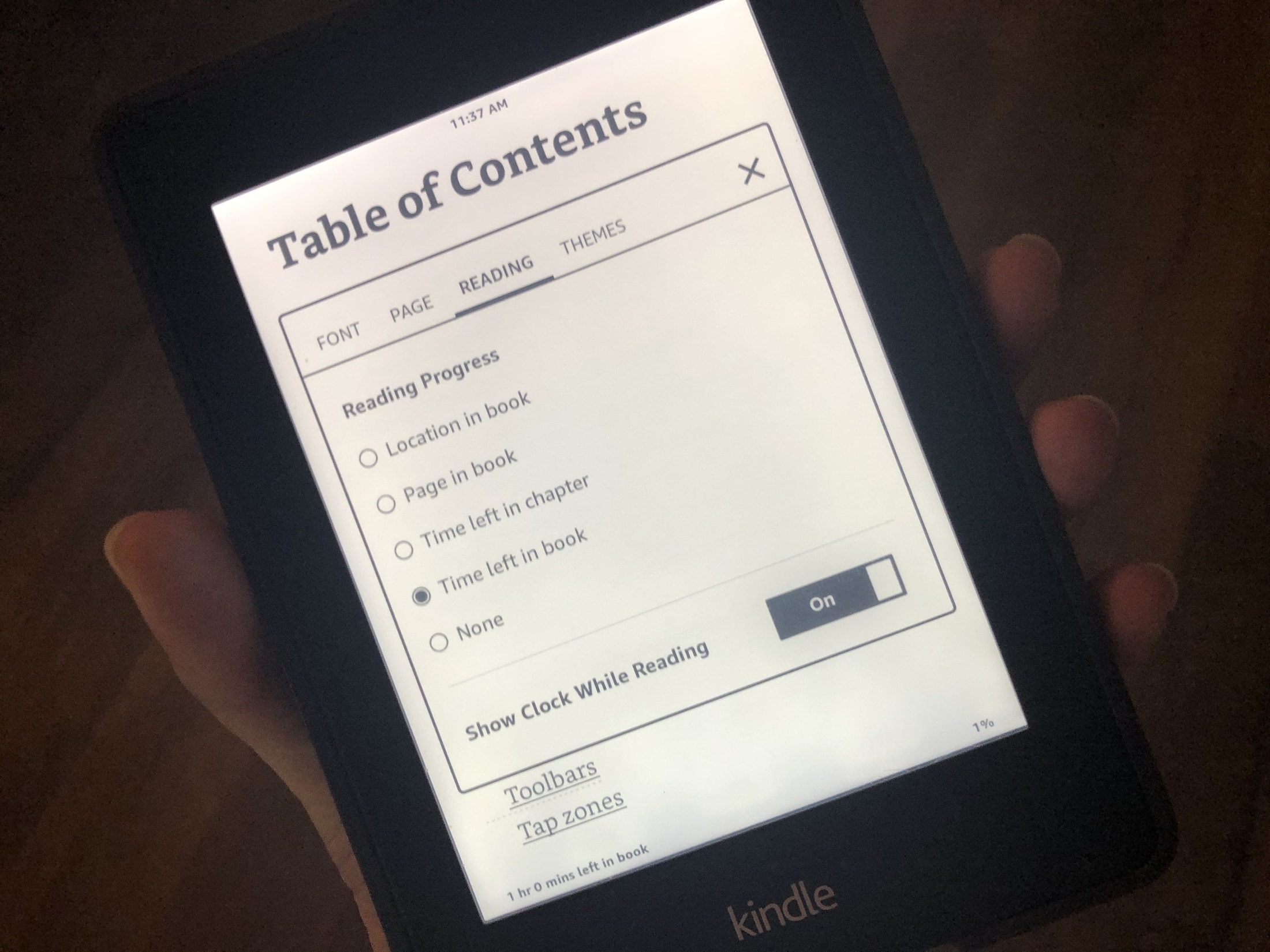
When you’re reading a book on your Kindle Paperwhite, you may not have a lot of time. Maybe it’s your coffee break from work or spare time before dinner. In these situations, it’s good to know how much time is remaining or the current time.
You can display your reading progress with the time left in the chapter or book, see the current time while you’re reading, or simply show the page or location in a book. Here’s how.
Anyone who uses their iPhone’s native alarm feature to wake up each morning probably understands the struggle of trying to turn the obnoxious noise off when it begins firing. On the other hand, you might only be half-awake when you attempt to do so, resulting in repeated blind taps on your nightstand only to find that you continuously miss the correct button to stop the alarm.
BigSnooze is a new jailbreak tweak developed by Cole Cabral that tries to remedy this problem by making the snooze and stop buttons easier to tap when you’re on the cusp of awake and incoherent while the alarm fires at the crack of dawn. The result? No more tapping around and missing the desired button with your finger when you’re groggy.
With the many updates and new features that came with iOS 14 and iPadOS 14, one of those small but nice improvements is the date and time picker. Creating a to-do in Reminders or event in Calendar is easier with the enhancements. And so is setting an alarm in the Clock app.
You have options to either tap the numbers to set an exact time or scroll with a flick of your finger. This lets you use the method that’s quickest or easiest for you. Haven’t checked it out yet? Here’s how to set the time for Alarms in the Clock app on iOS.