Mac

Stay up-to-date on the latest Mac news, and tutorials. Get expert tips and tricks to optimize your Mac’s performance and learn about the latest Apple products and software updates. Discover the best Mac apps and accessories to enhance your user experience.

10 cool things you can do with Automator on Mac

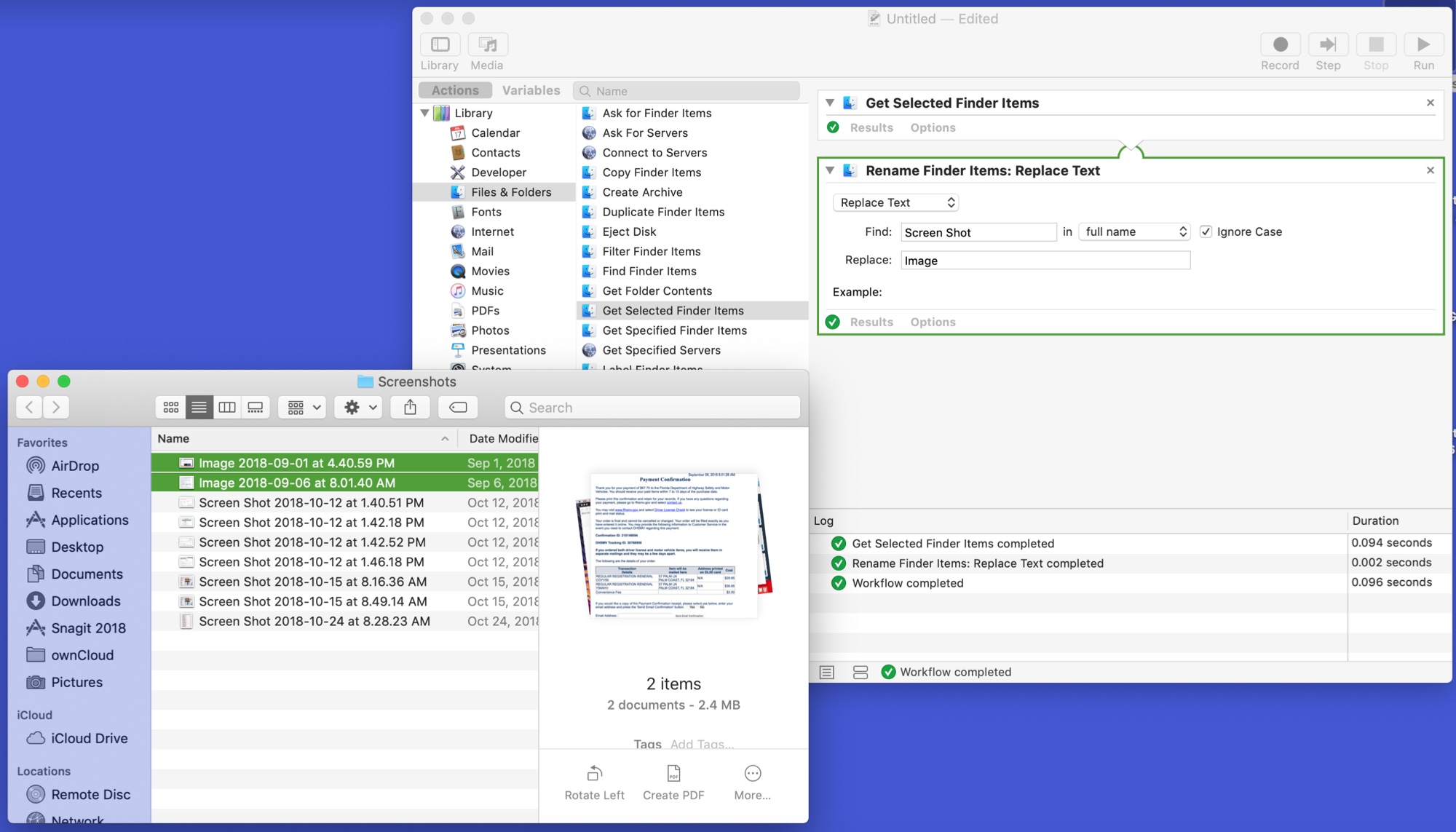
Mac Automator Rename Files

The Automator tool on Mac might be intimidating to some users, but it can be a very handy app. You can create automated workflows, actions, or applications that help you perform tedious tasks. Along with that, there are some tasks you can do with it that are just plain neat.

Here are 10 cool things you can do with Mac Automator.

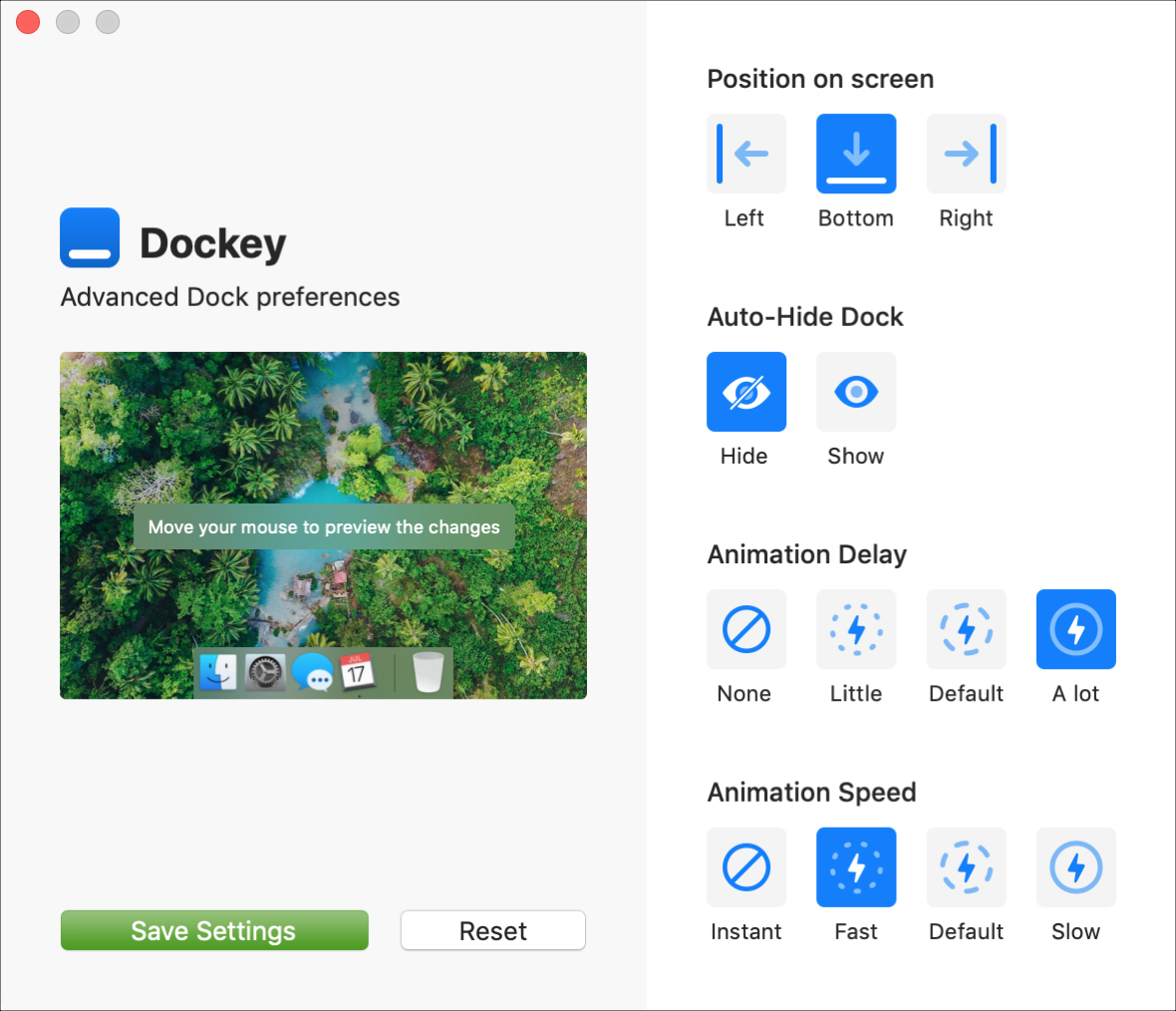
Dockey review: a simple app to customize your Mac’s Dock

Dockey App Interface Mac Featured

The Dock is an important part of your Mac. It holds the applications you use most often so that you can open them with a click. It can also contain those you currently have open, display badge icons for app notifications, and let you move things to the Trash easily.

So, configuring the Dock to your preference is a key piece to its effectiveness.

You can make some adjustments to the Dock in your System Preferences like location of the Dock, animations for minimizing windows, and changing the size of the icons.

But, if you would like to do just a little bit more with your Dock without having to toy with Terminal, then take a look at Dockey. Dockey is an application that lets you customize your Dock quickly and here’s what it has to offer.
How to add a Light / Dark Mode switch to your Mac Dock

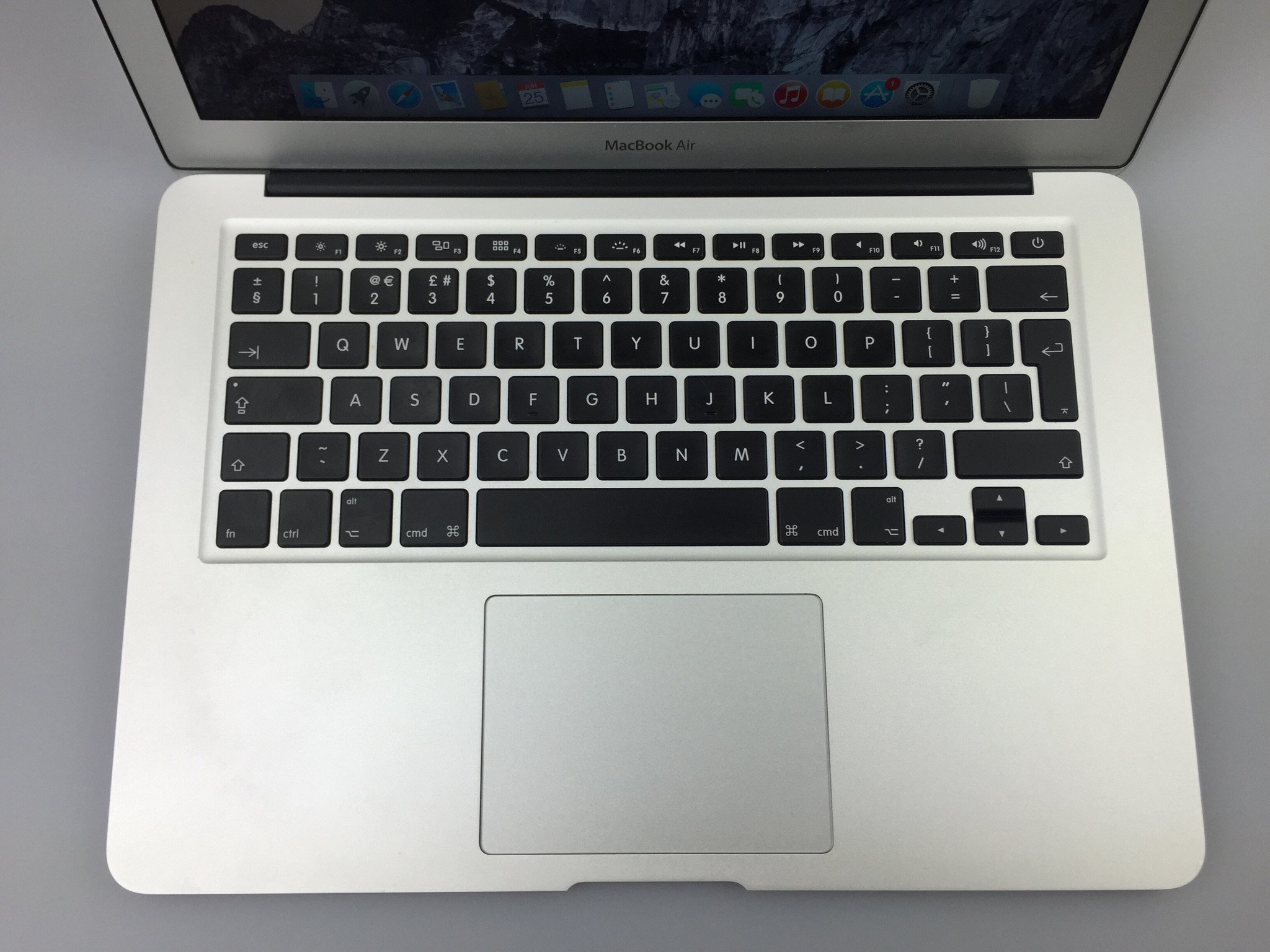
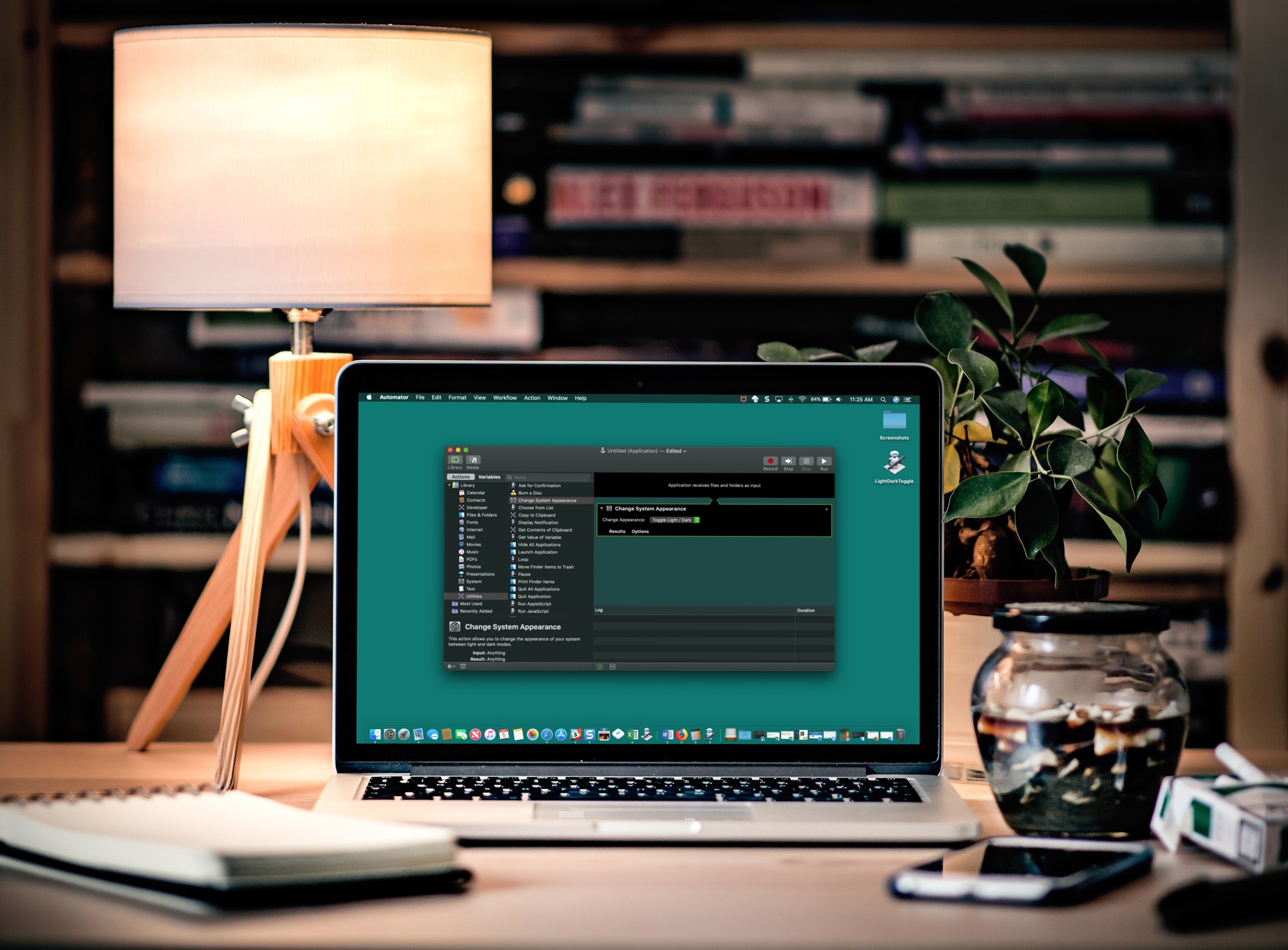
Dark Mode on MacBook with Automator

If you like switching back and forth between Light Mode and Dark Mode on your Mac but get tired of going through the process to do so, there’s an easier way.

In just a few minutes, you can create and add a Light/Dark Mode switch to your Mac Dock. It’s super simple, and here’s how.

How to loop a video in QuickTime on Mac

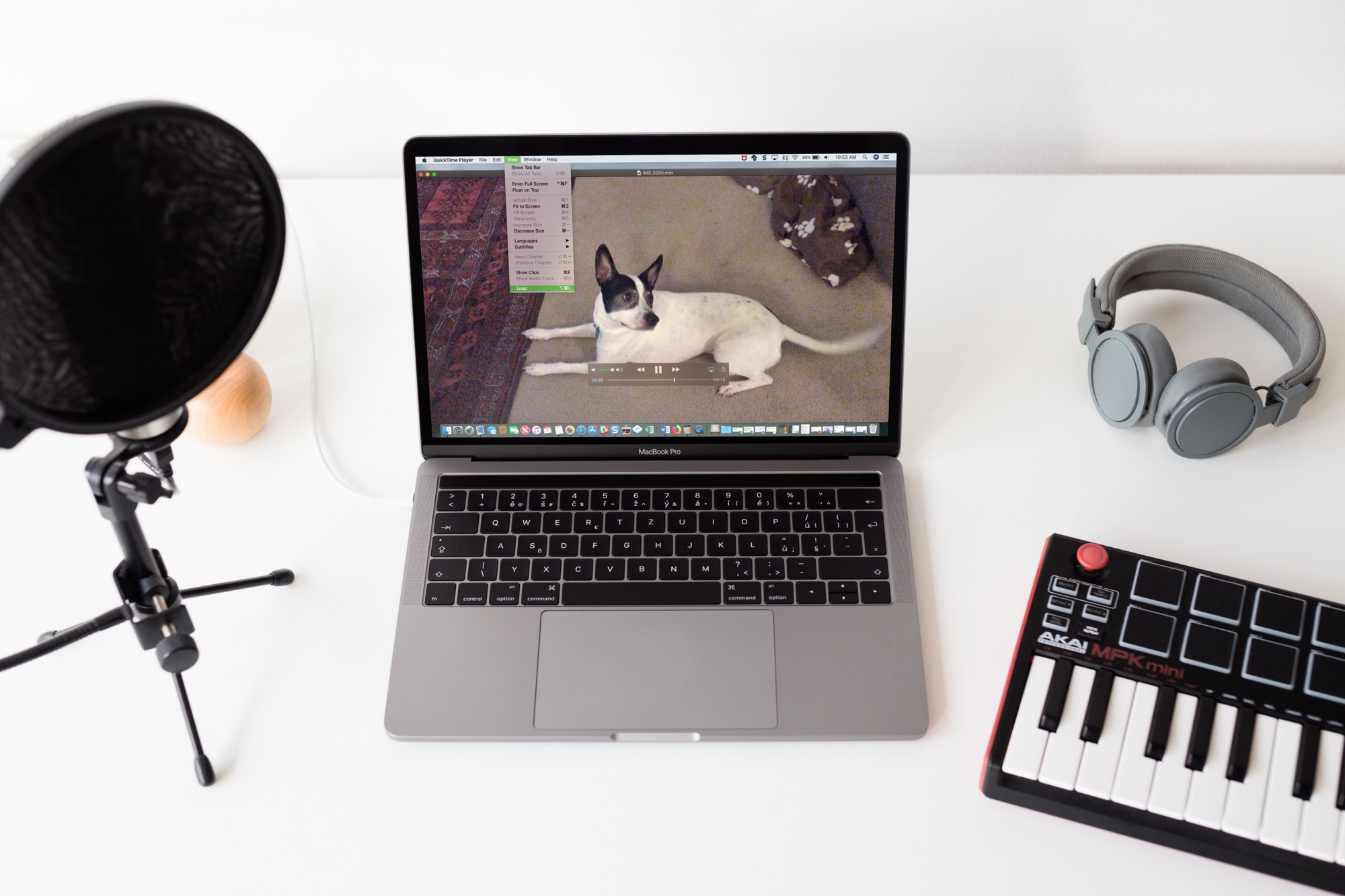
QuickTime Video Loop on Macbook Screen

Sometimes you just can’t get enough of a video. Whether it’s one you created or one that someone shared with you, whether it's audio or visual, you can easily play it over and over without hitting a button. If it can be played in QuickTime, it can be looped in QuickTime. And you can do this in just a few clicks.

Here’s how to loop a video in QuickTime Player on Mac.