In this step-by-step tutorial, we show you how to display custom text, like your name, email address, phone number, or an inspirational quote, on your iPhone or iPad Lock Screen.
You see the Lock Screen every time you pick up your iPhone, which is probably dozens or even hundreds of times each day.
While macOS has a native option to display custom text on your computer Lock Screen, iOS doesn’t, and that’s why you’ll have to use a third-party app.
You can add your email addresses or mobile numbers to the Lock Screen so that the person who finds your lost iPhone can contact you, even if the device is not in Lost Mode.
Show text on your iPhone or iPad Lock Screen
1) Download the free Lock Screen 26 – Top Widgets app from the App Store, open it, skip the intro screens, and tap “X” on the premium subscription screen if you don’t need the full version.
2) Scroll down the Widgets tab until you reach the Status Widgets section. Now, tap the minus button (-) to delete all existing status widgets. Then, tap the Create button.

3) Give your custom widget a name and type custom text in the “Widget text” section. Keep the message short, as the usable widget space on the Lock Screen is very limited!
4) Set a desired font and size, turn the widget background on or off, and tap Save.

5) Now, touch and hold anywhere on your iPhone or iPad Lock Screen and tap Customize.

6) Tap Add Widgets.
7) Scroll down and select Lock Screen 16.

8) Swipe left until you get to the Status widget and tap to add it to the Lock Screen.
9) Hit X twice, followed by Done, to exit the widget gallery. Your custom text should appear on the Lock Screen.

You can also add custom text above your Lock Screen clock in the “Text + emoji” section of the Lock Screen 26 app. Then, customize your iPhone or iPad Lock Screen and add this custom text there.

Want more options?
Download the LockWidget app and edit one of its built-in quotes.

The WidgetNotes app also makes it easy to put custom text on the Lock Screen. After adding the widget, tap it to choose your custom text.

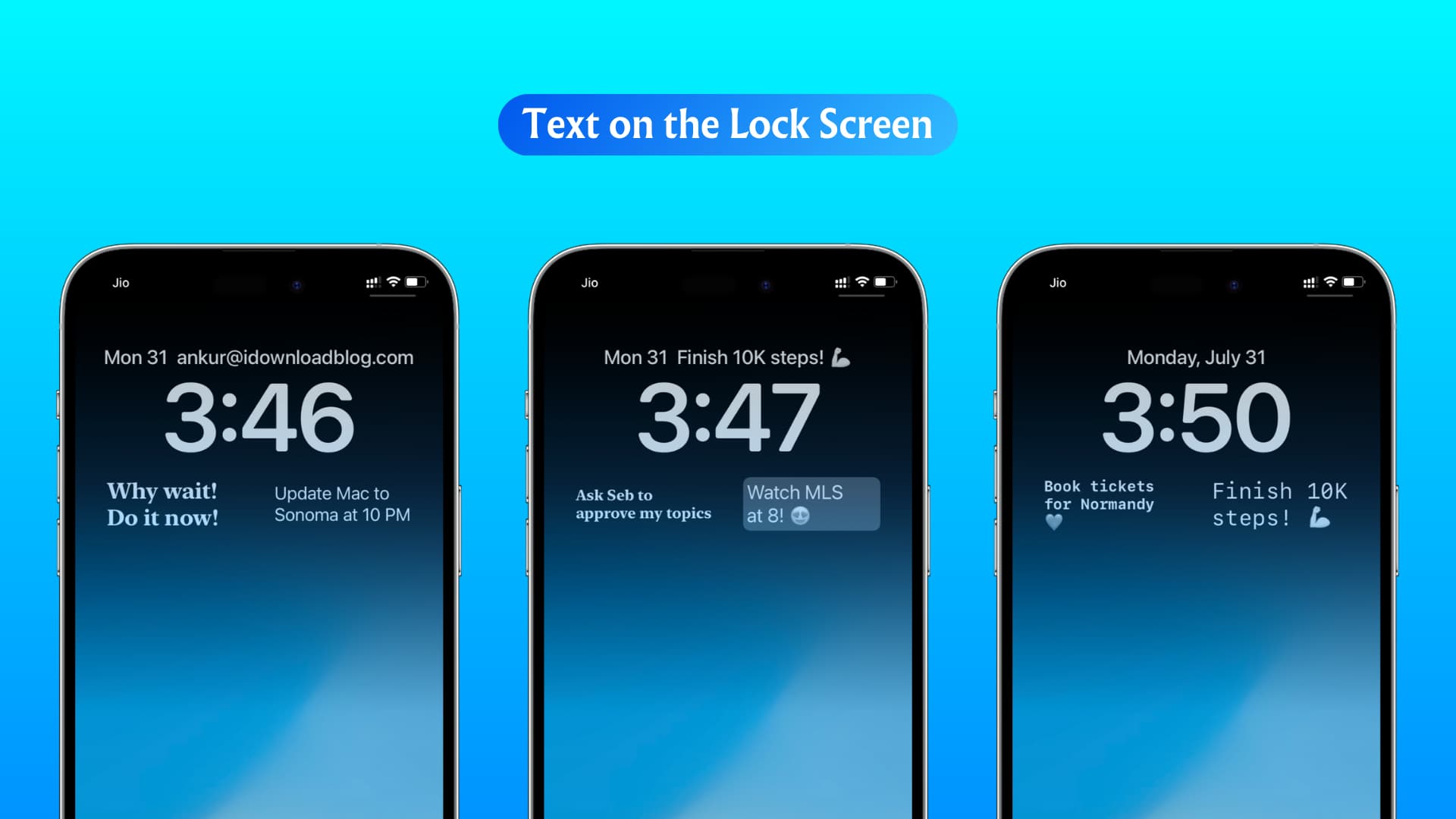
We’ve used the paid Any Text app to create custom Lock Screen text for the featured image of this tutorial.
Also, check out: